
Cancel and Close a Group Master .v2
📆 Revision Date:
From the Dashboard, select More to expand the menu Select Group Master | 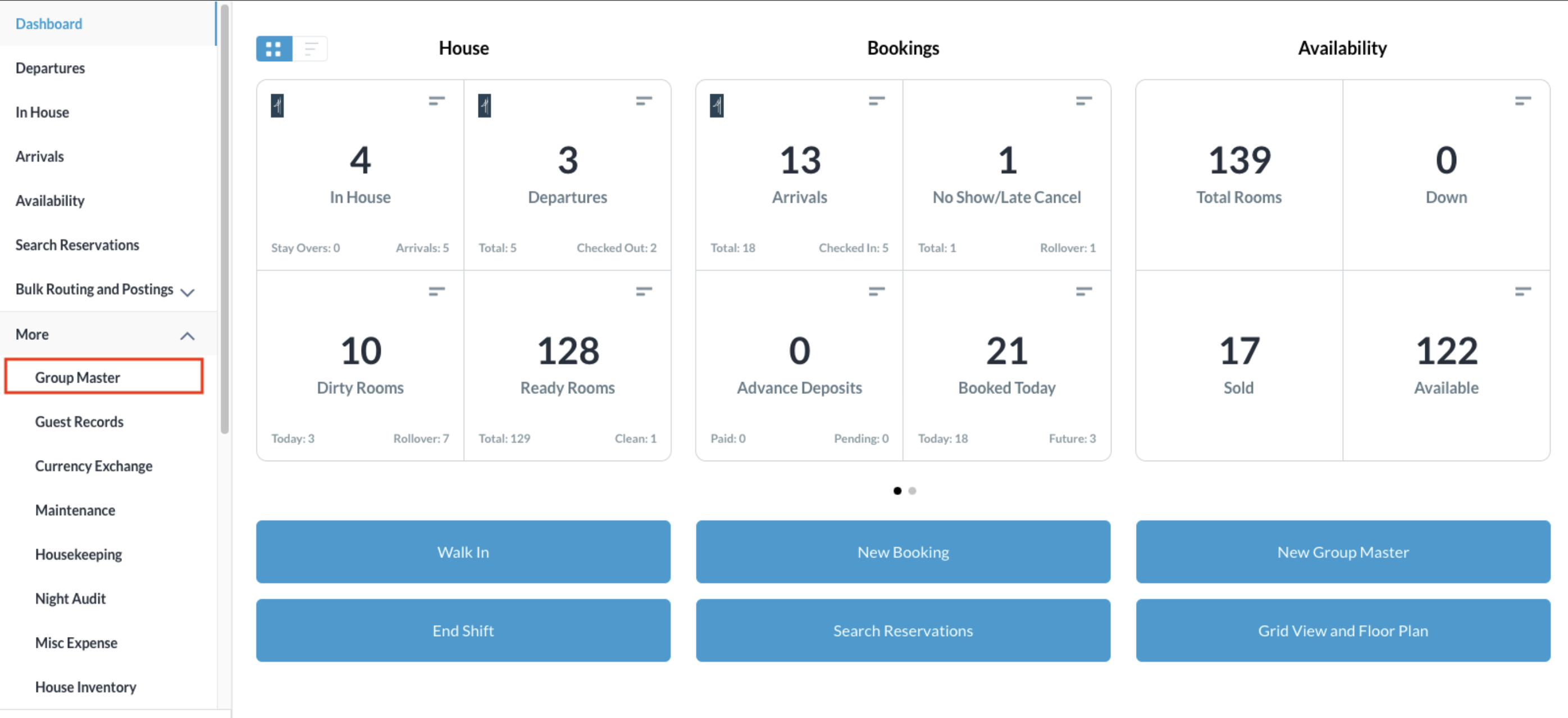 |
Search for the Group Master by Name, Code, Date or its Status and click on it to open | 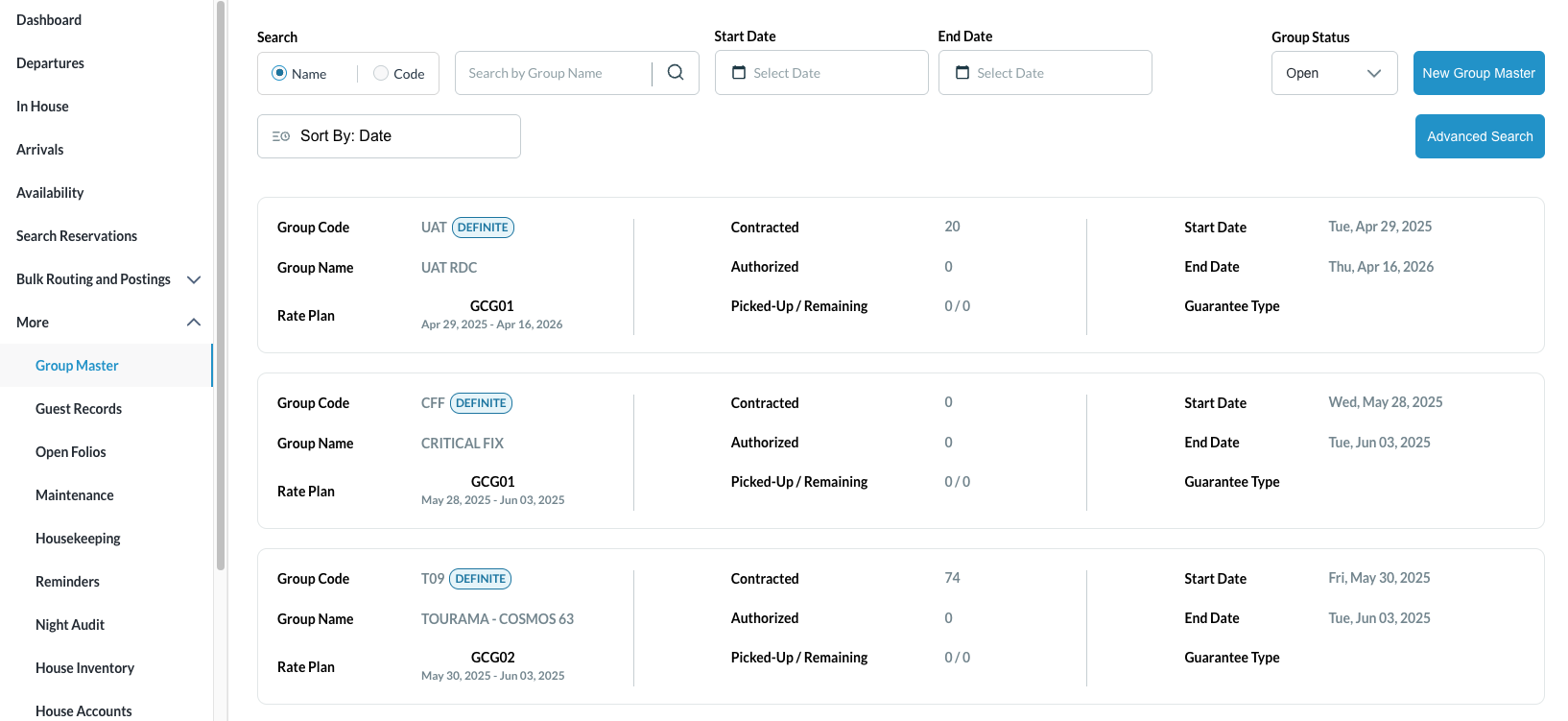 |
Once selected, click on Edit Group Status Then select Cancel Group Master | 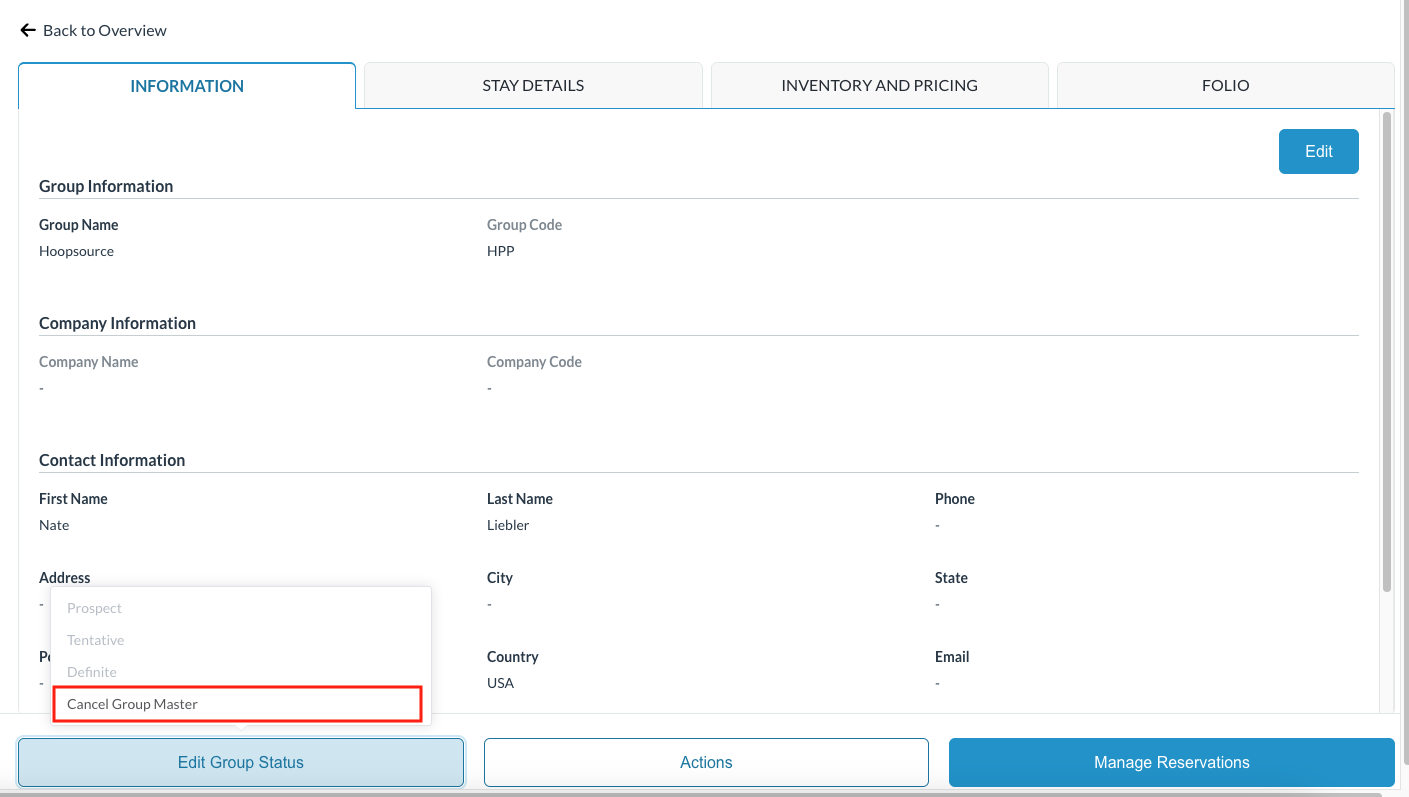 |
The Group Cancellation screen loads where the following items are noted - group name, stay dates, if the group is qualified for cancellation and how many allocated rooms will be returned to general inventory. Click on Confirm | 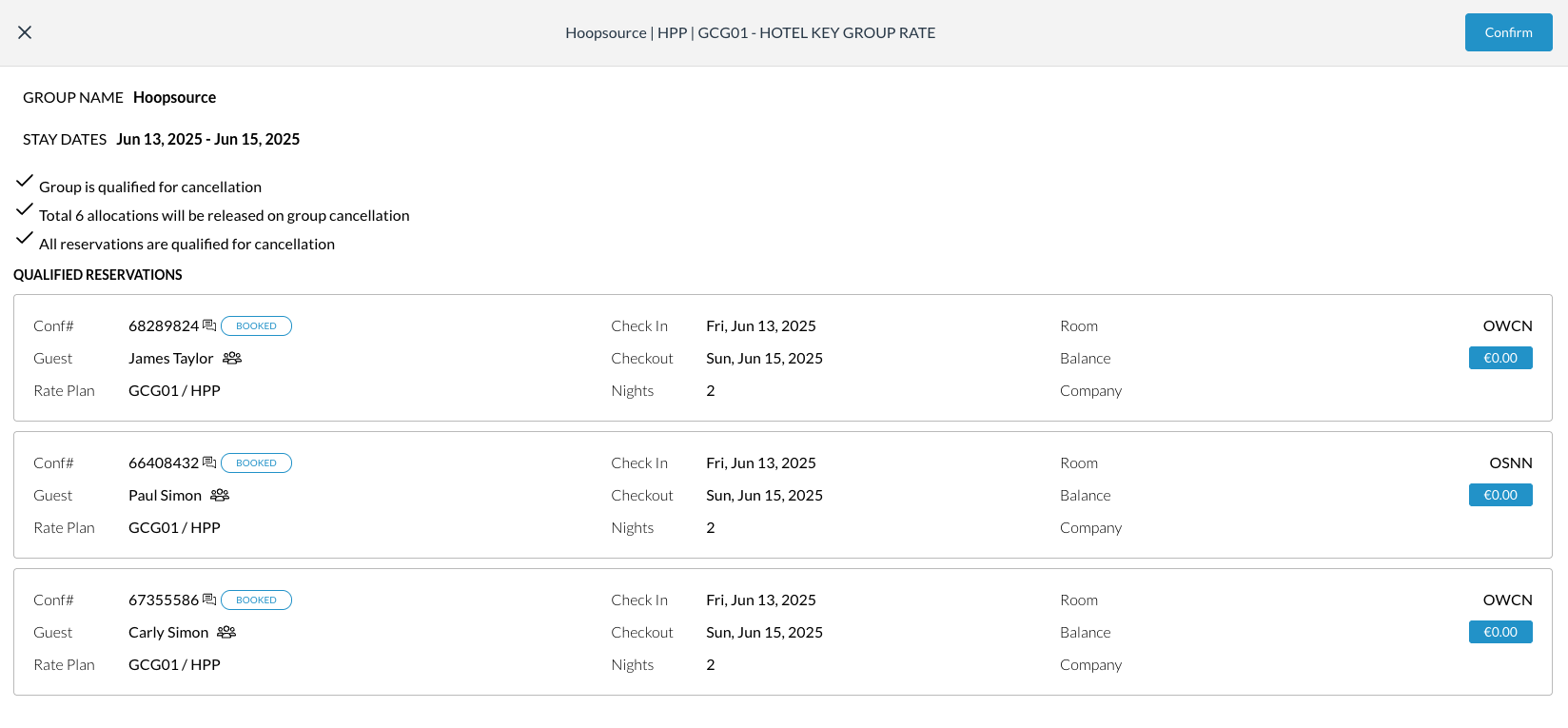 |
If there are reservations attached, the cancel reservation screen will be displayed. Click on Confirm to approve the cancellation of the member reservations as well. | 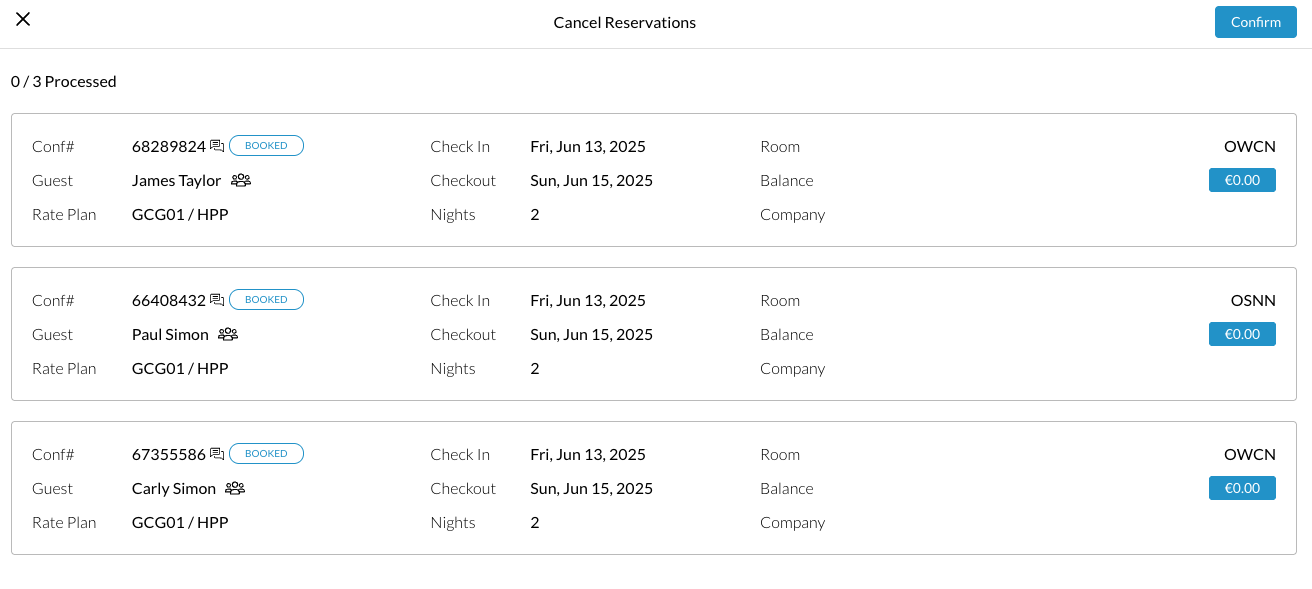 |
The group is now cancelled and indicates so at the top of the Group Master | 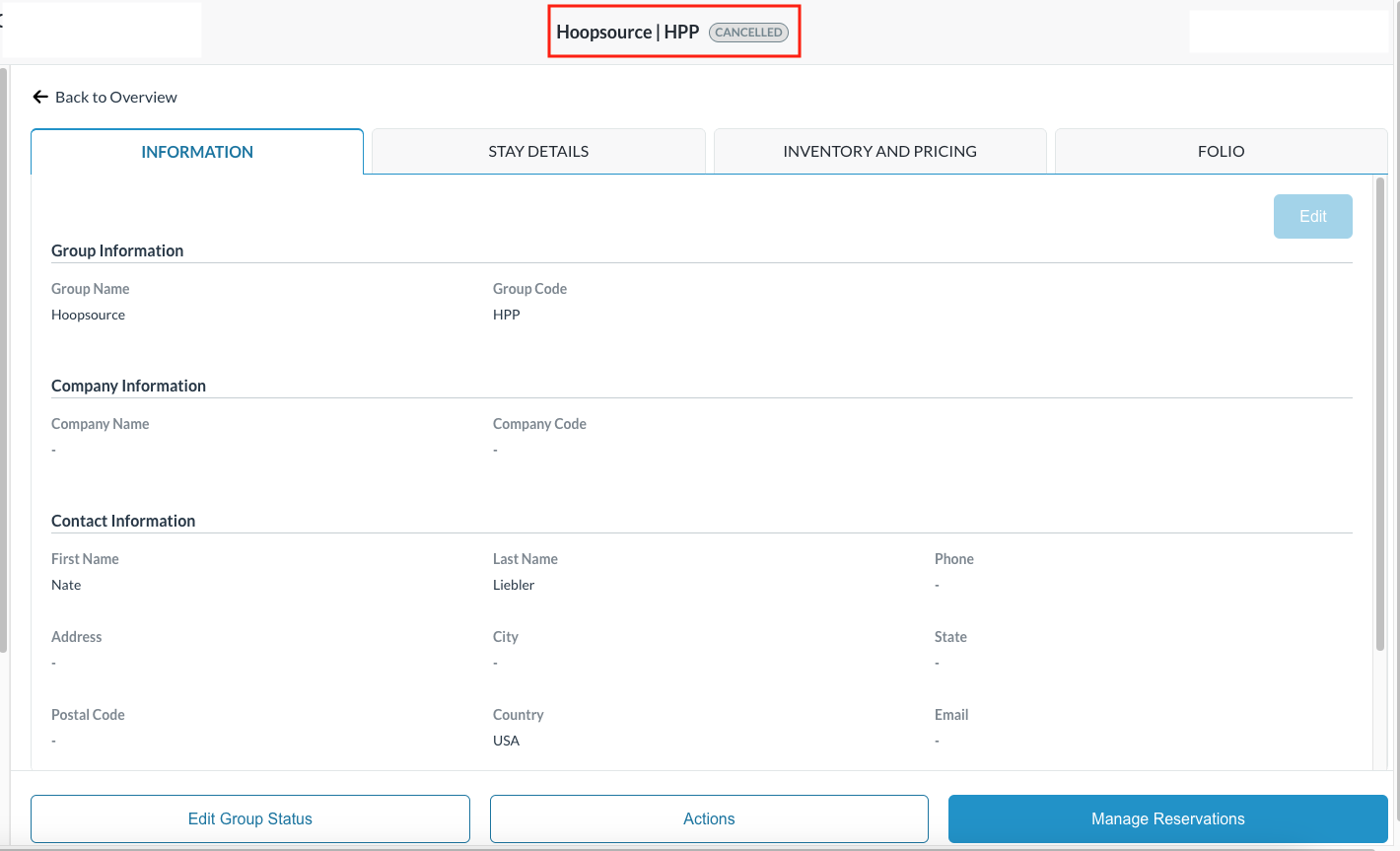 |
The “Close Group Master” option will be shown when the group’s departure date is before the current business date, triggering a confirmation popup with Confirm and Cancel actions.
On confirmation to Close the group, the group status updates to Closed, a success message is shown, and the action is logged in the audit trail.
Click on Edit Group Status Then select Close Group Master | 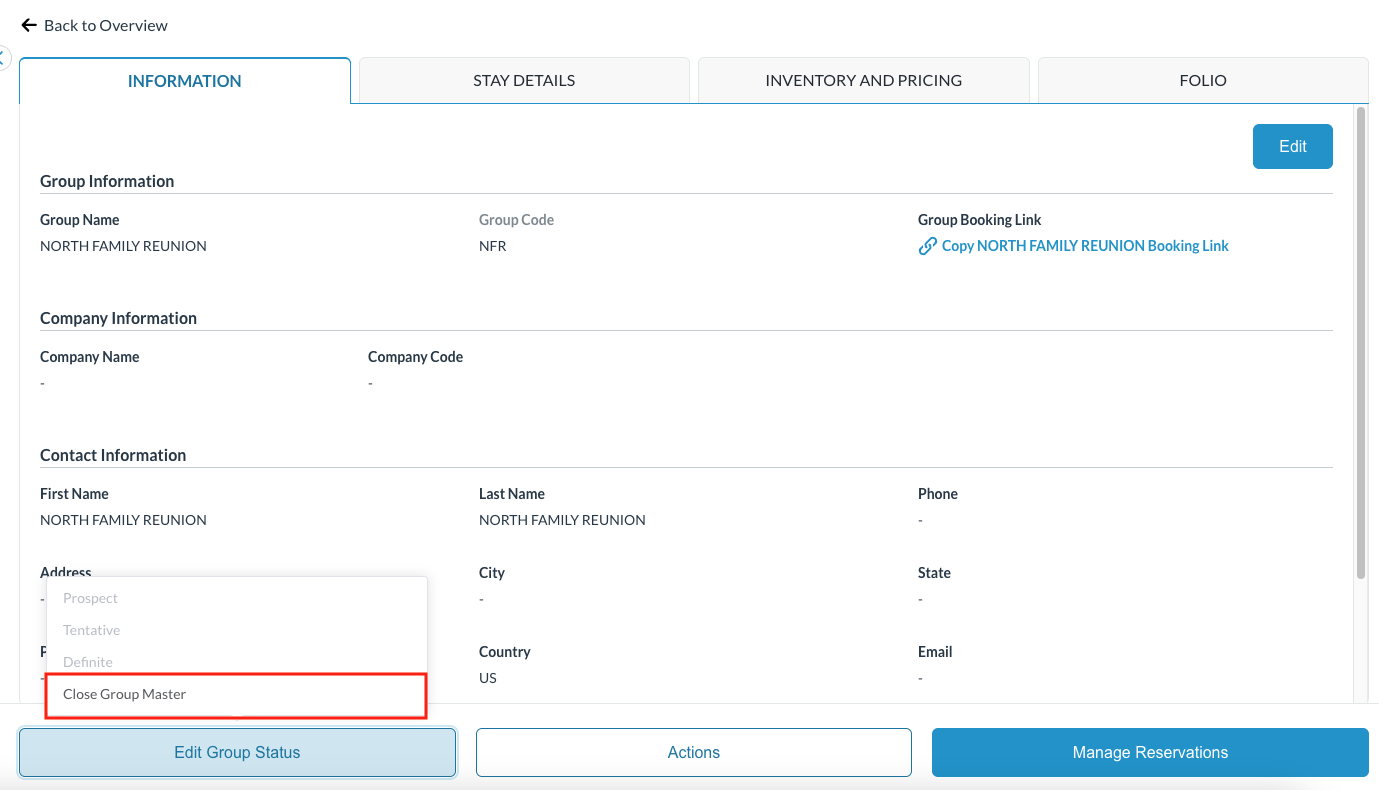 |
Select Confirm to close the group master | 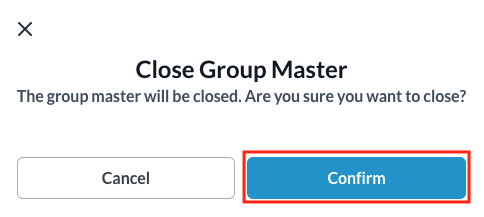 |
From the Group Master listing screen, now select the Group Status and choose Closed to see the closed group masters | 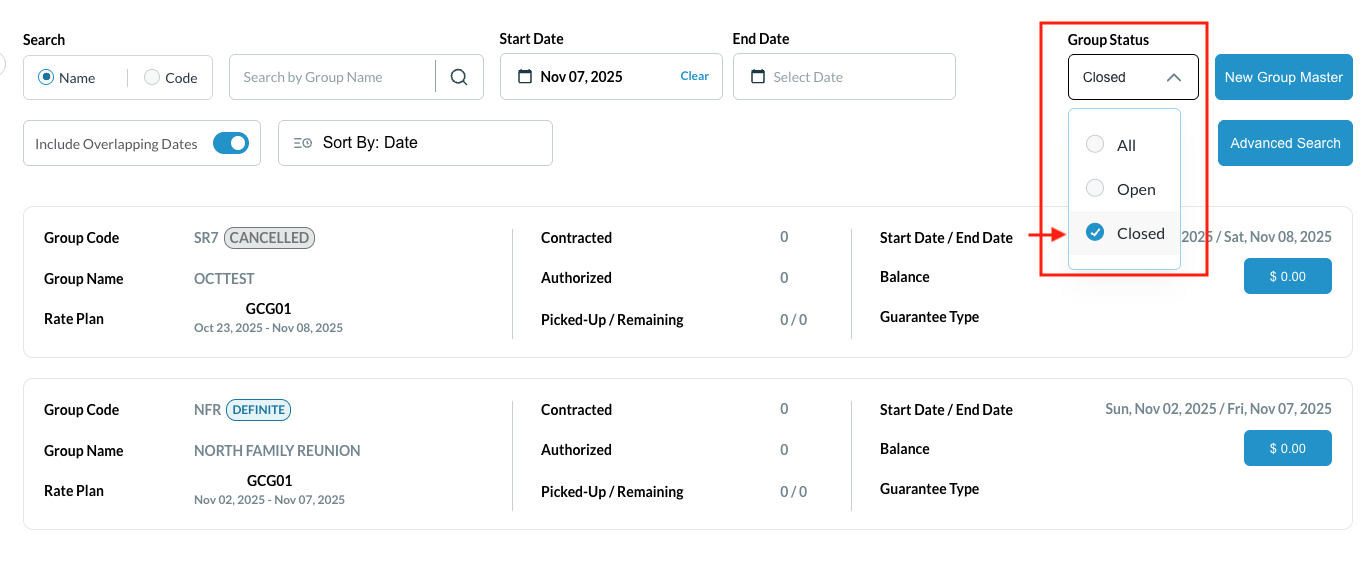 |