
Discrepant Rooms Report Overview
Parent Hub: 🧹 Rooms & Facilities
Category: 🛏️ Room Status
Target Roles: Executive Housekeepers, Housekeeping Supervisors, Front Office Managers, Night Auditors, Loss Prevention / Security Directors, General Managers
Key Value: Monitor and resolve physical occupancy mismatches between Housekeeping inspection reports and Front Desk PMS system states, prevent unrecorded room check-ins or unauthorized occupancy, audit supervisor investigation notes, and maintain full inventory and security integrity.
Executive Summary
The Discrepant Rooms Report is an essential room status audit, operational reconciliation, and security governance document within the 🛏️ Room Status category of the 🧹 Rooms & Facilities hub. Designed to deliver real-time transparency over physical occupancy mismatches between Front Desk system statuses and Housekeeping attendant physical inspection findings, it itemizes every room where physical conditions conflict with PMS billing records.
-
By organizing room occupancy variances into 2 defined report sections: Open Discrepant Rooms and Resolved Discrepant Rooms, this report enables housekeeping leads and front office supervisors to isolate active unresolved room discrepancies (
Open Discrepant Rooms) from historically investigated and corrected rooms (Resolved Discrepant Rooms). It correlates audit timestamps (Date,Found Time,Resolved Time) and physical room allocations (Room Number) with status mismatches (Housekeeping Status,Frontdesk Status), staff credentials (Marked By,Resolved By), operational remarks (Discrepant Remarks,Resolution Remarks), and workflow states (Current Status).
Key Capabilities
-
Two-Section Discrepancy Audit Structure: Separates active unresolved status mismatches (
Open Discrepant Rooms) from completed investigations (Resolved Discrepant Rooms). -
Status Mismatch Identification: Highlights conflicts between physical housekeeping findings (
Housekeeping Status, e.g.,VACANT,OCCUPIED) and Front Desk PMS states (Frontdesk Status, e.g.,OCCUPIED,VACANT). -
Supervisor Accountability & Audit Trail: Records user logins for both initial reporting (
Marked By) and formal case sign-off (Resolved By). -
Resolution Investigation Documentation: Captures mandatory operational remarks explaining variance root causes (
Discrepant Remarks,Resolution Remarks, e.g., early check-out without PMS status update, unauthorized stay, or physical room move). -
Response Time & SLA Tracking: Logs exact timestamps for discrepancy discovery (
Found Time) and resolution (Resolved Time) to monitor supervisor operational efficiency.
Report Views & Functional Breakdown
The Discrepant Rooms Report presents room variance data in a structured matrix across 2 defined sections:
┌────────────────────────────────────────────────────────────────────────┐
│                      DISCREPANT ROOMS REPORT                           │
├────────────────────────────────────────────────────────────────────────┤
│                       2 Defined Report Sections                        │
├──────────────────────────┬──────────────────────────┬──────────────────┤
│ 1. Open Discrepant Rooms │ 2. Resolved Discrepant   │                  │
│    Section (Active)      │    Rooms Sec. (Closed)   │                  │
└──────────────────────────┴──────────────────────────┴──────────────────┘
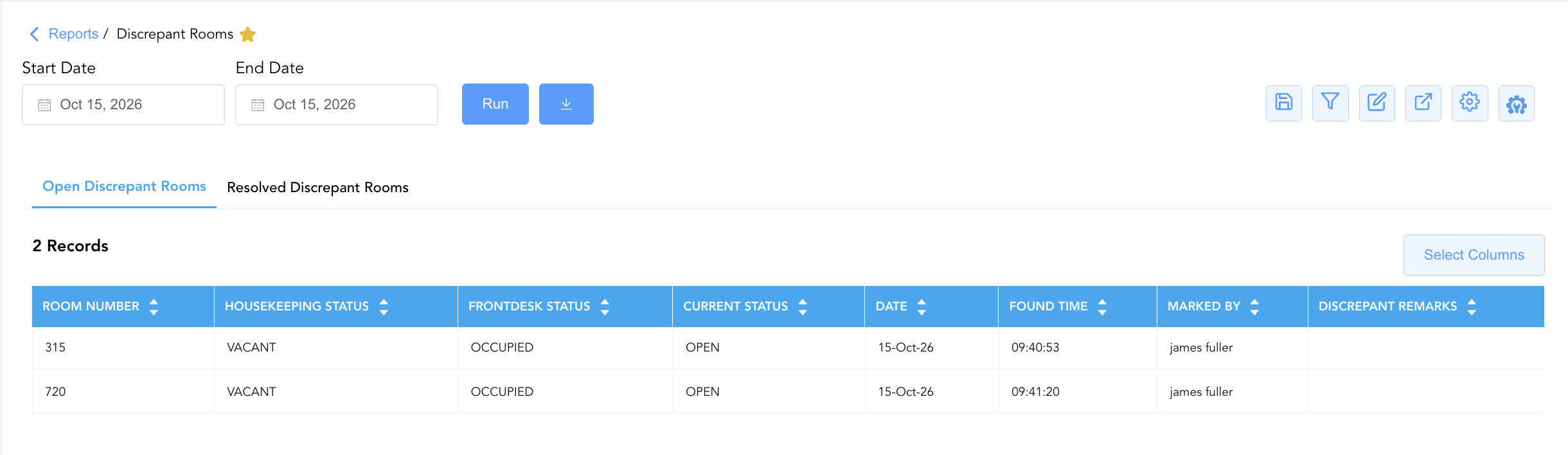
1. Open Discrepant Rooms Section
Monitors live, unresolved occupancy mismatches between Housekeeping physical reports and Front Desk PMS states.
-
Primary Use: Guiding immediate floor investigations by housekeeping supervisors and front desk agents to verify physical room occupancy or settle unrecorded check-outs.
-
Key Metrics: Date, Found Time, Room Number, Housekeeping Status, Frontdesk Status, Marked By, Discrepant Remarks, Current Status.
2. Resolved Discrepant Rooms Section
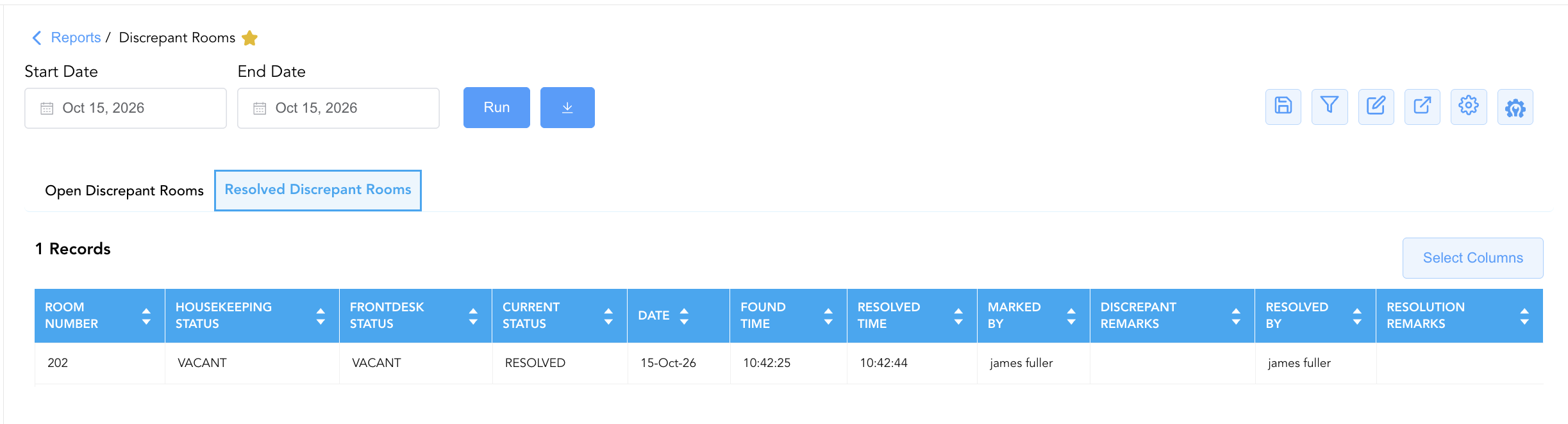
Tracks closed room discrepancies that have been investigated, corrected in the PMS, and signed off by property leads.
-
Primary Use: Auditing root causes of past discrepancies, reviewing resolution notes, and evaluating supervisor investigation turnaround times.
-
Key Metrics: Date, Found Time, Room Number, Housekeeping Status, Frontdesk Status, Marked By, Discrepant Remarks, Resolved By, Resolution Remarks, Resolved Time, Current Status.
Data Dictionary (Dynamic View Columns)
Customize your default view using the Configure (⚙️) icon on the report page. Below is the full data dictionary representing all 11 unique columns available across the 2 report sections:
💡 Operational Note: Room discrepancies typically arise from two primary scenarios: Sleepers (Front Desk shows
OCCUPIED, but Housekeeping findsVACANT) or Skippers/Walk-Ins (Front Desk showsVACANT, but Housekeeping findsOCCUPIED).
|
Column Name |
Section Applicability |
Description |
Data Source / System Mapping |
Includes Taxes & Fees? |
|
Date |
Both Sections |
Calendar date on which the room discrepancy was flagged. |
PMS Discrepancy Engine > Discrepancy Date |
N/A |
|
Found Time |
Both Sections |
Exact timestamp recording when the status variance was logged. |
PMS Discrepancy Engine > Logged Time |
N/A |
|
Room Number |
Both Sections |
Physical guest room number where the status mismatch occurred. |
PMS > Physical Room ID |
N/A |
|
Housekeeping Status |
Both Sections |
Physical room status reported by the housekeeping attendant/supervisor during floor inspection (e.g., |
Housekeeping Attendant Log > Clean Status |
N/A |
|
Frontdesk Status |
Both Sections |
Room status currently recorded in the PMS billing system (e.g., |
PMS Inventory Engine > System Status |
N/A |
|
Marked By |
Both Sections |
Username or full name of the staff member who flagged the discrepancy. |
Security Audit Trail > Reporting User |
N/A |
|
Discrepant Remarks |
Both Sections |
Free-text notes explaining the nature or initial findings of the room discrepancy. |
Discrepancy Audit > Initial Remarks |
N/A |
|
Current Status |
Both Sections |
Operational workflow state of the discrepancy case (e.g., |
PMS Discrepancy Engine > Case Status |
N/A |
|
Resolved By |
Section 2 |
Username or full name of the supervisor/manager who investigated and closed the discrepancy case. |
Security Audit Trail > Resolving User |
N/A |
|
Resolution Remarks |
Section 2 |
Detailed operational notes explaining the investigation outcome and system corrections applied. |
Discrepancy Audit > Resolution Notes |
N/A |
|
Resolved Time |
Section 2 |
Exact timestamp recording when the discrepancy case was formally marked resolved. |
PMS Discrepancy Engine > Resolution Time |
N/A |
Customization & Platform Features
User & Property Preferences
-
Personal Preference: Tailor your individual view by hiding or dragging columns. Your preferences save automatically for future sessions.
-
Property Defaults: System Admins can configure standard default layouts across all property users to streamline operational reporting. To maximize audit efficiency, group the columns into the below logical blocks:
-
Section 1: Open Discrepant Rooms
-
Physical Locator & Mismatched Statuses (Cols 1–3):
Room Number|Housekeeping Status|Frontdesk Status -
Audit State & Discovery Timestamps (Cols 4–6):
Current Status|Date|Found Time -
Staff Accountability & Operational Notes (Cols 7–8):
Marked By|Discrepant Remarks
-
-
Section 2: Resolved Discrepant Rooms
-
Physical Locator & Resolved Statuses (Cols 1–3):
Room Number|Housekeeping Status|Frontdesk Status -
Audit Resolution State & Timestamps (Cols 4–7):
Current Status|Date|Found Time|Resolved Time -
Staff Accountability & Audit Notes (Cols 8–11):
Marked By|Discrepant Remarks|Resolved By|Resolution Remarks
-
-
Report Toolbar & Quick Actions
Use the top-right toolbar icons on the report page to manage and export your data view:
|
Icon |
Action / Feature |
Description |

|
Knowledge Article |
Opens the knowledge base article to learn how to interpret this report. |

|
Saved Views |
Saves your column filtering, sorting, and highlight preferences so you can easily reload your custom view later without reconfiguring the report. |

|
Filter |
Opens filter controls to isolate specific data within a column based on your selected criteria. |

|
Highlight |
Highlights column values in a designated color based on selected conditions. |

|
Export |
Exports and downloads the report in various formats (Excel, PDF, CSV) for offline analysis or printing. |

|
Configure |
Opens column selection controls to toggle visibility, reorder columns, or hide rows with all zeros. |

|
Additional Configuration |
Provides advanced report configuration and display formatting options to customize data presentation. |
Advanced Controls
-
Exporting & Shift Handovers: Download Section 1 in Excel or PDF format prior to morning or afternoon shift handovers to dispatch supervisors for room verifications.
-
Filtering: Filter data by
Current Status = OPENto generate an immediate floor inspection list for housekeeping and security teams. -
Highlighting (Conditional Formatting): Apply custom rules to automatically highlight active open discrepancies (
Current Status = OPEN), long-pending cases, or specific discrepancy types.
🔗 Related Reports & Next Steps
Within 🧹 Rooms & Facilities & 🛏️ Room Status:
-
All Rooms – Master physical room inventory, cleanliness state, and housekeeping schedule manifest.
-
Room Detail – Master room-by-room physical status, housekeeping, and maintenance audit matrix.
-
Maintenance Activity – Comprehensive maintenance log tracking rooms removed from service for repair.
Cross-Pillar Deep Dives:
-
🛎️ Front Desk & Guest Services: Reconcile open room discrepancies against In House List and Departures List to verify unrecorded check-outs or accidental key issuances.
-
🛡️ Security & Loss Prevention: Audit unresolved physical occupancy variances (
Housekeeping Status = OCCUPIED&Frontdesk Status = VACANT) to ensure property safety and prevent unbilled room usage.