Skip table of contents

Group Master Reminders .ng

Revision Date:

The Group Master Reminders consolidates reminders into a dedicated view with columns, sorting, filtering, and deep linking. This improves visibility, usability, and consistency while preserving reminder behaviors and workflows for Reservations.

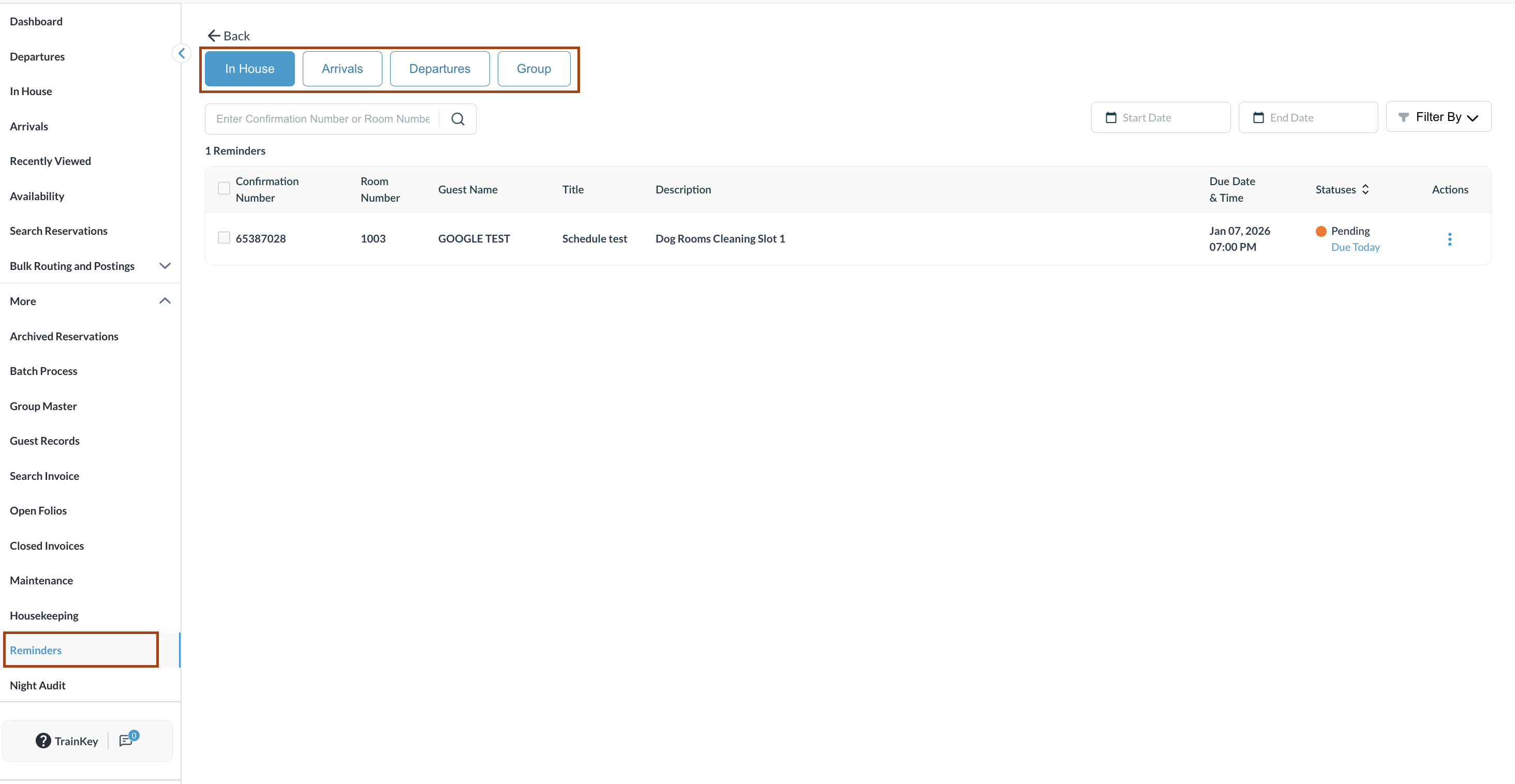
Users can access Reminders from the left-side menu.

Default set to In-House Reminders.

image-20260107-100119.png

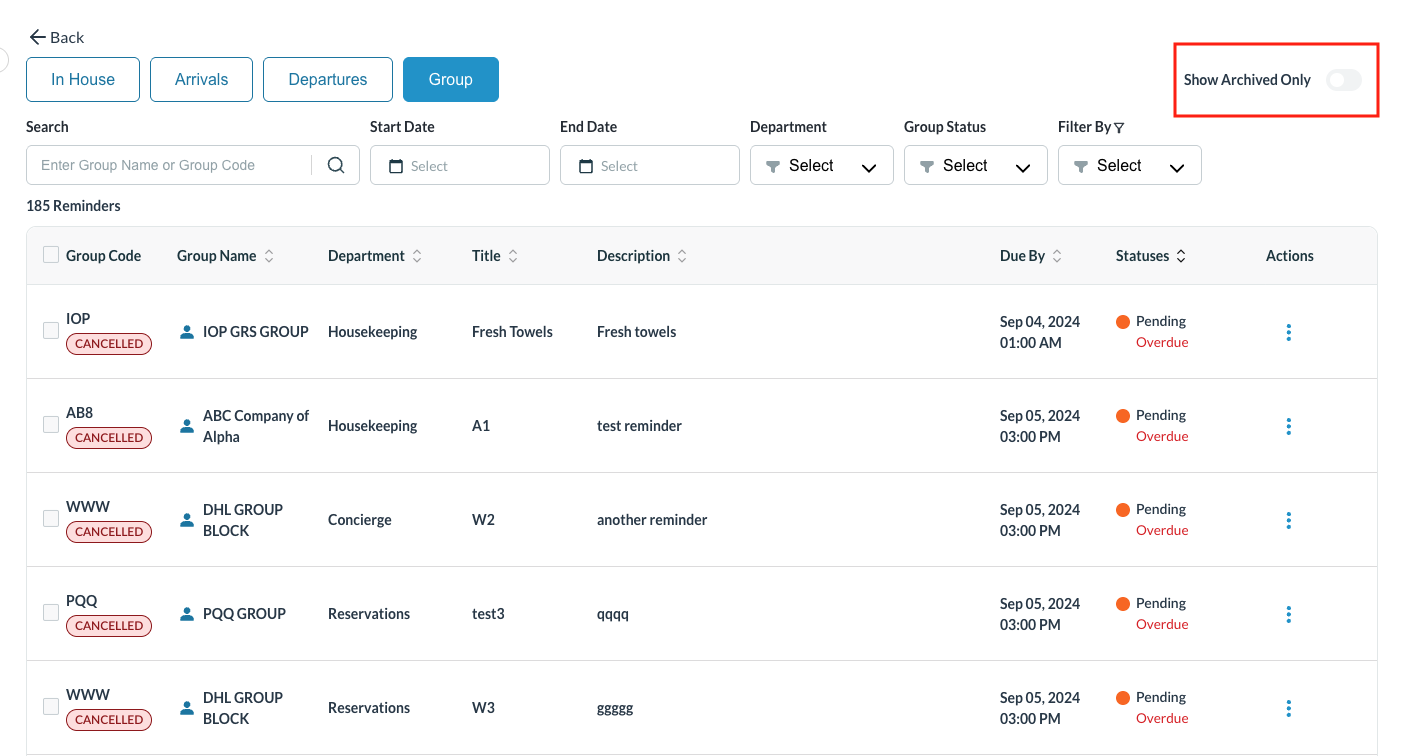
Toggle to Group for Reminders.

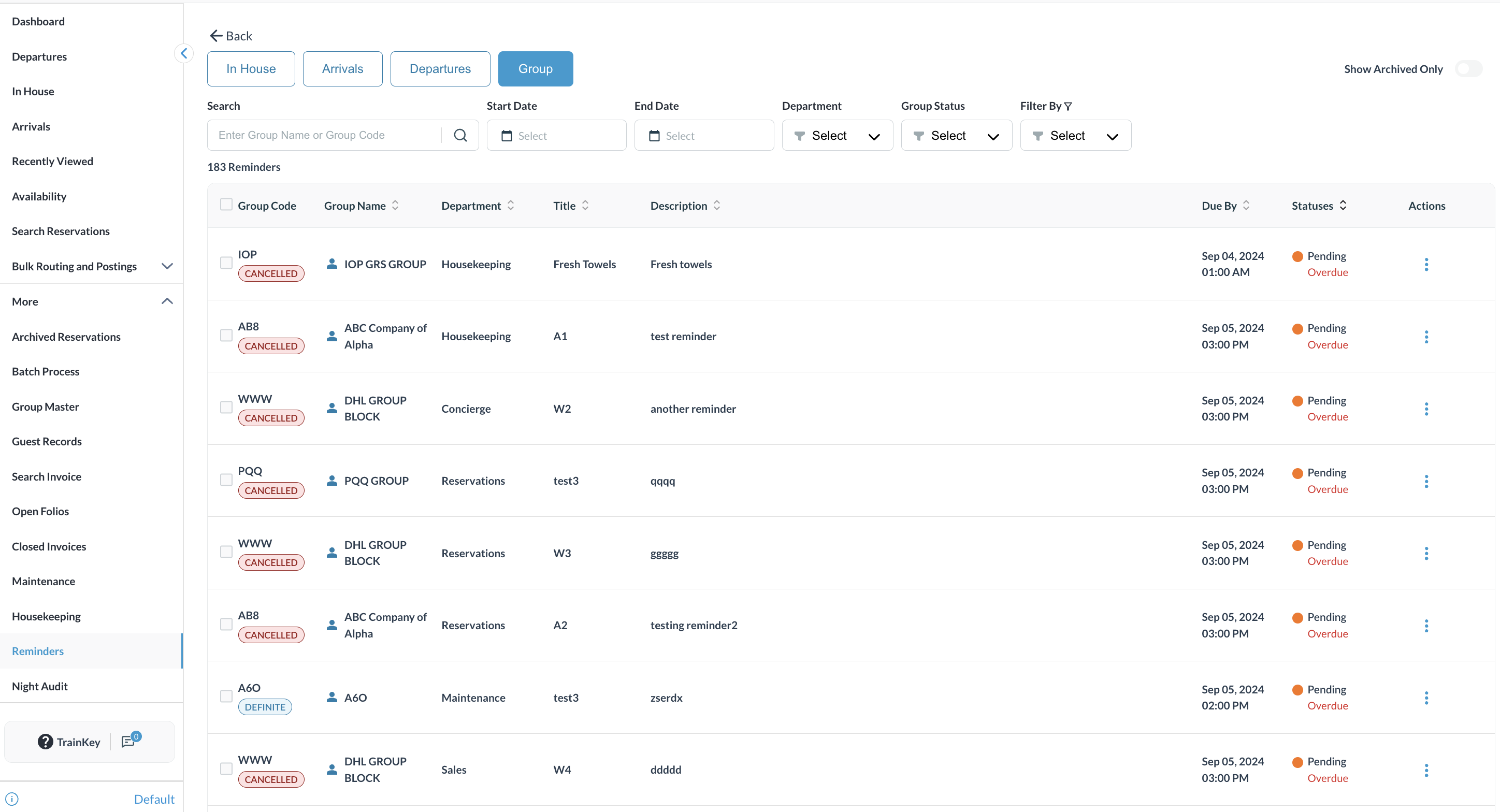
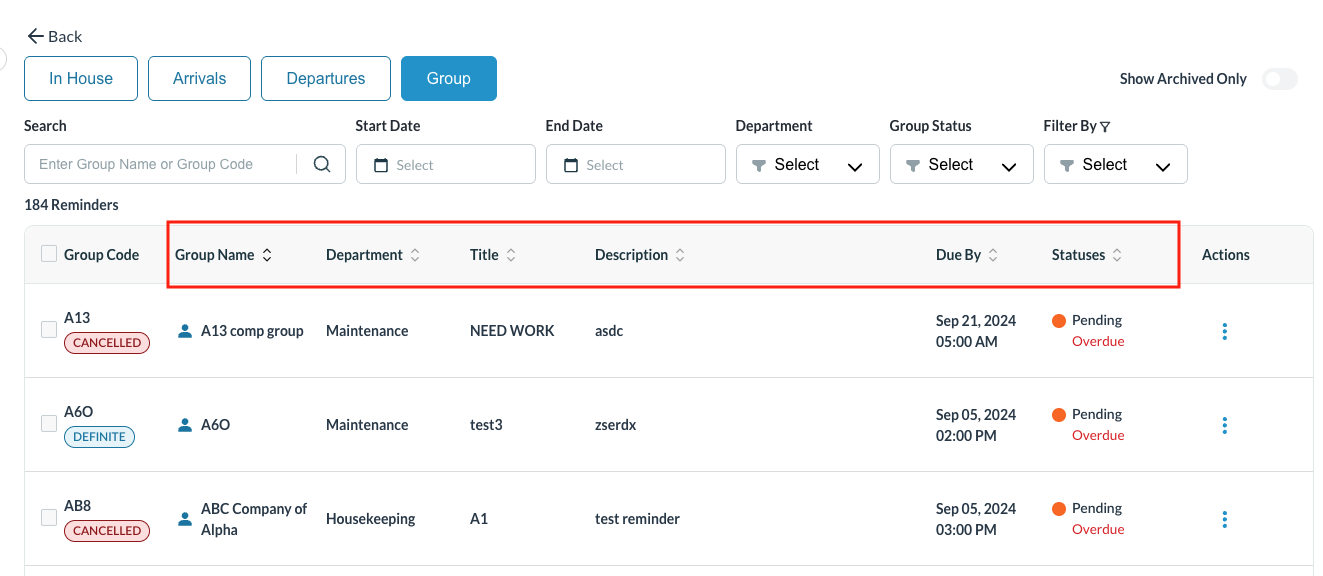
When the Group Master Reminders page loads, reminders are displayed in the following column order:

  • Group Code - Displays the Group Code.Shows the Group Status as a pill below the Group Code for quick reference.

  • Group Name - Name of the Group

  • Department - Displays the department associated with the reminder.

  • Title - Title of the reminder

  • Description - Description of the reminder

  • Due By - Displays the reminder due date and time.

  • Status - If the reminder is due today or overdue

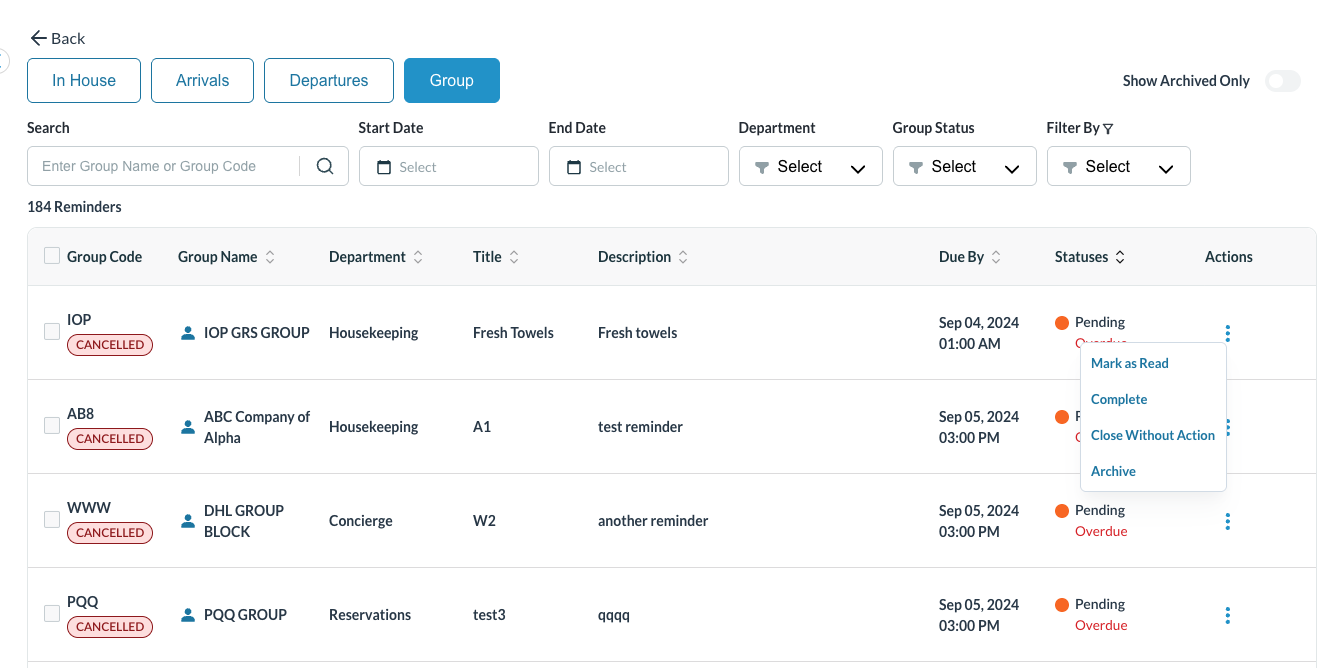
  • Actions - Displays the action that can be taken on a particular reminder :

    • Mark as Read

    • Complete

    • Close Without Action

    • Archive

image-20260107-100211.png

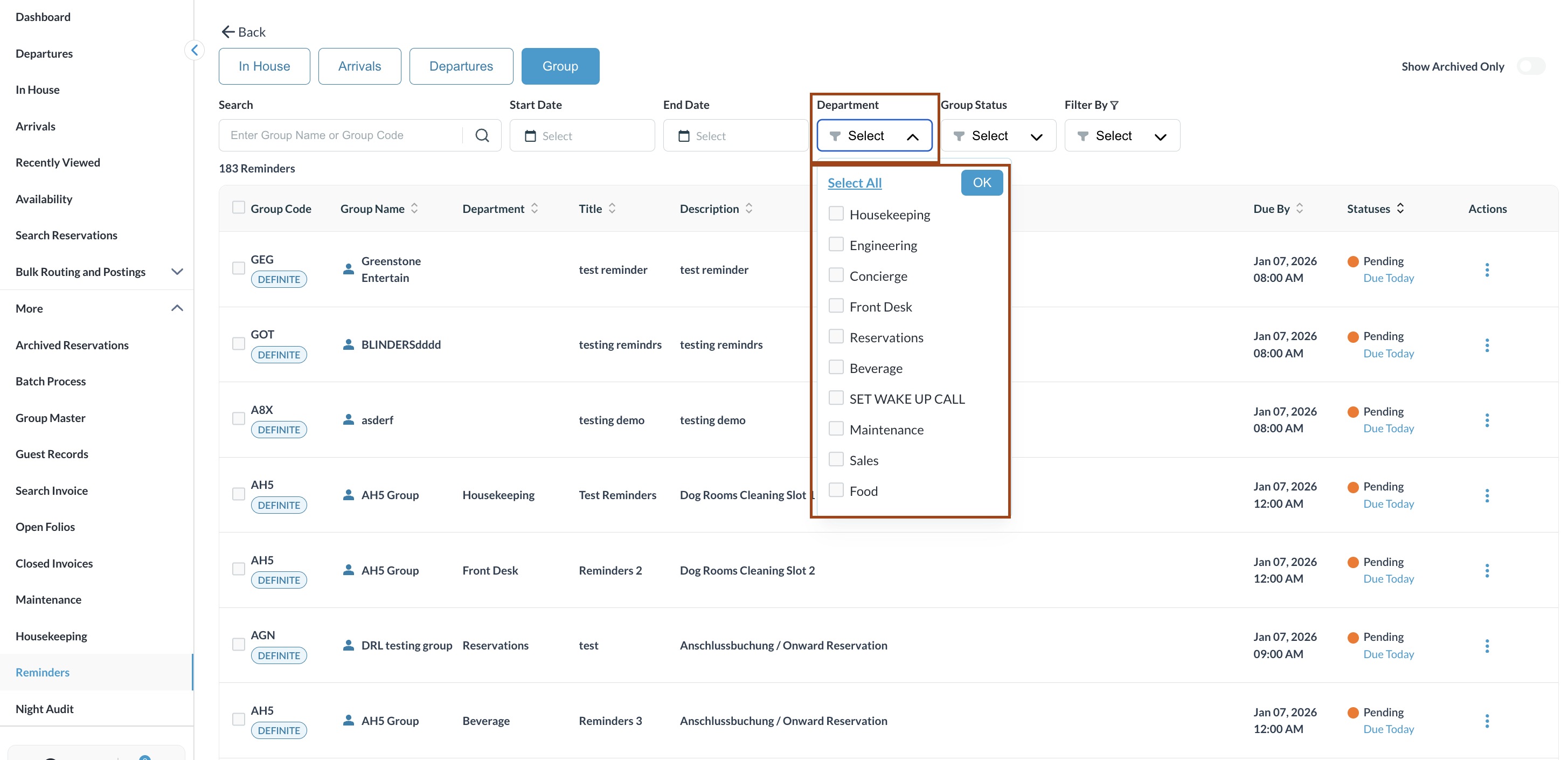
Filter by Department

  • A Sales department is available by default for all properties.

  • Properties may remove Sales using property-level settings.

  • Additional departments can be configured at the property level.

image-20260107-111651.png

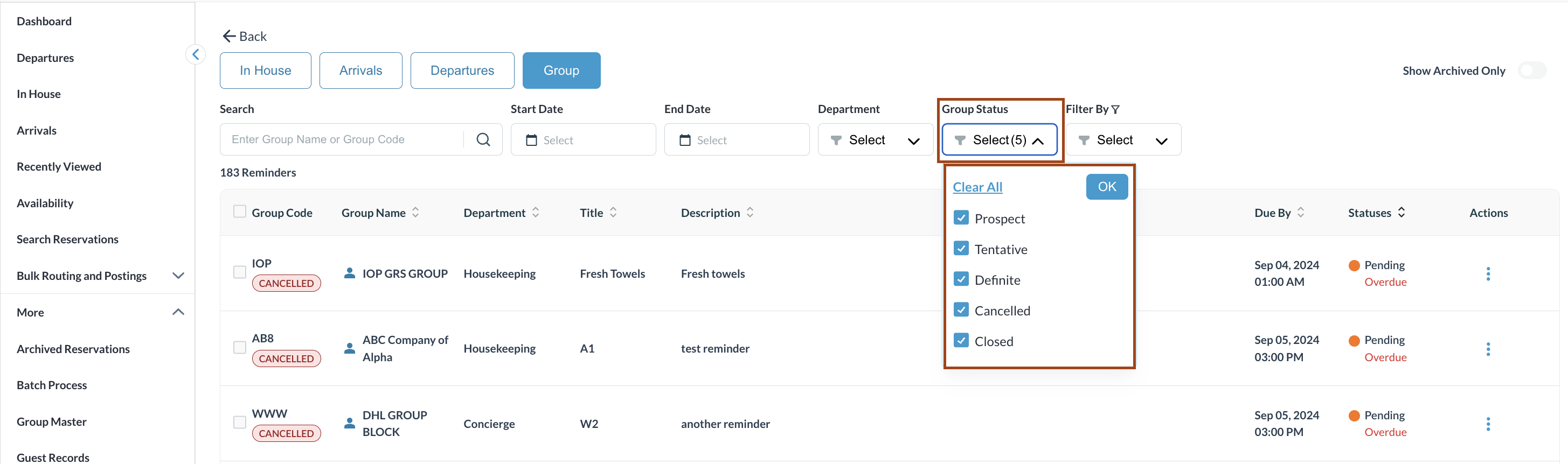
Filer by Status

  • Filter can be applied to the status mentioned below the Group code in capsule as

    • Prospect

    • Tentative

    • Definite

    • Cancelled

    • Closed

image-20260107-112649.png

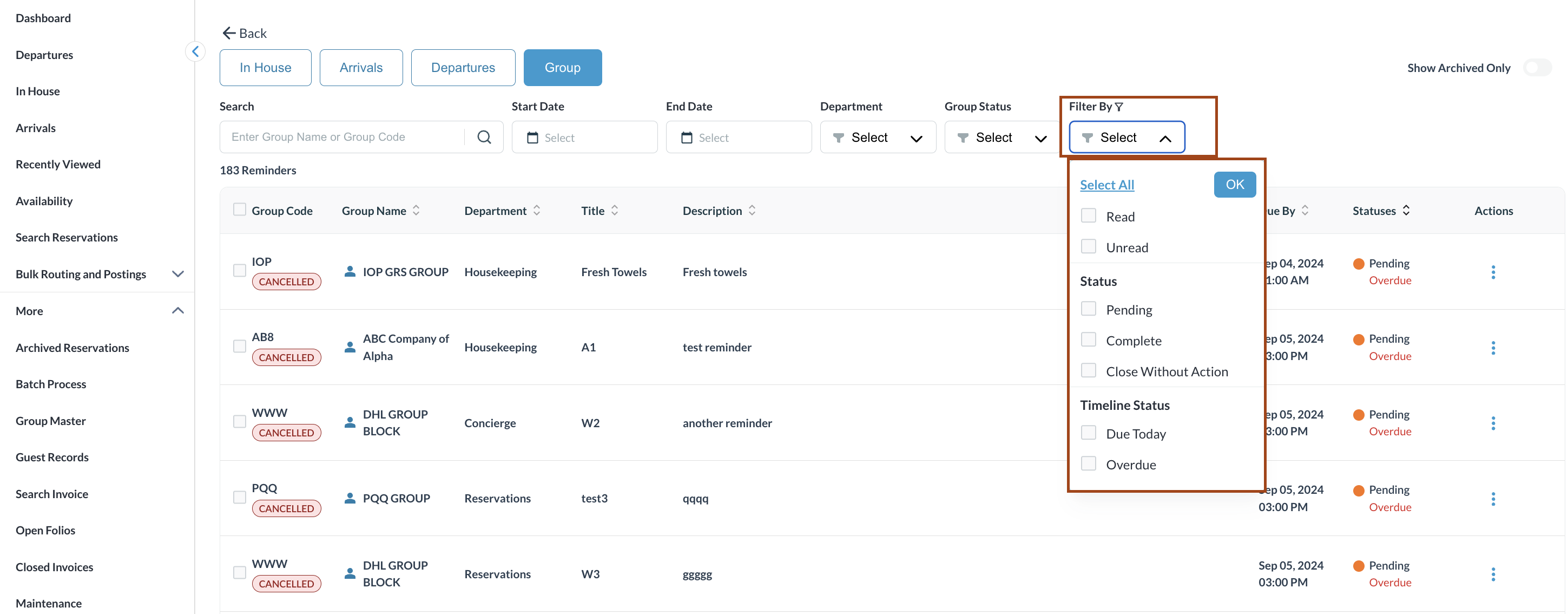
Filter By

  • Read / Unread

  • Status: Pending / Complete / Close Without Action

  • Timeline Status : Due Today / Overdue

Note - Each dropdown supports:

  • Select All

  • Individual selection

  • Multi-select

  • Deselecting options

  • Clicking Ok applies the selected filters.

  • Filters work in combination with other filters such as date range and “Filter By”.

image-20260107-113611.png

Sorting

The following columns support sorting:

  • Group Name – Alphabetical

  • Department – Alphabetical

  • Title – Alphabetical

  • Due By – Date-based

  • Statuses – Priority-base

Note :

  • Clicking the sort icon toggles between ascending and descending order.

  • Only one column can be actively sorted at a time.

  • Applying a new sort overrides any previous sort.

  • Records with empty or null values always appear at the bottom, regardless of sort direction.

  • When multiple reminders share the same value, records maintain a stable order (secondary sort by timeline status).

  • Repeated clicks on the sort icon consistently alternate sort direction.

  • On initial page load Reminders are sorted by Status priority

Screenshot 2026-01-08 at 6.47.57 AM.png

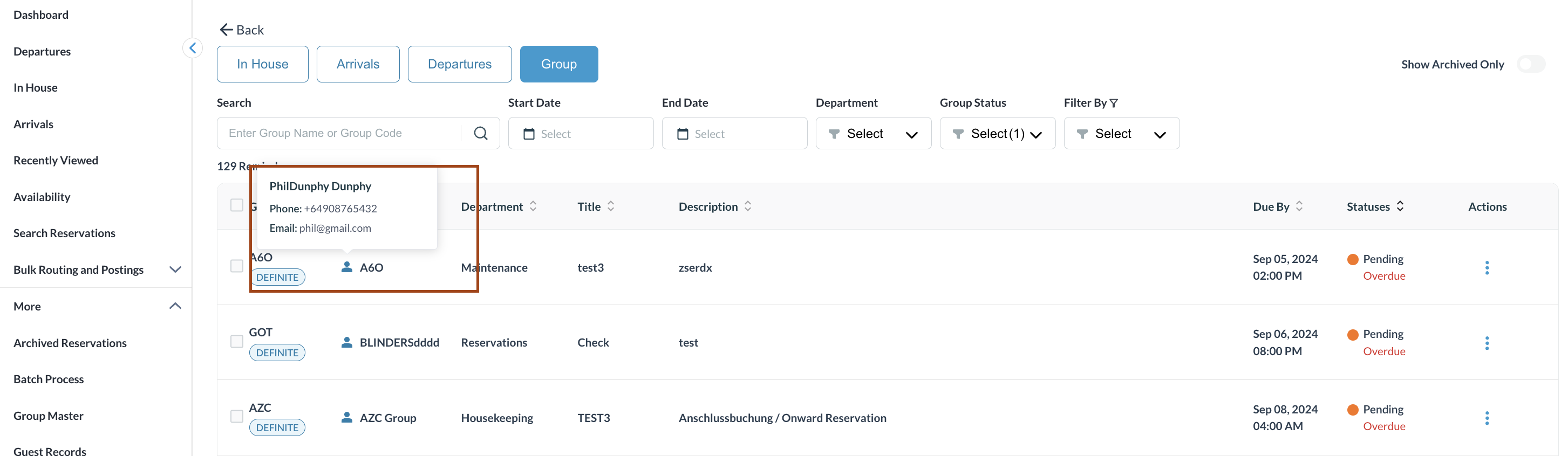
Group Contact Information on Hover

When hovering over the person icon next to the Group Name, a tooltip appears displaying:

  • Group Contact Name (bold)

  • Phone Number

  • Email Address

image-20260107-114622.png

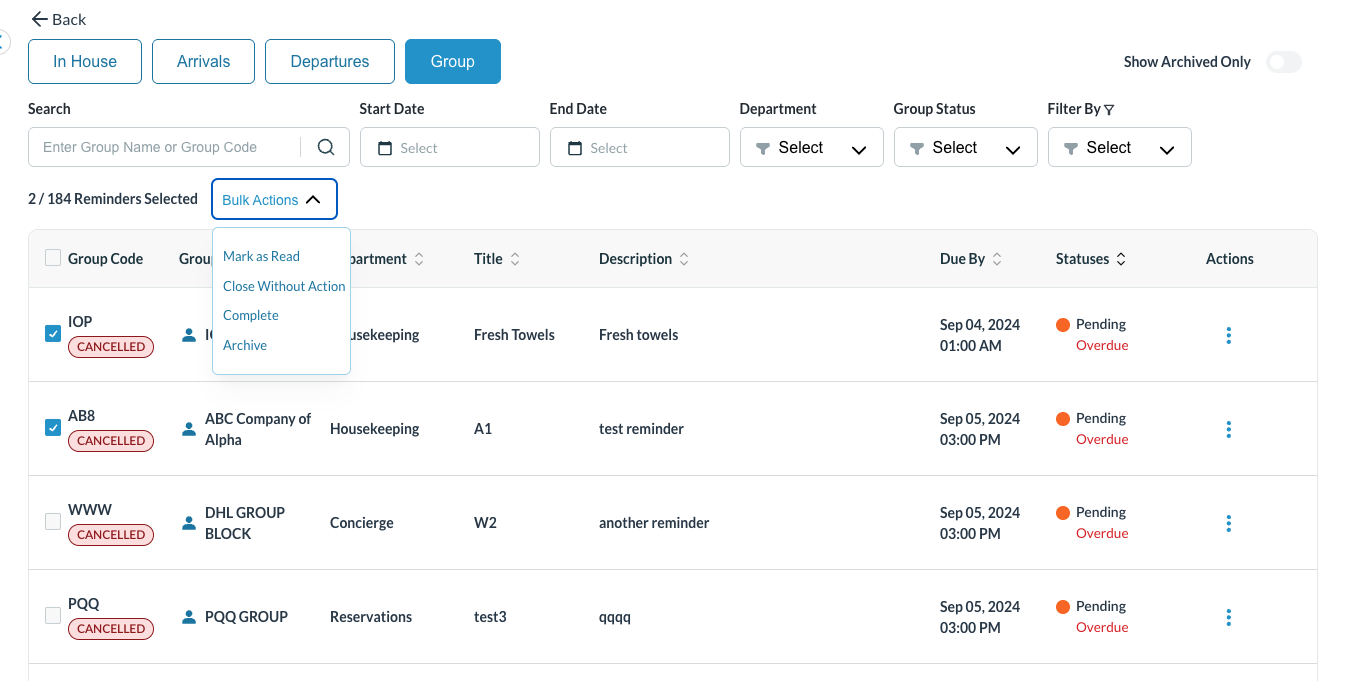
Closing Reminders

Reminders can be closed by Individual or by Bulk Action.

Both provide the following options:

  • Mark as Read

  • Close Without Action

  • Complete

  • Archive

Screenshot 2026-01-08 at 6.50.59 AM.png

Individual Action

Screenshot 2026-01-08 at 6.52.05 AM.png

Bulk Action

JavaScript errors detected

Please note, these errors can depend on your browser setup.

If this problem persists, please contact our support.