Skip table of contents

Group Wash Inventory .ng

📆 Revision Date:

A wash schedule is used to release unused or blocked room inventory from a group reservation back into general availability. This ensures that rooms not required by the group can be sold to other guests, maximizing occupancy and revenue. It also provides transparency by recording when and how many rooms were released, with full audit tracking.

A "Wash Schedule" dictates when and how many rooms should be released from a specific group block.

Wash Methods: You can release inventory in two ways (mutually exclusive per rule):

  • By Percentage: Drops a preset percentage (25%, 50%, 75%, or 100%) of the remaining available rooms. (Decimals are always rounded down to the nearest whole room).

  • By Value: Drops a specific, hardcoded number of rooms (e.g., releasing exactly 5 rooms).


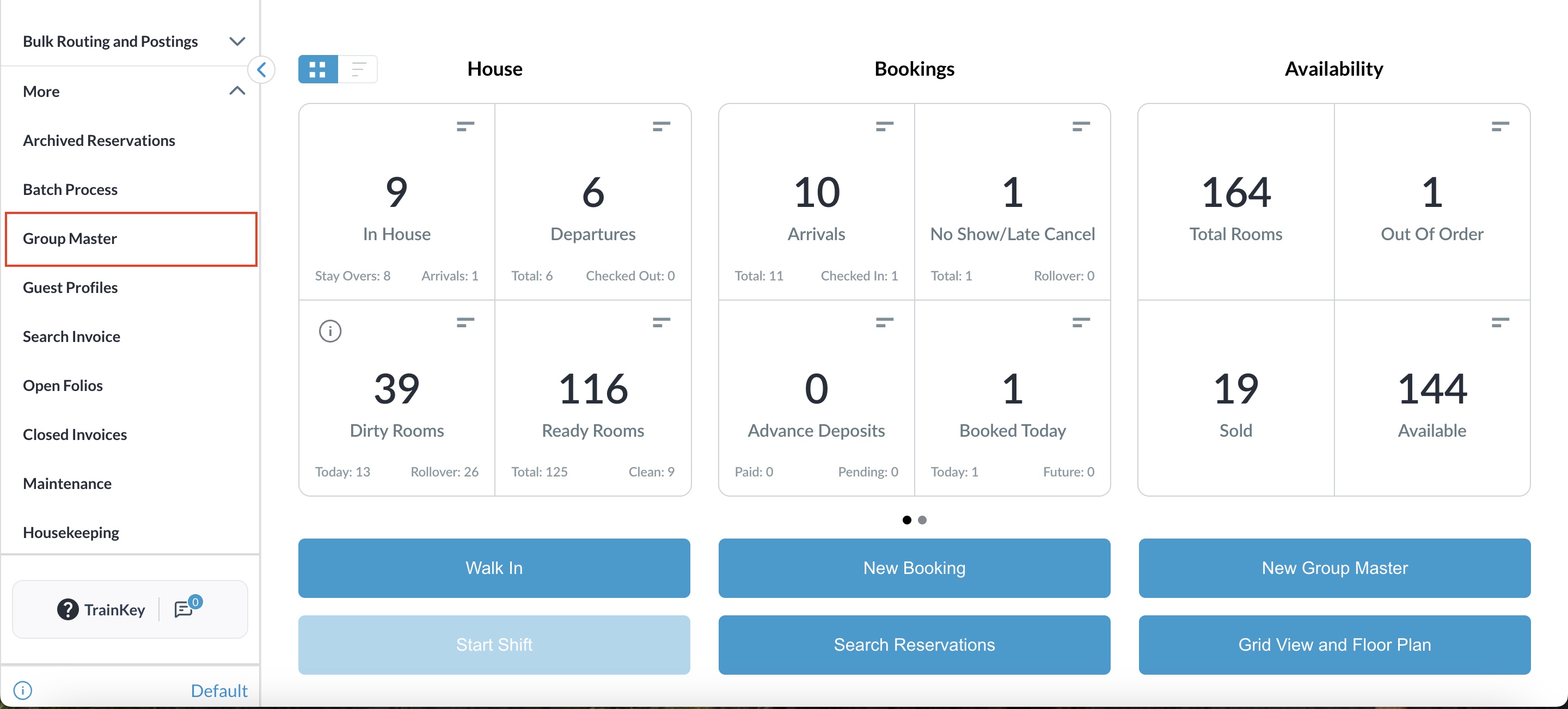
Navigate to the Group Master reservation from the left side menu of the Dashboard.


14E71E0E-E56A-47AE-ABC6-74B9B357215B.jpeg

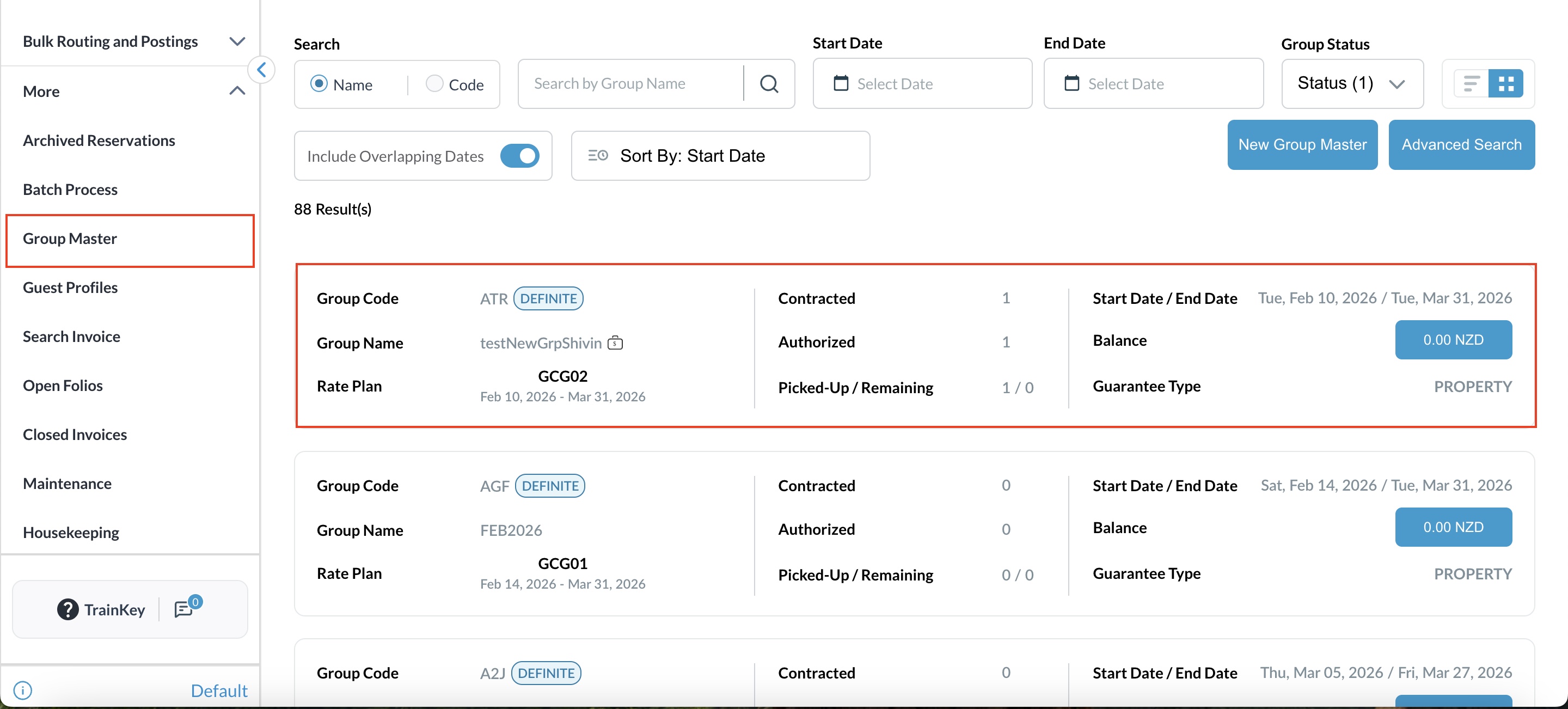
List of all groups will be displayed. Click on the reservation you want to make the changes.

315CAE1A-0CB6-4D20-B725-33ACE9513775.jpeg

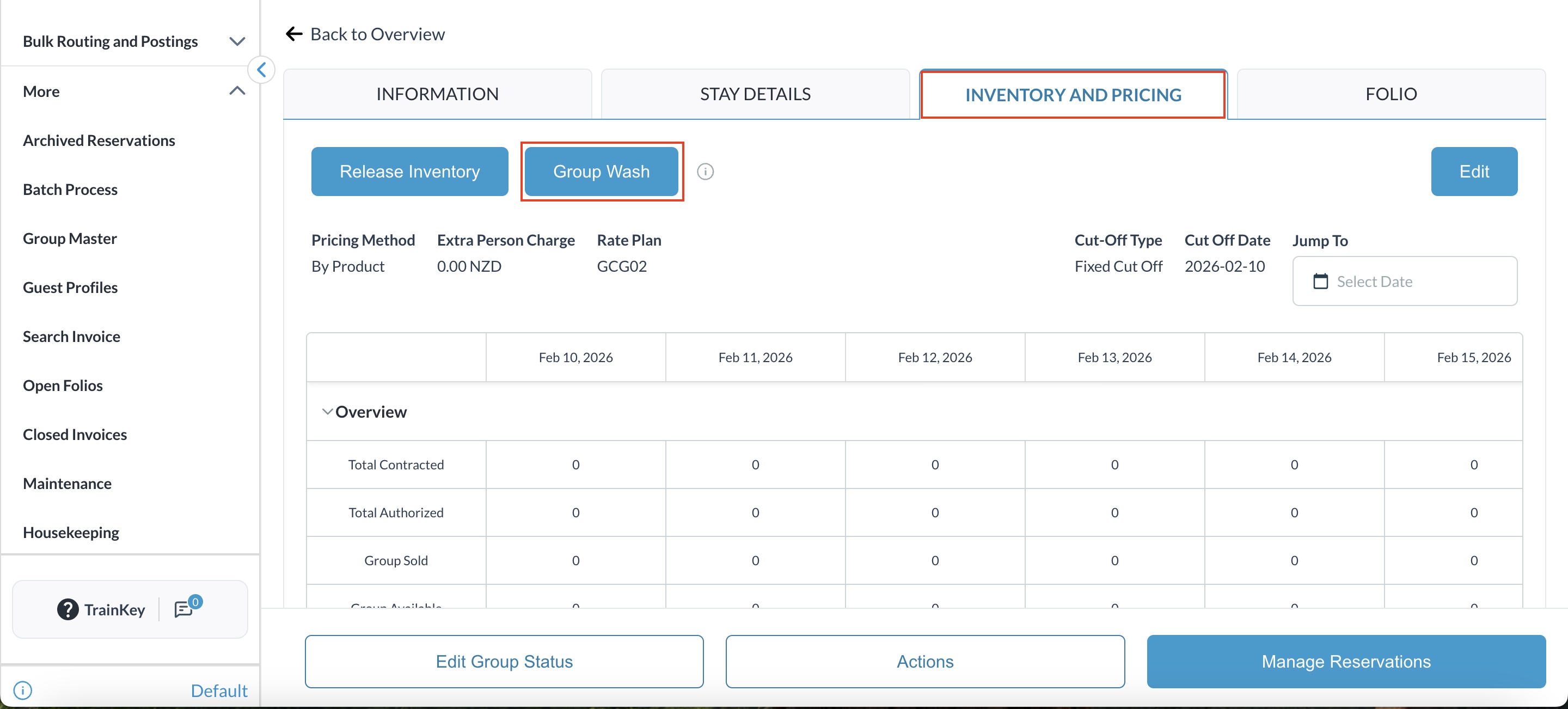
Navigate to Inventory & Pricing

  • Click on Group Wash

706B4901-DD22-4D7E-AF0F-2D62EEA17524.jpeg


Wash Group screen opens.

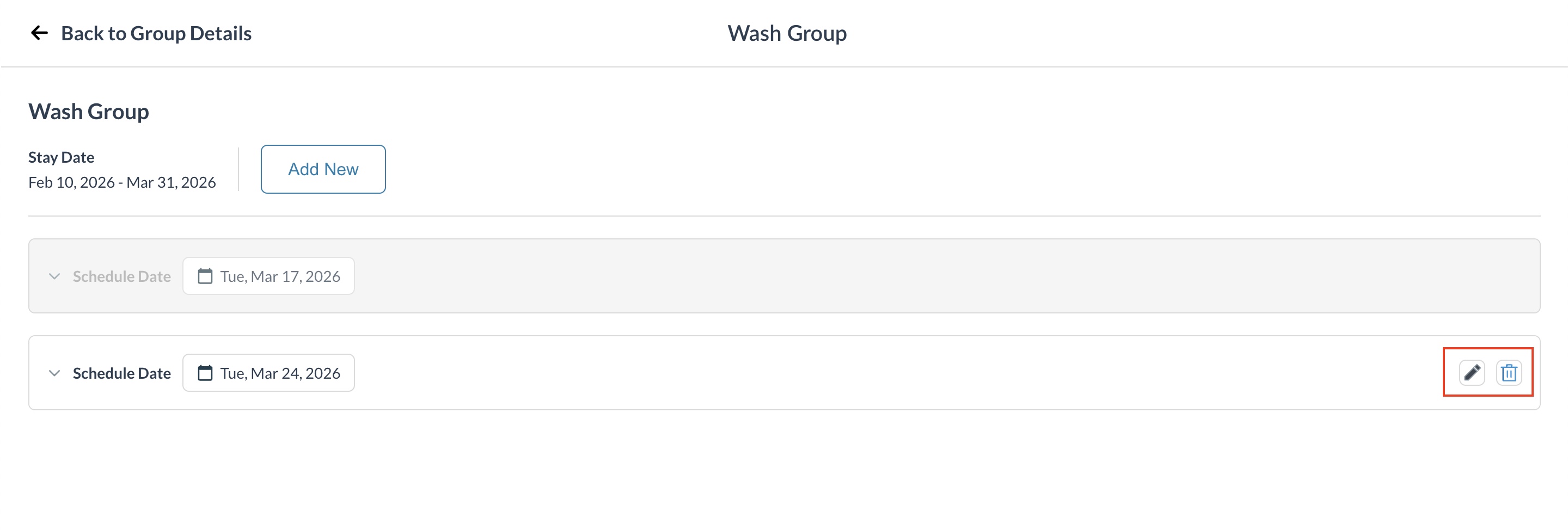
All existing wash schedules will be displayed as tiles, sorted by wash date in ascending order.

  • Each tile shows the Wash Date in the header.

  • Tiles are collapsed by default.

  • Use the chevron control to expand and view wash details in read‑only mode.

  • Edit (pencil) and Delete (trash) icons appear on the far right of each tile.

7FEBBEE4-0555-469F-A827-47AFD2B2C6BC.jpeg


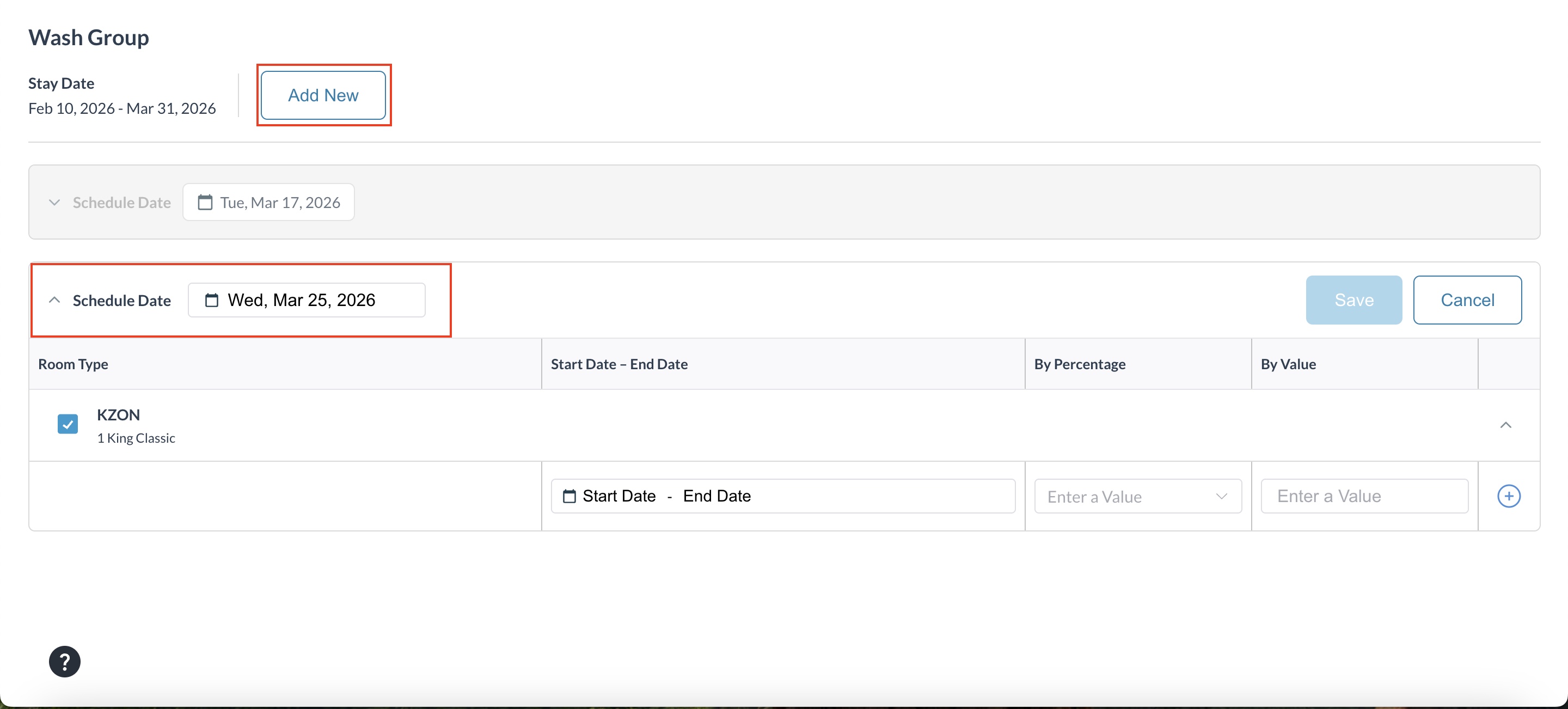
Add a New Wash

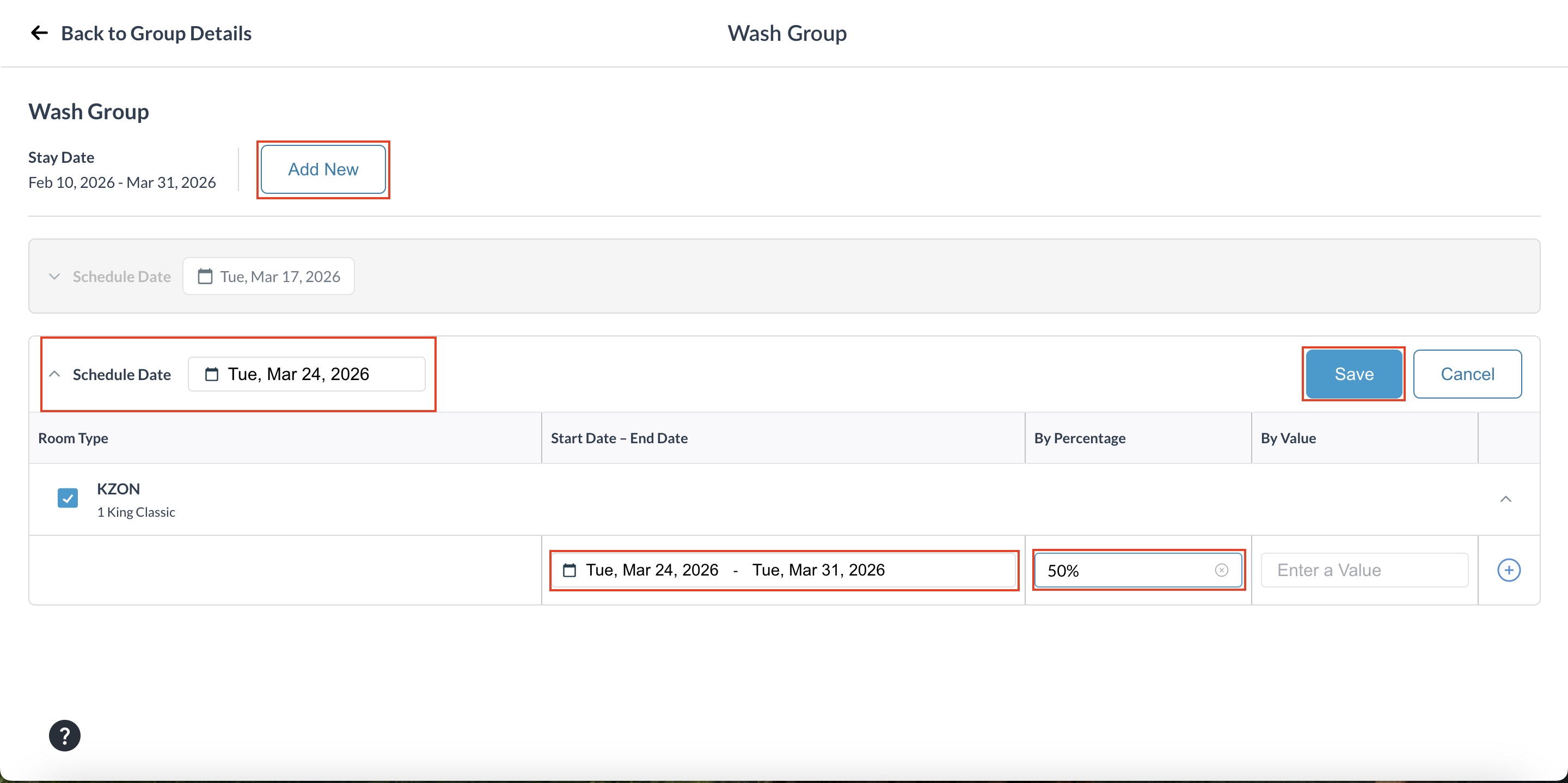
  • Click Add New Wash and enter details:

    • Schedule Date: Select the date the system needs to initiate the wash.

    • Room Type: Select the room type to schedule for the wash.

    • Wash Date: select the dates to be considered for inventory wash.

    • By Percentage: Drops a preset percentage (25%, 50%, 75%, or 100%) of the remaining available rooms. (Decimals are always rounded down to the nearest whole room).

    • By Value: Drops a specific, hardcoded number of rooms (e.g., releasing exactly 5 rooms).

Click Save or Cancel to discard.

On saving, a message confirms: “Wash scheduled successfully.”

69F602E4-3179-4BA6-872E-AF249469081A.jpeg


Edit an Existing Wash

Only wash schedules with a Wash Date greater than Current Business Date (CBD) can be edited.

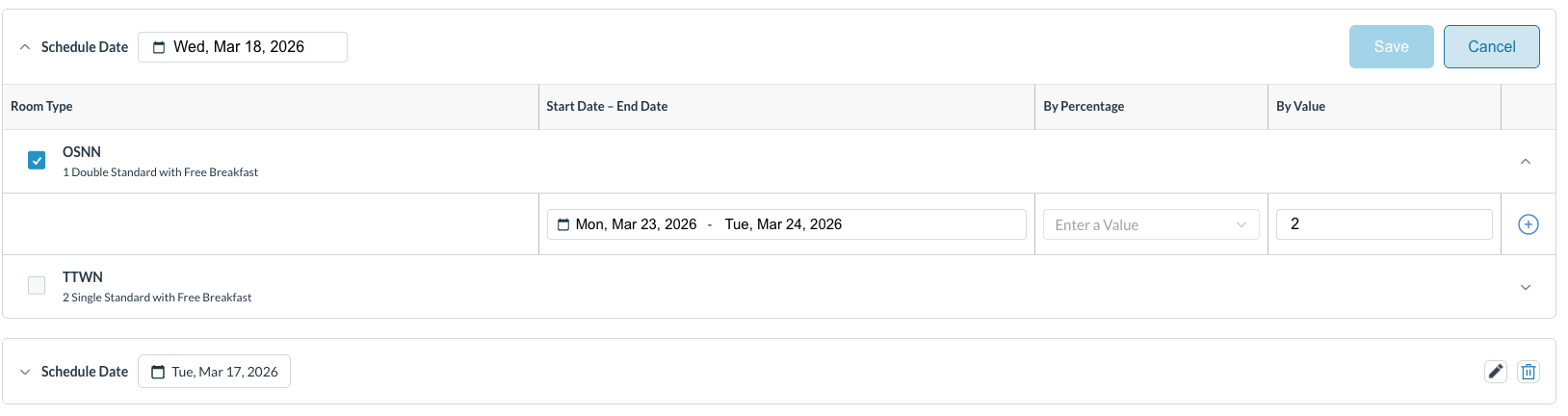
  • Click the Edit (pencil) icon. Tile expands into edit mode:

    • Room Type: Select the room type to schedule the wash

    • Wash Date: select the dates to be considered for inventory wash.

    • By Percentage: Drops a preset percentage (25%, 50%, 75%, or 100%) of the remaining available rooms. (Decimals are always rounded down to the nearest whole room).

    • By Value: Drops a specific, hardcoded number of rooms (e.g., releasing exactly 5 rooms).

  • Add or remove room types as needed.

  • Save (activated once changes are made) or Cancel to discard.

  • On saving, a message confirms: “Wash scheduled successfully.”

Restrictions for Past Wash Dates

  • Wash schedules with a Wash Date less than CBD remain in read‑only mode.

  • Edit icon is disabled. Fields cannot be modified.

D8BF31E5-D5CB-419E-8E50-F8A297C5D05D.jpeg

Screenshot 2026-03-17 at 10.17.17 AM.png

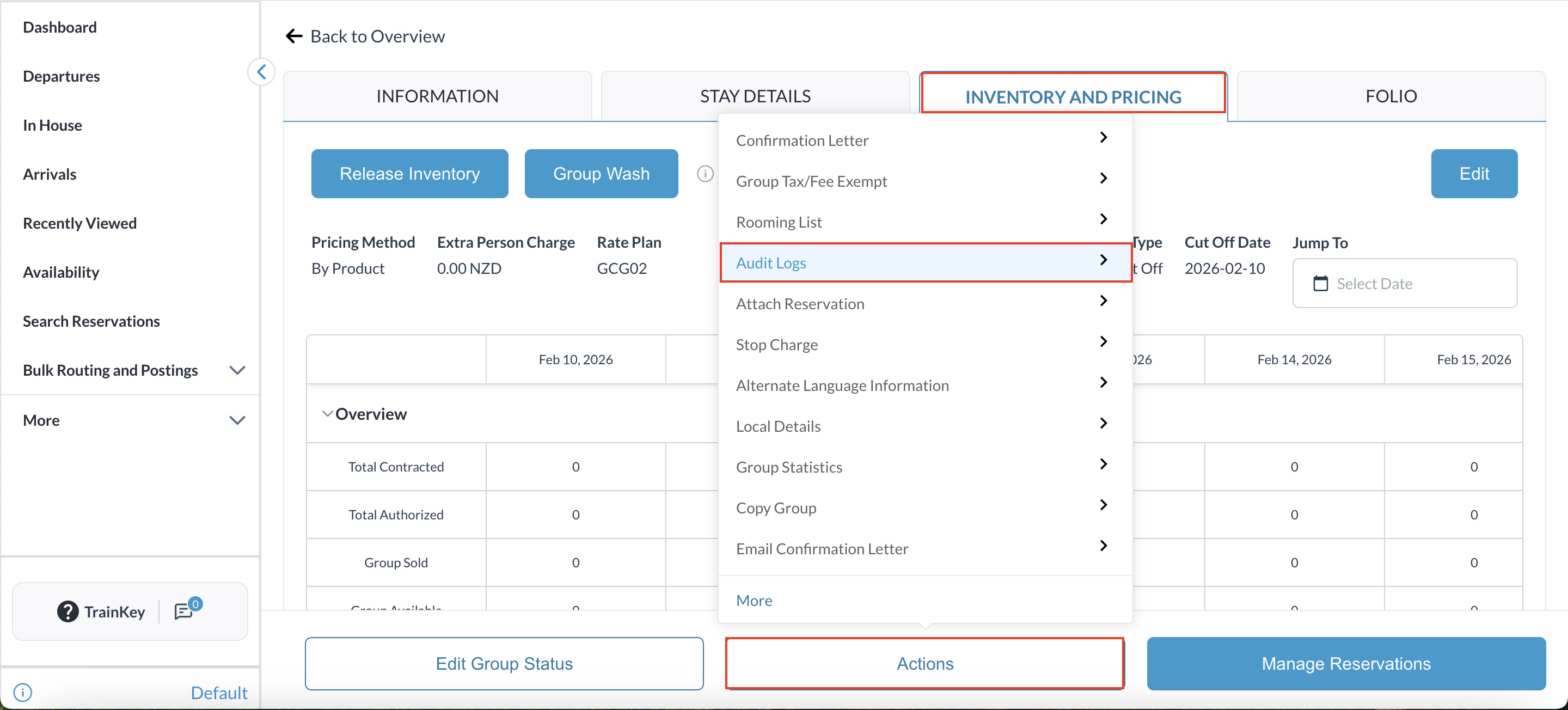
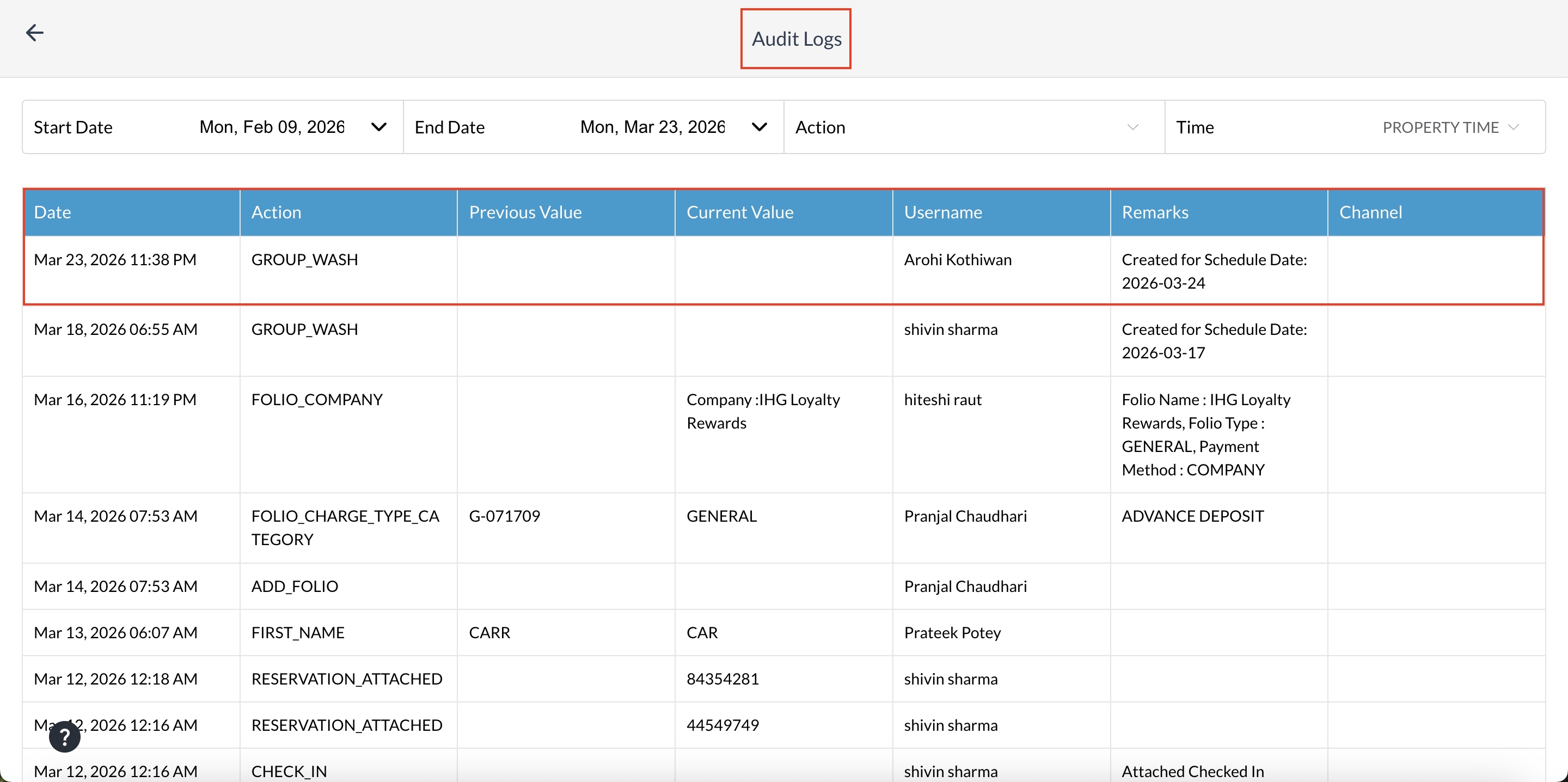
Audit Log

Navigate to Actions and click on Audit Log

All wash actions (create, edit, delete) are recorded in the Group Audit Log.

Log entries include: Wash Date, Room Types, release values, user details, and timestamp.

Multiple wash actions are aggregated in reports

912A2529-A779-4EB8-82B3-BAAB986E28D0.jpeg


183D62CA-1DDC-481B-AEC3-46ED24FE117C.jpeg
JavaScript errors detected

Please note, these errors can depend on your browser setup.

If this problem persists, please contact our support.