
Room Status History Report Overview
Parent Hub: 🧹 Rooms & Facilities
Category: 📋 Operations Analytics
Target Roles: Executive Housekeepers, Housekeeping Supervisors, Floor Operations Leads, Operations Analysts, Hotel Controllers, General Managers
Key Value: Monitor historical room status changes, track attendant service durations, analyze room cleaning actions across service types and room categories, audit floor productivity, and evaluate departmental labor efficiency.
Executive Summary
The Room Status History Report is an essential operational analytics dashboard, room servicing audit, and labor efficiency document within the 📋 Operations Analytics category of the 🧹 Rooms & Facilities hub. Designed to provide complete transparency over daily room cleaning execution, attendant servicing times, and category-level production, it logs every room status event recorded across property accommodations over specified date windows.
-
By organizing operational data into 3 defined report sections: Room Status History (Detail Level), Summary by Service Type, and Summary by Room Types, this report enables executive housekeepers, floor supervisors, and hotel controllers to review individual room cleaning logs (
Room Status History) alongside aggregated service benchmarks (Summary by Service Type) and category-level labor totals (Summary by Room Types). It maps calendar dates (Date) and physical room allocations (Room Number,Room Type, e.g.,DRAN,KTPN,KQQN,SQAN,KWPN,DGCN,KQJN,KABN,DQAN,KBSN) to operational actions (Action Taken, e.g.,NO ACTION TAKEN), attendant assignments (Housekeeper,Housekeeping Team), service classifications (Service Type, e.g.,CLEAN,CO,DC,RFM,SO), servicing timestamps (Start Time,End Time), labor durations (Service Time,Total Time), and room volume totals (Rooms).
Key Capabilities
-
Three-Section Operational Analytics Structure: Evaluates individual room status logs (
Room Status History) alongside aggregated service benchmarks (Summary by Service Type) and room category production (Summary by Room Types). -
Granular Room Servicing Audit: Logs room-by-room status actions (
Action Taken), servicing start/end timestamps (Start Time,End Time), and recorded labor durations (Service Time). -
Attendant & Team Traceability: Identifies assigned room attendants (
Housekeeper) and designated floor teams (Housekeeping Team) responsible for servicing each room. -
Service Type Production Summarization: Aggregates total room counts (
Rooms) and accumulated labor durations (Service Time,Total Time) across service categories—including Full Cleans (CLEAN), Checkouts (CO), Deep Cleans (DC), Refreshes (RFM), and Stayovers (SO). -
Room Category Labor Analysis: Summarizes cumulative servicing volume and labor time disaggregated by room type codes (
Room Type) to evaluate layout cleaning complexity.
Report Views & Functional Breakdown
The Room Status History Report presents room servicing and labor performance data across 3 defined sections:
┌────────────────────────────────────────────────────────────────────────┐
│                     ROOM STATUS HISTORY REPORT                         │
├────────────────────────────────────────────────────────────────────────┤
│                       3 Defined Report Sections                        │
├──────────────────────────┬──────────────────────────┬──────────────────┤
│ 1. Room Status History   │ 2. Summary by Service    │ 3. Summary by    │
│    (Detail Level)        │    Type (Category Bench) │    Room Types    │
└──────────────────────────┴──────────────────────────┴──────────────────┘
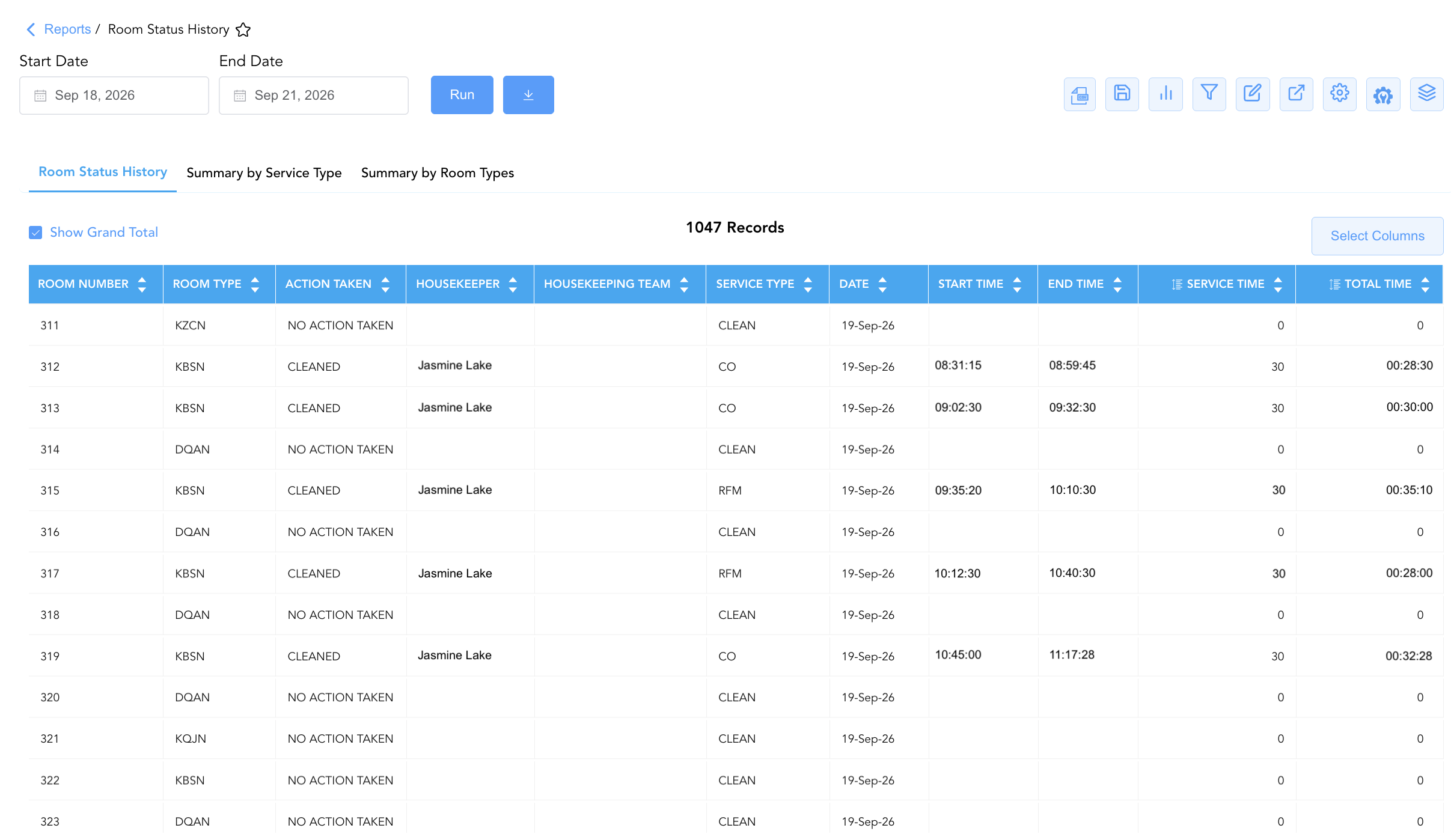
1. Room Status History Section (Detail Level)
Monitors line-item room servicing events, detailing attendant assignments, required service types, start/end timestamps, and recorded cleaning durations per room.
-
Primary Use: Investigating specific room cleaning logs, auditing attendant servicing speeds, and verifying daily room status updates.
-
Key Metrics: Date, Room Number, Room Type, Action Taken, Housekeeper, Housekeeping Team, Service Type, Service Time, Start Time, End Time, Total Time.
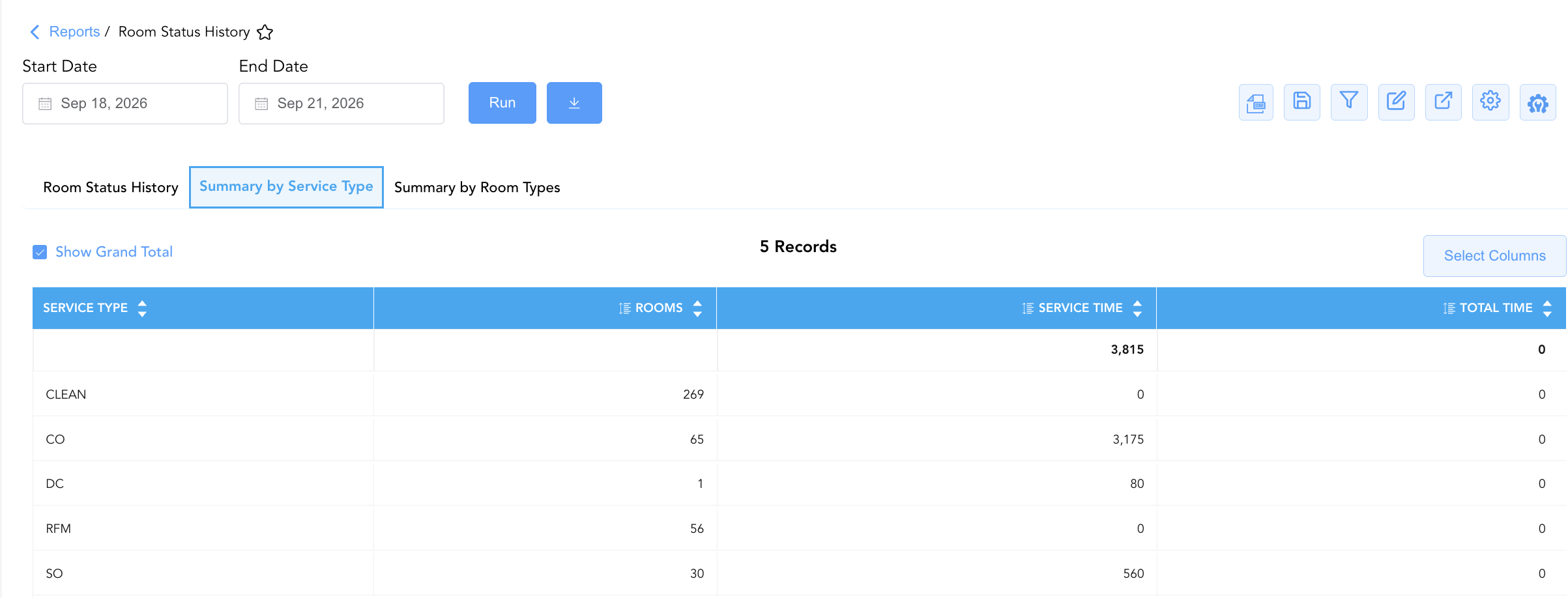
2. Summary by Service Type Section
Aggregates total room counts and cumulative servicing labor durations categorized by specific housekeeping service types.
-
Primary Use: Auditing department-wide labor production across service categories (Checkout vs. Stayover vs. Deep Clean) and comparing actual servicing times against labor benchmarks.
-
Key Metrics: Service Type, Rooms, Service Time, Total Time.
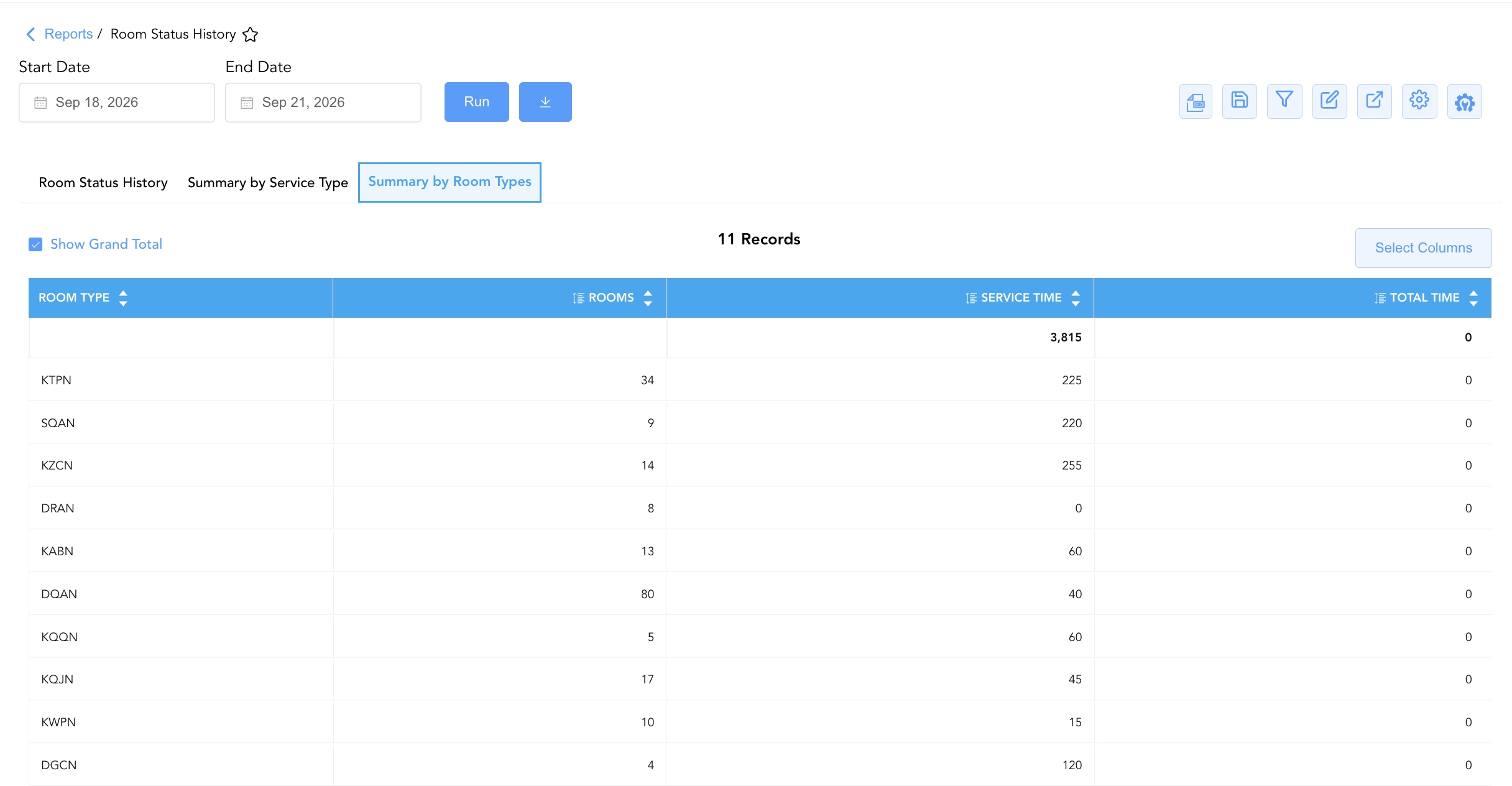
3. Summary by Room Types Section
Summarizes total room volume and accumulated labor durations categorized by physical room type codes.
-
Primary Use: Evaluating cleaning labor distribution across room categories (Suites vs. Standard Rooms) to refine staffing allocations and labor budgets.
-
Key Metrics: Room Type, Rooms, Service Time, Total Time.
Data Dictionary (Dynamic View Columns)
Customize your default view using the Configure (⚙️) icon on the report page. Below is the full data dictionary representing all 12 unique columns available across the 3 report sections, sorted in alphabetical order by column name:
|
Column Name |
Section Applicability |
Description |
Data Source / System Mapping |
Includes Taxes & Fees? |
|
Action Taken |
Section 1 |
Specific operational or housekeeping workflow action executed on the room (e.g., |
Housekeeping Engine > Action Code |
N/A |
|
Date |
Section 1 |
Calendar date on which the room status history event occurred. |
PMS Calendar > Event Date |
N/A |
|
End Time |
Section 1 |
Timestamp recording when room servicing or cleaning ended. |
Housekeeping Audit > End Timestamp |
N/A |
|
Housekeeper |
Section 1 |
Full name of the room attendant assigned to or performing service on the room. |
Housekeeping Engine > Attendant Name |
N/A |
|
Housekeeping Team |
Section 1 |
Designated housekeeping team or shift unit assignment. |
Housekeeping Setup > Team Name |
N/A |
|
Room Number |
Section 1 |
Physical guest room number assigned on property (e.g., |
PMS > Physical Room ID |
N/A |
|
Room Type |
Sections 1, 3 |
Alphanumeric code or category description representing the room type (e.g., |
PMS > Room Category Code |
N/A |
|
Rooms |
Sections 2, 3 |
Aggregated numerical count of rooms categorized under a specific service type or room type in summary sections. |
SUM(Categorized Rooms) |
N/A |
|
Service Time |
Both Sections |
Recorded labor duration dedicated to servicing the room or aggregated across categories. |
Housekeeping Timer > Recorded Time |
N/A |
|
Service Type |
Sections 1, 2 |
Classification of housekeeping service required or performed (e.g., |
Housekeeping Engine > Service Code |
N/A |
|
Start Time |
Section 1 |
Timestamp recording when room servicing or cleaning began. |
Housekeeping Audit > Start Timestamp |
N/A |
|
Total Time |
Both Sections |
Total aggregated labor duration accumulated across rooms in detail and summary sections. |
SUM(Recorded Labor Time) |
N/A |
Customization & Platform Features
User & Property Preferences
-
Personal Preference: Tailor your individual view by hiding or dragging columns. Your preferences save automatically for future sessions.
-
Property Defaults: System Admins can configure standard default layouts across all property users to streamline operational reporting. To maximize audit efficiency, group the columns into the below logical blocks:
-
Section 1: Room Status History
-
Physical Locators & Action Taken (Cols 1–3):
Room Number|Room Type|Action Taken -
Staff Assignment & Service Classification (Cols 4–6):
Housekeeper|Housekeeping Team|Service Type -
Calendar Date & Task Execution Timestamps (Cols 7–11):
Date|Start Time|End Time|Service Time|Total Time
-
-
Section 2: Summary by Service Type
-
Service Classification & Workload KPIs (Cols 1–4):
Service Type|Rooms|Service Time|Total Time
-
-
Section 3: Summary by Room Types
-
Room Category & Workload KPIs (Cols 1–4):
Room Type|Rooms|Service Time|Total Time
-
-
Report Toolbar & Quick Actions
Use the top-right toolbar icons on the report page to manage and export your data view:
|
Icon |
Action / Feature |
Description |

|
Knowledge Article |
Opens the knowledge base article to learn how to interpret this report. |

|
Background Export |
Allows users to download up to 365 days of data directly to their computer in CSV format. |

|
Saved Views |
Saves your column filtering, sorting, and highlight preferences so you can easily reload your custom view later without reconfiguring the report. |

|
Bar Chart |
Displays report data in a visual bar chart format. |

|
Filter |
Opens filter controls to isolate specific data within a column based on your selected criteria. |

|
Highlight |
Highlights column values in a designated color based on selected conditions. |

|
Export |
Exports and downloads the report in various formats (Excel, PDF, CSV) for offline analysis or printing. |

|
Configure |
Opens column selection controls to toggle visibility, reorder columns, or hide rows with all zeros. |

|
Additional Configuration |
Provides advanced report configuration and display formatting options to customize data presentation. |

|
Group By |
Summarize and group report data dynamically in real time. |
Interactive Visualizations & Grouping Controls
-
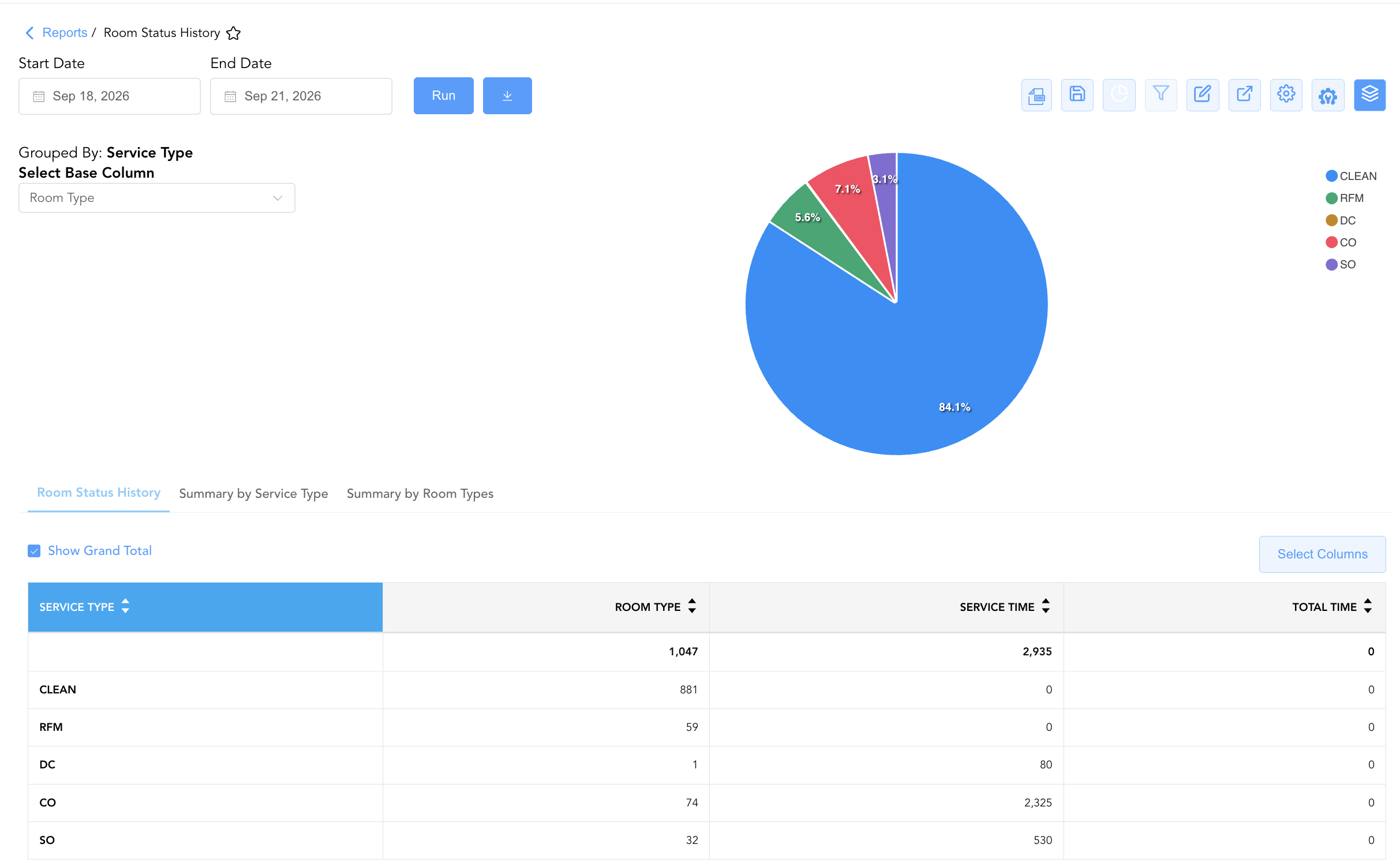
Group By & Pie Chart Visualization: The Room Status History report features an interactive pie chart to help analyze housekeeping turnover trends and service duration distributions. Users can toggle or expand/collapse the Room Type and Service Type sections to analyze line-item logs or summary totals independently, with grouping supported on the Room Status History section. By selecting a metric from the Select Base Column dropdown menu—such as Room Type, Service Time, or Total Time—the chart dynamically renders percentage share breakdowns accompanied by an interactive color-coded legend.
-
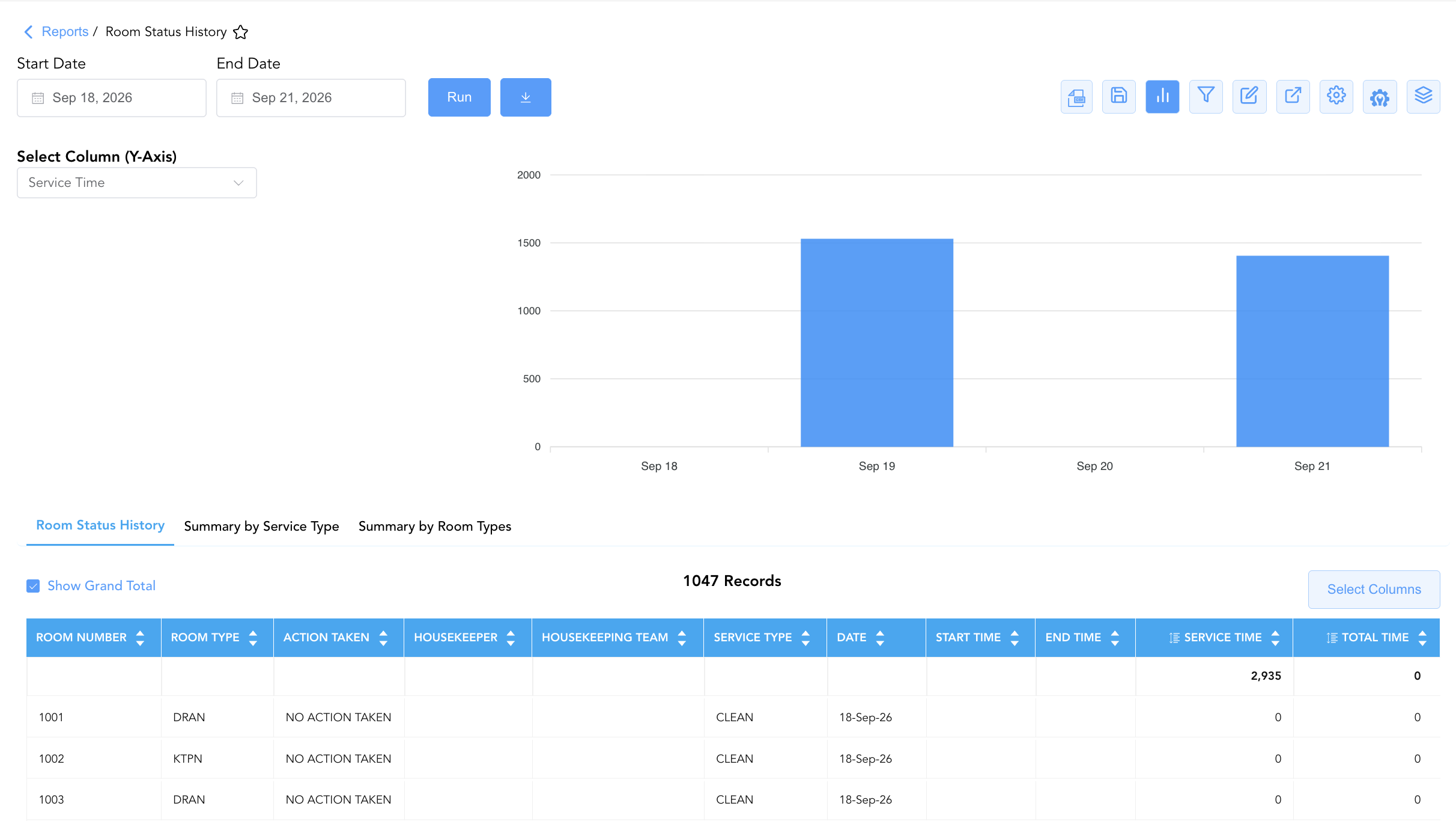
Bar Chart Visualizer: The Room Status History report includes an interactive bar chart to help analyze housekeeping labor efficiency and room turnover duration trends over time. By adjusting the Select Column (Y-Axis) dropdown menu, users can dynamically toggle the chart view to plot metrics such as Service Time or Total Time chronologically alongside the detailed room status history data grid
Advanced Controls
-
Labor Productivity Exporting: Export aggregated service time totals (
Service Time,Total Time) in Section 2 or Section 3 to compare actual attendant performance against labor standards. -
Filtering: Filter Section 1 by
Service Type = COto audit checkout turnover labor times, or filter byHousekeeperto evaluate individual staff production. -
Highlighting (Conditional Formatting): Apply custom rules to automatically highlight extended service times, unserviced rooms (
Action Taken = NO ACTION TAKEN), or high-volume checkout categories.
🔗 Related Reports & Next Steps
Within 🧹 Rooms & Facilities & 📋 Operations Analytics / 🛏️ Room Status:
-
Housekeeping Detail – Granular line-item audit tracking individual attendant cleaning speeds, durations, and inspection times.
-
Housekeeping Room Log – Immutable audit trail tracking room status changes and attendant cleaning actions.
-
Housekeeping Summary – Streamlined daily operational summary of attendant assignments and real-time room statuses.
-
All Rooms Report – Master physical room inventory, cleanliness state, and housekeeping schedule manifest.
Cross-Pillar Deep Dives:
-
🛎️ Front Desk & Guest Services: Reconcile completed checkout cleans (
Service Type = CO) with the Departures List to verify room turnover synchronization.