Action Menu: Calendar

📆 Revision Date:


Calendar is a scheduling tool that allows you to create and manage appointments within EventKey without having to leave an access your mailbox calendar.

  • Schedule meetings, events, and reminders

  • Set up recurring events (e.g., weekly meetings)

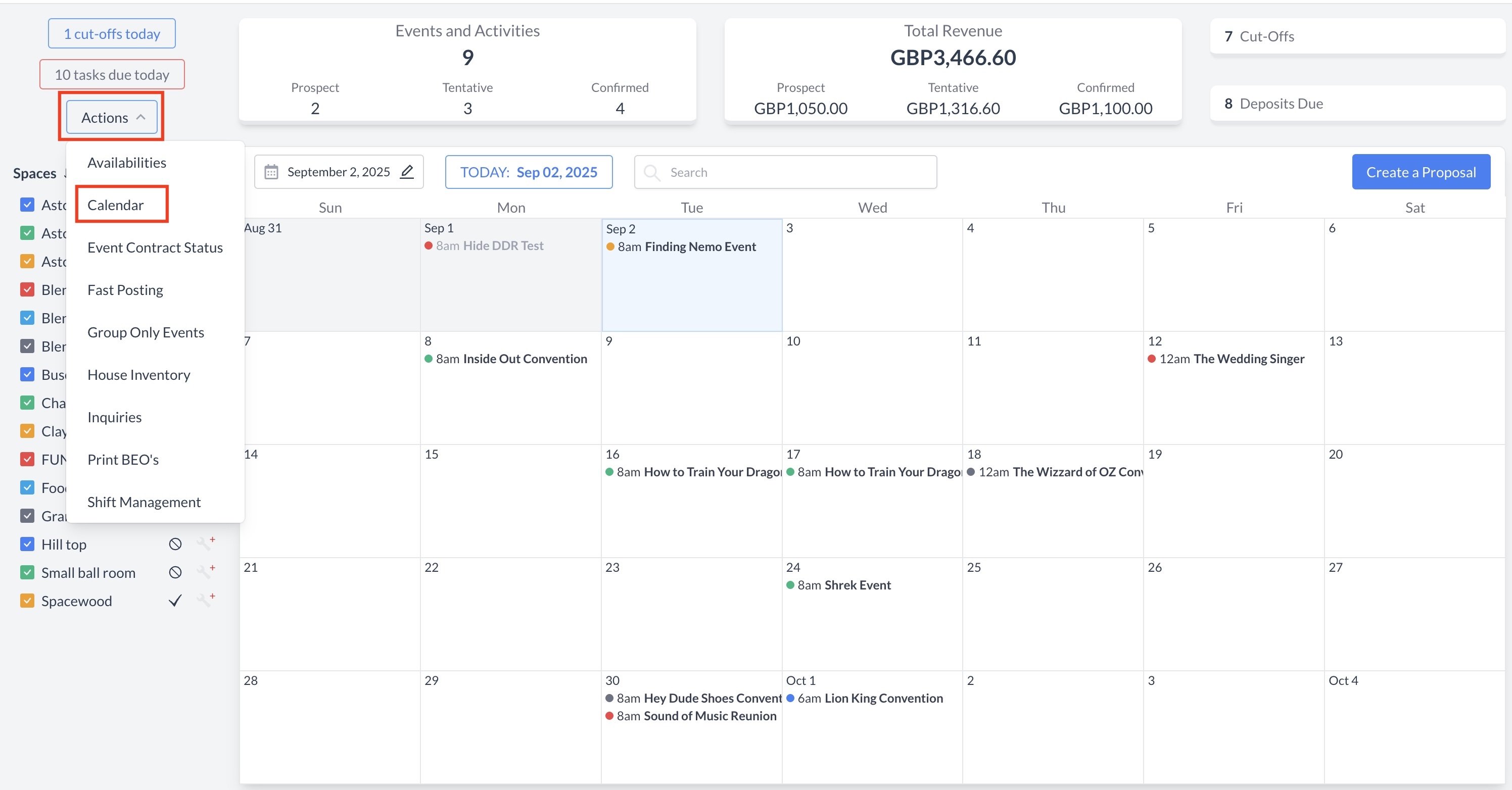
Navigate to Home > Event Management > Actions > Calendar

Image 9-2-25 at 8.27 PM.jpg
Actions Menu > Calendar


Default Calendar View
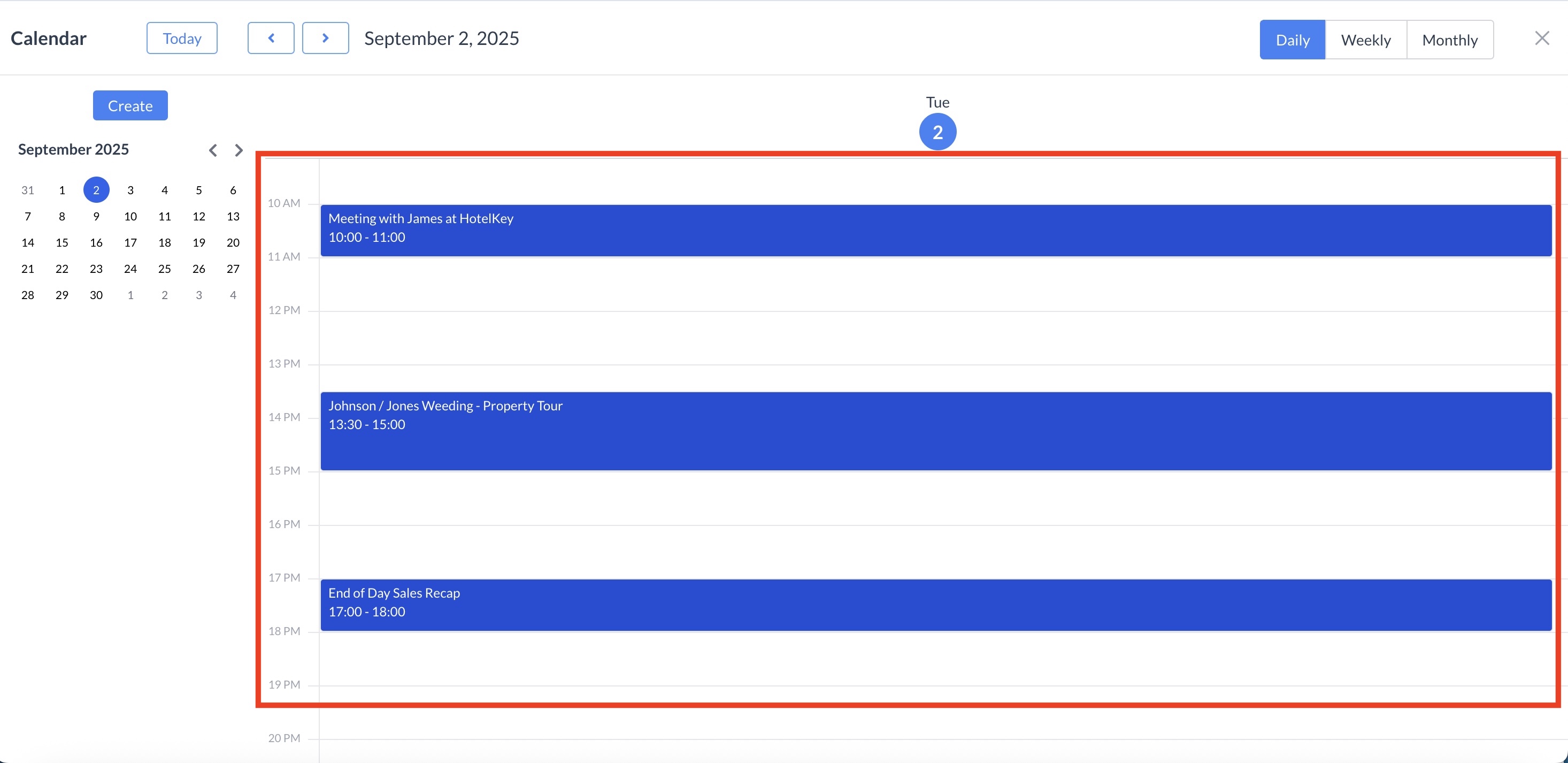
The calendar automatically opens to the current business day and displays events in the daily view by default.

Image 9-2-25 at 8.42 PM.jpg
Default Calendar View


Viewing Scheduled Meetings
Your scheduled meetings and appointments will appear in this calendar. Please note that this calendar does not sync with your mailbox calendar—it only displays meetings that you have created within EventKey.

Image 9-2-25 at 8.42 PM.jpg
Viewing Scheduled Meetings


Changing the Calendar View
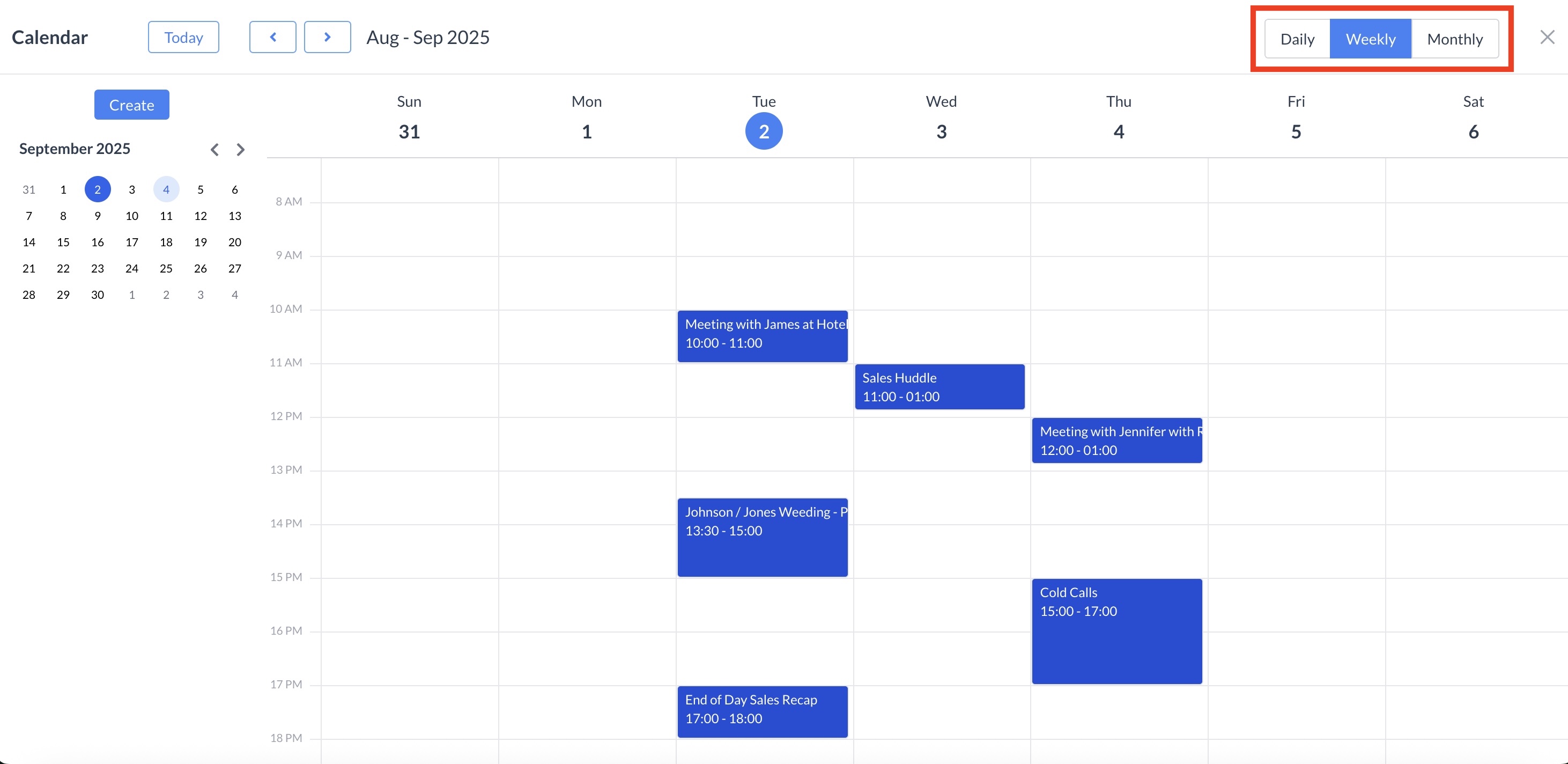
To switch the calendar display, click the Weekly or Monthly button located in the upper-left corner of the screen.

Image 9-2-25 at 8.51 PM.jpg
Calendar Views


Navigating the Calendar by Date
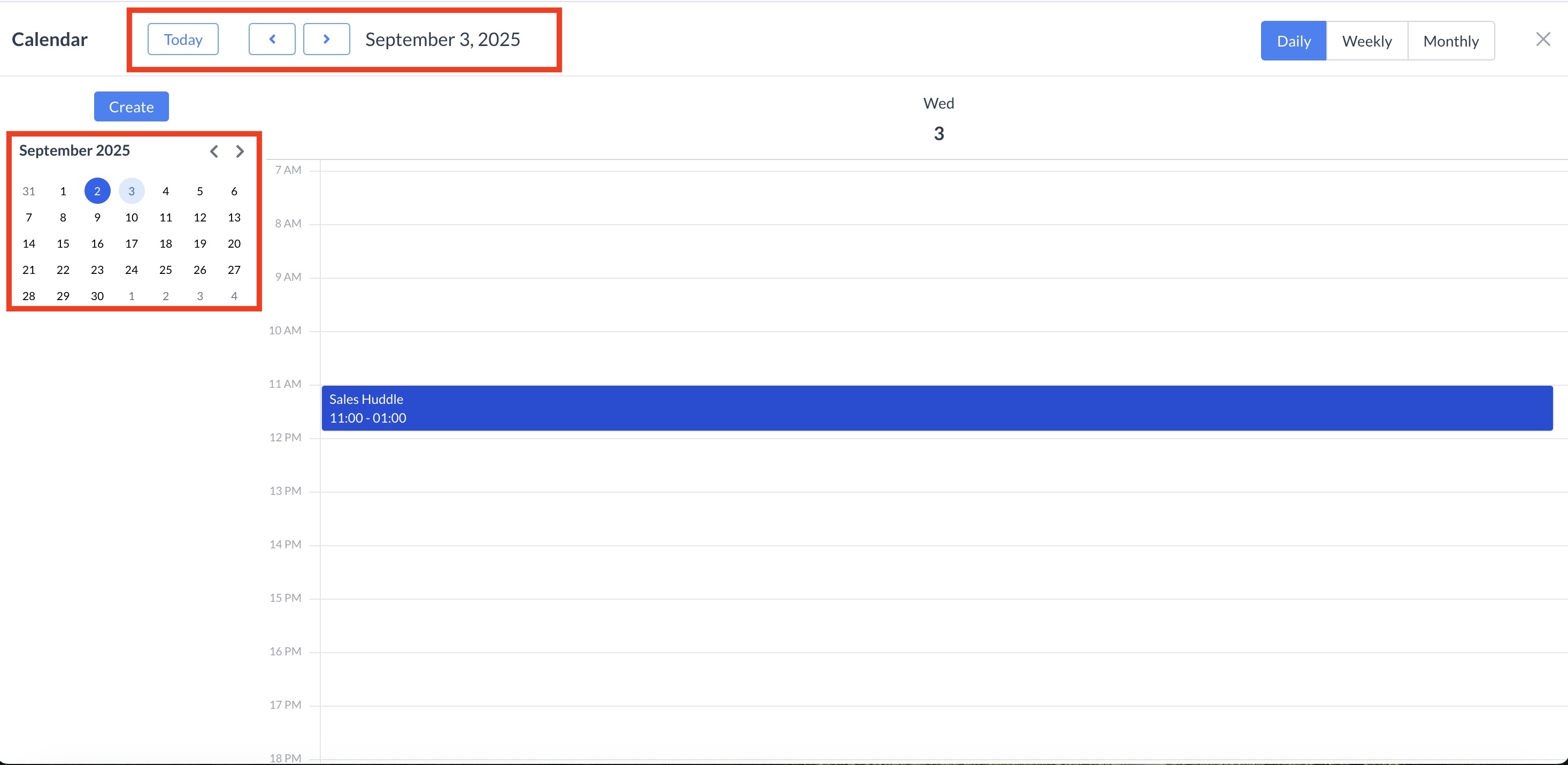
You can change the calendar date in three ways:

  • Click the back arrow to go back by one day, week, or month (depending on your current view).

  • Click the forward arrow to move ahead by one day, week, or month.

  • Use the calendar date picker to jump directly to a specific date.

  • Click the today button to return to the current day.

Image 9-2-25 at 8.53 PM.jpg
Navigating the Calendar by Date


Creating a New Appointment

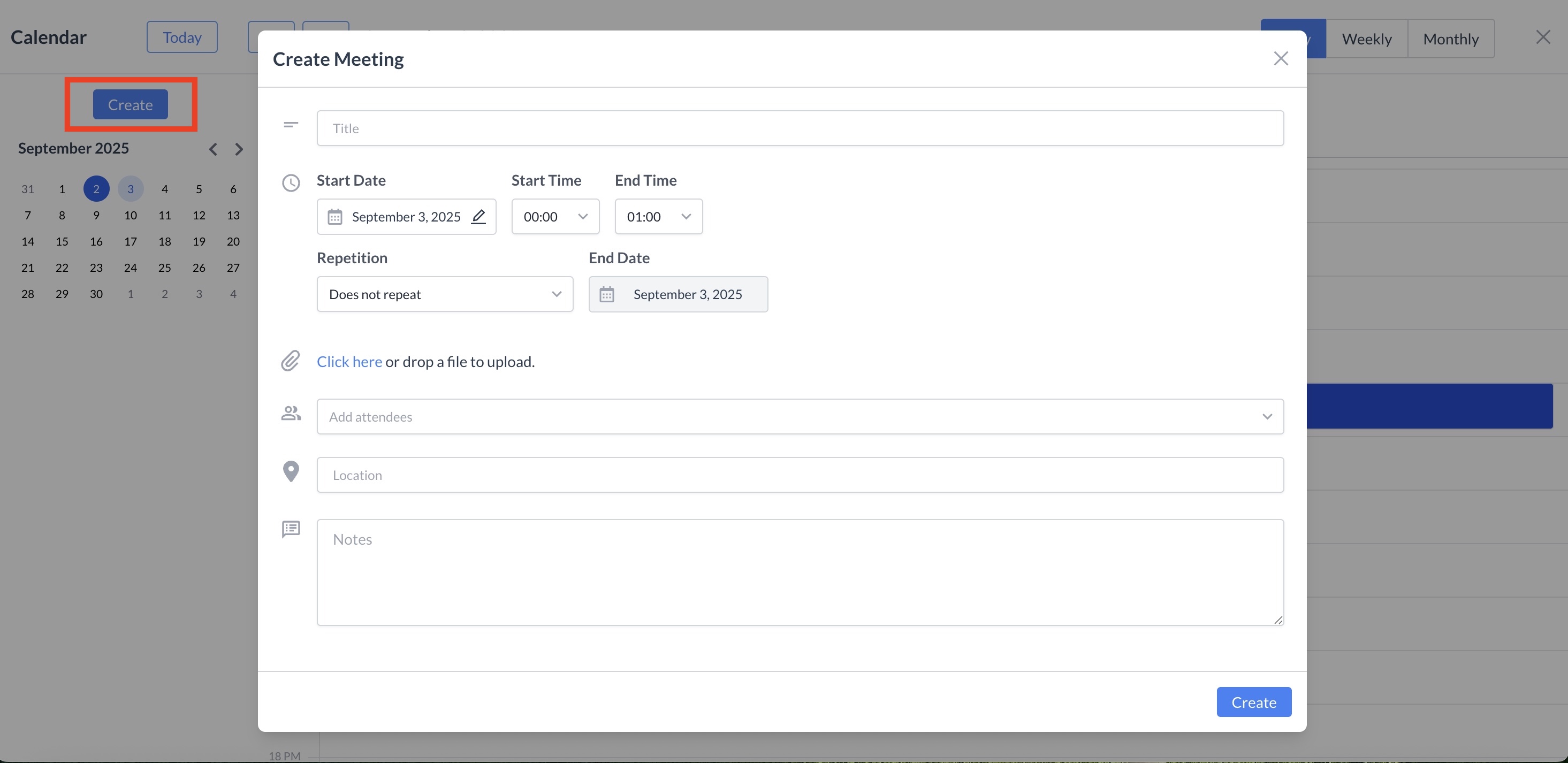
To schedule a new appointment, click the blue "Create" button. This will open the Create Meeting window.

Fill in the following details:

  • Title – Enter a name for the appointment.

  • Start Date – Select the date of the meeting.

  • Start Time – Choose the time the meeting will begin.

  • End Time – Choose the time the meeting will end.

  • Repetition – Use the dropdown to set up recurrence (e.g., daily, weekly) if applicable.

  • Add Attendees – Add internal attendees to invite them to the meeting.

  • Location – Specify the room or location where the meeting will take place.

  • Note – Enter any relevant notes or a description for the meeting.

Once all required information is entered, click Create to add the meeting to your calendar.

Image 9-2-25 at 8.57 PM.jpg
Creating a New Appointment


Editing or Deleting an Appointment

To modify or remove an existing appointment:

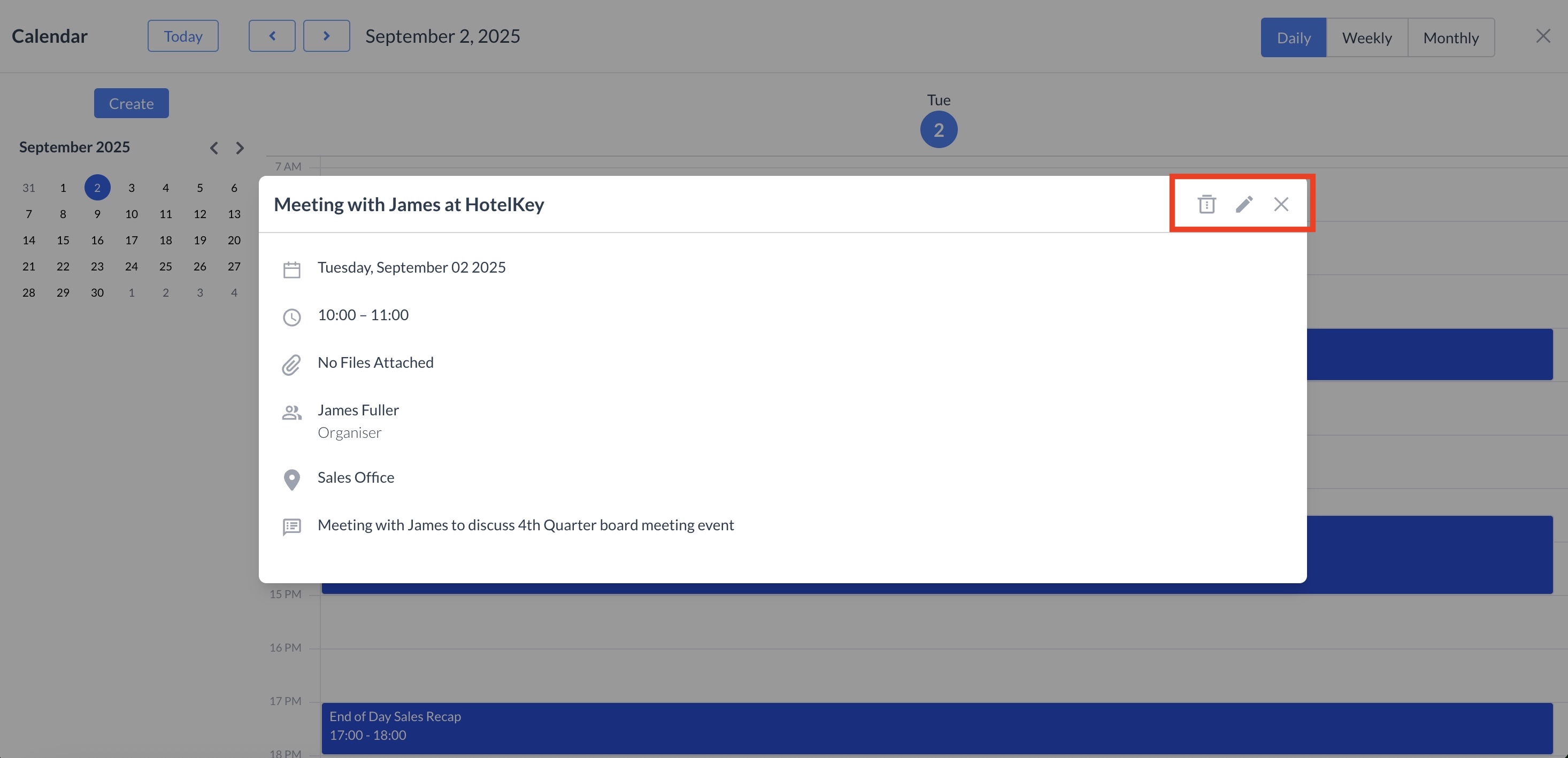
  1. Locate the appointment on your calendar and click on it to open the meeting details.

  2. To edit the appointment, click the pencil icon and make your changes.

  3. To delete the appointment, click the trash can icon.

Image 9-2-25 at 9.03 PM.jpg
Editing or Deleting an Appointment


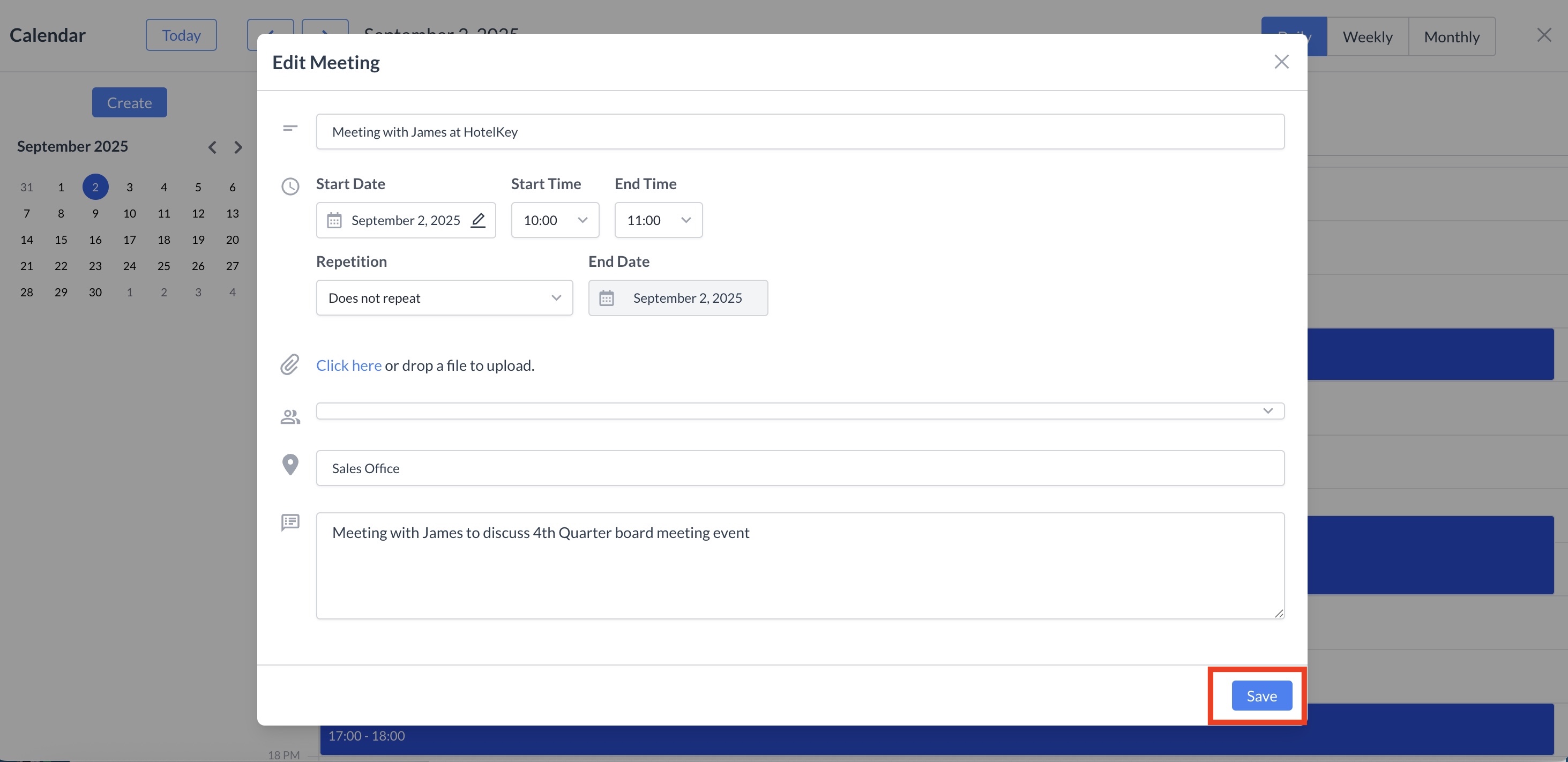
Editing an Appointment
When you enter edit mode, all event fields become available for editing. Make the necessary changes, then click Save to update the event.

Image 9-2-25 at 9.07 PM.jpg
Editing an Appointment


Deleting an Appointment

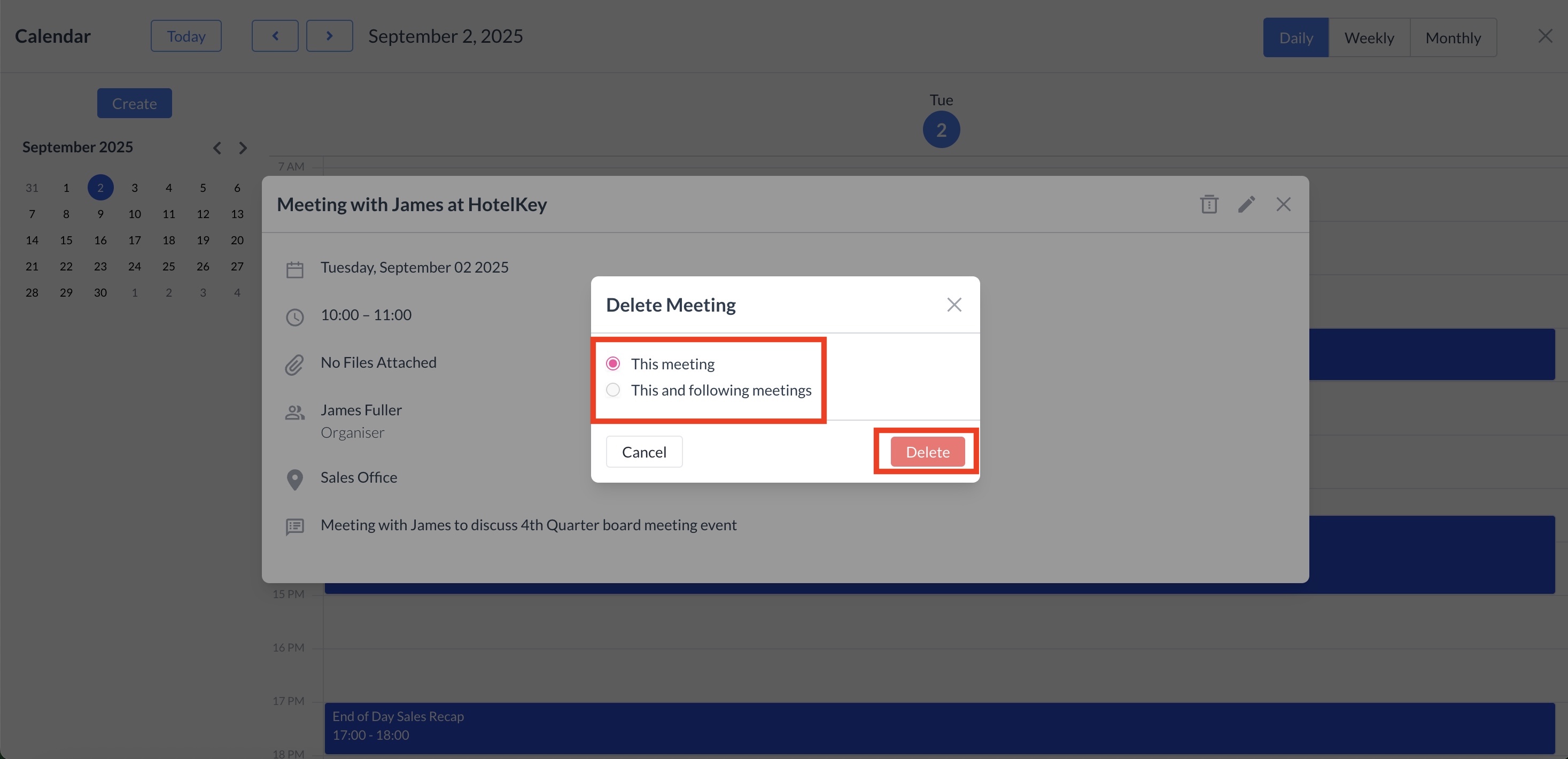
When you delete an appointment, you will be presented with two options:

  • Delete this meeting – Removes only the selected occurrence.

  • Delete this meeting and all following meetings – Removes the selected meeting and all future recurring instances.

Select the appropriate option, then click the red "Delete" button to confirm. Your appointment will be successfully deleted.

Image 9-2-25 at 9.10 PM.jpg
Deleting an Appointment