
📆 Revision Date:
Overview: Billing Information
Billing Information is the Cashiering functionality within the Folio Screen providing a centralized interface for managing all financial transactions related to an event or group booking. It is designed to ensure accurate and efficient posting, adjustment, and settlement of charges, and serves as a key tool in maintaining financial integrity throughout the event lifecycle.
Key Functions:
-
Posting Charges:
Enables users to post room rentals, food and beverage charges, equipment rentals, service fees, and other billable items directly to the folio. -
Adjustments:
Allows authorized users to correct or modify previously posted charges, apply discounts, or accommodate billing changes. All adjustments are tracked with audit trails for accountability. -
Processing Payments:
Supports the application of various payment methods (credit card, check, wire transfer, etc.) against open balances. Partial payments and deposits can also be applied and tracked through the folio. -
Folio Management:
Multiple folios per event or account can be created for separate billing needs. -
Invoice Generation:
Finalized folios can be converted into invoices for distribution to clients.
❗Important Note:
The Folio and Cashiering functionality in EventKey mirrors that of the PMS House Account. When an event is moved to Tentative status, a corresponding House Account is automatically opened in the PMS. The folio and cashiering details from this House Account are then displayed in EventKey, allowing transactions to be posted and managed directly within the system. Any transactions posted in EventKey will automatically appear in the PMS House Account, and vice versa.
|
Navigate to Home > Event Management |
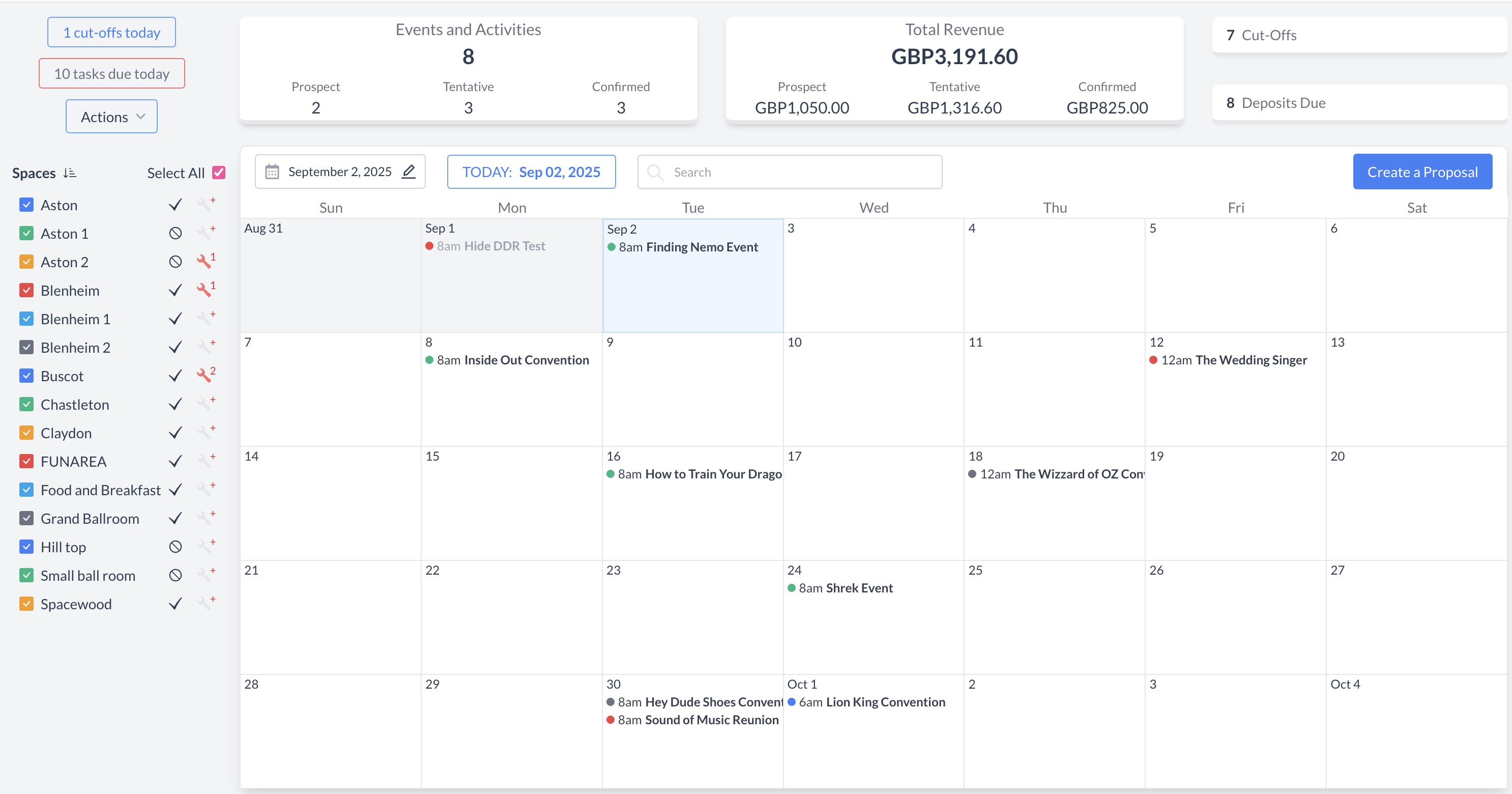
|
|
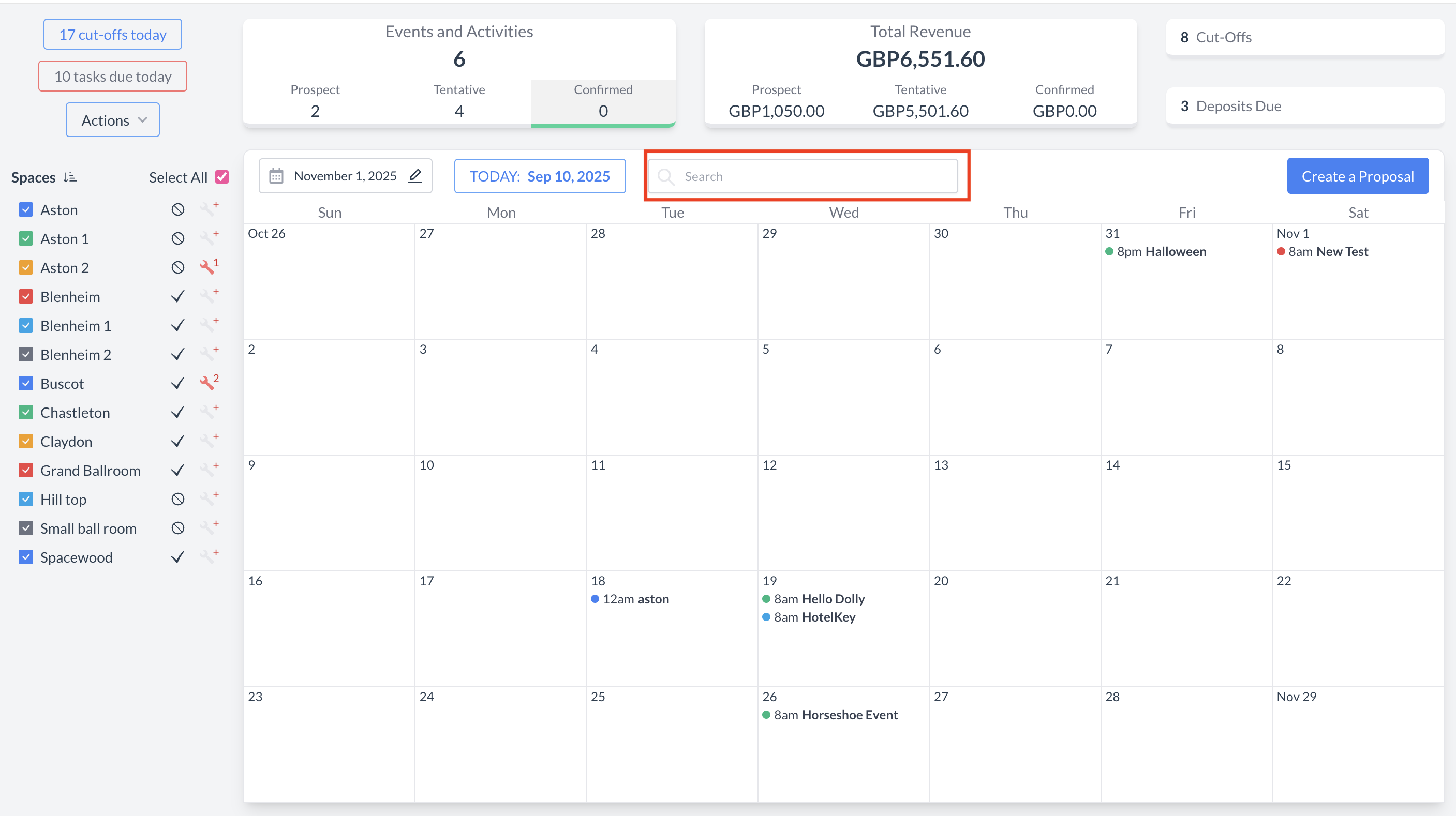
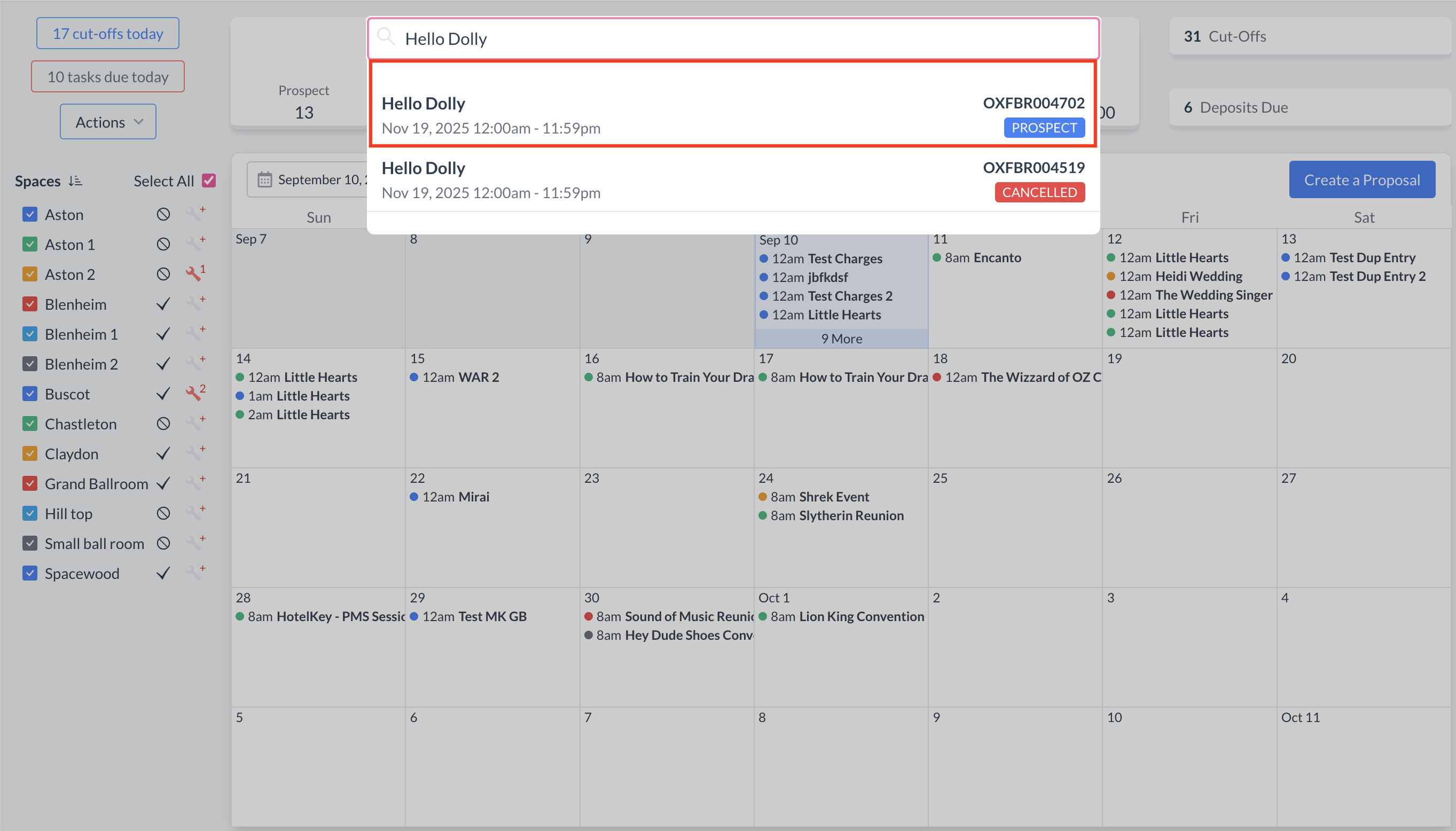
To begin, navigate to the Dashboard and use the Search box to locate the event. Enter the full or partial Event Name into the search field. The system will display a list of matching events, or, if there is an exact match, it will appear directly. Once you’ve identified the correct event, simply click on the event name to open it. |
|
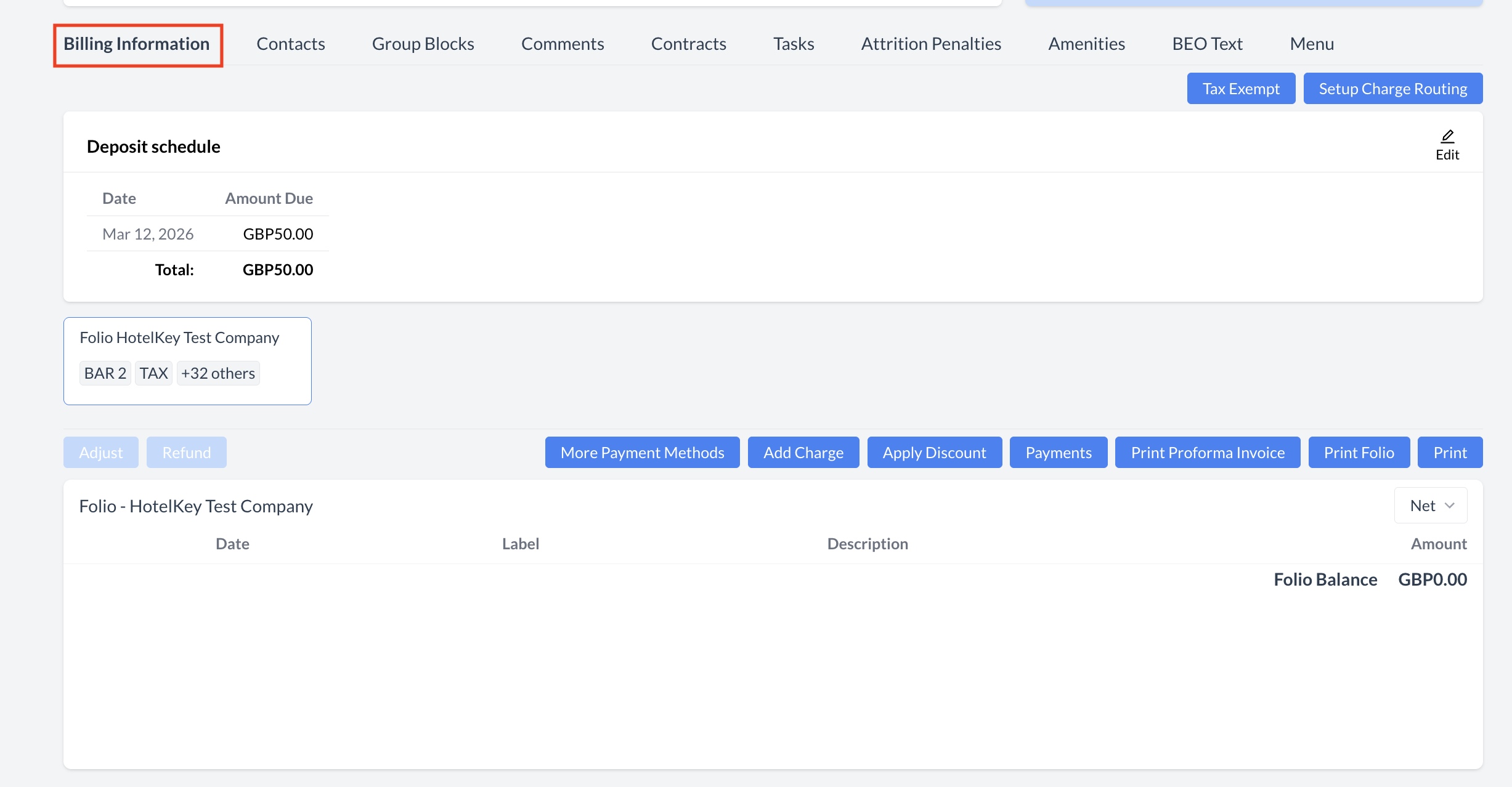
Accessing the Billing Information Section
On an Event Record (Reservation):
|
|
Key Features and Functions
|
|
Steps to Manage Deposit Schedules:
|
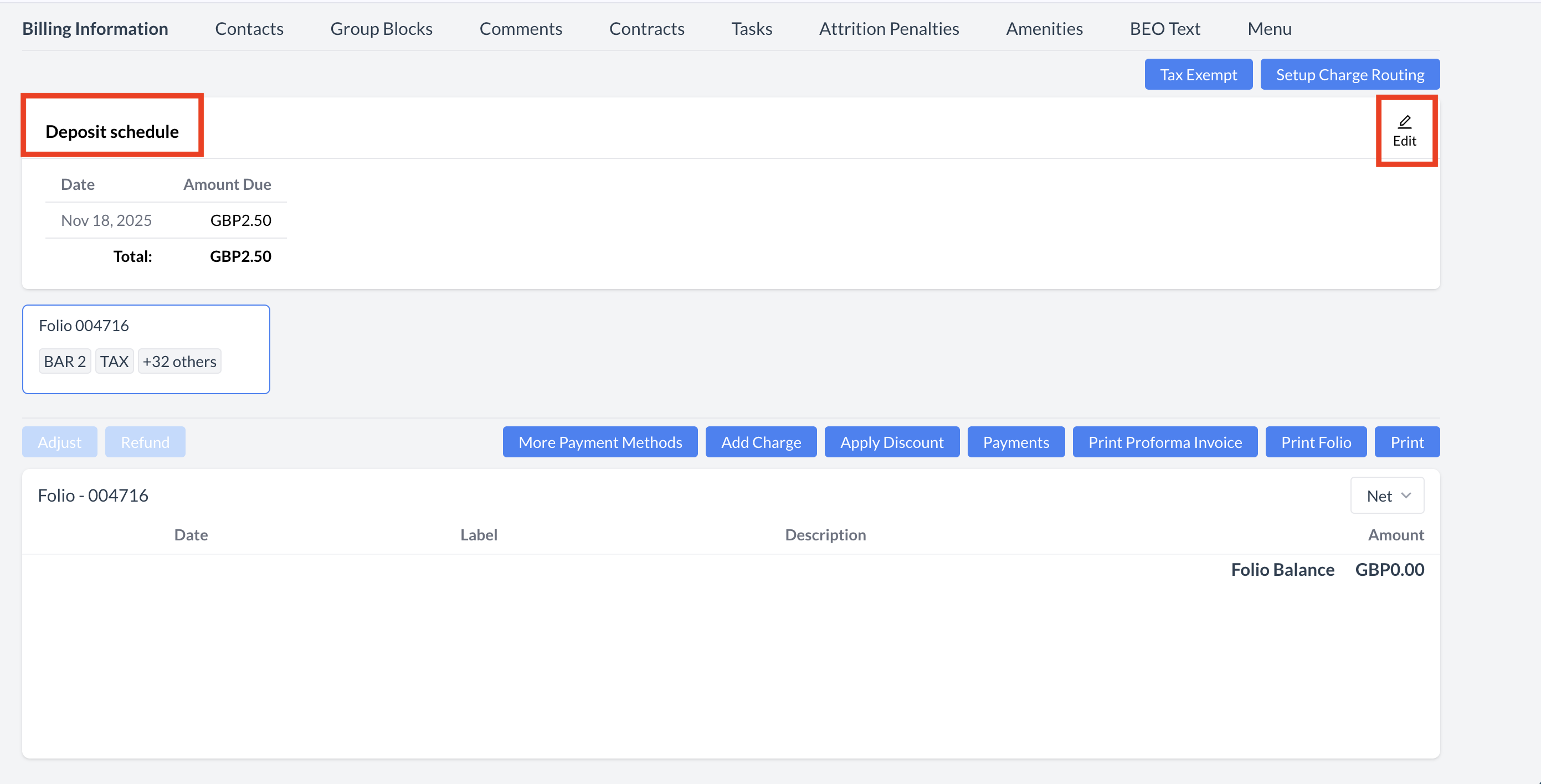
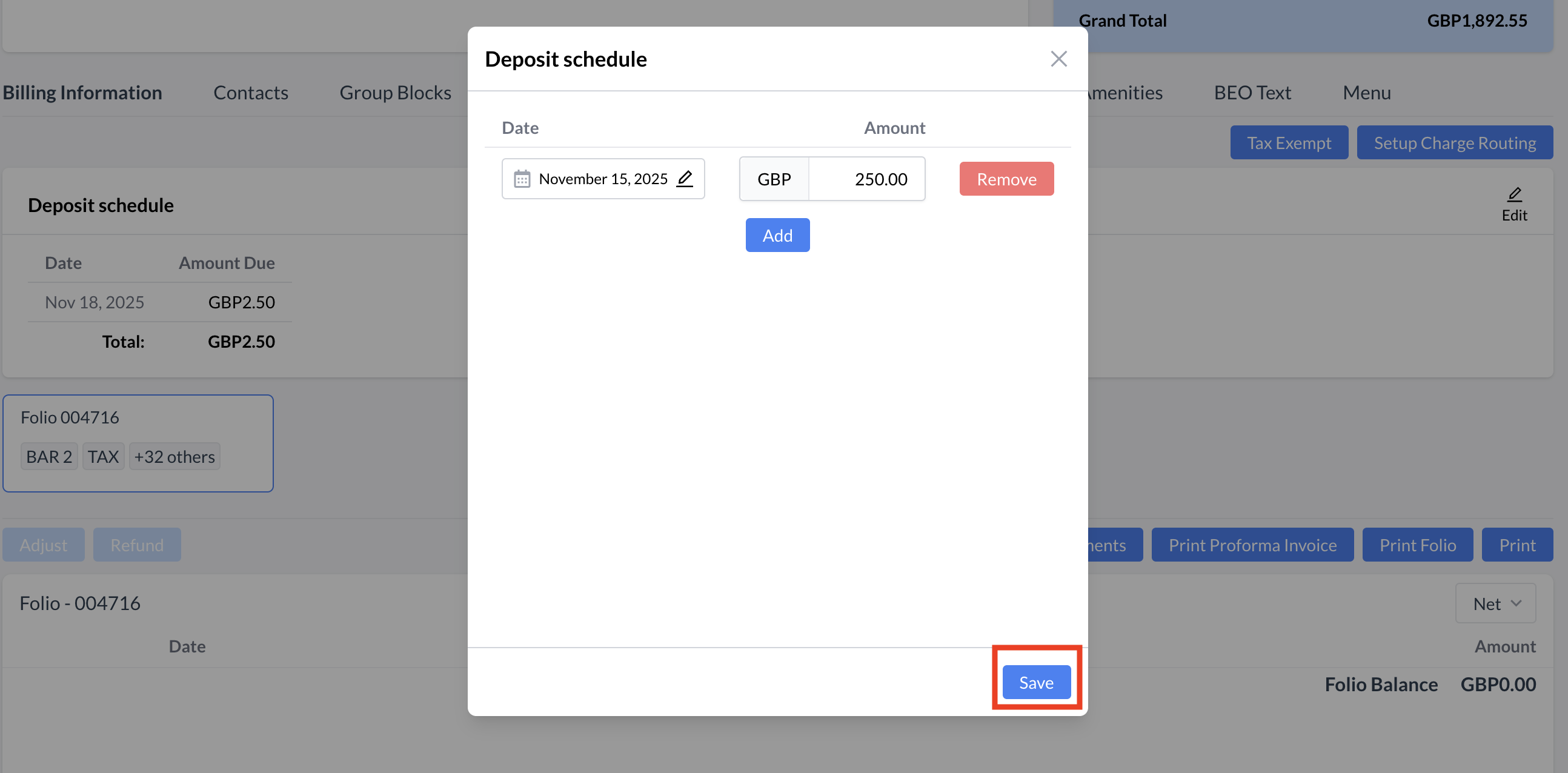
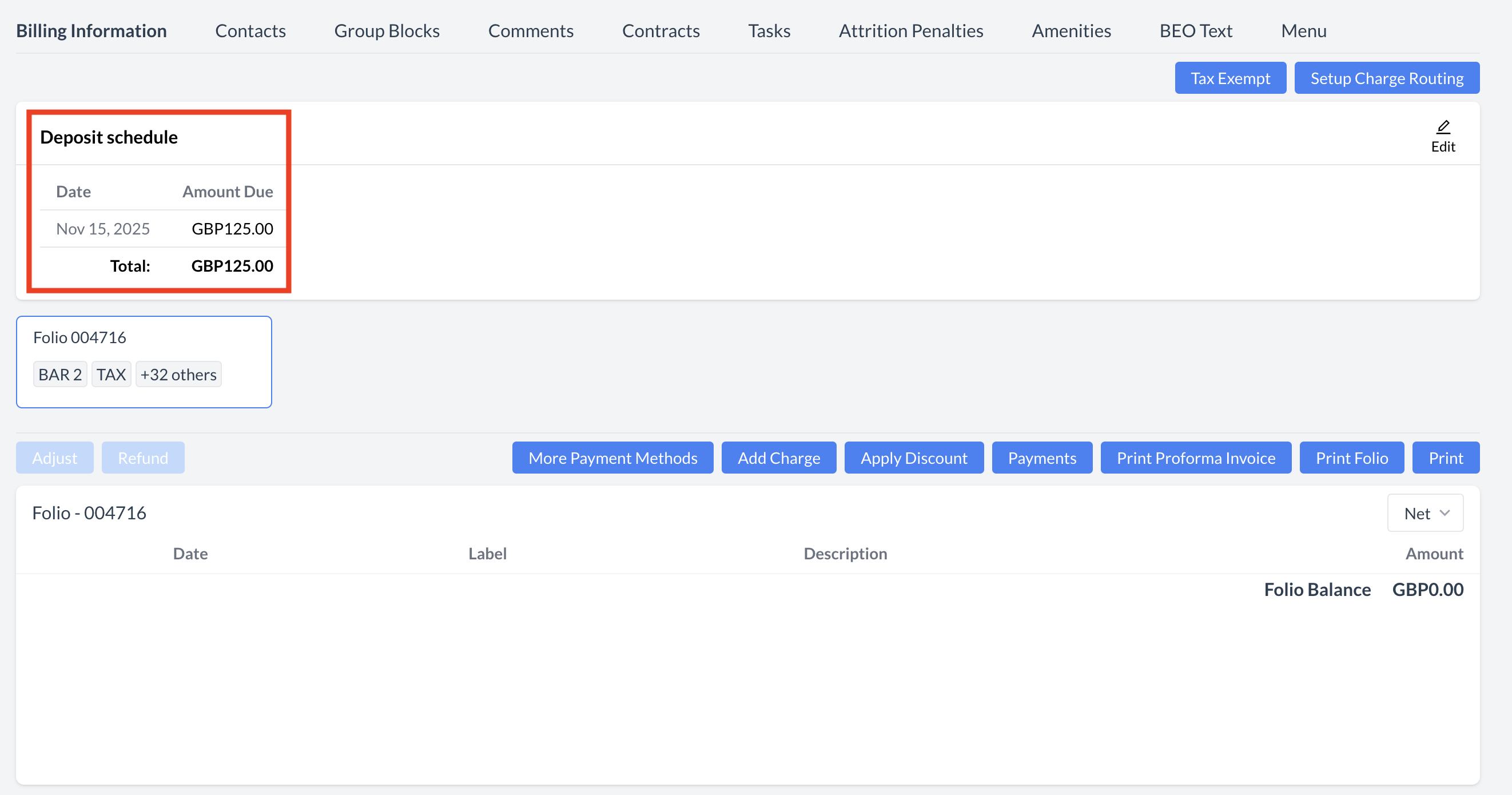
|
Steps to Apply a Tax Exemption:
|
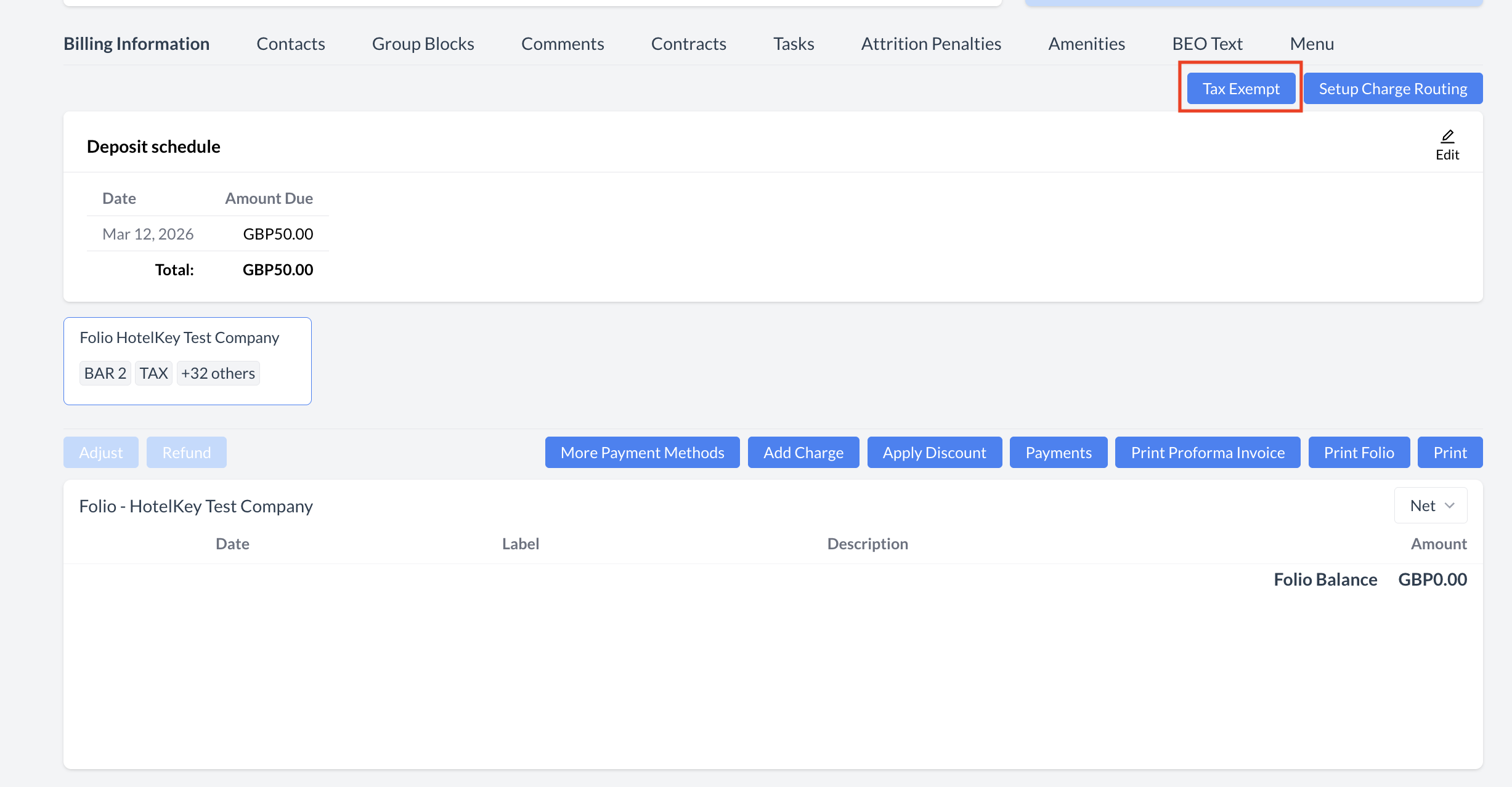
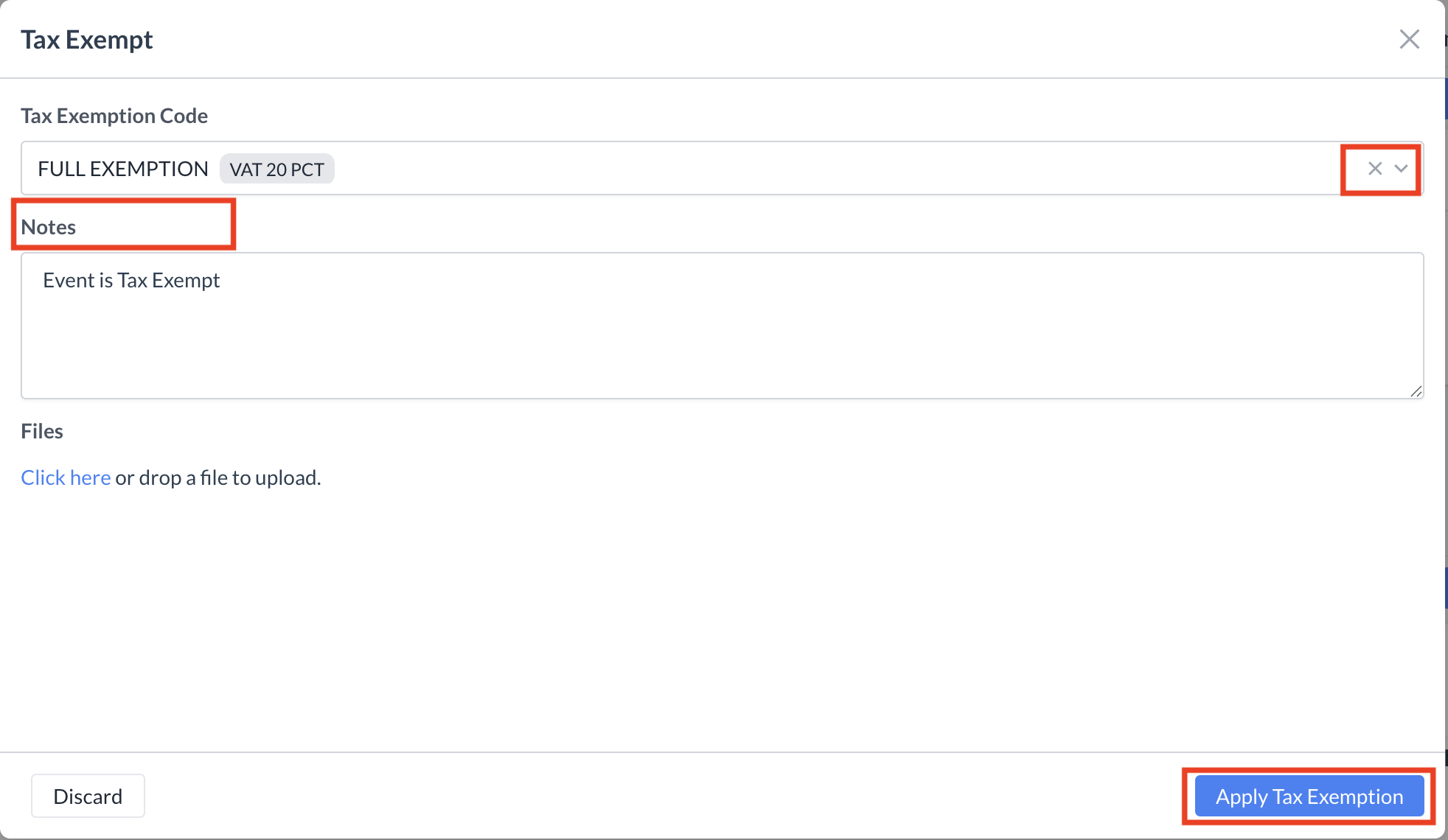
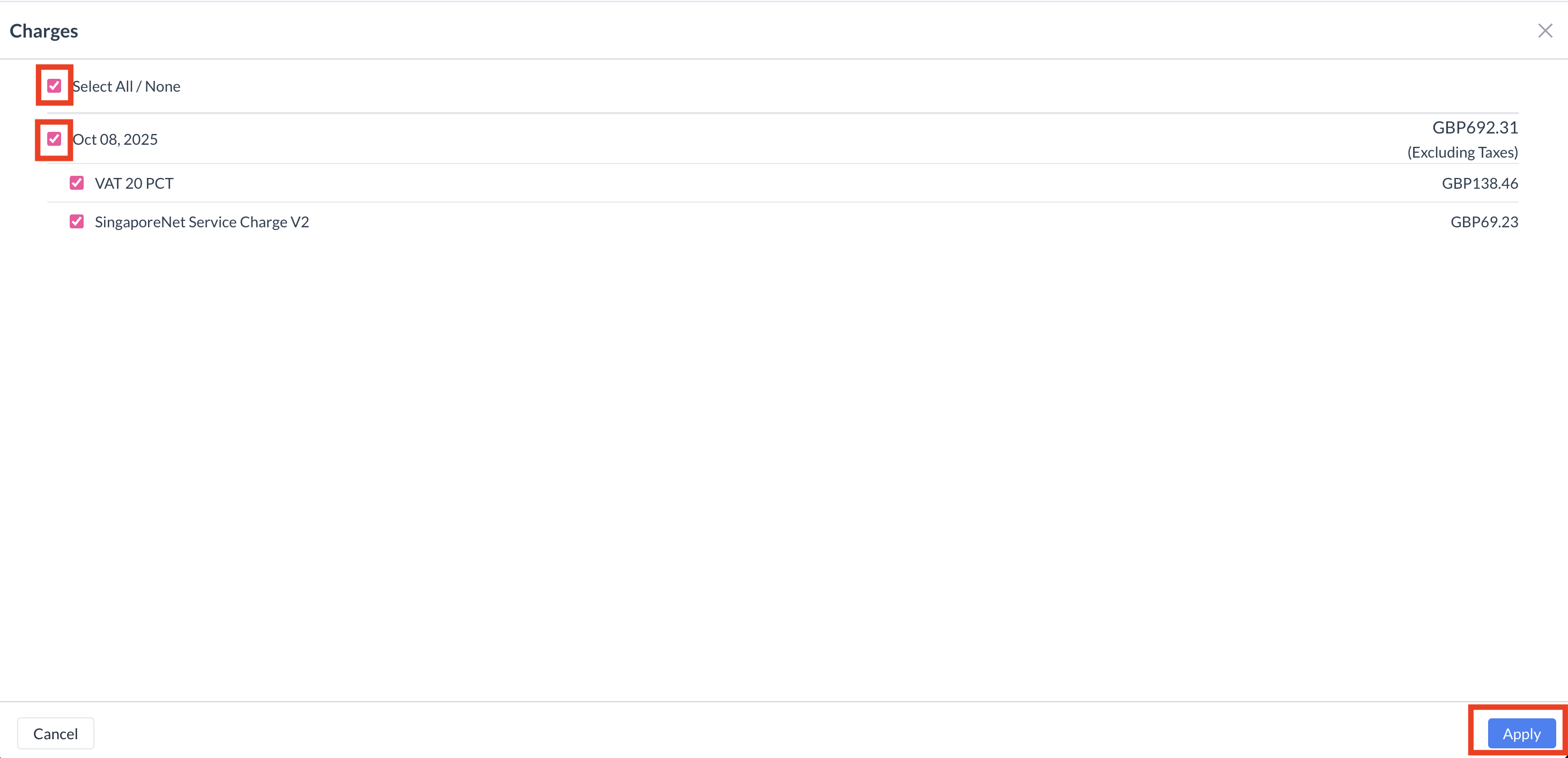
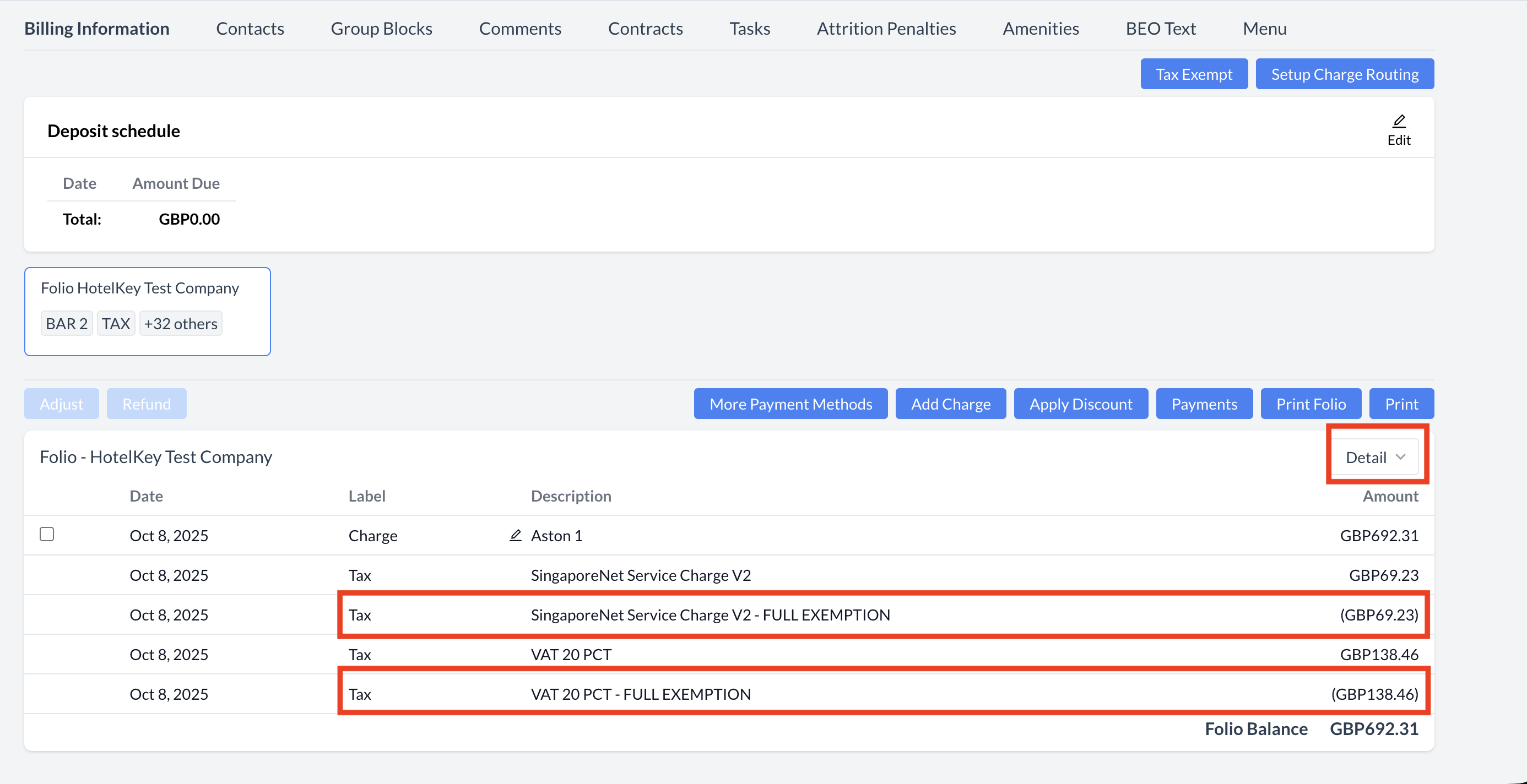
|
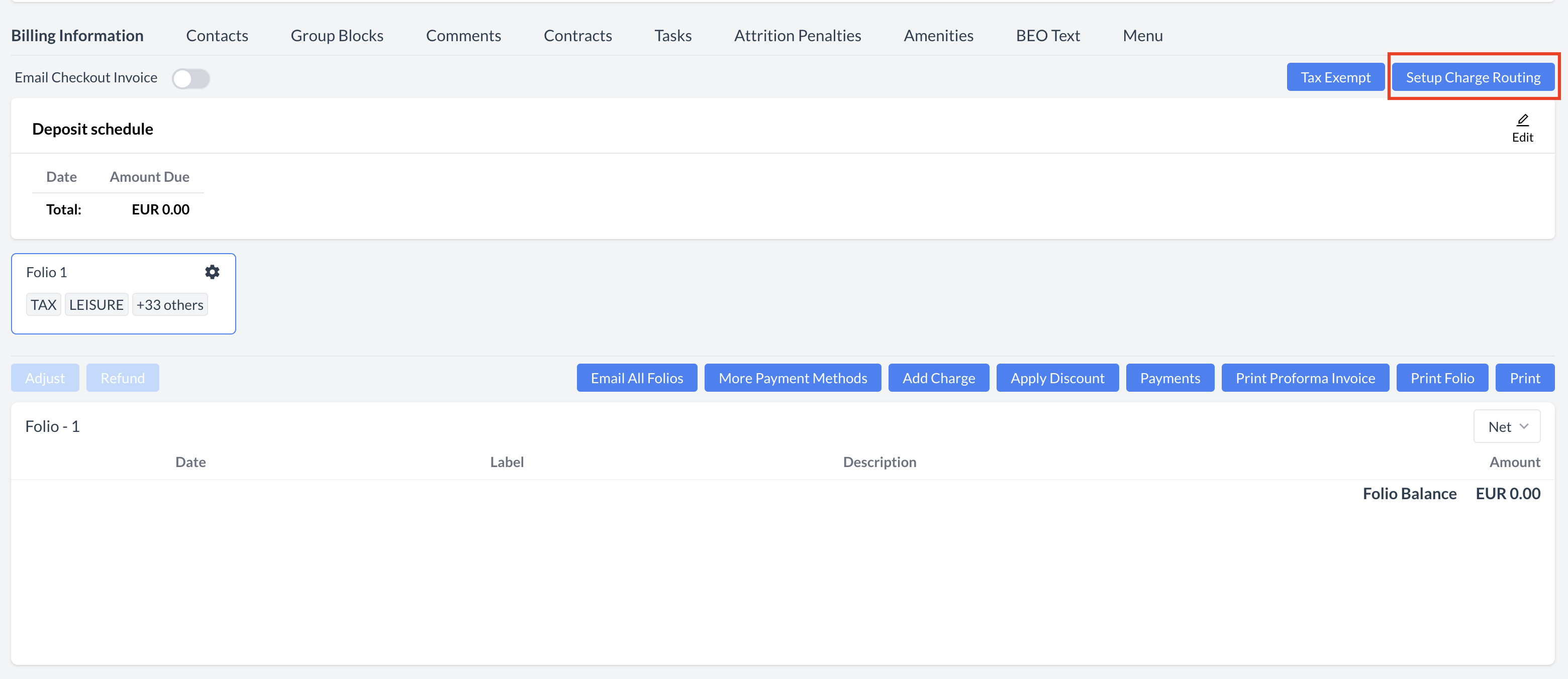
Setting Up Charge Routing
Use charge routing to direct specific types of expenses to alternative folios within the current event, or external accounts like house accounts, group masters, or other reservations. Open the Routing Interface
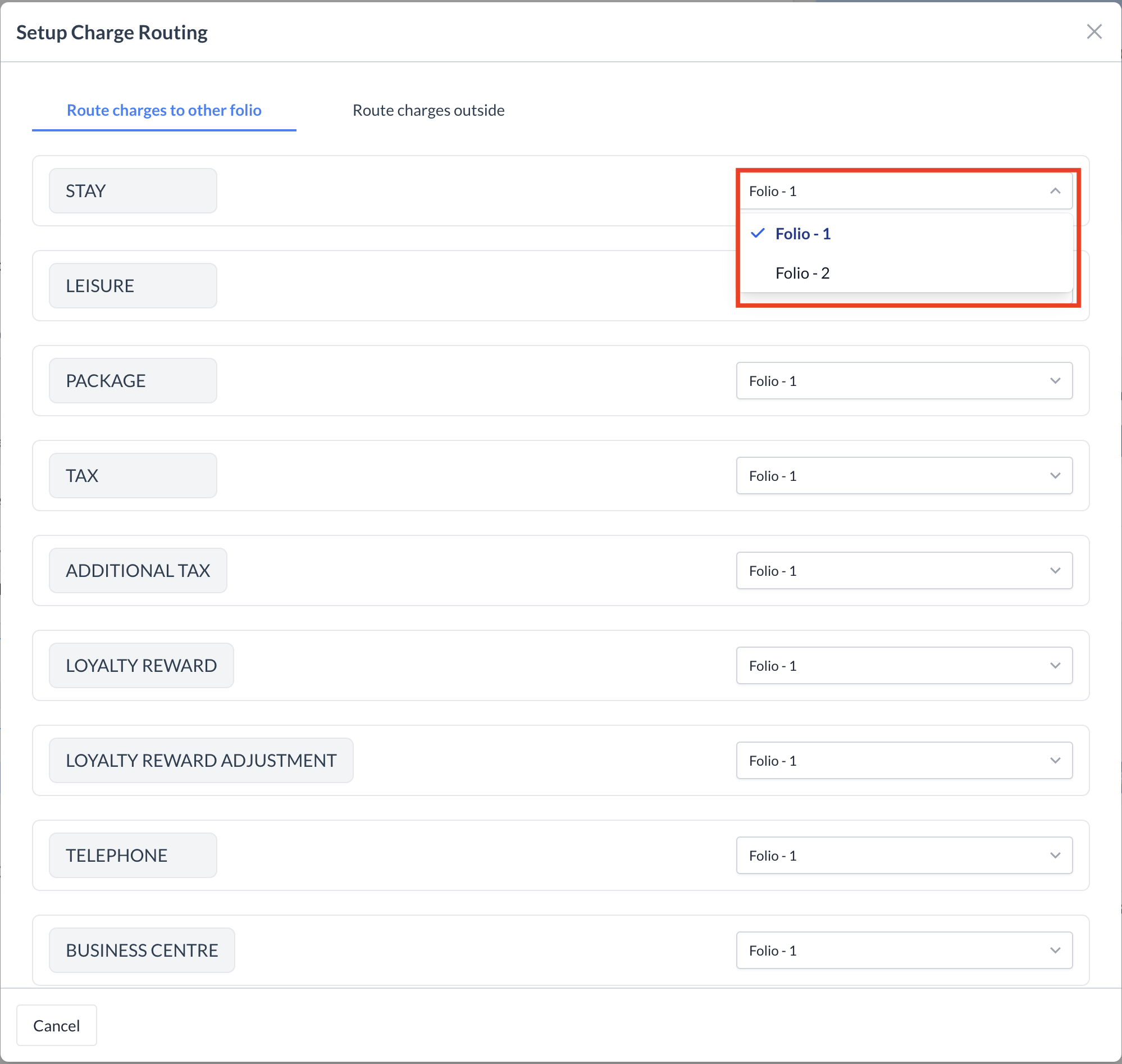
Method A: Route Charges to Another Internal Folio
Use this option to move charge categories between different folios already attached to this specific Event. 1.Select the target folio: Locate the desired charge type category. Click the dropdown arrow to display the list of folios available for this Event. 2.Assign and save: Select the specific folio where you want that category's charges to be posted. ⚠️ Note: The system automatically saves your changes as soon as you select a new folio from the dropdown list. Method B: Route Charges Outside the Event
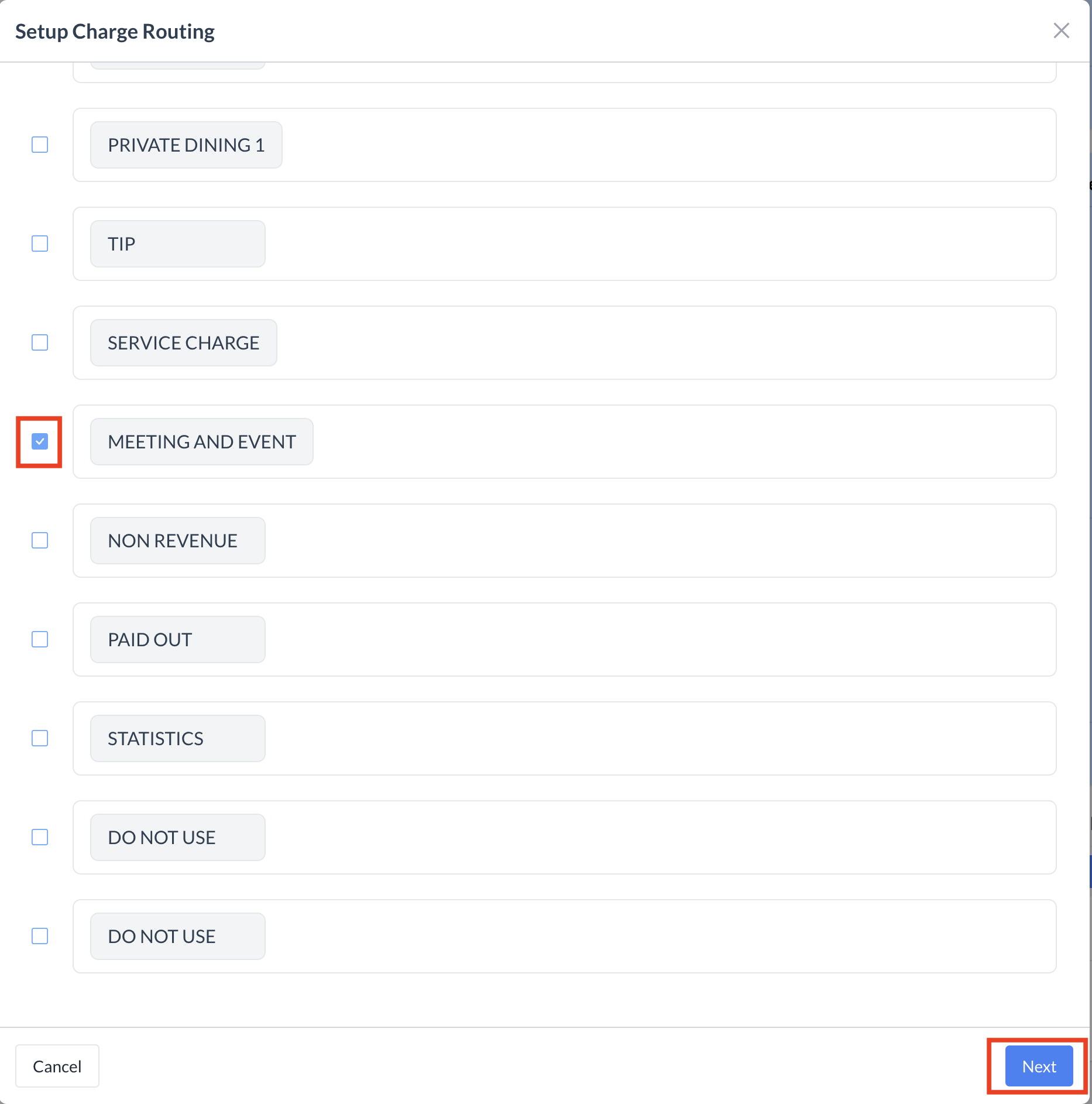
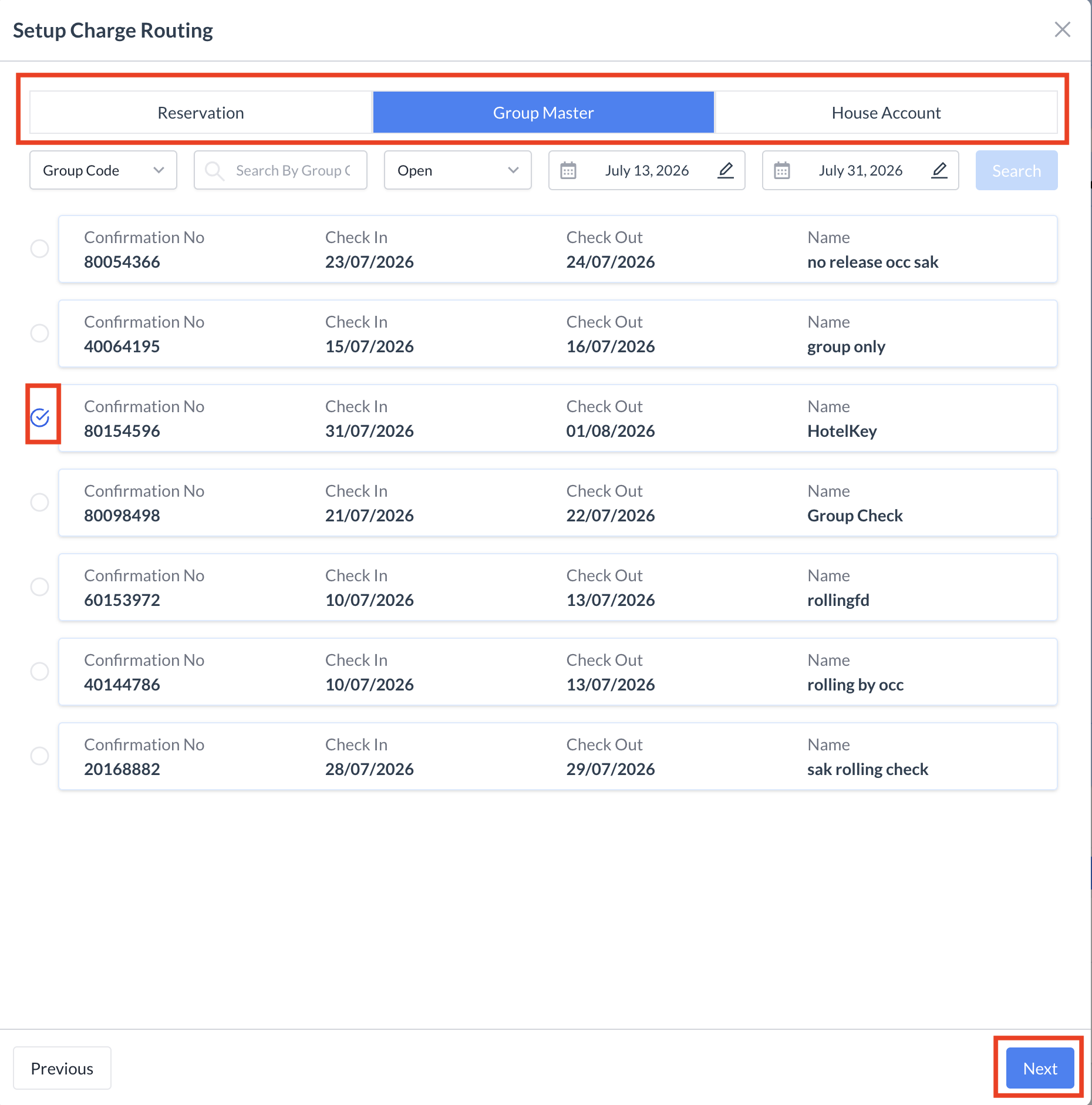
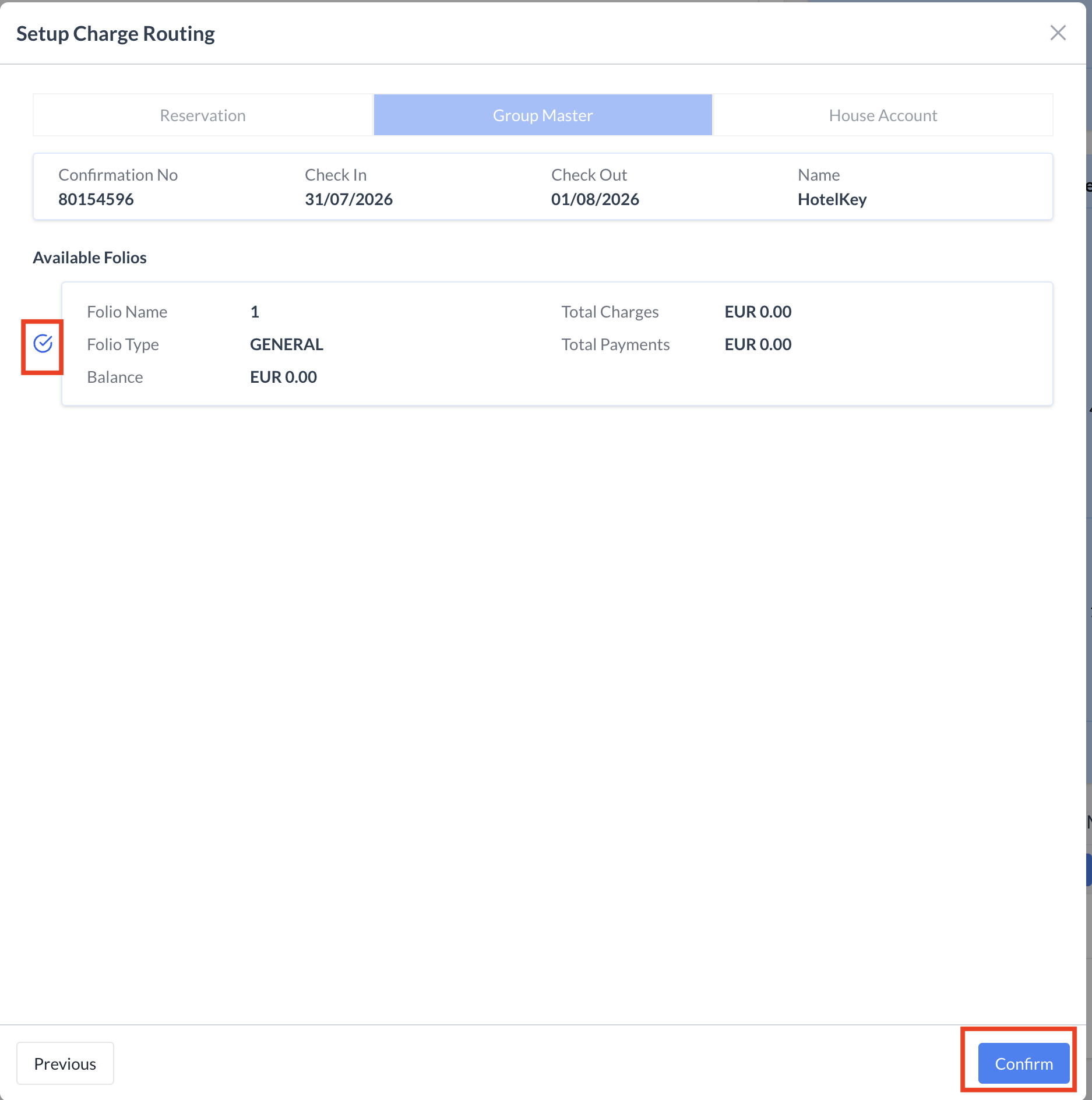
Use this option to route charges to a completely separate reservation, a Group Master, or an external House Account. 1.Select charge categories: Use the individual checkboxes (or use Select All) to pick the charge type categories you want to route outside of this Event. Click Next to continue. 2.Target the destination account: Search for and locate the external Reservation, Group Master, or House Account where the charges should go. Click Next to continue. 3.Choose the specific folio: Select the exact folio number on the new destination profile where these posted charges should land. 4.Confirm the routing: Click Confirm. The designated charge types are now successfully routed to the external folio/location.
|
|
Steps to Adjust a Posted Charge:
|
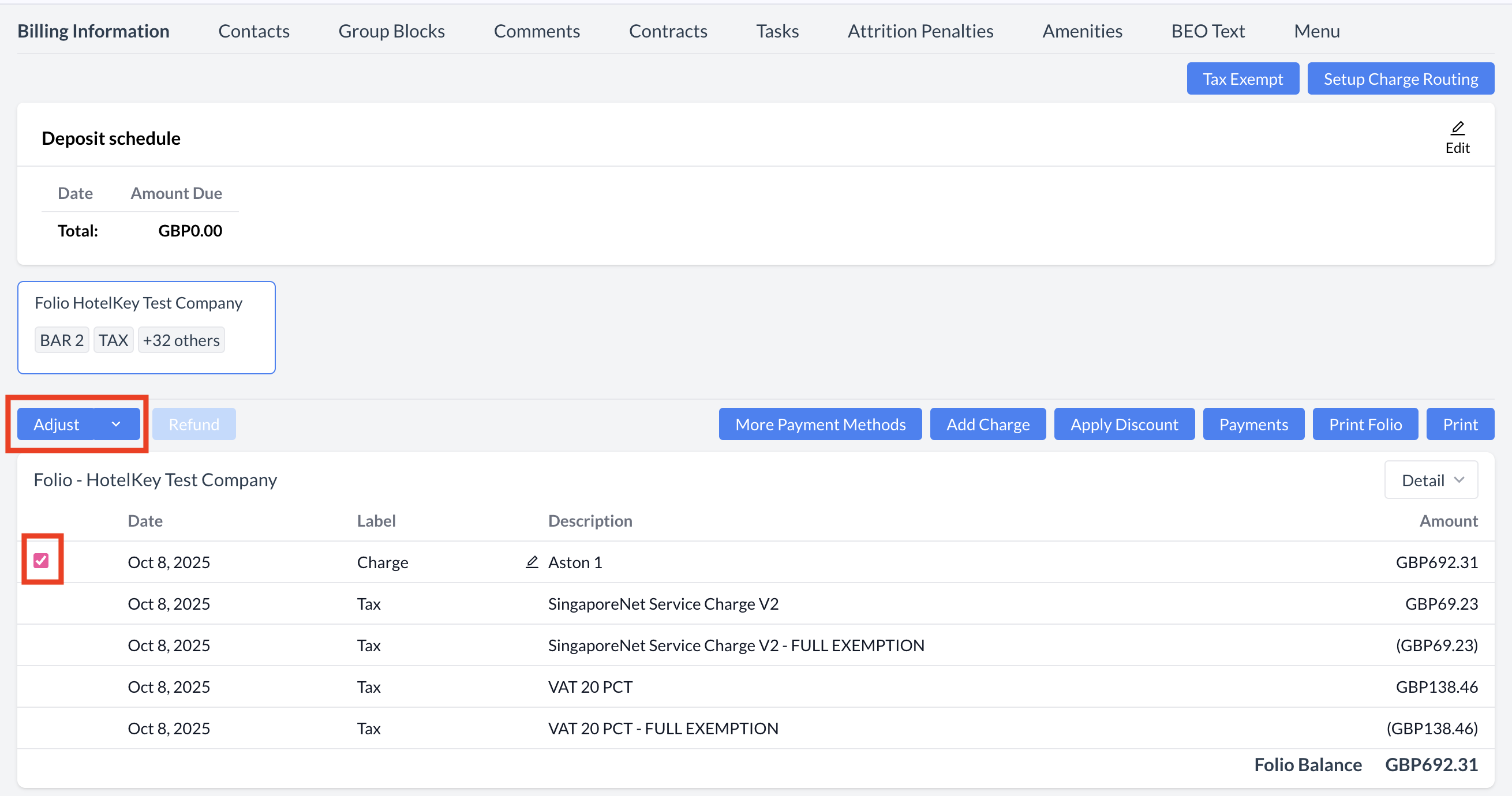
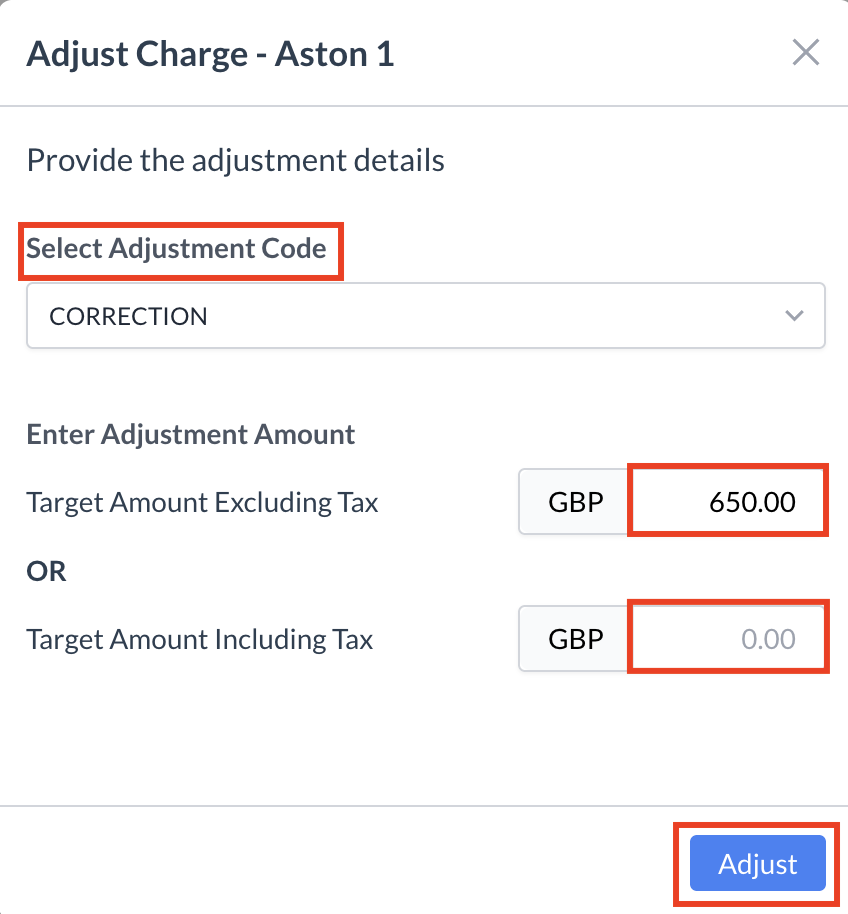
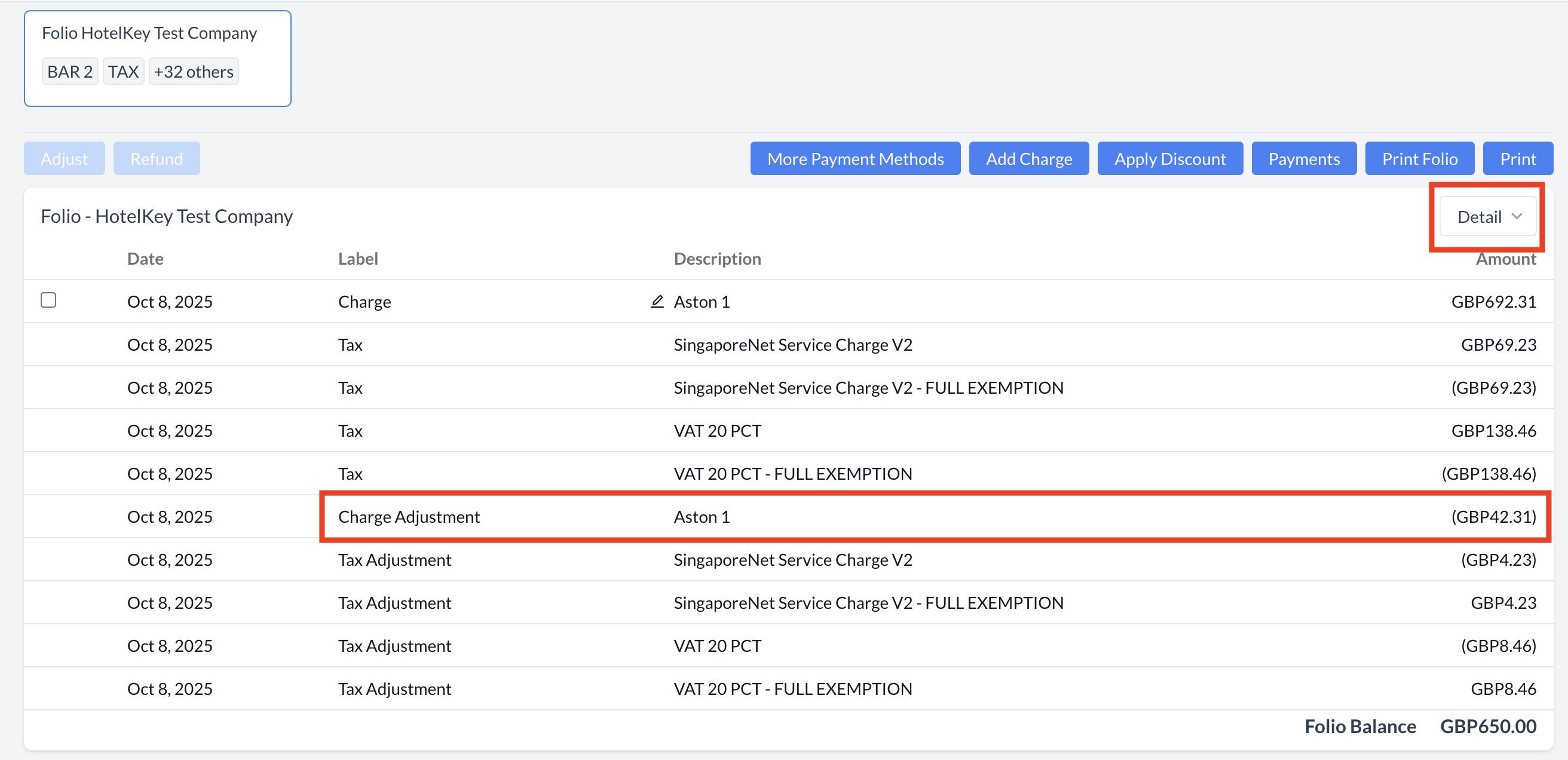
|
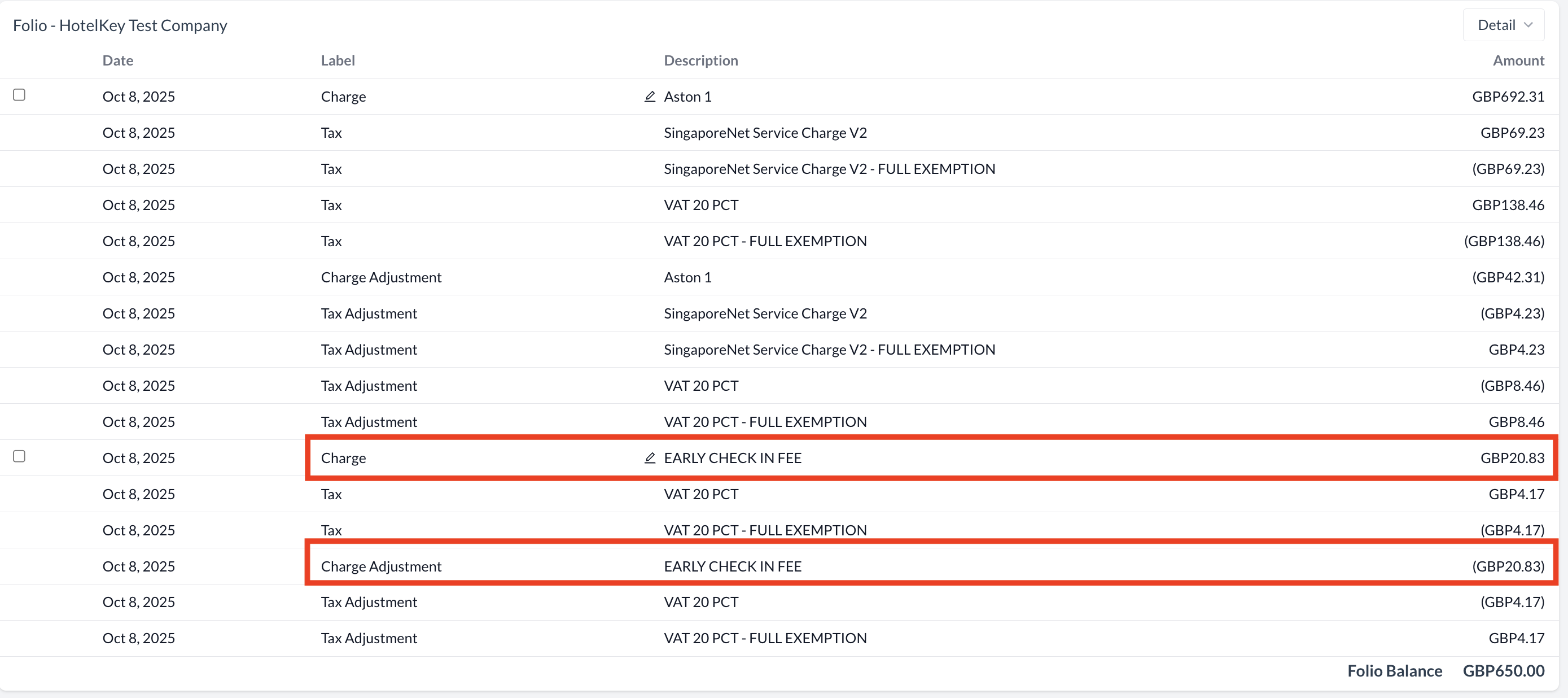
Steps to Adjust a Charge to Zero:
|
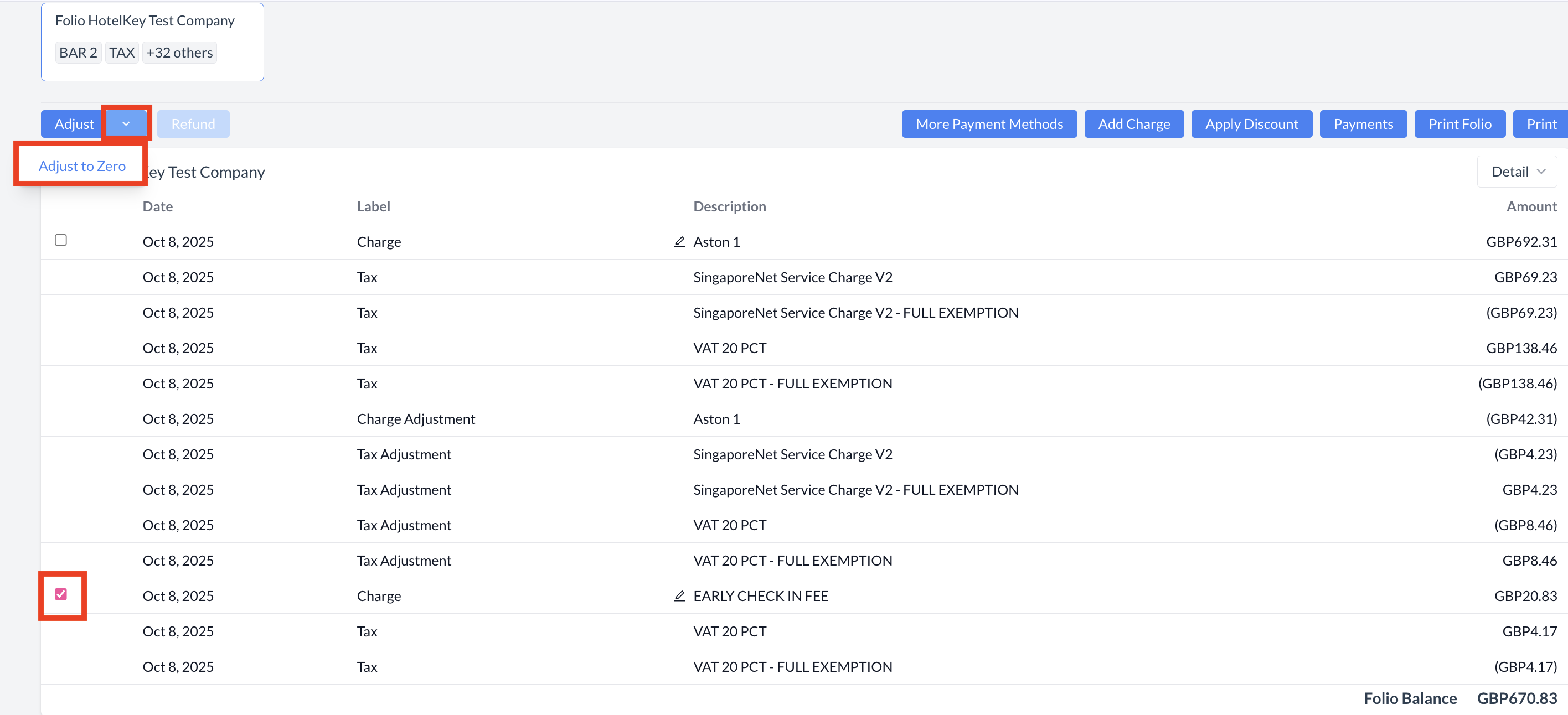
|
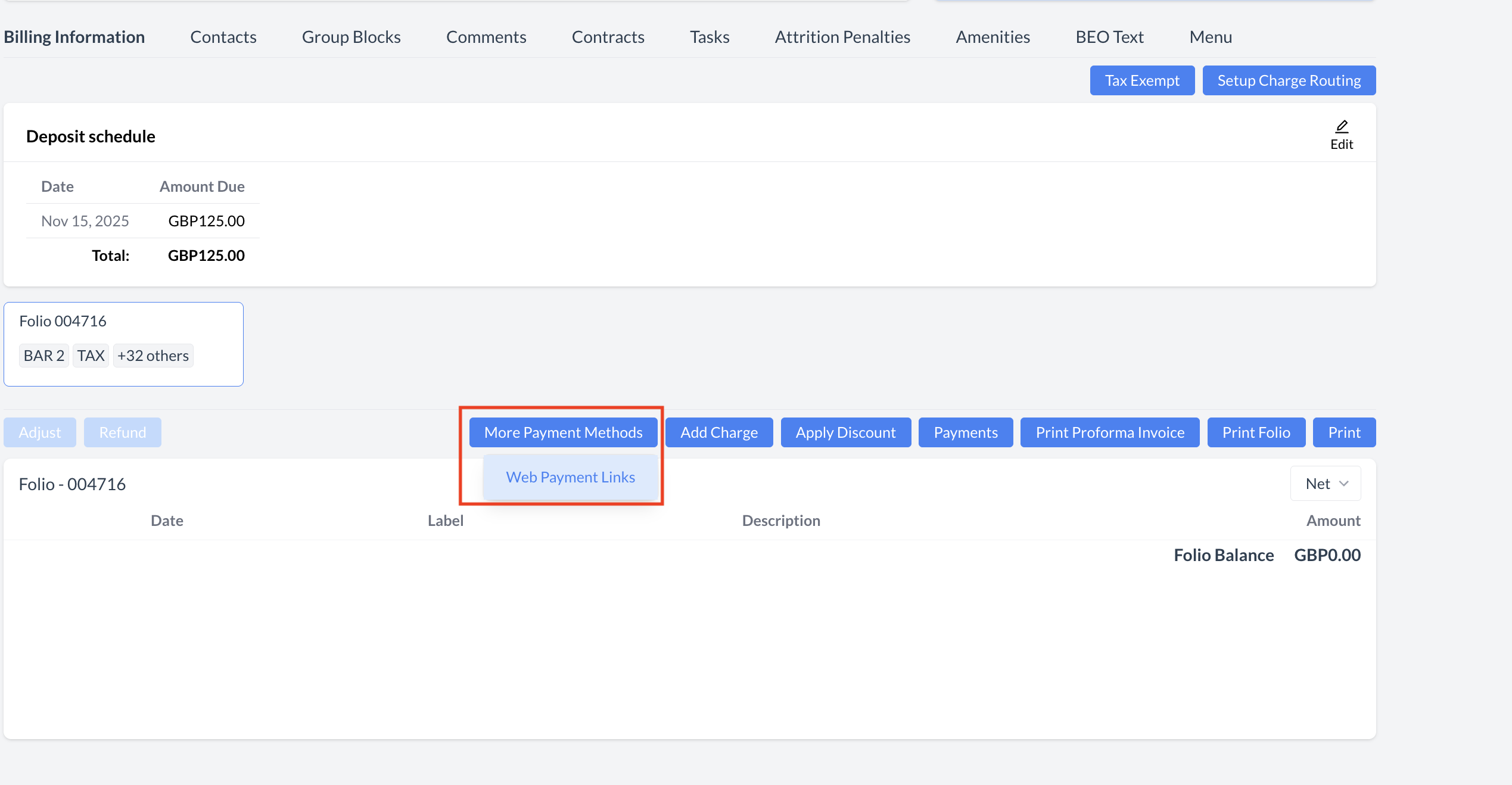
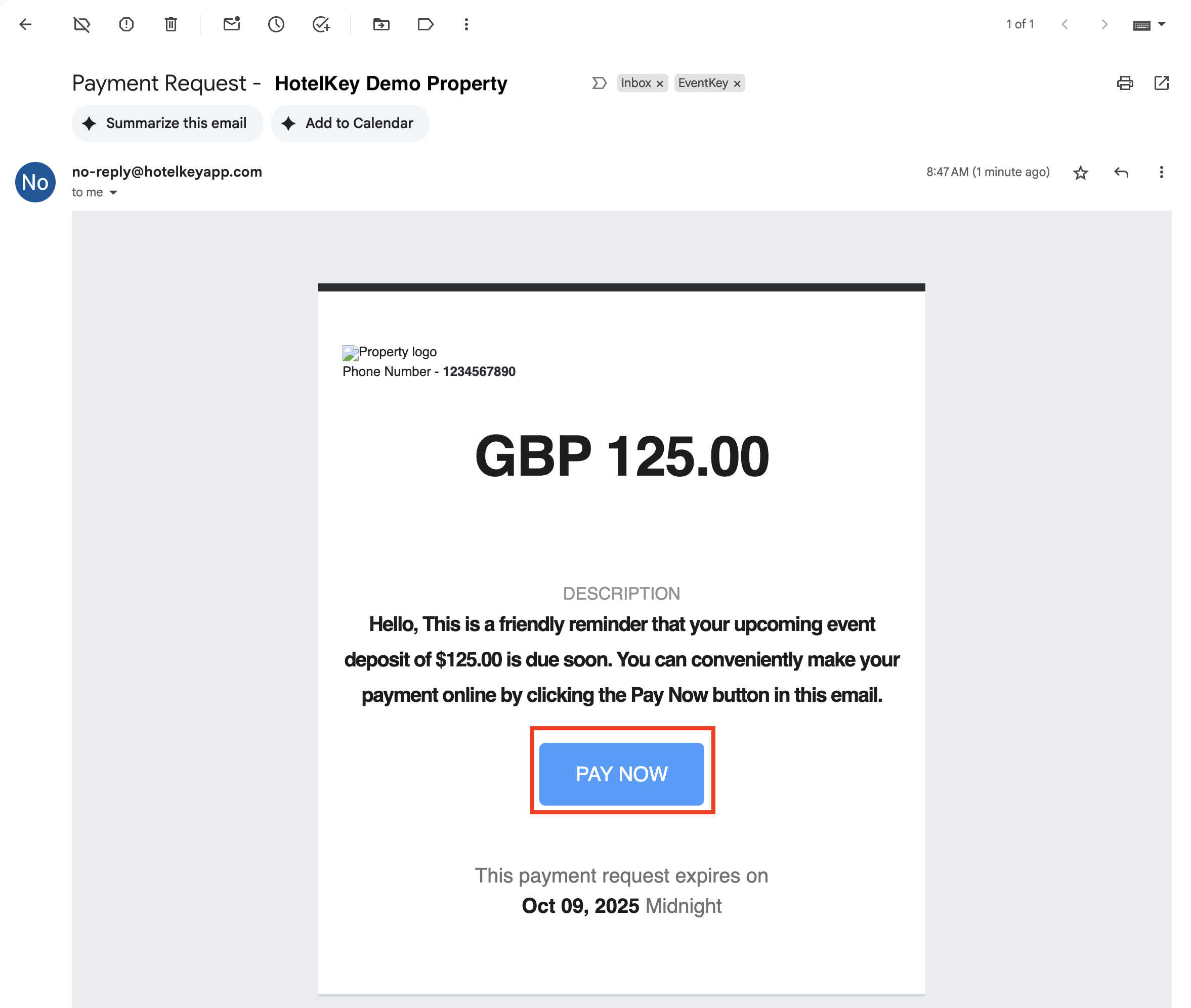
Sending a Web Payment Link to a Client
You can send a secure payment link to clients directly from the Billing Information screen. This allows the client to submit a credit card payment online through a secure portal. Step 1: Open the Web Payment Link Menu
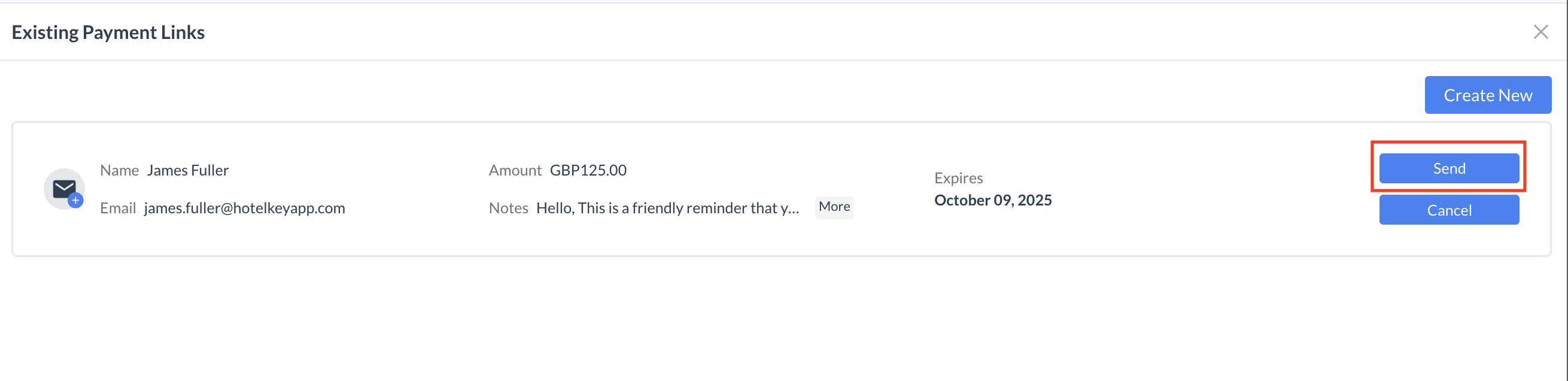
Step 2: Manage Existing or Create a New Payment Link The Existing Payment Links window will open. From here, you can:
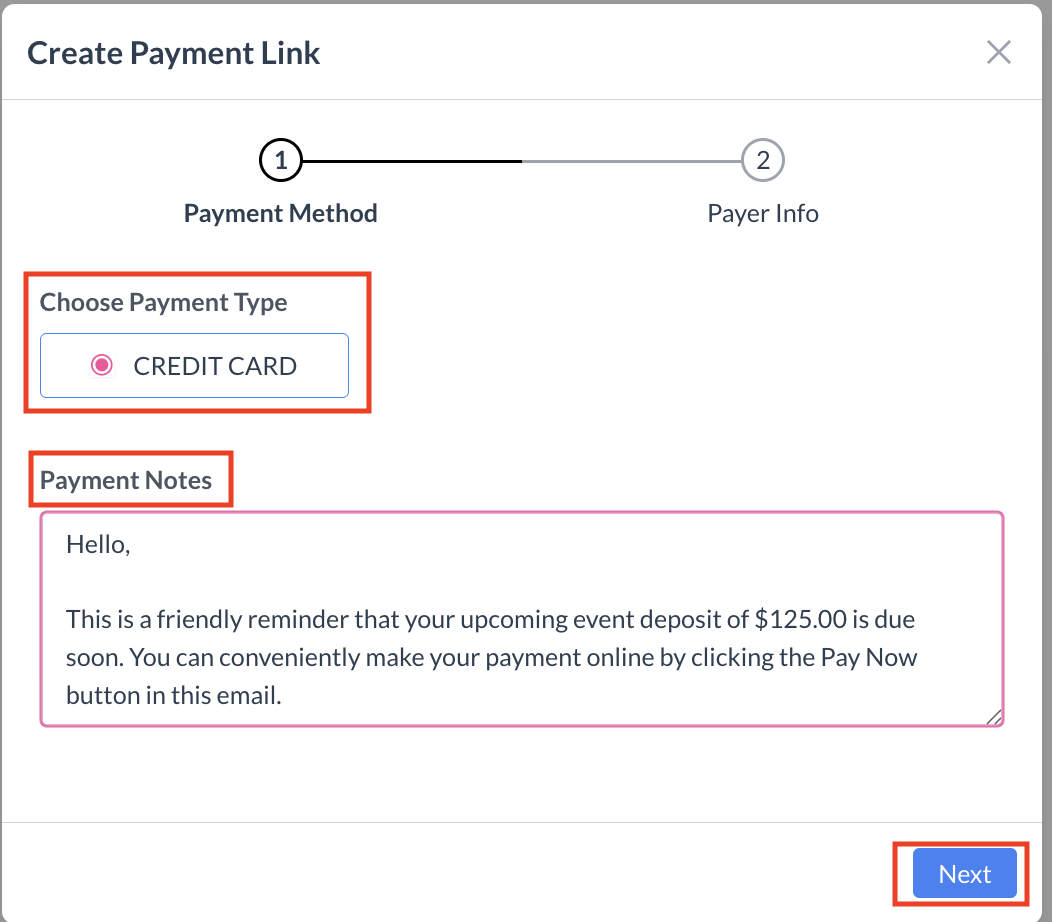
Step 3: Create a New Payment Link
Step 4: Enter Client and Payment Details
Step 5: Send the Payment Link
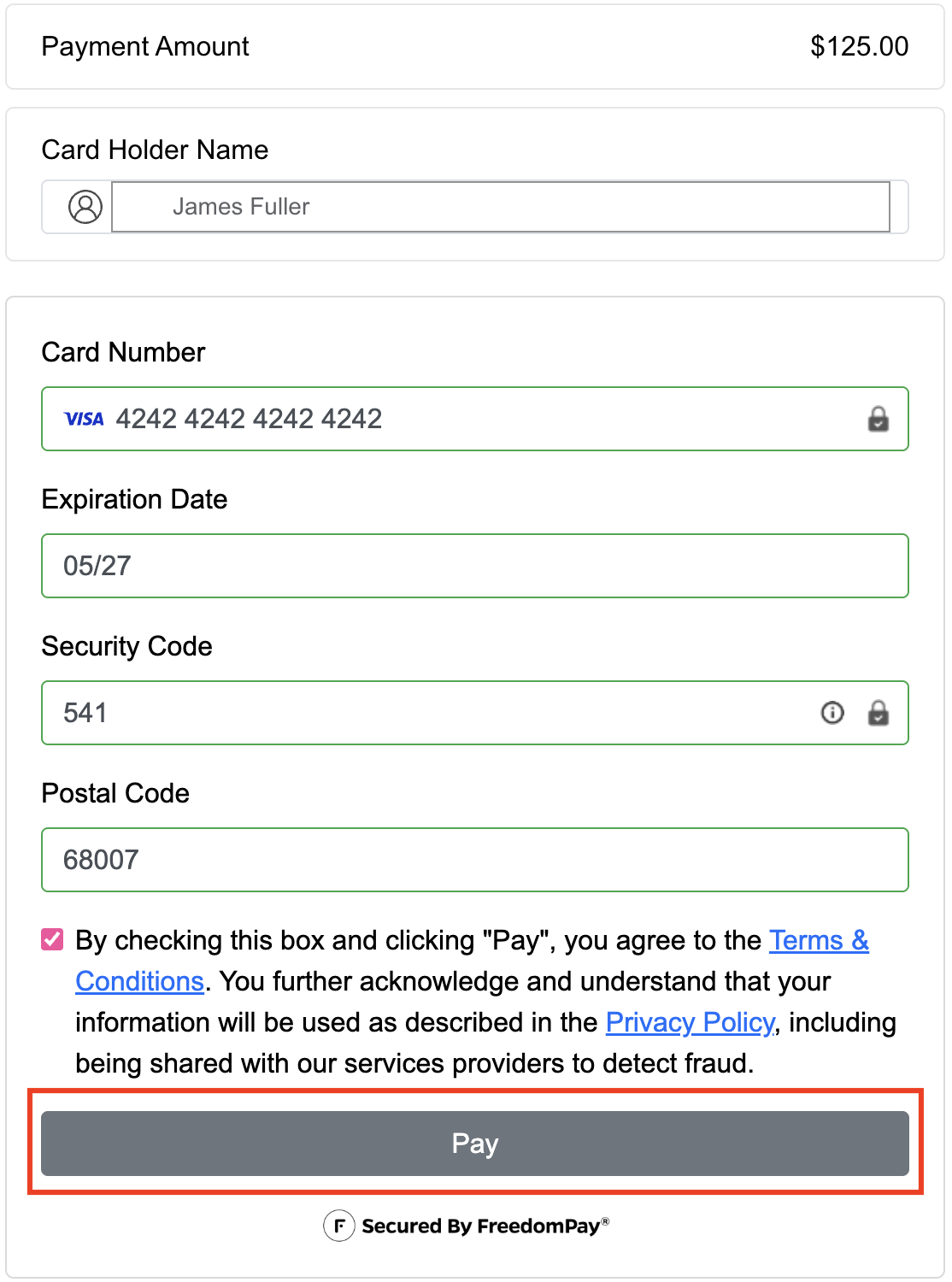
Client Experience: Making a Payment
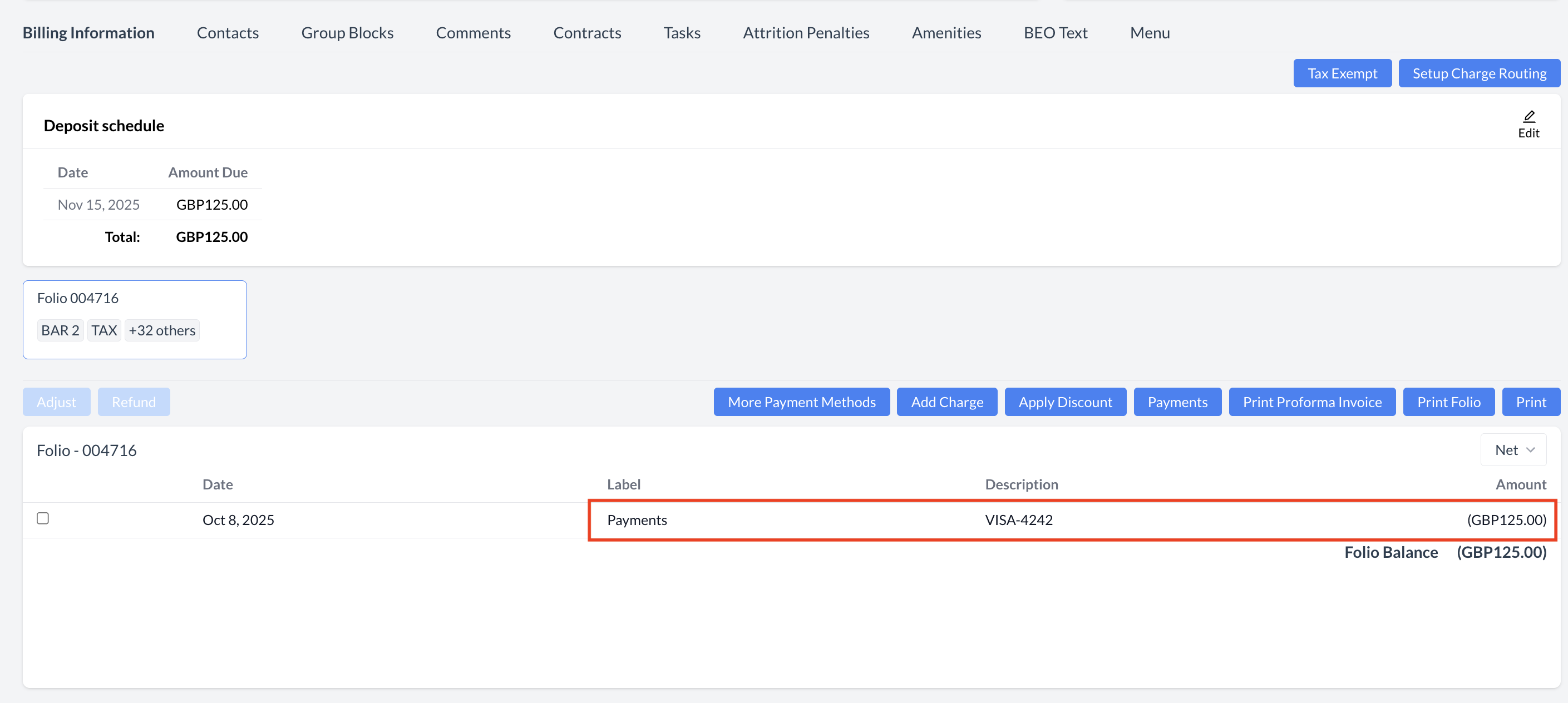
Step 6: Confirm Payment
|
.png?cb=ef3c564288a3354eda95b6212932580e)
|
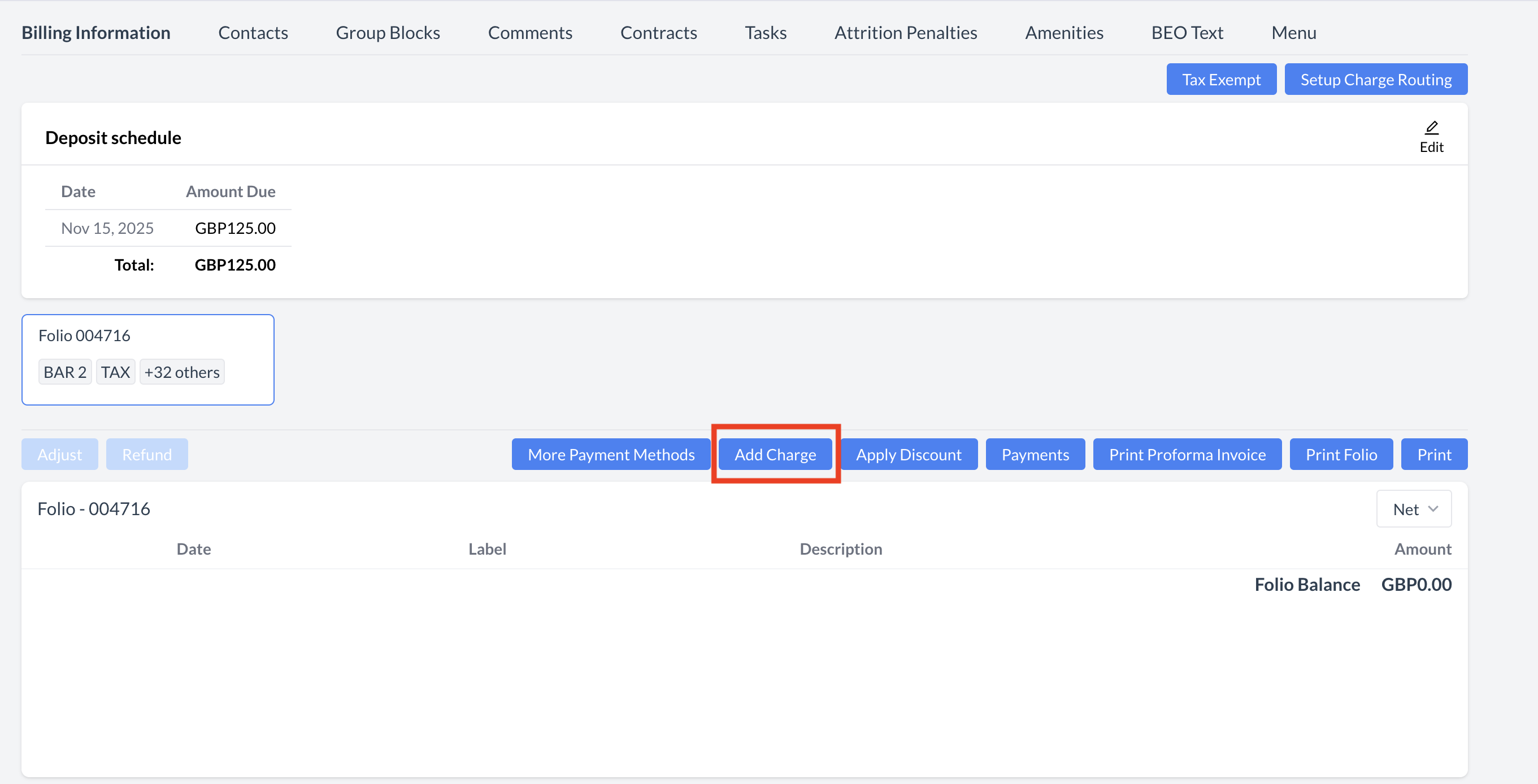
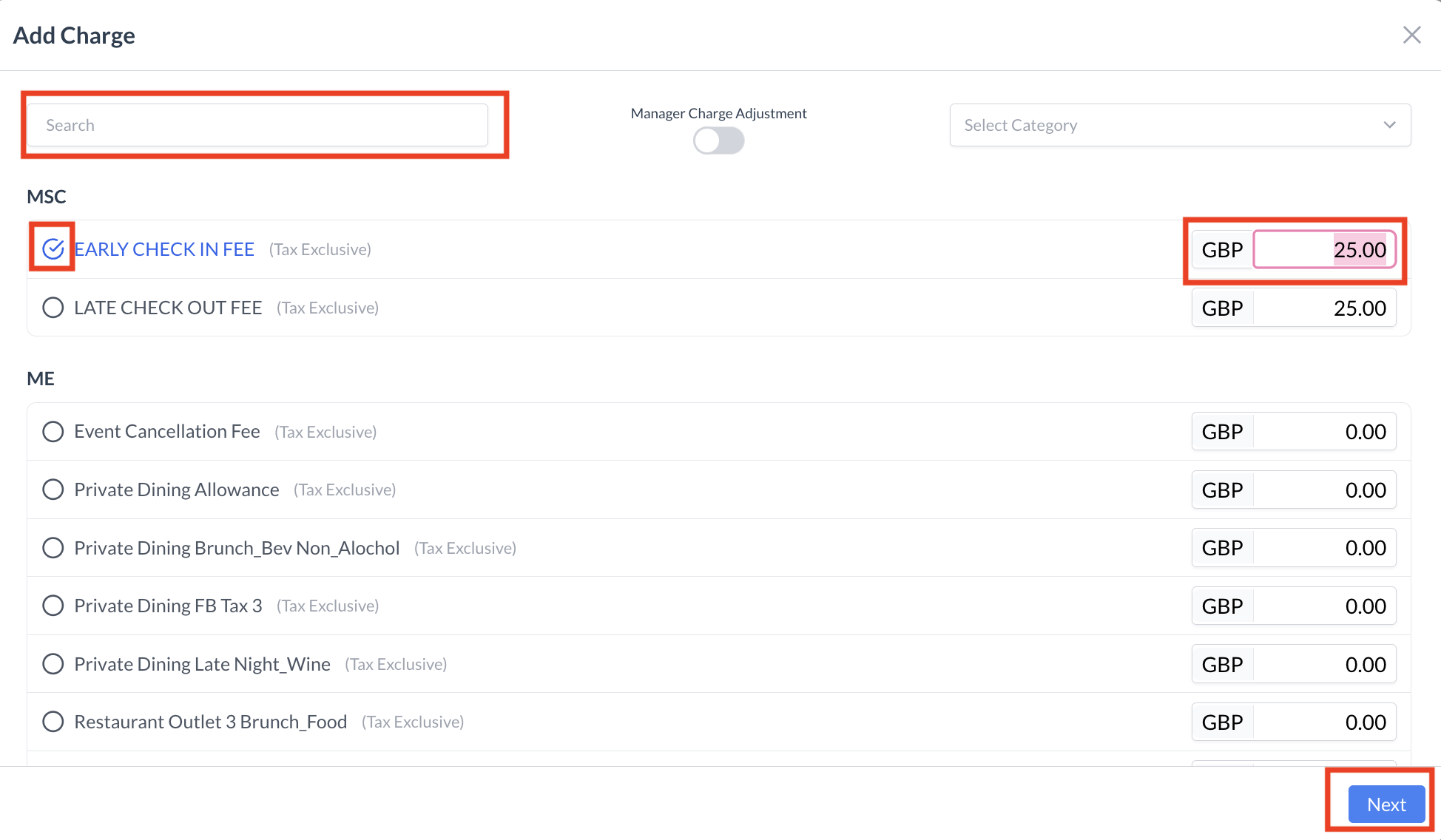
Steps to Add a Charge Manually:
|
.png?cb=45e0dfb212475c033af6d682b5ea38f5)
.png?cb=bed5bed46ec1150db2170c13b1b9166e)
|
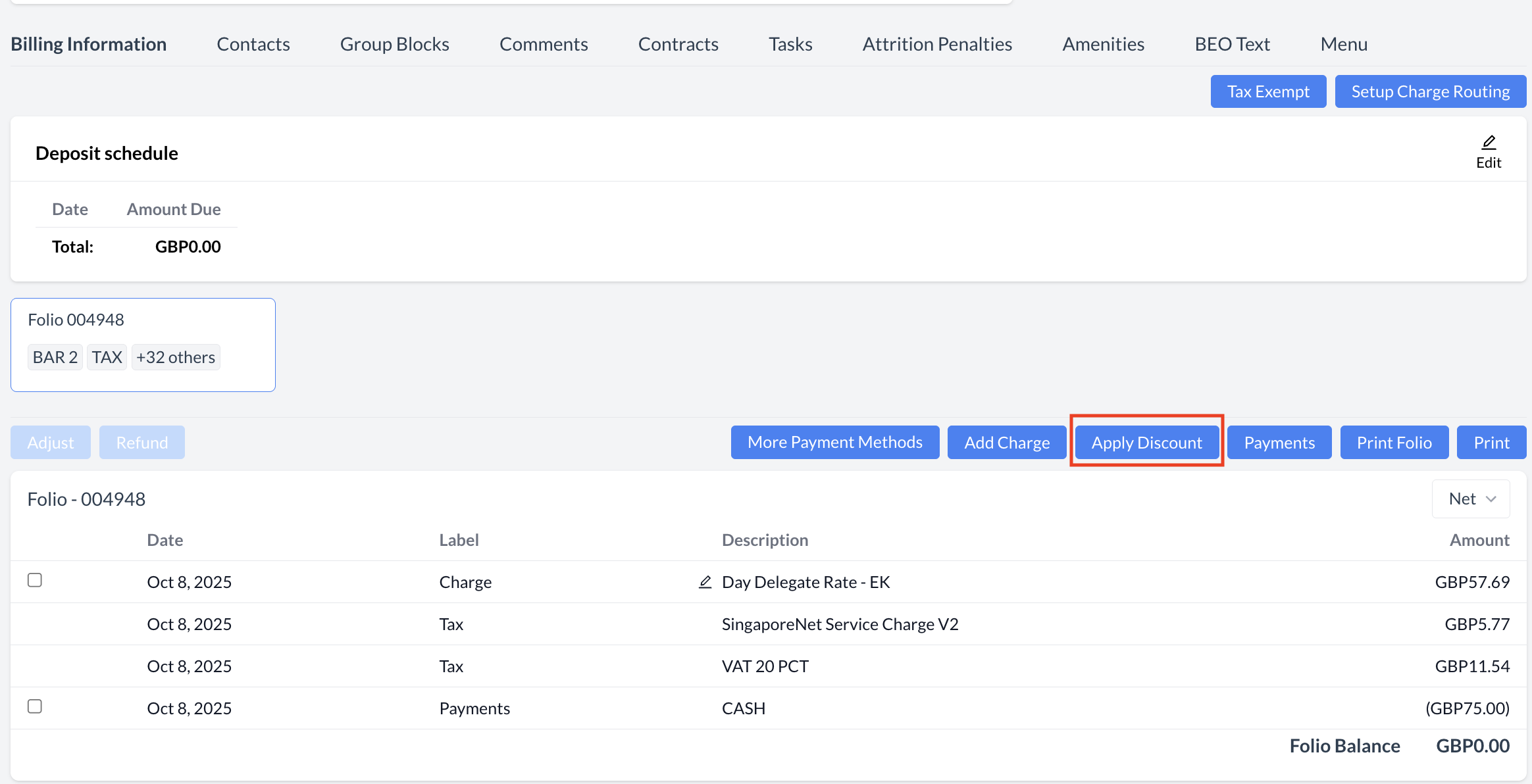
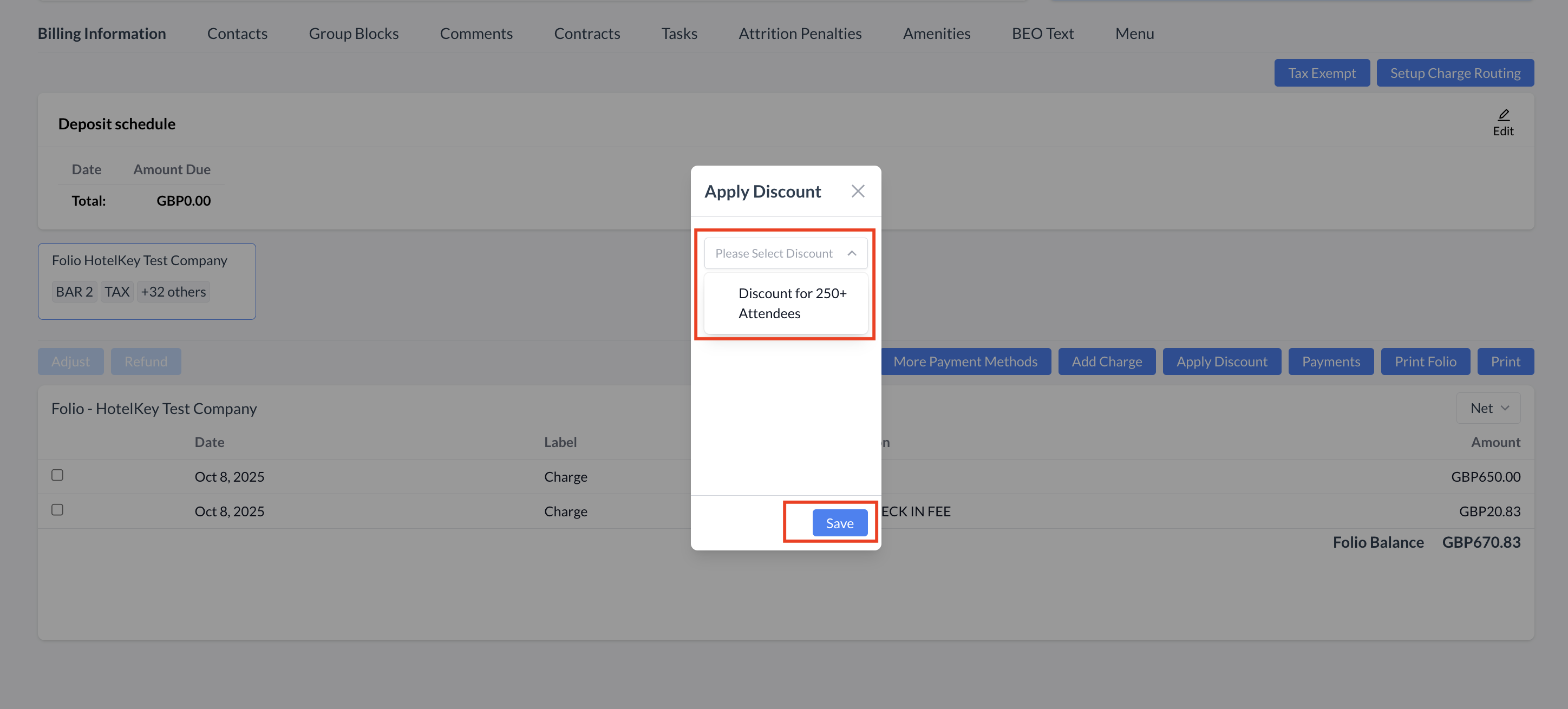
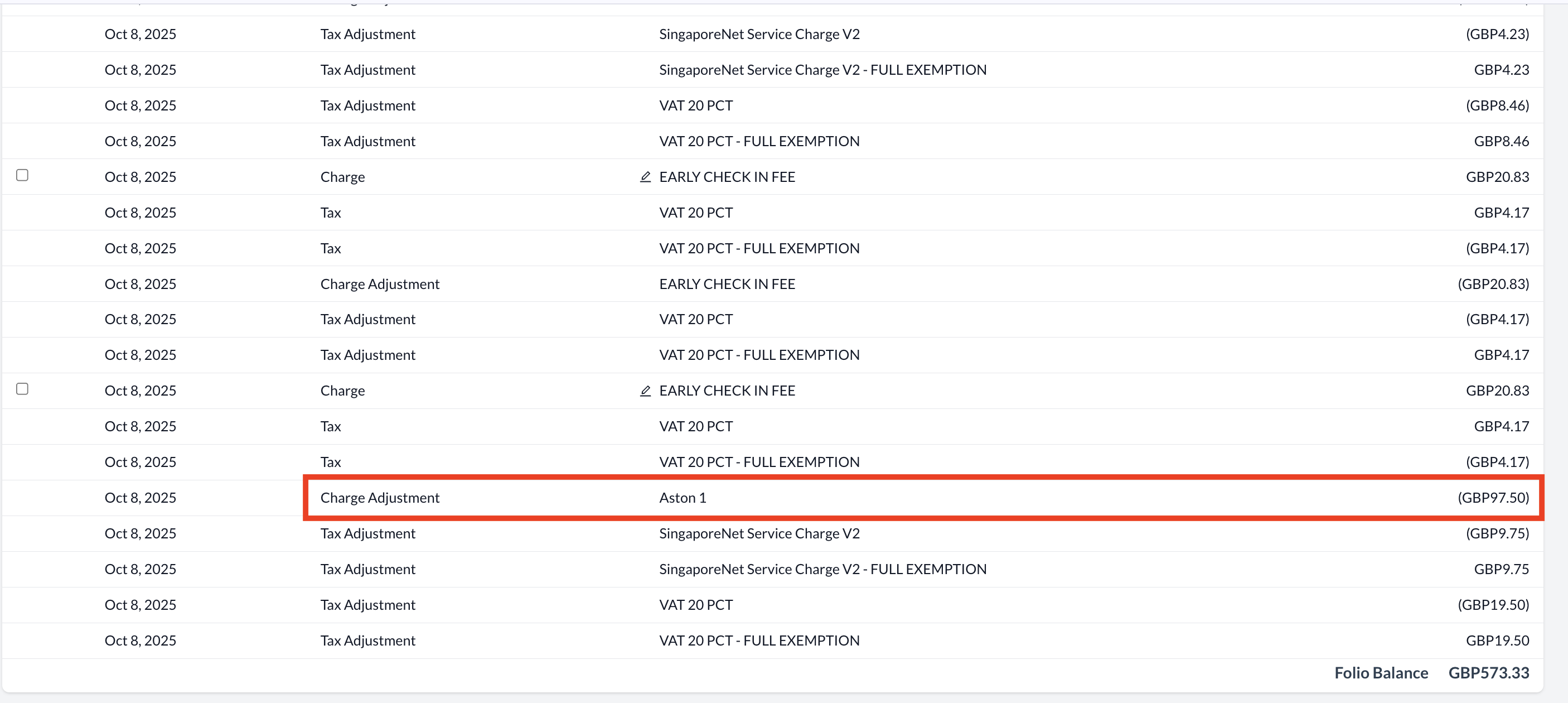
Steps to Apply a Discount:
|
|
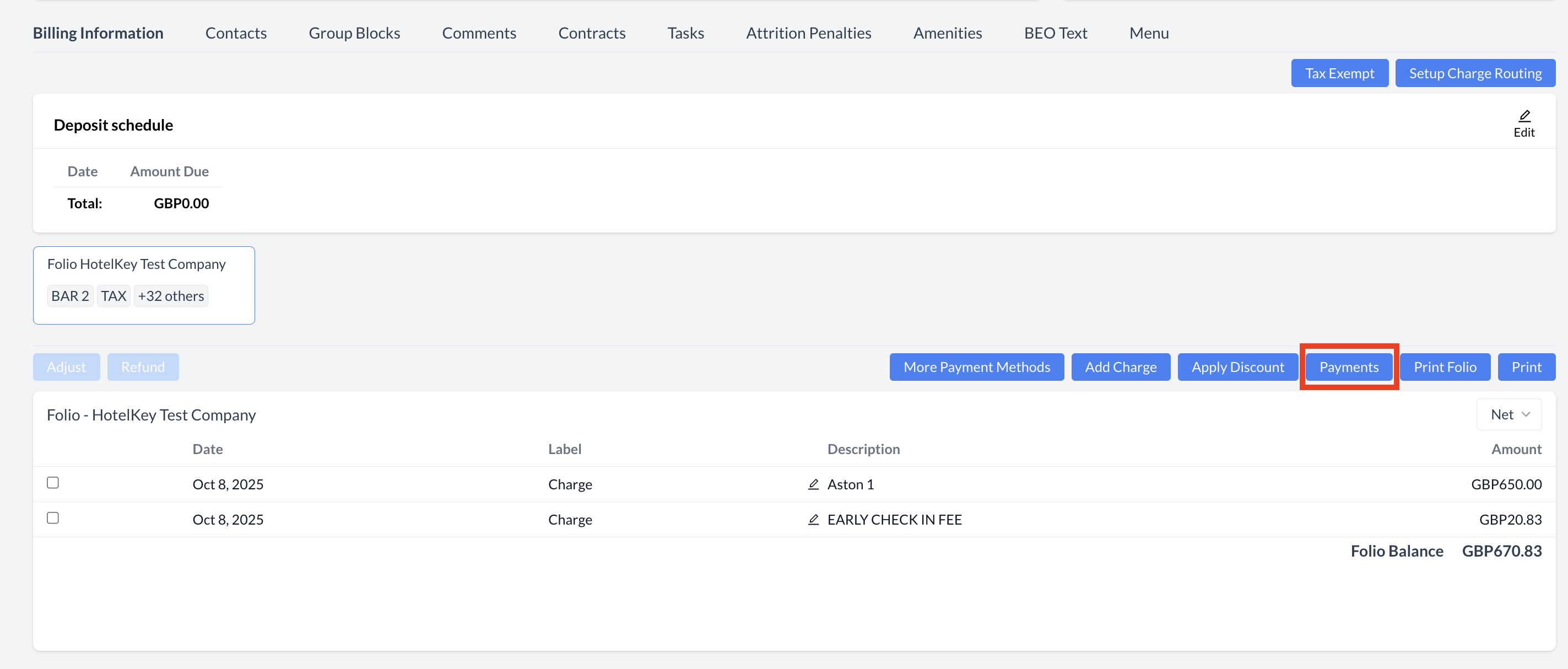
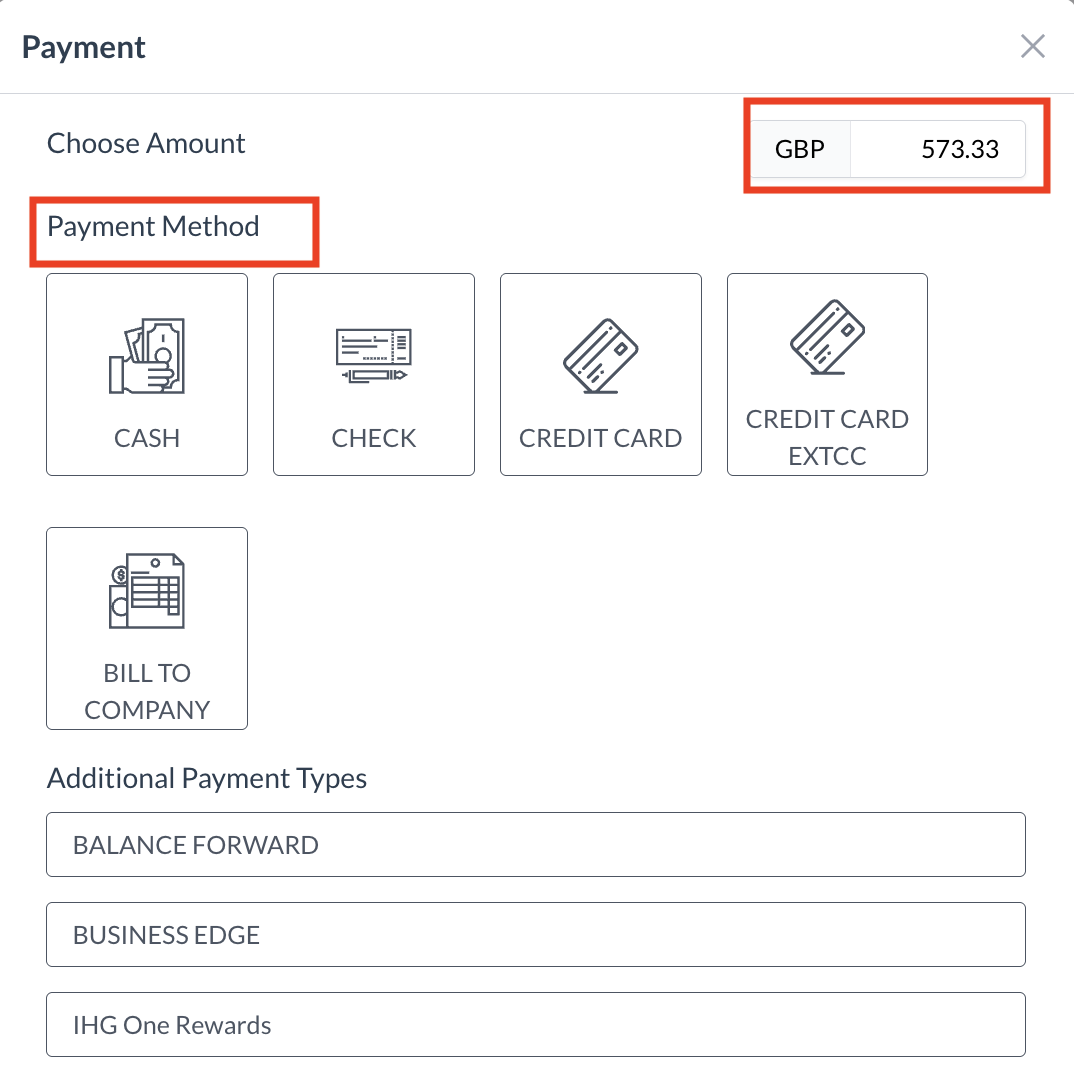
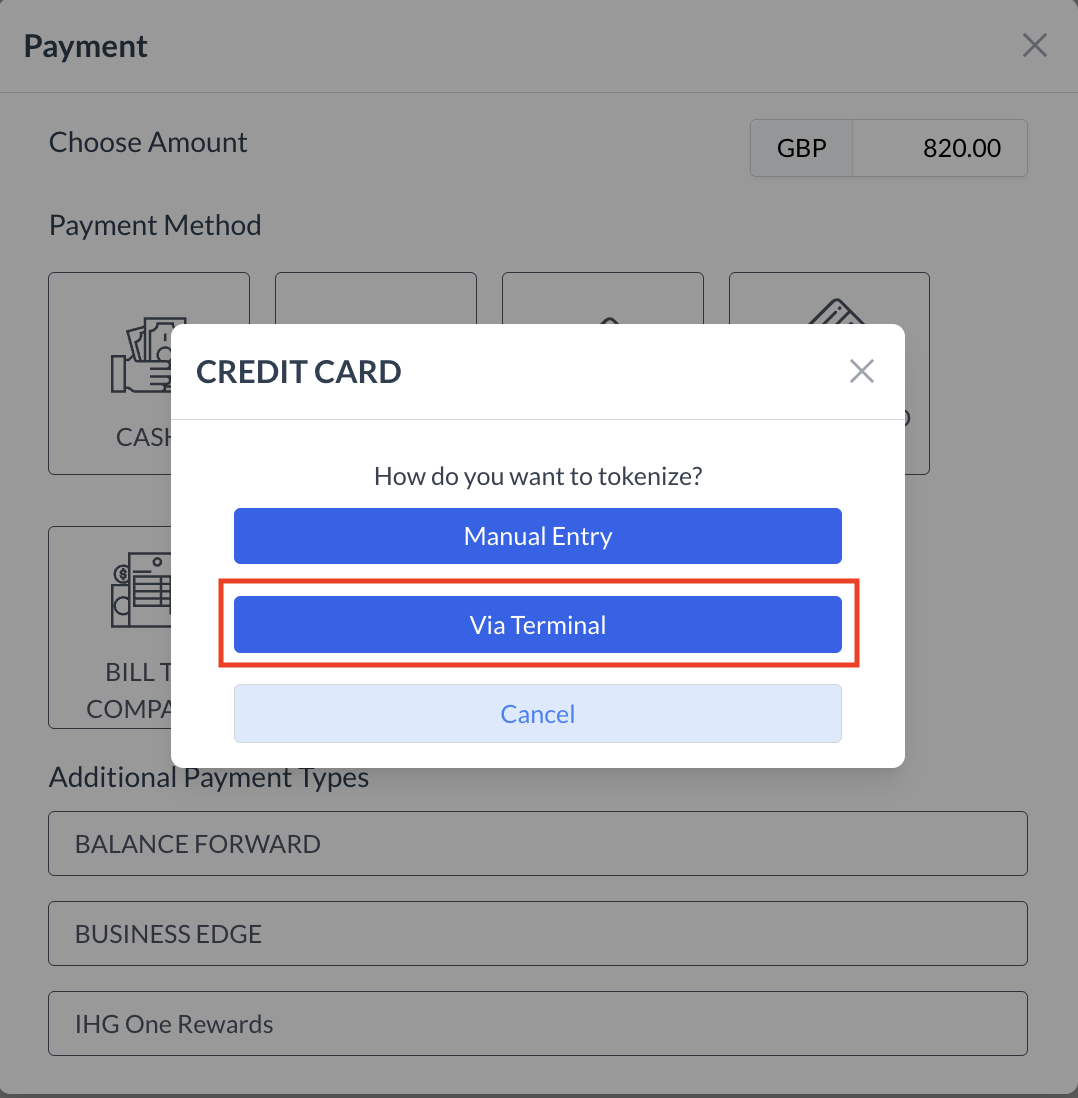
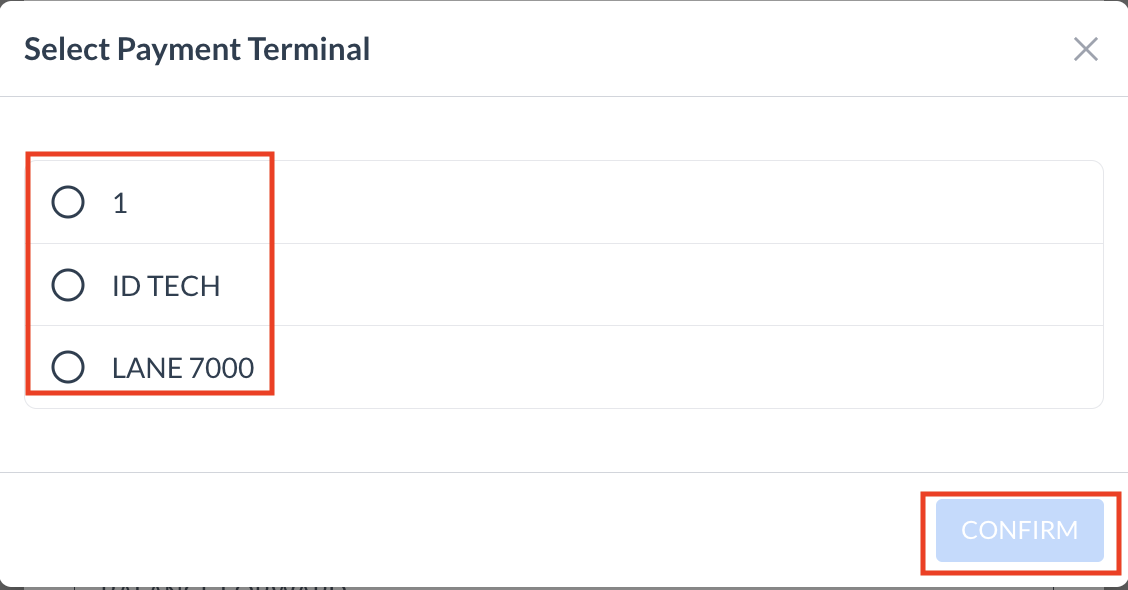
Steps to Apply a Payment:
|
.png?cb=2f4fb2029696a208f66a69997b18e4be)
.png?cb=2be6227c4621f78c5b5826a08e9c6c1e)
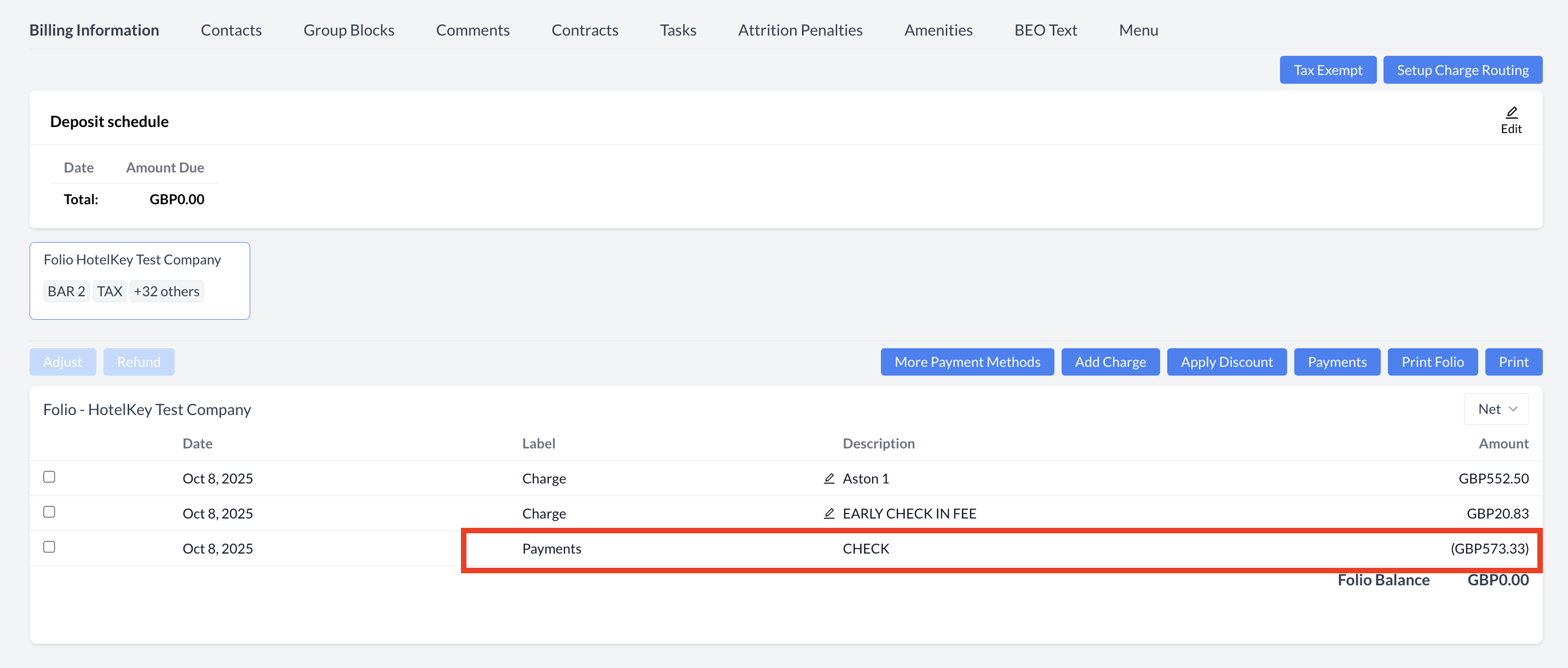
|
Steps to Issue a Refund:
|
.png?cb=2a0d68ab67668fb09371064f89a85e82)
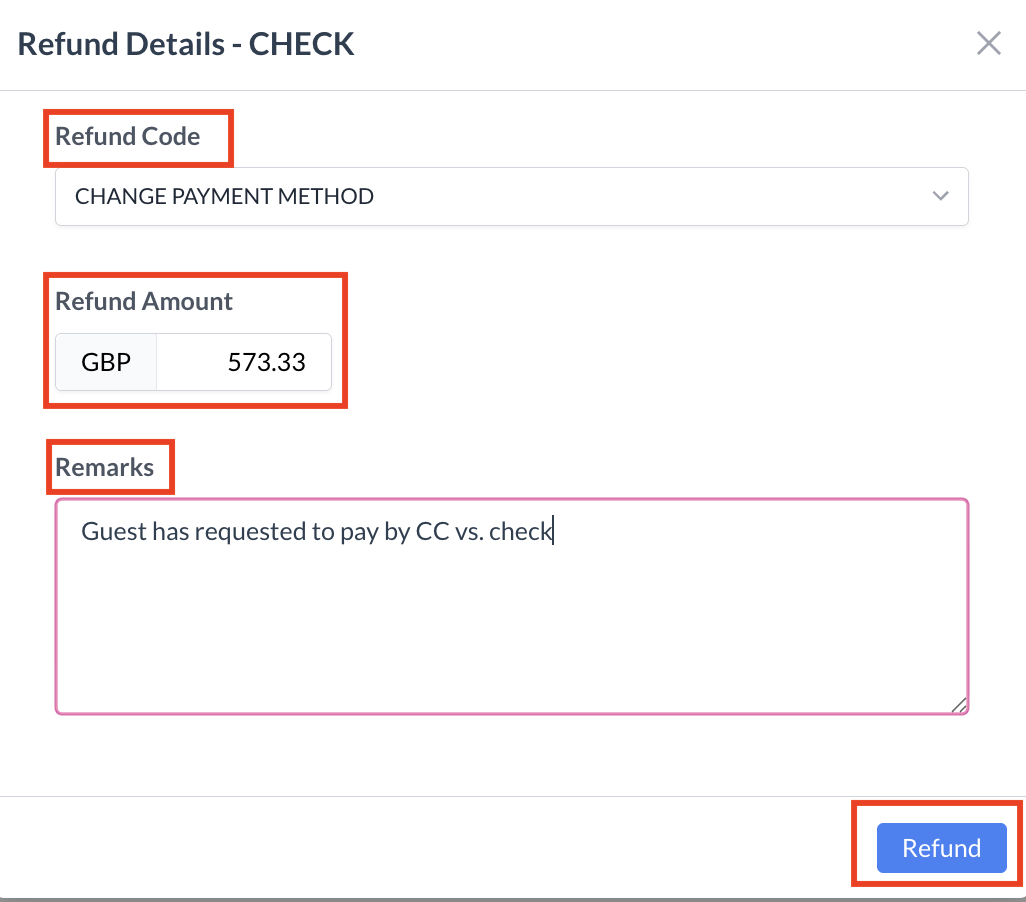
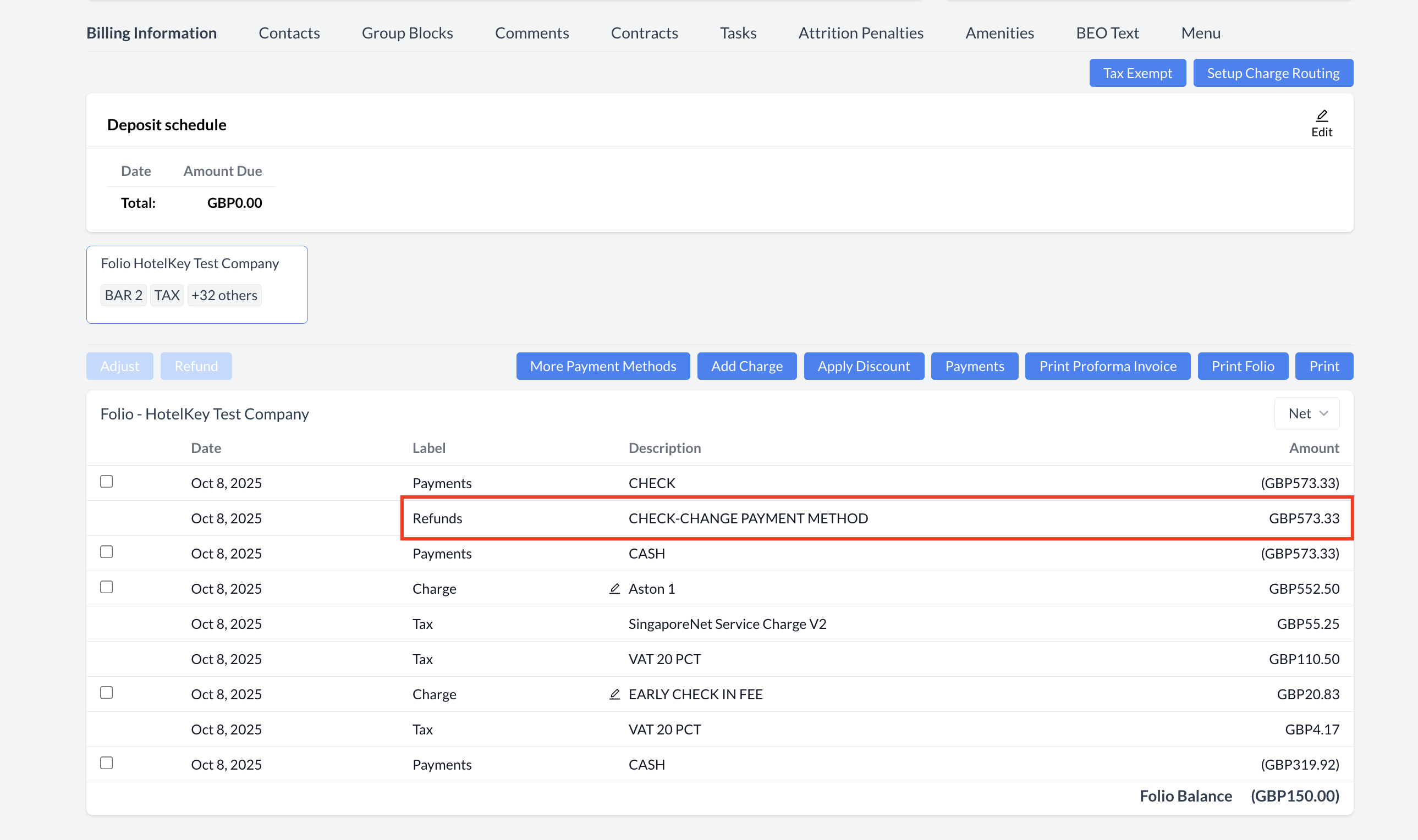
|
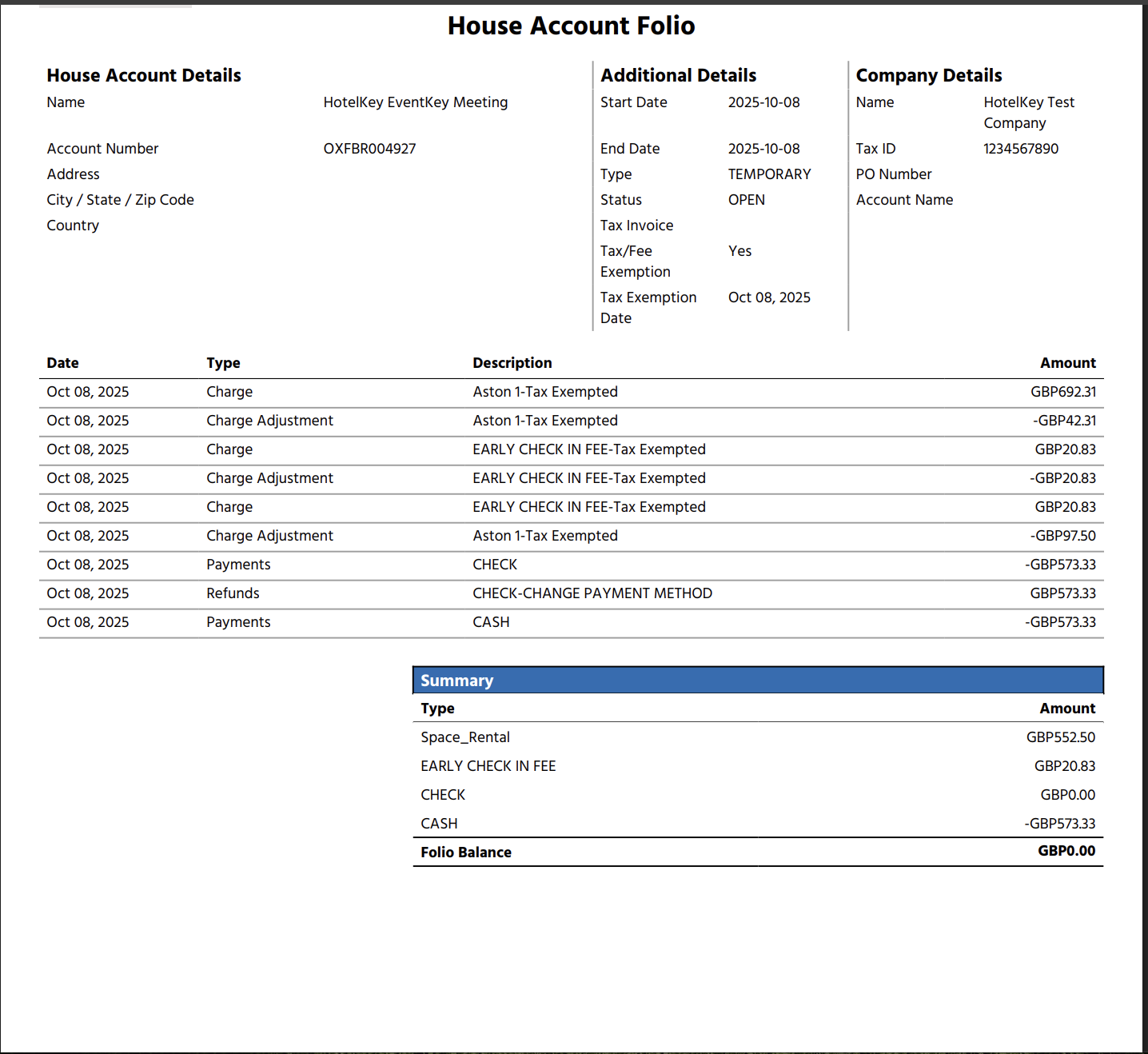
Steps to Print or Download the Folio:
|
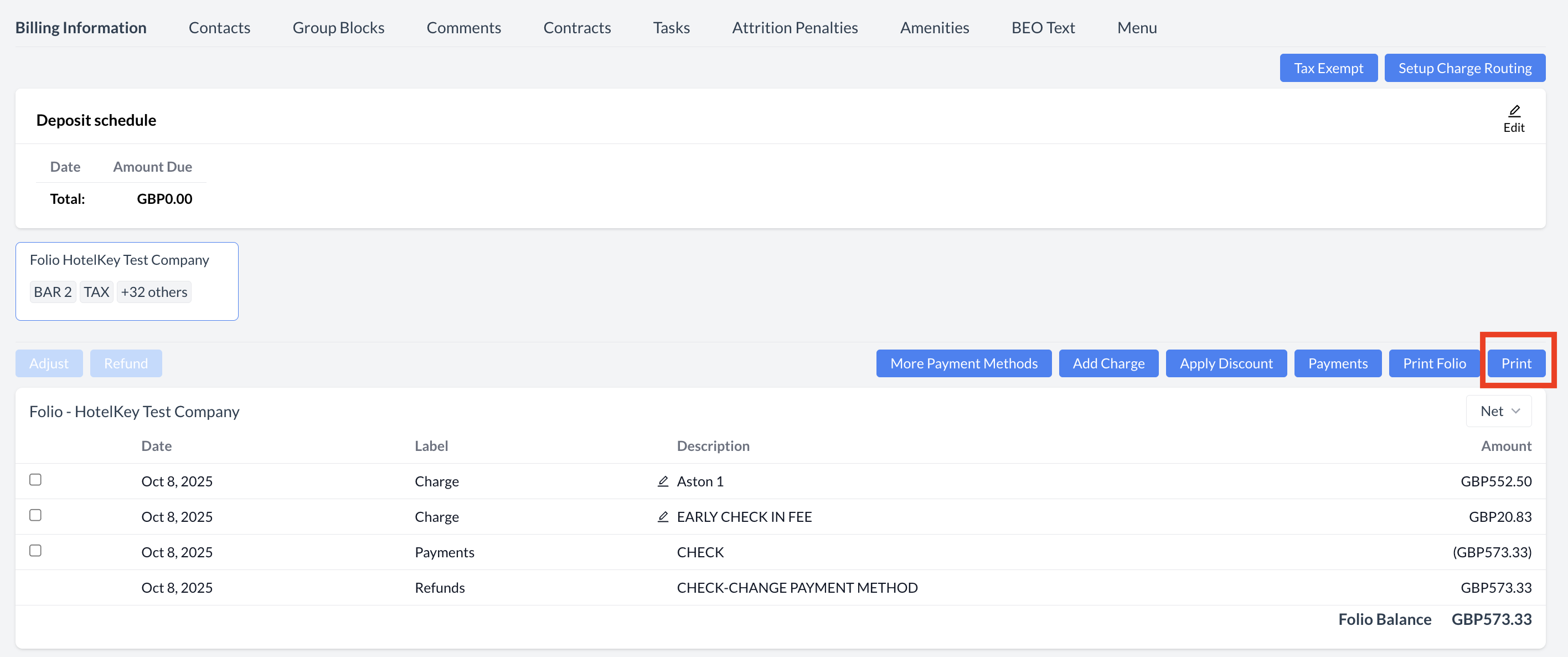
|
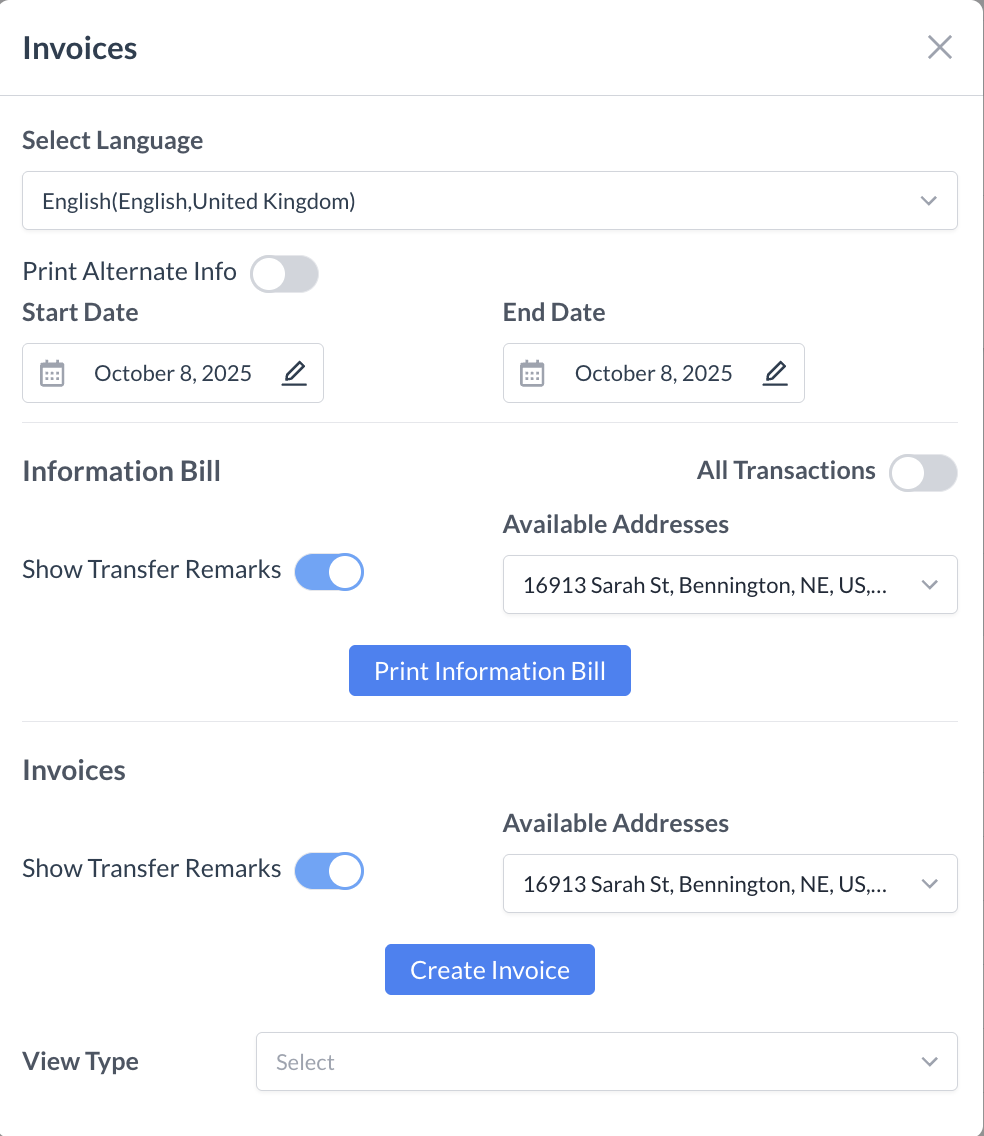
Printing the Final Folio or Invoice
Depending on the billing model your property uses, you will have different options for printing the final billing document. This could be either a folio or an invoice. Steps to Print the Final Folio or Invoice:
|
|