
📆 Revision Date:
Follow the steps below to clear a maintenance request from a room when the maintenance task is complete.
|
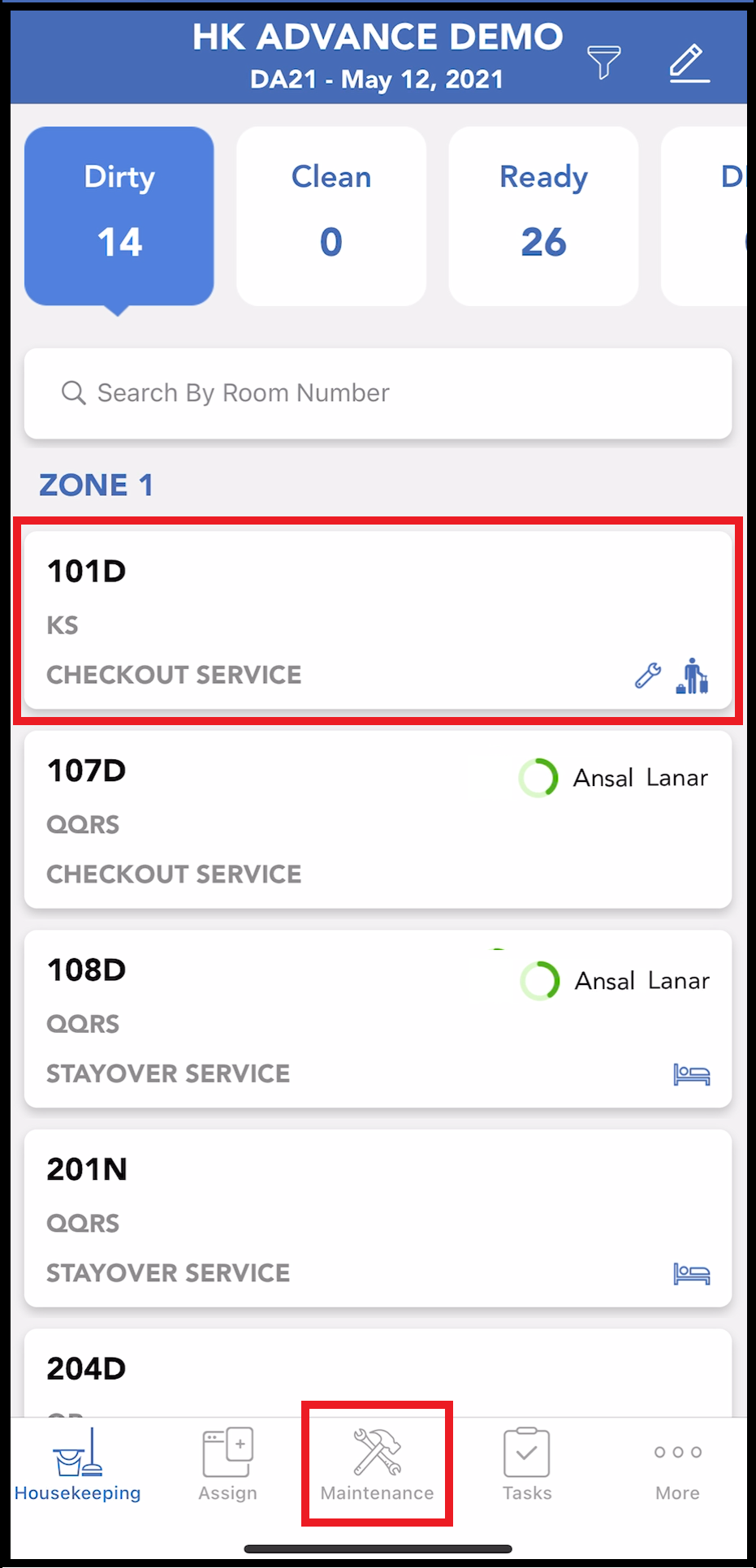
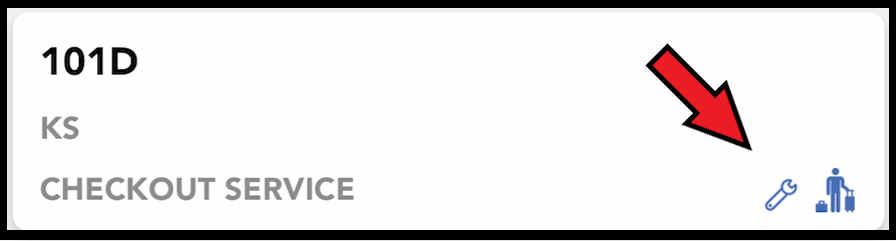
In this example the top room in the Housekeeping tab list has a maintenance request, as indicated by the icon shown. Select the Maintenance tab. |
|
|
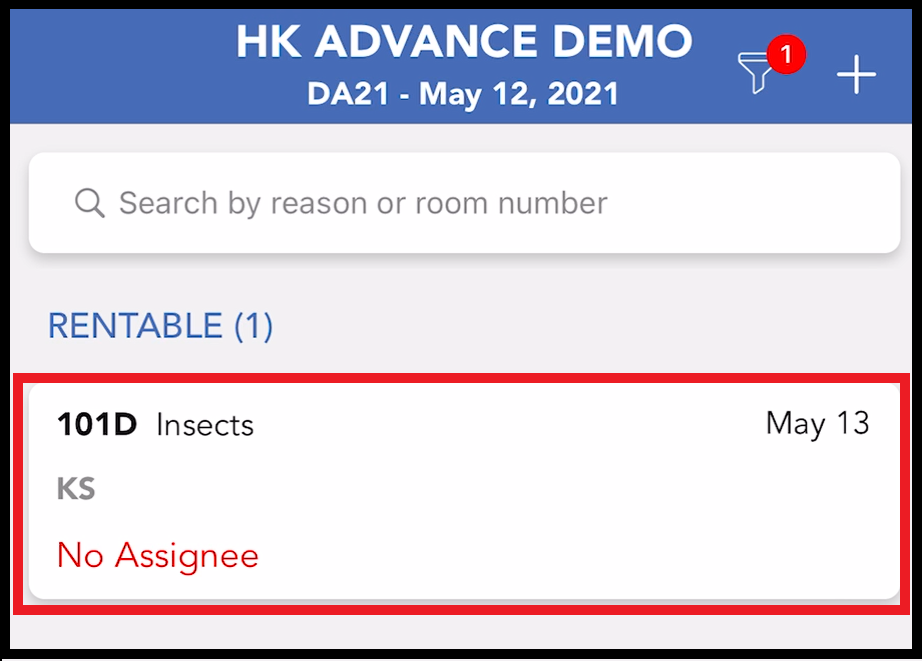
All rooms currently in need of maintenance are listed on the Maintenance tab. Locate the applicable room and select it. |
|
|
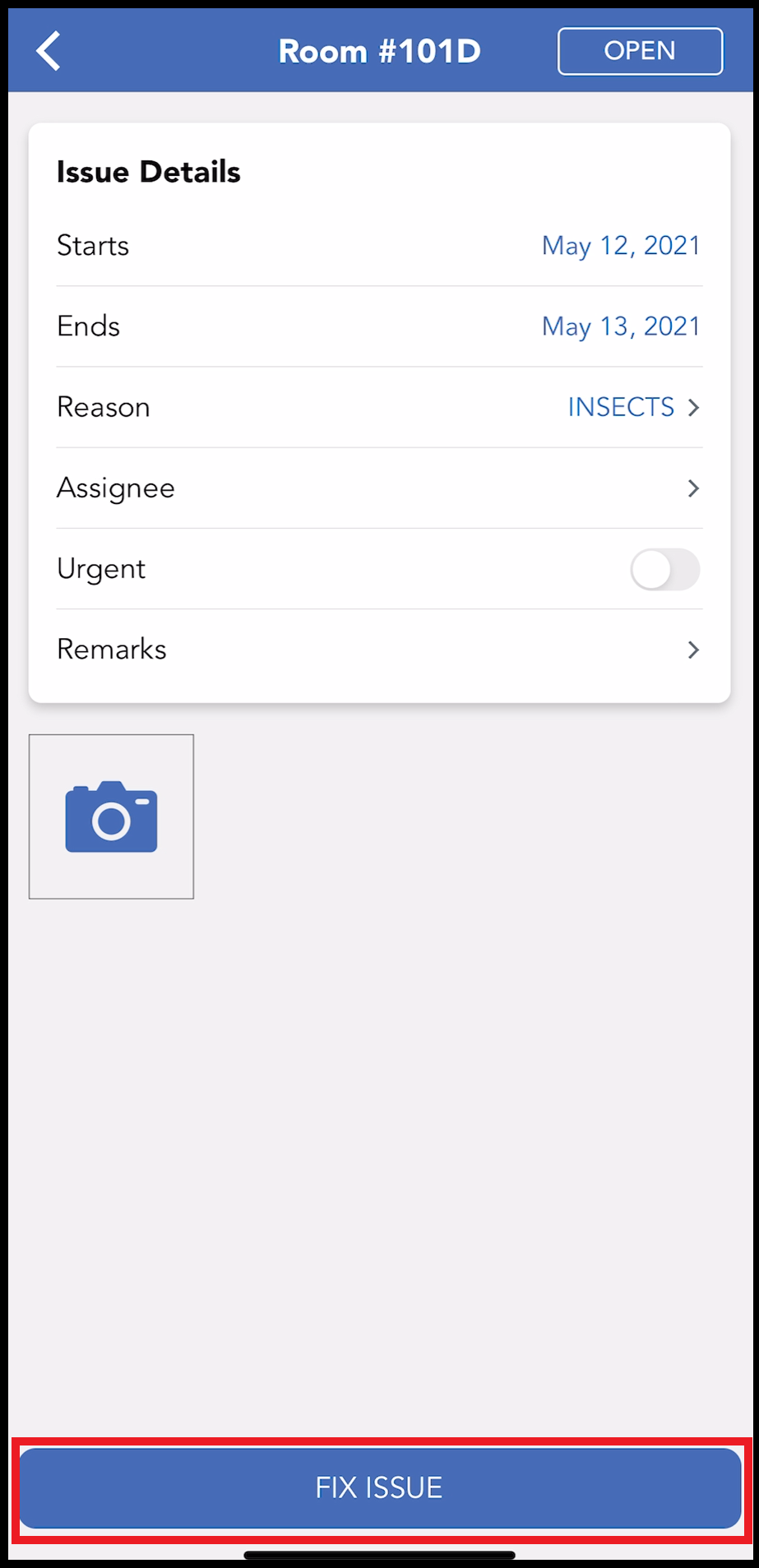
The Issue Details panel opens. Select FIX ISSUE. |
|
|
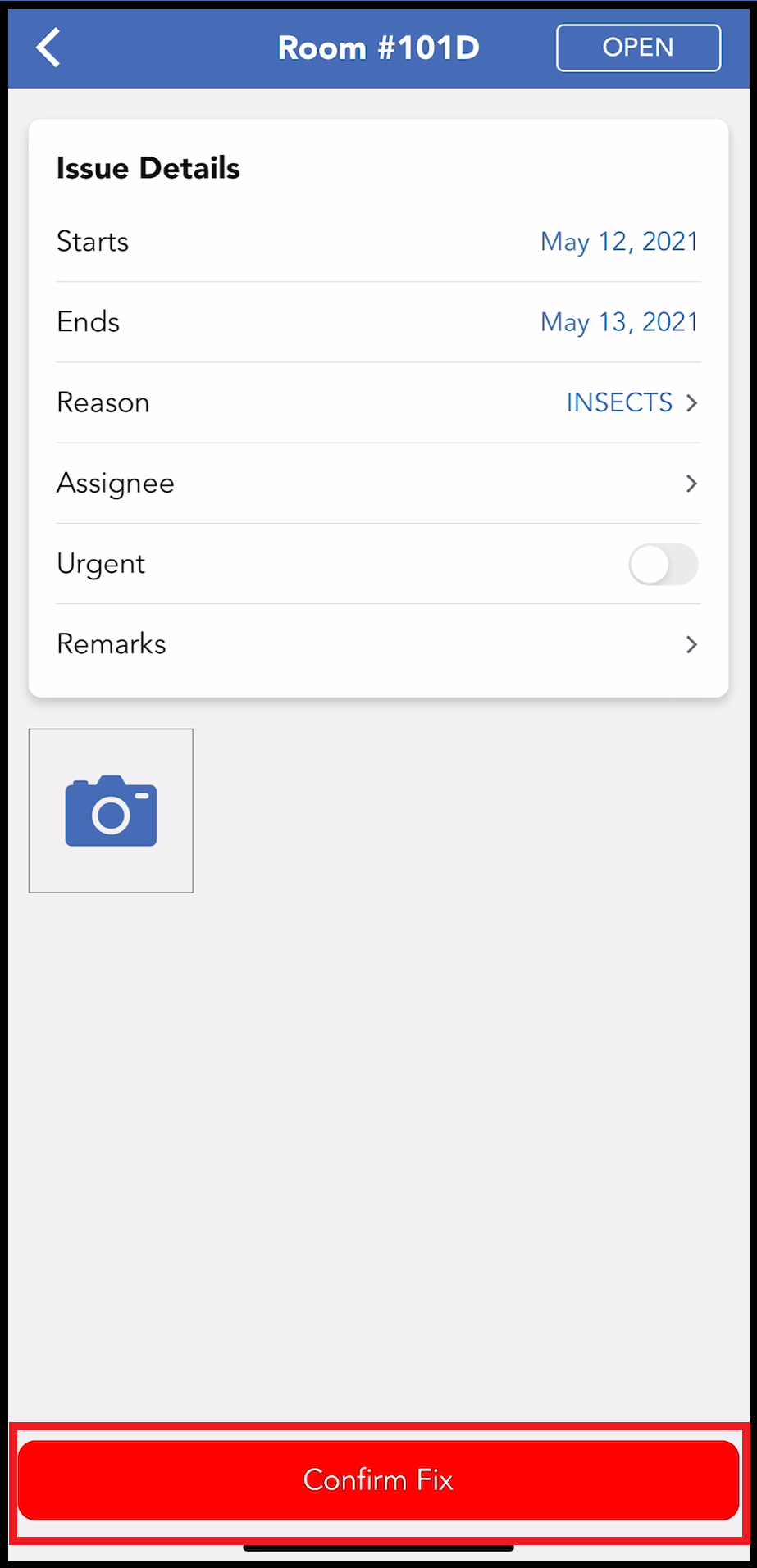
A confirmation step activates. Select Confirm Fix to confirm the maintenance task is complete and clear the maintenance icon from the room. |
|
|
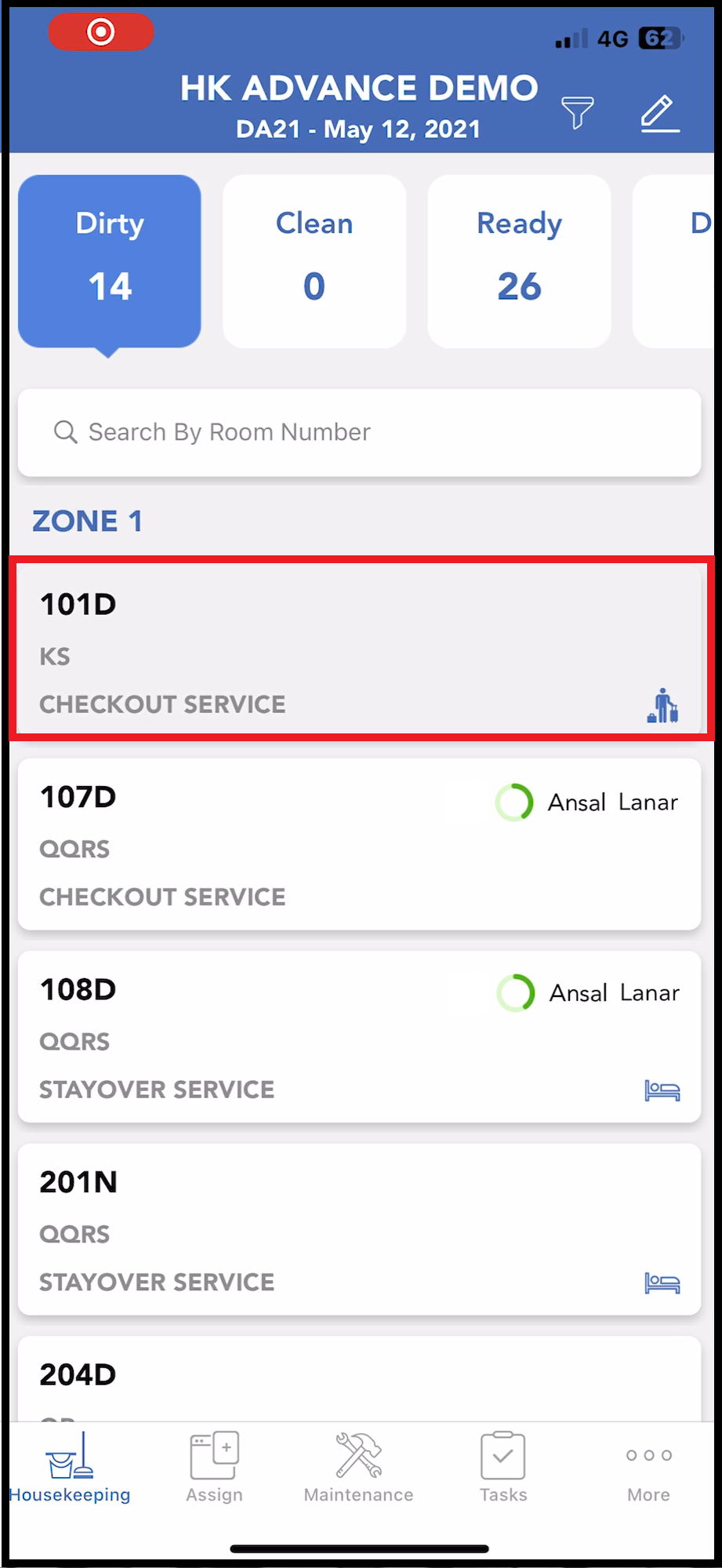
The maintenance task is cleared and the maintenance icon is removed from the room. Note that the room is also removed from the list on the Maintenance tab (not shown). |
|