
📆 Revision Date:
Overview: Editing an Event Record (Reservation)
Editing an Event Record refers to updating or modifying the details of a previously created event. This functionality allows users to keep event information accurate and up to date throughout the planning and execution process.
An Event Record typically contains all the essential details related to a specific event, such as:
-
Event name and type
-
Date(s) and time(s)
-
Location or meeting space
-
Attendee count
-
Room setup and audiovisual requirements
-
Food and beverage selections
-
Billing information
-
Notes or special instructions
When you edit an Event Record, you are making changes to one or more of these fields to reflect updates requested by the client, internal adjustments, or operational needs. These edits help ensure that all departments—Sales, Catering, Banquets, and Operations—are aligned on the most current version of the event.
Common scenarios where editing is required include:
-
Adjusting the number of attendees
-
Changing the event date or time
-
Updating menu selections or service times
-
Modifying the room setup or assigned space
-
Adding internal notes or client requests
All changes made to an event are tracked through audit logs, ensuring a transparent record of who made updates and when.
|
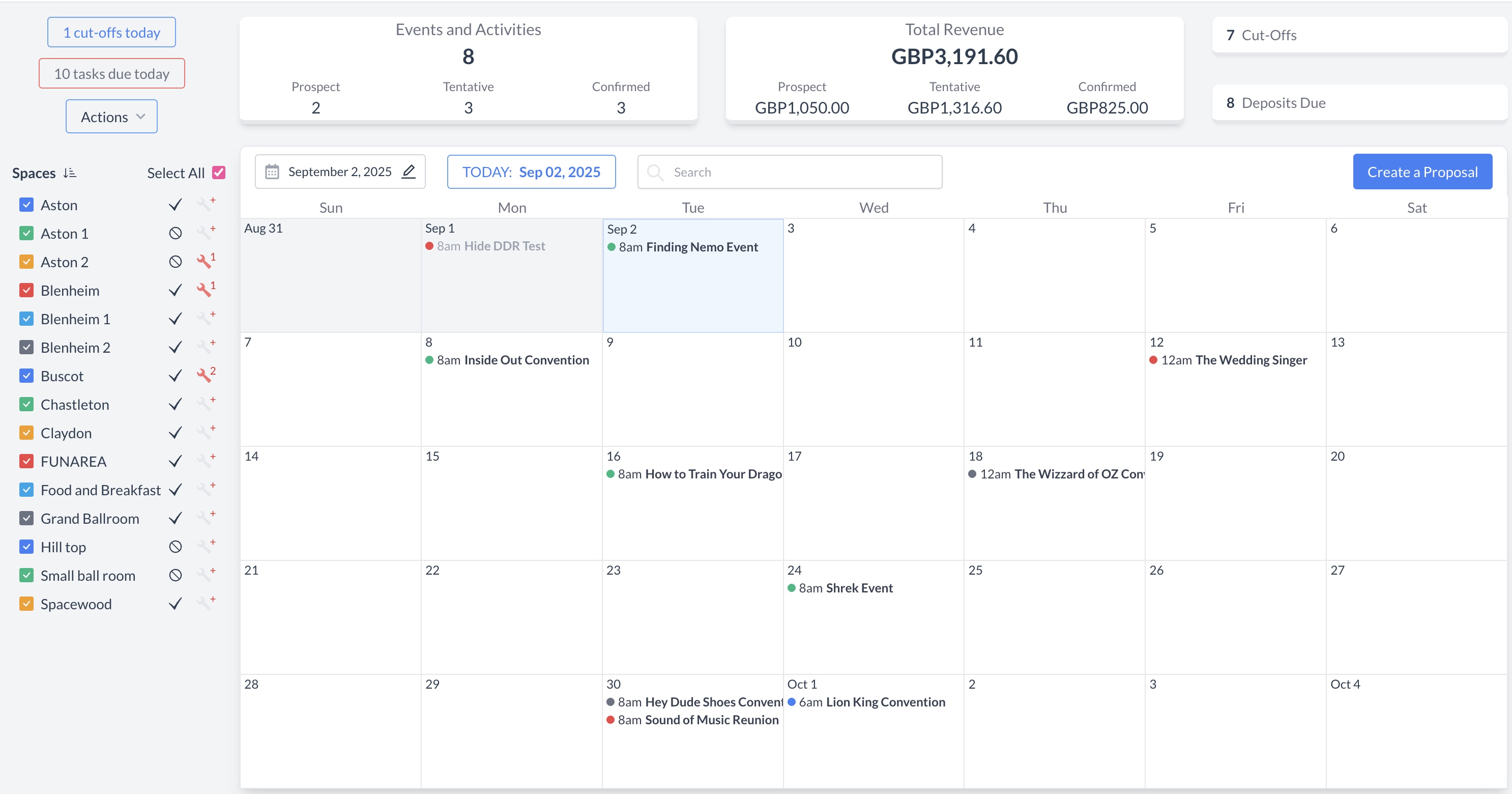
Navigate to Home > Event Management |
|
|
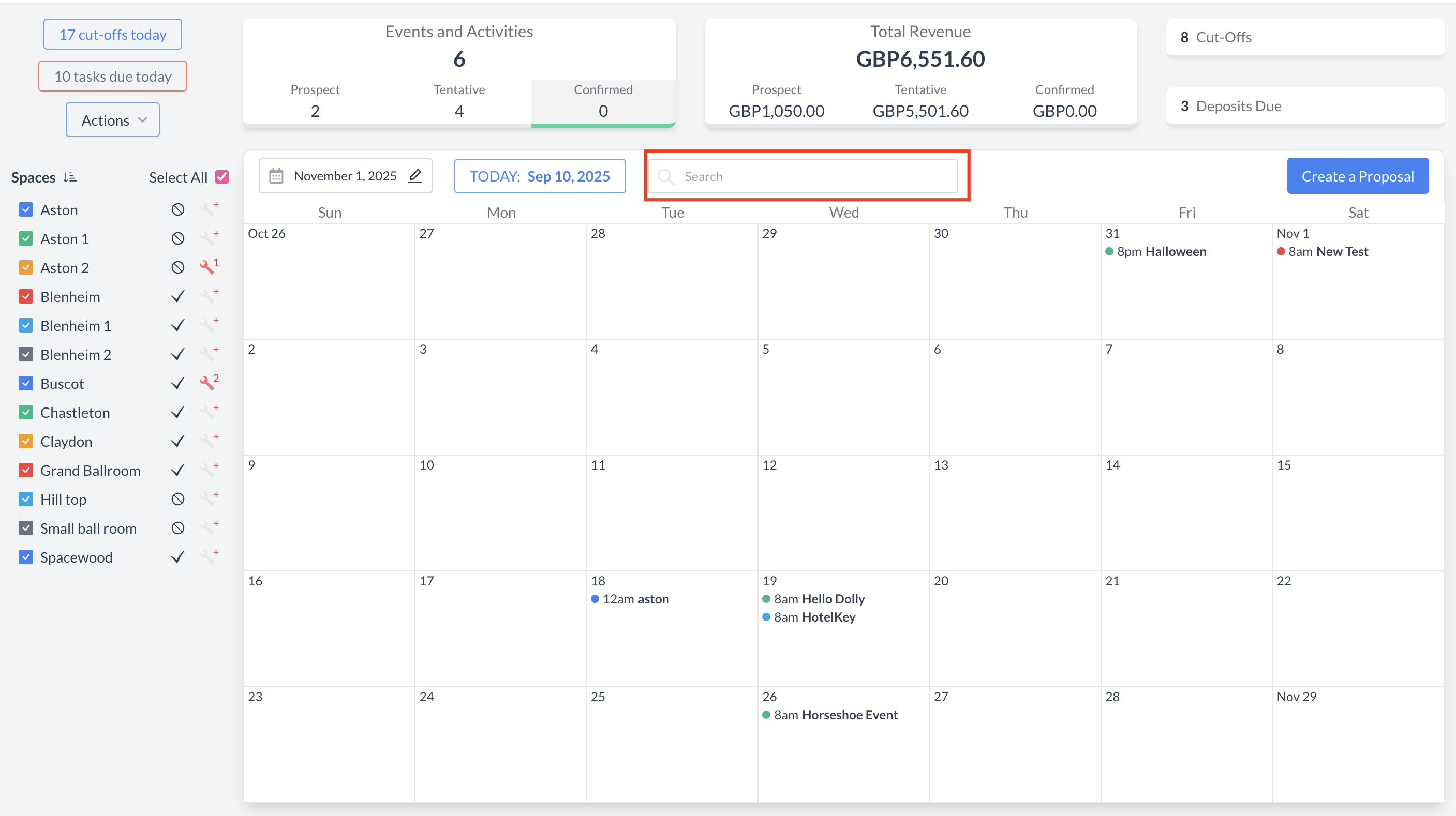
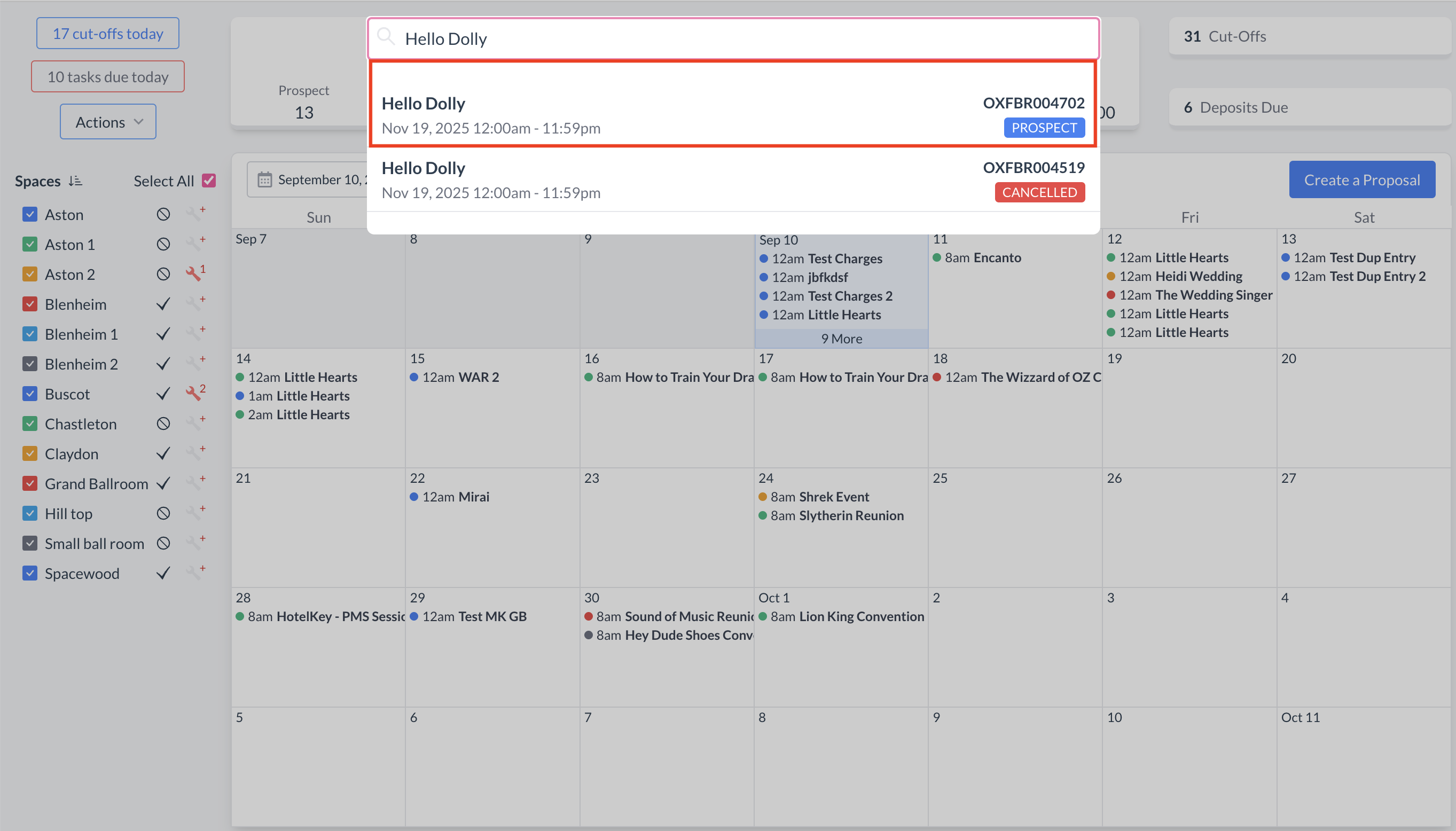
To begin, navigate to the Dashboard and use the Search box to locate the event. Enter the full or partial Event Name into the search field. The system will display a list of matching events, or, if there is an exact match, it will appear directly. Once you’ve identified the correct event, simply click on the event name to open it. |
|
|
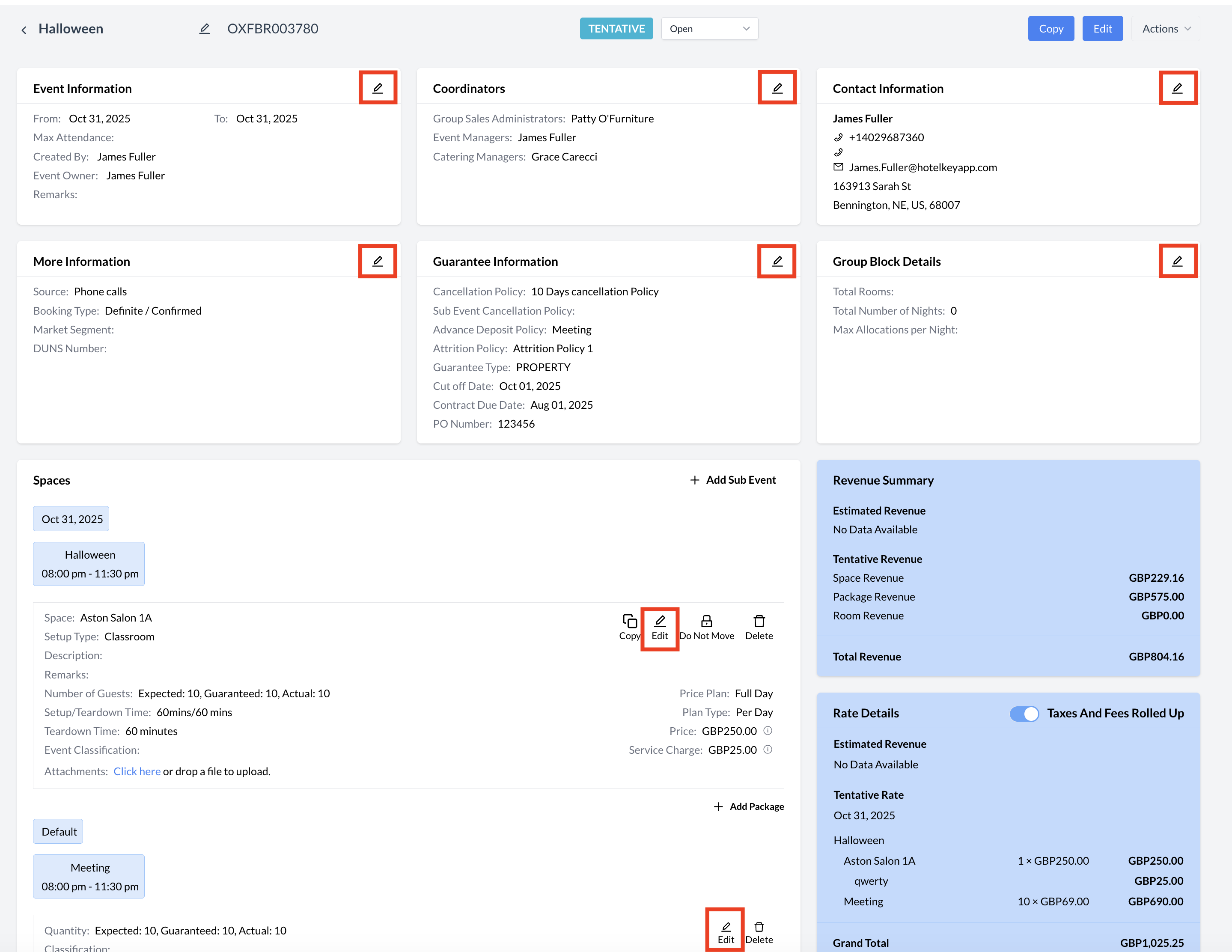
There are two primary ways to edit an Event Reservation.
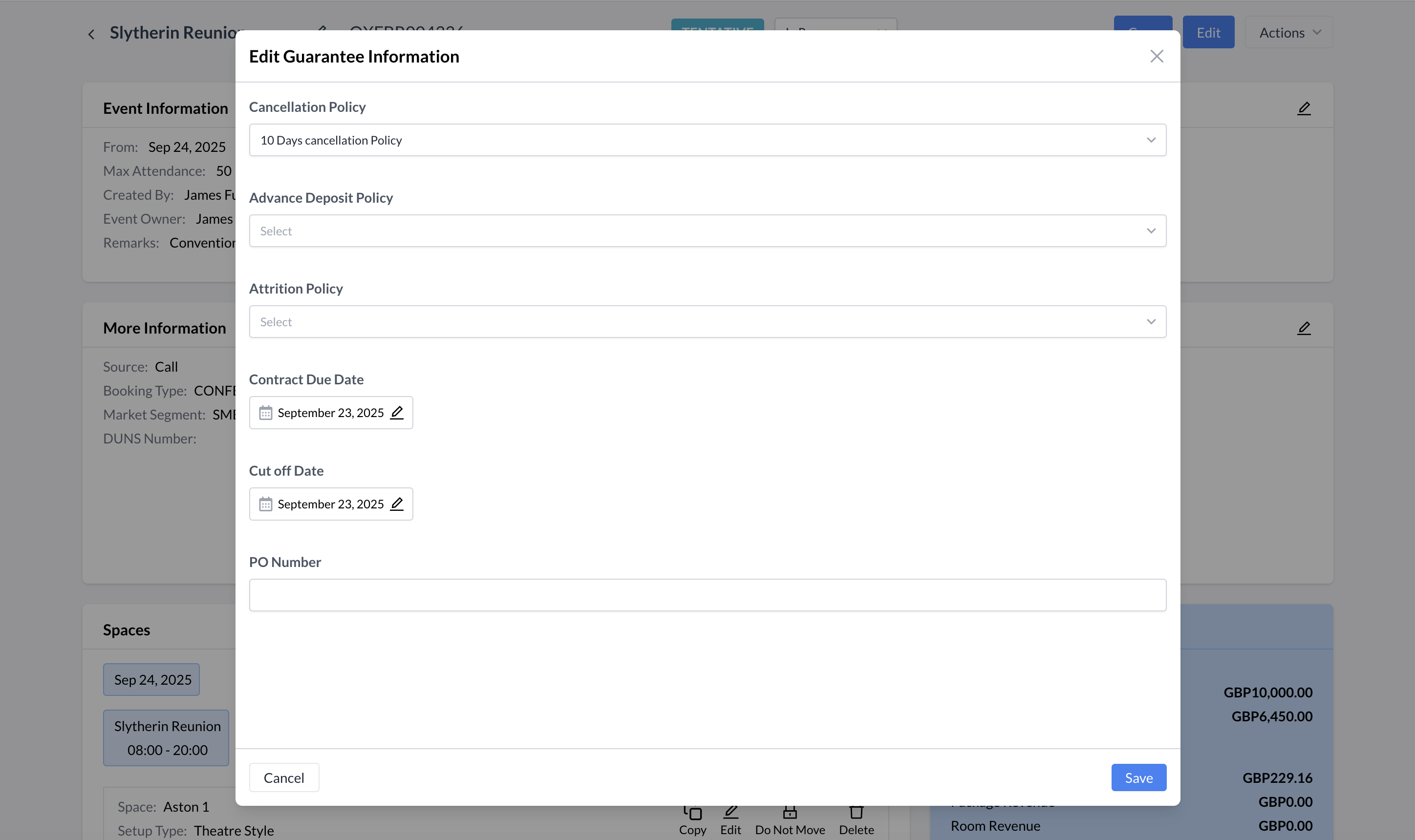
The first method is by using the Quick Edit buttons, which are conveniently located within each section of the Event Reservation. These buttons allow you to make targeted updates—such as changing the event name, date, time, or other details—without navigating away from the main reservation screen. This method is ideal for making fast, section-specific edits while reviewing the event. |
|
|
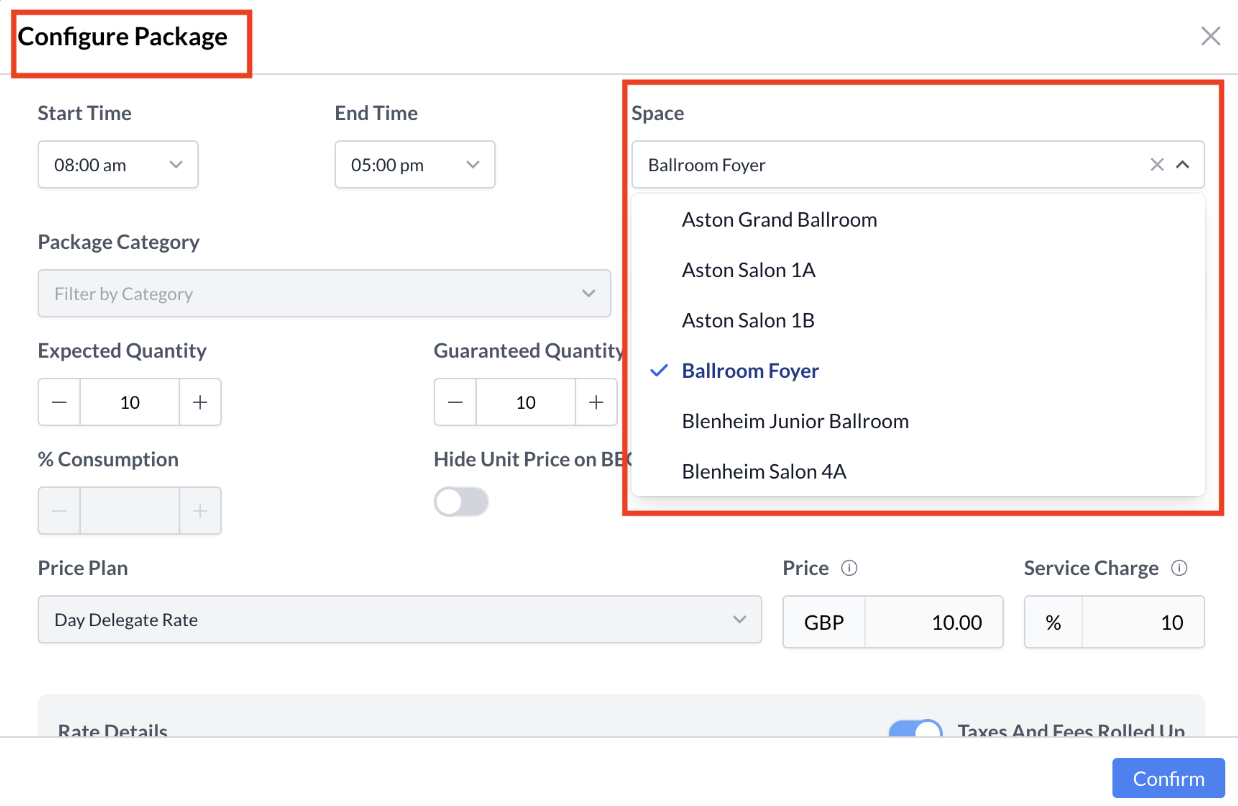
When you click the Quick Edit button—such as in the Guarantee Information section—a dedicated edit screen will appear. This screen allows you to modify the specific fields within that section of the Event Reservation. ⚠️ Certain Edit Package workflows allow you to do much more than basic field updates. This flow unlocks advanced capabilities for managing complex setups, particularly when handling Day Delegate Rates (DDR). 💡 Example: Unbundling DDR Elements: Using the Edit Package flow, you can break down the package and assign individual components—such as the morning coffee break, buffet lunch, or breakout sessions—to different functional spaces across your venue. How to access advanced component mapping:
Once you've made the necessary updates, click the blue "Save Changes" button to apply your edits and return to the main Event Record. |
|
|
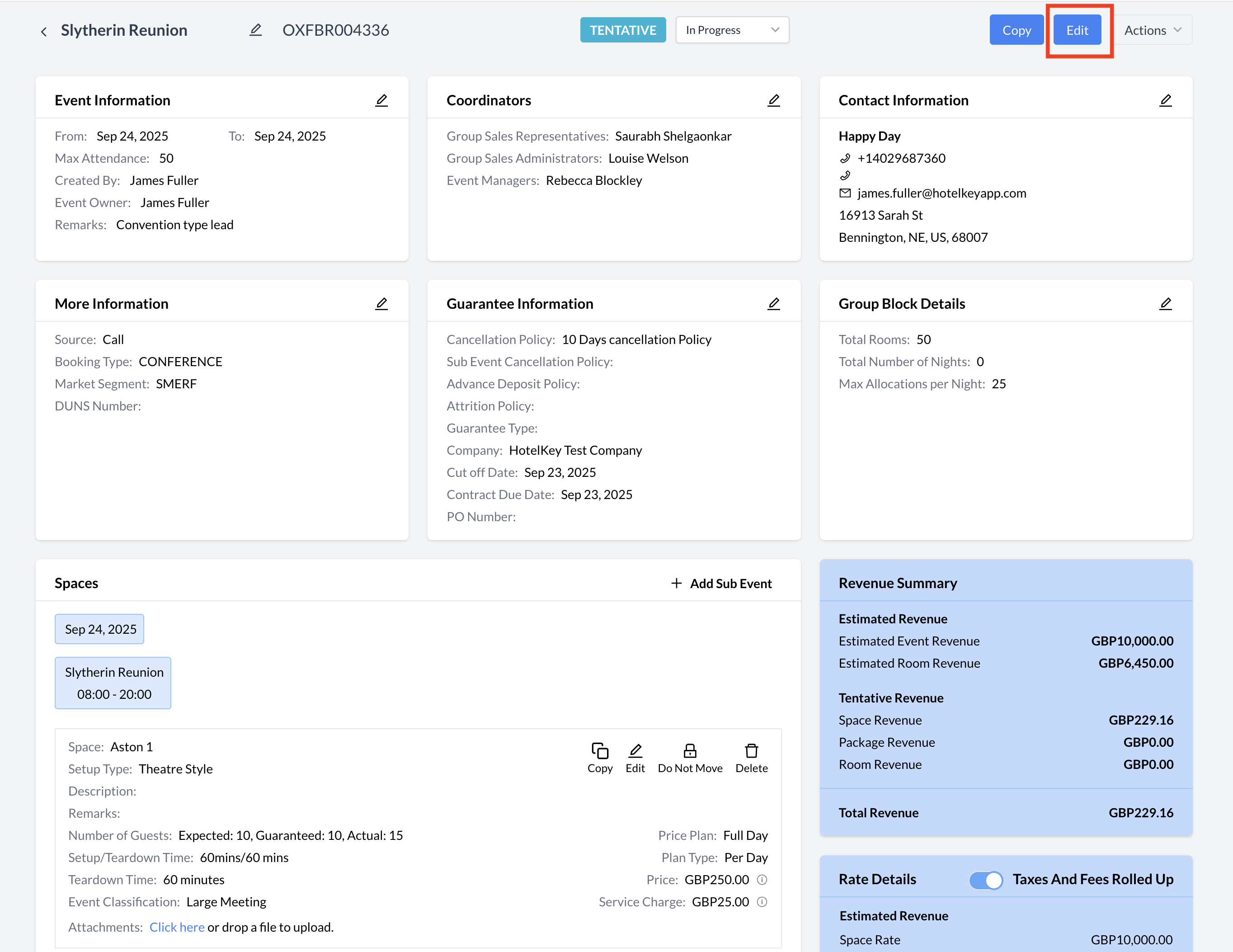
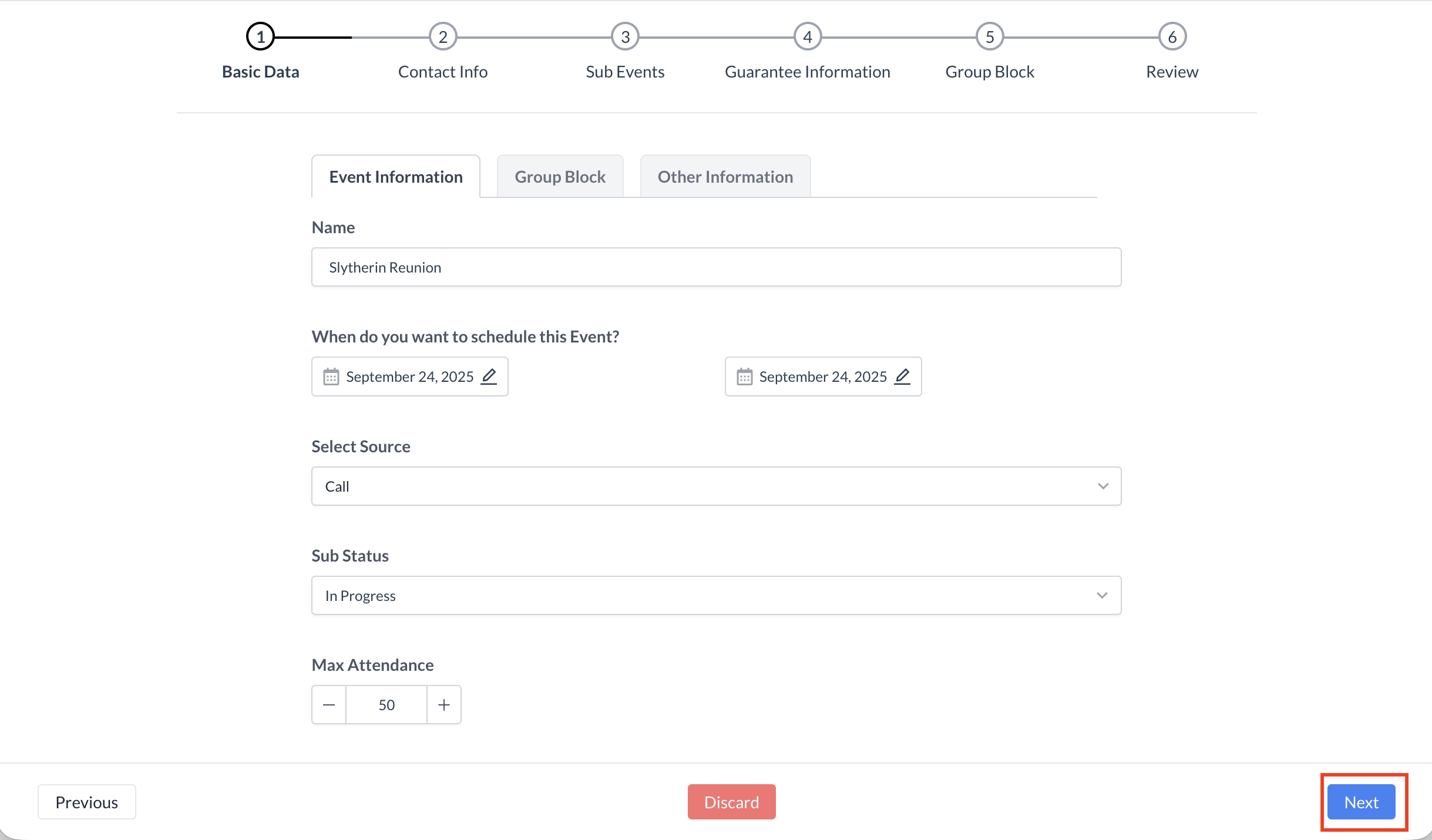
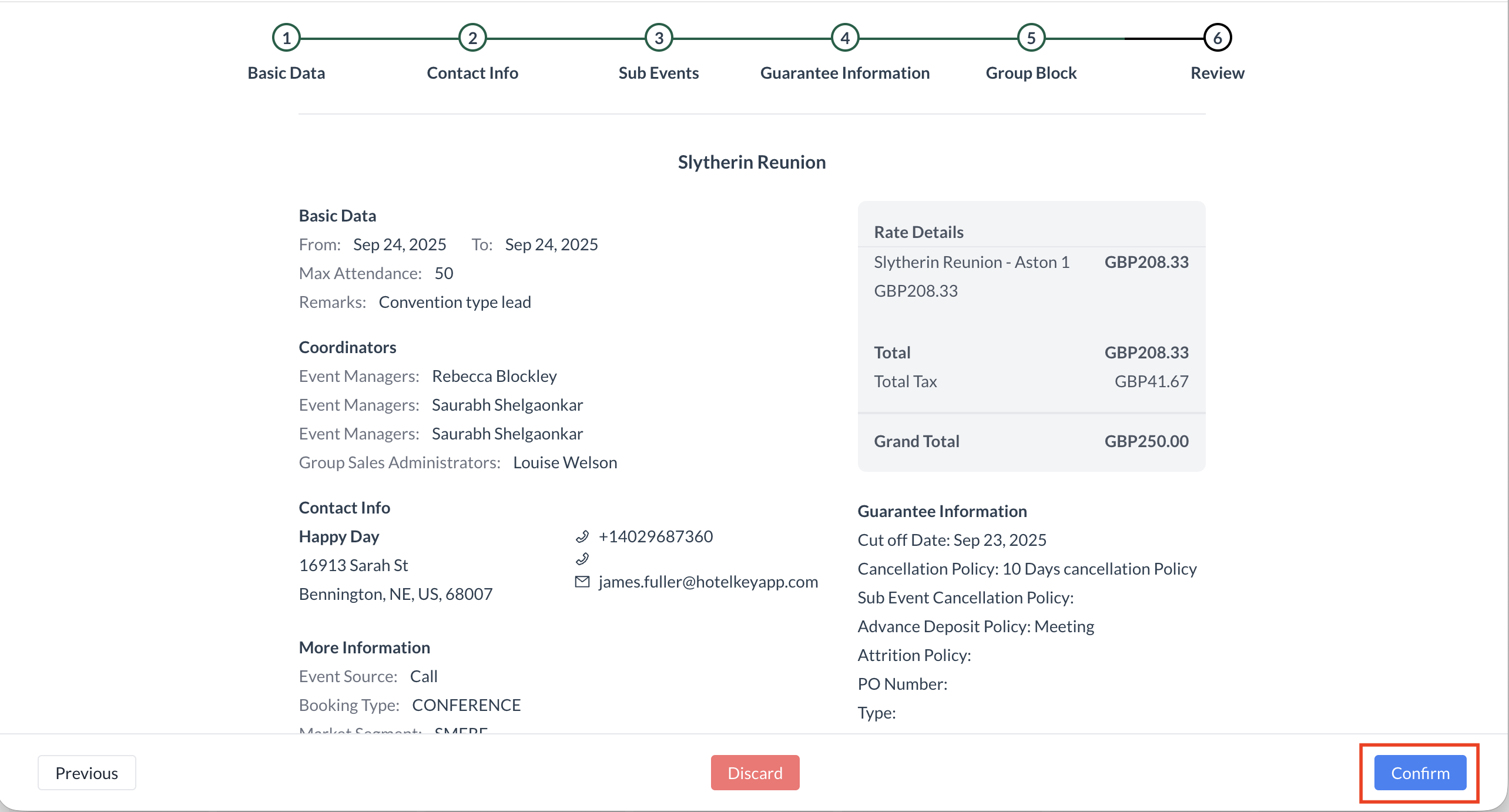
The second way to edit an Event Reservation is by using the Edit Flow, which takes you back into the full event creation process. 2. Edit Flow:
This method is ideal for making comprehensive edits that span multiple sections of the event, such as updating event dates, room blocks, or catering details. ⚠️ Important: While in the six-step event creation flow, you must click the blue "Next" button on each step to proceed through the process. At the final step—the Review screen—click the blue "Confirm" button to save your changes. This will complete the editing process and return you to the updated Event Record screen.
|
|
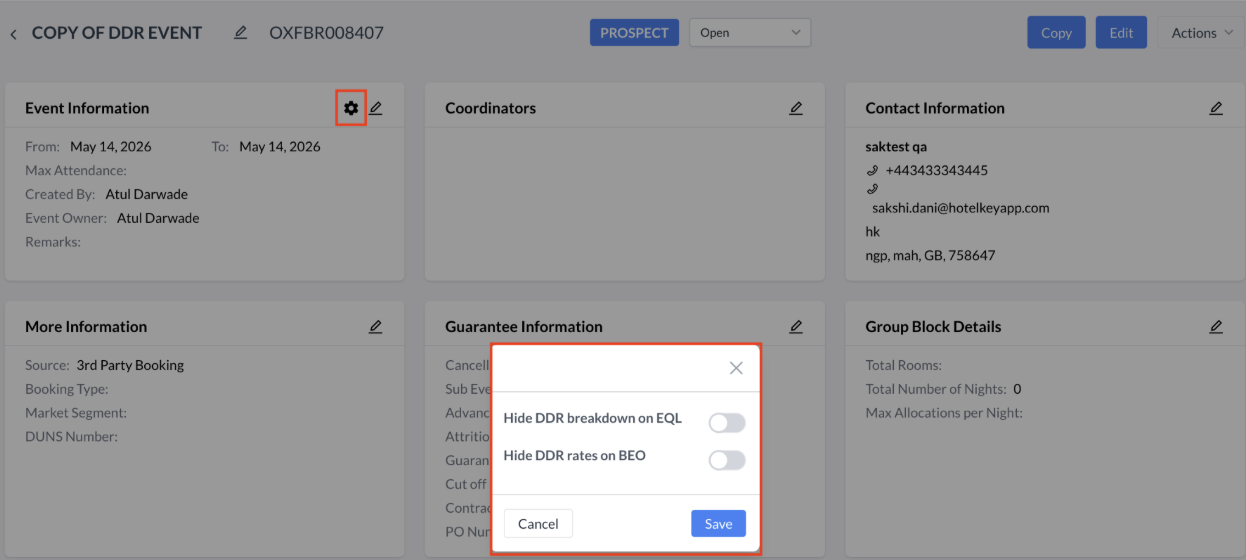
Document Visibility Toggles
Clicking the Gear Icon opens a settings menu with two key toggles designed to protect sensitive pricing details across your communications:
Why Use This Feature?
🔒 Professional Flexibility: Enabling these toggles ensures that granular breakdown details and pricing are only shared when necessary, allowing you to present a cleaner, more simplified summary to clients while maintaining full internal visibility. How to Change These Settings
|
|