
📆 Revision Date:
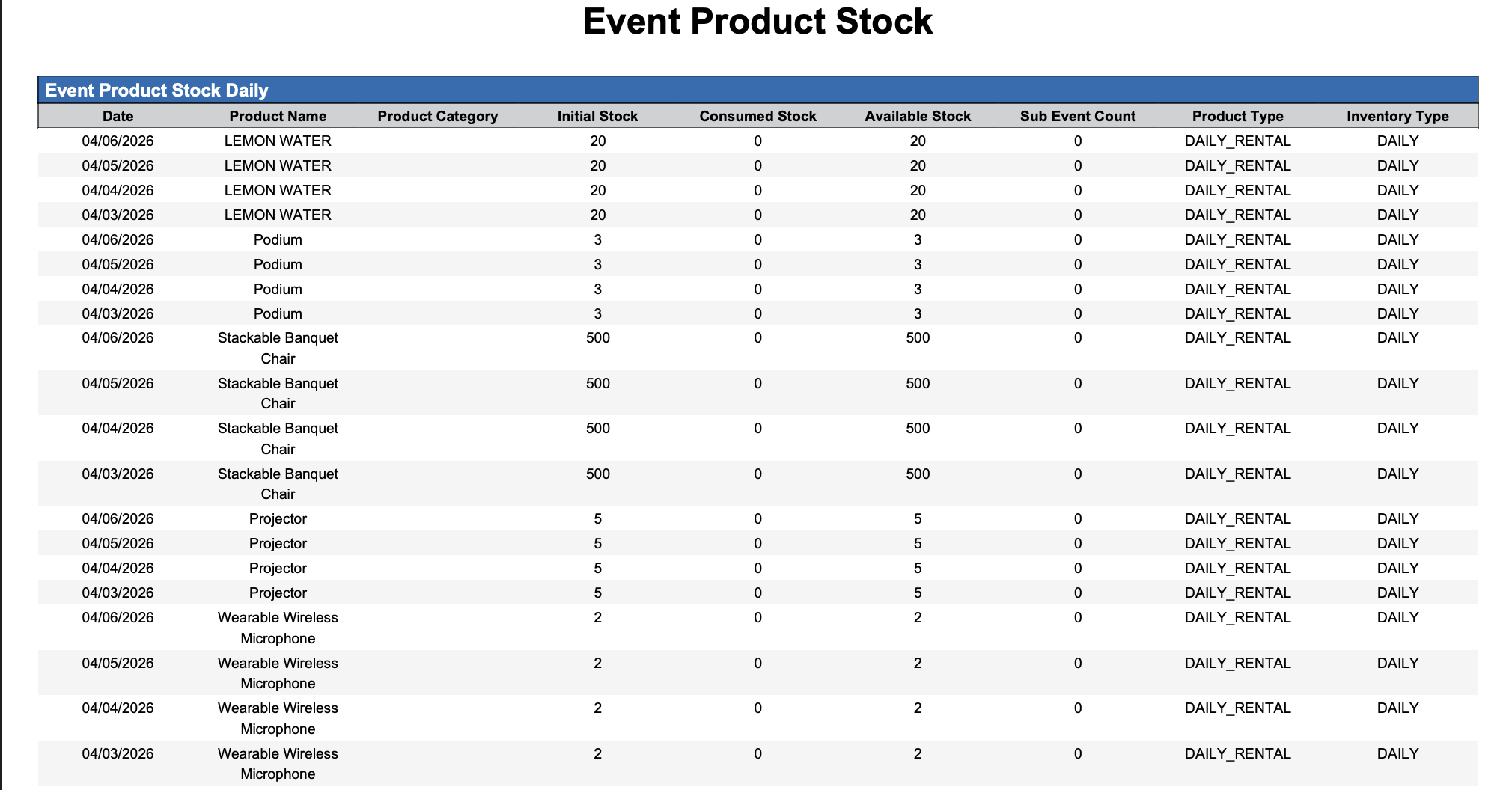
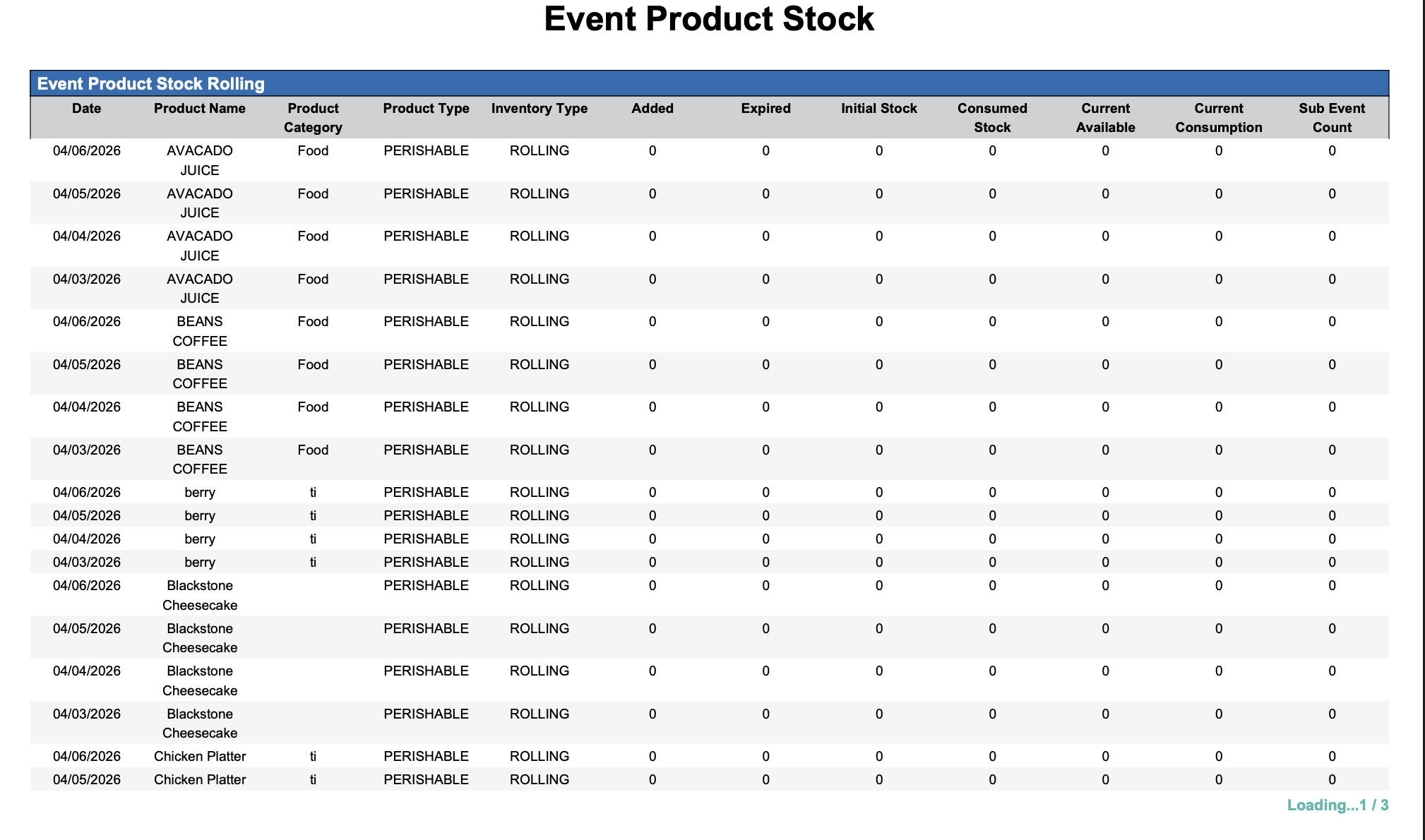
The EventKey Product Stock Report provides a comprehensive, real-time view of inventory levels for all event-related products and supplies, ensuring accurate planning and allocation for upcoming functions. This report is divided into two distinct functional sections to accommodate different inventory models: the Daily Product Stock section tracks available inventory that resets every 24 hours for items replenished daily, while the Rolling Product Stock section manages initial inventory levels that carry over day-to-day until the stock is manually reset or reaches its expiration date. By supporting these dual tracking methods, the report enables event teams to proactively identify potential shortages, coordinate timely rentals, and manage complex logistics—effectively preventing last-minute operational issues and ensuring seamless event execution.
Report Date Range: The report supports viewing data for a specific day, with a range of up to 365 days into the future.
Event Product Stock Report_Daily Product: this section tracks available inventory that resets every 24 hours for items replenished daily
Event Product Stock Report_Rolling Product: this section manages initial inventory levels that carry over day-to-day until the stock is manually reset or reaches its expiration date.
Event Product Stock Report – Dynamic View Overview
The Event Product Stock Report (Dynamic View) includes 13 columns of data. Users can customize the view by repositioning or hiding columns using the Configure (⚙️) icon located on the report page.
Below is a list of all available column names along with their descriptions.
|
Column Name |
Column Description |
Amount Includes Taxes and Fees |
Amount Calculation or Source of Data |
|
Added |
Displays the specific quantity of inventory manually topped up or restocked for a Rolling Product. |
|
The value is sourced from the Stock field entered on the HK Admin > Products > Edit Product > Add New Shipment screen.
|
|
Available Stock |
The quantity of product currently in stock and available for use. |
|
Available Stock = Initial Stock - Consumed Stock
|
|
Consumed Stock |
Displays the total quantity of inventory already used across all scheduled sub-events. |
|
Consumed Stock = Sum of Used Product
|
|
Current Available |
Represents the amount of product currently available to be used or assigned to active events. |
|
Current Available = Initial Stock - (Consumed Stock + Current Consumption)
|
|
Current Consumption |
Represents the amount of real-time usage of inventory for the defined report date. |
|
Current Consumption = Sum of Assigned Product
|
|
Date |
The date for the specific day currently being viewed in the report. |
|
Not Applicable
|
|
Expired |
Displays the total quantity of inventory that remained unused at the end of its scheduled availability period. |
|
The value is sourced from the Stock field entered on the HK Admin > Products > Edit Product > Add New Shipment screen > From Date and To Date fields.
|
|
Initial Stock |
Represents the starting inventory level of the product prior to any consumption or allocation. |
|
The value is sourced from the Initial Quantity field entered on the HK Admin > Products > Edit Product screen.
|
|
Inventory Type |
Specifies if inventory tracking for the product is based on individual daily counts or a continuous (rolling) schedule. |
|
The value is sourced from the Inventory Type field entered on the HK Admin > Products > Edit Product screen.
|
|
Product Category |
A high-level grouping used to bucket similar items—such as Audio-Visual, Catering, or Decor—into organized sections within the system. |
|
The value is sourced from the Category field entered on the HK Admin > Products > Edit Product screen.
|
|
Product Name |
Identifies the name or label assigned to the product. |
|
The value is sourced from the Name field entered on the HK Admin > Products > Edit Product screen.
|
|
Product Type |
Indicates whether the product is classified as perishable or non-perishable. |
|
The value is sourced from the Product Type field entered on the HK Admin > Products > Edit Product screen.
|
|
Sub Event Count |
Indicates how many sub-events have allocated or are using this product from inventory. |
|
Sub Event Count = Sum of Sub Events
|
Miscellaneous Report Information
Available Features:
-
Export
Allows you to download and save the report in different file formats (e.g., Excel, PDF) for offline use or sharing. -
Filter
Enables you to narrow down the data by applying criteria you define, so you can focus on specific information. -
Highlight (Conditional Formatting)
Automatically highlights certain values based on rules you set, making key data easier to spot at a glance.
Available Configuration:
-
User Preferences
Customize your personal report view by rearranging, showing, or hiding columns according to your needs. -
Property Preferences
Configure the default report layout for all users at the property level by repositioning or disabling columns to streamline the view.
Baseline Configuration:
-
Property Preferences Settings
The following columns will be disabled for the initial deployment:
Not Applicable