📆 Revision Date:
Day Delegate Rate (DDR) Overview
Day Delegate Rates (DDR) refer to a comprehensive pricing structure commonly used in the events and hospitality industry, where a fixed fee is charged per attendee for a full day of services. This rate typically includes access to meeting spaces, standard audio-visual equipment, refreshments, and meals throughout the day. DDR simplifies budgeting for event organizers by bundling various costs into one per-person charge, making it easier to plan and manage expenses for conferences, training sessions, and corporate meetings.
🛑 Prerequisites
The following prerequisites apply only when creating a Day Delegate Rate (DDR) Price Plan:
1. Package Header
Why it’s needed:
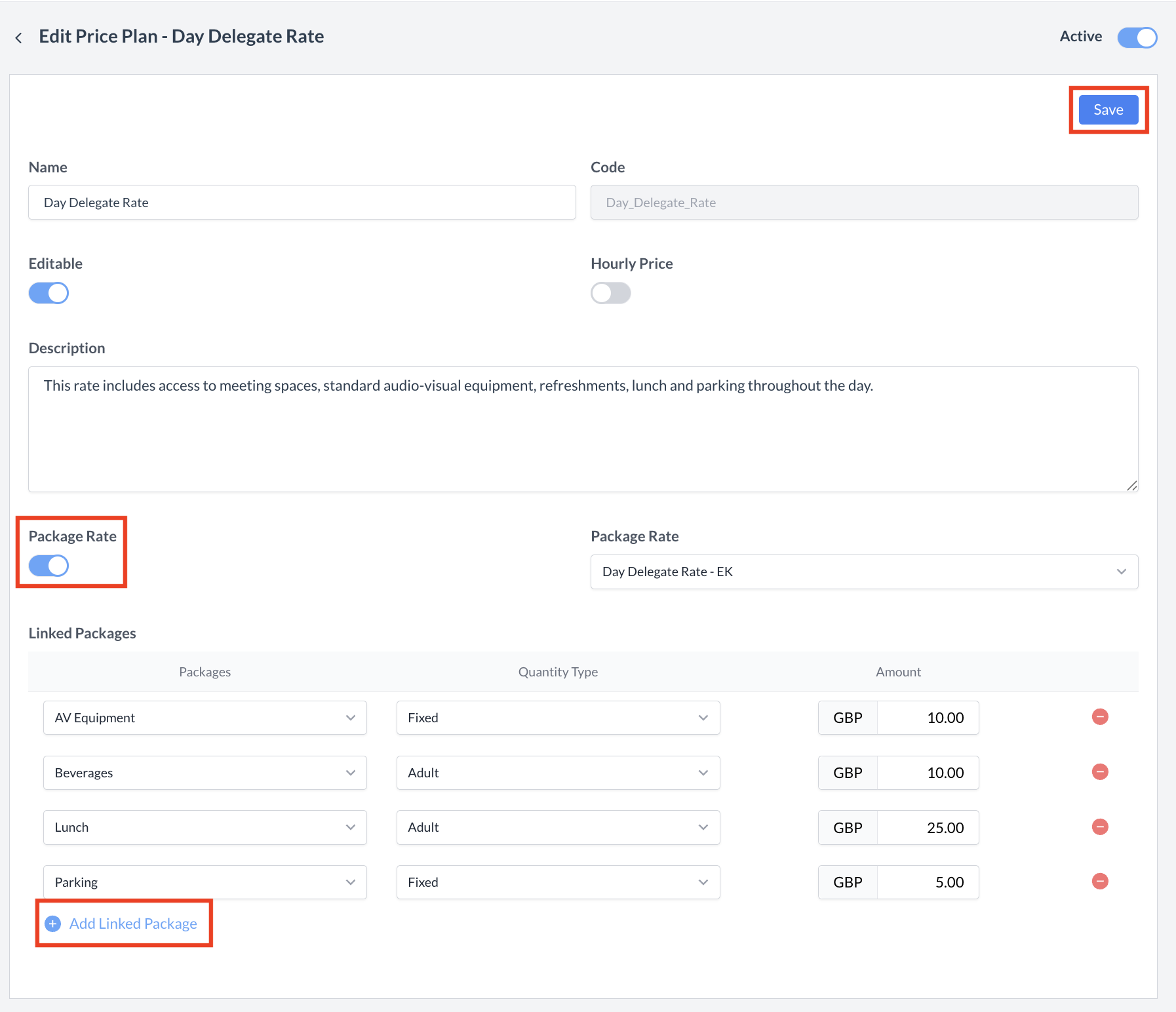
The DDR Price Plan must be linked to a Package Header to treat the plan as a complete package, bundling all elements into a single Day Delegate Rate offering.
Action required:
Create the necessary Package Header in Property Settings before setting up the Price Plan.
2. Package Elements
Why it’s needed:
The packages (such as AV Equipment, Beverages, Parking, etc.) that compose the DDR must be created as Package Elements. These elements should correspond to those listed in the Package Header.
Action required:
Create the required Package Elements in Property Settings before setting up the Price Plan.
Creating a Day Delegate Rate (DDR) Price Plan
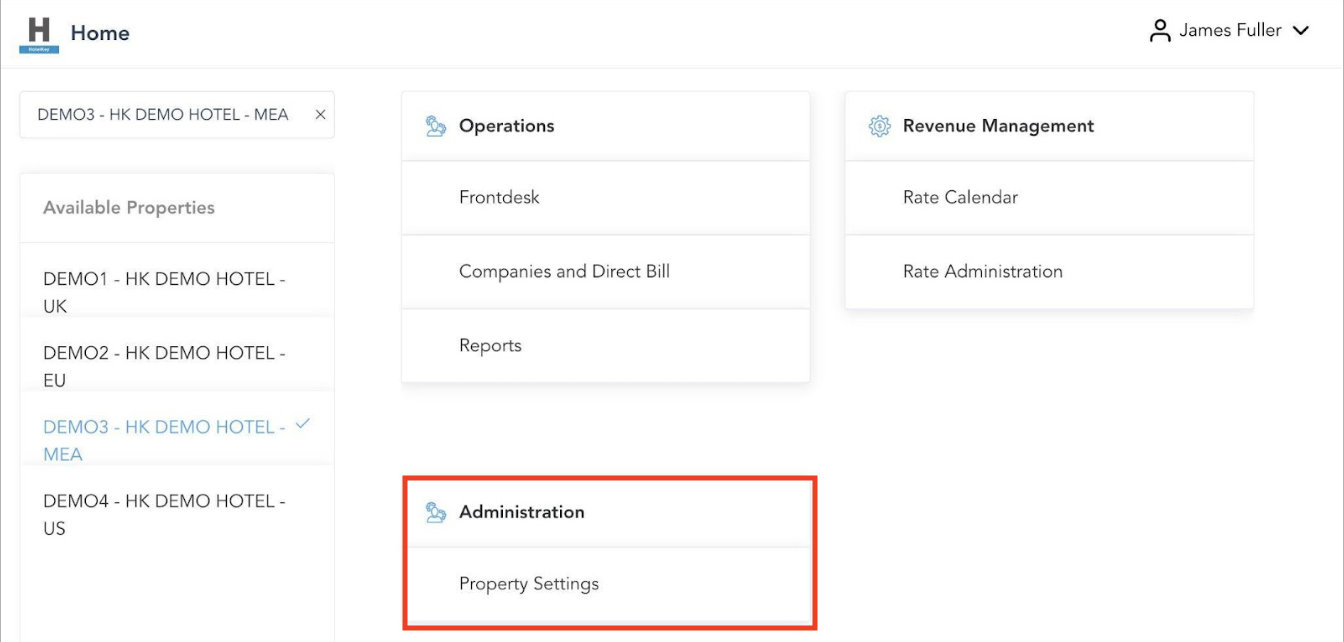
Before setting up a Day Delegate Rate (DDR) Price Plan in EventKey, certain configurations must first be completed in your PMS Property Settings. Step 1: Access Property Settings
From the HK Home screen, navigate to Administration > Property Settings. |
|
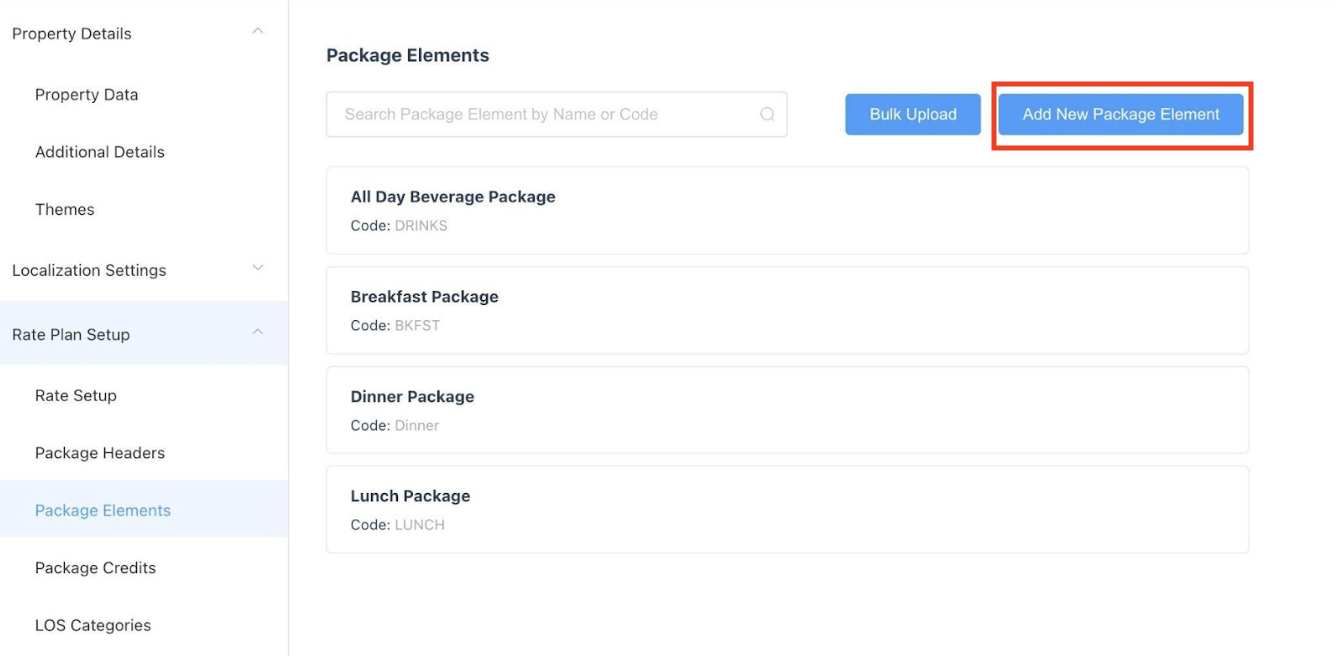
Step 2: Add a New Package Element
|
|
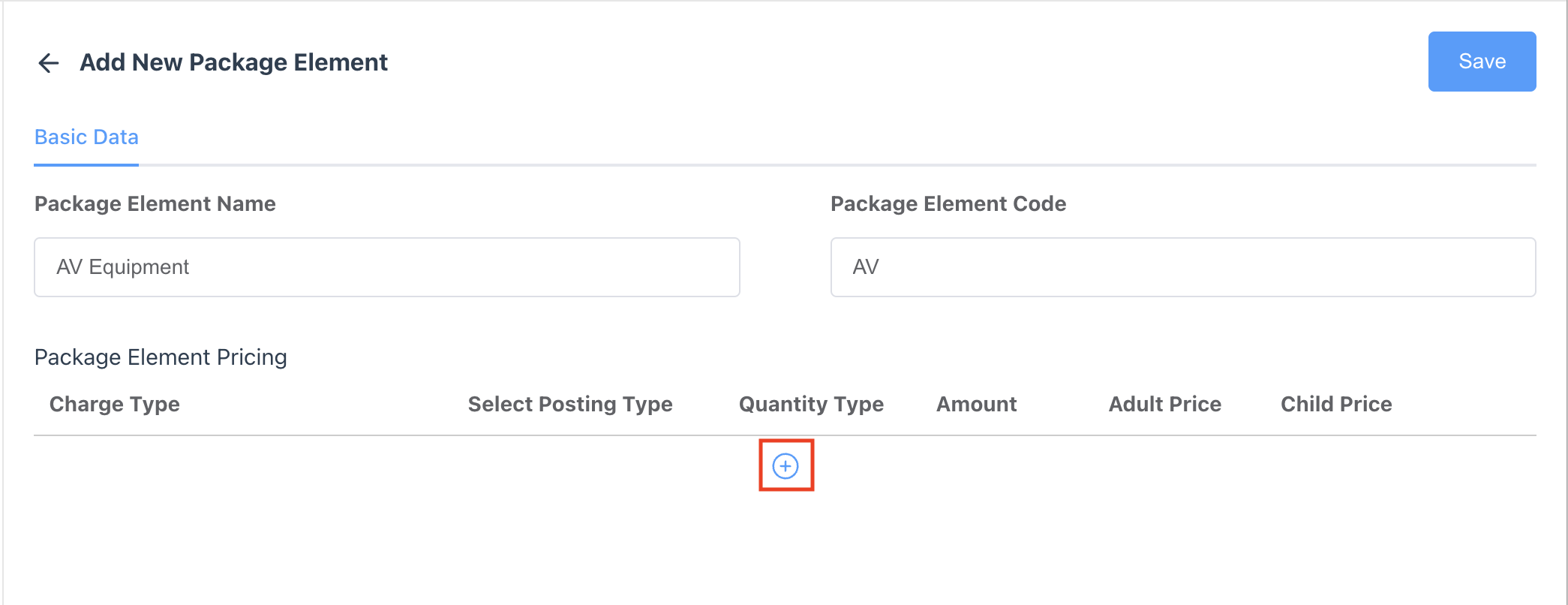
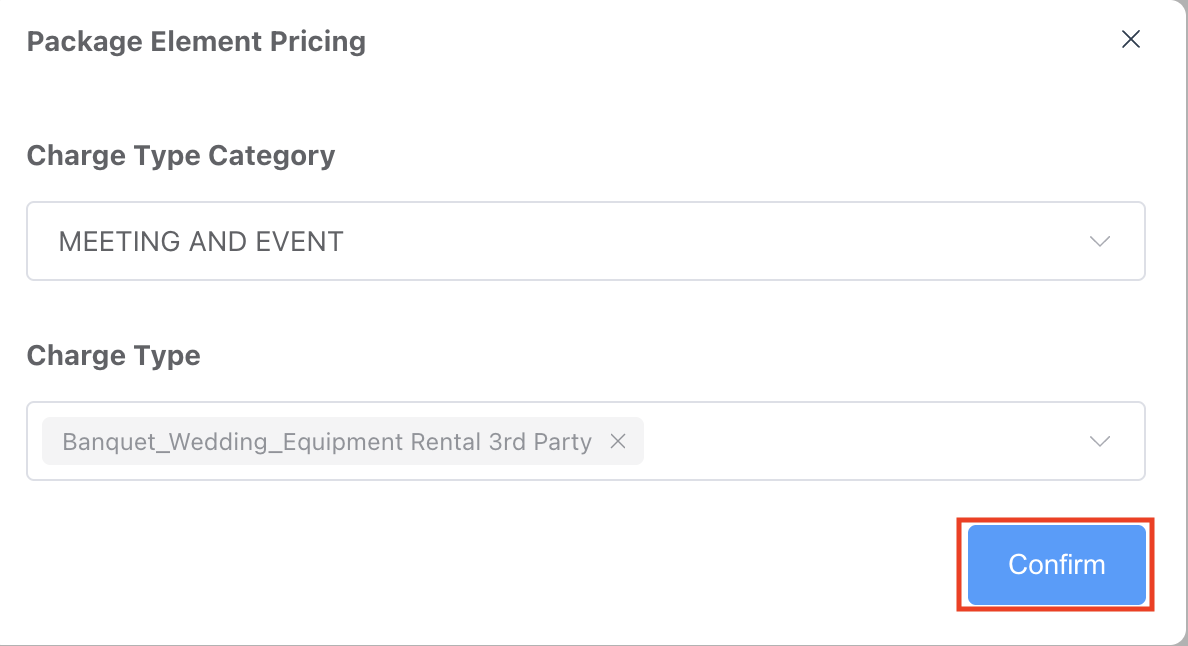
Step 3: Configure the Package Element
|
|
Step 4: Complete Package Element Settings
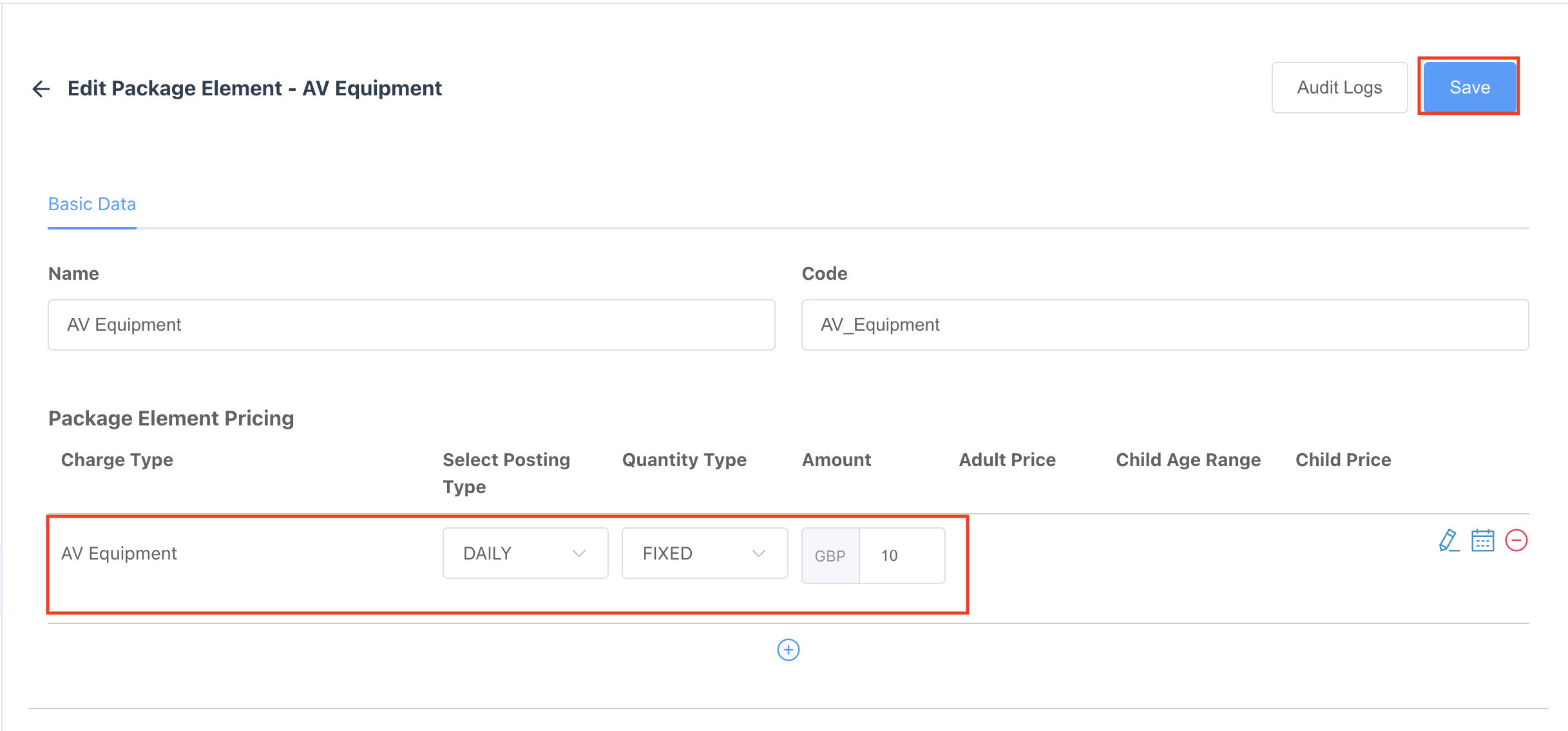
In the Package Element Setup window, complete the following fields to define how the element should behave when applied to a package: Post Type
From the dropdown menu, select how the package element amount should be posted or broken out from the overall package rate:
Quantity Type
Select how the package element should be applied based on the guest count on the reservation:
Enter the package element amount to be charged. Once all fields are completed, click the Save button. ✅ Your package element is now created.
|
|
|
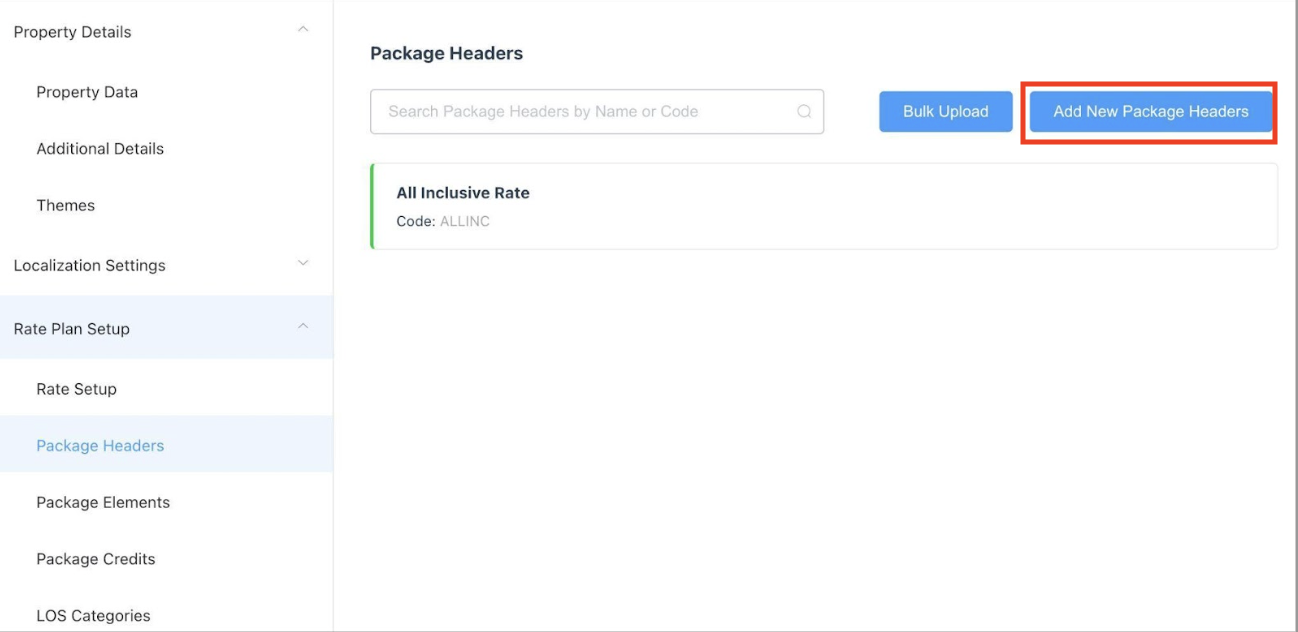
To begin setting up your Day Delegate Rate (DDR) package, you will first need to create a Package Header.
|
|
Completing the Day Delegate Rate Package Header Setup
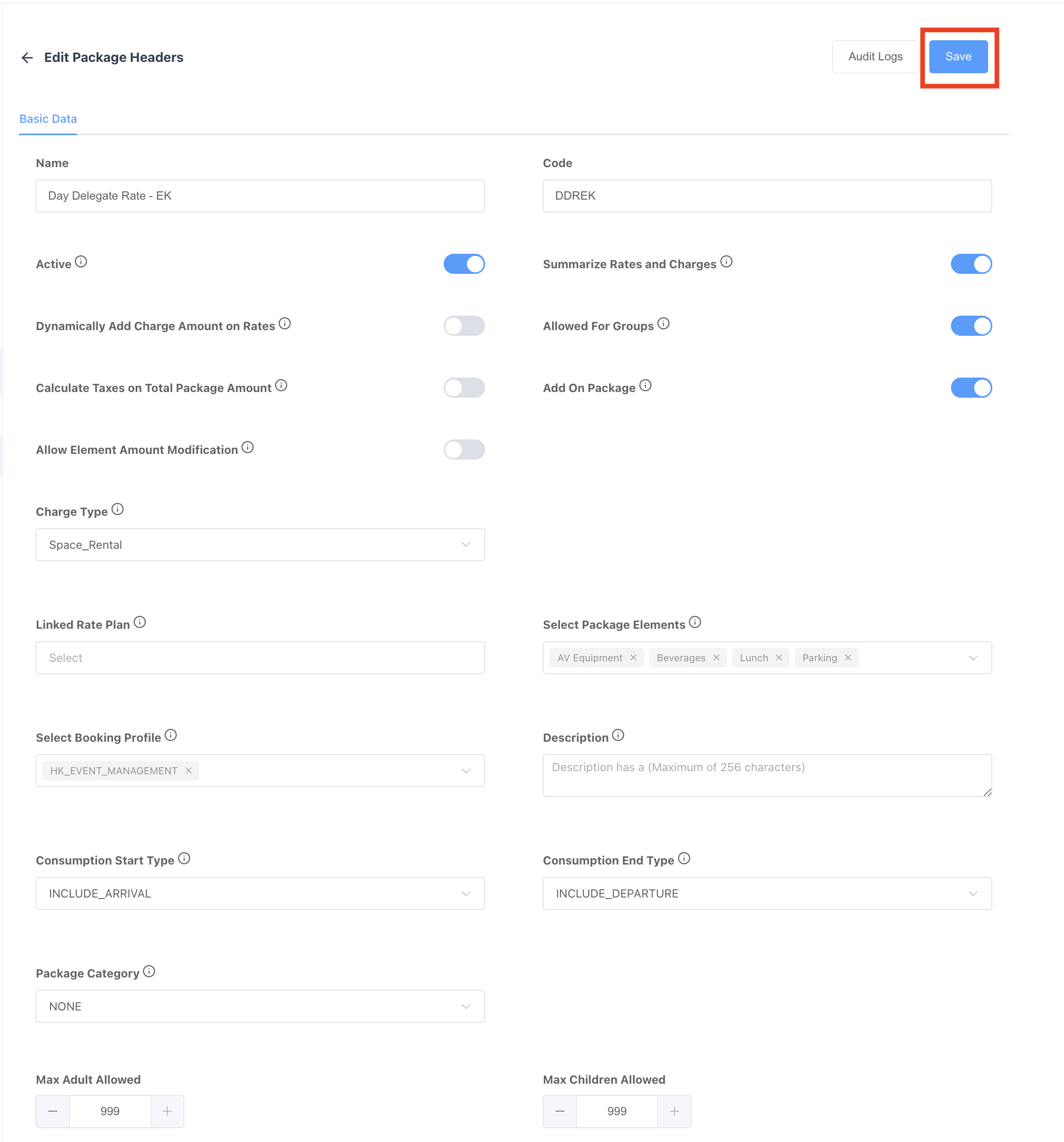
Once you've clicked Add New Package Header, complete the following fields to configure your Day Delegate Rate (DDR) or meeting room package: 📄 Basic Information
💲 Folio Display and Charging Behavior
🧾 Charge Configuration
📦 Package Elements & Booking Profile
📅 Consumption Rules
🗂️ Other Settings
✅ Final Step
Once all required fields are completed, click the blue Save button to create the package header. |
|
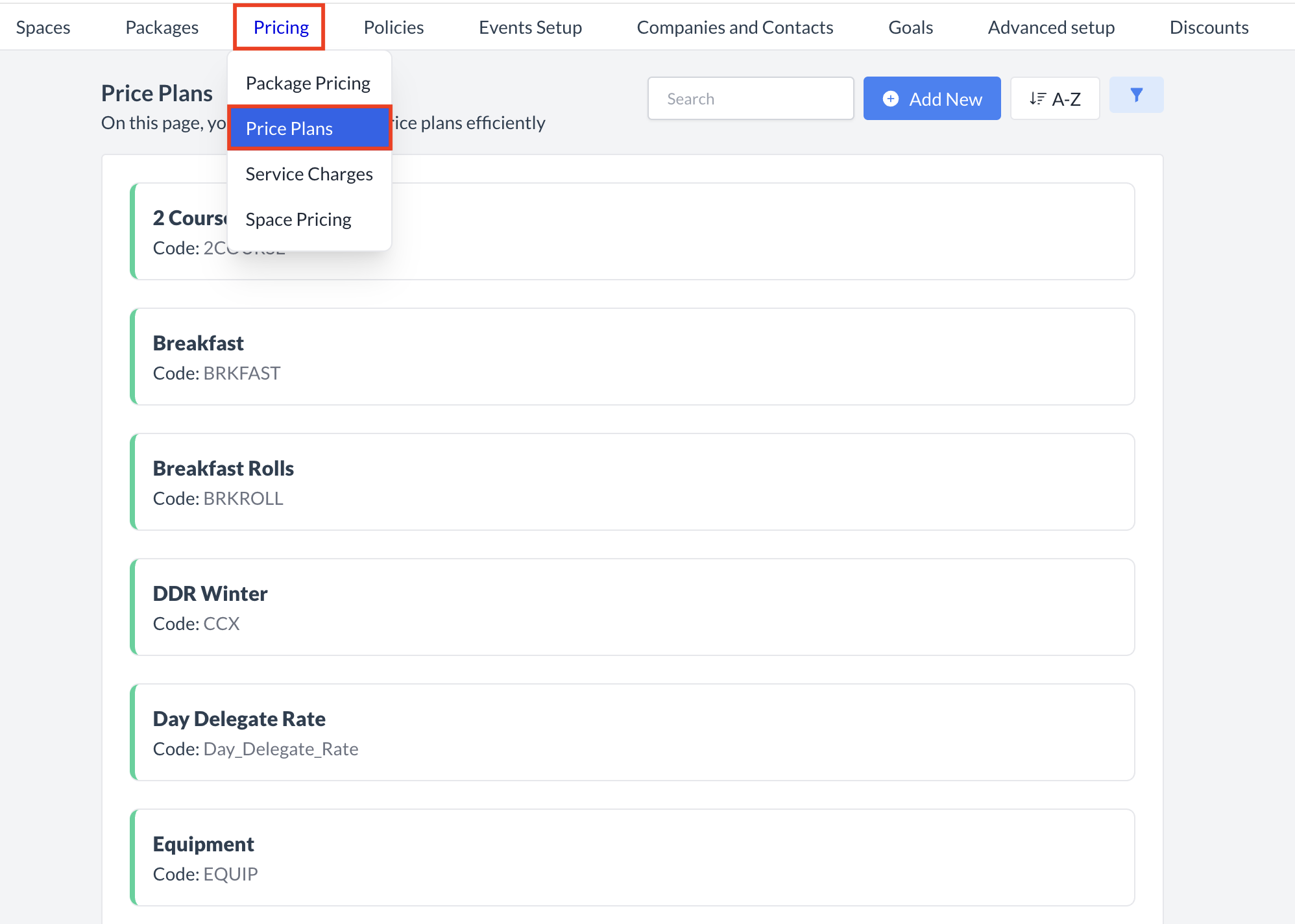
Setting Up the Day Delegate Price Plan in EventKey
Next, you will set up the Day Delegate Price Plan.
|
|
Accessing and Creating Price Plans
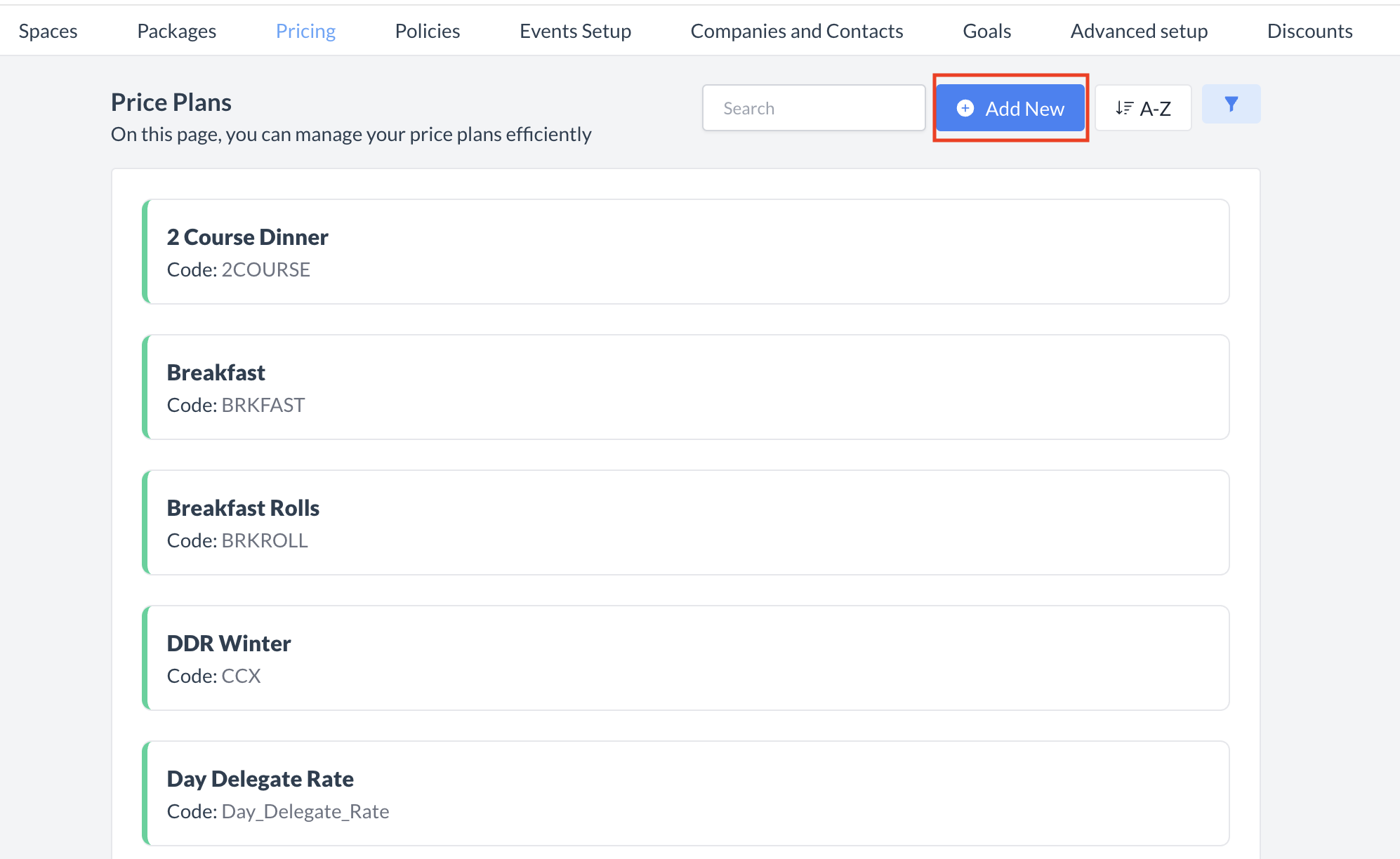
The Price Plan screen displays a list of all existing active price plans. To create a new Day Delegate Rate (DDR) price plan:
|
|
Creating a New Day Delegate Rate (DDR) Price Plan
When the Add a Price Plan screen appears, complete the following fields to set up your new Day Delegate Rate price plan:
|
|
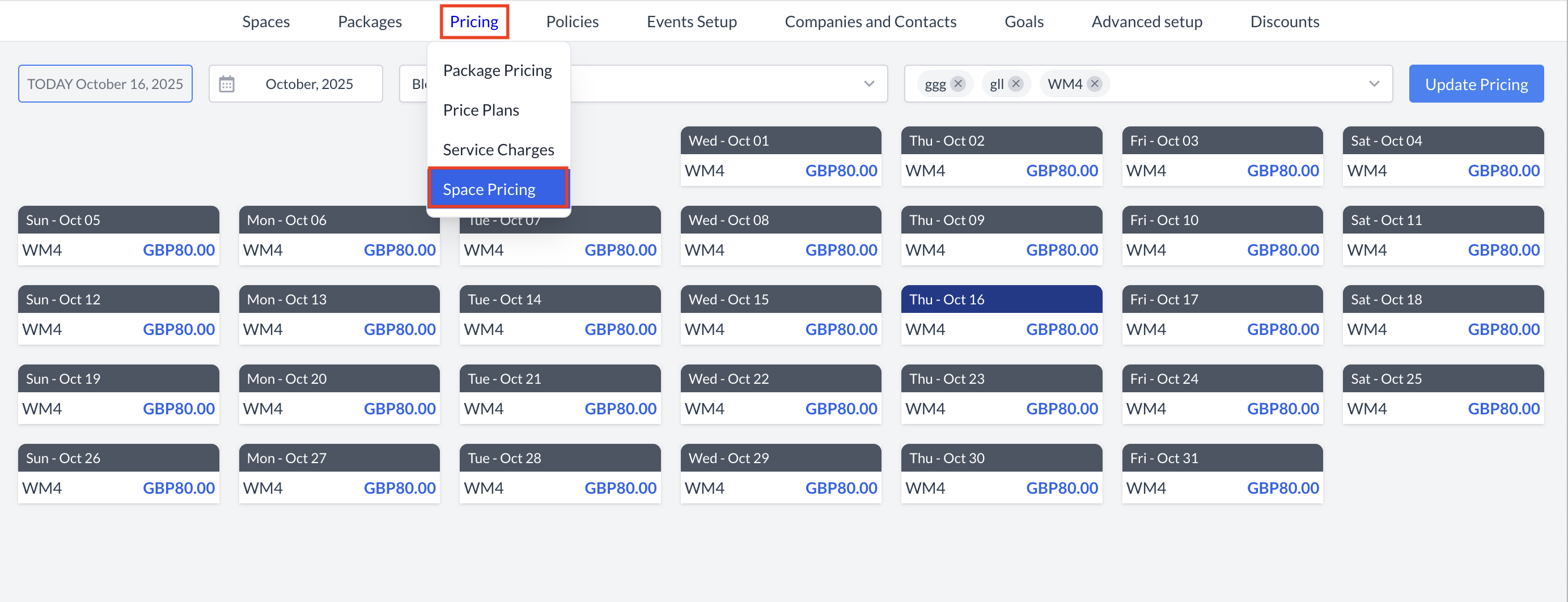
Setting the Space Rate for Your Day Delegate Rate (DDR)
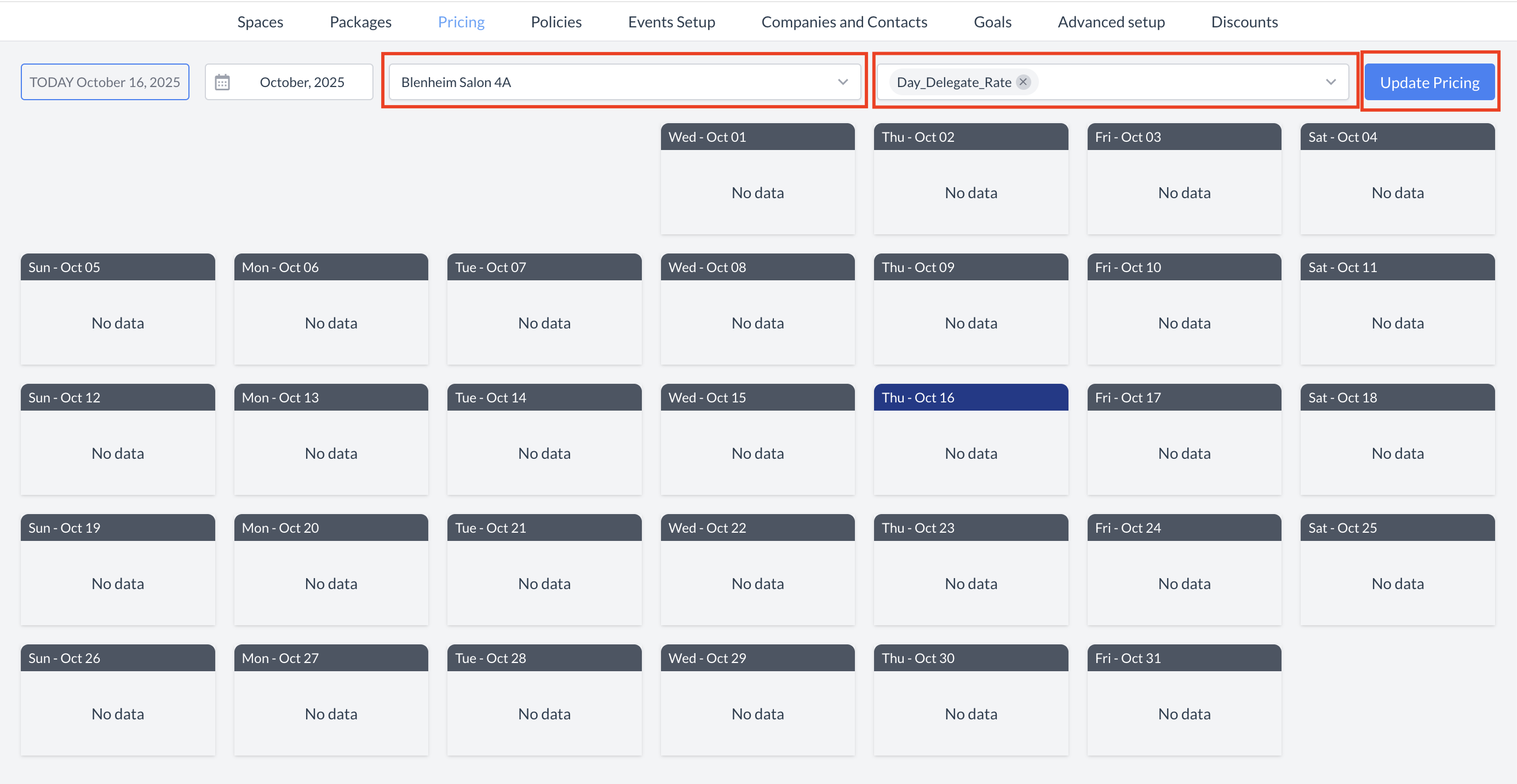
After creating your Day Delegate Price Plan, the next step is to link the Price Plan to your event spaces and set the per person rate for each space. 1. Navigate to Space Pricing
Go to Event Administration > Pricing > Space Pricing. 2. Access the Space Pricing Calendar
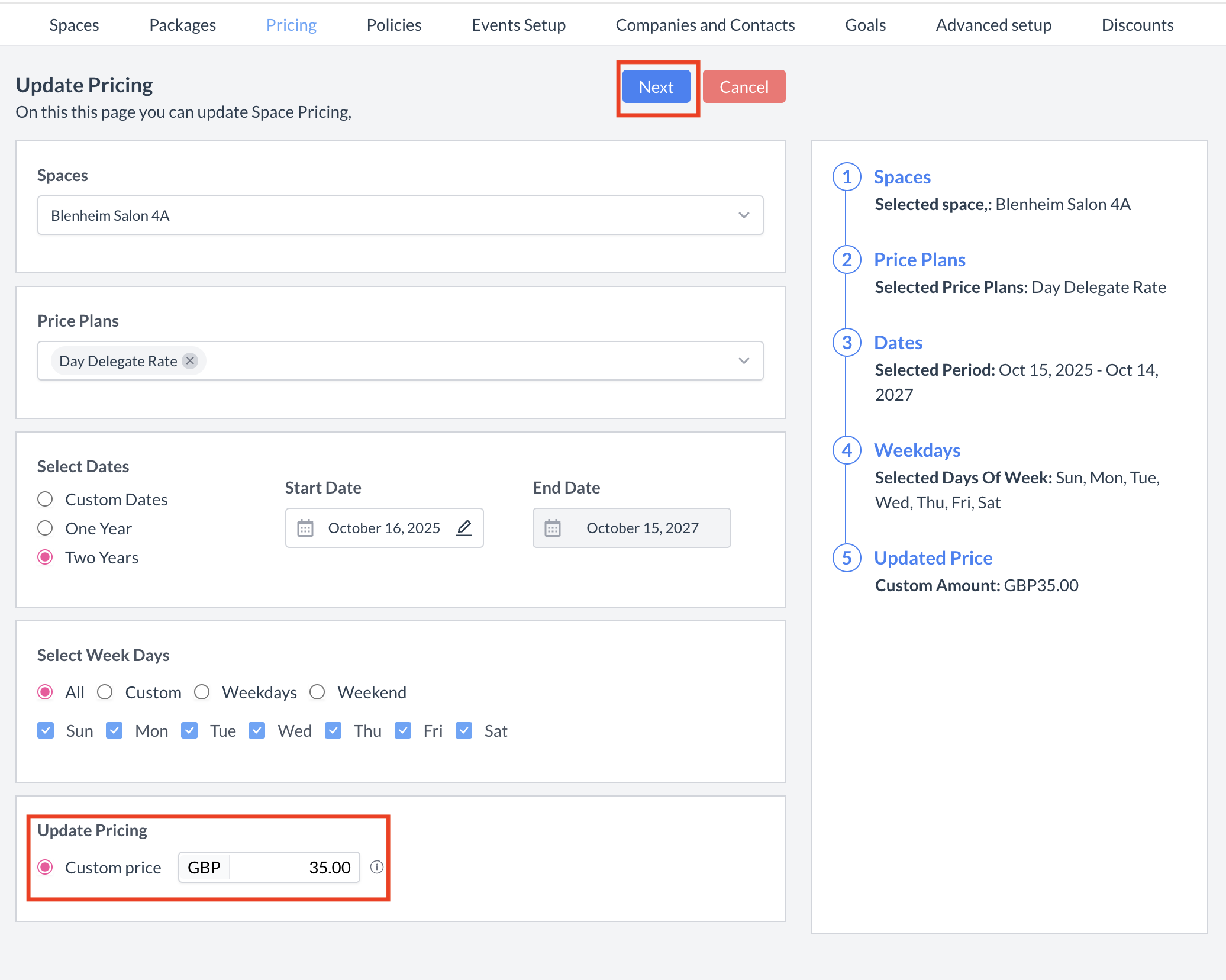
You will arrive at the Space Pricing Calendar screen. 3. Select a Space and Price Plan
4. Choose Pricing Duration
Under Selected Dates, specify how long this pricing should be applied:
5. Define Days of the Week (DOW) Pattern
Under Select Days of the Week, choose which days the pricing applies to:
6. Enter the Price
Under Update Pricing, input the per person rate for the selected space.
7. Review Your Settings
A summary panel on the right will display your selections for confirmation. 8. Save Your Changes
When you are satisfied with your entries, click the Next button to continue. |
|
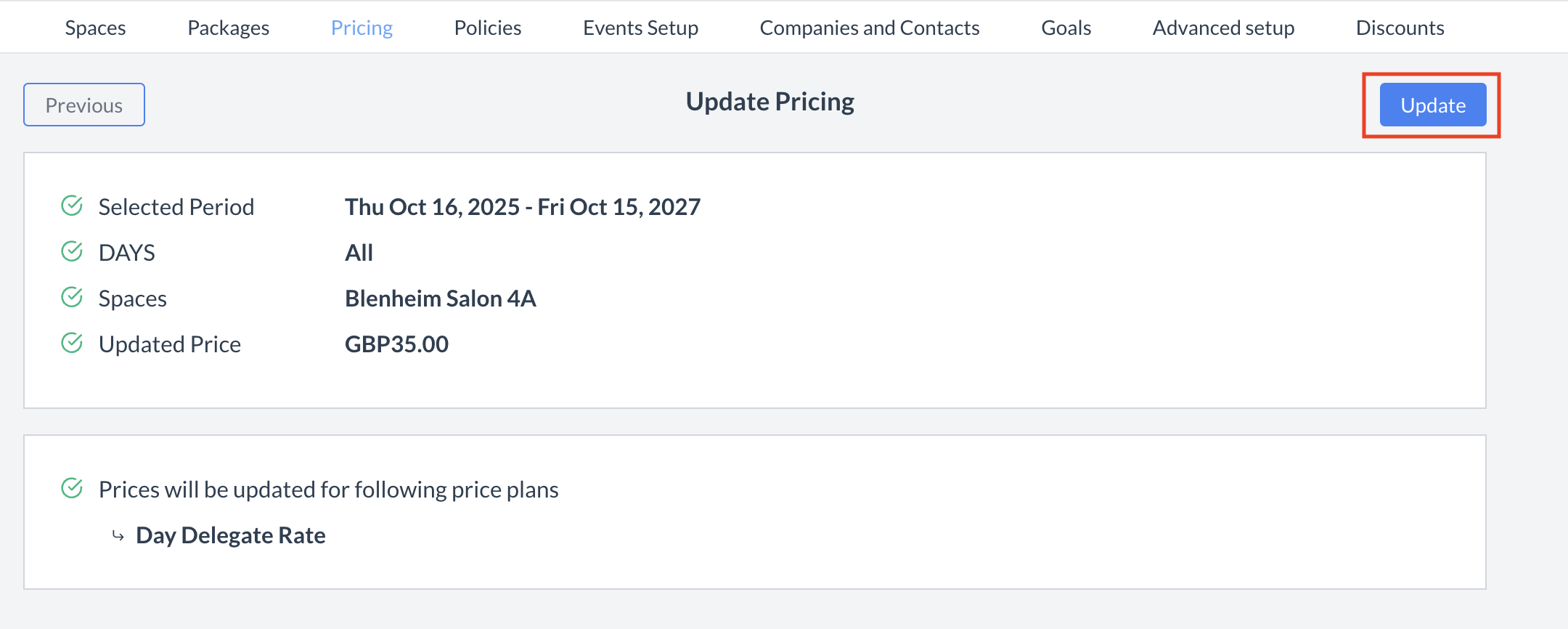
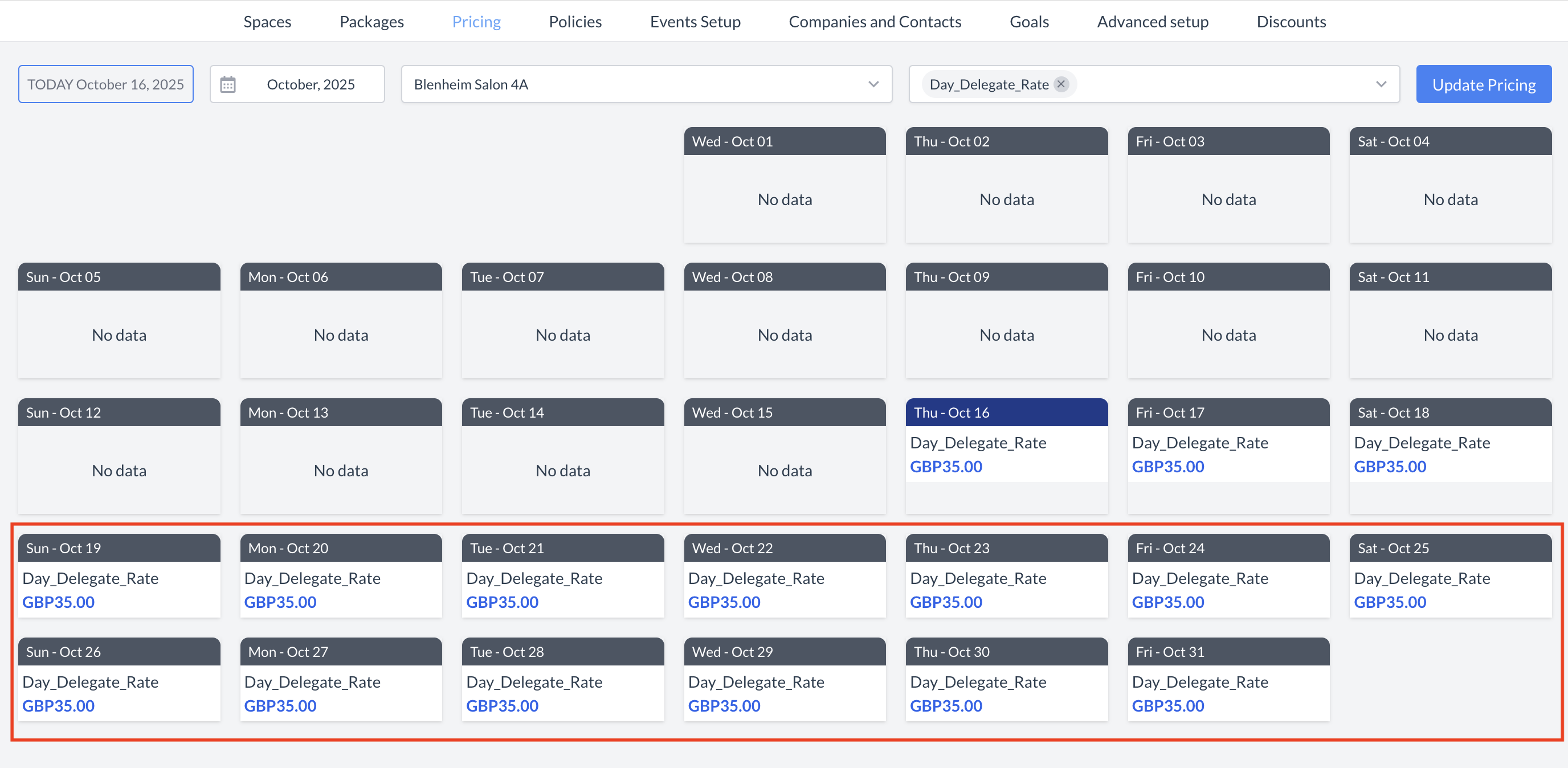
Confirming and Applying Your Pricing Changes
A confirmation screen will appear summarizing the changes you have made.
Once updated, the per person rates for the selected space are configured, and your Day Delegate Rate setup is complete. Your new Day Delegate Rate Price Plan is now available to be selected for any sub-events. |
|
⏭️ What’s Next
After creating the Day Delegate Rate (DDR) price plan, go to Spaces > Spaces > Price Plans and attach the new Price Plan to the spaces that are allowed to book it. For more information, see the “Spaces (Meeting Rooms)” Knowledge Base article under the Spaces menu.
🖥️ Where “Day Delegate Rates (DDR)” Appears in the User Interface (UI)
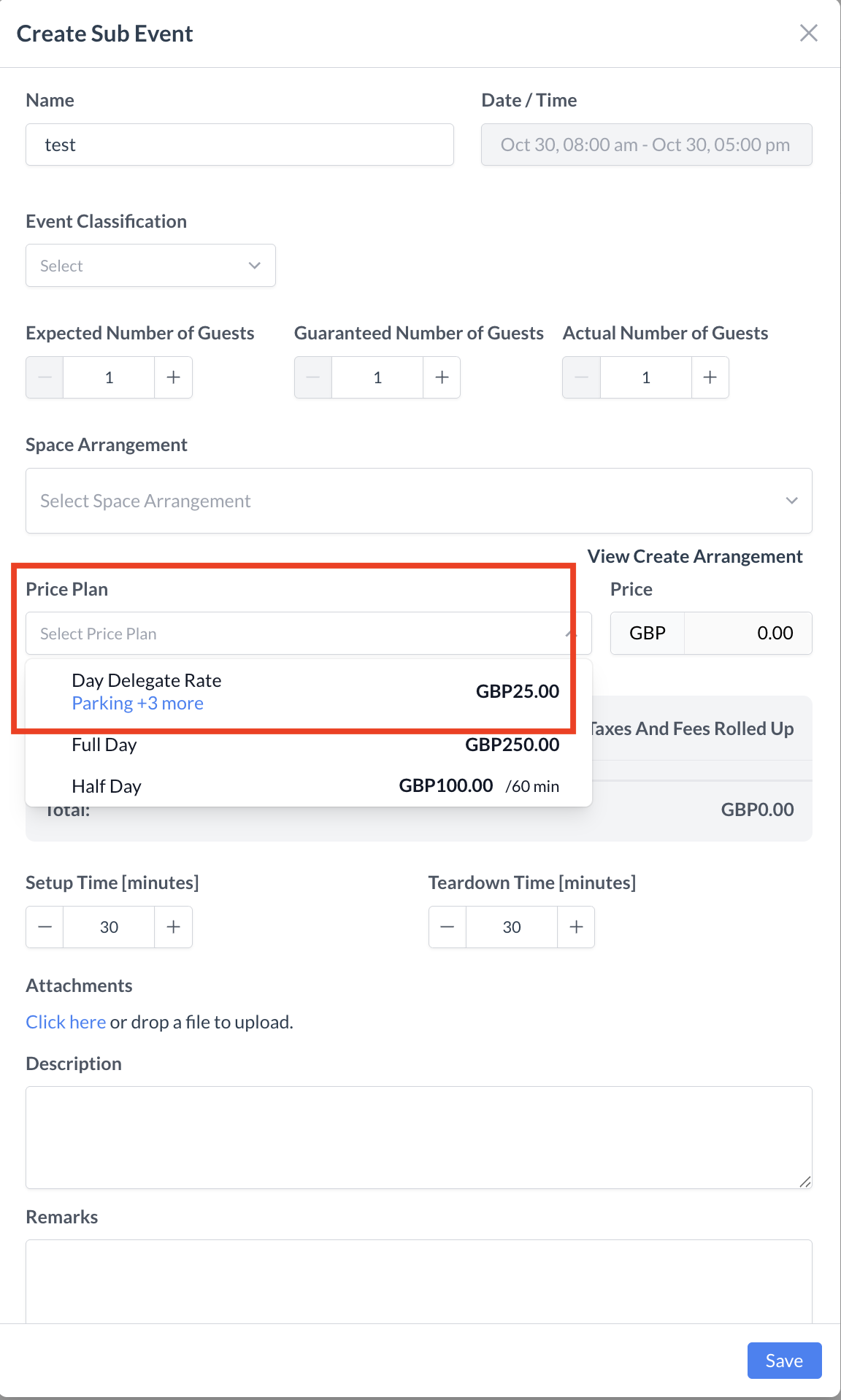
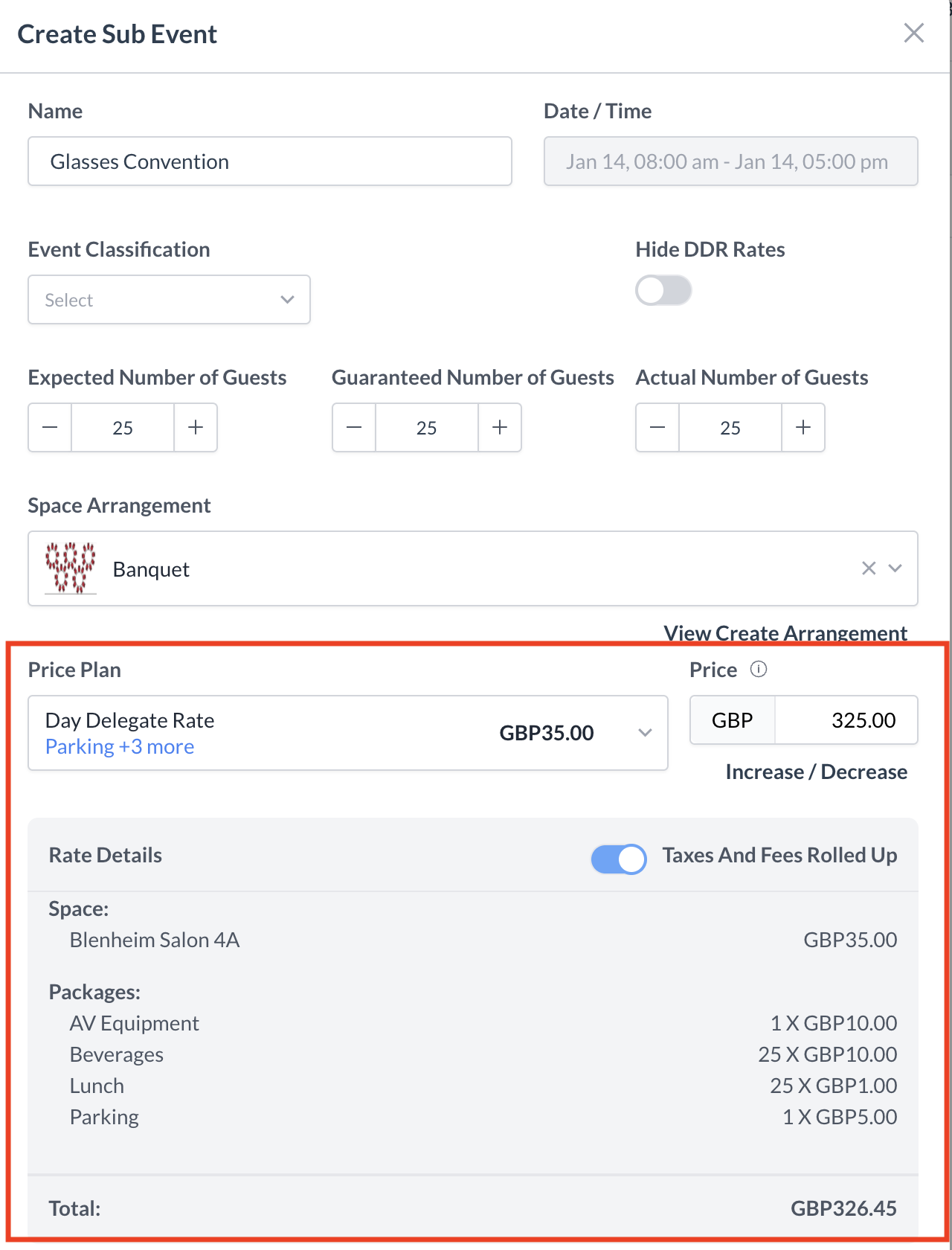
The Day Delegate Rates (DDR) will be listed in the Price Plan section when adding a sub event to the event.