
📆 Revision Date:
|
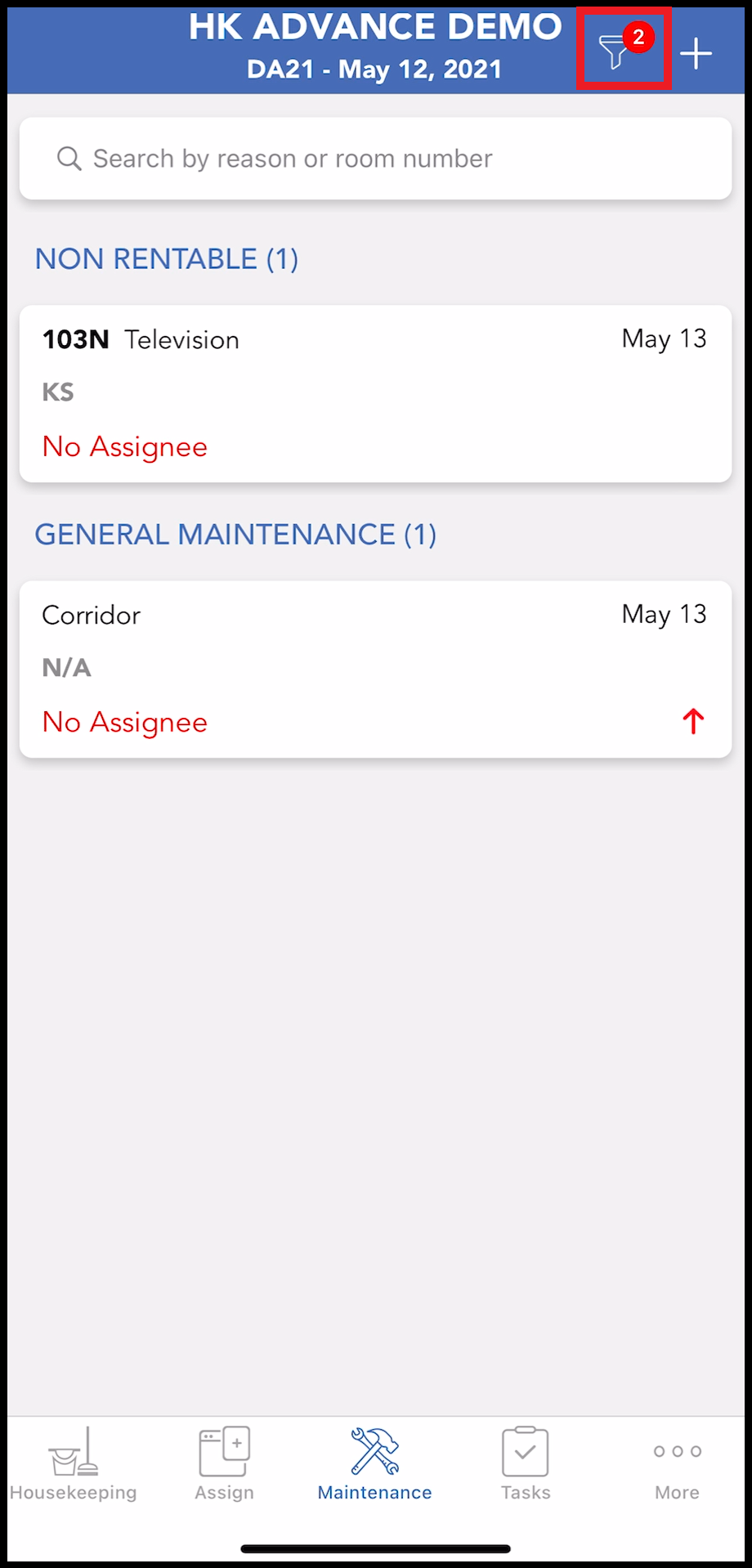
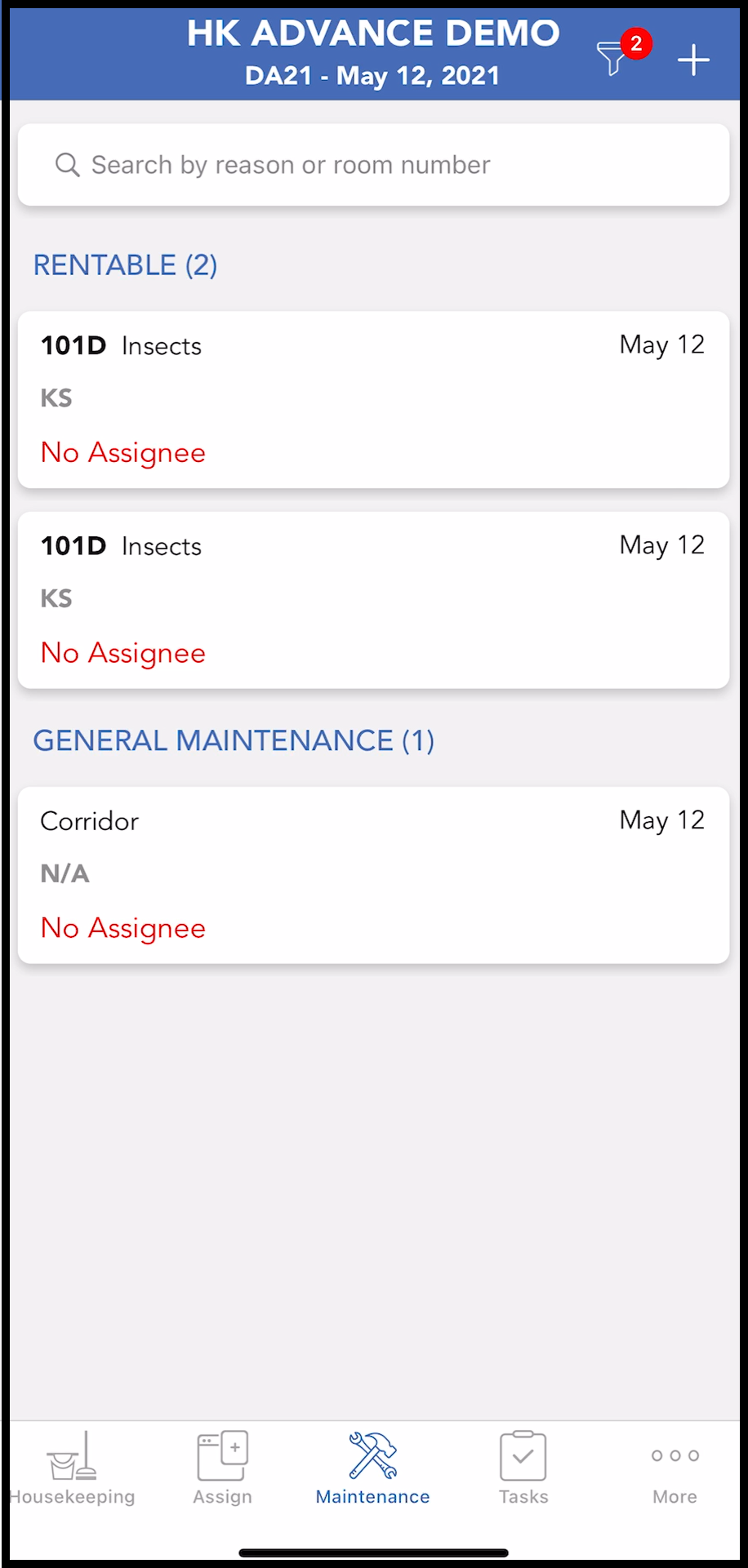
Select the Maintenance tab to view all currently active maintenance requests. Requests associated with a single room appear in a RENTABLE or NON RENTABLE list. General requests appear in the GENERAL MAINTENANCE list. Note that each list only populates if there is a RENTABLE, NON RENTABLE or GENERAL MAINTENANCE request, respectively. In the example shown there are no RENTABLE maintenance requests. Notice that the filter icon at the upper right shows a number “2”, meaning that two filters are currently applied to the list of issues. When a filter is applied, other outstanding issues can be excluded from the list. Select the filter icon to view filters currently applied to the list. |
|
|
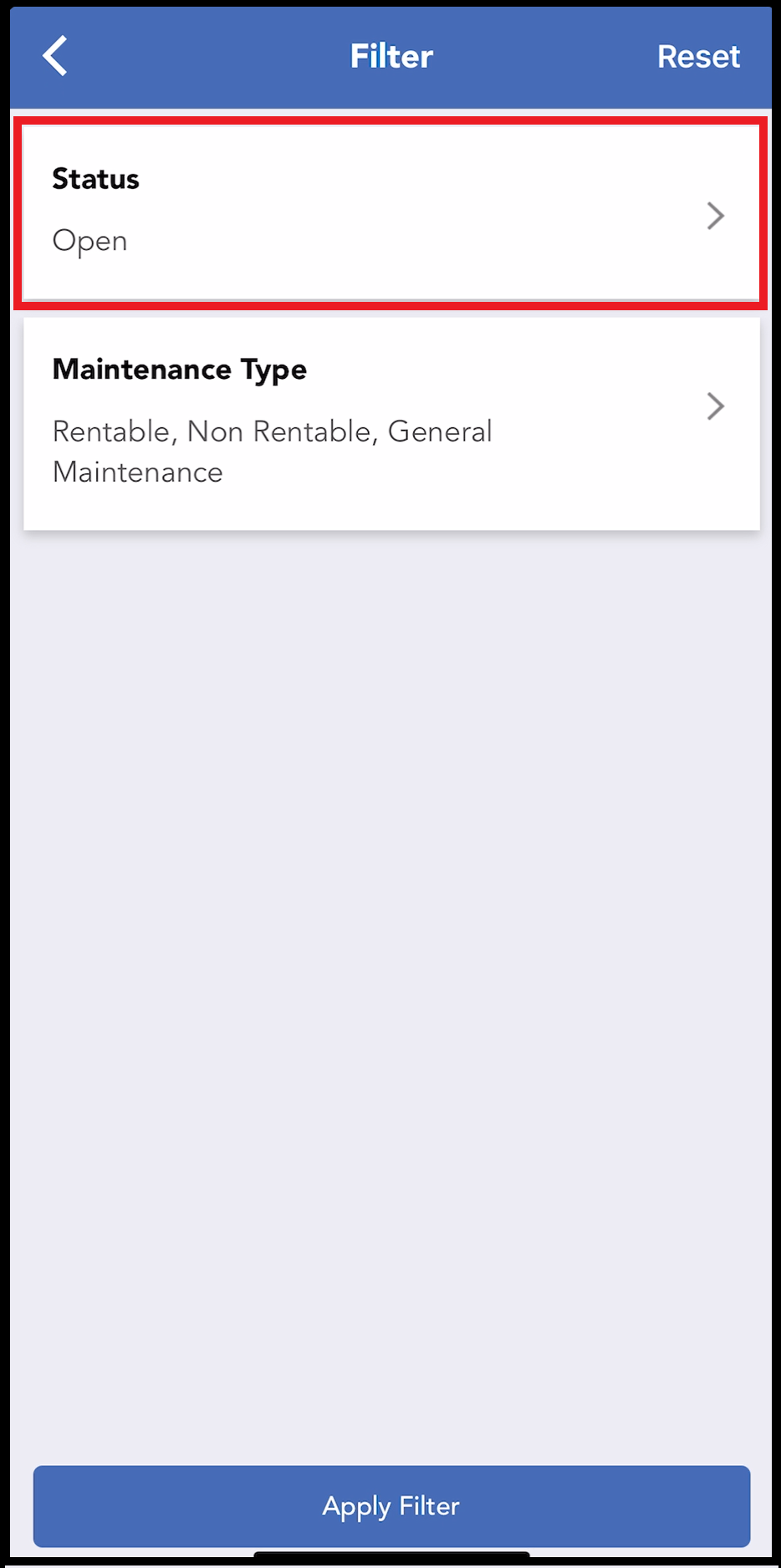
The Filter panel opens. In this example two filters are applied, one for Status = “Open” and one for Maintenance Type = “Rentable”, “Non Rentable” or “General Maintenance”. Select a filter to change or delete it. In this example the Status filter is changed. |
|
|
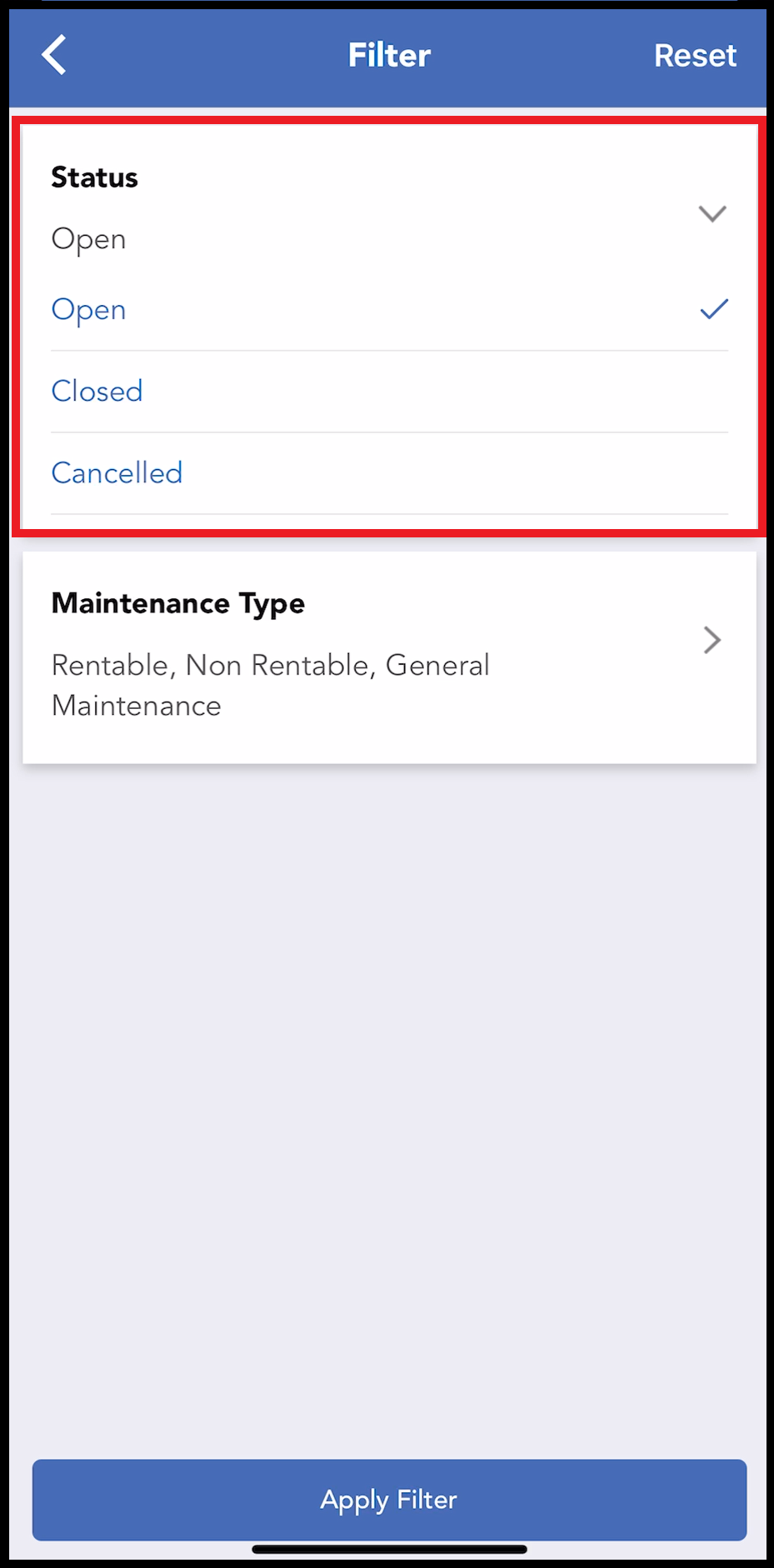
Select desired filter options to toggle them on or off. De-select all items to clear all filters. Select and de-select filter options as desired.
|
|
|
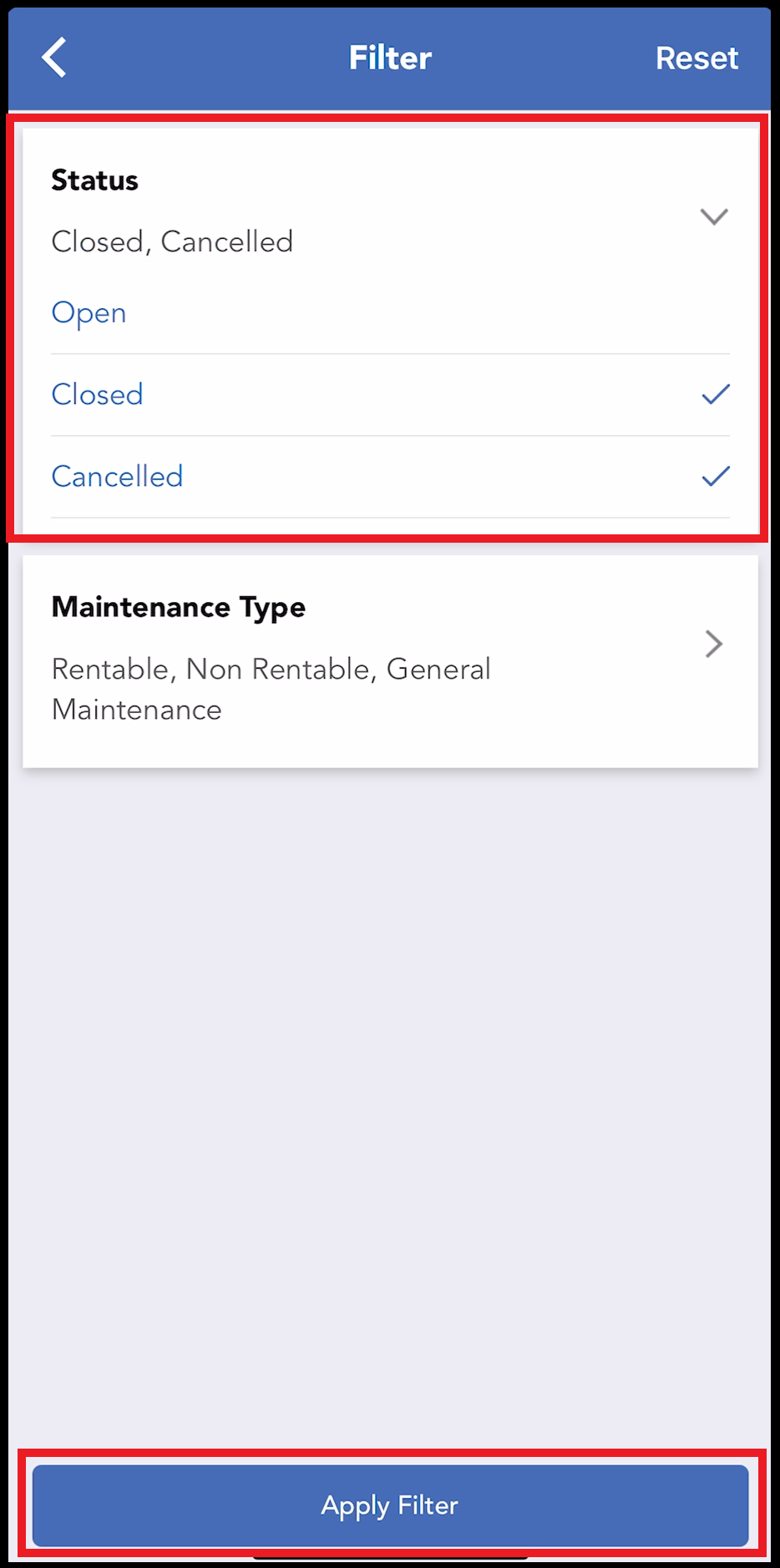
In the example shown, a Status filter selection of “Open” is changed to “Closed” and “Cancelled”. This means that when the maintenance tab reloads, the list of issues shown only includes issues with a Status of “Closed” or “Cancelled”, issues with a Status of “Open” are excluded from the list. When selections are complete, select Apply Filter. |
|
|
The Maintenance tab reloads, with the filtered issue list updated to show only issues with a Status of “Closed” or “Cancelled”. |
|