
📆 Revision Date:
Please note: The following feature is driven by permission and can be utilized by properties that have GDS capabilities.
A corporate ID is a dedicated number specifically for a business that can be used for tracking purposes. The corporate ID is specific to the company and can be used for locally negotiated business or national accounts and can be used in multiple ways-
-
The corporate ID and code is attached to the rate plan, which allows it to display the associated rates for that company
-
There can be multiple corporate IDs associated with one rate plan, or you can allocate one corporate ID across multiple rate plans for different pricing
-
The guest will utilize this corporate ID to book via website or GDS in order to get their associated discount
Attaching a Corporate ID to a Rate Plan
Booking a Reservation with a Corporate ID
Create a Corporate ID
|
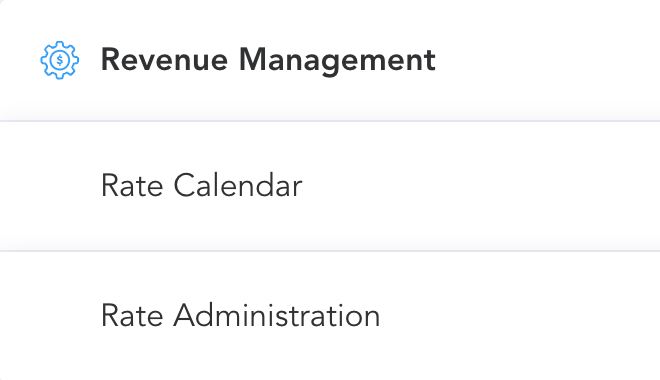
From the HotelKey Home page, navigate to Rate Administration |
|
|
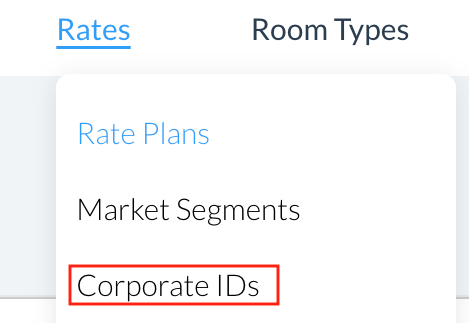
In the Rates dropdown, select Corporate IDs |
|
|
Corporate IDs page loads, select Create Corporate ID |
|
|
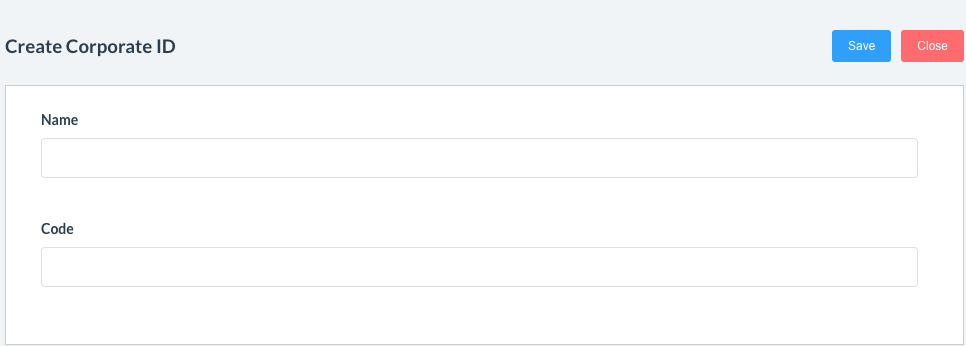
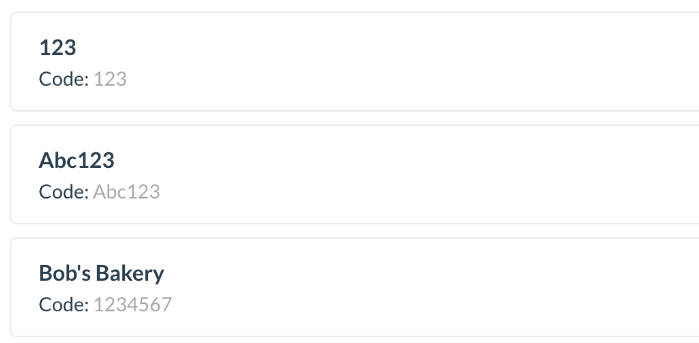
In this screen, enter both the Name and the Code for the Corporate ID
Both the Name and Code are allowed to be alphanumeric |
|
|
Once the Name and Code are added, click Save The Corporate IDs will all appear on the screen |
|
Attach a Corporate ID to a Rate Plan
|
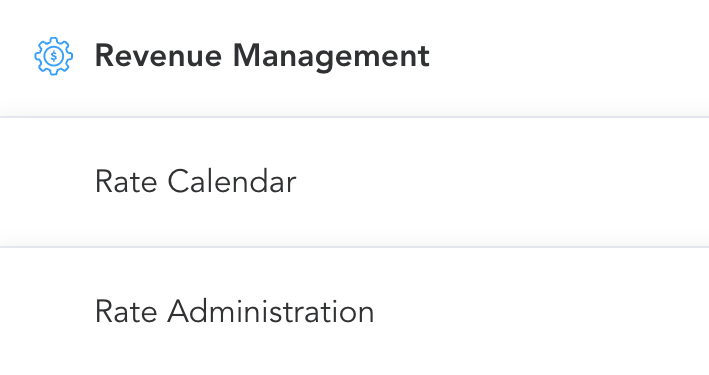
From the HotelKey Home page, navigate to Rate Administration |
|
|
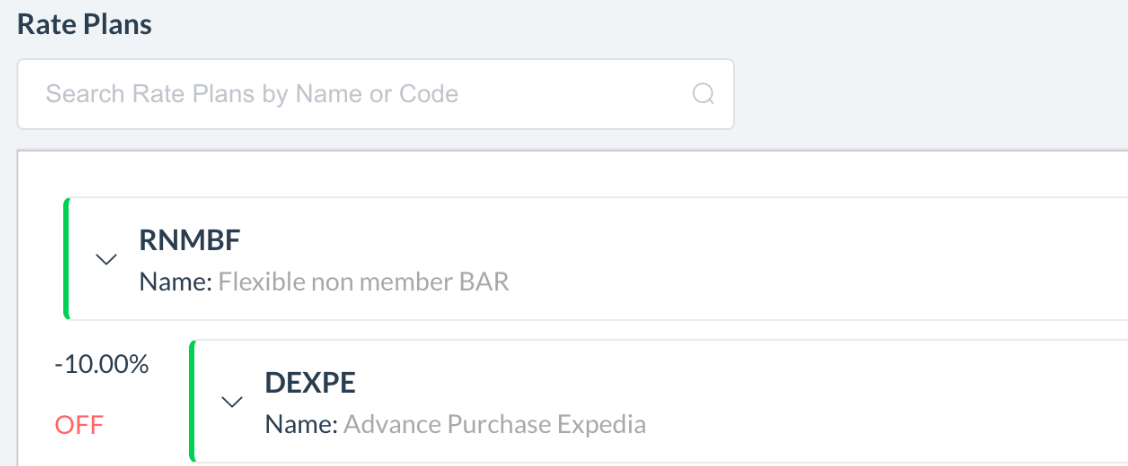
The Rate Plans screen loads by default. Select a Rate Plan to get started. |
|
|
In the rate plan, scroll down to the Corporate IDs section and click on View. |

|
|
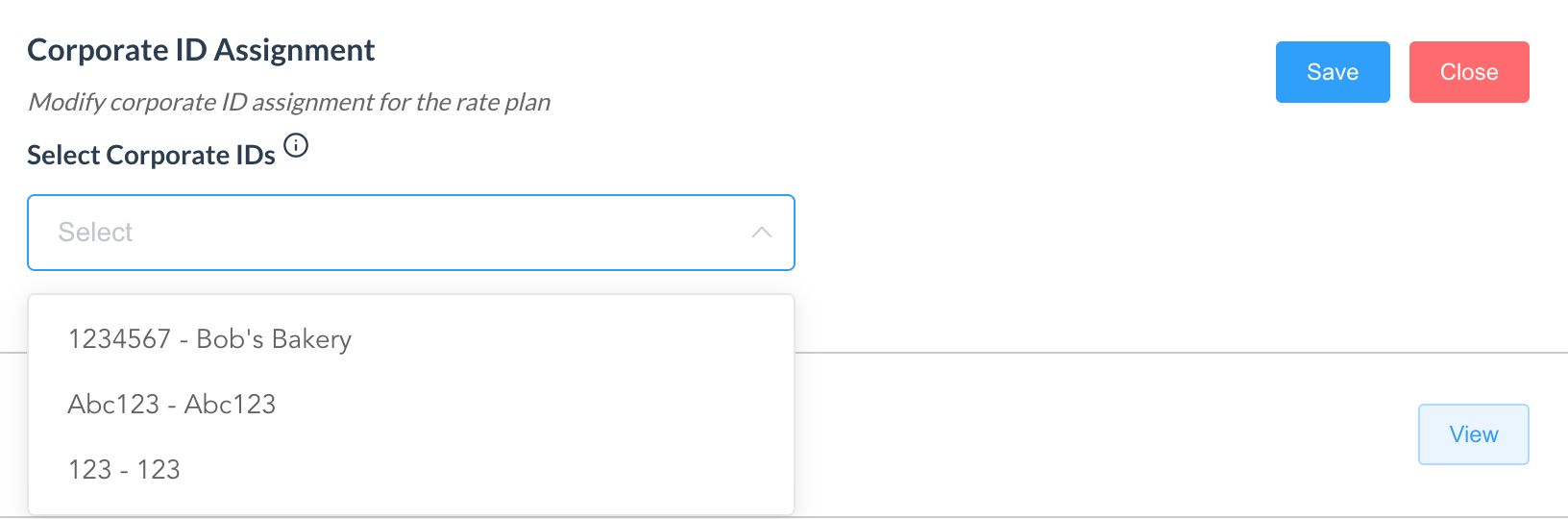
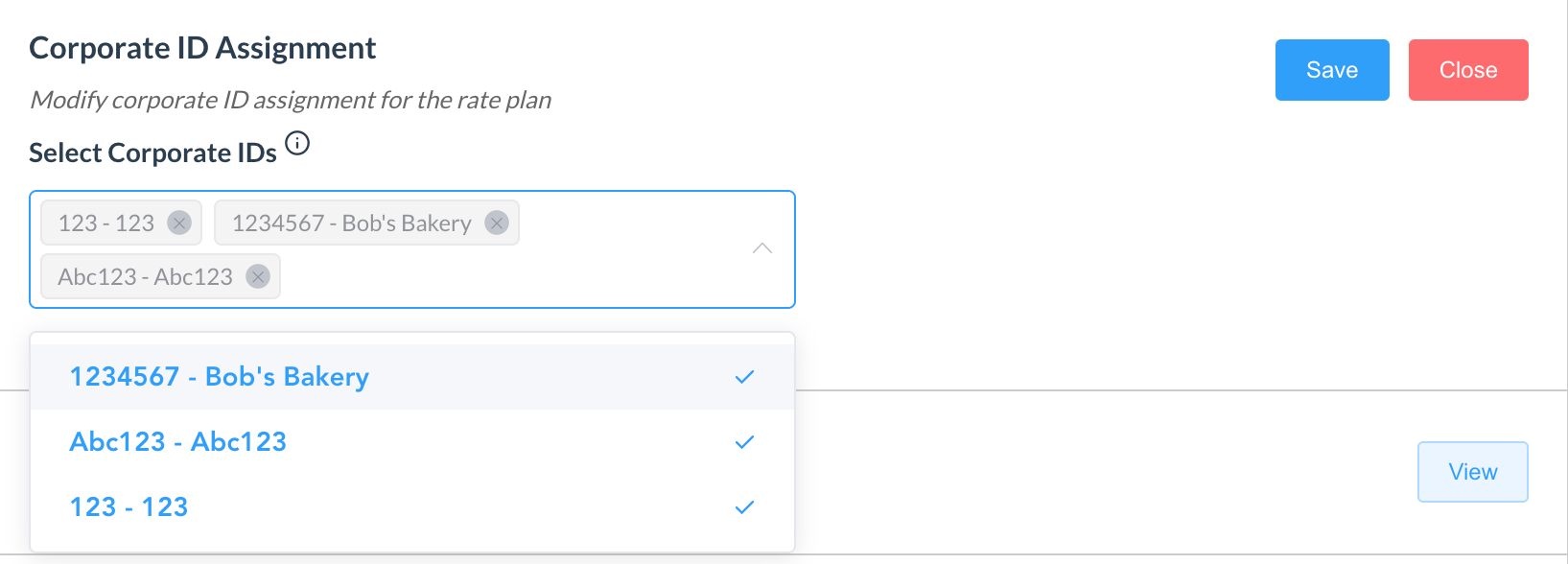
From the dropdown, more details will appear.
Select as many Corporate IDs as desired for this rate plan from those listed in the dropdown |
|
|
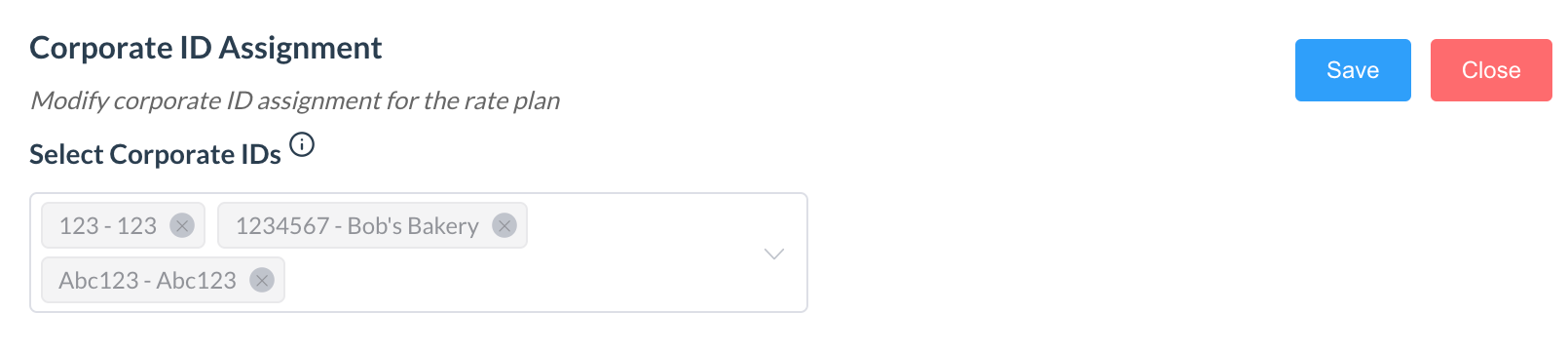
Once done, click Save. The Rate Plan will now include all selected Corporate IDs Before exiting the screen, scroll back to the top of the rate plan and click Save |
|
Book a Reservation with a Corporate ID
|
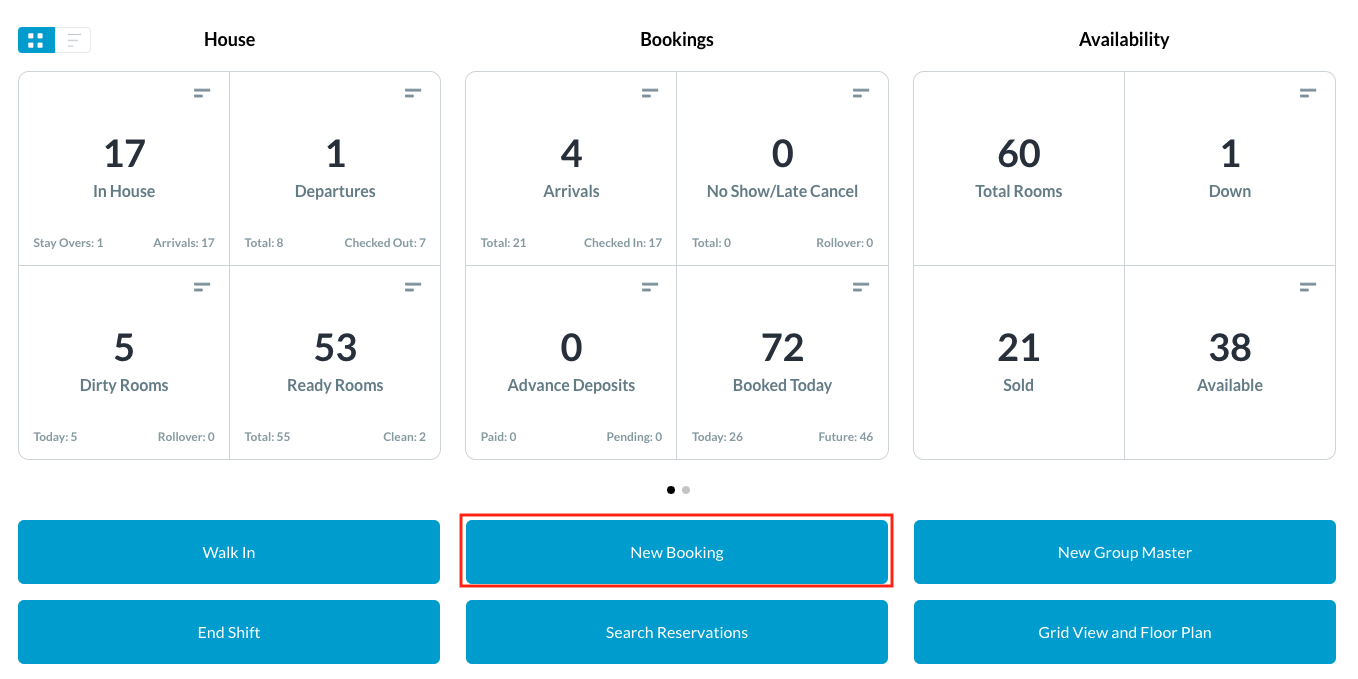
From the Frontdesk Dashboard, select New Booking |
|
|
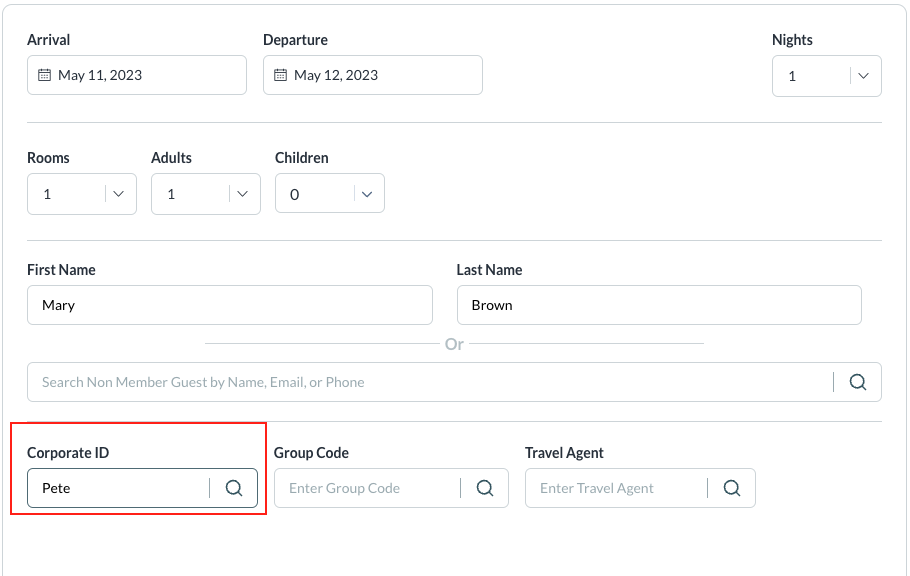
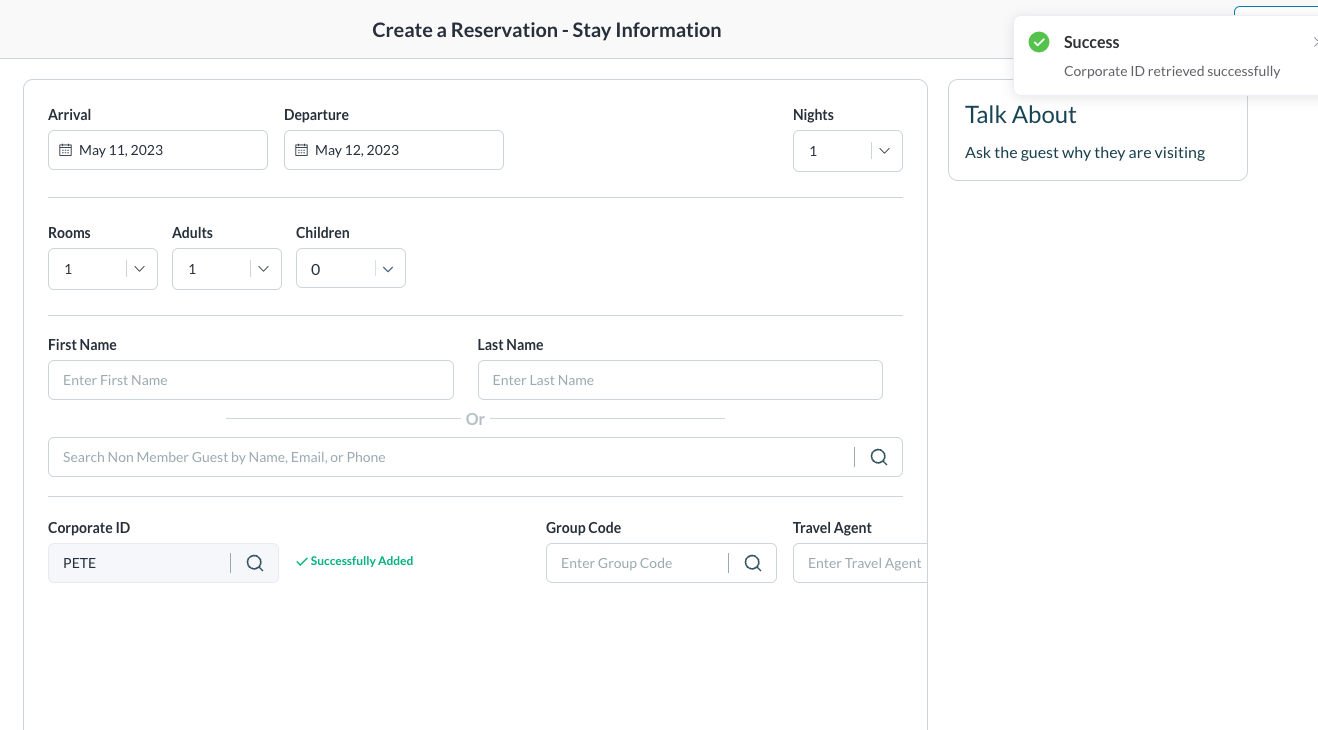
Create Reservation - Stay Information page loads Enter Arrival and Departure Date, First and Last Name
Enter the Corporate ID and search |
|
|
Select the relevant ID that populates, and click Next |
|
|
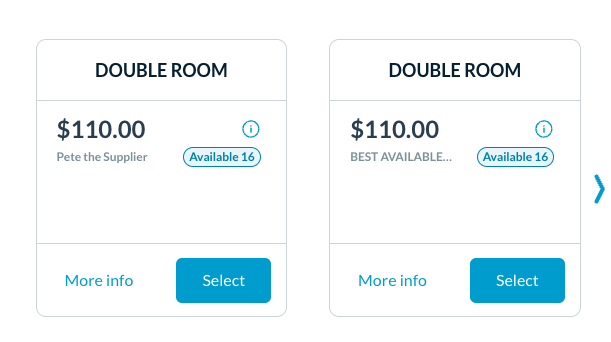
Depending on rate plan configuration, rate plans with this corporate ID attached will populate. There will be no major differences on the rate selection screen; it will simply show the relevant rate plans based on the corporate ID selected (along with already publicly available rate plans). |
|
|
Complete the reservation creation process as relevant; there are no additional changes in the reservation creation process.
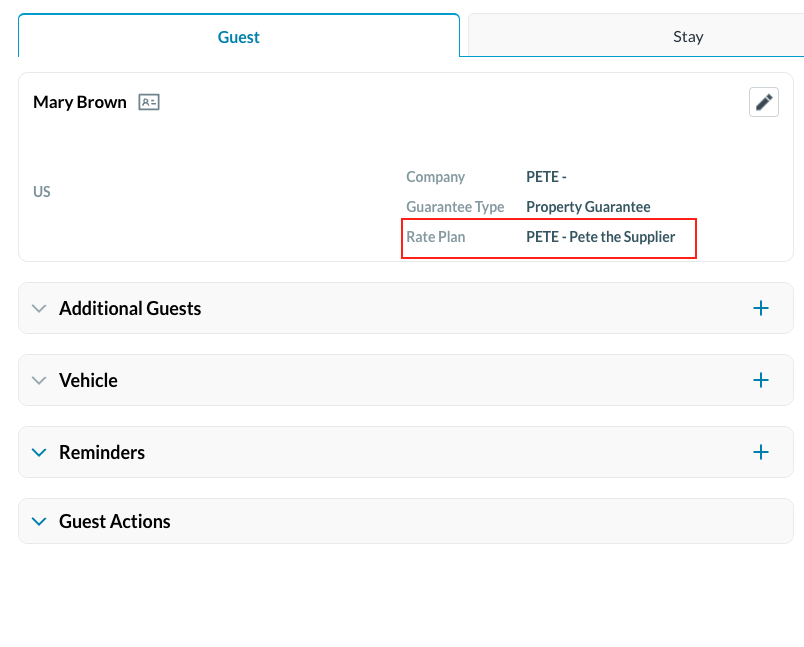
Once the reservation is created, the user can see the Corporate ID details in the Company section in the Guest tab |
|