
📆 Revision Date:
Rate management operations are managed via the functions below. Note that a rate plan must be added before it can be activated, these are separate processes.
Activate a Standalone Rate Plan
Reactivate a Deactivated Rate Plan
Add a Rate Plan
|
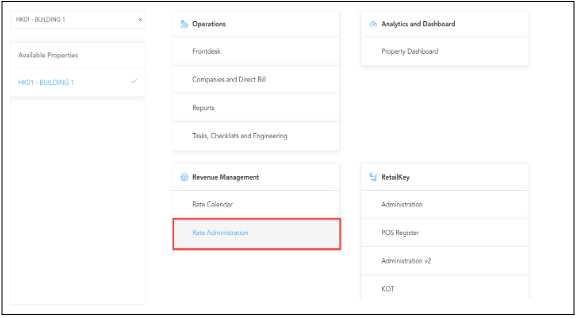
Select Rate Administration on the HK Home page. |
|
|
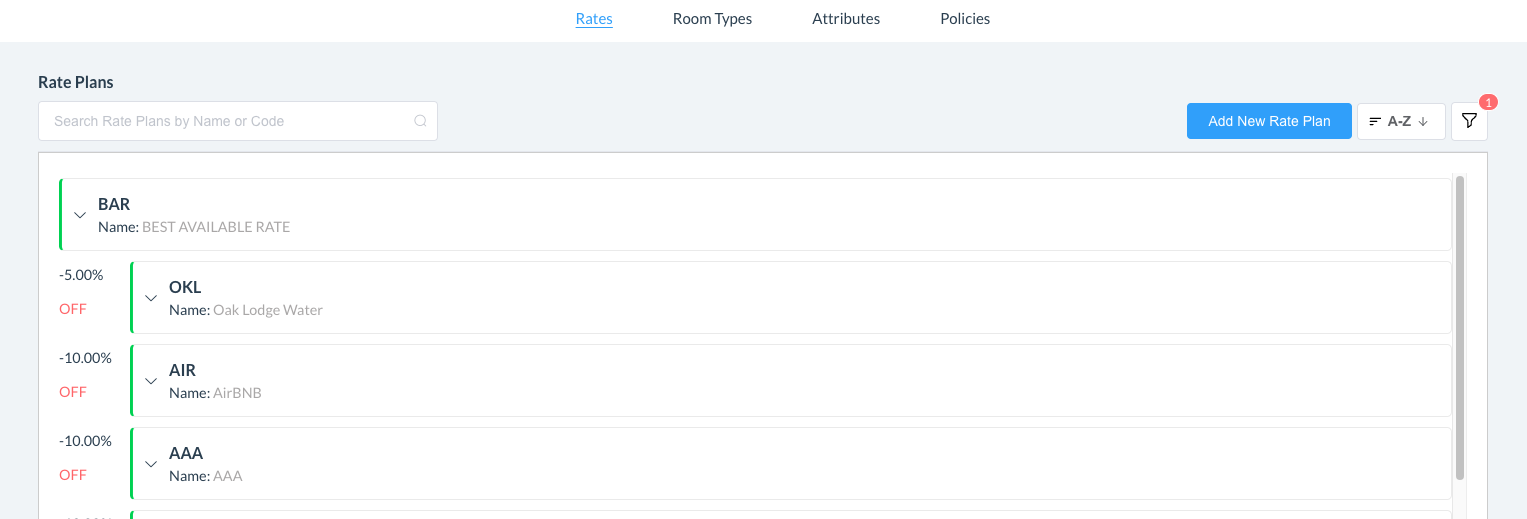
The rate administration page loads, with the Rate Plans panel selected by default in the icon bar at top. Select Add New Rate Plan. |
|
|
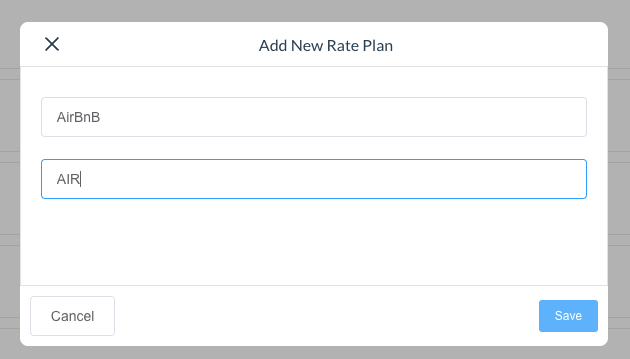
The Add New Rate Plan popup loads. Enter a name (top field) and rate code (bottom field) for the new plan, then select Save. |
|
|
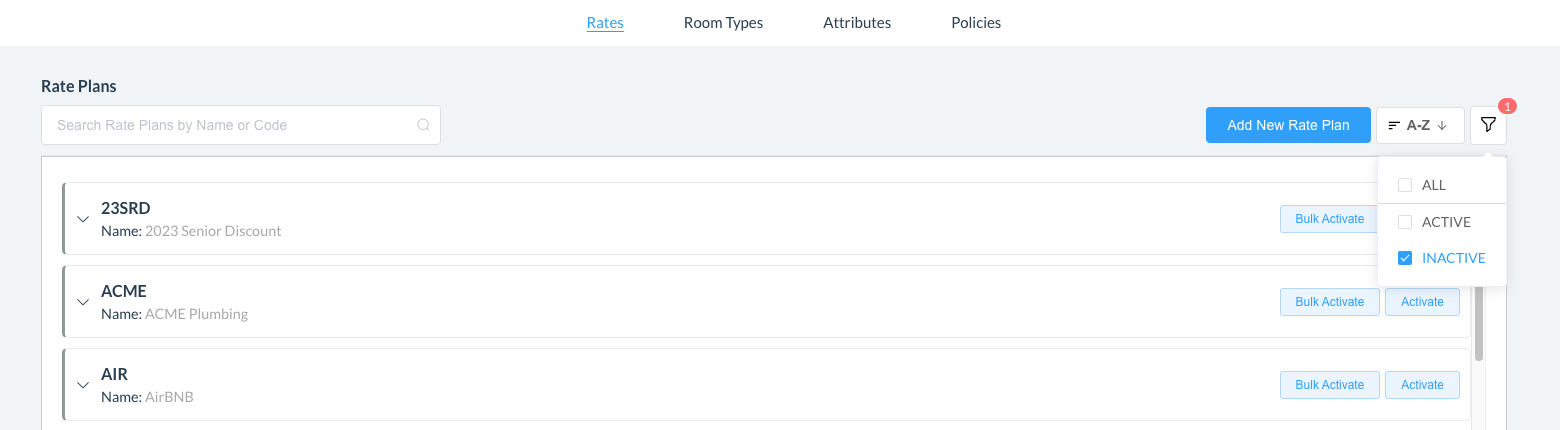
To view and edit the new rate plan, first click on the filter button and select INACTIVE to populate the newly added rate plan.
|
|
|
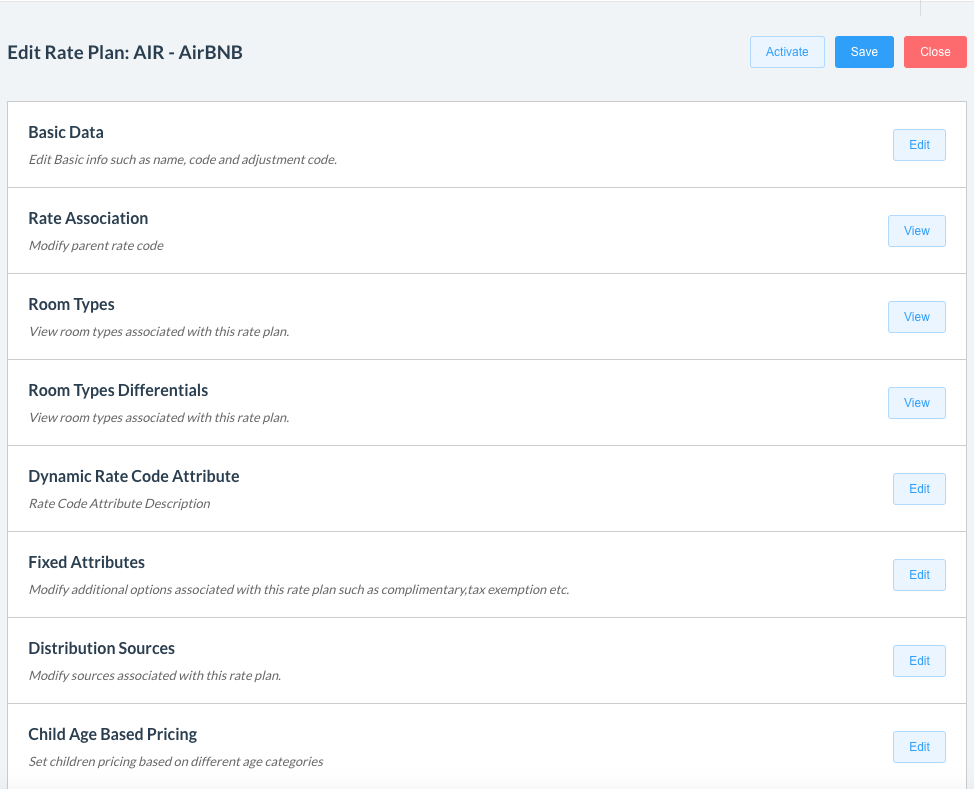
Locate the plan among those listed and tap on it The rate plan opens and you are now ready to EDIT the Rate Plan in the necessary sections listed
|
|
Activate a Derived Rate Plan
|
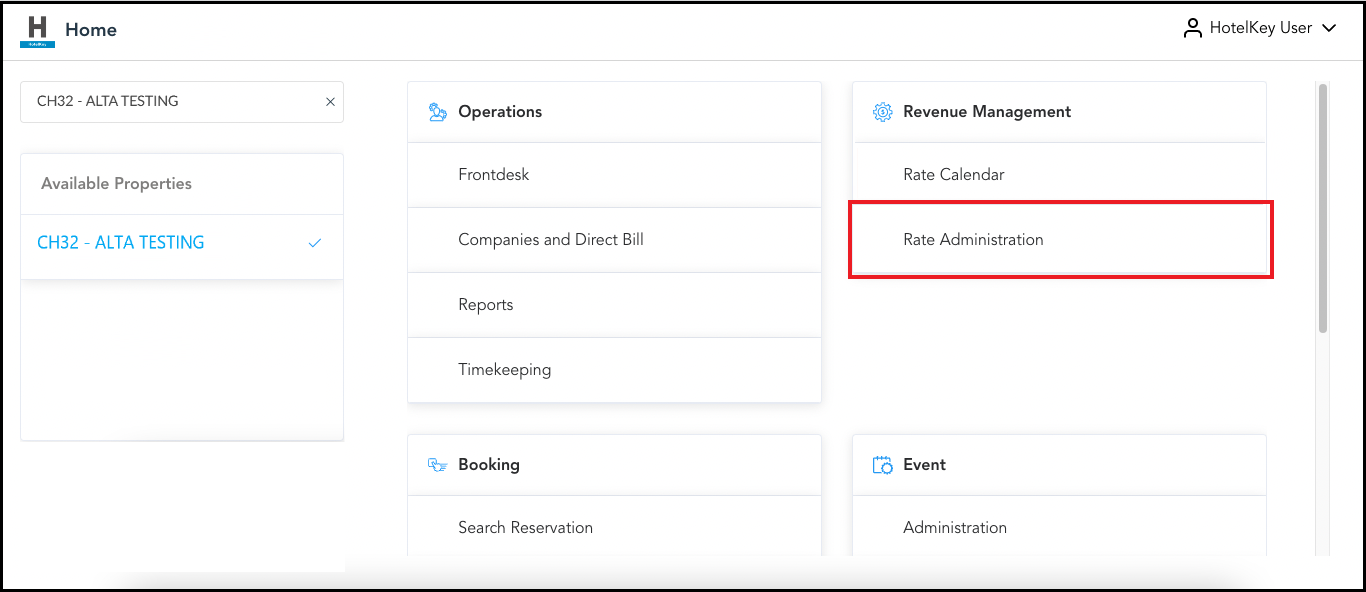
Select Rate Administration on the HK Home page. |
|
|
The rate administration page loads, with the Rate Plans panel selected by default in the icon bar at top. Note that active rate plans are color coded in green at the left To ACTIVATE the new rate plan, first click on the filter button and select INACTIVE to populate the rate plan, tap on it to open. |
|
|
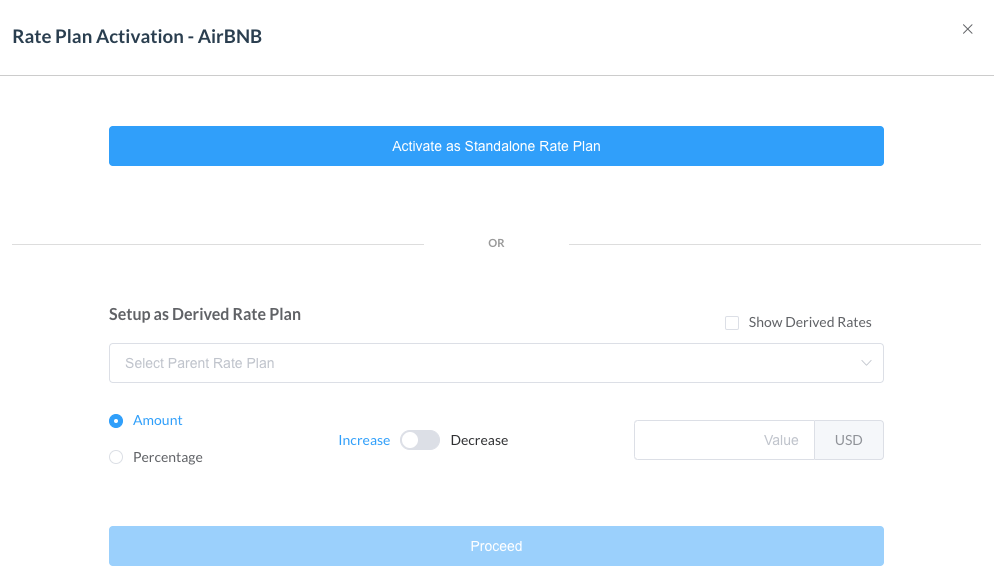
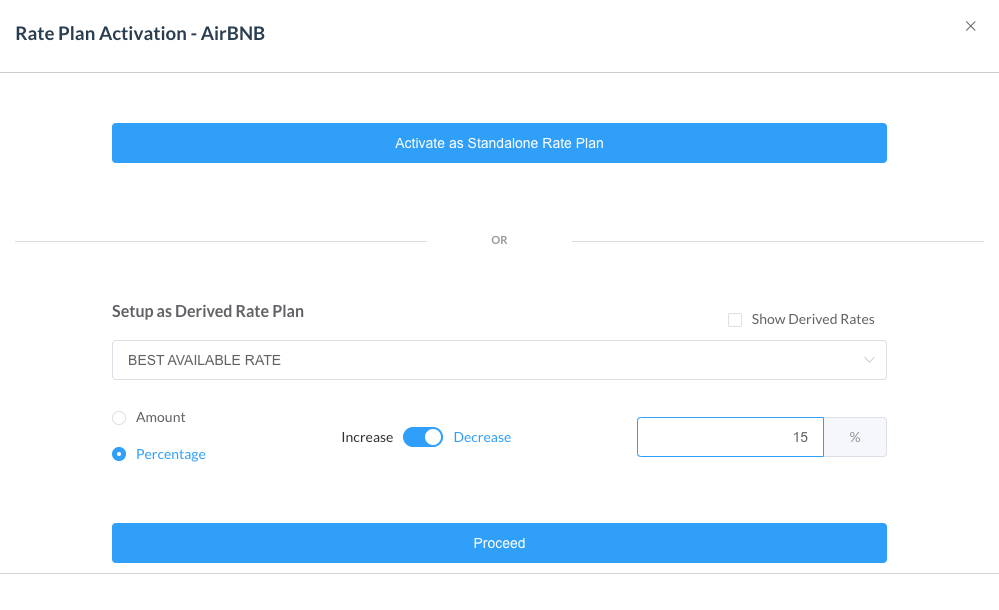
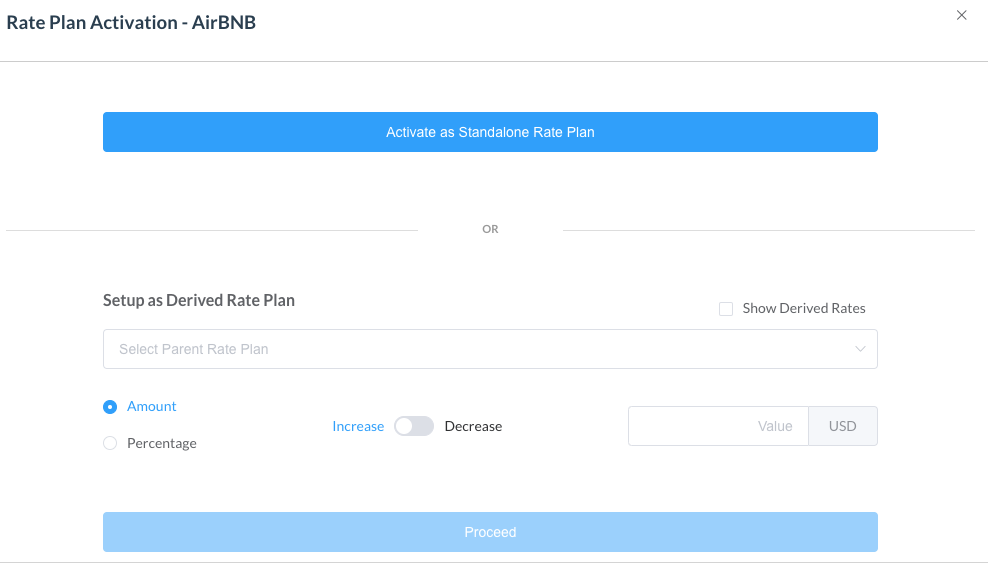
The Rate Plan Activation Popup loads. Enter applicable options in the Setup as Derived Rate Plan section:
Note: in earlier versions of HK software this popup prompted for entry of the "percent of rate": when offering 10% discount a 90% derived rate (or “percent of rate”) would be entered, indicating that the derived rate is 90% of the selected parent rate. Now a derived rate is calculated based on entry of the adjustment type and discount to be applied to the parent rate. When activating a 10% discount, the rate is entered as derived with Percentage selected, Increase selected (indicating an increase in the discount) and 10% entered as the change to be applied. When activating a $50 increase, the rate is entered as derived with Amount selected, Decrease selected (indicating a decrease in the discount) and $50 entered as the change to be applied.
The Proceed link activates when selections are made. Select Proceed to continue.
|
|
|
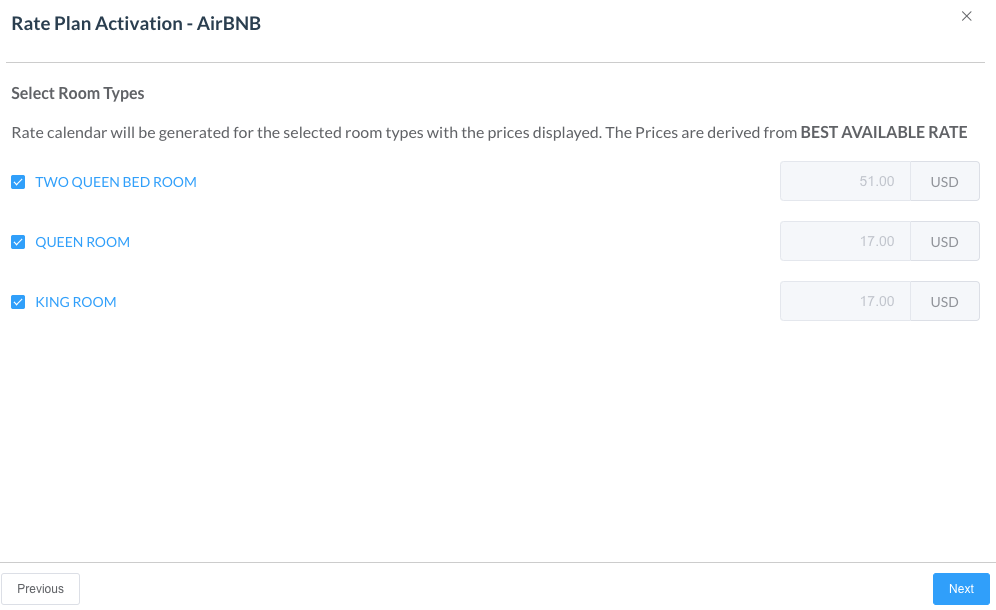
A Select Room Types panel loads. Select applicable room types, then select Next.
|
|
|
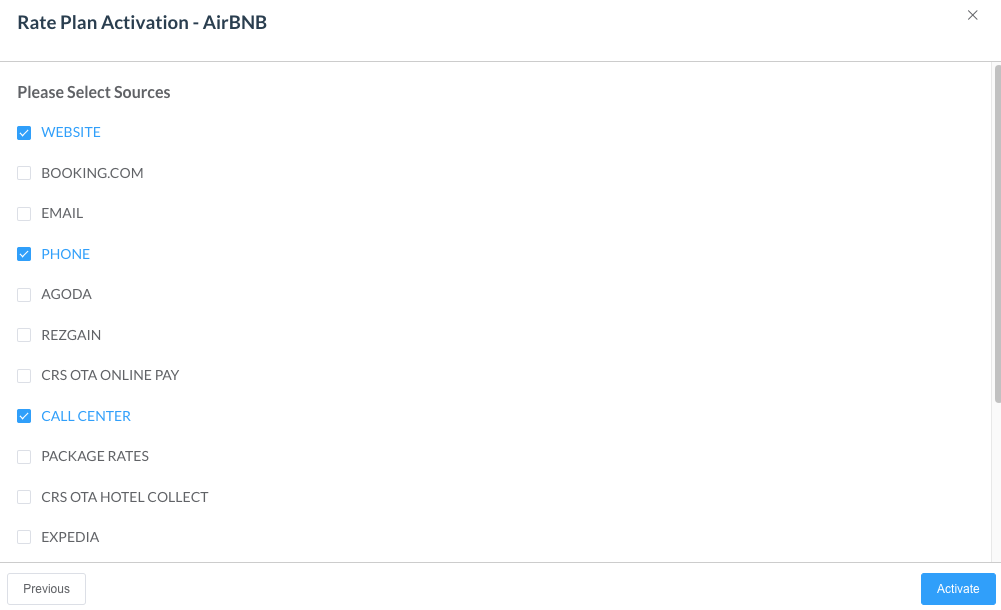
A Select Sources panel loads. Select applicable sources, then select Activate. |
|
|
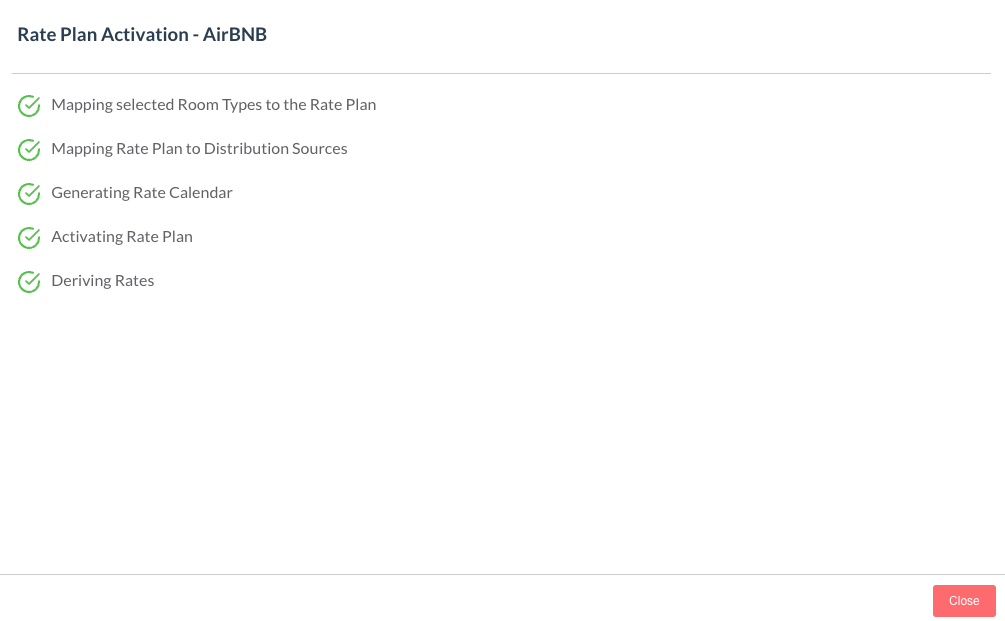
A confirmation panel loads. Select Close to complete the rate plan activation process. |
|
|
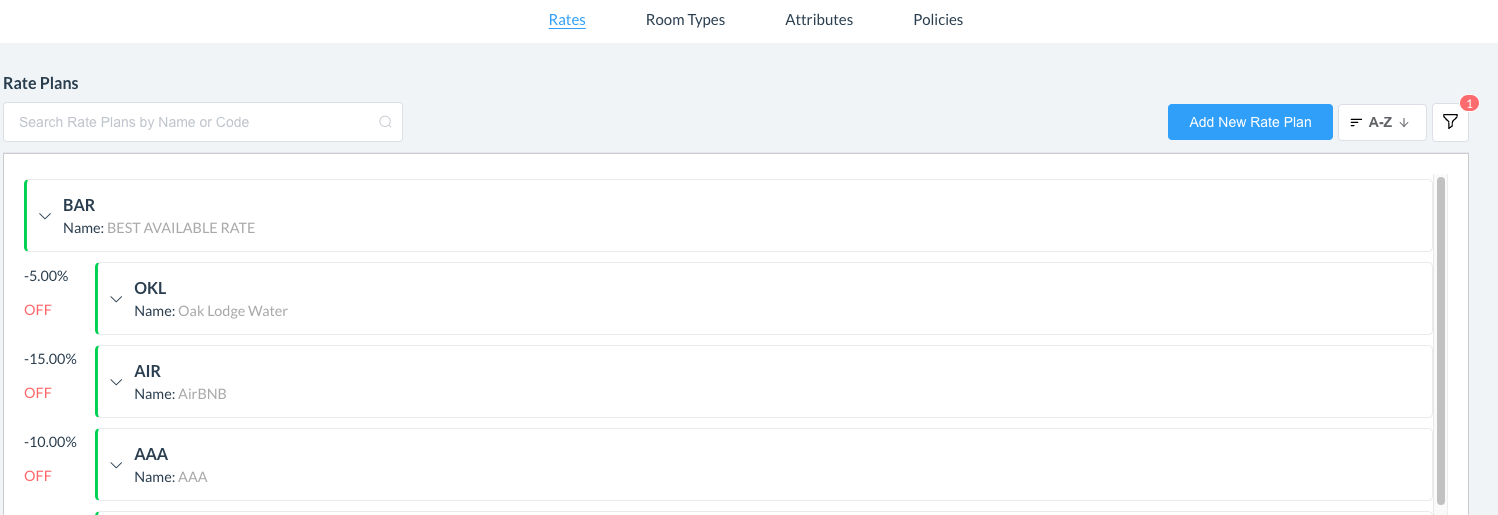
The rate plan is activated on the Rate Plans panel. |
|
Activate a Standalone Rate Plan
|
Select Rate Administration on the HK Home page. |
|
|
The rate administration page loads, with the Rate Plans panel selected by default in the icon bar at top. Note that active rate plans are color coded in green at the left To ACTIVATE the new rate plan, first click on the filter button and select INACTIVE to populate the rate plan, tap on it to open. |
|
|
Select Activate as Standalone Rate Plan
|
|
|
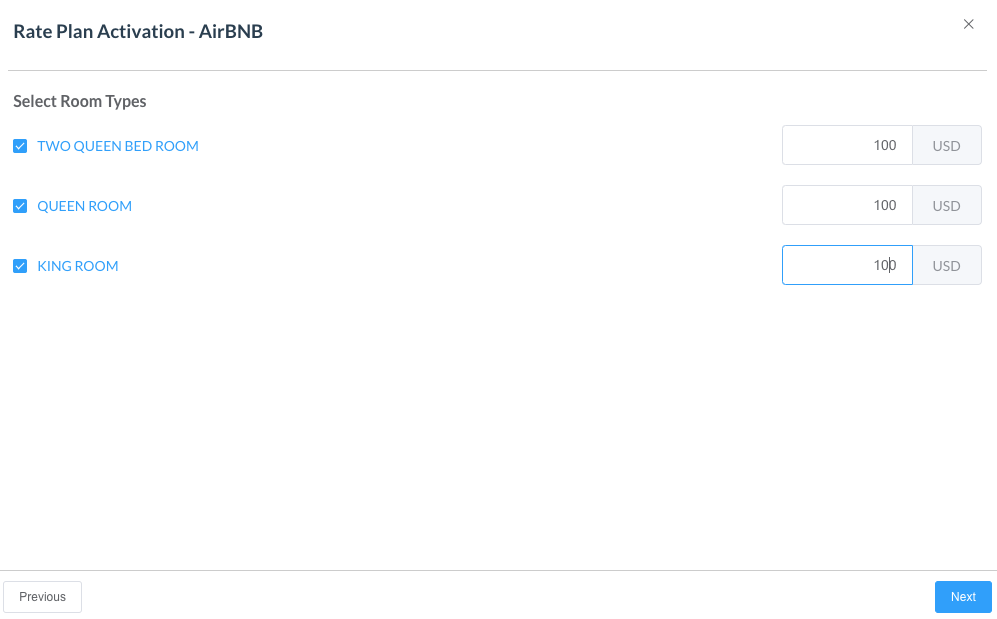
A Select Room Types panel loads. Select applicable room types, and enter applicable rates associated for each room type selected then select Next. |
|
|
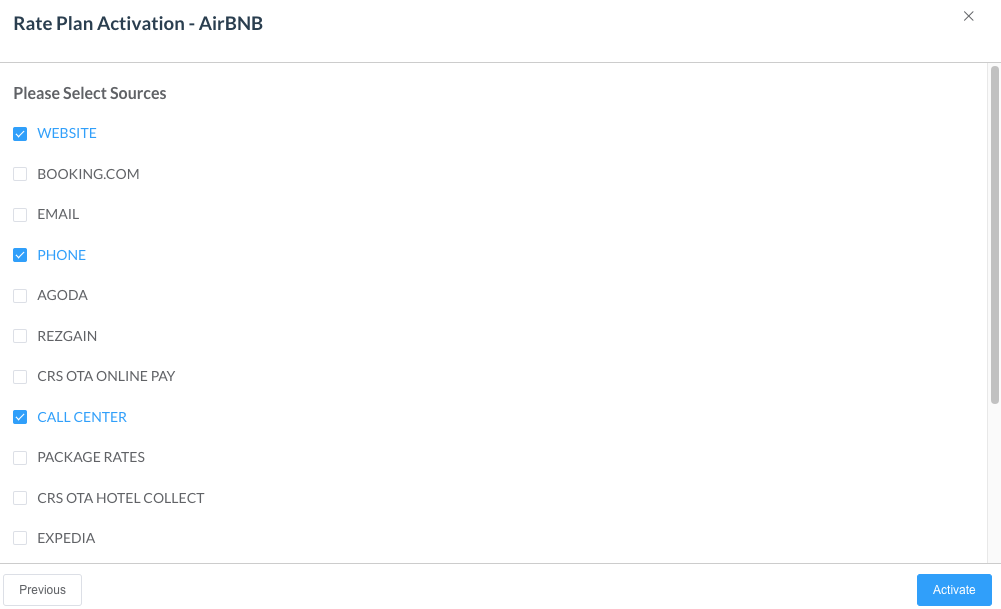
A Select Sources panel loads. Select applicable sources, then select Activate. |
|
|
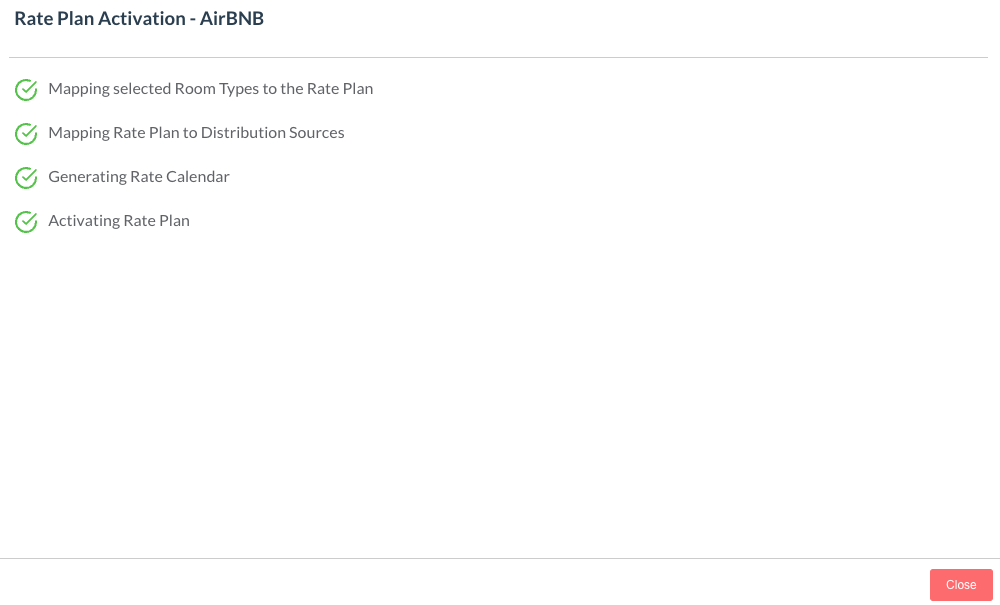
A confirmation panel loads. Select Close to complete the rate plan activation process. |
|
Edit a Rate Plan
|
Select Rate Administration on the HK Home page. |
|
|
The rate administration page loads, with the Rate Plans panel selected by default in the icon bar at top. Note - Only ACTIVE rate plans are populated by default. |
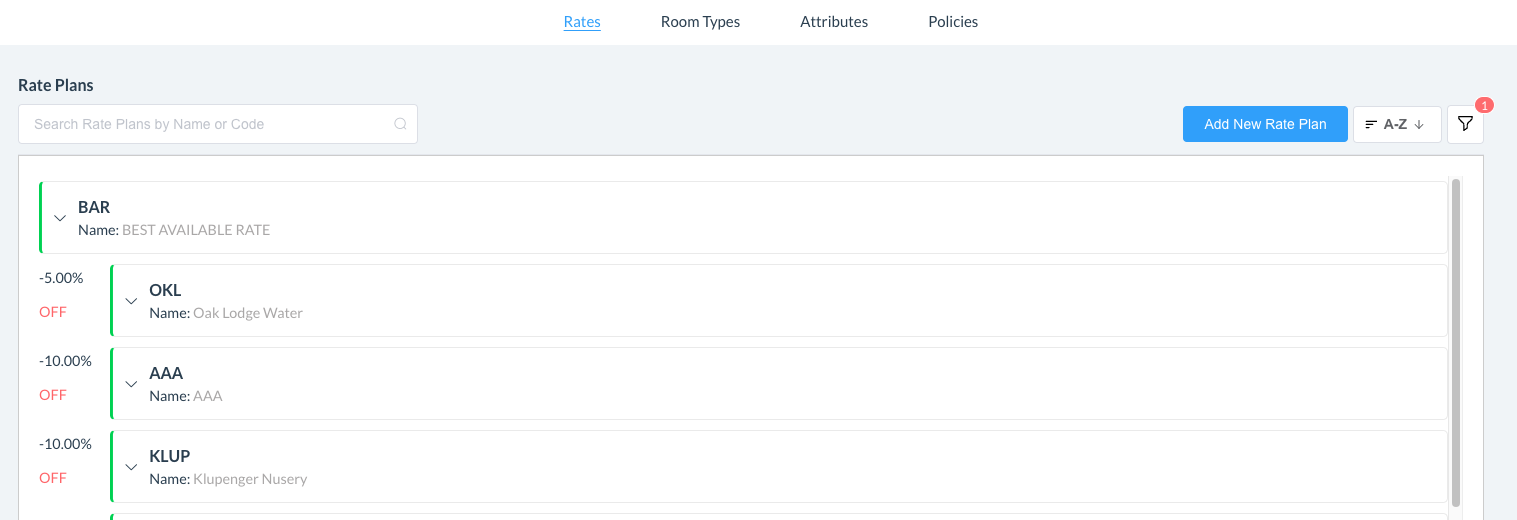
|
|
Select the applicable rate plan for editing or filter the list to include INACTIVE or ALL plans to Locate the plan from the list and tap on it to open |
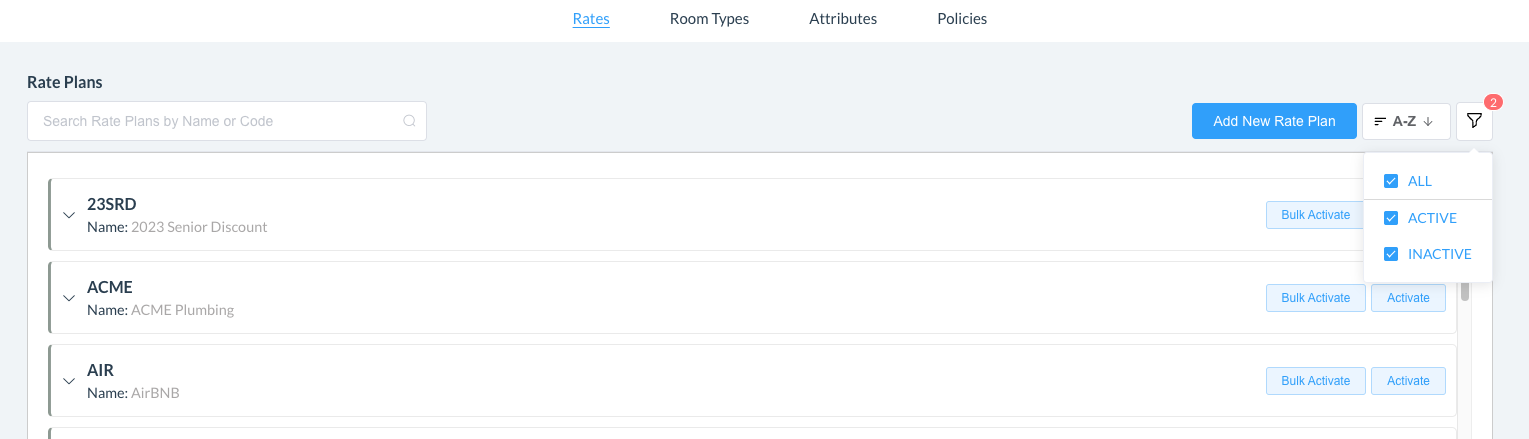
|
|
The Edit Rate Plan page loads. Select the applicable detail section Edit option to add or revise rate plan details. Make desired changes in each applicable detail section. When changes are complete, select Save at the upper right of the Edit Rate Plan page to save all changes. The rate plan will auto-close |
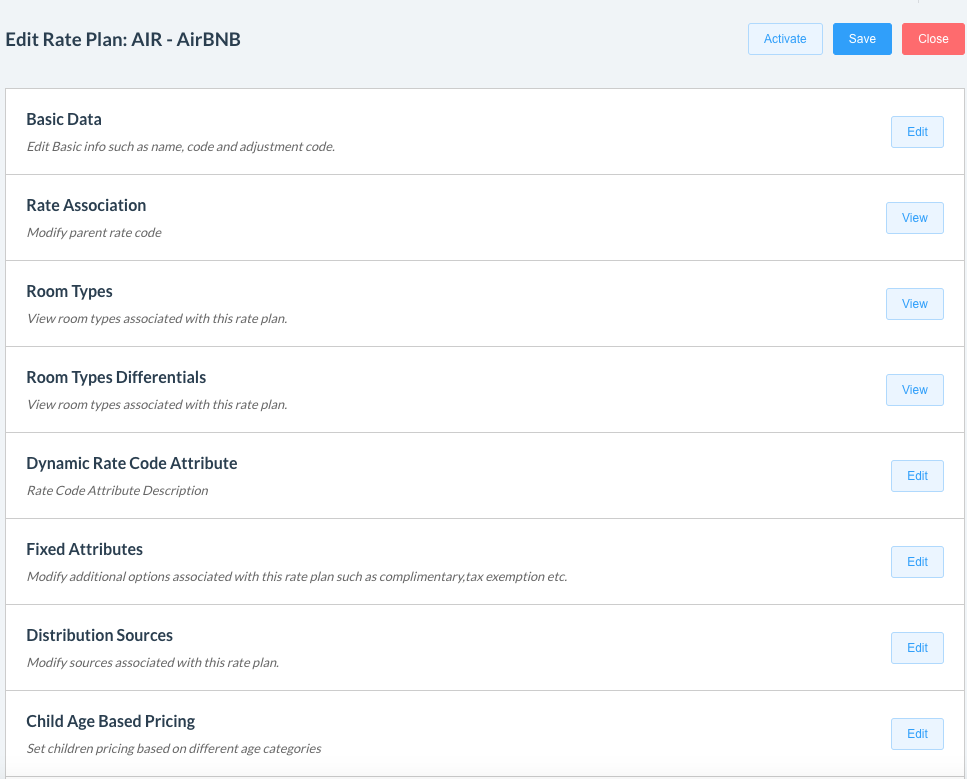
|
|
Note - If this is a new rate plan, next steps will be to activate the rate plan - see Activate a Rate Plan to complete the steps |
no image |
Deactivate a Rate Plan
|
Select Rate Administration on the HK Home page. |
|
|
The rate administration page loads, with the Rate Plans panel selected by default in the icon bar at top. Note that active rate plans are color coded in green at the left Select the rate plan to be deactivated. |
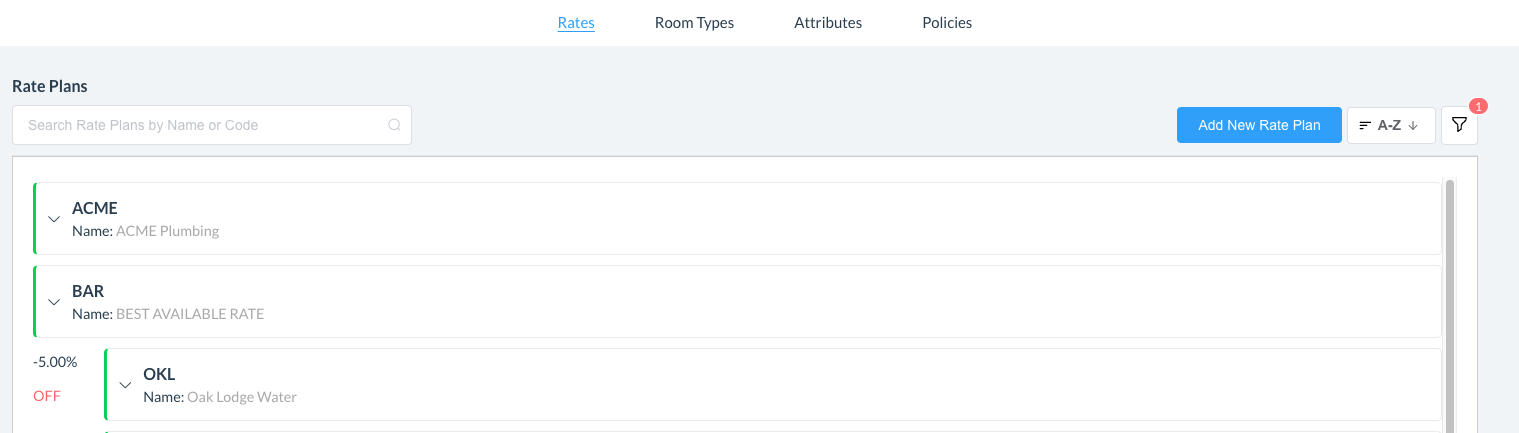
|
|
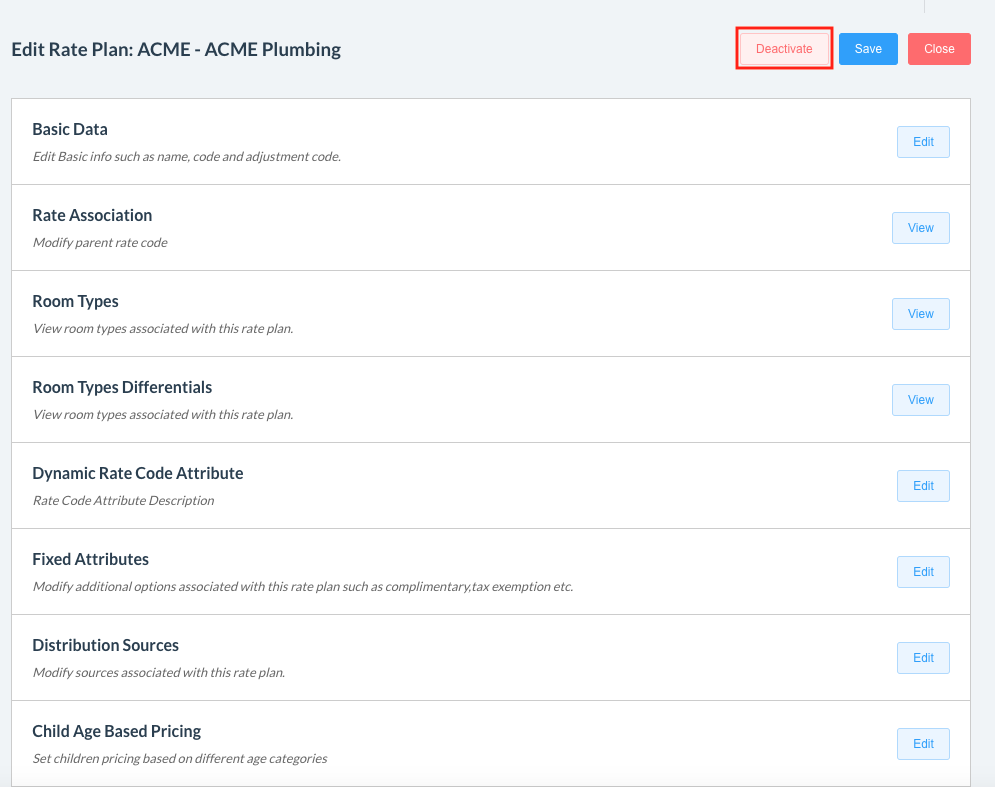
The Edit Rate Plan panel loads. Select the Deactivate link at the upper right of the Edit Rate Plan panel.
|
|
|
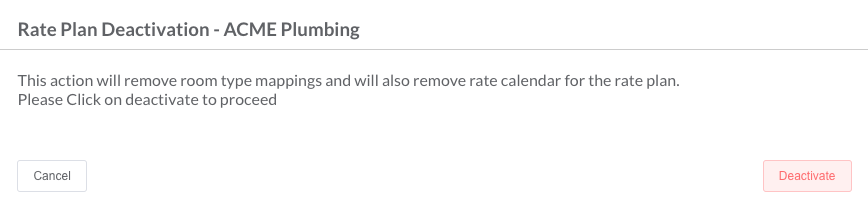
A confirmation popup loads. Select Deactivate to confirm and proceed. |
|
|
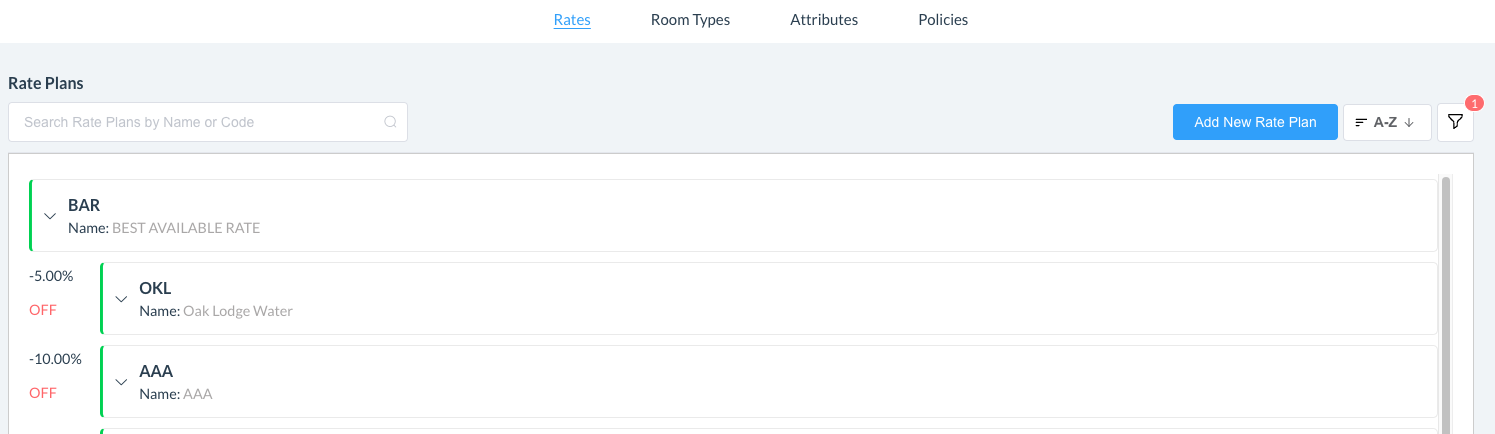
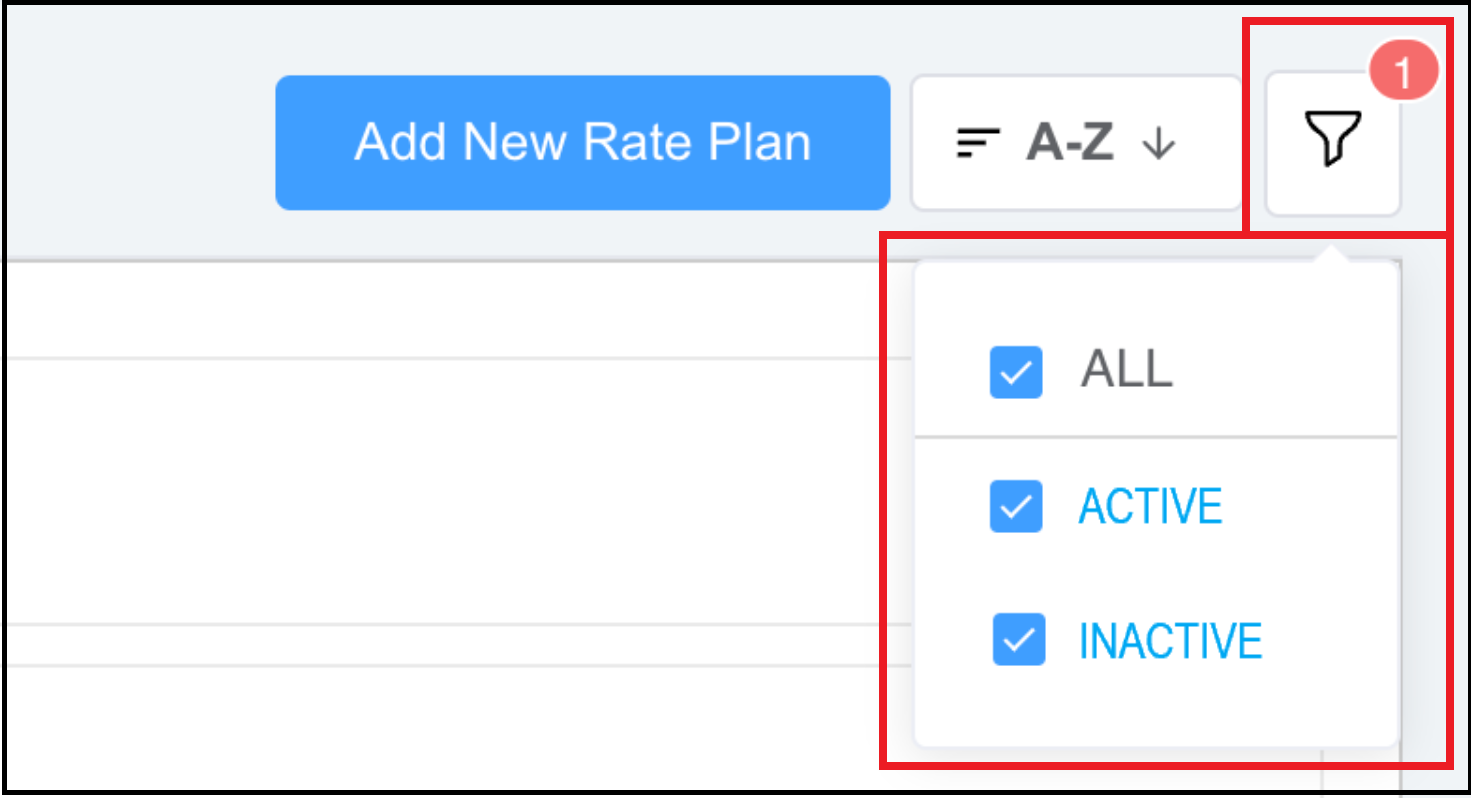
The rate plan is no longer displayed in the ACTIVE list of plans Note that deactivated plans are only included in the list if the INACTIVE selection is toggled on in the filter options list. As shown in the second screenshot at right, the list can be filtered to display active plans, inactive plans, or both.. |
|
Reactivate a Deactivated Rate Plan
|
Select Rate Administration on the HK Home page. |
|
|
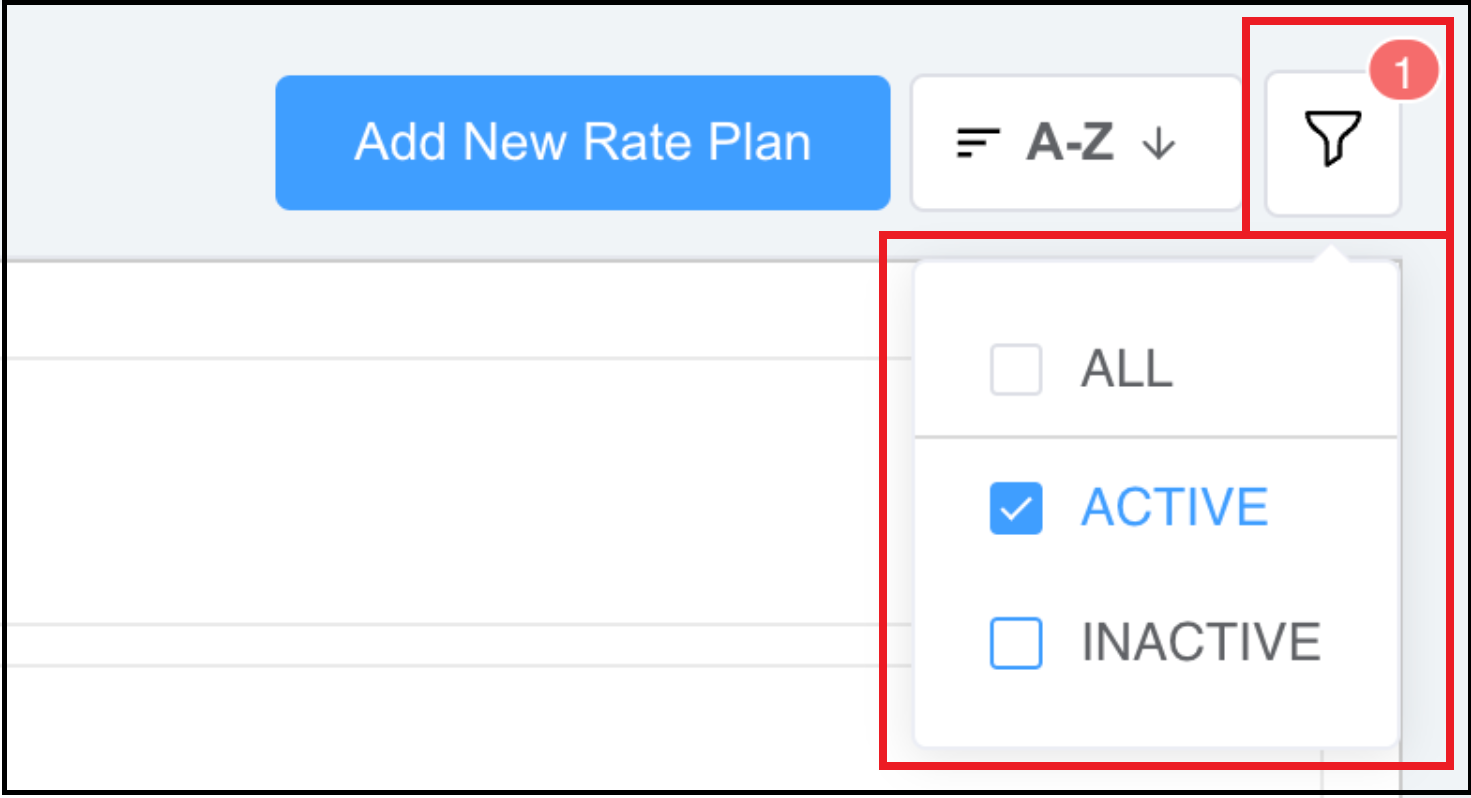
When the rate administration page loads, it displays only active plans by default. Select the list filter icon at the upper right.
|

|
|
As shown in the screenshot at right, ACTIVE is selected by default. Select INACTIVE to include inactive plans in the list and select the filter icon again to close filter options. |
|
|
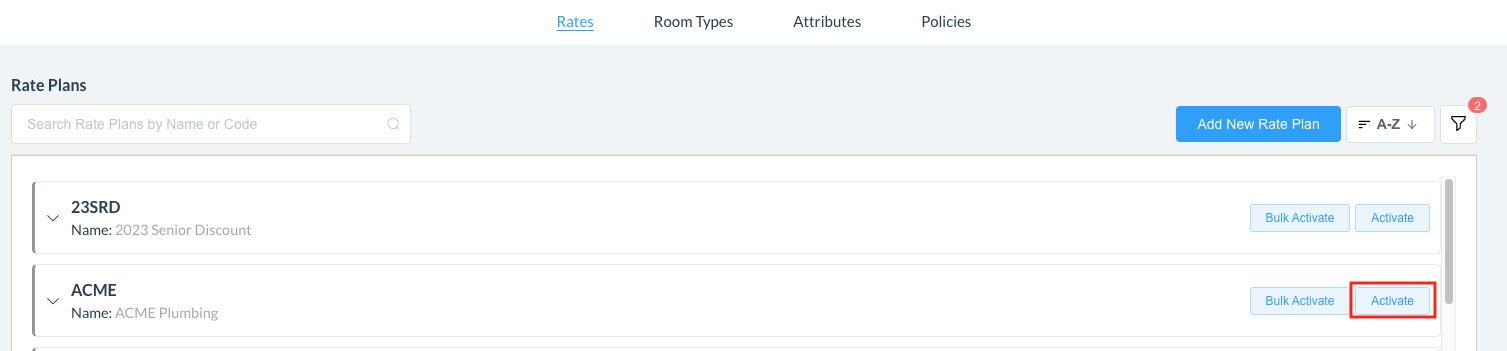
Locate the rate plan to be reactivated and select its Activate link. |
|
|
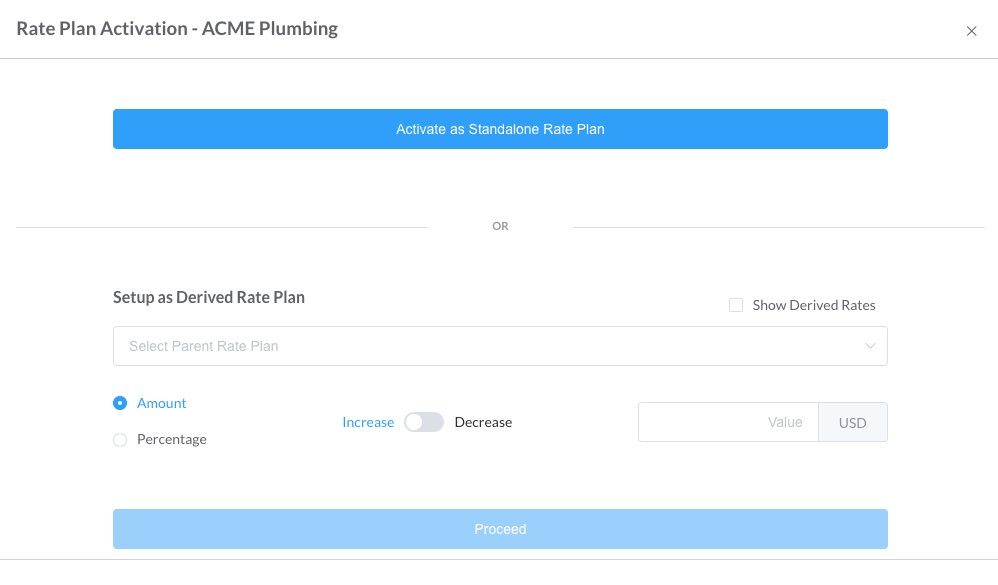
The Rate Plan Activation popup loads. Select Activate as Standalone Rate Plan or Setup as Derived Rate Plan |
|
|
Complete the steps for the rate plan activation as per the details of the type of rate plan you wish to use - (see Activate a Rate Plan) |
no image |
|
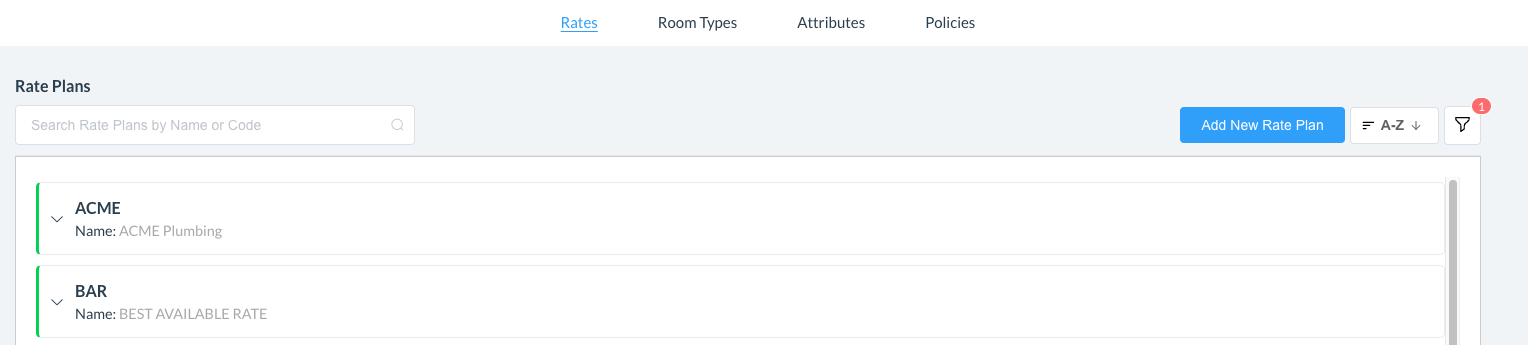
Once the rate plan is reactivated, it will appear among the list of ACTIVE Rate Plans |
|