
Revision Date:
A consolidated report that lists all currently active tax codes (e.g., VAT, GST, City Tax) alongside all active charge types (e.g., Room Rent, F&B, Parking) configured in the property, showing details such as rates, categories, and applicability rules — used by finance/admin teams to audit and verify which taxes and charges are enabled for posting across the property at a given point in time.
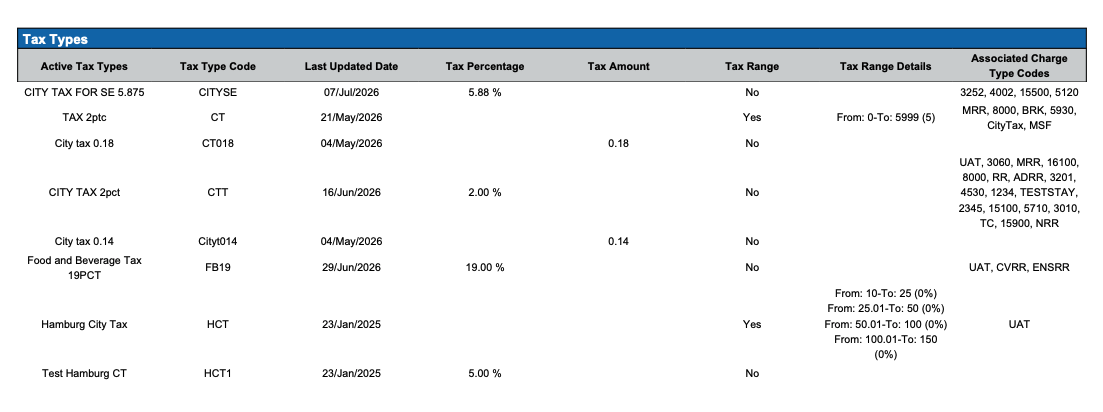
Tax Types Section:
Lists all tax types/codes currently configured and enabled in the system (with their rates, categories, and applicability), used to review or audit which taxes are actively being applied to charges across accounts and folios.
Available Report Columns for above Sections:
|
Column Name |
Column Description |
Amount Includes Taxes and Fees |
Calculation |
|
Active Tax Types |
List of all tax types currently enabled and in use within the property's configuration. |
Not Applicable |
Not Applicable |
|
Tax Type Code |
The unique short code identifying a specific tax type (e.g., VAT7, GST15). |
Not Applicable |
Not Applicable |
|
Last Updated Date |
The classification of the financial entry, indicating whether it is a charge, payment, adjustment, or correction. |
Not Applicable |
Not Applicable |
|
Tax Percentage |
The rate (%) applied to the applicable charge amount to calculate the tax. |
Not Applicable |
Not Applicable |
|
Tax Amount |
A fixed monetary tax value applied instead of (or alongside) a percentage-based rate. |
Not Applicable |
Not Applicable |
|
Tax Range |
Indicates whether the tax applies based on tiered value/amount brackets rather than a flat rate. |
Not Applicable |
Not Applicable |
|
Tax Range Details |
The specific breakdown of the tiered brackets/thresholds and their corresponding tax rates or amounts. |
Not Applicable |
Not Applicable |
|
Associated Charge Type Codes |
The list of charge type codes to which this tax is automatically applied. |
Not Applicable |
Not Applicable |
Charge Types Section
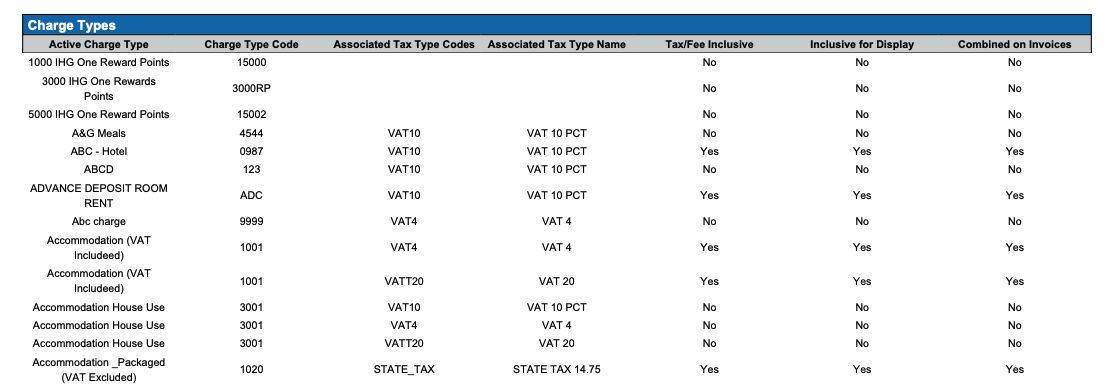
Lists all configured charge type codes in the property (e.g., Room Rent, F&B, Parking, Spa), showing details such as charge category, description, posting rules, and associated tax types — used to review and audit which charges are set up and available for posting across the system.
Available Report Columns for above section:
|
Column Name |
Column Description |
Amount Includes Taxes and Fees |
Calculation |
|
Active Charge Type |
List of all charge types currently enabled for use in the property. |
Not Applicable |
Not Applicable |
|
Charge Type Code |
The unique short code identifying a specific charge type (e.g., ROOMRENT, PARKING). |
Not Applicable |
Not Applicable |
|
Associated Tax Type Codes |
The tax code(s) automatically linked to and applied on this charge type. |
Not Applicable |
Not Applicable |
|
Associated Tax Type Name |
The descriptive name of the linked tax type(s) (e.g., "VAT 20 PCT"). |
Not Applicable |
Not Applicable |
|
Tax/Fee Inclusive |
Indicates whether the posted charge amount already includes the associated tax/fee.f (or alongside) a percentage-based rate. |
Not Applicable |
Not Applicable |
|
Inclusive for Display |
Indicates whether the tax-inclusive amount is shown as such to the guest on screen/print, regardless of how it's calculated internally. |
Not Applicable |
Not Applicable |
|
Combined on Invoices |
Indicates whether the charge and its tax are shown as a single combined line item on the invoice rather than itemised separately. |
Not Applicable |
Not Applicable |
Misc Report Information:
Available Features:
-
Export: ability to download and save the file into an alternate format.
-
Filter: filter a range of data based on criteria defined by the user.
-
Highlight: also known as conditional formatting is the ability to highlight certain values making them easier to identify.
-
Bar Graph: ability to view Revenue and Stay data in a bar chart.
-
Grouping: ability to view the data grouped by: All, Market Segment, Day of Week_Market Segment
-
Pie Chart: ability to view grouped data in a Pie Chart view.
Available Configuration:
-
User Preferences: allows the user to customize their report view by repositioning or removing columns.
-
Property Preferences: allows the property to customize the report view for all users by repositioning or removing columns.
Baseline Configuration:
-
Property Preferences Settings:
-
Following columns to be disabled for initial deployment:
-
Not Applicable
-
-