
📆 Revision Date:
|
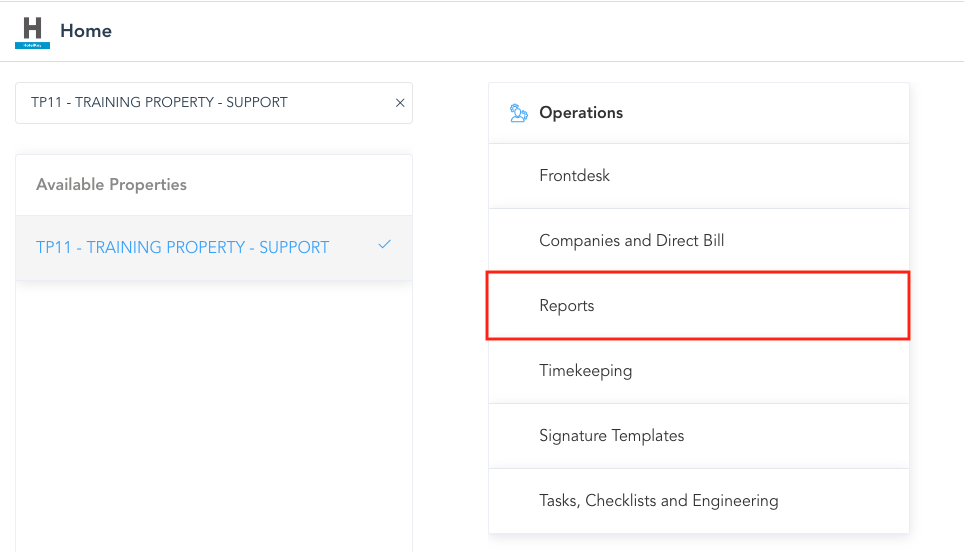
Select the property from HK Home and then select Reports. |
|
|
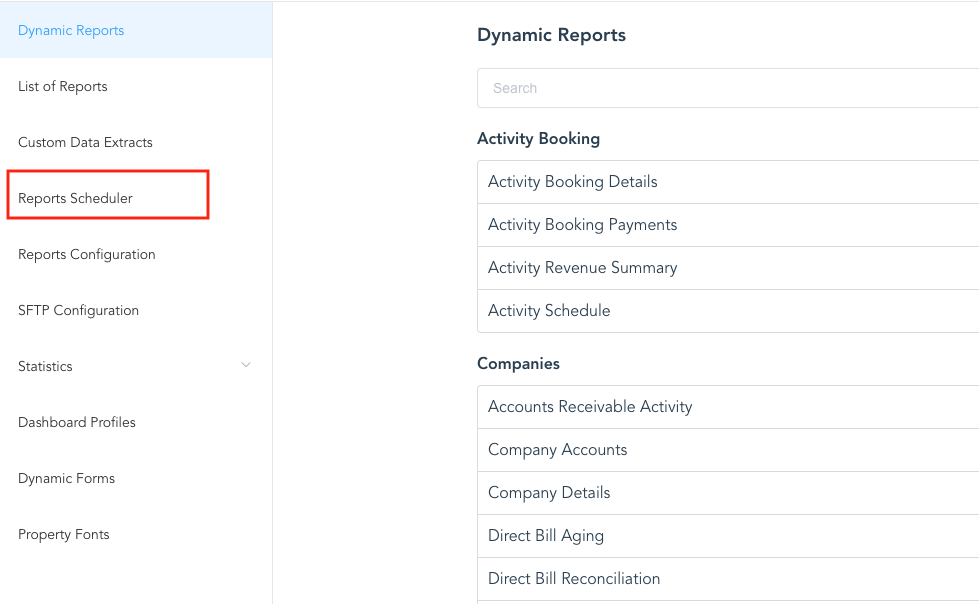
The Reports page loads. Select Report Scheduler. |
|
|
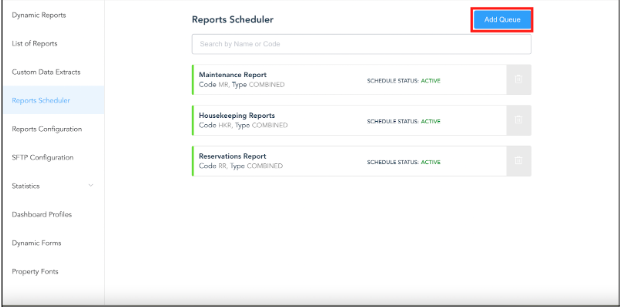
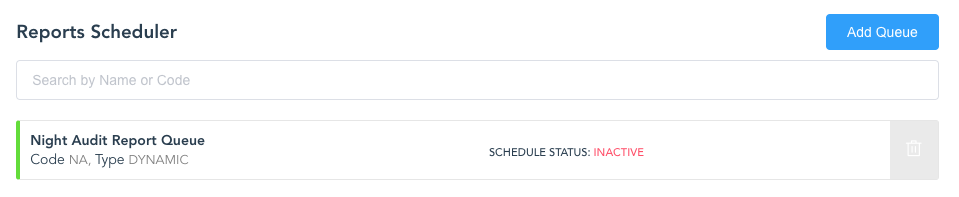
Select Add Queue to add a new scheduled report queue. |
|
|
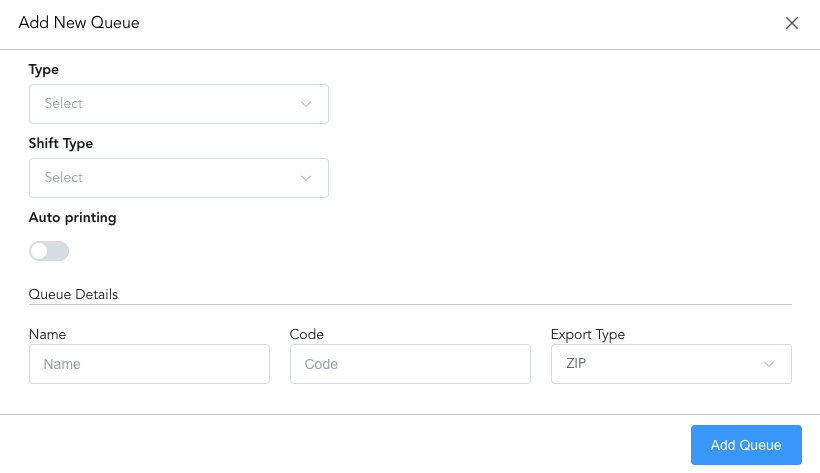
The Add New Queue page loads.
Click on Add Queue |
|
|
Reports Scheduler screen opens.
|
|
|
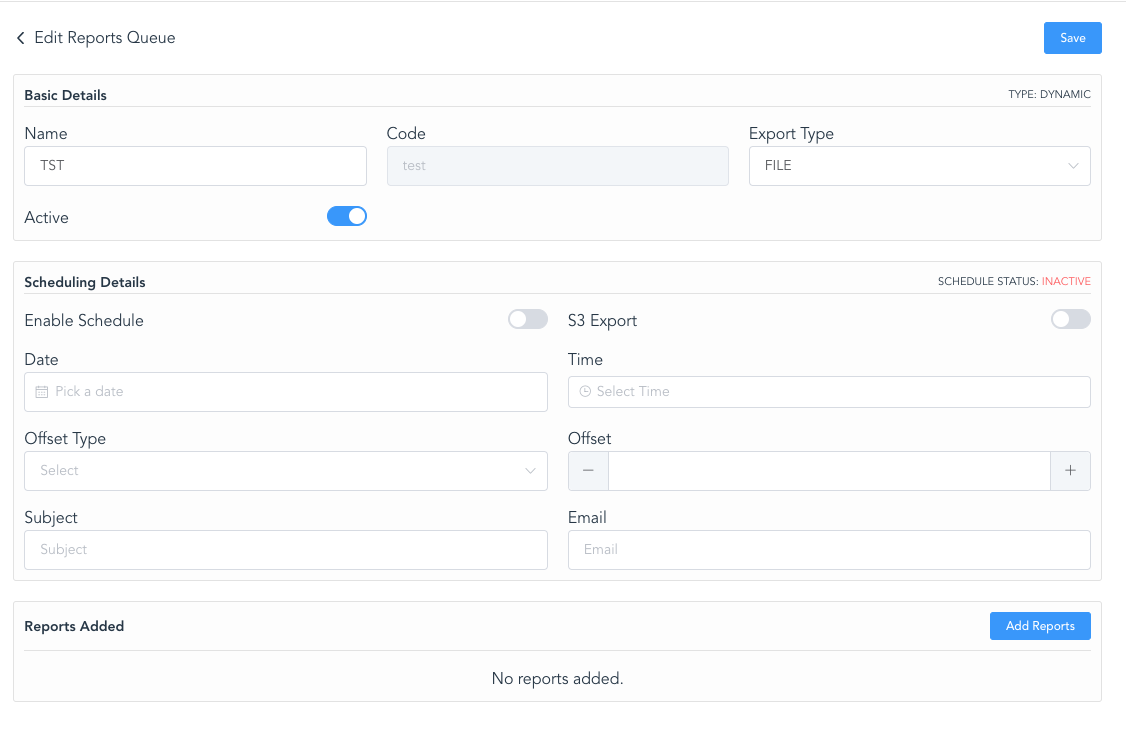
On the Edit Reports Queue page, select the parameters you desire for this scheduler.
|
|
|
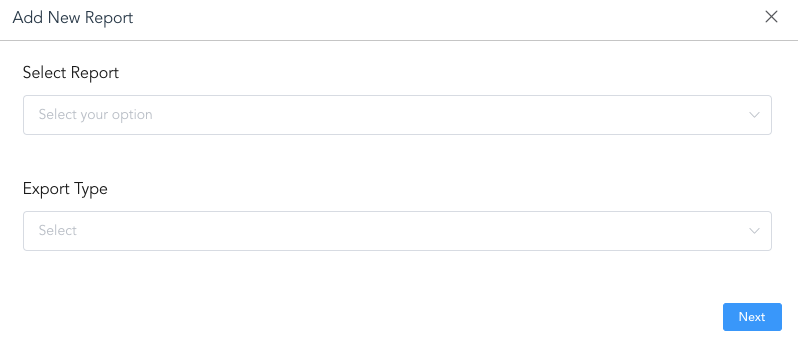
The Add New Report page loads.
|
|
|
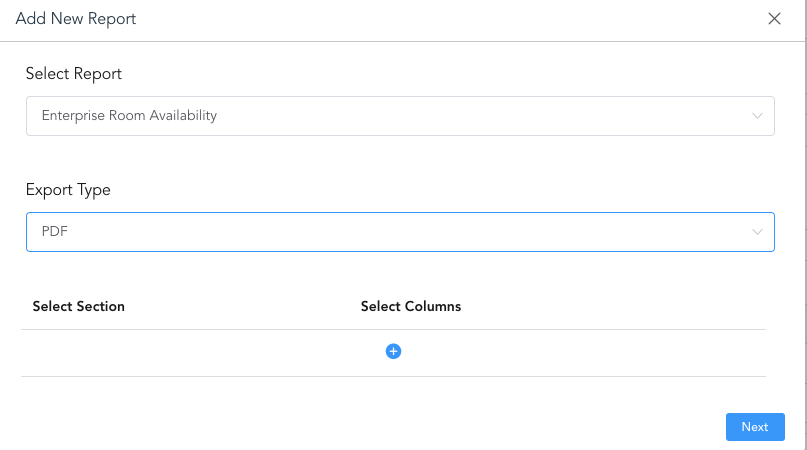
Once the Export Type is selected, the option to choose columns is revealed You can select specific columns of the report selected, if applicable - skip this step if not necessary. Click on Next |
|
|
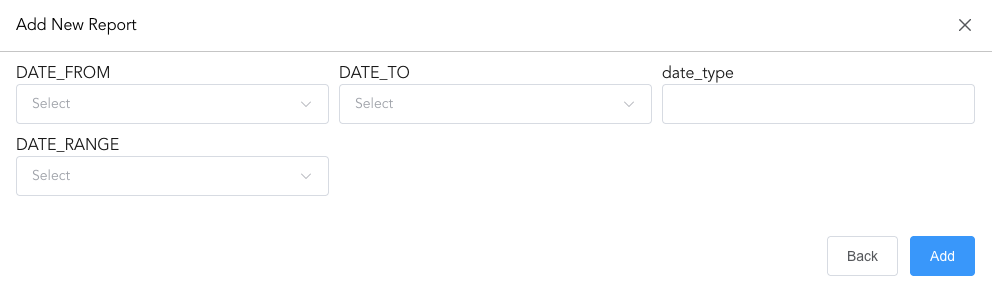
Select date ranges for the report and select Add. The report will then be added to the respective report. |
|
|
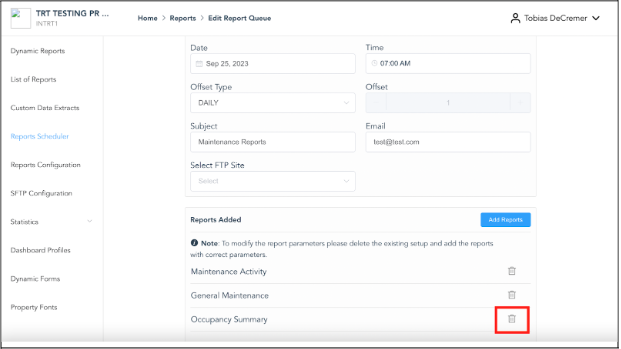
Selected reports for scheduled queue will show at the bottom. You can delete any reports at any time by selecting the trash icon next to the desired report. |
|