Target Roles: Front Desk Agents, Night Auditors, Accounts Receivable Specialists, Guest Services Managers, Financial Controllers
Last Updated:
Executive Overview
In HotelKey PMS, the Charge Adjustment workflow on a House Account (Posting Master) folio enables front desk, night audit, and accounting teams to issue accurate billing credits, promotional discounts, or full charge rebates directly against posted folio transactions. Whether accommodating a VIP guest, honoring a negotiated corporate rate, or resolving a billing discrepancy, operators can select one or more posted charges on a House Account folio and apply either a partial adjustment (via a flat currency deduction, percentage discount, or target price override) or a full 100% Adjust to Zero rebate. Every adjustment requires an accounting Adjustment Code and mandatory Remarks for audit traceability, automatically updating net folio balances and itemized tax recalculations in real time.
ℹ️ Release Note — Adjust a Charge Using "Apply Discount" (Available in Version 6.0.6+):
Starting in HotelKey Version 6.0.6, the Add Adjustment modal introduces the Apply Discount adjustment type alongside Modify Amount. When Apply Discount is selected, operators can enter either a flat Discount Amount or a Discount Percent directly against the selected charge—while Modify Amount allows operators to override the line item by setting a Target Amount Excluding Tax or Target Amount Including Tax. (Note: The Apply Discount adjustment mode is not available in releases prior to version 6.0.6).
Workflow 1: Partial Charge Adjustments (Modify Amount vs. Apply Discount)
System Navigation Path
Home > House Accounts > Select House Account > Folio grid > Check Charge(s) > Adjust > Adjust
Step
Action
Platform Guidance & Operational Details
Access House Account Folio
Open the target House Account (e.g., James Fuller Demo, Account JAF0712) and scroll down to the active Folio transaction grid (e.g., Folio 005613).
Displays all posted charges, routed guest transactions, taxes, and current folio balance.
Select Target Charge(s)
Check the selection box on the left side of the posted charge row you wish to adjust (e.g., Airport Transfer for USD 20.00 or Event Tickets for USD 50.00).
Activates the Adjust, Refund, and Transfer action buttons above the transaction table.
Launch Partial Adjustment
Click the blue Adjust dropdown button in the top-left table toolbar and select Adjust (the first menu option).
Opens the Add Adjustment modal dialog.
Select Adjustment Code
Open the Select Adjustment Code dropdown and choose the appropriate accounting reason code (e.g., DISCOUNT, Customer Satisfaction, Chargeback, Price Override, Rate Code Change).
Maps the financial credit to the designated general ledger adjustment account.
Choose Adjustment Type & Value
Select one of the two Select Adjustment Type tabs:
Modify Amount: Enter either a Target Amount Excluding Tax (e.g., USD 40.00 on a $50.00 charge) OR a Target Amount Including Tax.
Apply Discount(v6.0.6+): Enter either a flat Discount Amount (e.g., USD 10.00) OR a Discount Percent (e.g., 15.00%).
Click the blue Next button in the top-right header once the value is entered.
Enter Audit Remarks & Commit
On the Remarks screen, enter a clear explanation for the adjustment (e.g., VIP Airport Transfer Discount- 15% applied or USD 10 discount applied per agreement) and click the blue Adjust button.
Displays a green confirmation banner (Success: Charge(s) adjusted successfully) and posts the credit adjustment to the folio.
📷 VISUAL CALLOUT:
Add Adjustment Modal: Modify Amount
The Add Adjustment modal set to Modify Amount showing Target Amount Excluding Tax and Target Amount Including Tax.
The Add Adjustment modal set to Apply Discount (v6.0.6+) showing Discount Amount and Discount Percent (15.00%).
Adjustment Modal: Apply Discount Walkthrough
Workflow 2: Full Rebate (Adjust to Zero)
When an entire charge must be comped or rebated in full, operators can use the streamlined Adjust to Zero workflow:
System Navigation Path
Home > House Accounts > Select House Account > Folio grid > Check Charge(s) > Adjust > Adjust to Zero
Step
Action
Platform Guidance & Operational Details
Select Charge to Rebate
In the House Account Folio grid (e.g., HotelKey Feb Meet, DOM0400112), check the selection box next to the target charge (e.g., Airport Transfer for USD 20.00).
Enables the Adjust action dropdown in the upper-left toolbar.
Select Adjust to Zero
Click the blue Adjust dropdown button and select Adjust to Zero.
Opens the streamlined Add Adjustment confirmation modal (bypassing amount/percentage inputs).
Select Code & Enter Remark
Choose the Select Adjustment Code (e.g., DISCOUNT), enter a mandatory justification in the Remark field (e.g., VIP-Comp Airport Transfer Charge), and click the blue Confirm button.
Posts a 100% offsetting credit (-USD 20.00) along with any associated tax credits, reducing the net charge to $0.00.
📷 VISUAL CALLOUT:
Adjust to Zero Modal Workflow
The Adjust to Zero workflow allows users to select a charge and fully comp or rebate the entire amount.
Adjust to Zero Modal Workflow
Verifying Net vs. Detail Folio Views
After posting a charge adjustment, operators can inspect how the credit impacts the House Account ledger using the view toggle in the upper-right corner of the folio grid:
Net View (Default):
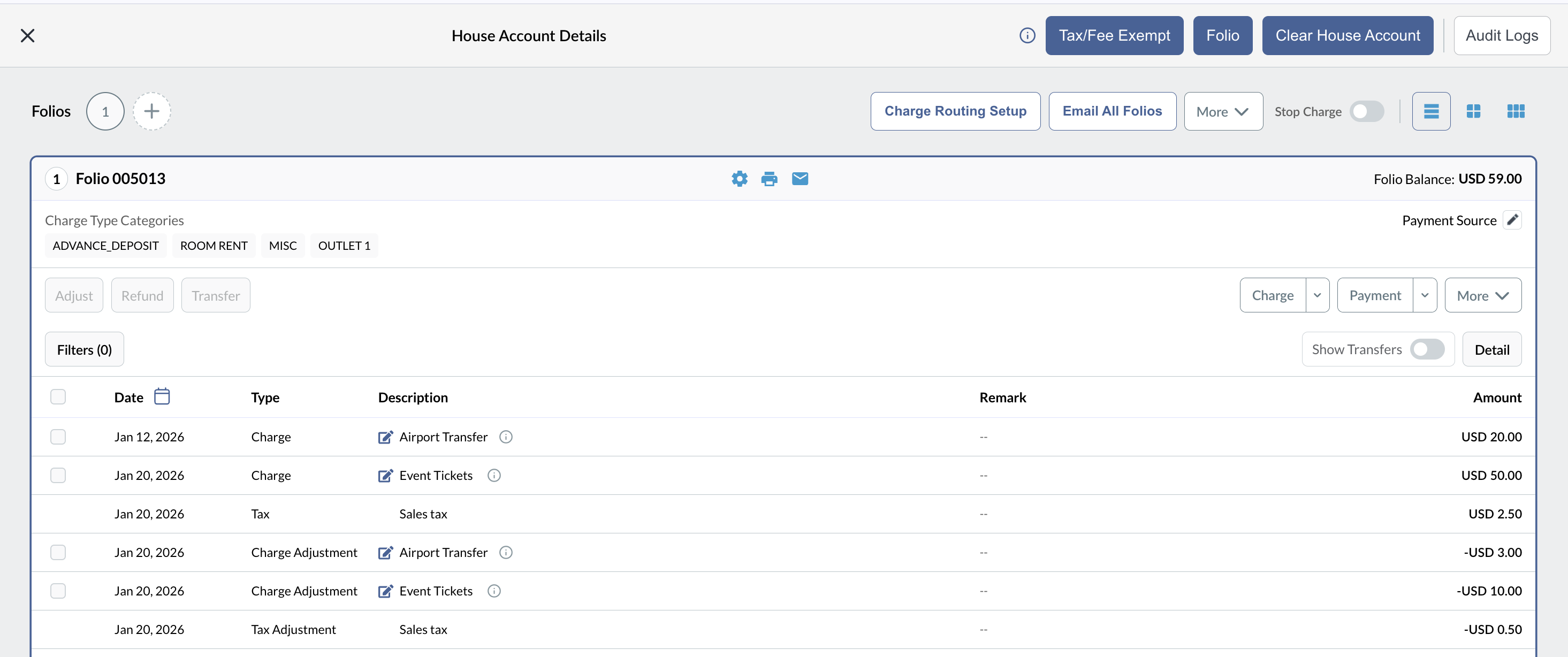
Consolidates the original charge and its adjustment on a single row, displaying the updated net balance immediately (e.g., Airport Transfer displays USD 17.00 after a 15% discount on USD 20.00; Event Tickets displays USD 40.00 after a $10.00 discount on USD 50.00).
For charges adjusted via Adjust to Zero, the line item disappears from Net view once its balance reaches $0.00.
Detail View:
Switching the top-right dropdown from Net to Detail reveals every individual audit line item separately:
Original Charge line (e.g., Airport Transfer — USD 20.00)
Offsetting Charge Adjustment line (e.g., Airport Transfer — -USD 3.00 or -USD 20.00)
Corresponding Tax Adjustment line (e.g., Sales Tax — -USD 0.50 when applicable)