
📆 Revision Date:
Also included in this article are steps on how to confirm an Invoice has been emailed
|
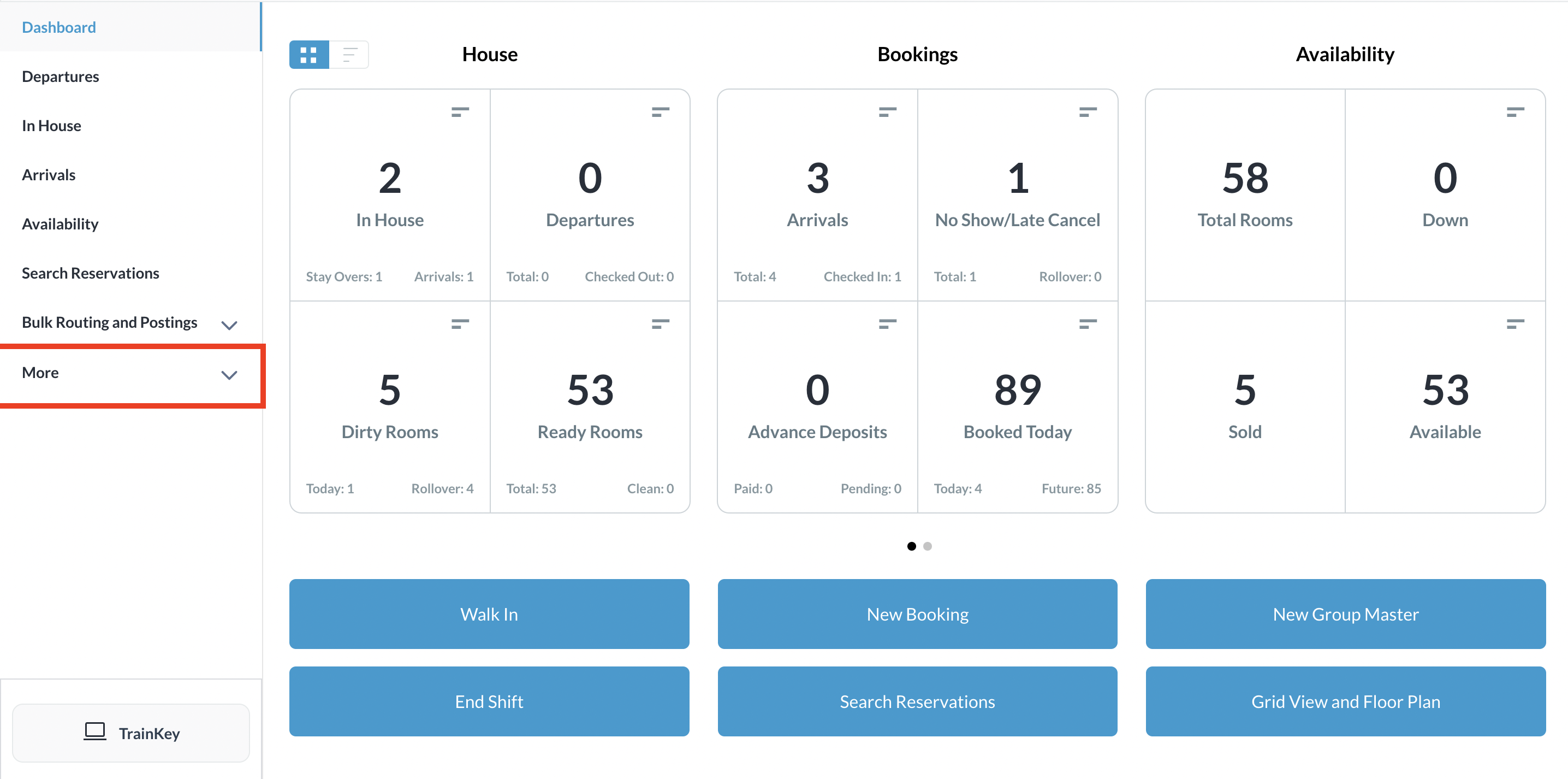
Select More from the Dashboard sidebar menu. |
|
|
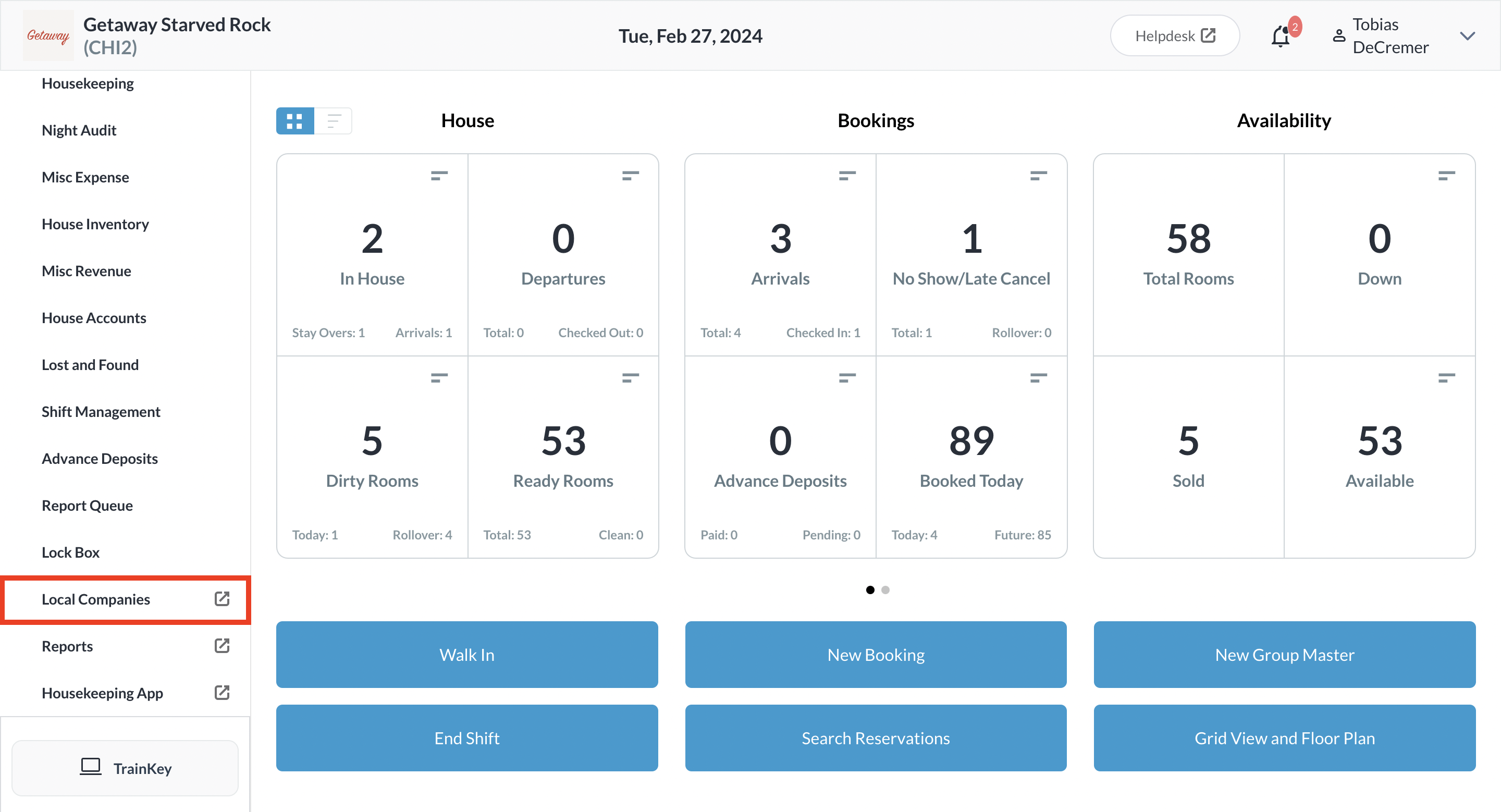
Select the Local Companies link from the expanded sidebar menu. |
|
|
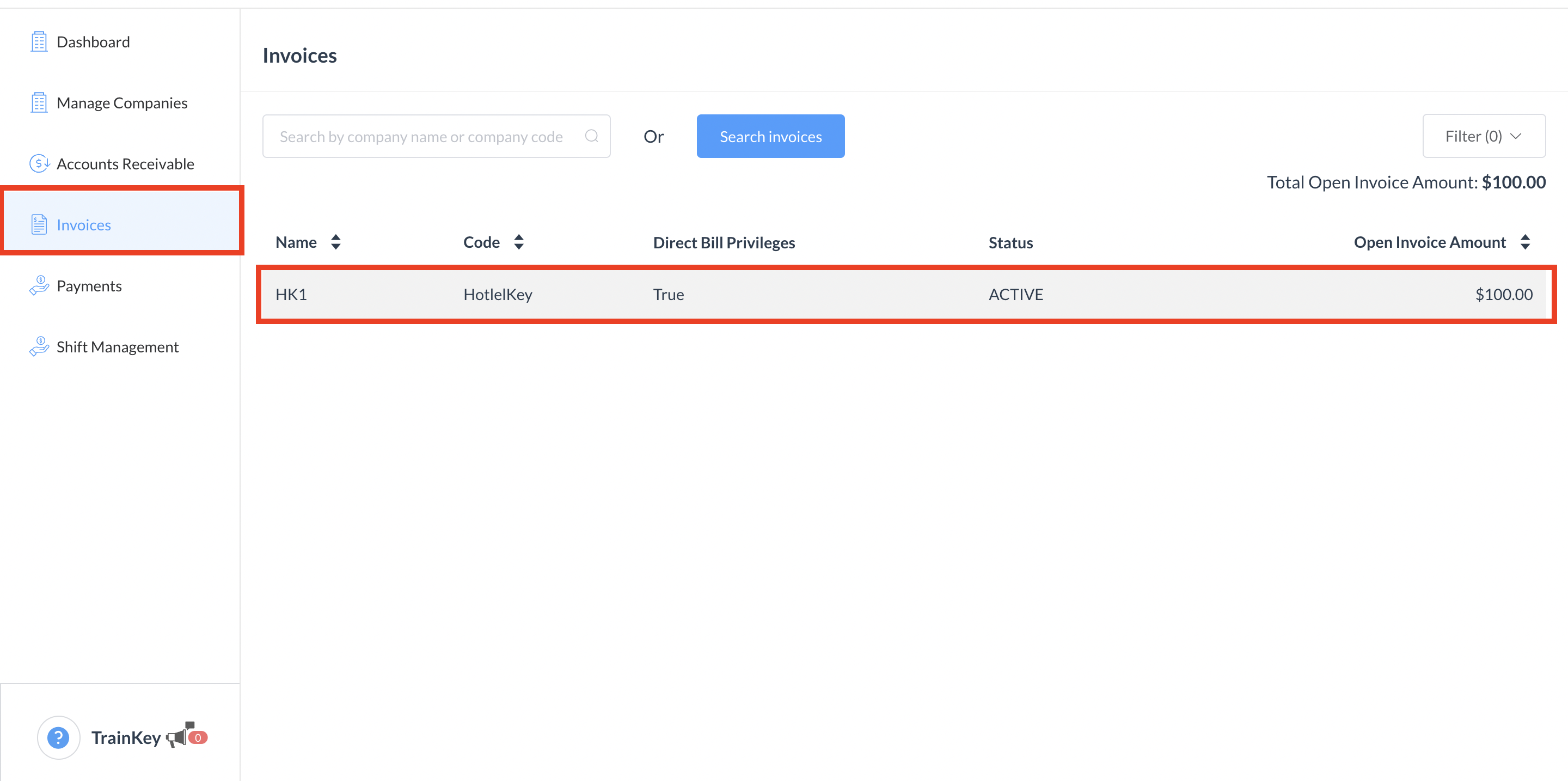
The Company List page loads. Select the Invoices sidebar link. On the Invoices tab, select the applicable company. |
|
|
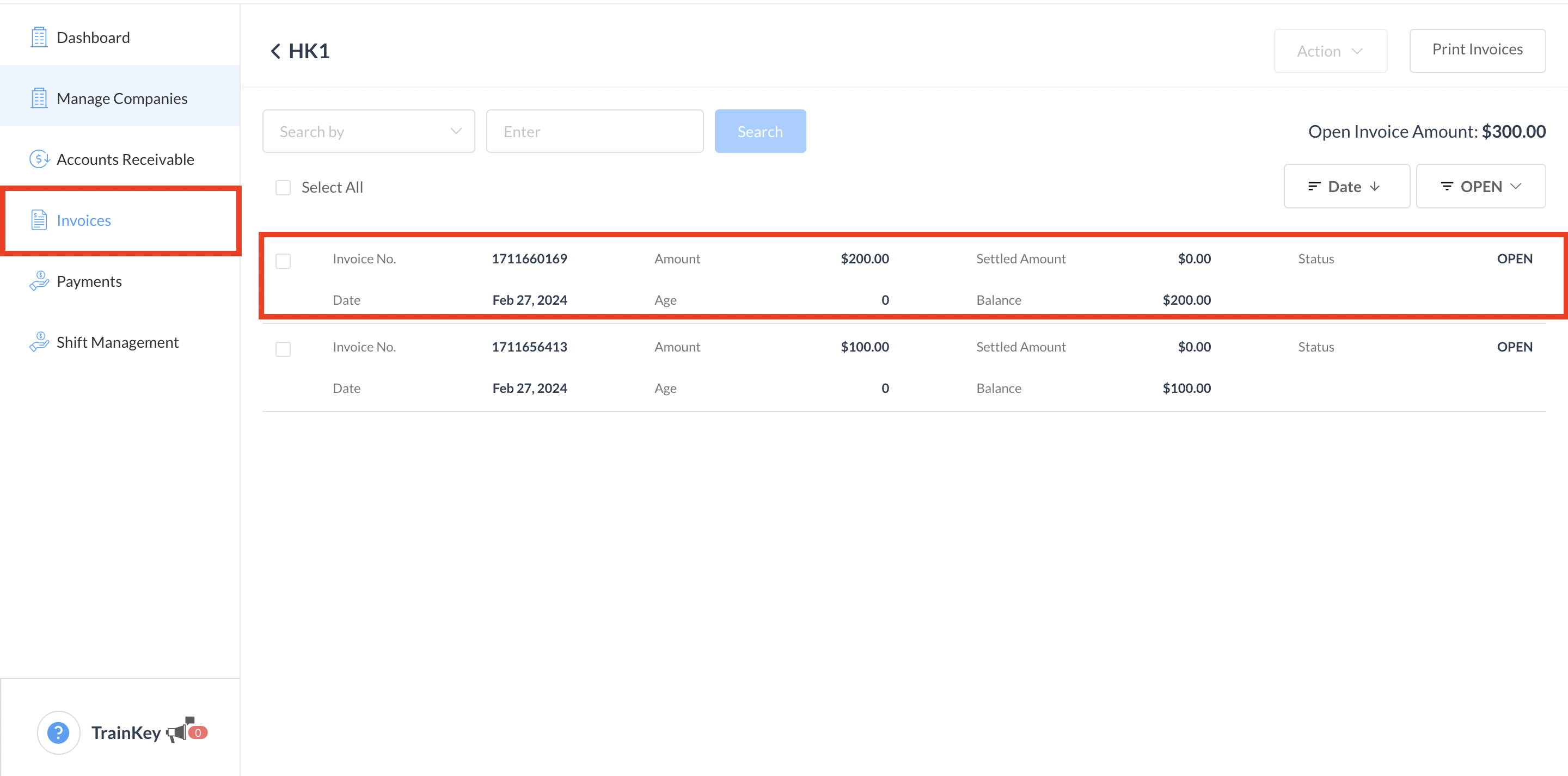
The Company Invoices page loads. Select the invoice to be printed or emailed |
|
|
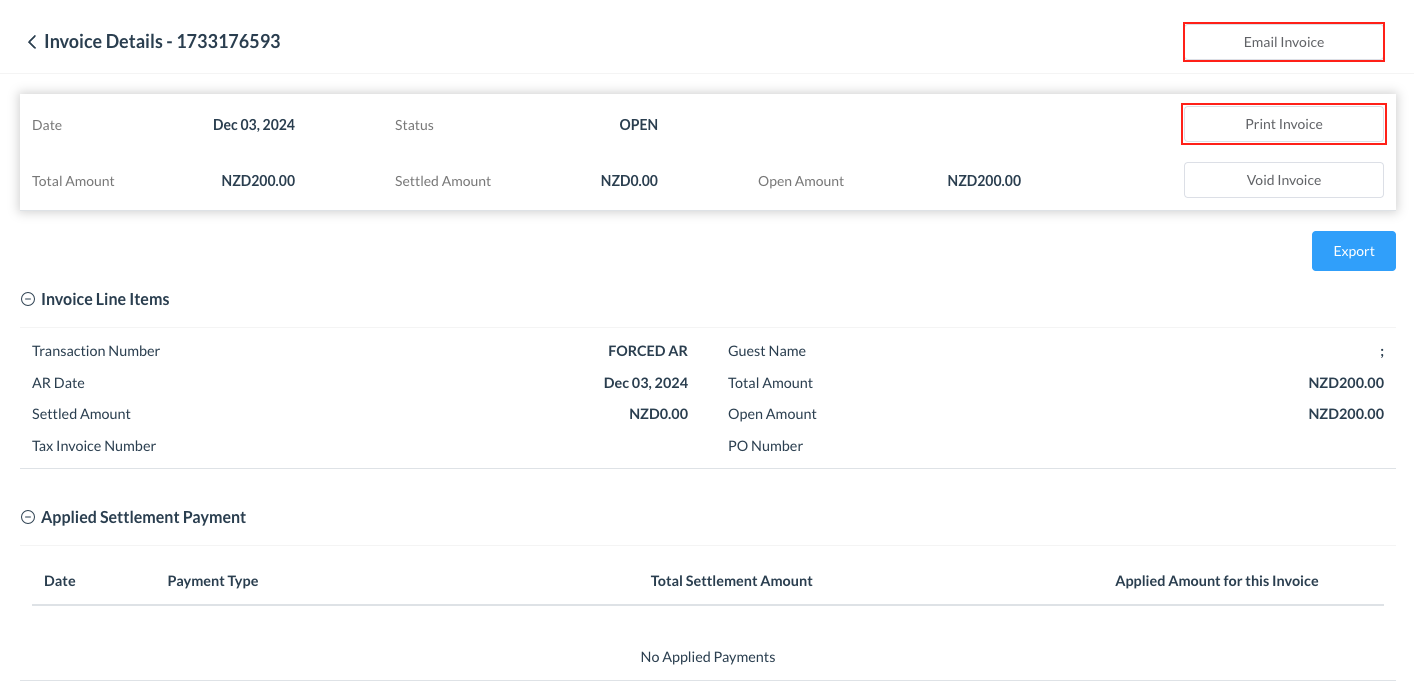
The Invoice Details page loads. Select Print Invoice or Email Invoice. |
|
|
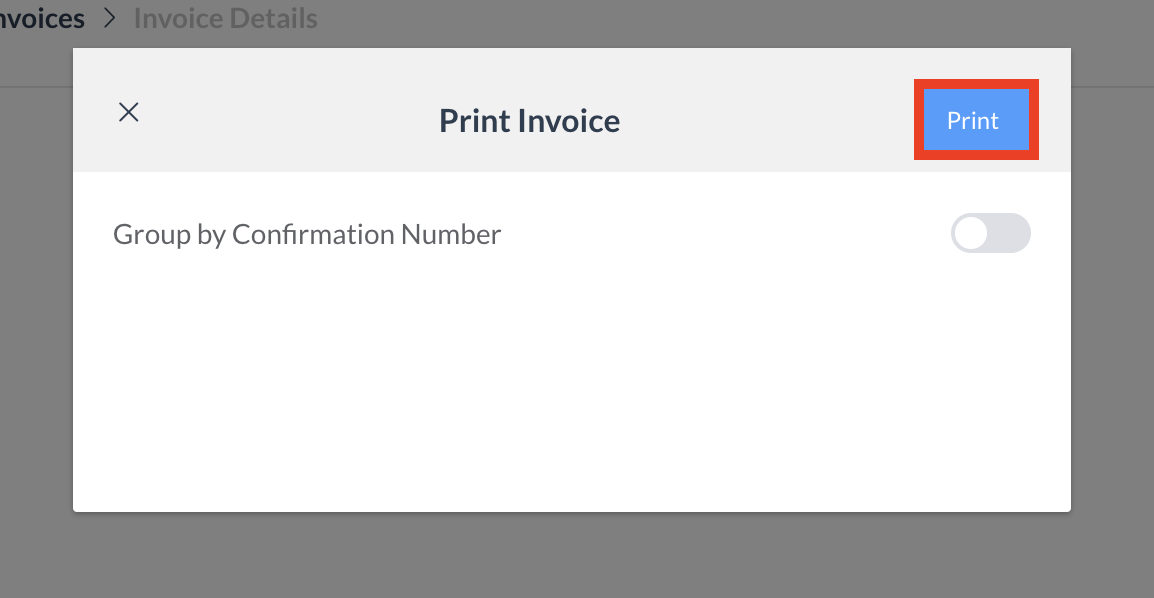
Print Invoice: The Print Invoice popup activates. Select Print.
|
|
|
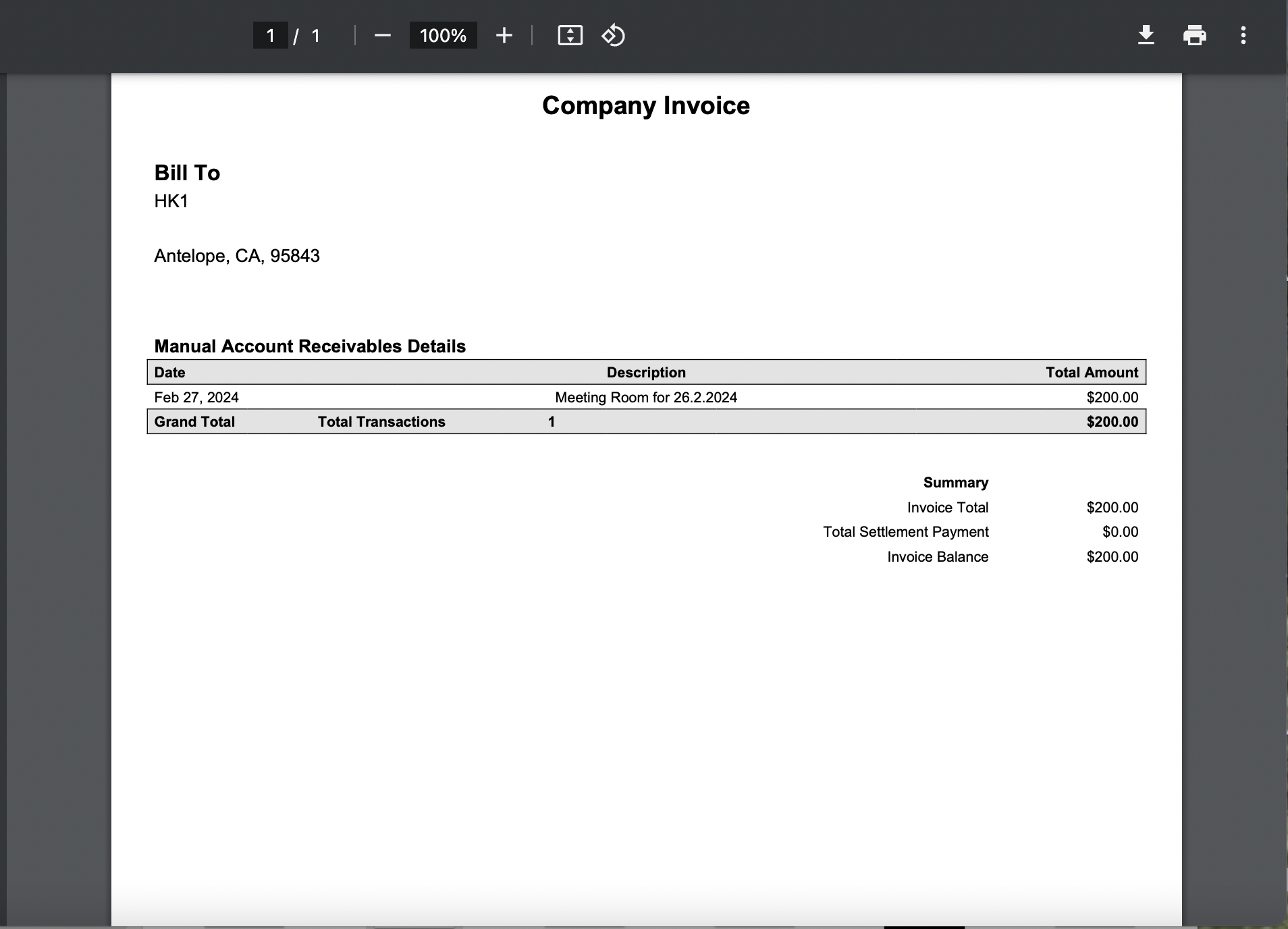
The invoice prints to PDF format and opens in a viewer popup. All invoice details are included on the company invoice. |
|
|
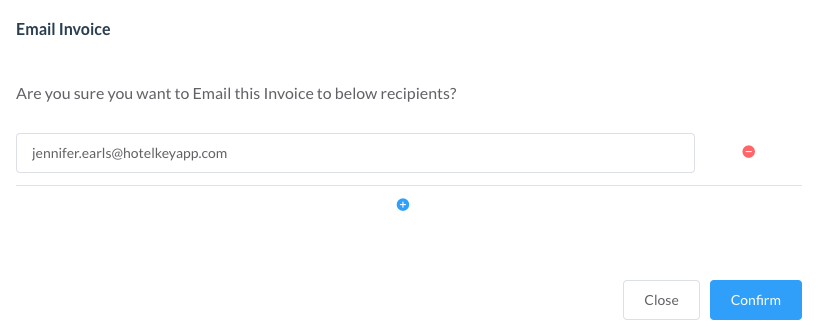
Email Invoice: The Email Invoice popup activates. Select or enter the appropriate email address. Click on Confirm |
|
How to Confirm an Invoice has been Emailed
Confirm that an Invoice has been sent via Email by reviewing the Audit Logs
|
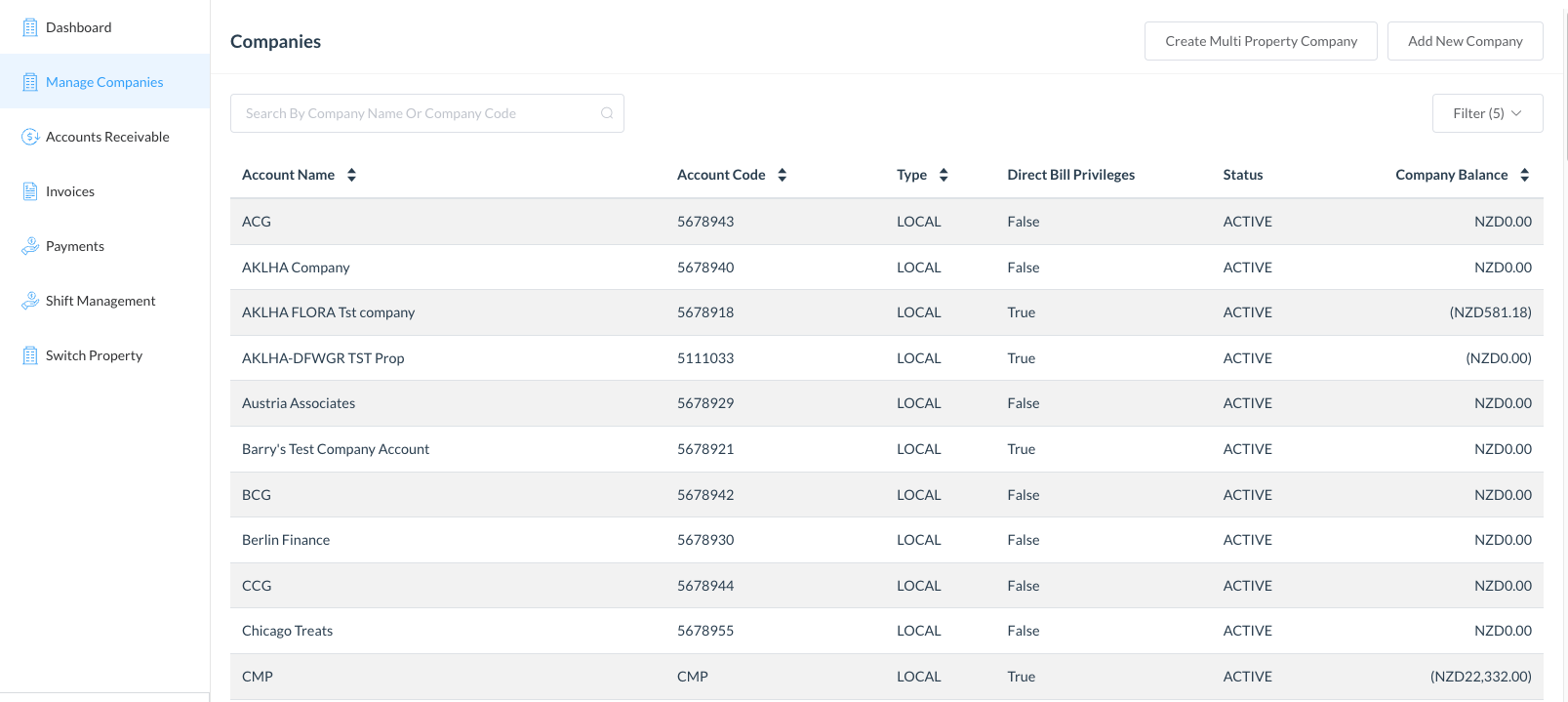
Navigate to the Manage Companies menu option and select the company you emailed the invoice
|
|
|
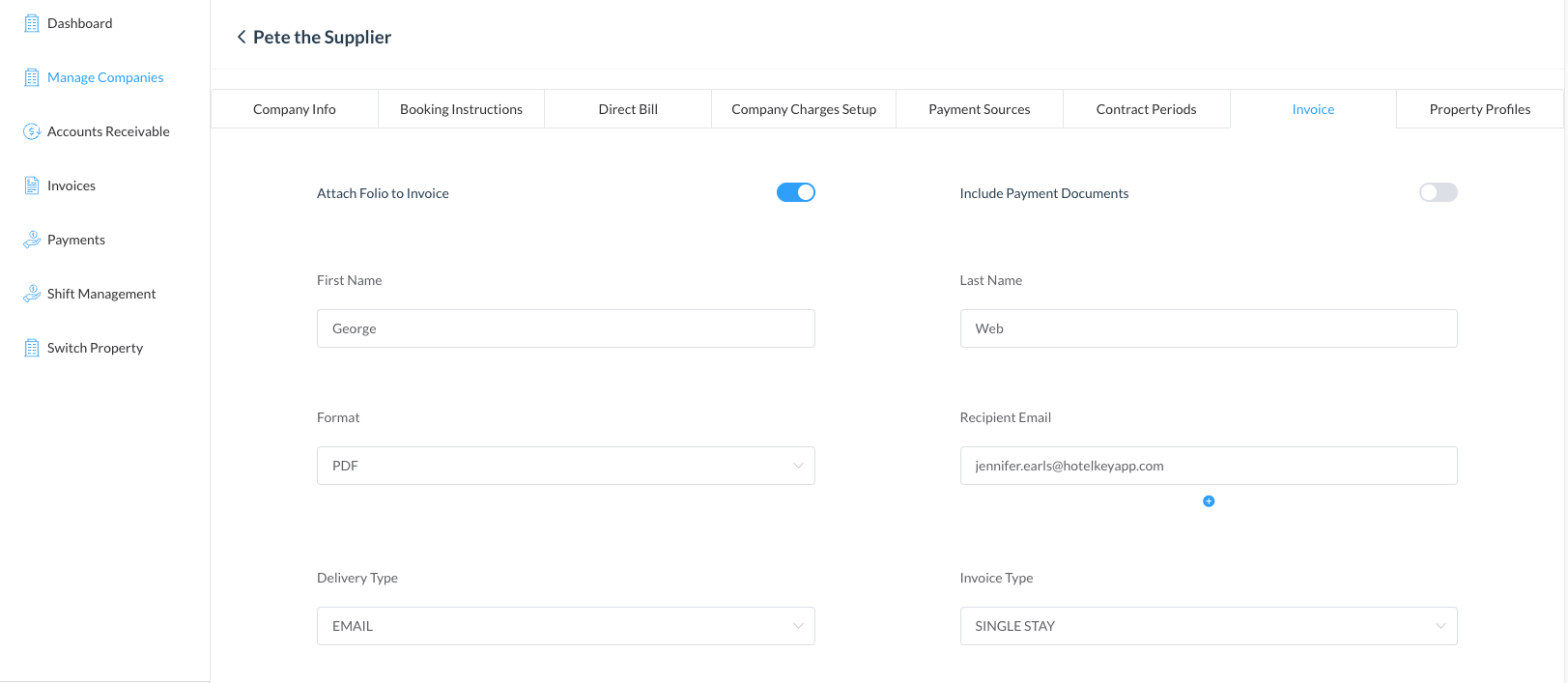
Select the Invoice tab |
|
|
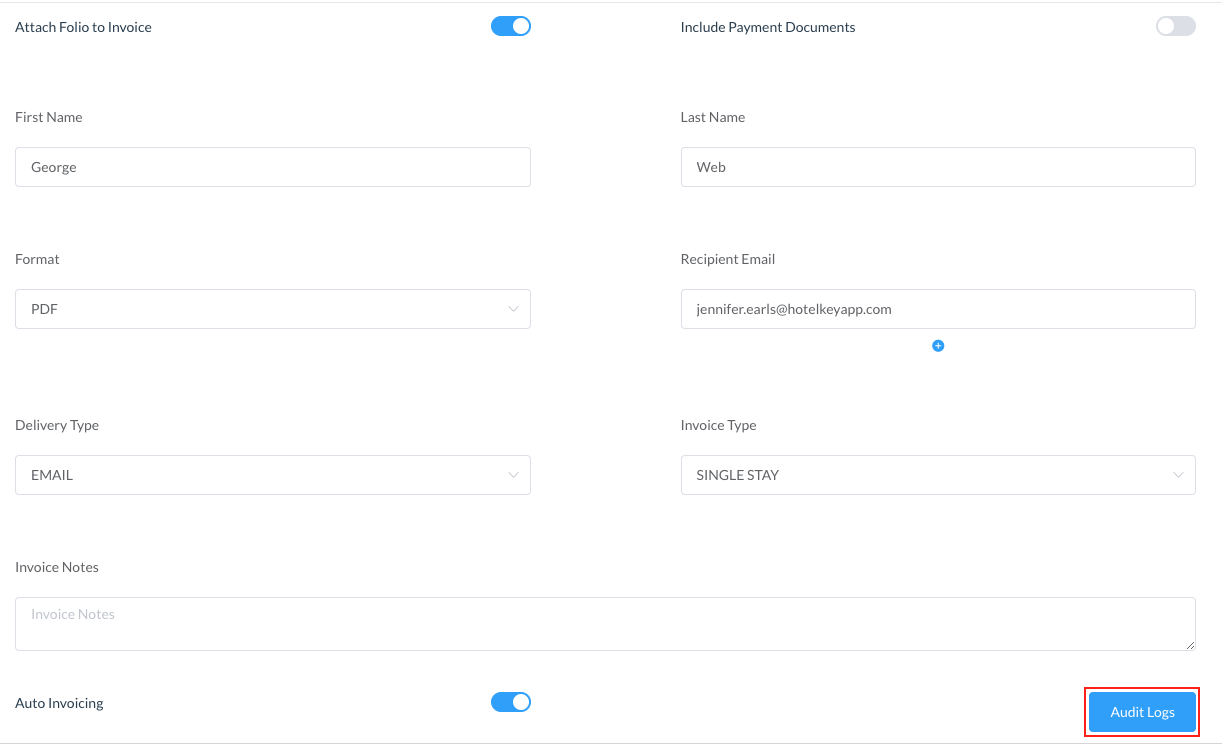
On this page you can confirm the recipient email, the method of delivery is email and also view the Audit Logs
Click on Audit Logs |
|
|
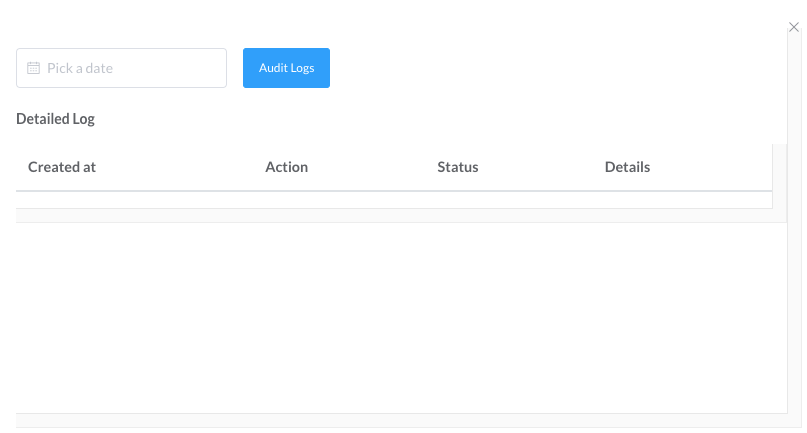
Audit Log screen loads Choose the date the invoice was emailed and click on Audit Logs A detailed log will show |
|