
📆 Revision Date:
The following article covers the Configuration of Advance Deposit Payments, Scheduling Automatic Advance Deposit Payments and Automatic Creation of Advance Deposit Payment Invoices
Note: The following functionality is permission based.
Advance Deposit Configuration
|
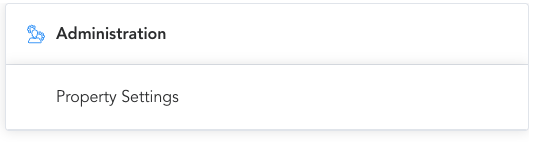
From the HotelKey Home screen, select the property and then Property Settings under Administration. |
|
|
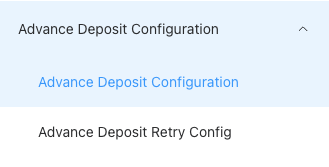
Once in the Property Settings, navigate to Advance Deposit Configuration and click on it to reveal the menu item for the same, Advance Deposit Configuration Notice - this feature is permission based |
|
|
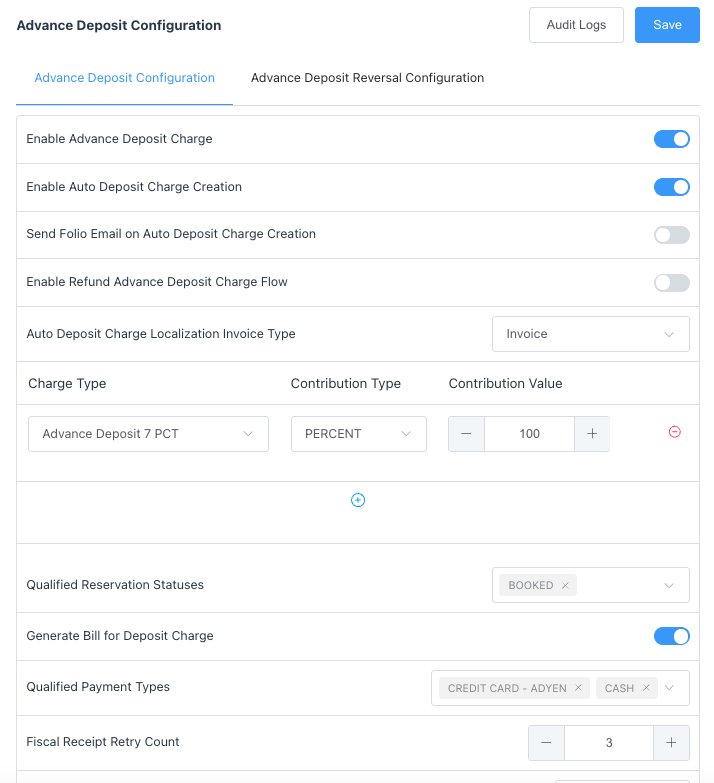
Configuration creation for an Advance Deposit to be taken on a reservation (see image)
Key elements to be configured:
|
|
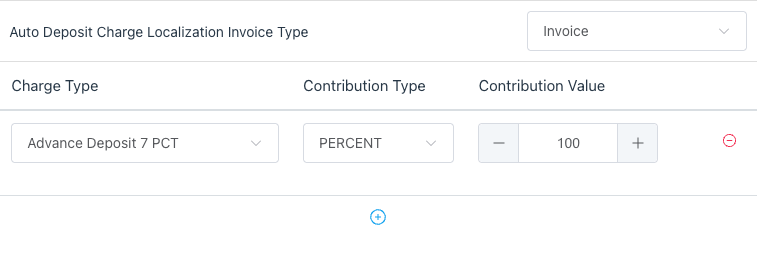
In this example, 100% of the room rate will be taken as the advance deposit on the reservation |
|
|
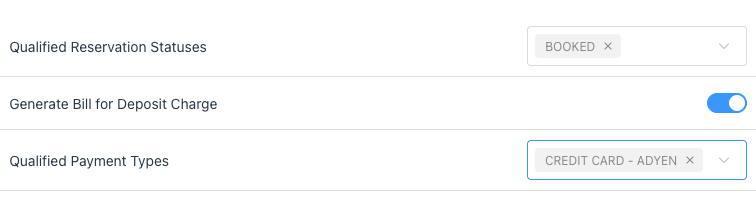
|
Advance Deposit Retry Config
|
The Retry Config allows for scheduling the frequency Advance Deposits will be posted to reservations. From Property Settings, navigate to Advance Deposit Retry Config Notice - this feature is permission based |
|
|
Select New Note - Once an Advance Deposit rule is configured, the option to create additional rules is removed. Only one configuration can be active. |
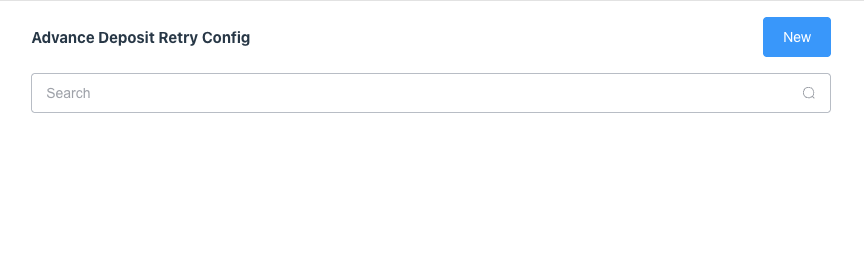
|
|
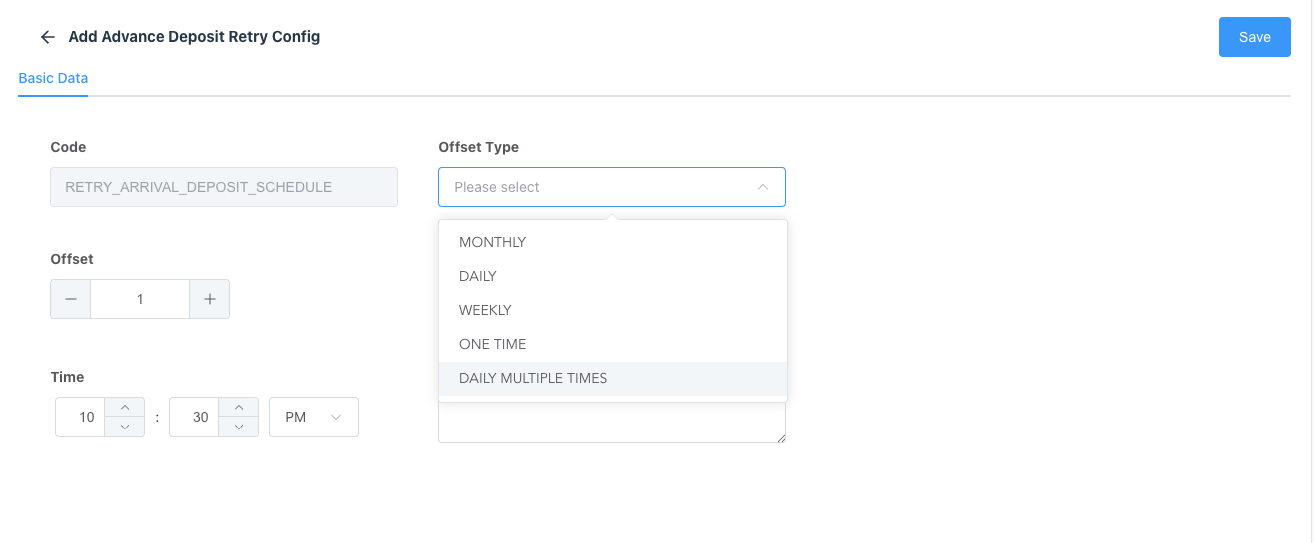
|
Click on Save |
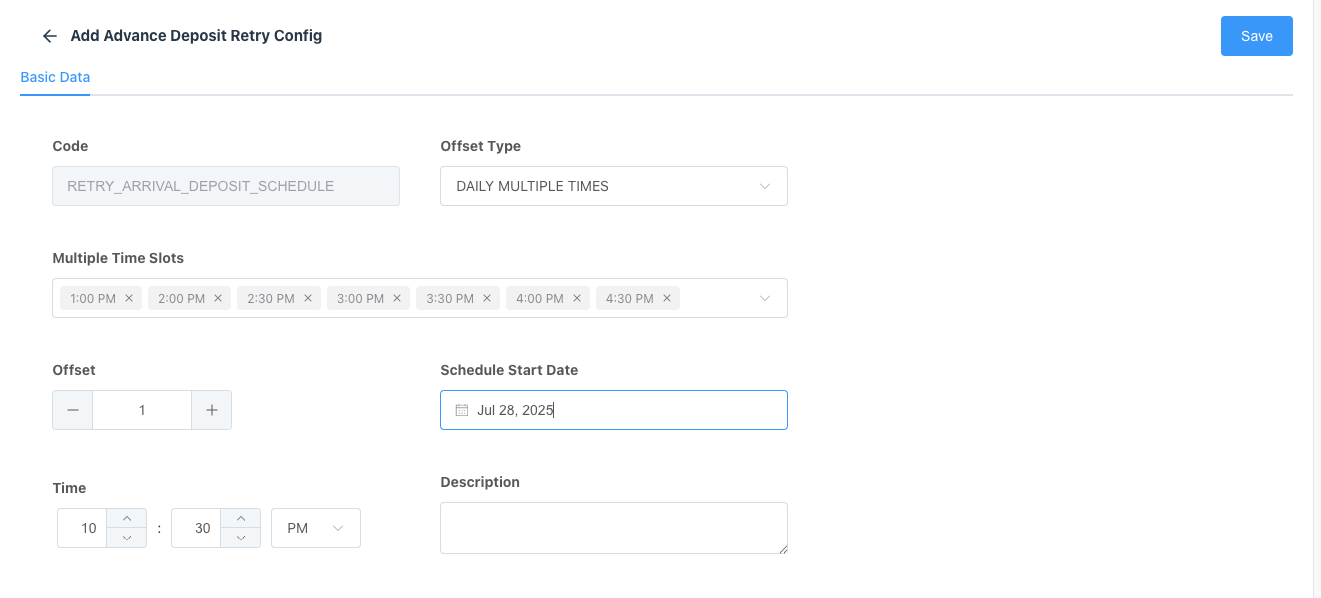
|
|
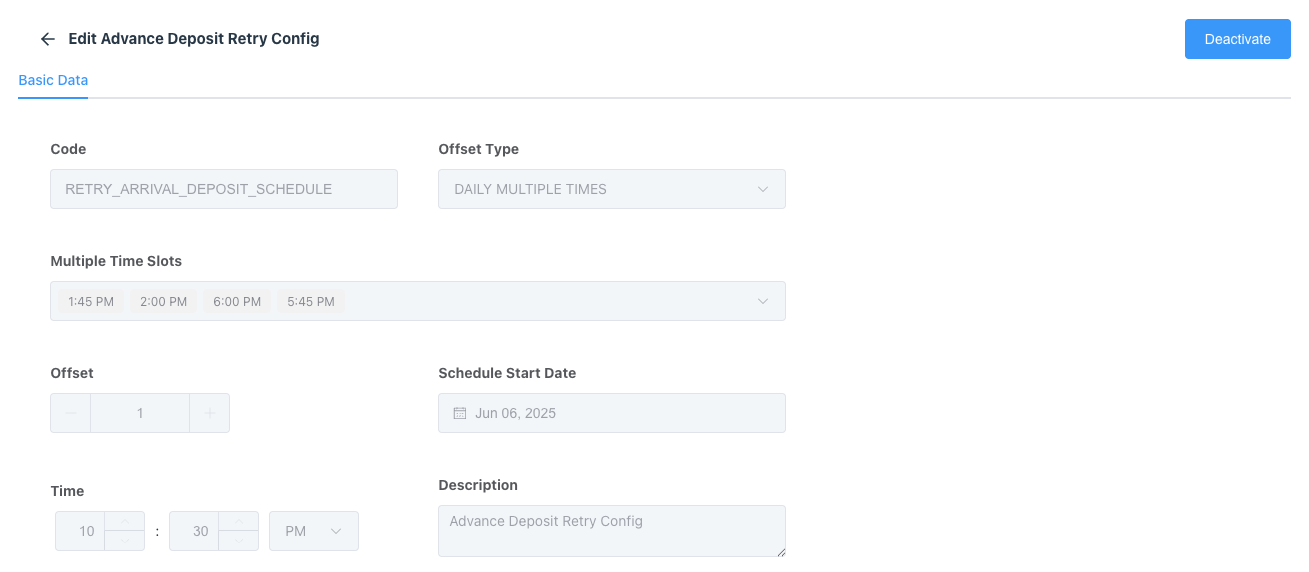
The configuration
When configuration is complete and saved, you will have to Deactivate the config to make any changes |
|
Automatic Creation of Advance Deposit Invoices
|
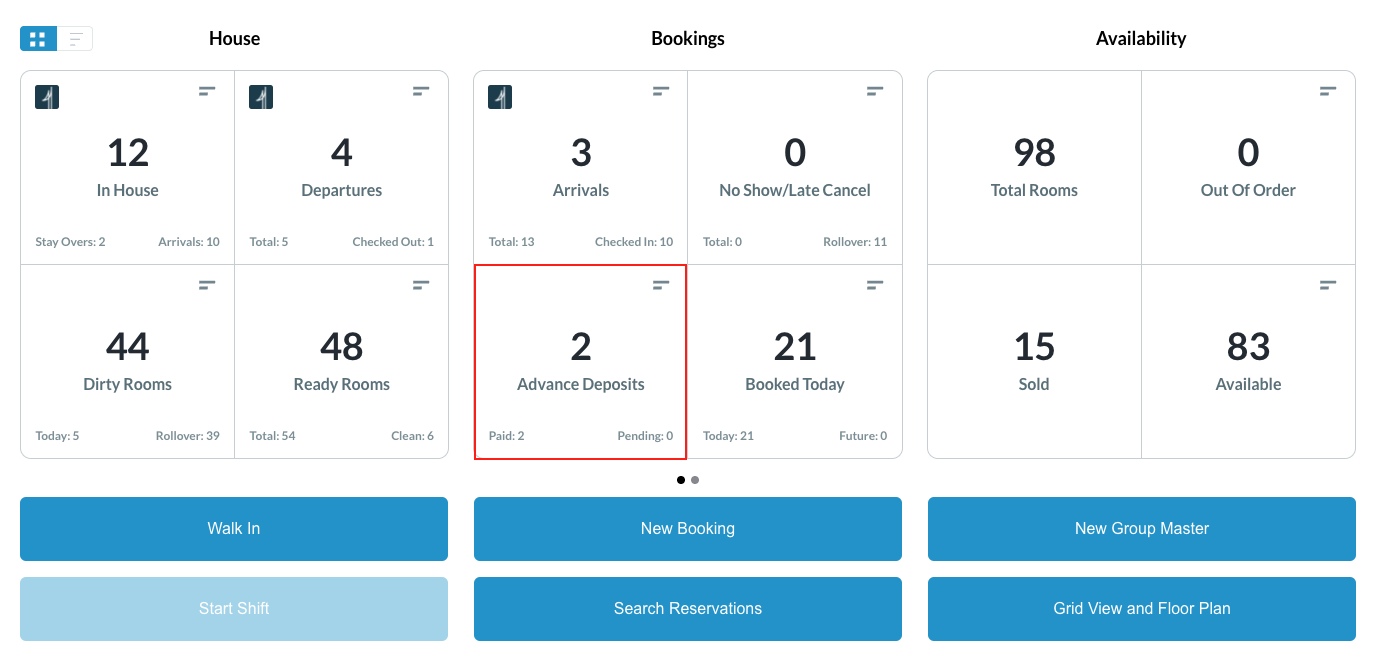
To view Scheduled Advance Deposits
|
|
|
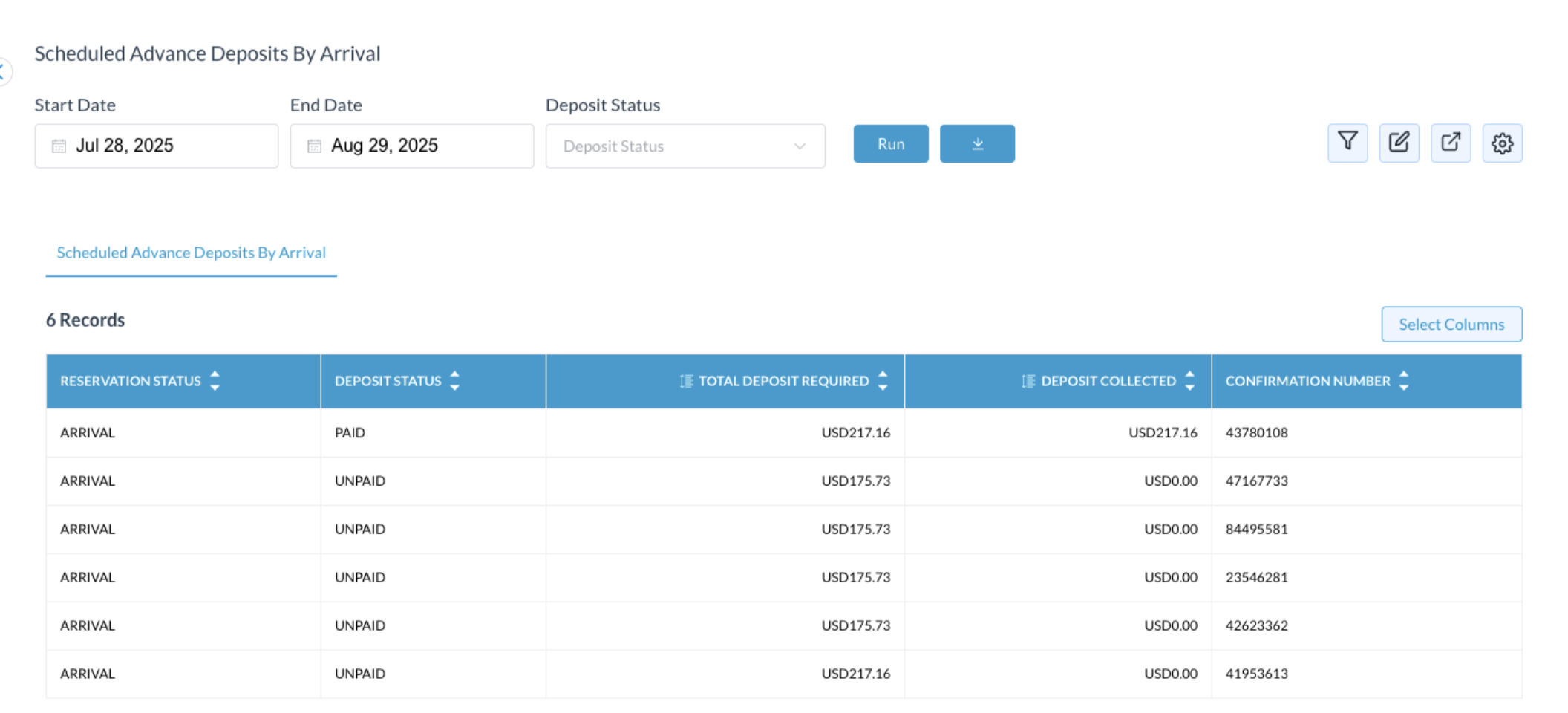
The Advance Deposits by Arrival screen shows the Reservation Status, Deposit Status, Total Deposit Required, Deposit Collected, Confirmation number, etc. Deposit Statuses shown include Paid, Unpaid, Cancelled, Partially Paid, Unused, etc
|
|
|
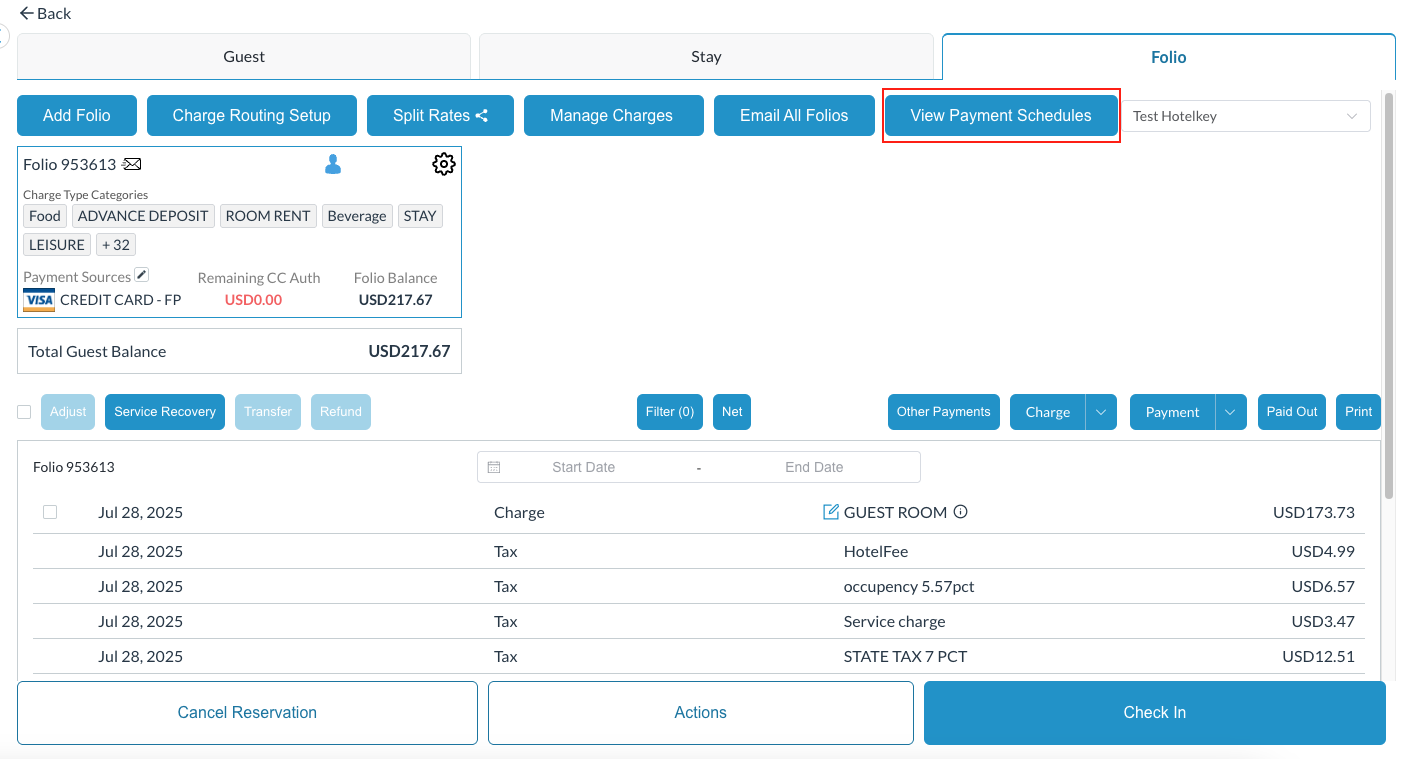
To view payment schedules on a reservation, Click on the reservation
|
|
|
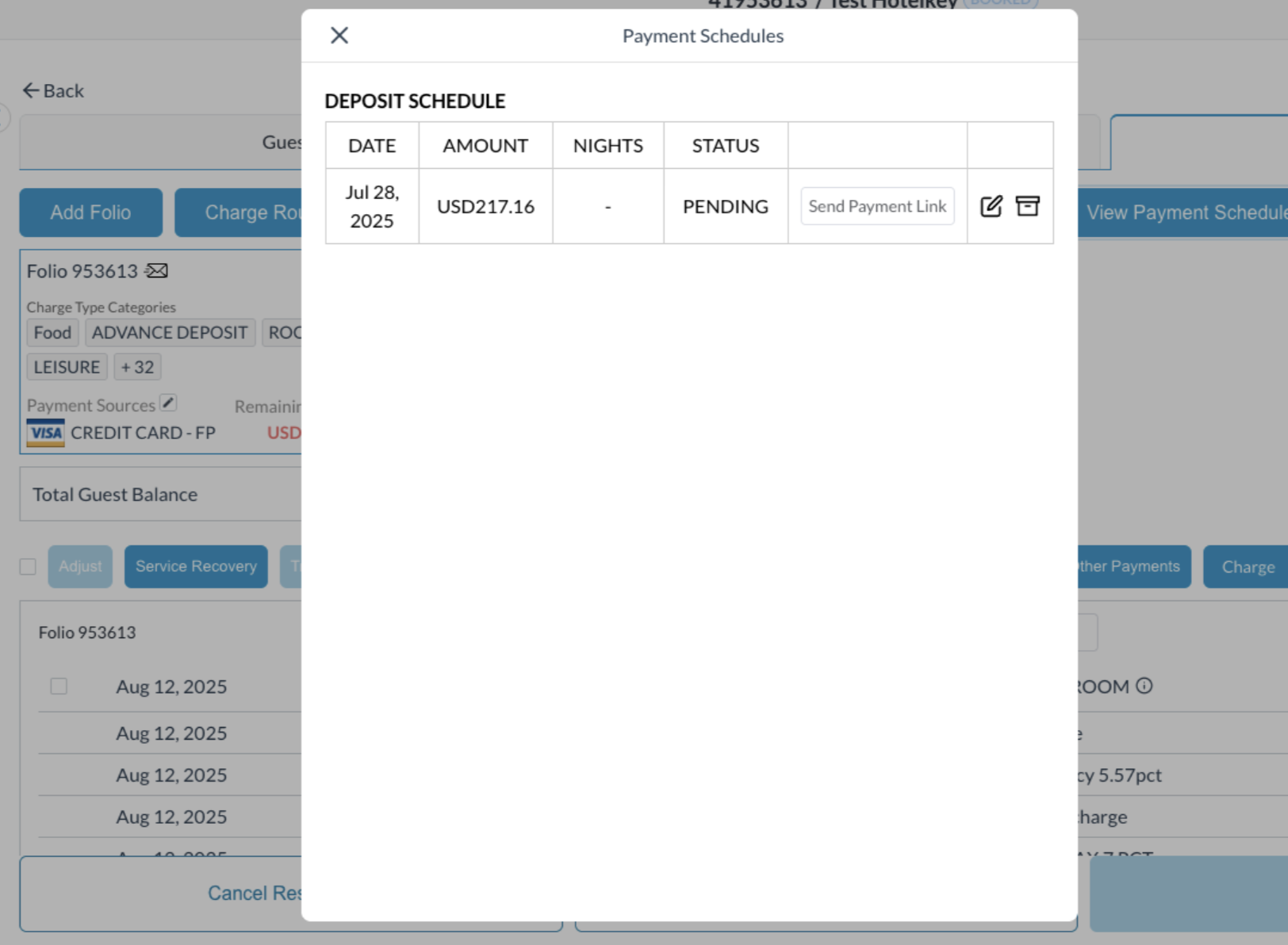
The Deposit Schedule opens, revealing the payment status
Once the configured time for deposits to be charged has occurred, the status of the reservation will change. |
|
|
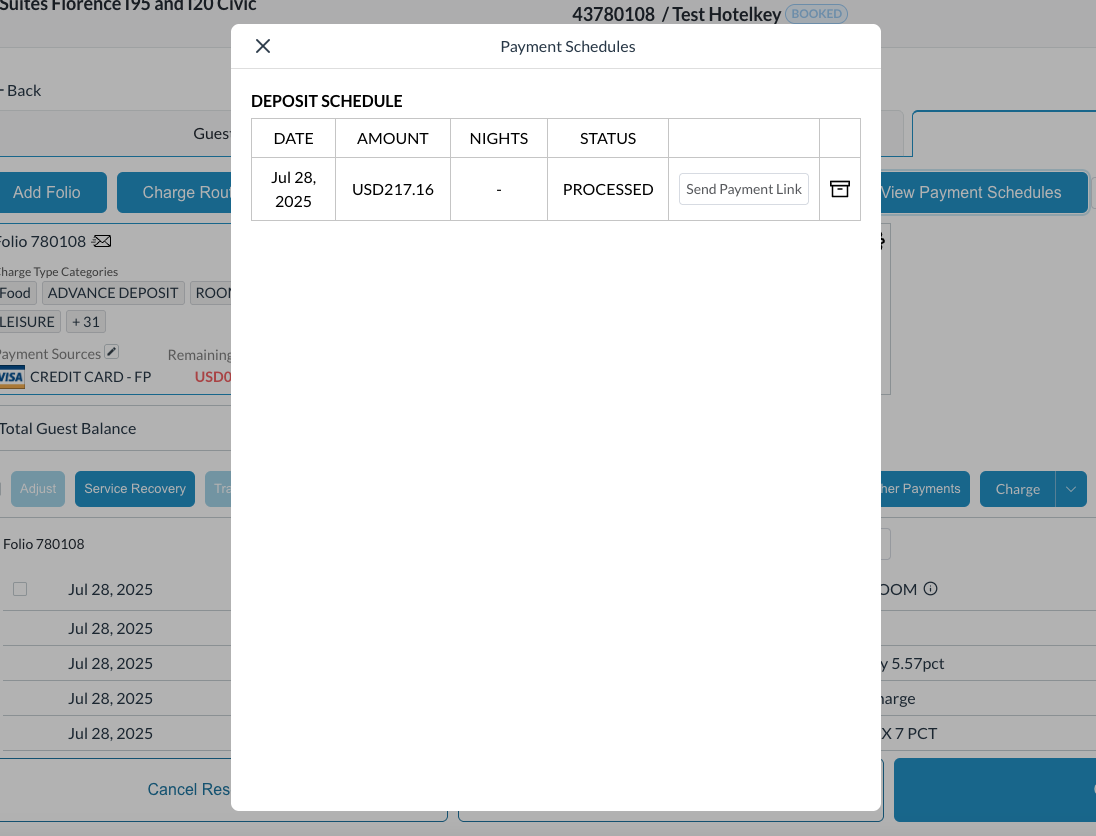
Once the Advance Deposit has been applied, the status in the Deposit Schedule will show as Processed.
The Invoice for the Advance Deposit Payment will be sent automatically to the contact email on the reservation when the payment has been applied, during one of the |
|
|
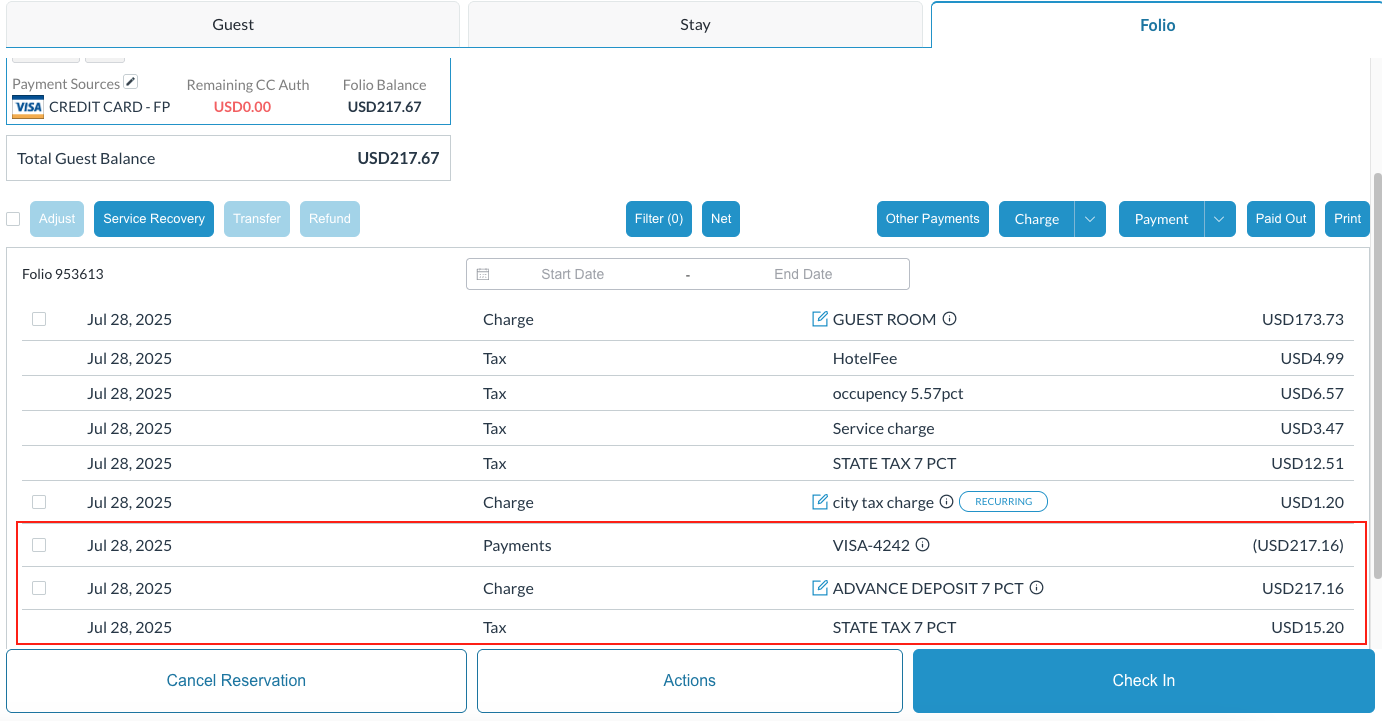
On the Folio of the reservation, you can see the Advance Deposit Payment posted and the offset Advance Deposit Charge |
|