
📆 Revision Date:
Charge Routing Profiles can be created for the property so users can quickly apply predefined charge-routing setups to another folio or to an outside destination, following the existing routing flow (via “Route Charges to Folio” or “Route charges outside” tab). Profiles auto-populate charge categories, allow overrides, and update routing instantly without extra confirmation.
Routing Profiles is a permission based feature. The profiles can be property specific - created and defined at the property level. Not all users will have access to utilize the feature.
When working with Property Settings, please note that access to and the ability to configure the features within it are permission-based. Your access is determined by the user role and the specific permissions that have been granted to your role.
|
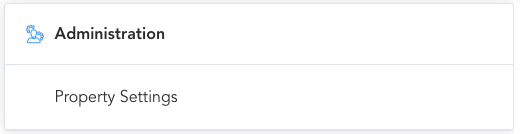
From the HotelKey Home screen, select your property and then Property Settings under Administration. |
|
|
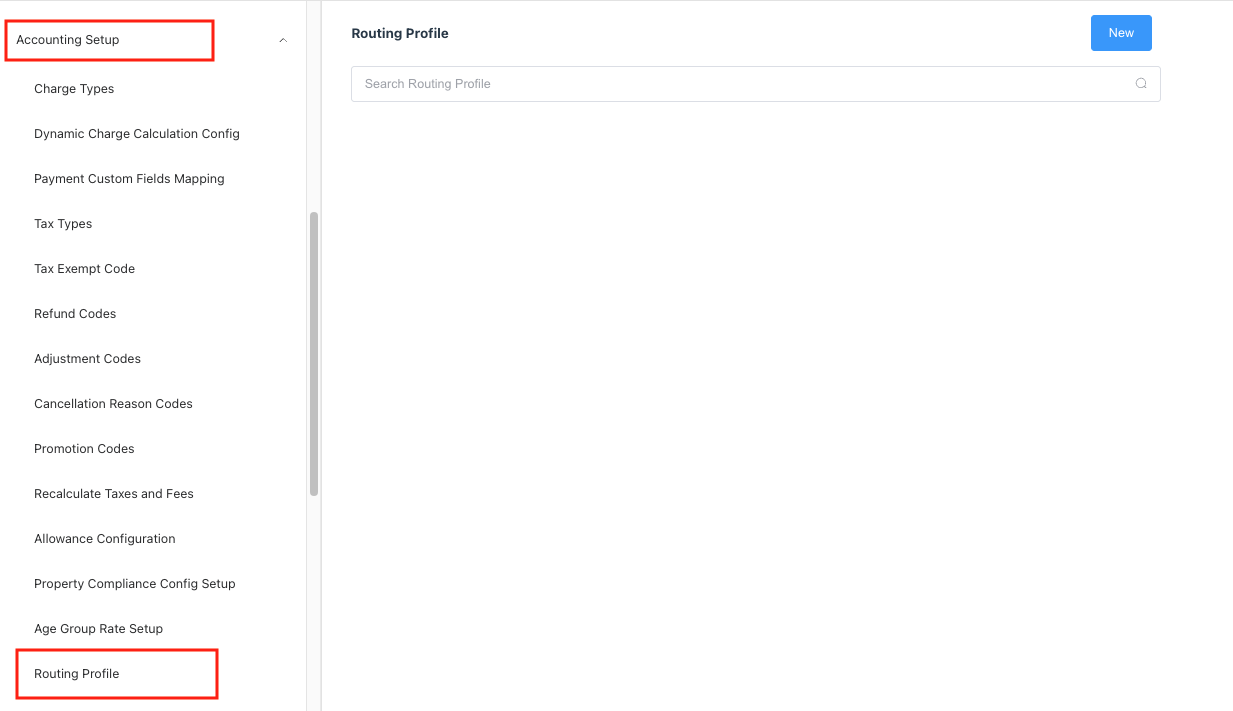
Once in Property Settings, navigate to Accounting Setup and select Routing Profile. Click on New to create a new profile. |
|
|
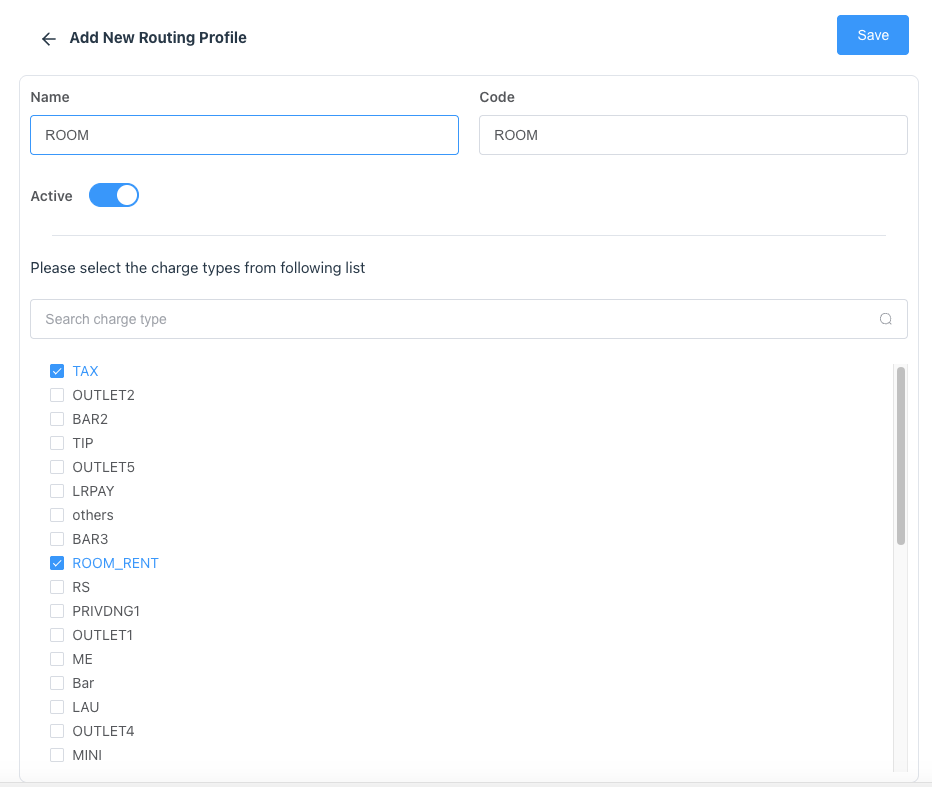
Add New Routing Profile page loads. Enter the following data:
Click on Save to complete the action.
|
|
|
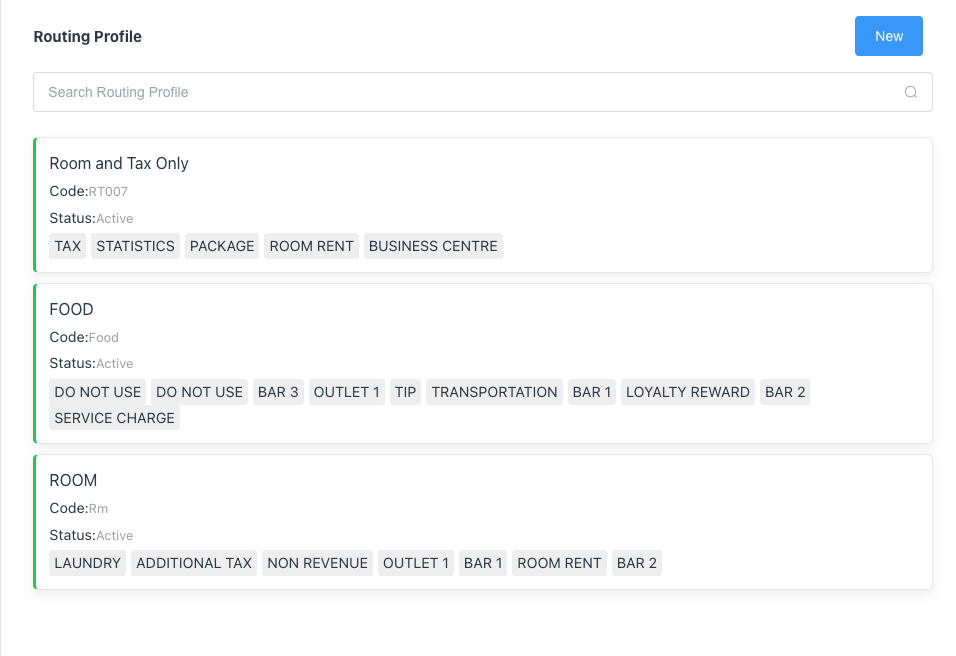
Routing Profile main screen loads. A listing of all Routing Profiles added for the property will be seen. |
|
|
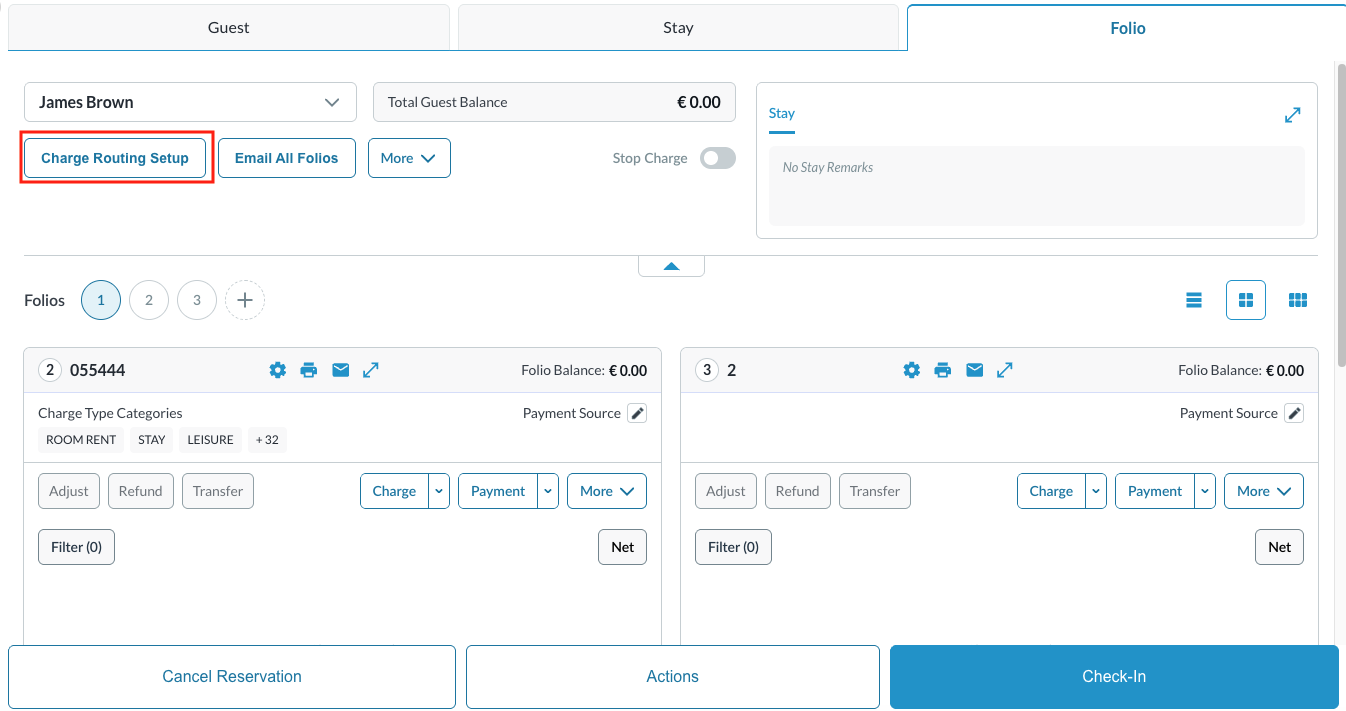
On the reservation, open the Folio and select Charge Routing Setup. The Folio Setup / Charge Routing Setup screen will open, displaying all charge type categories linked to the reservation. |
|
|
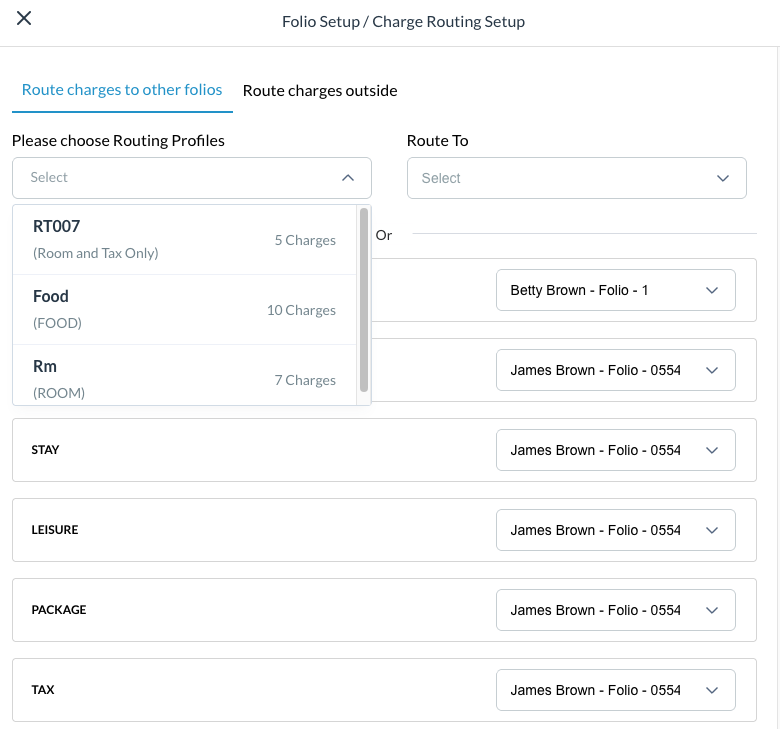
Route charges to other folios: Select the Routing Profile from the dropdown that includes the charge categories that need to be routed to the desired folio. Select the folio to route the charges to from the Route To dropdown.
|
|
|
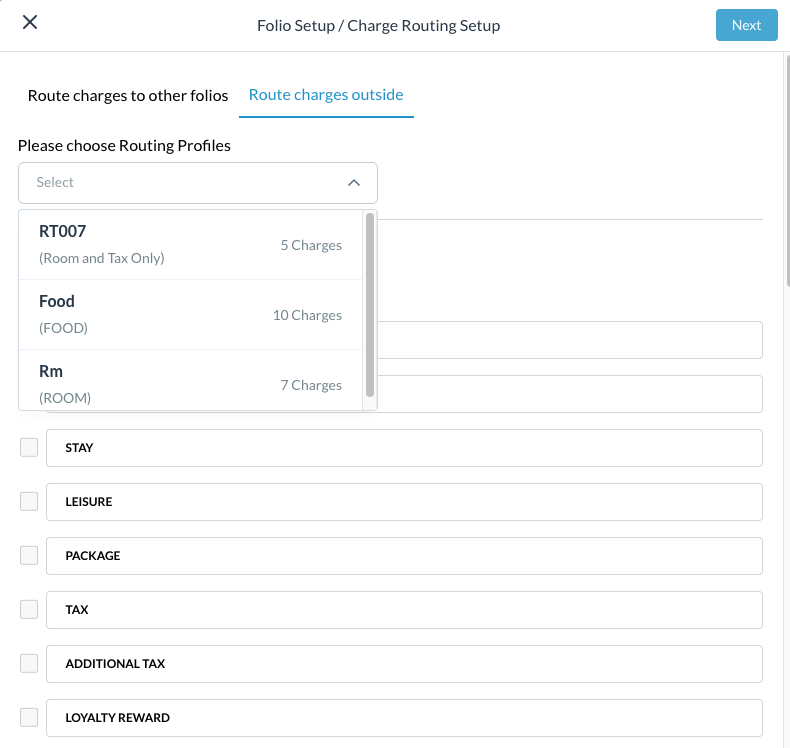
Route charges outside: Select the Routing Profile from the dropdown that includes the charge categories that need to be routed to the desired folio. Click Next to select the reservation, house account or group master to route the charges. |
|