
Revision Date:
Rate Setup within Property Settings manages how rate plans behave in HotelKey. Configuring rules, taxes, and fees in this module guarantees they are seamlessly and automatically applied to a guest's folio during a reservation.
|
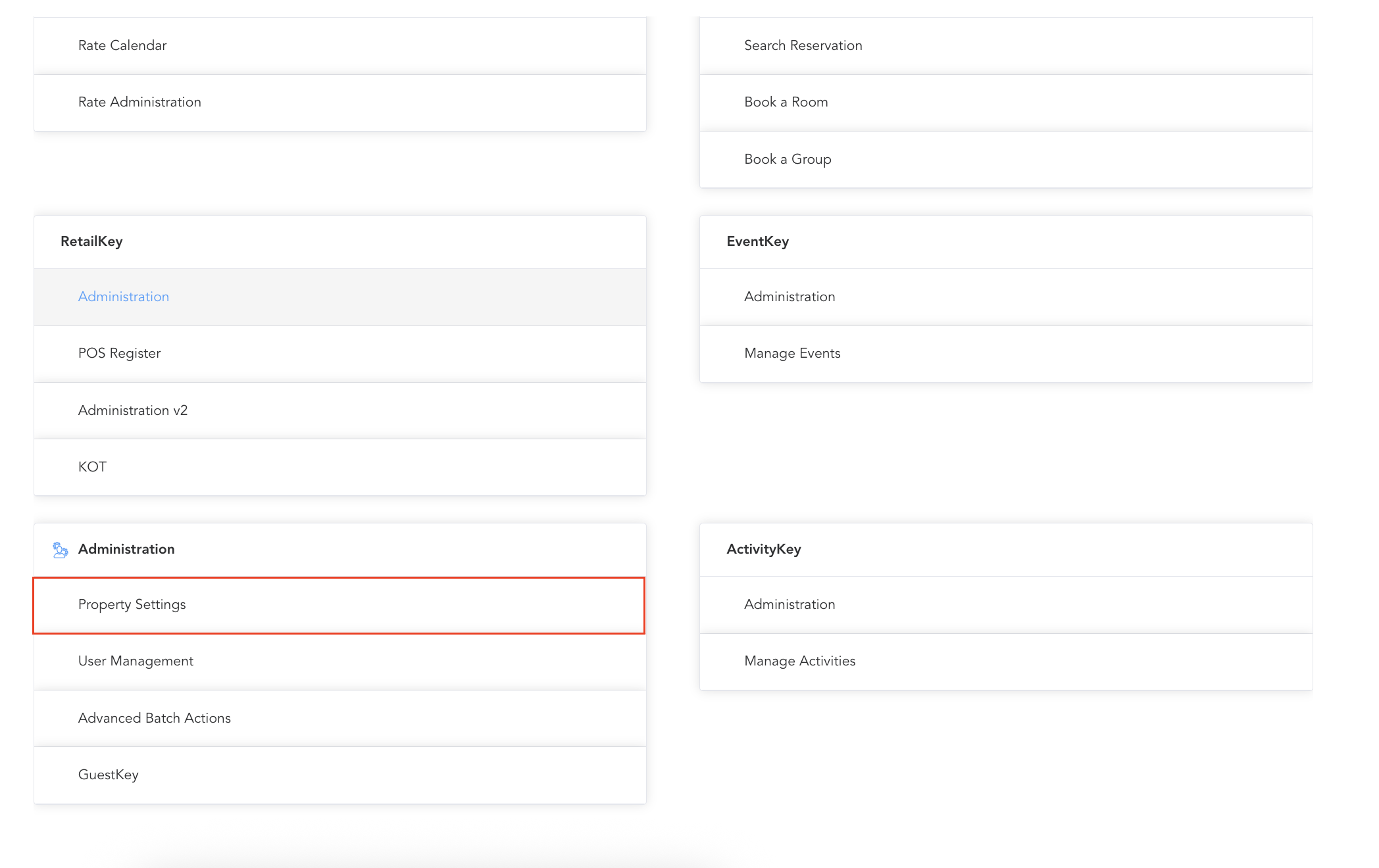
Multi Property Users: Navigate to HK Home > Select the property > Click 'Property Settings' under the Administration section
|
|
|
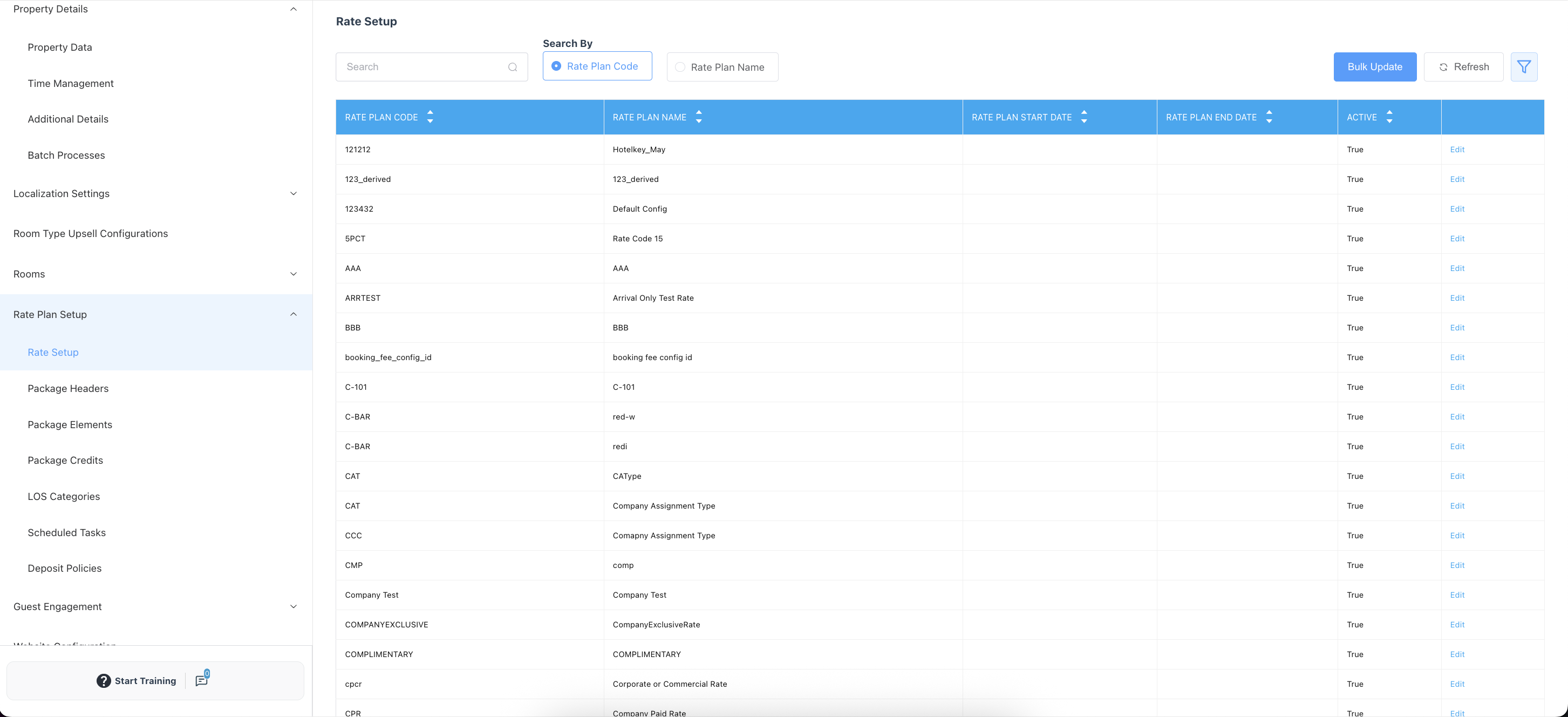
From the menu on the left side, click ‘Rate Plan Setup' and then click 'Rate Setup’.
To search for a specific rate plan enter the rate plan code in the search box. You can also click the 'Rate Plan Name” radio button and then enter the rate plan name in the search box. Click on the rate plan name to select. You have now selected the rate plan to view configuration. |
|
|
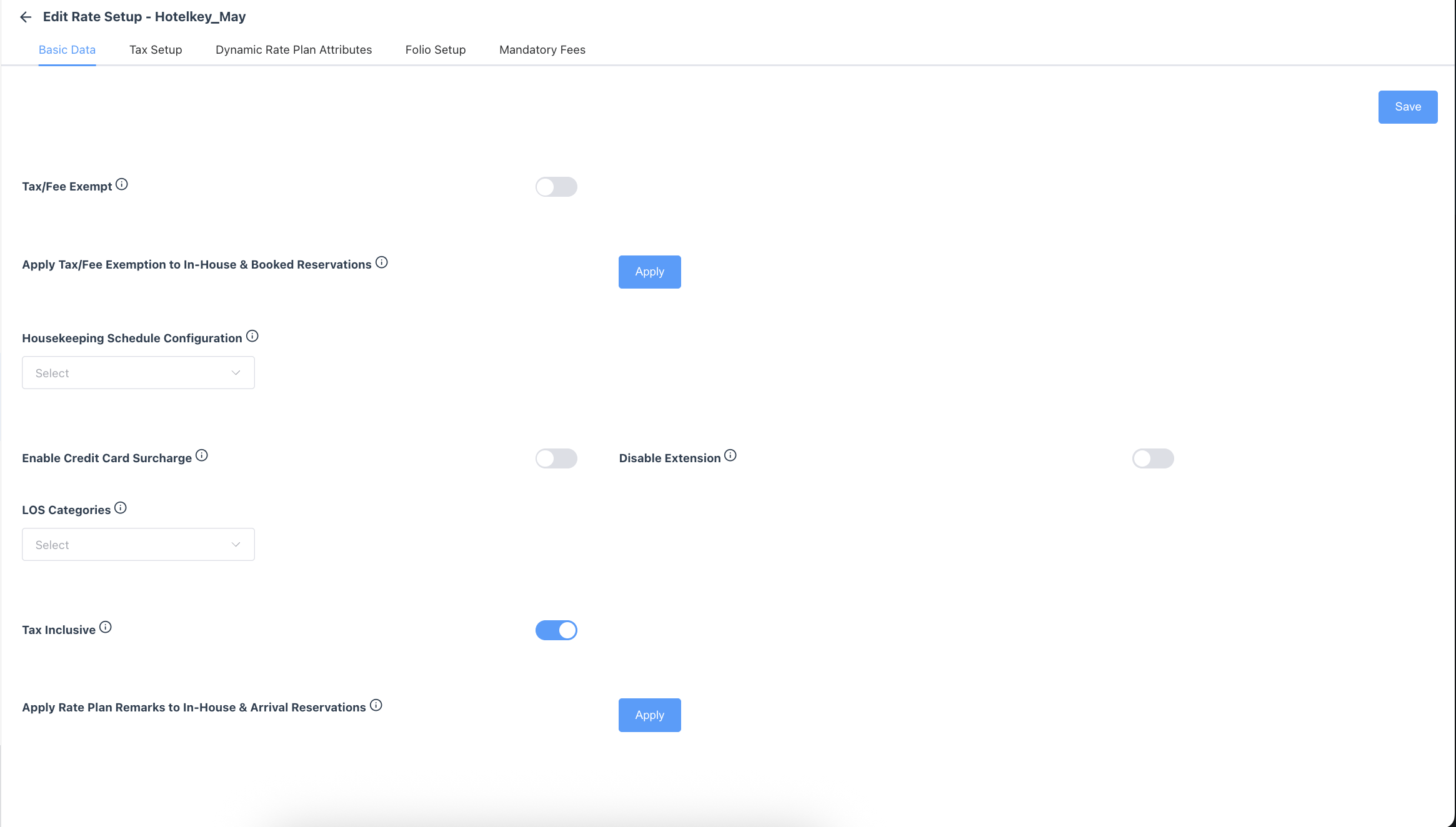
Basic Data screen:
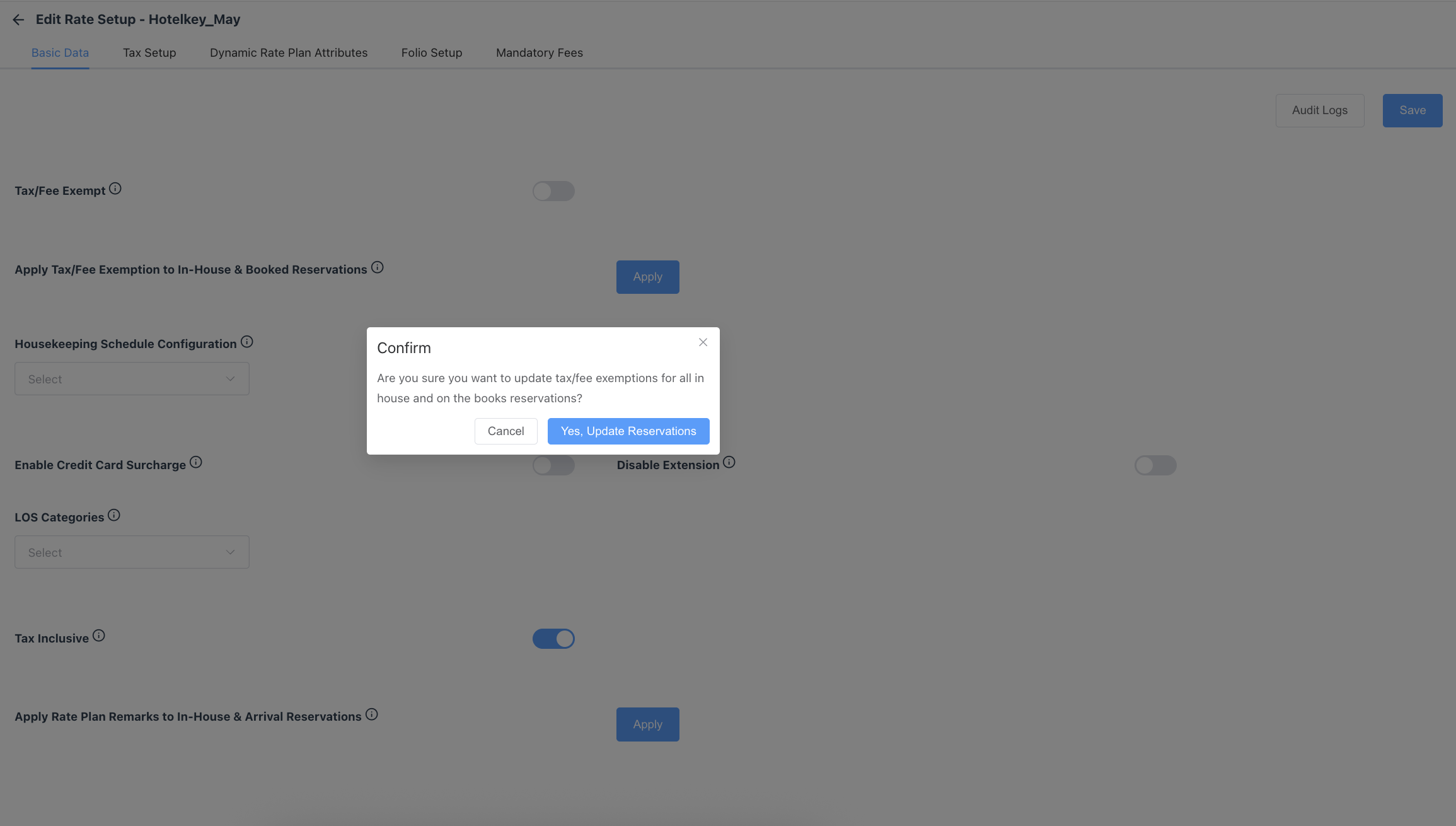
Apply Tax/Fee Exemption to In-House & Booked Reservation: click the blue ‘Apply’ button if the new tax exemption configuration should be applied to all existing in-house and booked reservations using this rate plan. When clicked, a new confirmation screen will apply to confirm the change. Click ‘Yes, Update Reservations’ to apply the change to all in-house and booked reservations. Housekeeping Schedule Configuration: use the dropdown to select the Housekeeping Schedule that would be applied to every reservation in HotelKey using this rate plan. In most cases, the options will be (note: within these schedules are defined service types like ‘stay over service,' ‘no service,’ or ‘check-out service’):
Enable Credit Card Surcharge: practice where merchants (your hotel) add an additional fee to credit card transactions to cover the costs of processing fees. When this toggle is ‘ON’ the free will be posted to the folio to every reservation in HotelKey using this rate plan. Disable Extension : Reservations created with this rate plan will not be allowed for extension LOS Categories : Defines the length of stay category for the rate plan Tax Inclusive : Set up the room rent charge to be tax-inclusive
|
|
|
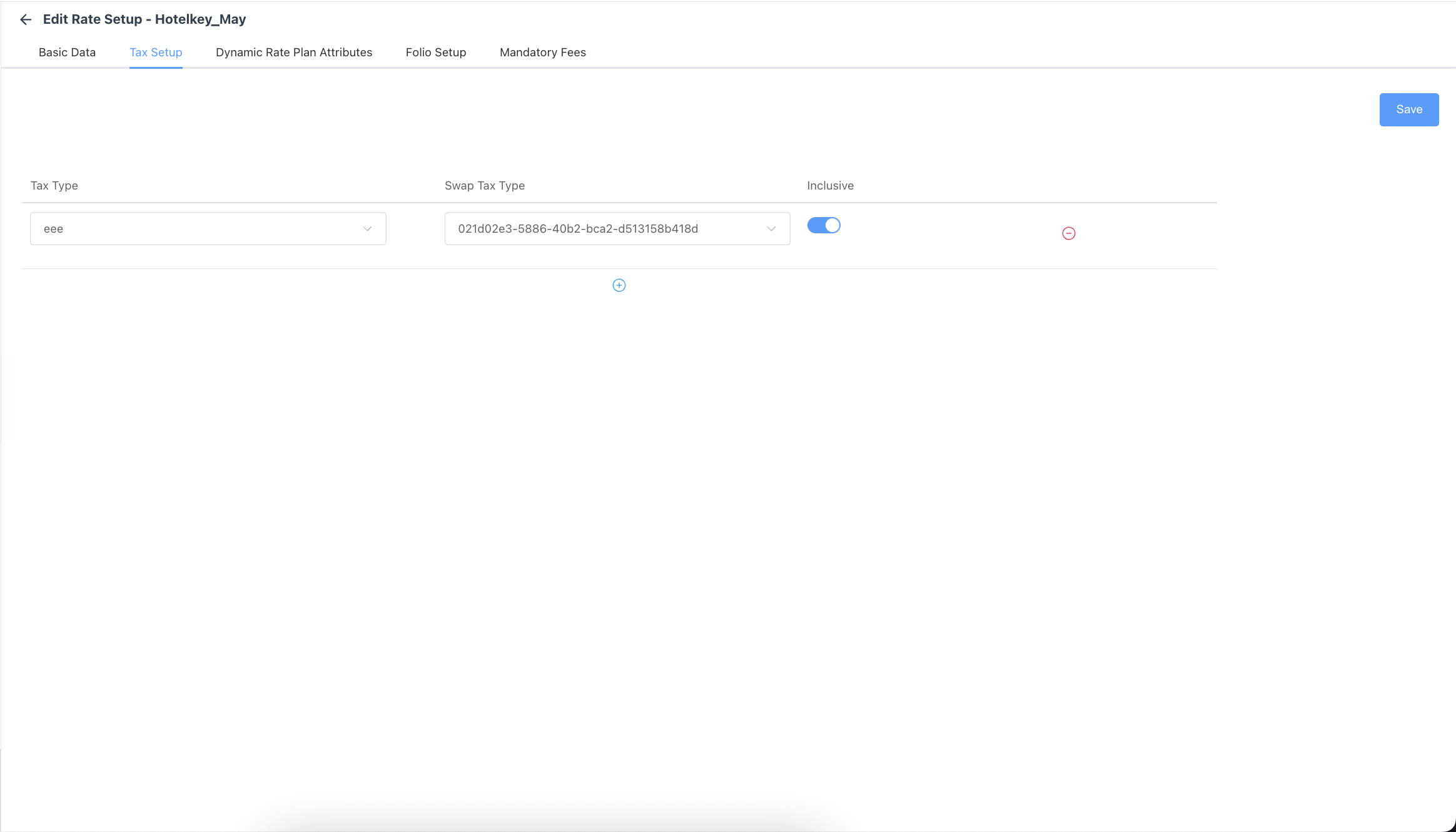
Tax Setup Screen: Links tax types to a rate code so that when a reservation uses that rate plan, the correct taxes are automatically applied and calculated. |
|
|
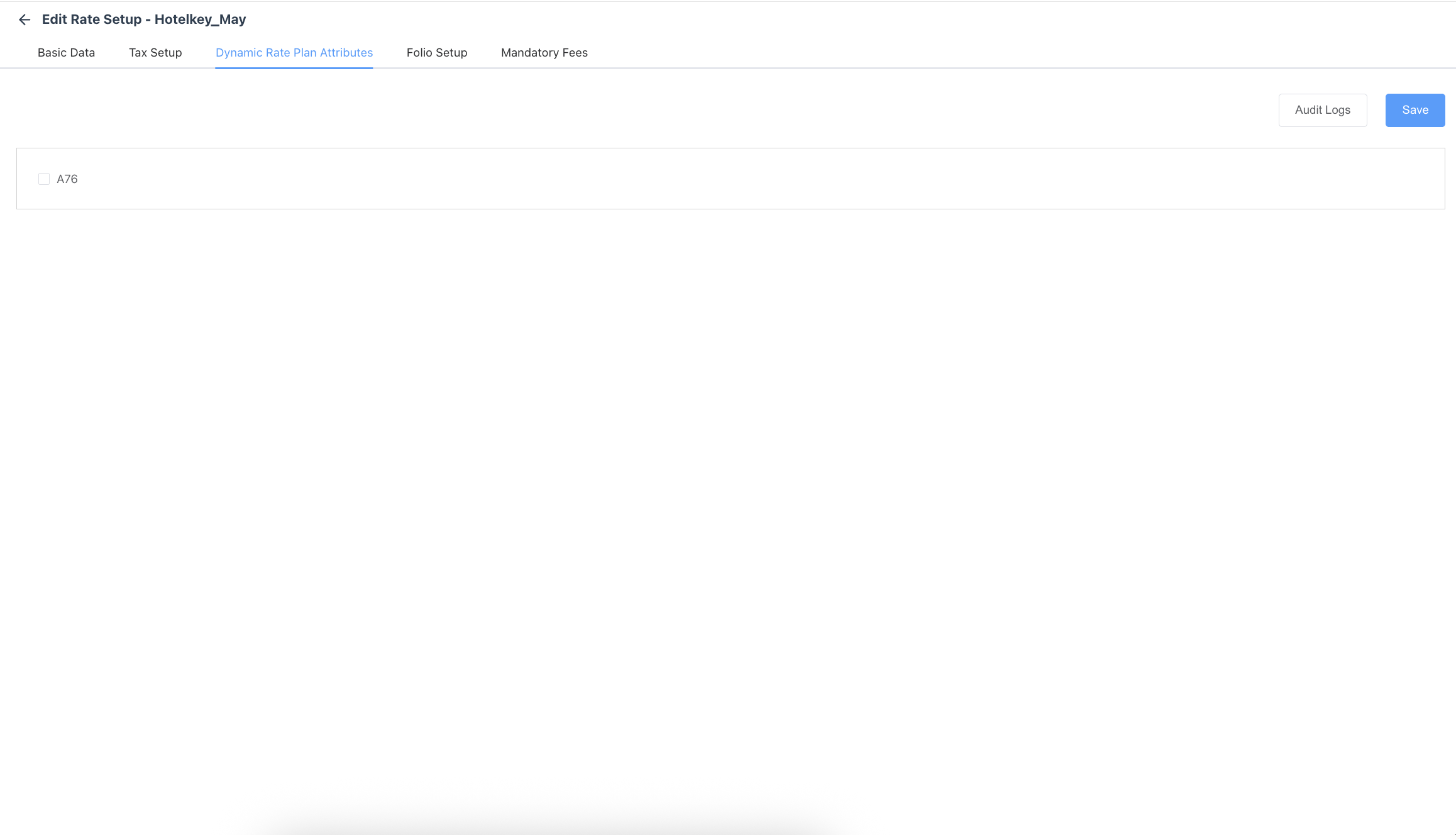
Dynamic Rate Plan Attributes screen: It manages preference-based attributes that can be dynamically associated with a rate code — essentially linking configurable preference records to a rate plan. |
|
|
Folio Setup screen:
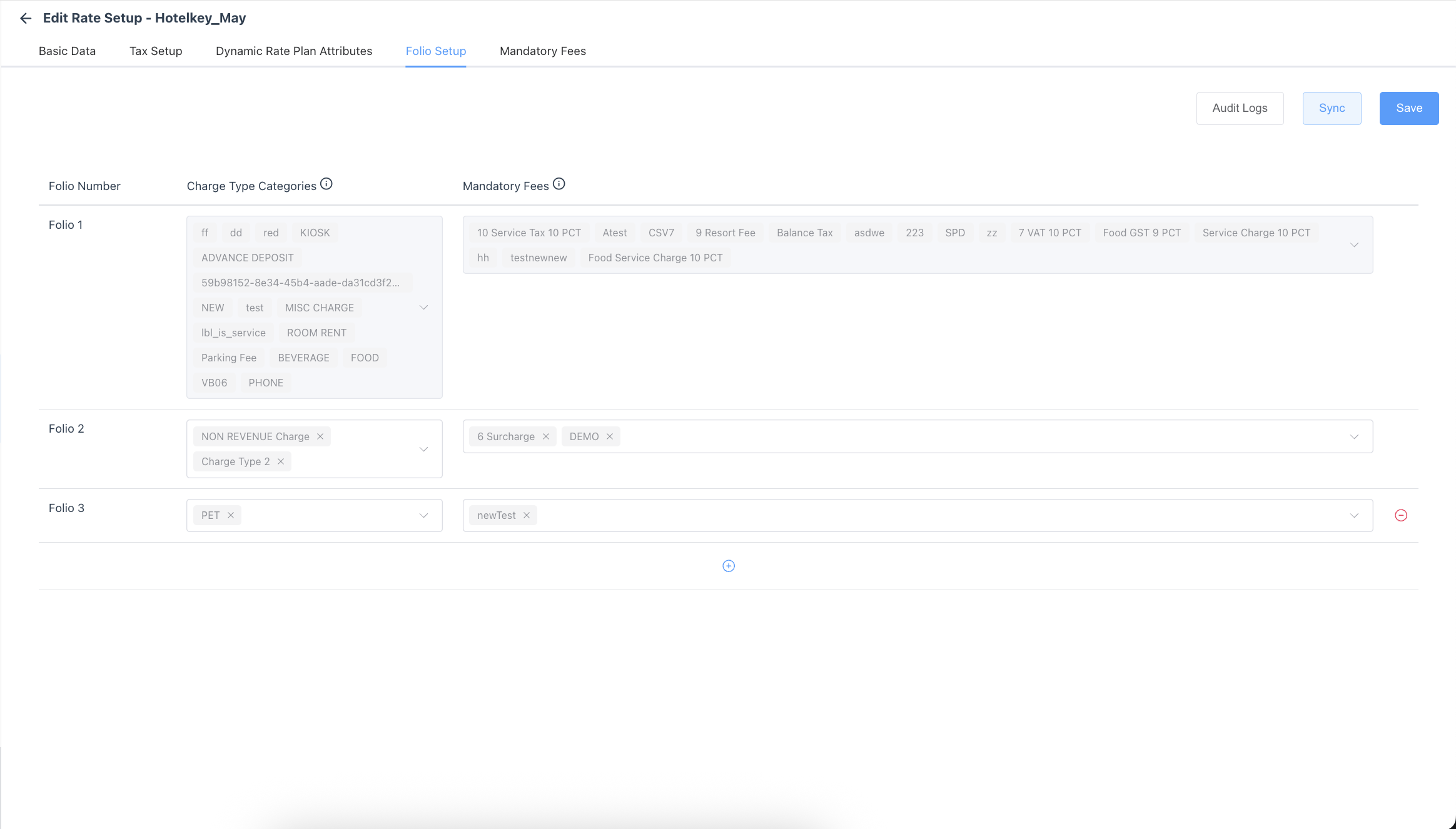
The default configuration will be Folio 1. To add another folio click the blue ‘+' button. A Folio 2 row will appear. Click the blue '+’ button again and a Folio 3 row will appear, etc. For each folio, use the dropdown to select the ‘Charge Type Categories’ that should be applied to that folio automatically to every reservation in HotelKey using this rate plan. For each folio, use the dropdown to select the ‘Mandatory Fee’ that should be applied to that folio automatically to every reservation in HotelKey using this rate plan.
|
|
|
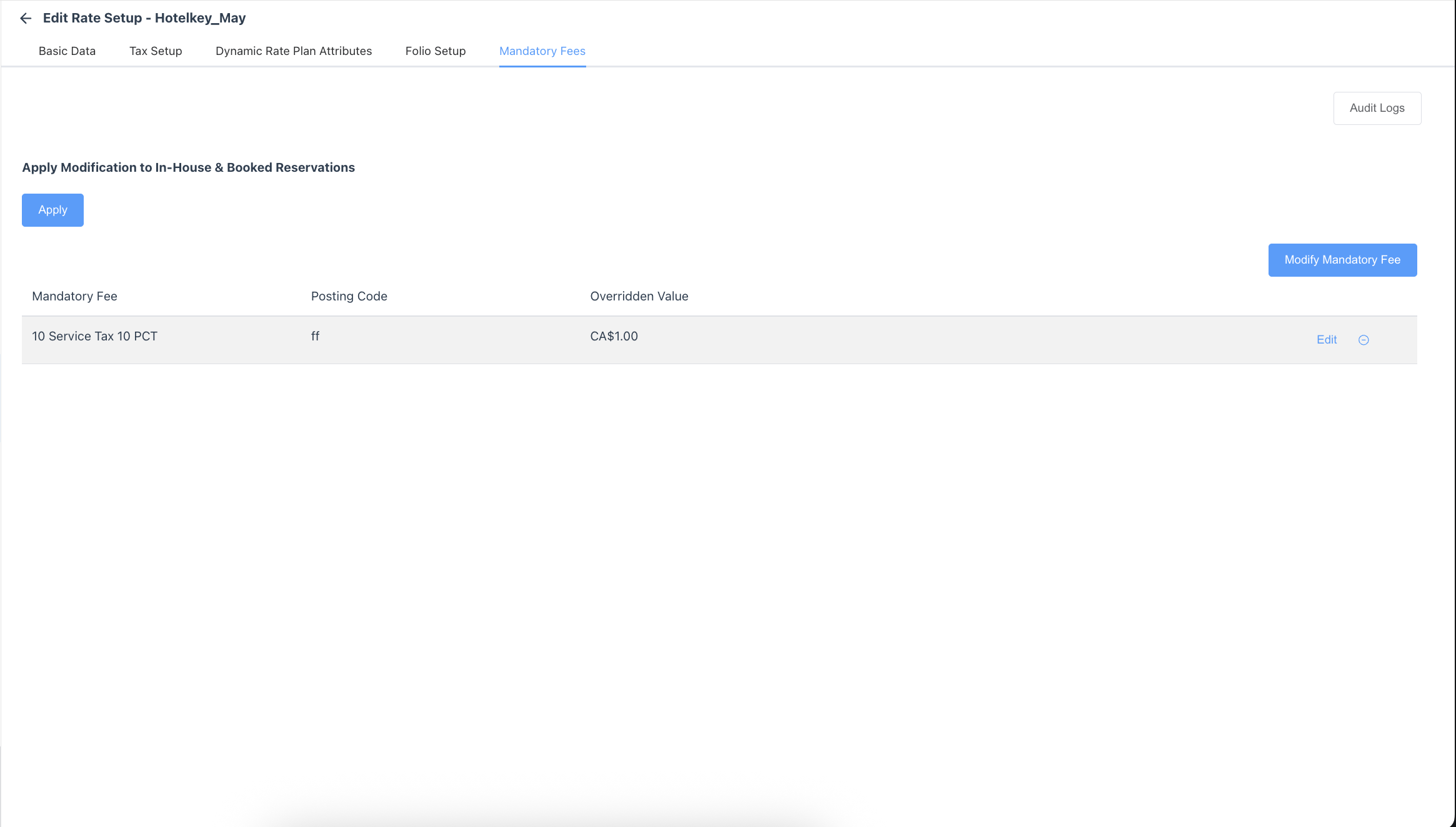
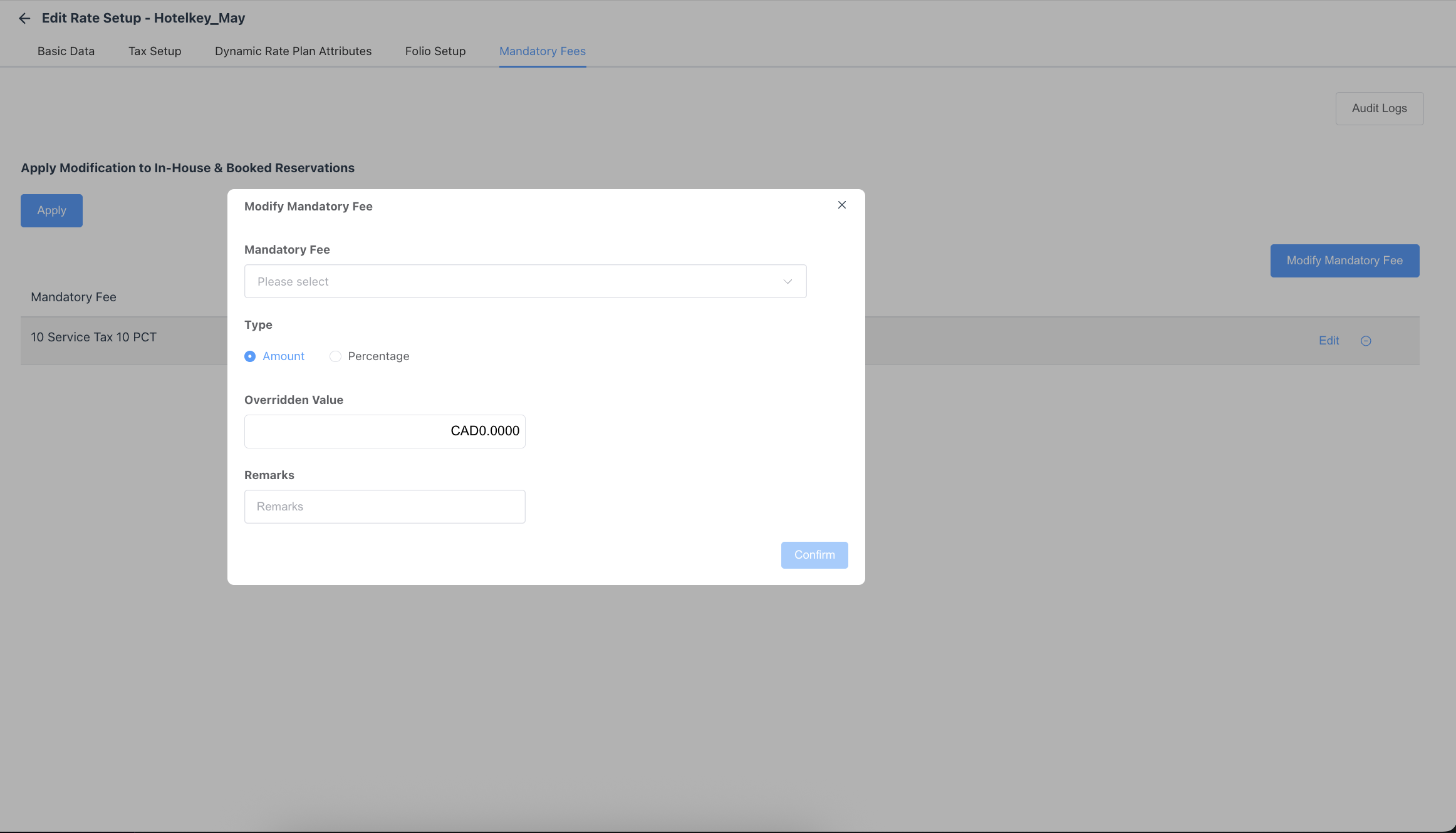
Mandatory Fees screen: Allows admins to configure which mandatory fee types are linked to a specific rate code. When a reservation uses that rate plan, these fees are automatically applied and posted to the guest folio.
|
|