Skip table of contents

Creating Templates for Reminders .ng

๐Ÿ“† Revision Date:

The following article will cover how to create templates for Reminders in Property Settings.

When working with Property Settings, please note that access to and the ability to configure the features within it are permission-based. Your access is determined by the user role and the specific permissions that have been granted to your role.

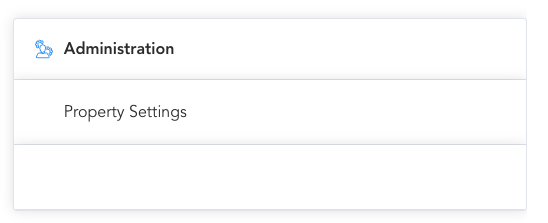
From the HotelKey Home screen, select your property and then Property Settings under Administration.

Screenshot 2025-12-03 at 8.51.52 AM.png

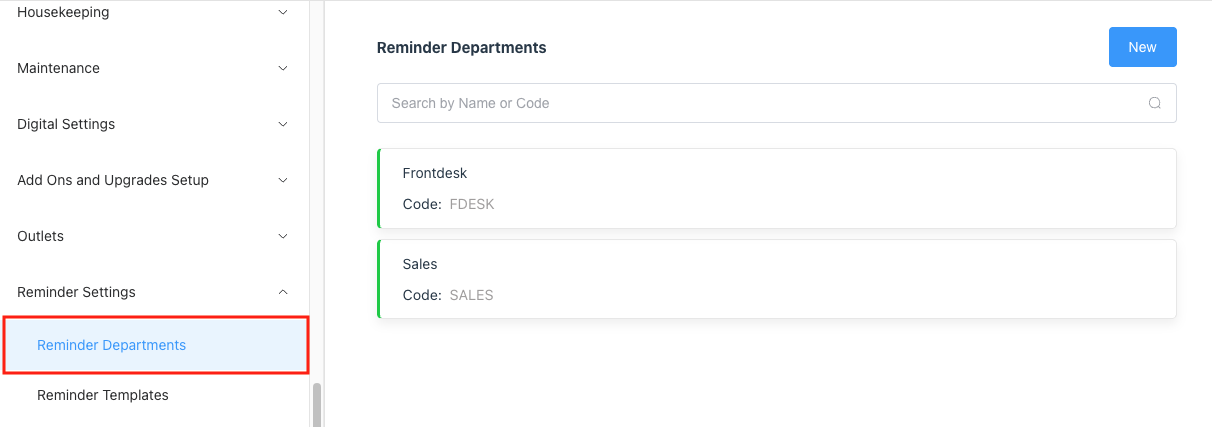
Once in Property Settings, navigate to Reminder Settings and select Reminder Templates. Click on New to create a new template.

Screenshot 2025-12-03 at 9.01.43 AM.png

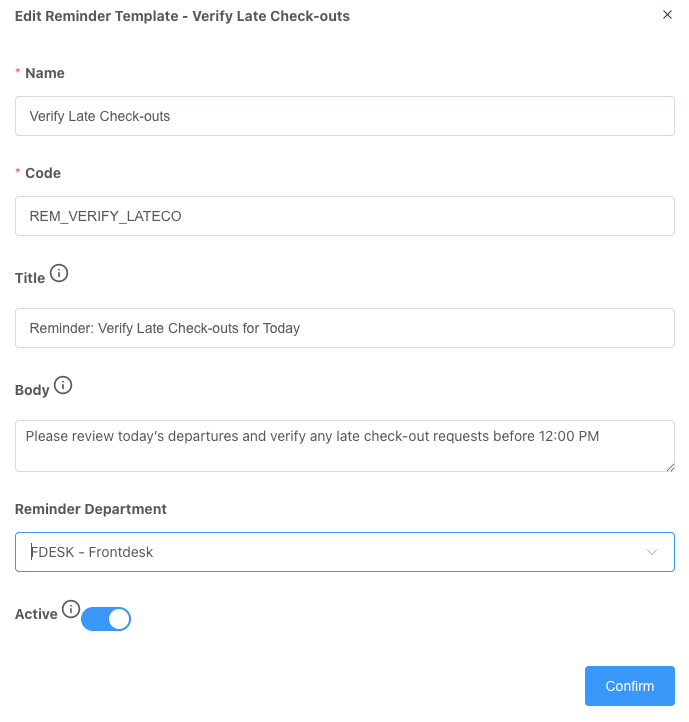
Add Reminder Template screen opens. Enter details for the new template:

  • Name: Name for the template
    ex: Verify Late Check-outs

  • Code: Unique code given to the template
    ex: REM_VERIFY_LATECO

  • Title: Template title that will be seen from the reminder menu dropdown on a reservation.
    ex: Reminder: Verify Late Check-outs for Today

  • Body: Text provided as description of the reminder or action that needs to be taken
    ex: โ€œPlease review todayโ€™s departures and verify any late check-out requests before 12:00 PMโ€

  • Active: Toggle ON

Click Confirm when completed.

Screenshot 2025-12-03 at 9.30.31 AM.png

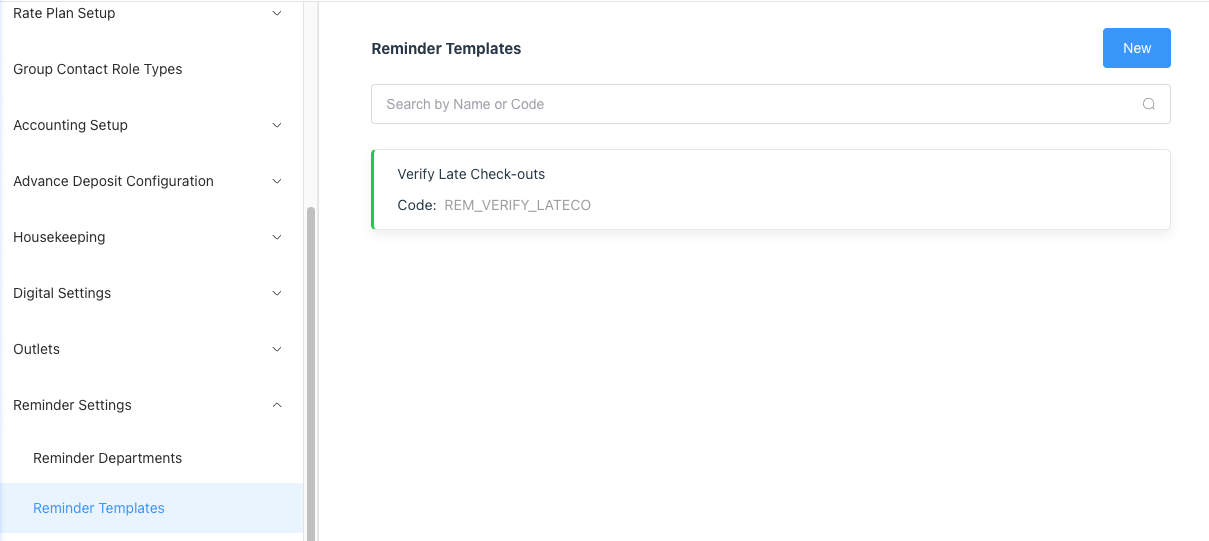
Screenshot 2025-12-03 at 9.33.30 AM.png

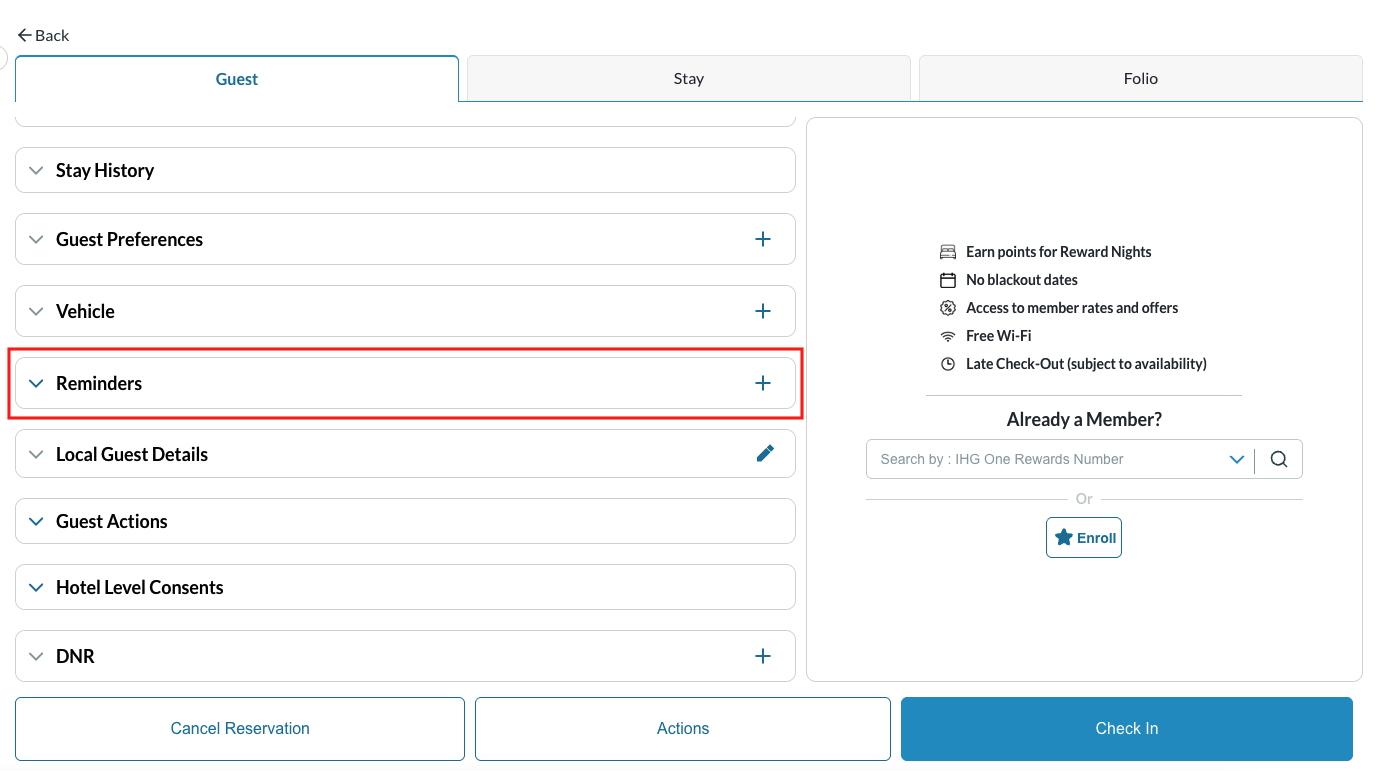
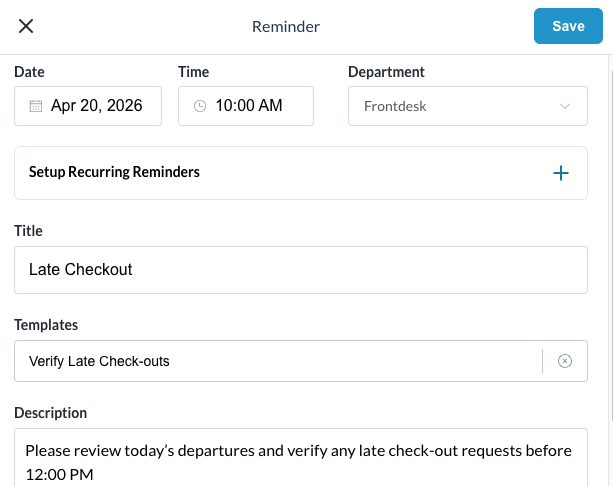
Now Reminder Templates will reflect on the Guest tab of the reservation screen. Clicking the + icon in the Reminders section will open a Reminder screen to enter details.

Screenshot 2025-12-03 at 9.41.10 AM.png

Clicking the dropdown of the Templates field will list active templates to utilize on the reservation. See the article Reminders on a Reservation โ€“ Create, View and Close to learn more.

Important Notes on Reminder Templates:

  • Templates are property specific โ€” the templates you create here are only available for use within the property you are currently working in.

  • Templates can be toggled on and off (Active/Inactive), allowing you to control which templates are available to users at any given time; thus, the action to create templates is permission-based.

Screenshot 2025-12-03 at 9.42.55 AM.png

JavaScript errors detected

Please note, these errors can depend on your browser setup.

If this problem persists, please contact our support.