Creating Department Reminders: Configuration & Best Practices
Parent Hub: Property Settings
Category: 🔔 Reminders & Operational Templates
Target Roles: System Administrators, Property Managers, Operations Leads
Last Updated:
Executive Overview
Department Reminders in HotelKey provide a structured framework for categorizing operational notes and action items across property teams (e.g., Housekeeping, Front Desk, Sales). By creating dedicated Reminder Departments in Property Settings, properties ensure clear task routing, accurate template configuration, and automated pop-ups for critical guest-related alerts.
🔒 Permission Notice: Access to and configuration of Property Settings features are role-based. Available options depend on the specific permissions assigned to your user role.
Configuration Guide: Creating a Reminder Department
System Navigation Path
Home > Select Property > Administration > Property Settings > Reminder Settings > Reminder Departments
|
Step |
Action |
Platform Guidance & Operational Details |
|
Navigate to Reminder Departments within Property Settings. |
Displays existing departments configured for the selected property. |
|
Click + New in the top-right header. |
Opens the Add Reminder Department modal. |
|
Enter Name (e.g., "Housekeeping") and a unique Code (e.g., "HSKP"). |
Names should be clear and descriptive; codes serve as standardized internal identifiers. |
|
Enable Active and optionally Auto Popup Unread Reminder on Guest Tab. |
Toggling Auto Popup automatically alerts staff to unread reminders upon opening a guest profile. |
|
Click Confirm. |
Saves the department, making it immediately available for reminder templates and live reservations. |
📷 Creating Reminder Departments Video Tutorial:
Add new reminder departments in Property Settings.
UI Visibility & System Integration
Once created and activated, Reminder Departments automatically integrate into daily operational workflows:
-
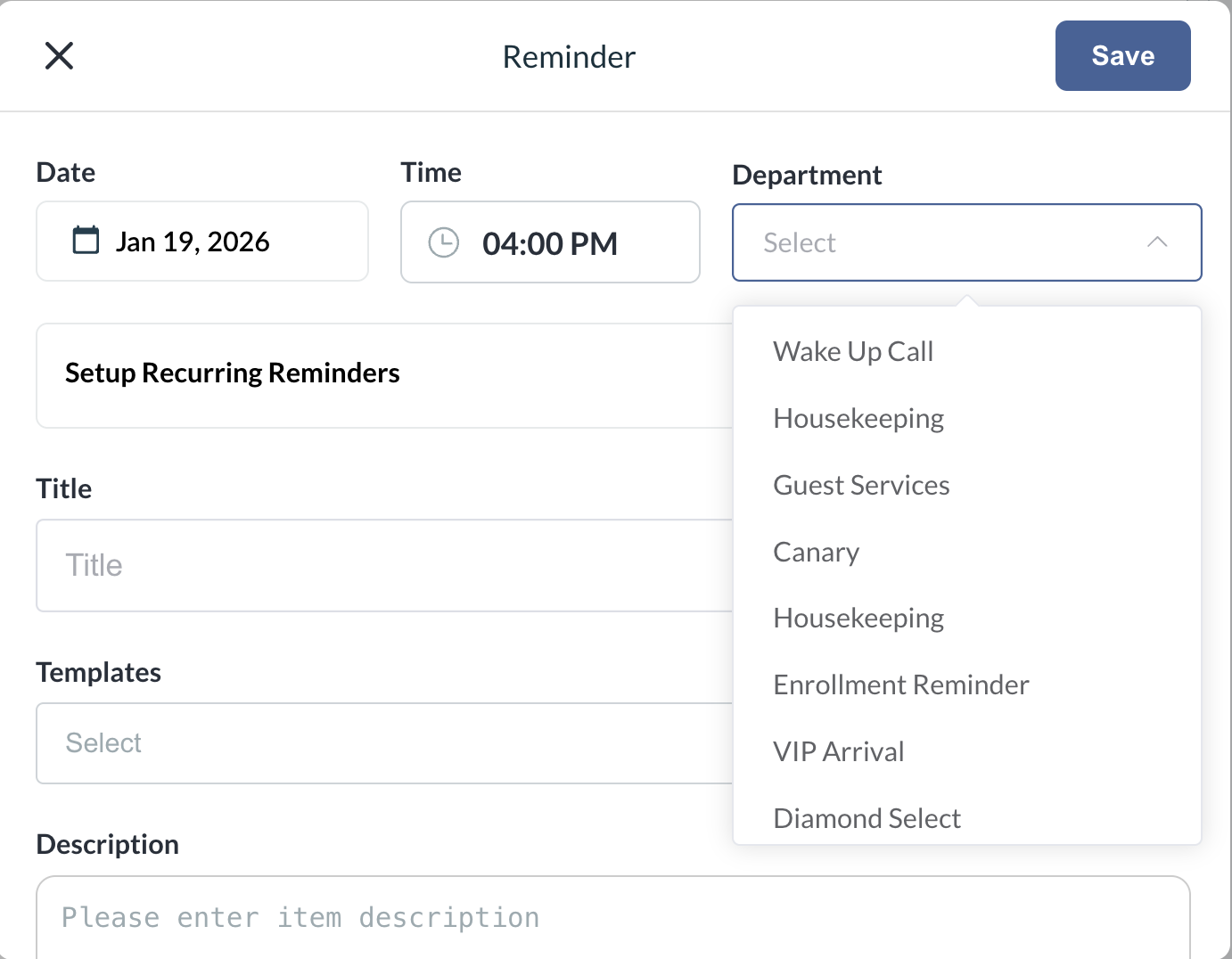
Department Reminders: Selectable from the Department dropdown when building standardized property reminder templates.
-
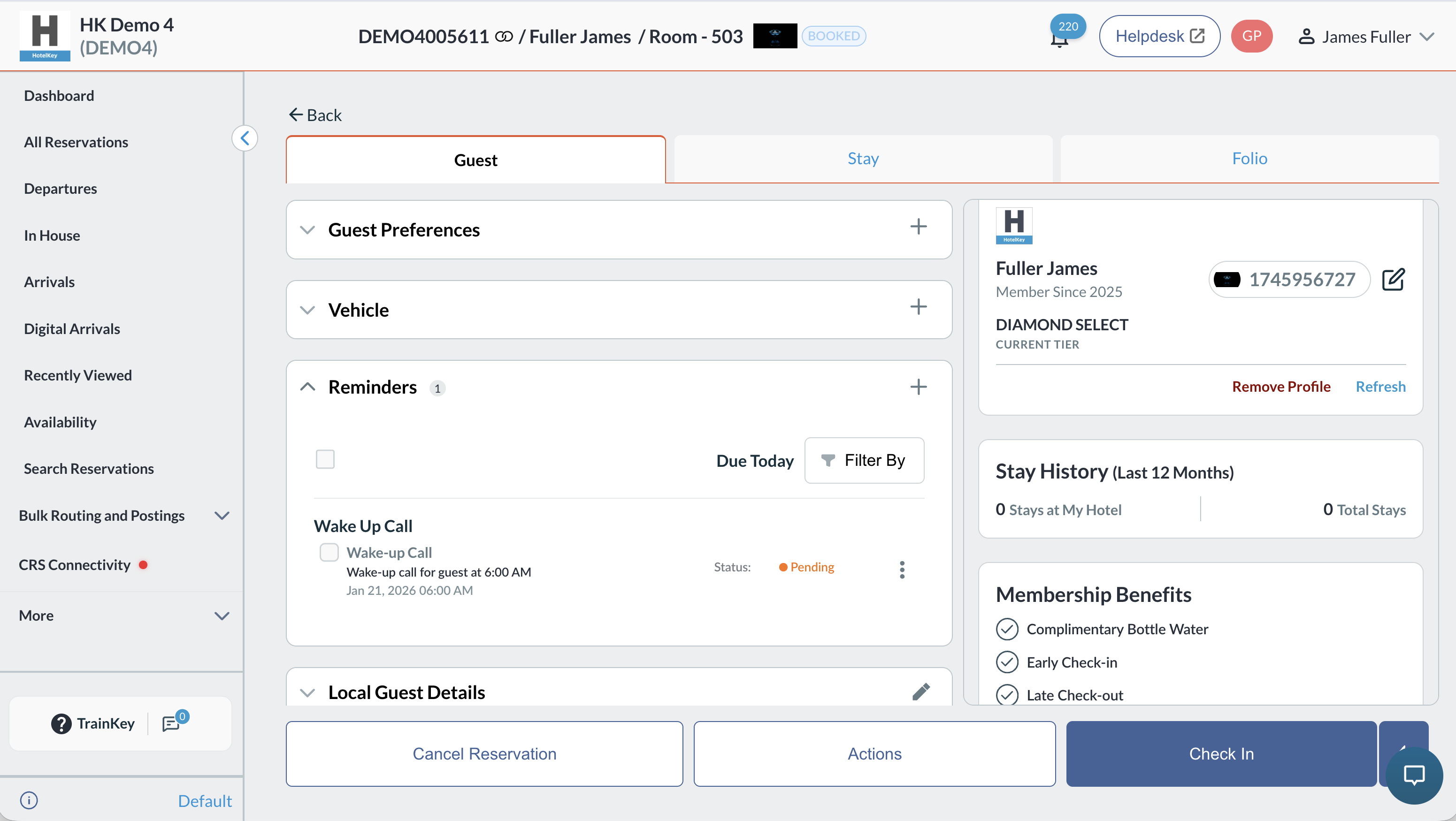
Reservation Guest Tab: Selectable from the Department field when staff manually add a new reminder (
+icon) on a guest reservation. -
Automated Guest Alerts: Triggers unread reminder pop-up windows directly on the guest reservation tab when configured.
📷 VISUAL CALLOUT:
(Left) Department dropdown selection within a Reminder Template setup screen; (Right) Active Reminder modal on a guest reservation file.