
📆 Revision Date:
|
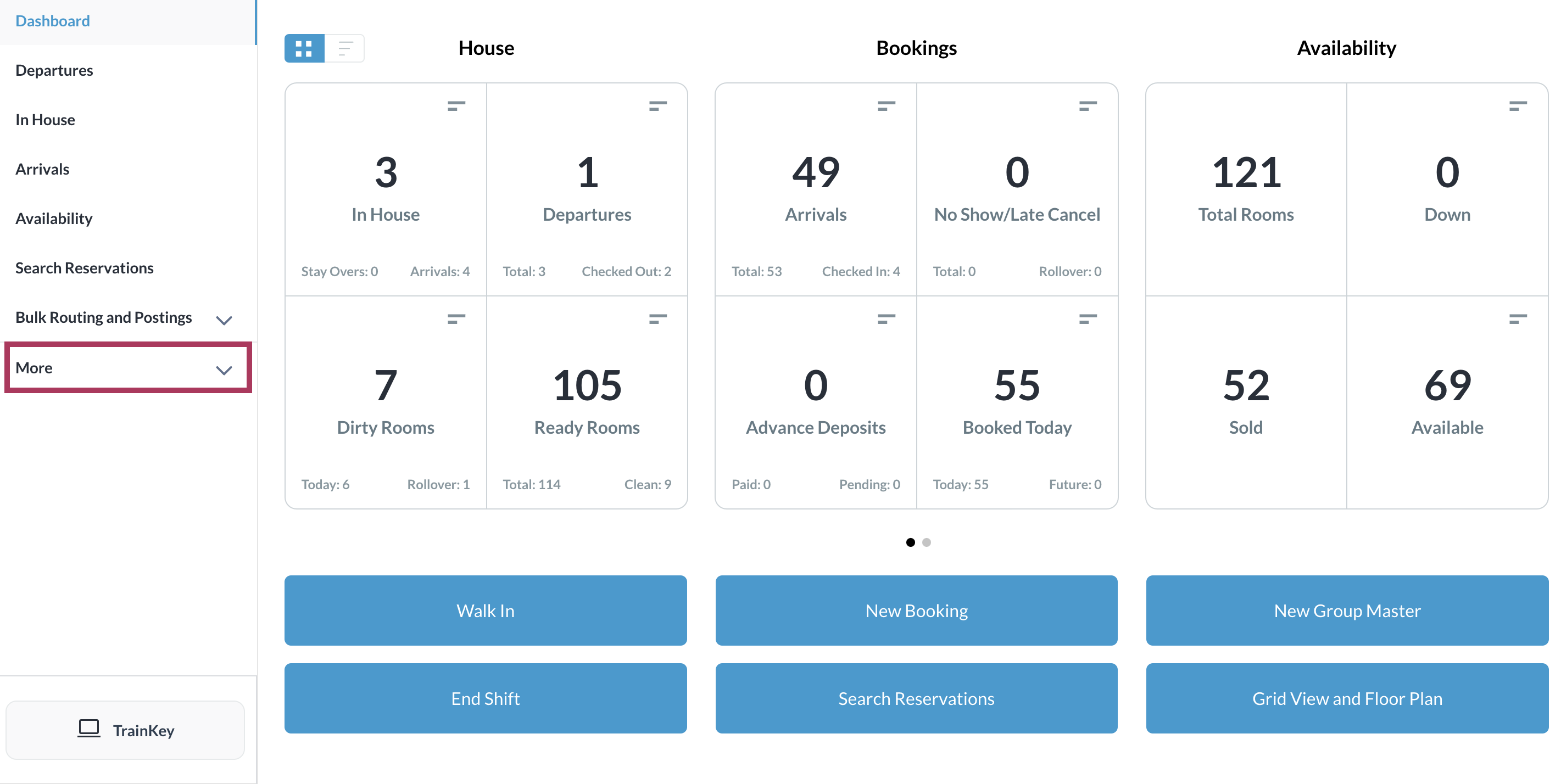
Select the More link in the sidebar menu on the Dashboard. |
|
|
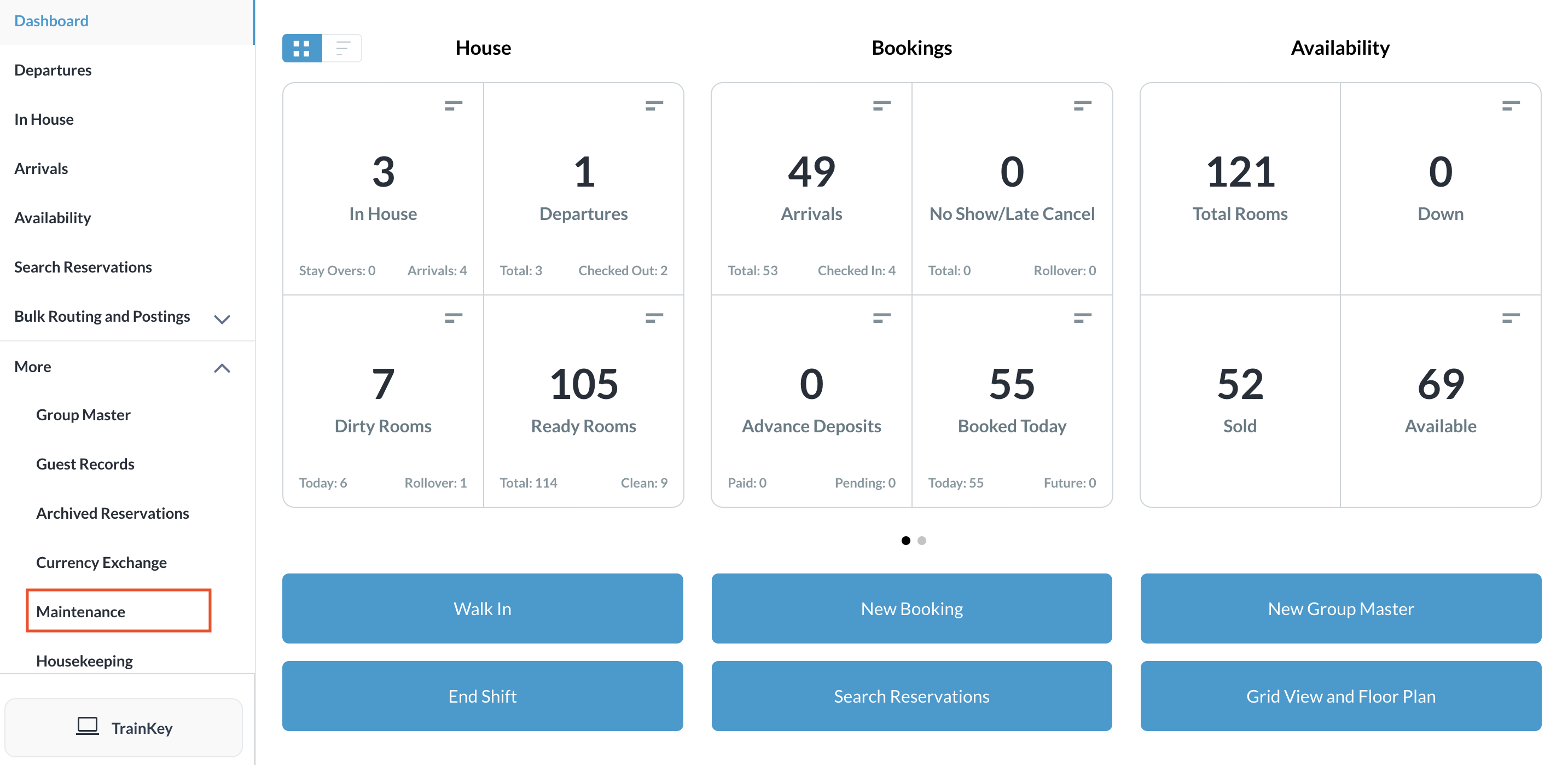
Scroll down in the expanded More menu to select the Maintenance link. |
|
|
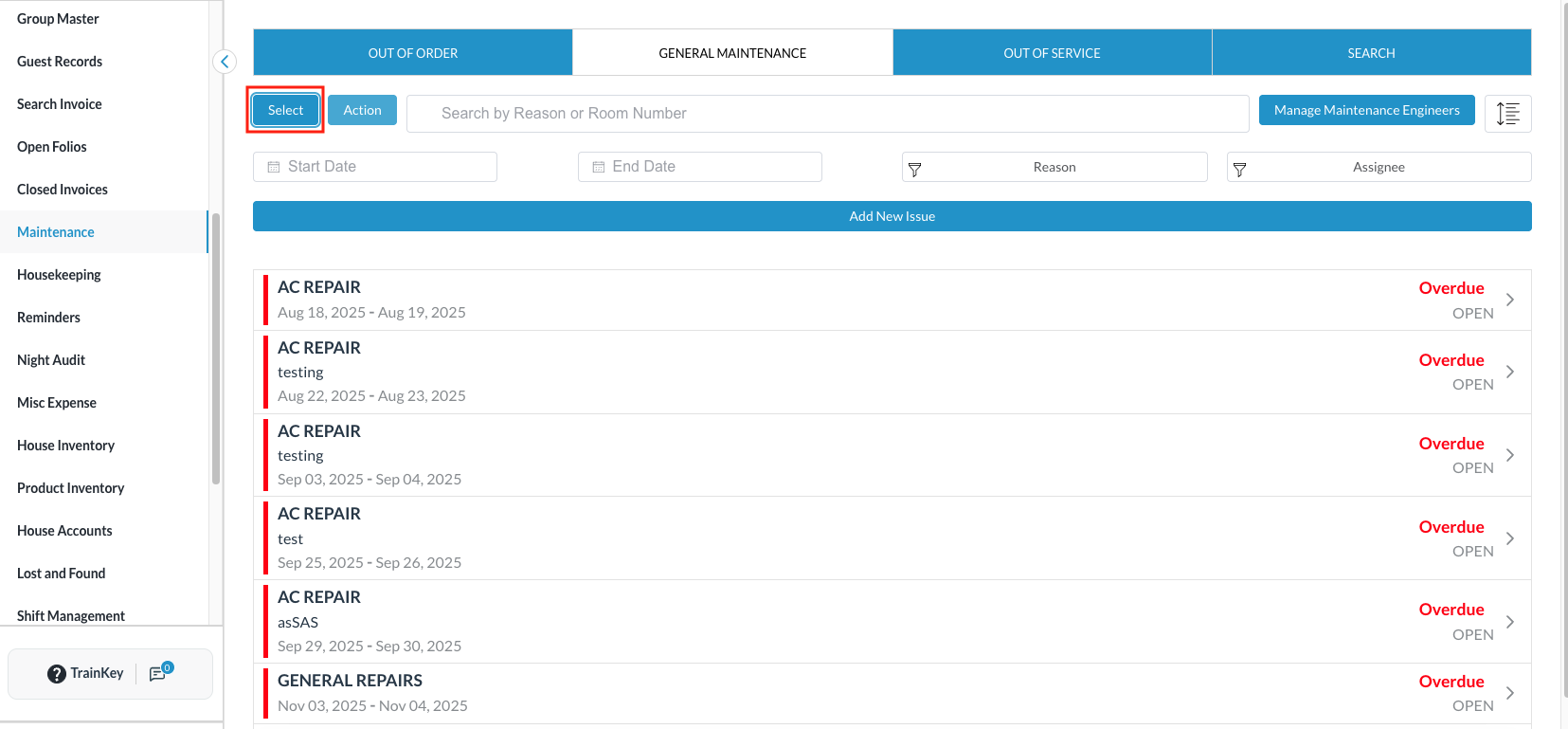
The Maintenance page loads. Rooms assigned to maintenance are broken up into tabs by status (Out of Order, General Maintenance, Out of Service), with open issues on each tab highlighted in yellow. Click the Select button near top of the screen. |
|
|
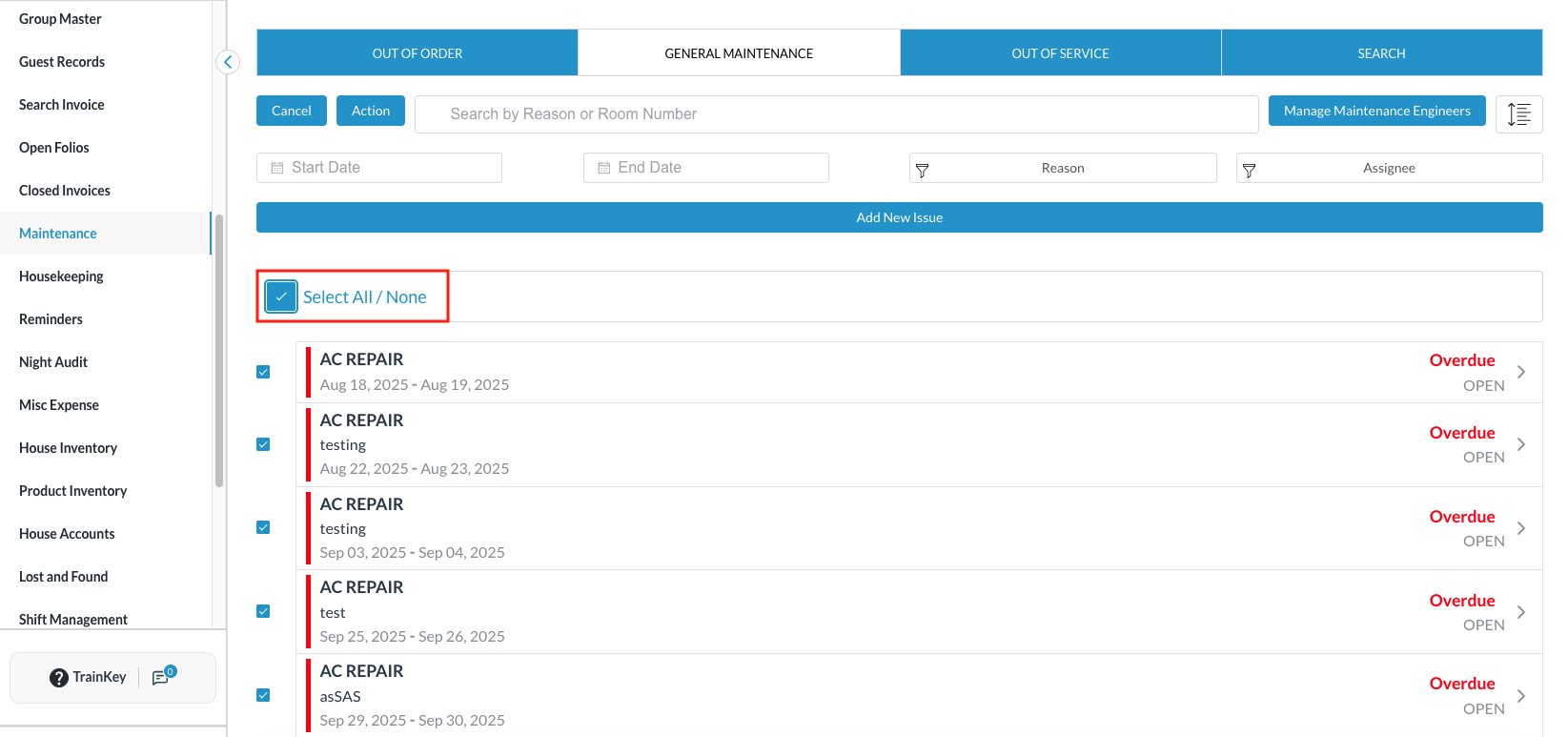
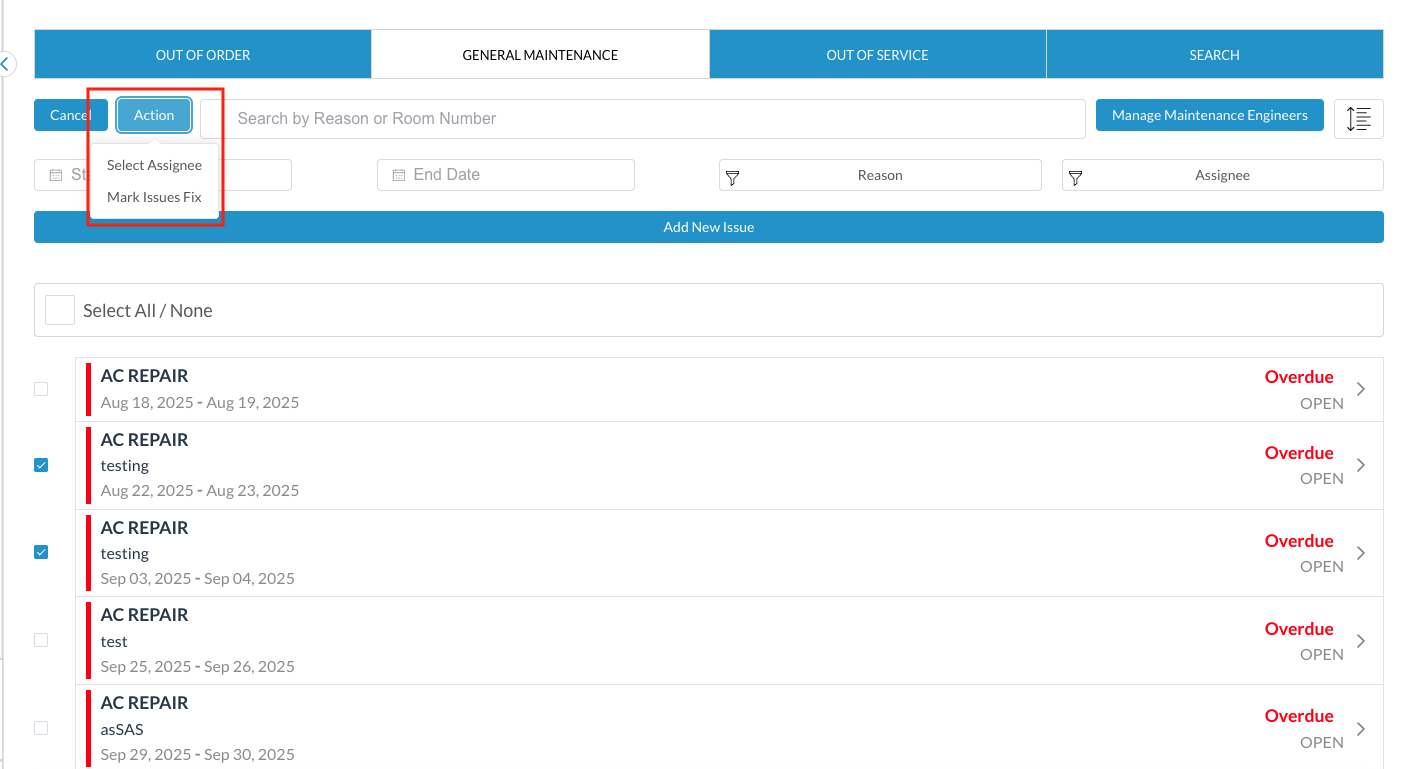
Checkbox the All/None field to select all issues or to select just a few.
|
|
|
With the selected issues, click on the Action button to reveal a dropdown list.
|
|
|
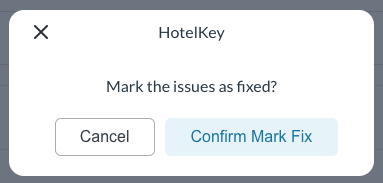
Confirm popup loads. Click on Confirm Mark Fix to mark the selected issues as fixed and to close the issues. |
|
|
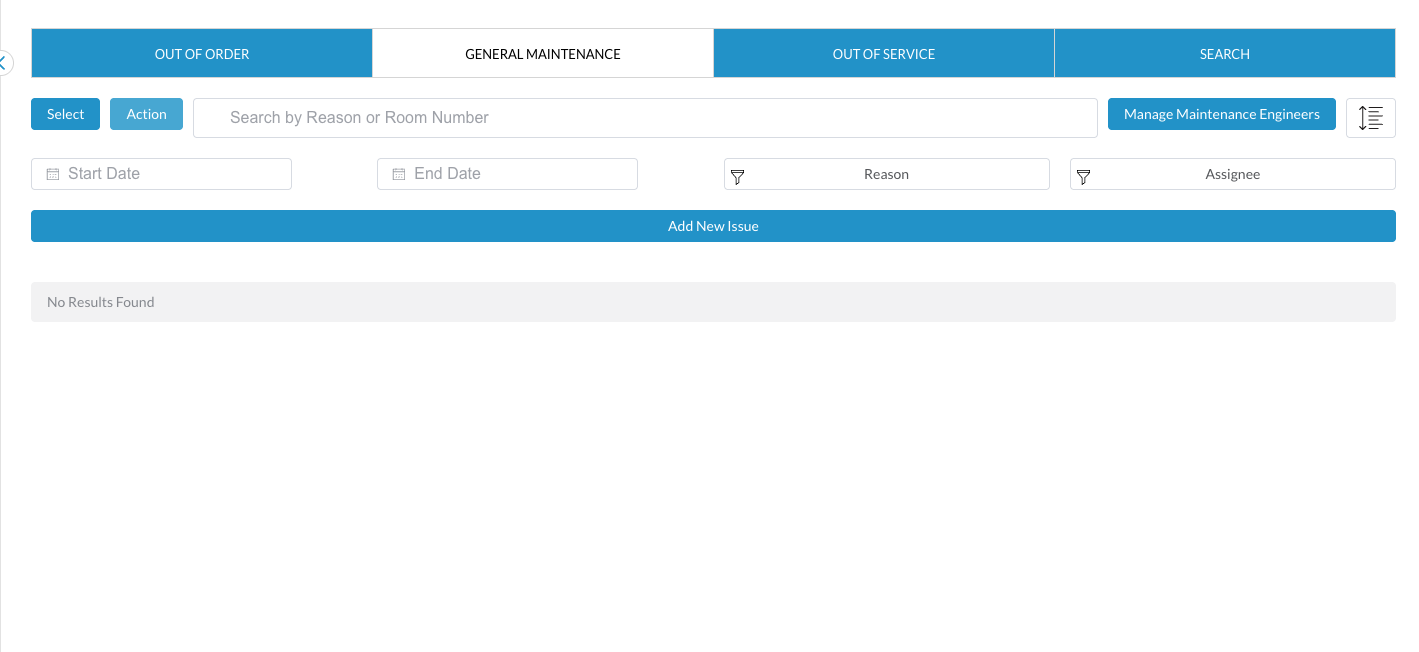
Notice now on the Maintenance screen that all issues are completed and no open issues are found. |
|