
Revision Date:
The Action button on the Housekeeping screen is the main tool for managing a room's housekeeping workflow directly from the Housekeeping dashboard. Staff can use it to mark rooms as DND or Urgent, assign or unassign housekeepers, housepersons, and inspectors, and move a room through inspection to Ready for Guest. You can select one room or many, so staff can apply the same action across the property at once. This makes bulk status updates and assignments quick.
|
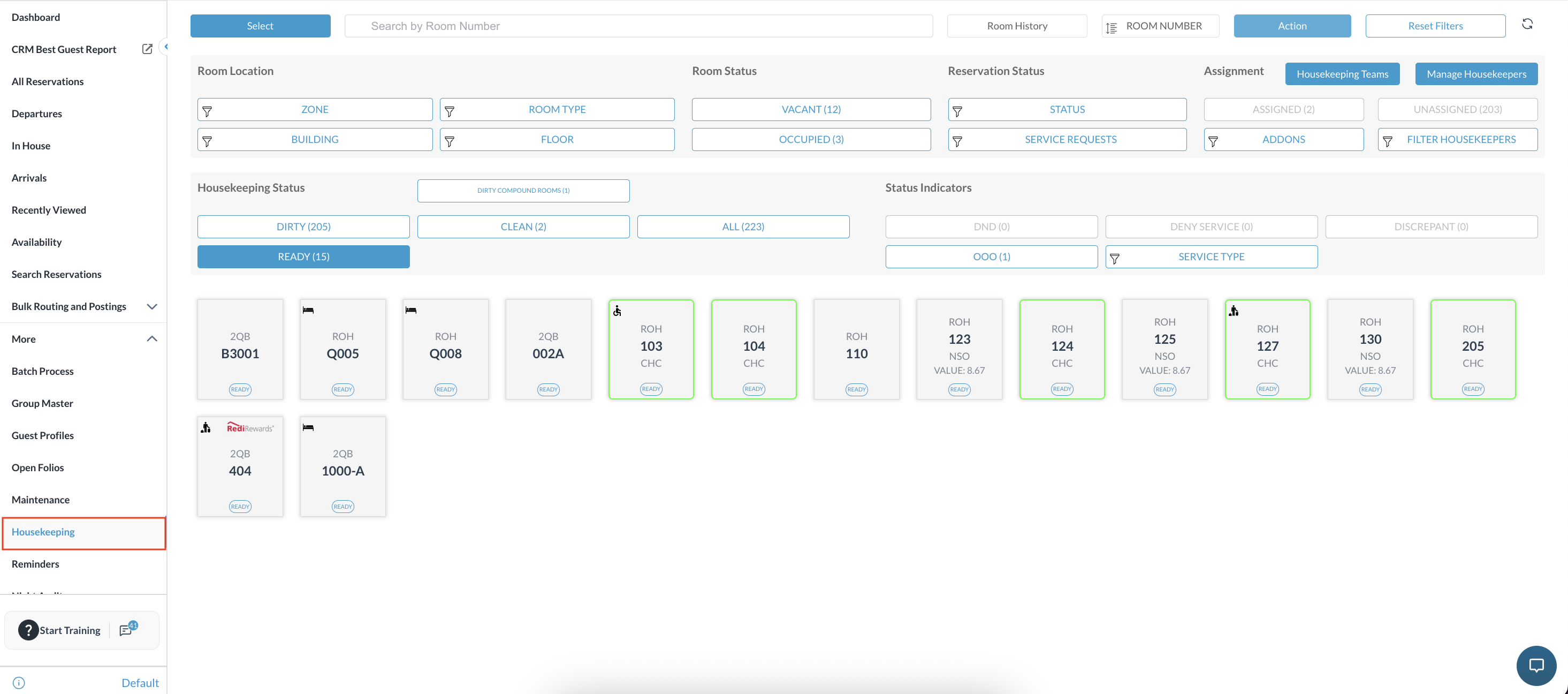
Navigate to the Dashboard from the left-side menu and select Housekeeping. |
|
|
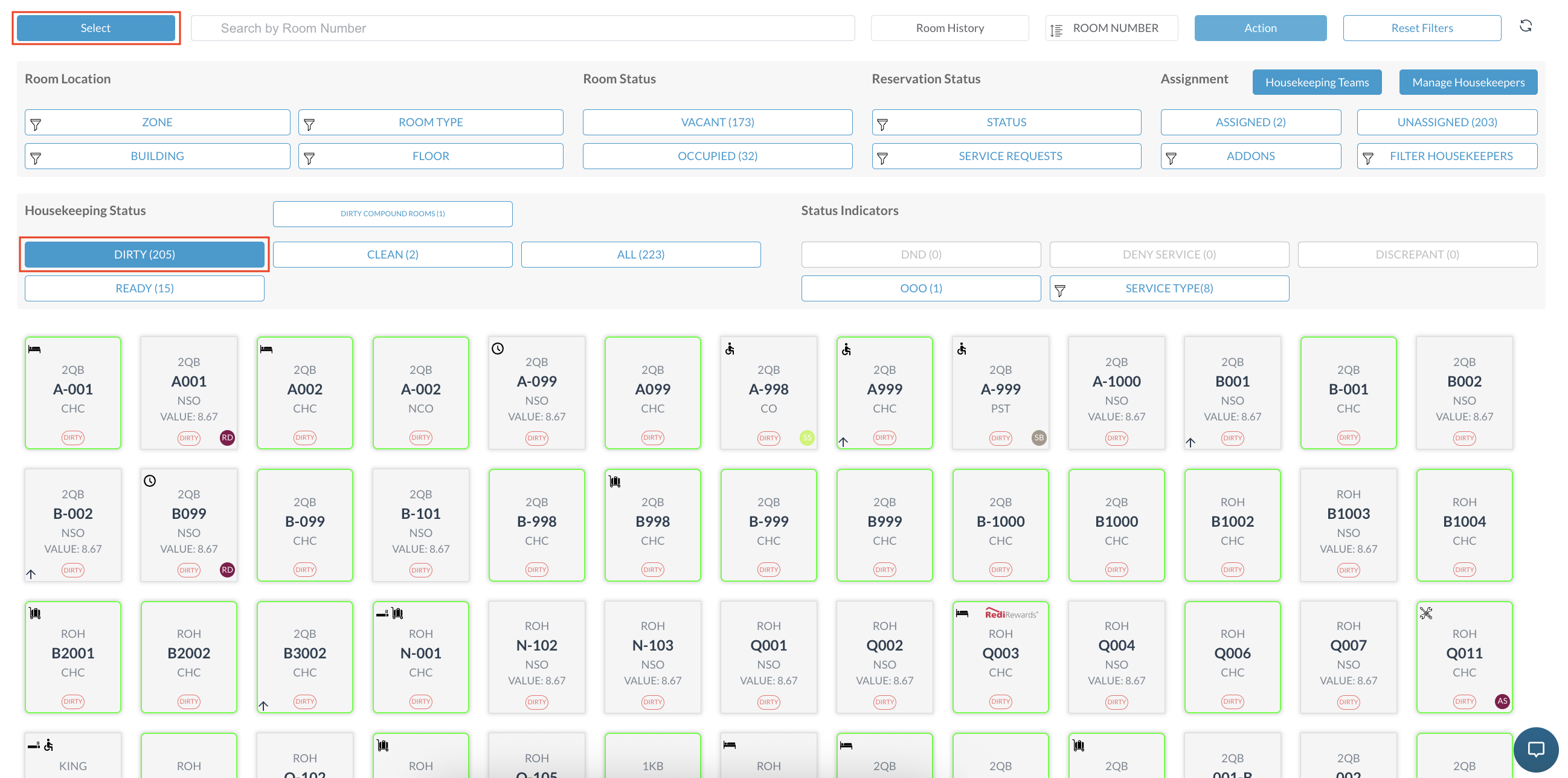
Filter the grid by room location, room status, reservation status, assignment, or status indicators to easily locate specific rooms, then click Select.
|
|
|
Choose the target rooms by clicking individual room cards or using the Select All / None checkbox.
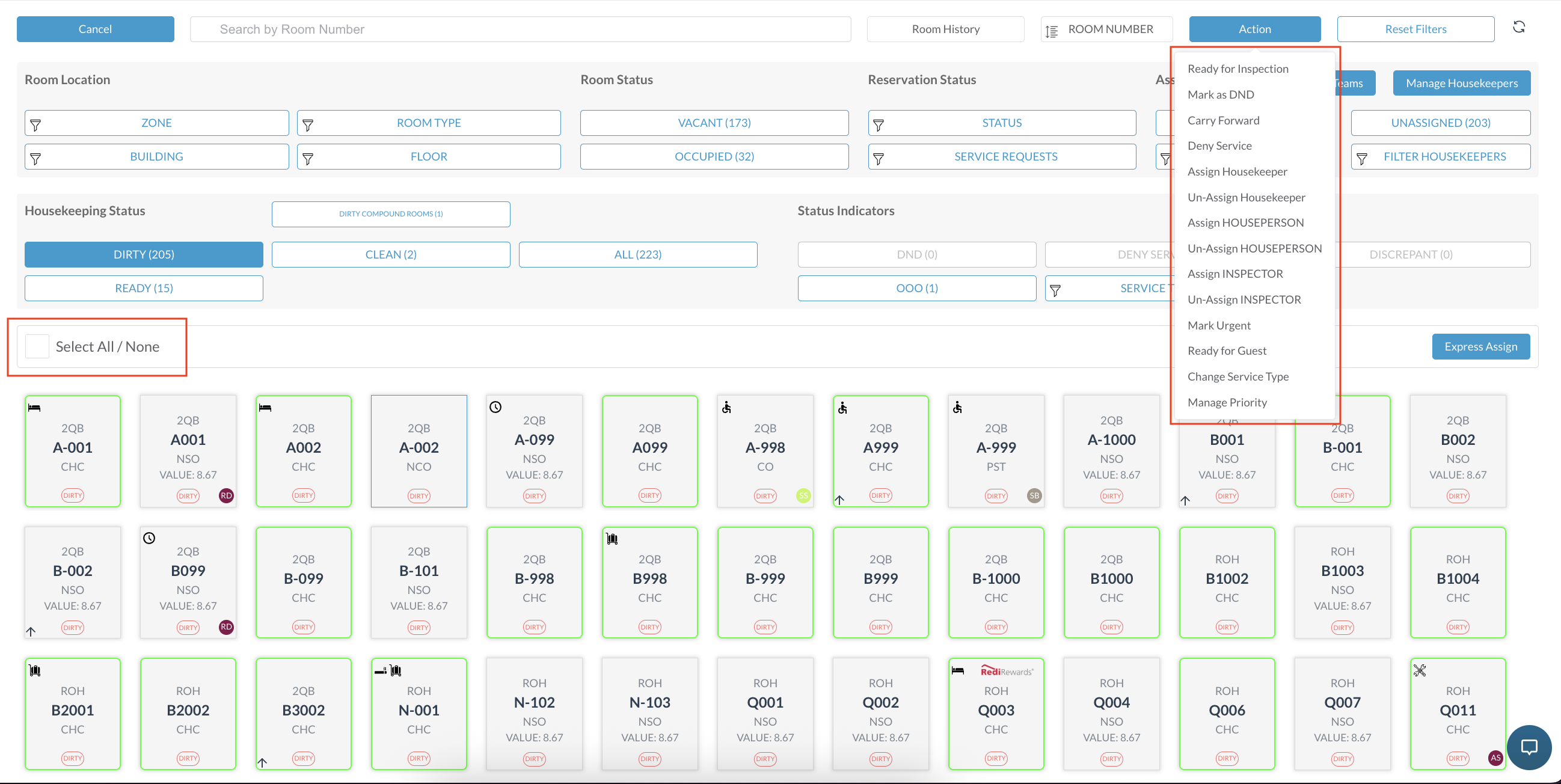
Select the relevant action. It will immediately apply to all currently selected rooms. |
|
Available Actions
|
Ready for Inspection |
Marks the room as cleaned and awaiting a supervisor/inspector's review before it can be released as ready. |
|
Mark as DND |
Flags the room as "Do Not Disturb," signaling housekeeping should not enter or service it at this time. |
|
Carry Forward |
Carries the room's current housekeeping task/status forward (e.g., to the next shift or day) instead of resetting it. |
|
Deny Service |
|
|
Assign Housekeeper |
|
|
Un-Assign Housekeeper |
|
|
Assign Houseperson |
|
|
Un-Assign Houseperson |
|
|
Assign Inspector |
|
|
Un-Assign Inspector |
|
|
Mark Urgent |
|
|
Ready for Guest |
|
|
Change Service Type |
|
|
Manage Priority |
|
Room Card Reference
Each room card on the grid also displays quick-reference information relevant when taking action:
-
Room Type and Number (e.g., 2QB A-001).
-
Stay Status abbreviation — e.g., CO (Checked Out) or SO (Stay Over) — indicating the guest's current stay status for that room.
-
Housekeeping Status badge (e.g., DIRTY) at the bottom of the card.
-
Icons for special conditions — pets, luggage/bell service, accessibility, loyalty program, maintenance/lock alerts, or notes.
Note
To improve accuracy and prevent invalid actions, "Mark as DND" and "Carry Forward" follow specific visibility rules based on the filters applied, along with specific bulk-processing behavior:
Visibility Rules
|
Dirty filter alone |
"Mark as DND" and "Carry Forward" are visible in the Action menu when only the Dirty filter is selected. |
|
Occupied + Dirty filters |
"Mark as DND" and "Carry Forward" remain visible when both Occupied and Dirty filters are selected together. |
|
All other combinations |
"Mark as DND" and "Carry Forward" are not visible in the Action menu for any filter combination other than the two described above. |
|
Bulk "Mark as DND" |
When bulk-marking rooms as DND with only the Dirty filter selected:
|