
📆 Revision Date:
The Product Inventory dashboard provides event and catering teams with real-time visibility into stock availability and consumption. This feature eliminates manual tracking by centralizing inventory data, allowing users to monitor how event requirements impact total stock levels across the property.
At its core, the tool automates the calculation of Available Stock by dynamically subtracting the total quantity assigned to all sub-events from the Initial Inventory. Users can leverage flexible filtering—including specific start dates, product categories, and minimum stock requirements—to proactively identify potential shortages.
|
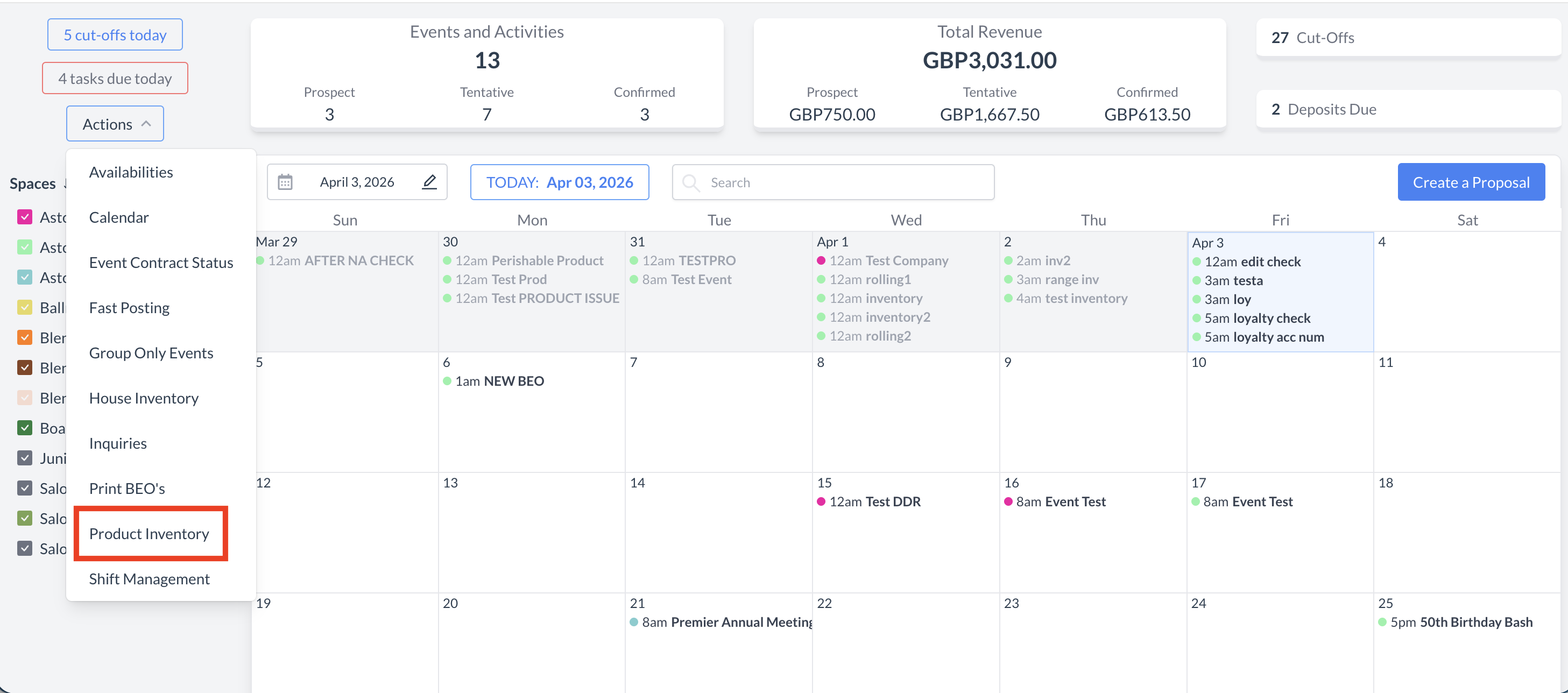
Navigate to Home > Event Management > Actions > Product Inventory |
|
Product Inventory Screen Overview
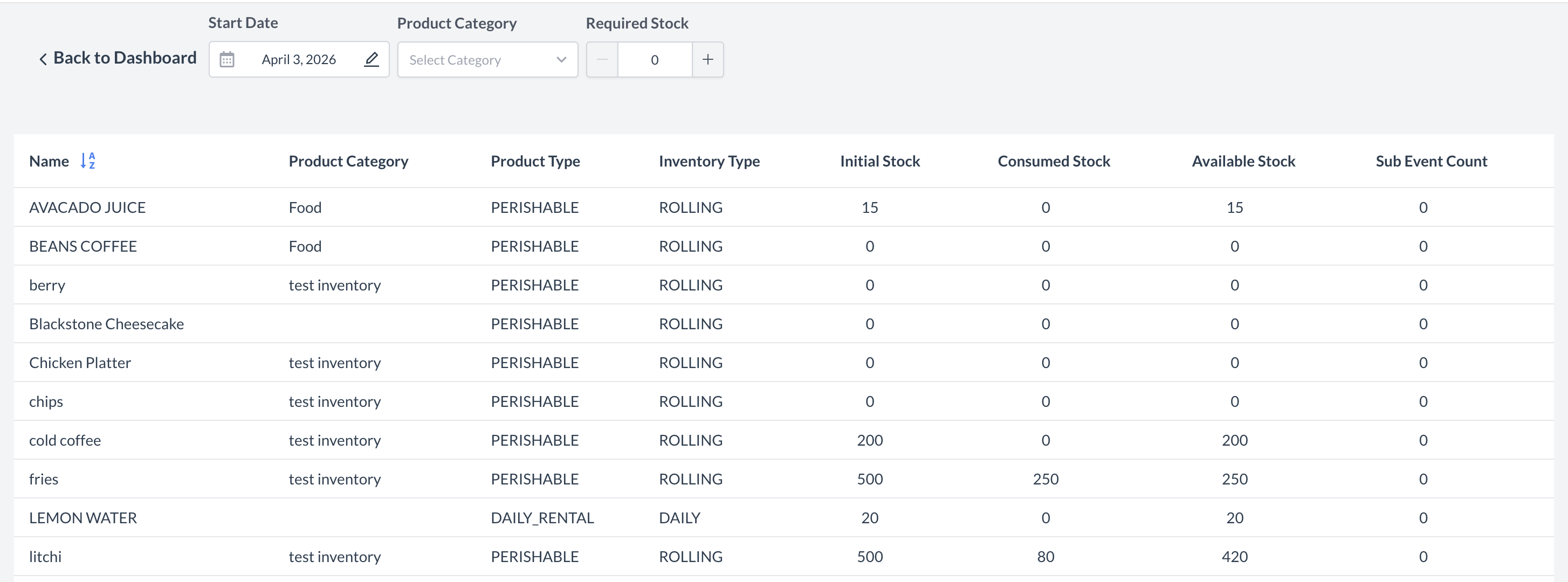
The Product Inventory screen provides a comprehensive snapshot of your property's product stock availability and consumption. By default, it displays data for the current business day. You can use the report filters to change the start date, view by product category or look for products by required stock. The following information is available: Name: Identifies the name or label assigned to the product. Product Category: A high-level grouping used to bucket similar items—such as Audio-Visual, Catering, or Decor—into organized sections within the system. Product Type: Indicates whether the product is classified as perishable or non-perishable. Inventory Type: Specifies if inventory tracking for the product is based on individual daily counts or a continuous (rolling) schedule. Initial Stock: Represents the starting inventory level of the product prior to any consumption or allocation. Consumed Stock: Displays the total quantity of inventory already used across all scheduled sub-events. Available Stock: The quantity of product currently in stock and available for use. Sub Event Count: Indicates how many sub-events have allocated or are using this product from inventory. |
|
Adjusting the Date Range
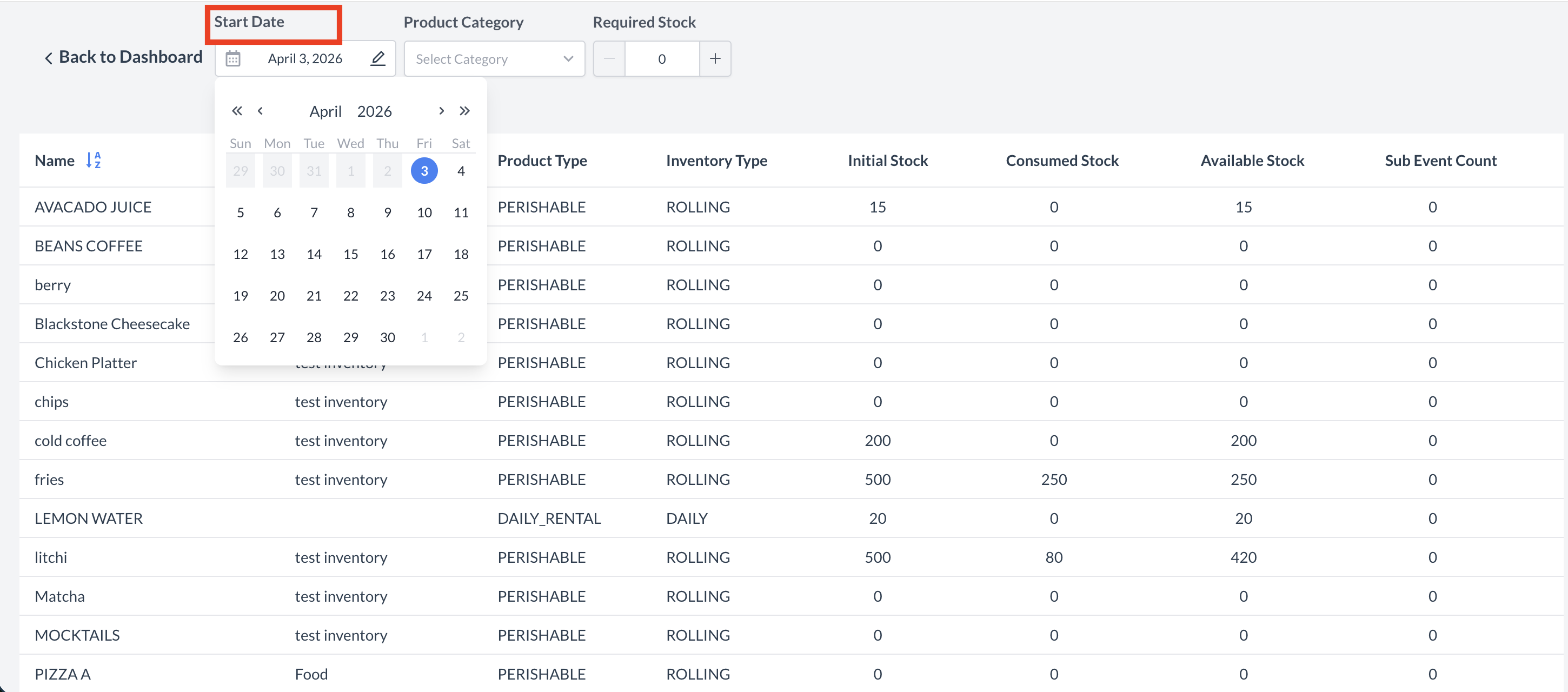
You can customize the date displayed on the Product Inventory screen by using the date picker located at the top of the screen.
|
|
Using Filters to Customize the View
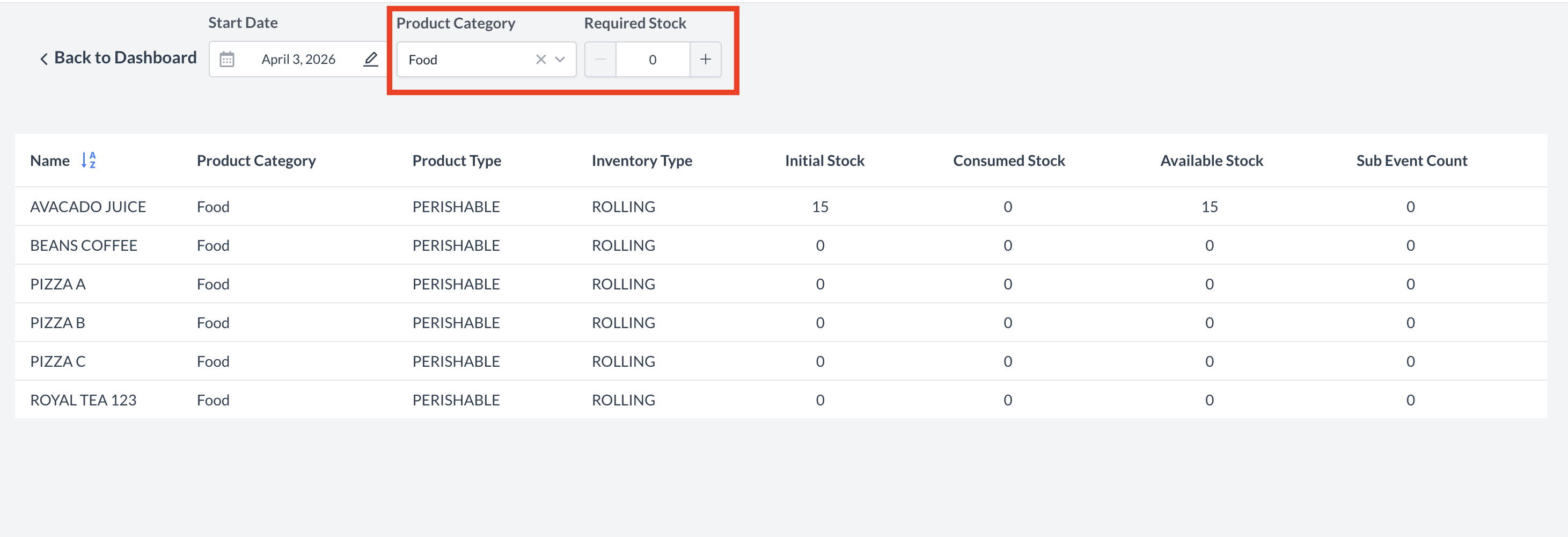
To efficiently manage and locate specific items, the Product Inventory screen includes dynamic filtering options. These filters allow you to narrow down your results based on departmental needs or specific quantity requirements.
|
|