Skip table of contents

Batch Process Pre-Arrival Credit Card Validations .ng

Revision Date:

The Pre-Arrival Credit Card Validation Batch Process allows the hotel to verify Credit Cards prior to check in by performing a $0 validation check and validating arriving reservations up to 7 days from the Current Business Date. The batch process allows users to run authorization validations for upcoming arrivals and review approval or failure results for proactive resolution; reducing check-in delays, and minimizing payment failures upon arrival. 

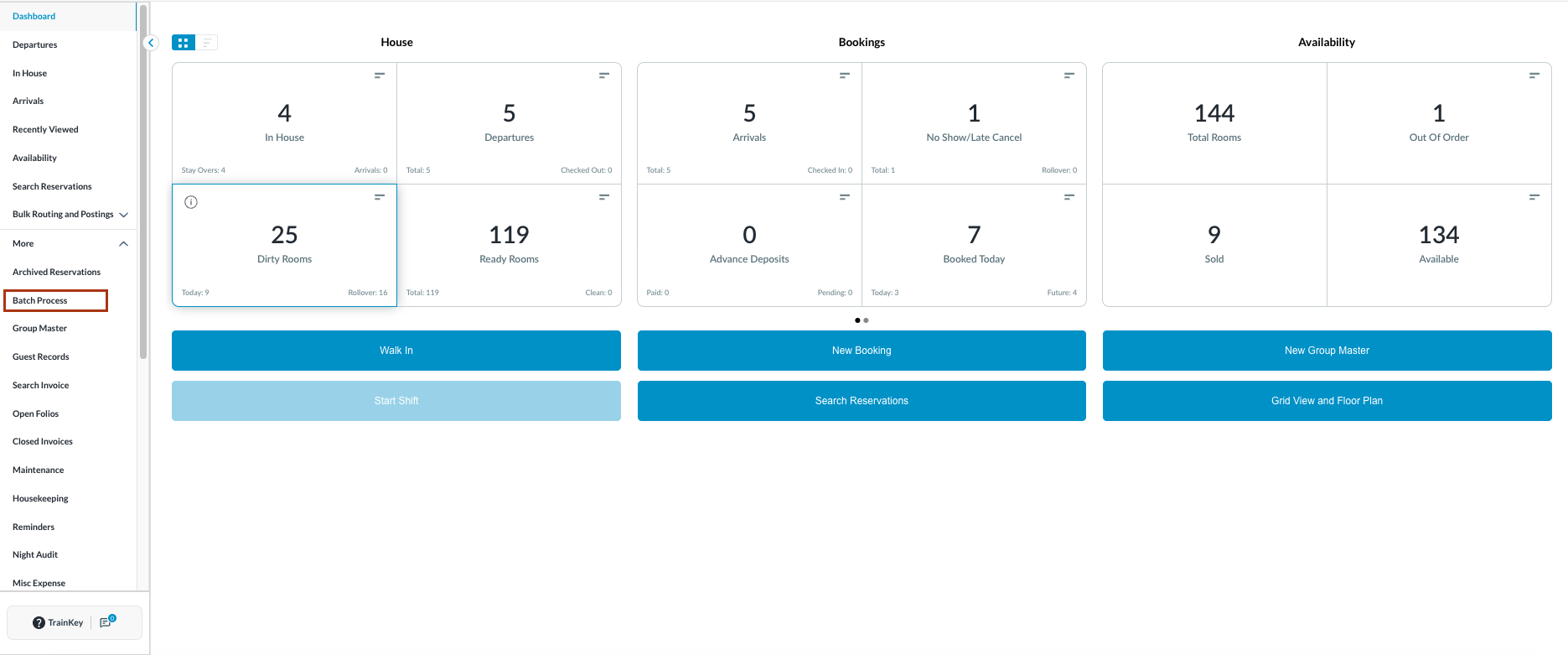
  • Login to Front Desk Web.

  • From the Dashboard, click on More.

  • Select Batch Process.

image-20260203-131624.png
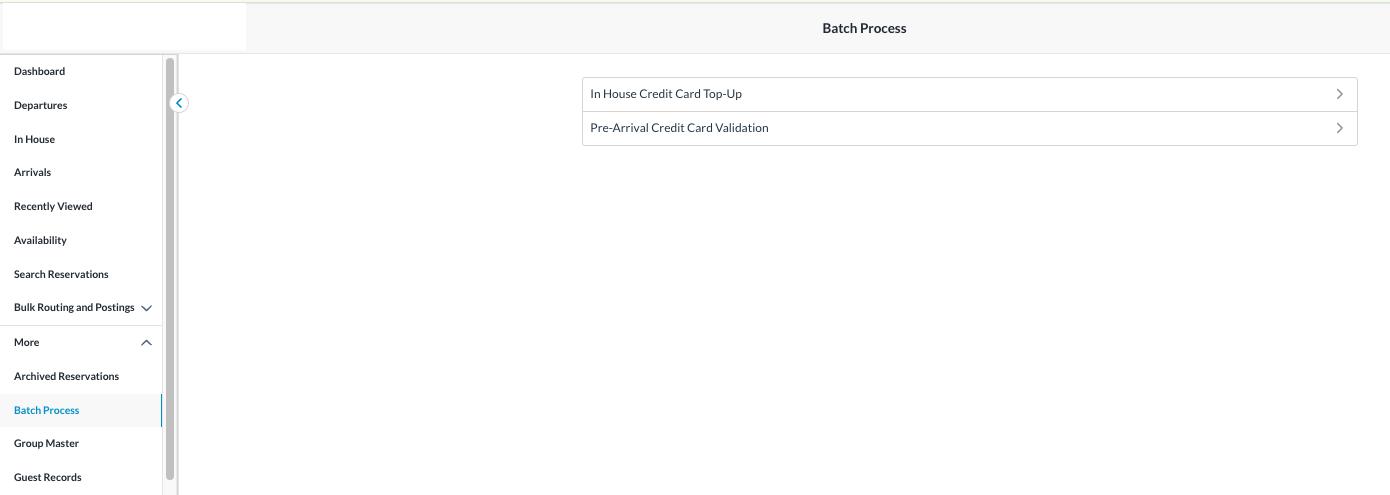
  • Batch Process screen opens up.

  • Click on Pre-Arrival Credit Card Validation

image-20260203-132415.png

Initiate the Batch Process

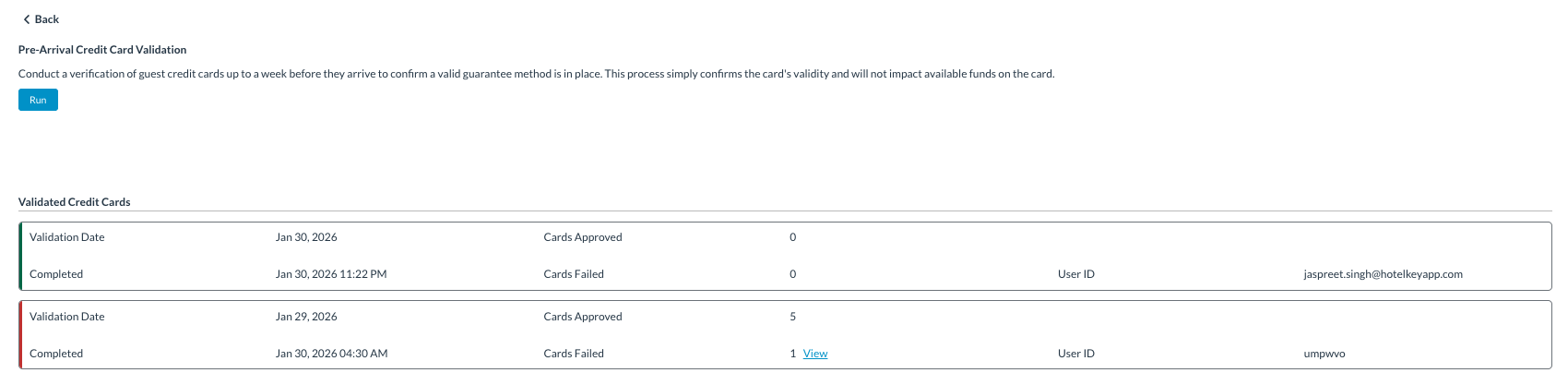
  • On the Pre-Arrival Credit Card Validation screen:

    • Review the process description and instructions.

    • Click the Run button.

image-20260203-162326.png

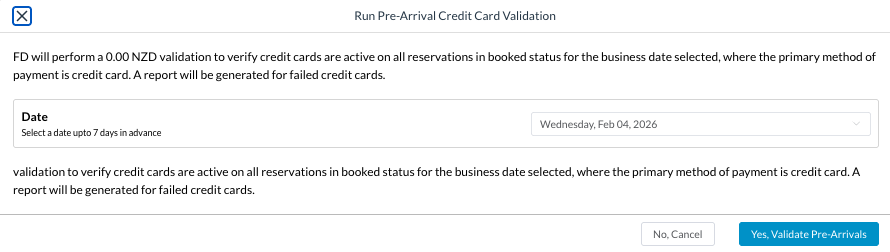
Run Pre-Arrival Batch Credit Card Validation popup loads.

  • Select the Business Date:

    • Defaults to the current business date.

    • Allows selection up to 7 days in advance.

    • Review confirmation details.

    • Click:

      • Yes, Validate Pre-Arrivals to proceed, OR

      • No, Cancel to exit.

image-20260203-162734.png

Monitor Batch Process Execution

  • Once initiated:

    • The batch process runs in the background.

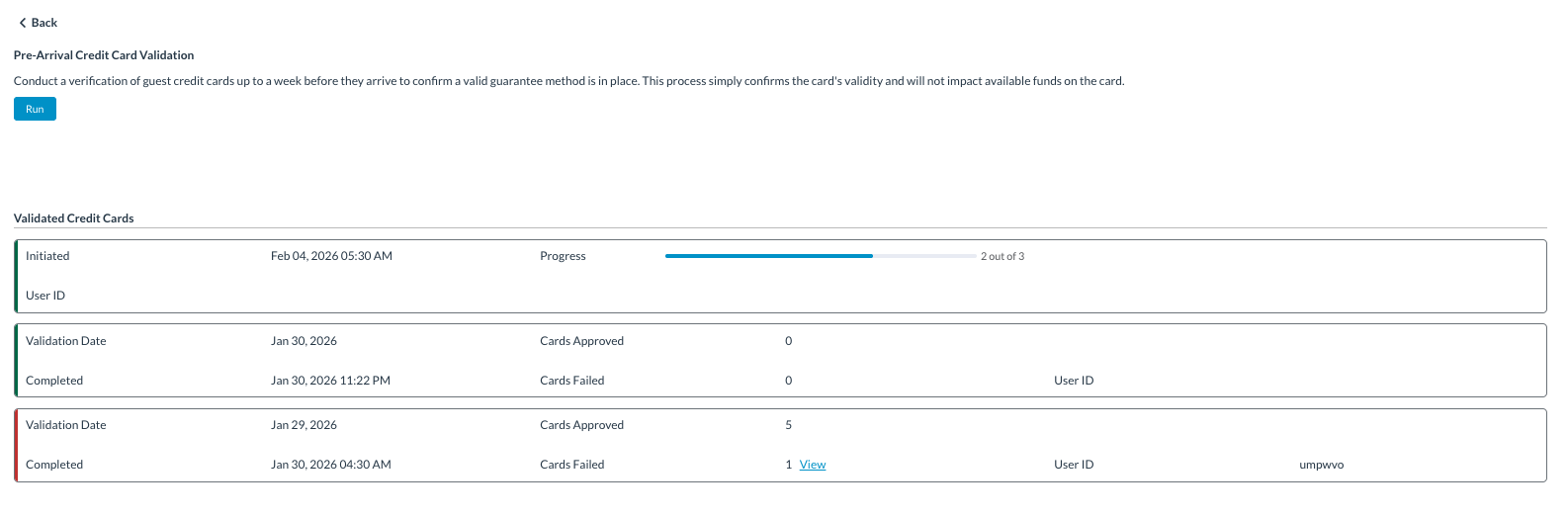
    • A processing tile appears under Validated Credit Cards.

  • The tile displays:

    • Validation date

    • User ID who initiated the process

    • Progress indicator (number of reservations processed)-

  • The Run button remains disabled while processing is in progress.

  • The system automatically updates progress until completion.

image-20260203-163725.png

Review Authorization Results

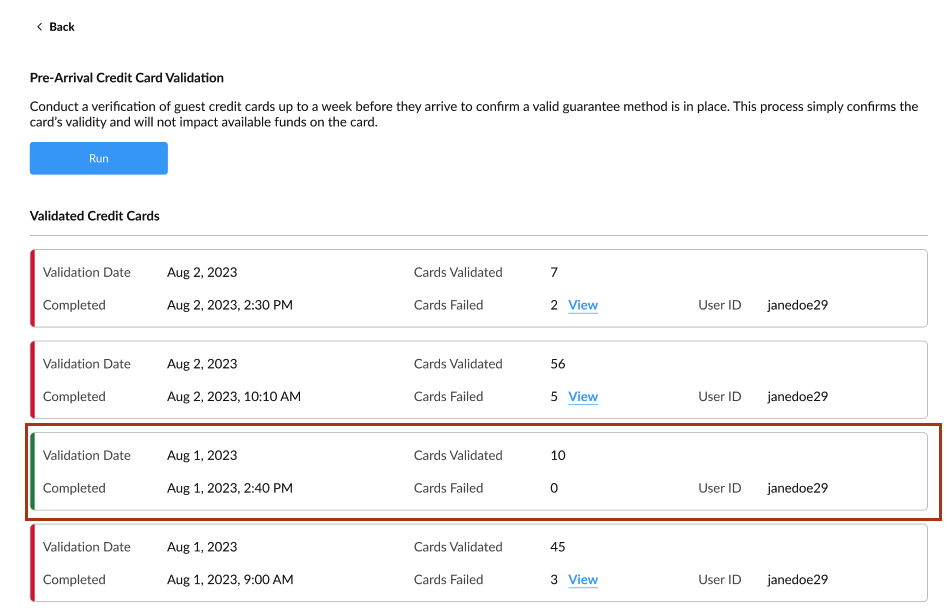
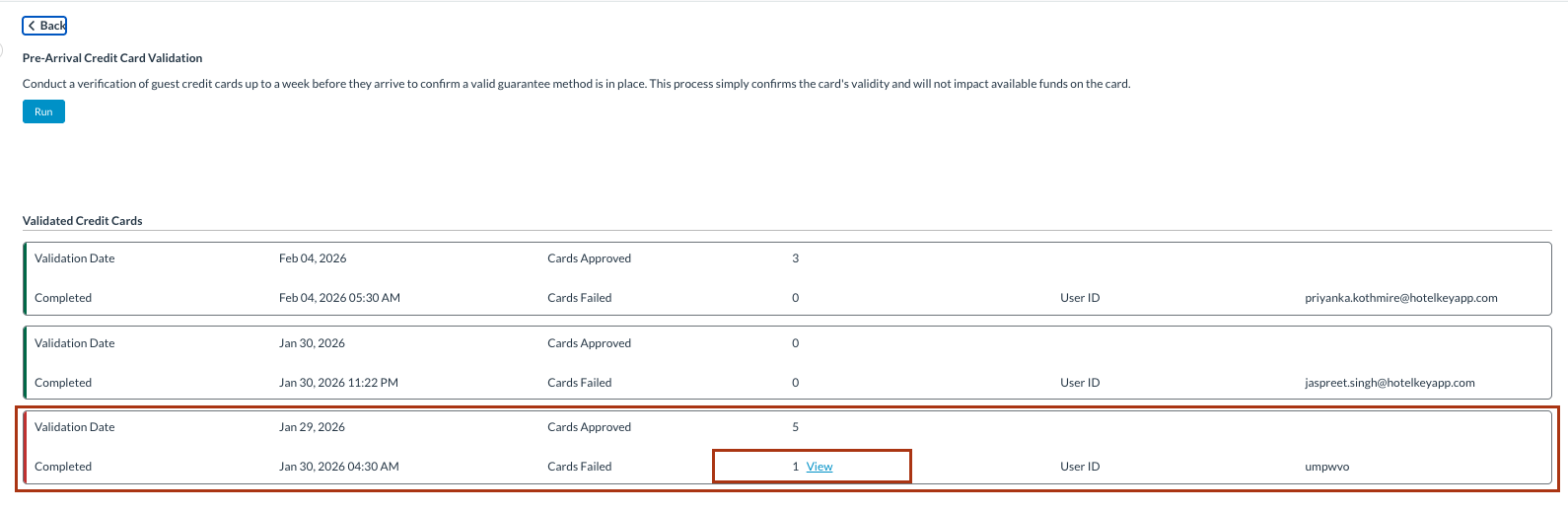
  • After completion, the Results section displays:

    • Validation date

    • Completed Date & Time

    • Cards Approved

    • Cards Failed / Declined

    • Initiated User ID

image-20260203-164230.png

Review Failed Validations

Click the View link next to failed cards.

  • The Failed Validation report opens displaying:

    • Reservation Confirmation Number

    • Guest Name

    • Credit Card Type and Last 4 Digits

    • Expiry Details

    • Validation Status

    • Rate Plan

    • Company Details

    • Arrival and Departure Dates

    • Number of Nights

  • Use available options to Export or Print the failed validation report for tracking and follow-up.

image-20260203-164530.png

image-20260203-164557.png

Take Corrective Action

  • Select a reservation from the report.

  • Open the reservation Folio or Payment Source.

  • Update payment details as required

  • Return to the validation report if additional reservations require review.

JavaScript errors detected

Please note, these errors can depend on your browser setup.

If this problem persists, please contact our support.