House Inventory .ng

📆 Revision Date:

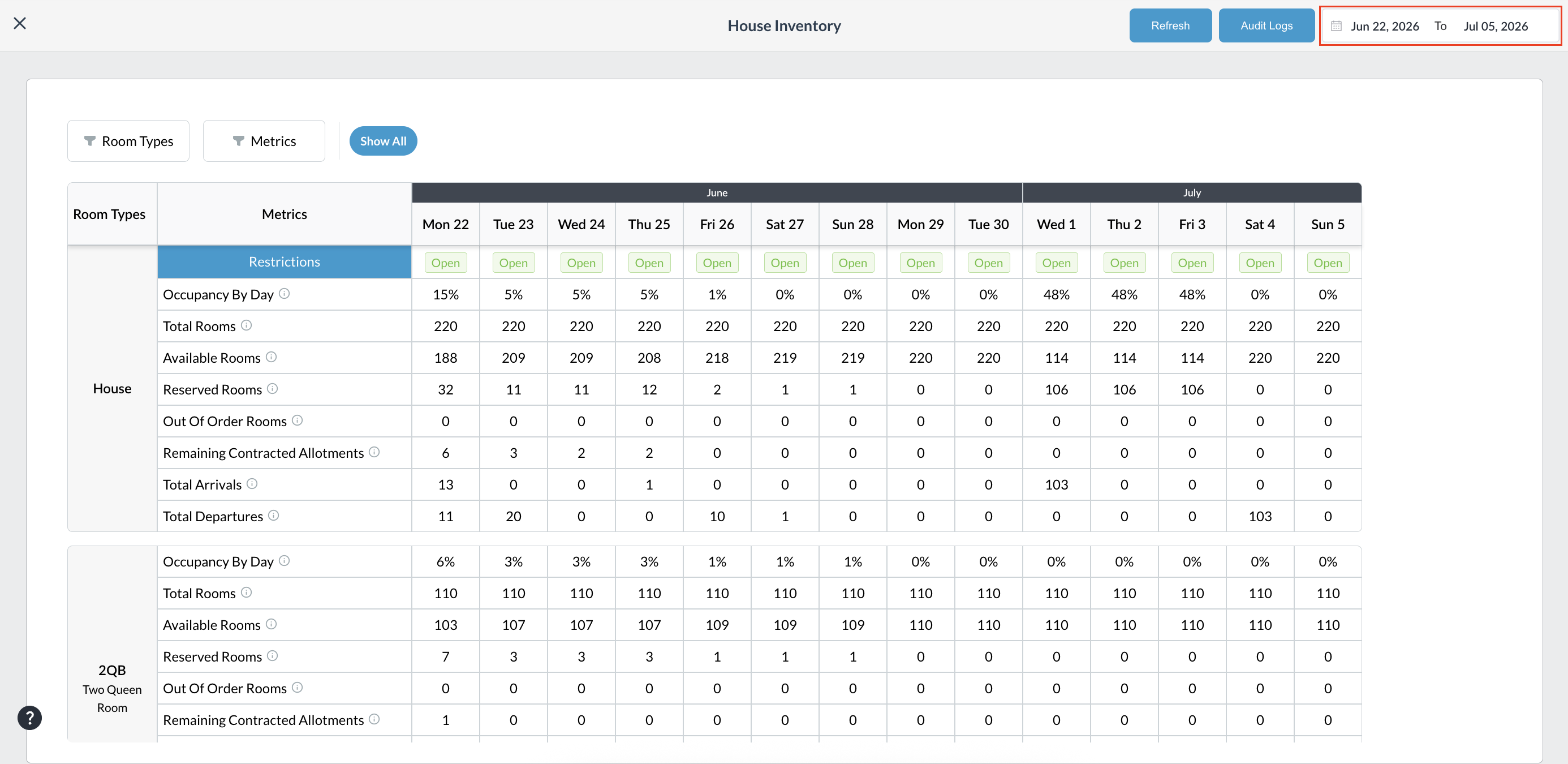
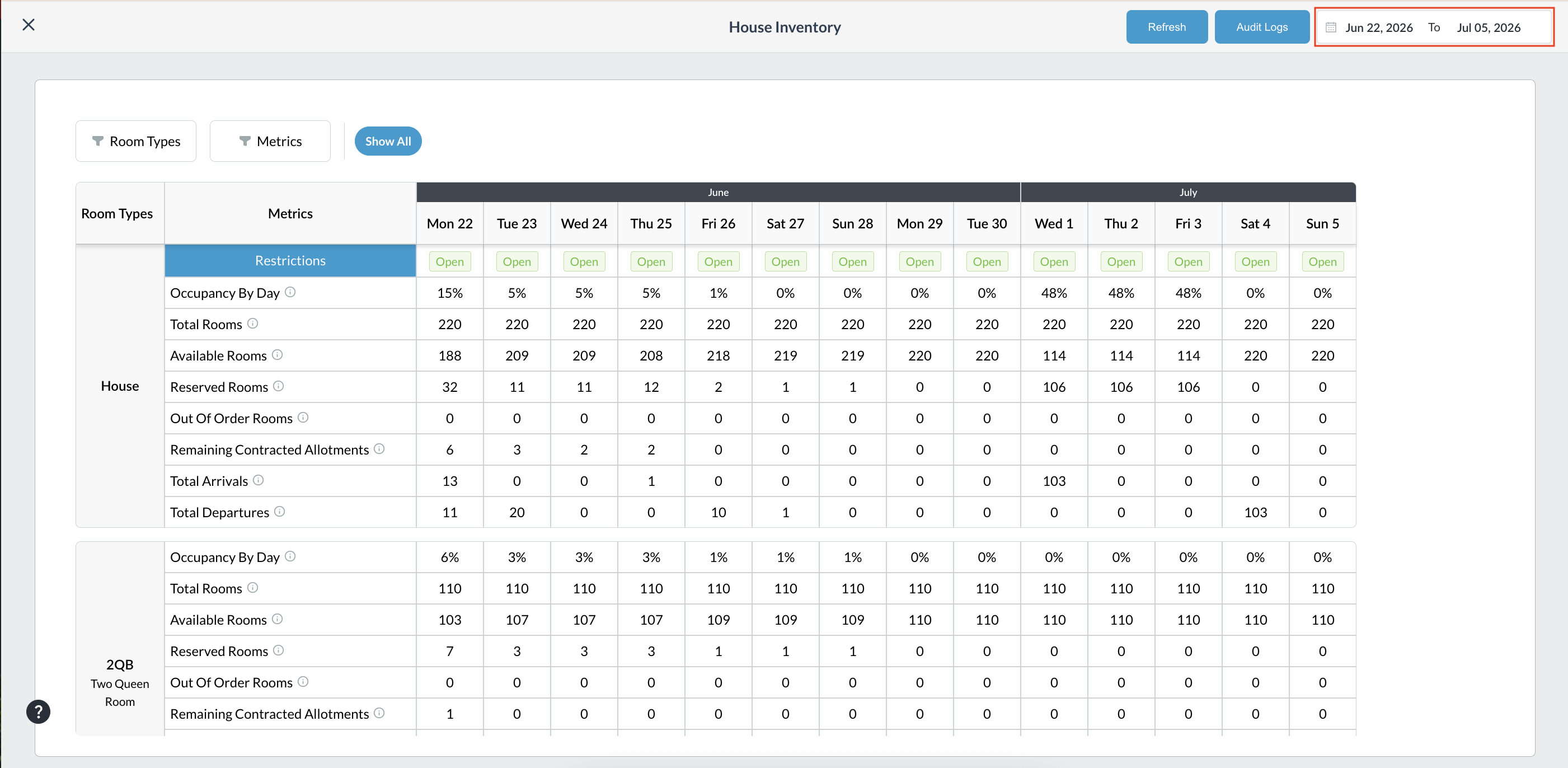
House Inventory refers to the total number of physical rooms a hotel has available for sale. The House Inventory screen provides a day-by-day overview of rooms inventory, occupancy, availability, restrictions, arrivals, and departures for the hotel and individual room types.

House Inventory = Total Physical Rooms - Out of Order (OOO) Rooms (rooms that cannot be sold due to severe maintenance issues, renovations, or deep cleaning).

Why It Matters

  1. Occupancy %, ADR, and RevPAR—the holy trinity of hotel metrics—all rely on this number to measure performance.

  2. Prevents Overbooking: Knowing the exact house inventory ensures the front desk or online booking sites don't sell more rooms than the hotel actually has available.

  3. Staffing and Supplies: Housekeeping uses house inventory to determine how many staff members are needed to clean rooms and how much linen to order.

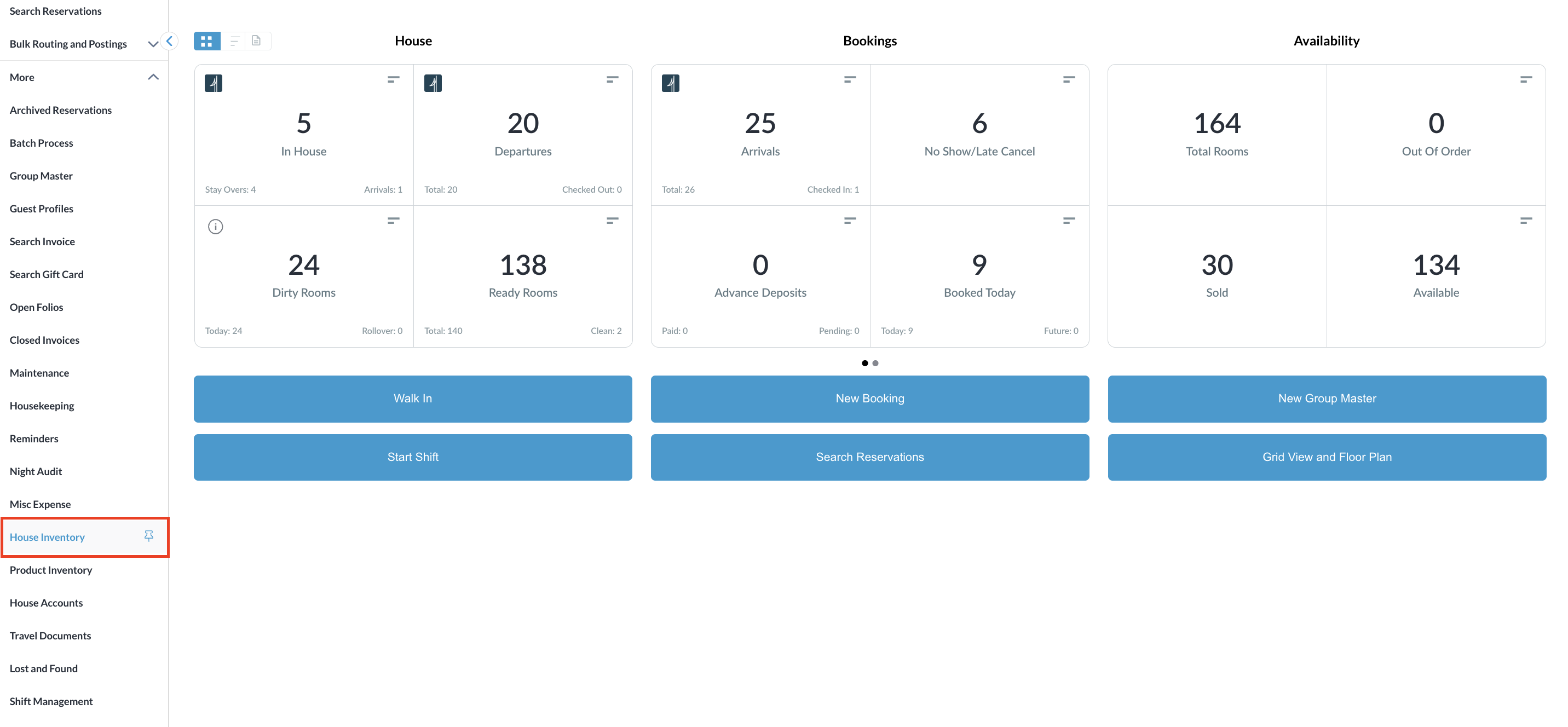
Navigate to Frontdesk Dashboard

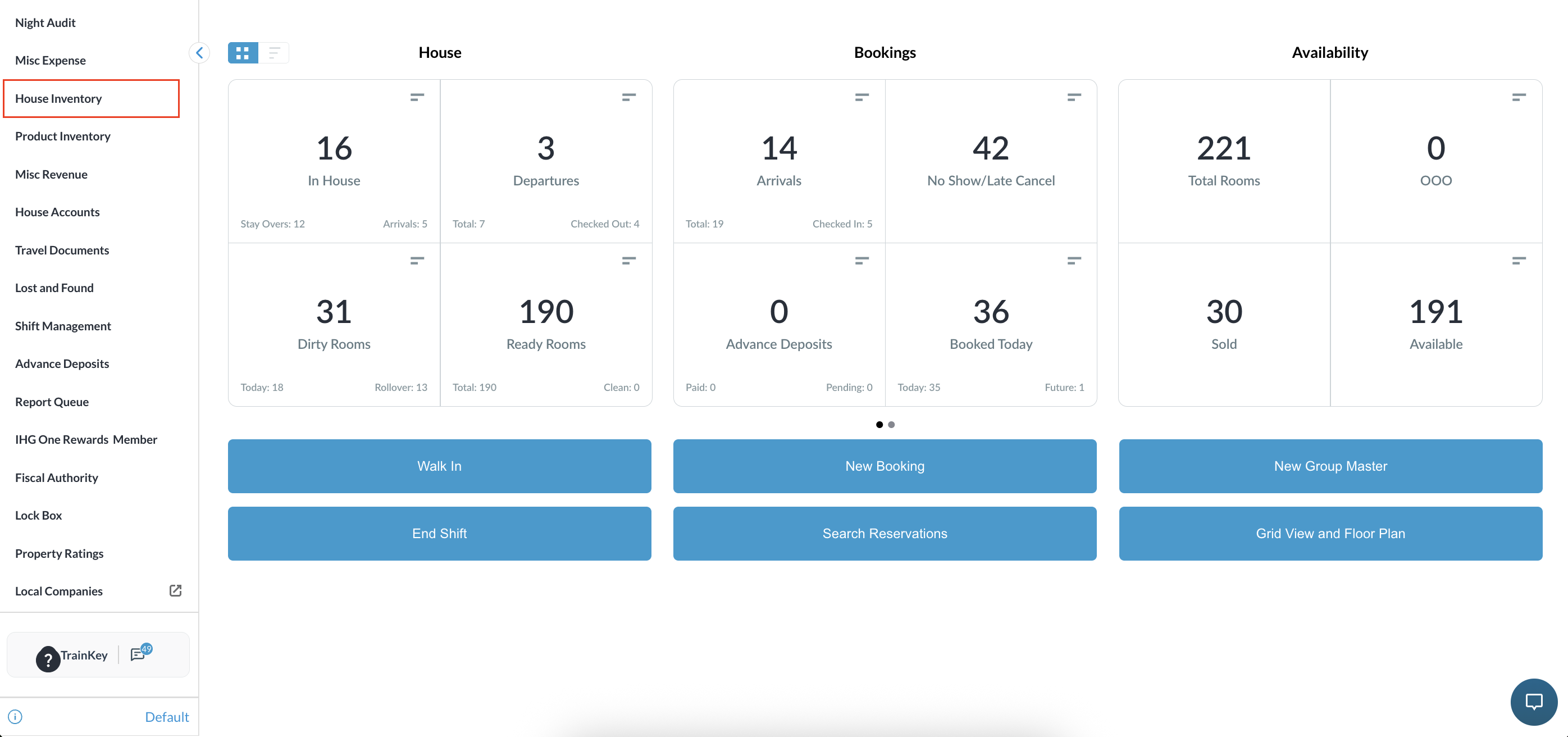
  • Click on More from the left side menu.

  • Open the House Inventory.

Screenshot 2026-05-26 at 5.43.03 PM.png


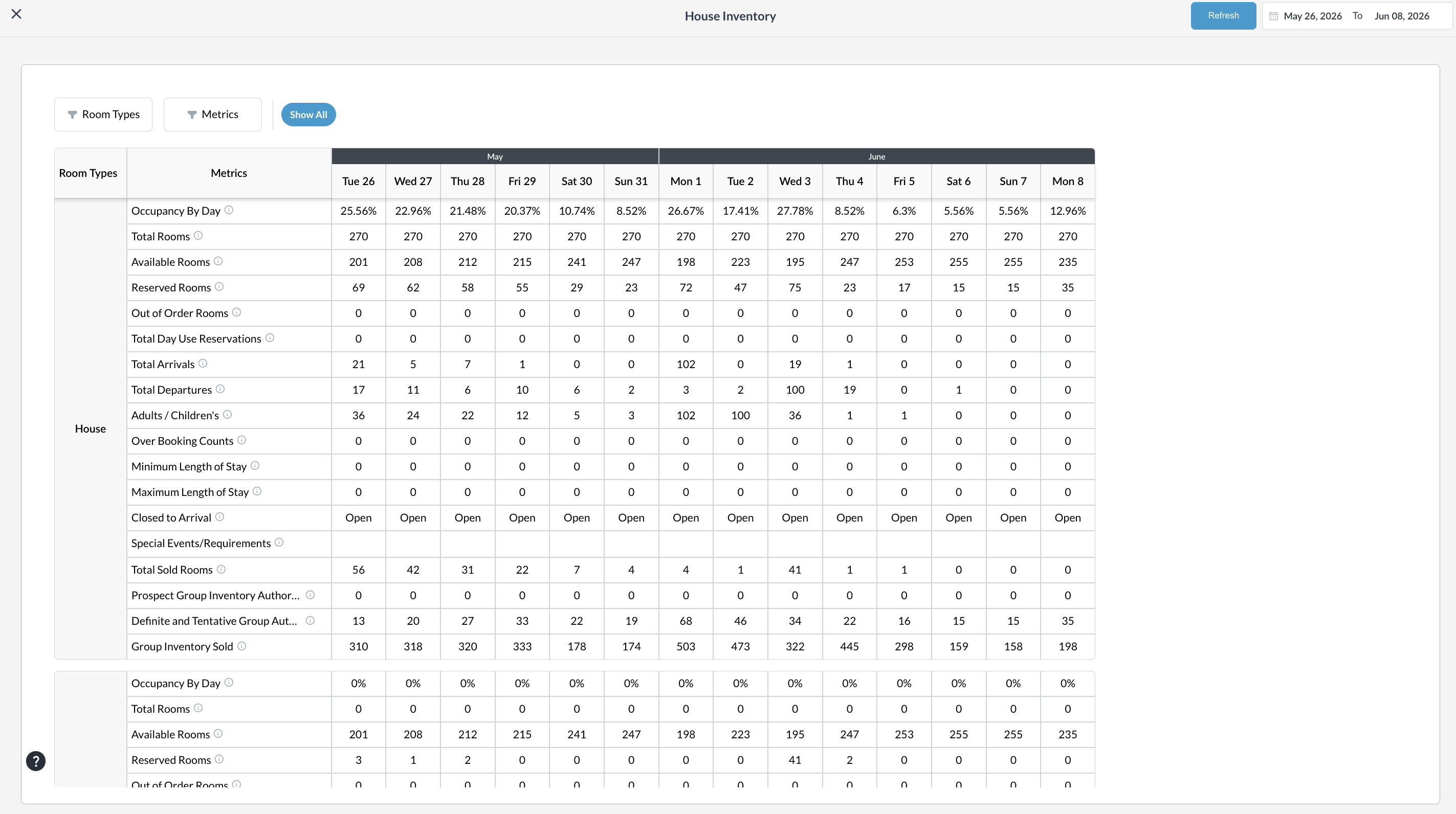
The House Inventory list will open up.

Screenshot 2026-05-27 at 12.08.14 PM.png


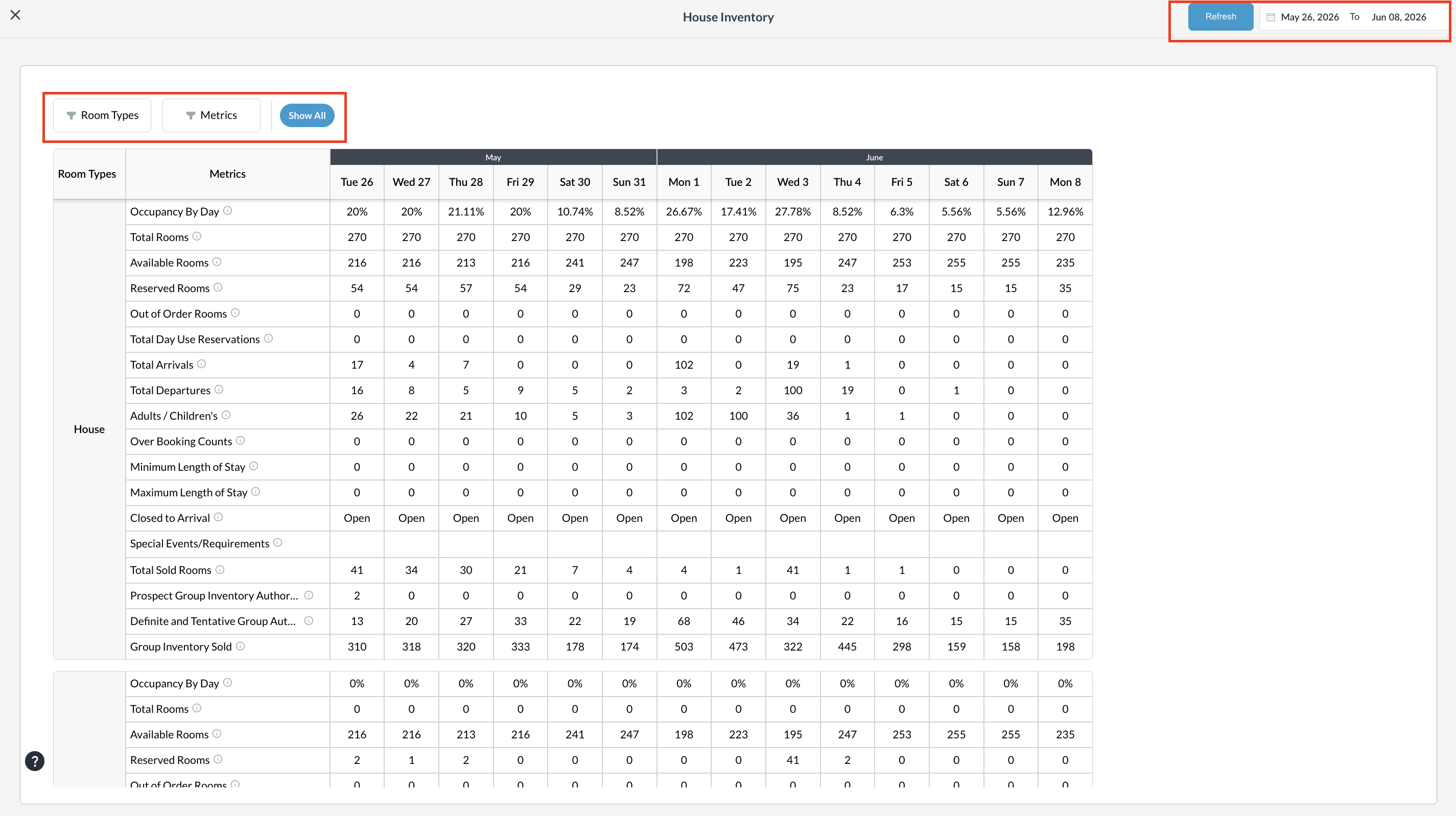
Top Control Section:

  • House Inventory helps hotel staff to monitor Room availability, Occupancy levels, Reservations, Room restrictions, arrival and departures etc., Its mainly helps for Front desk staff, Revenue managers, Reservation teams, Operations managers.

  • Refresh- It pulls the most up-to-date, real-time booking and inventory data from the hotel's system to refresh the screen without reloading the page.

  • Date Range(May 26, 2026 to Jun 08 2026)- Clicking the calendar input box in the top-right corner allows users to change the start and end dates to view past or future inventory matrices.

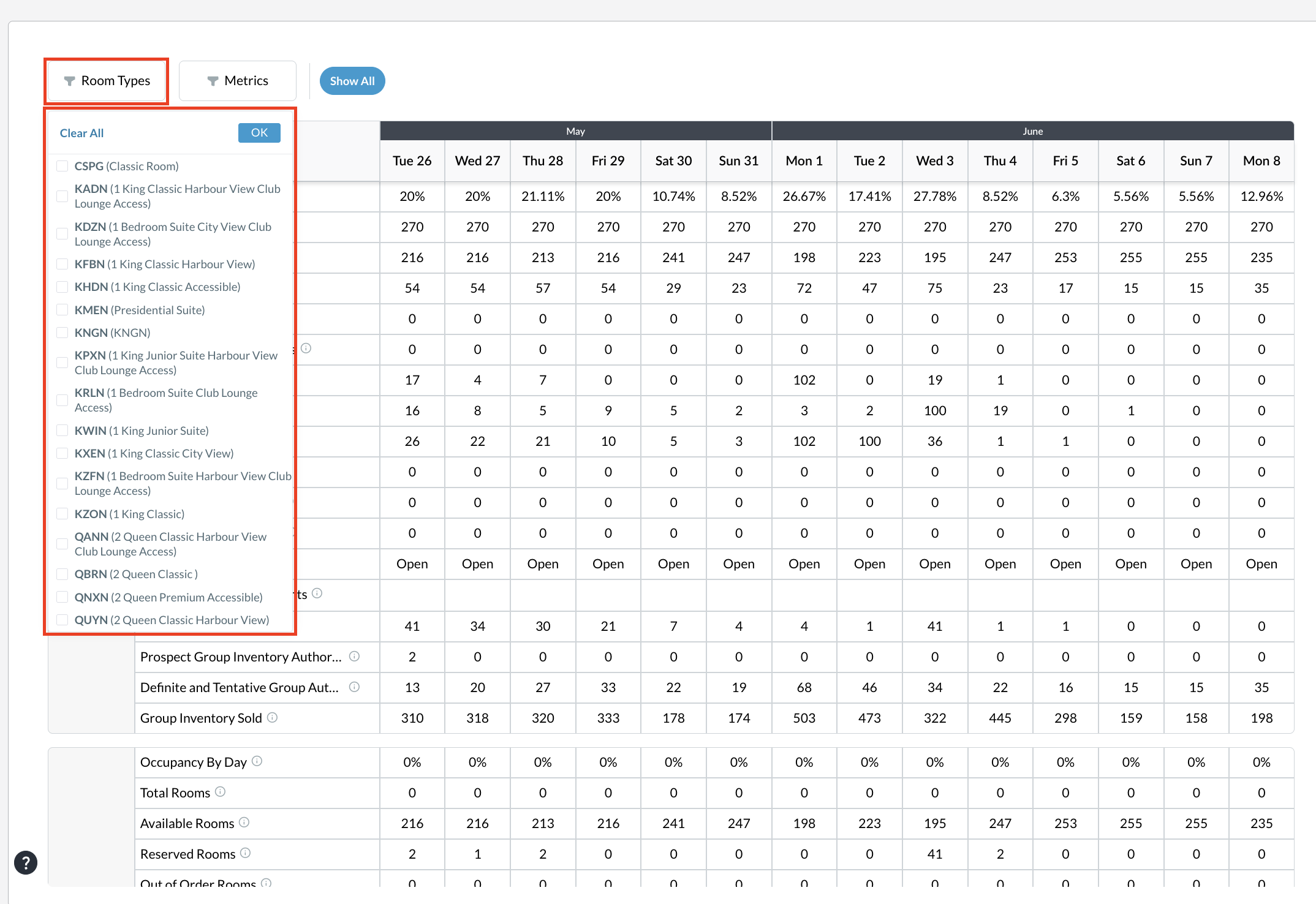
  • Room Type Filter- Clicking the "Room Types" filter button lets users narrow down the table to view metrics for specific room categories (e.g., Deluxe, Suite, King) instead of looking at the entire house inventory.

    • Once the user has made selections for Room Types filter or Metrics filter or both

      • Provide ability to save the selection

      • The selection persists even if the user navigates away and lands back on House Inventory screen

      • The selection is saved across session id i.e selection persists even when user logs out and logs back in

      • If a user changes a metric setting, the new configuration is automatically the new default for that user.

      • Click “Reset” to reset the filter.

  • Metrics Filter- Allows users to customize the view by selecting or hiding specific rows in the matrix to clean up the report.

  • Show All- Instantly clears any applied filters and resets the table to display every available room type and operational metric simultaneously.

Screenshot 2026-05-26 at 5.44.01 PM.png

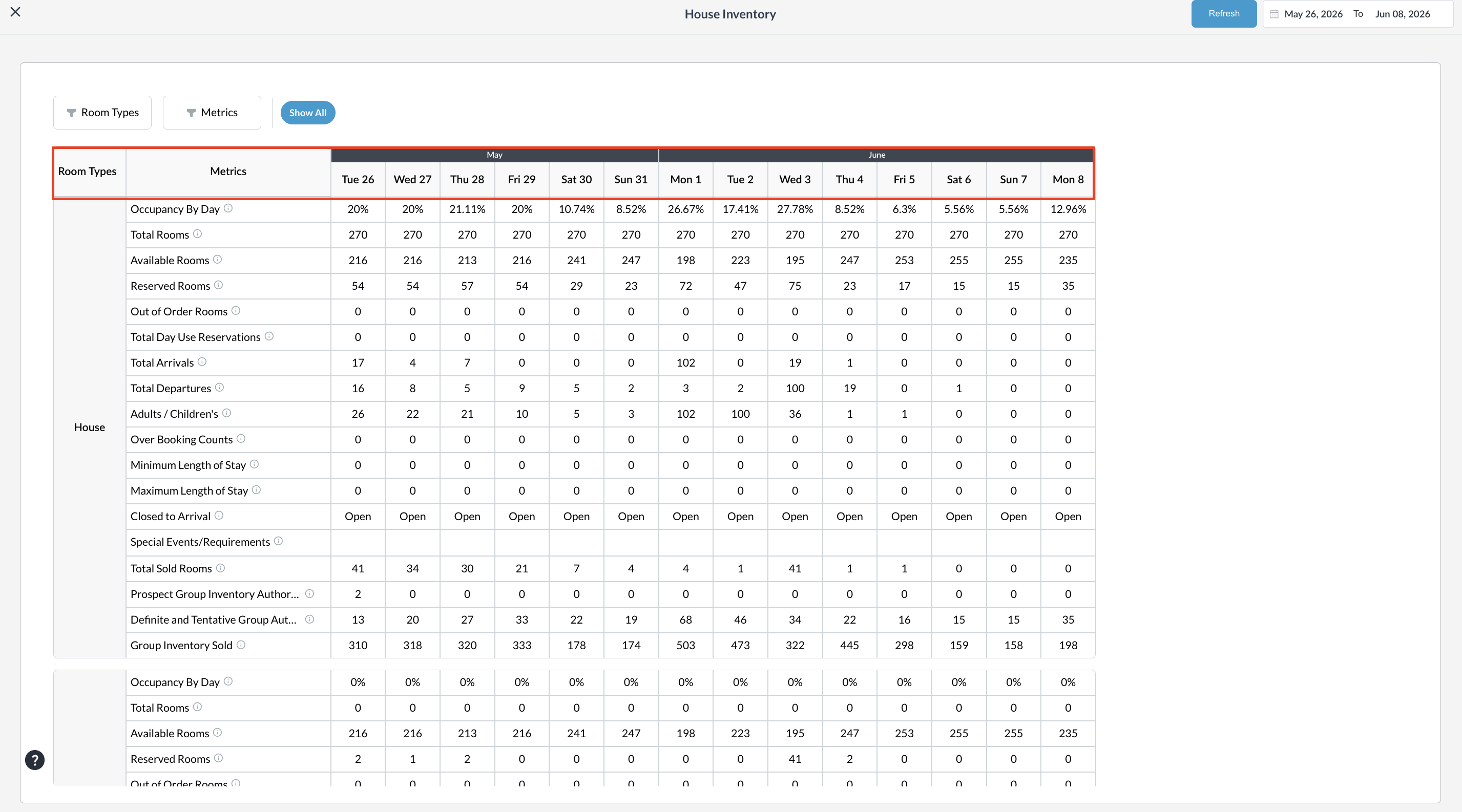
Main Inventory Table Structure:

  • Room Types- Displays hotel-level inventory and room-category-level inventory.

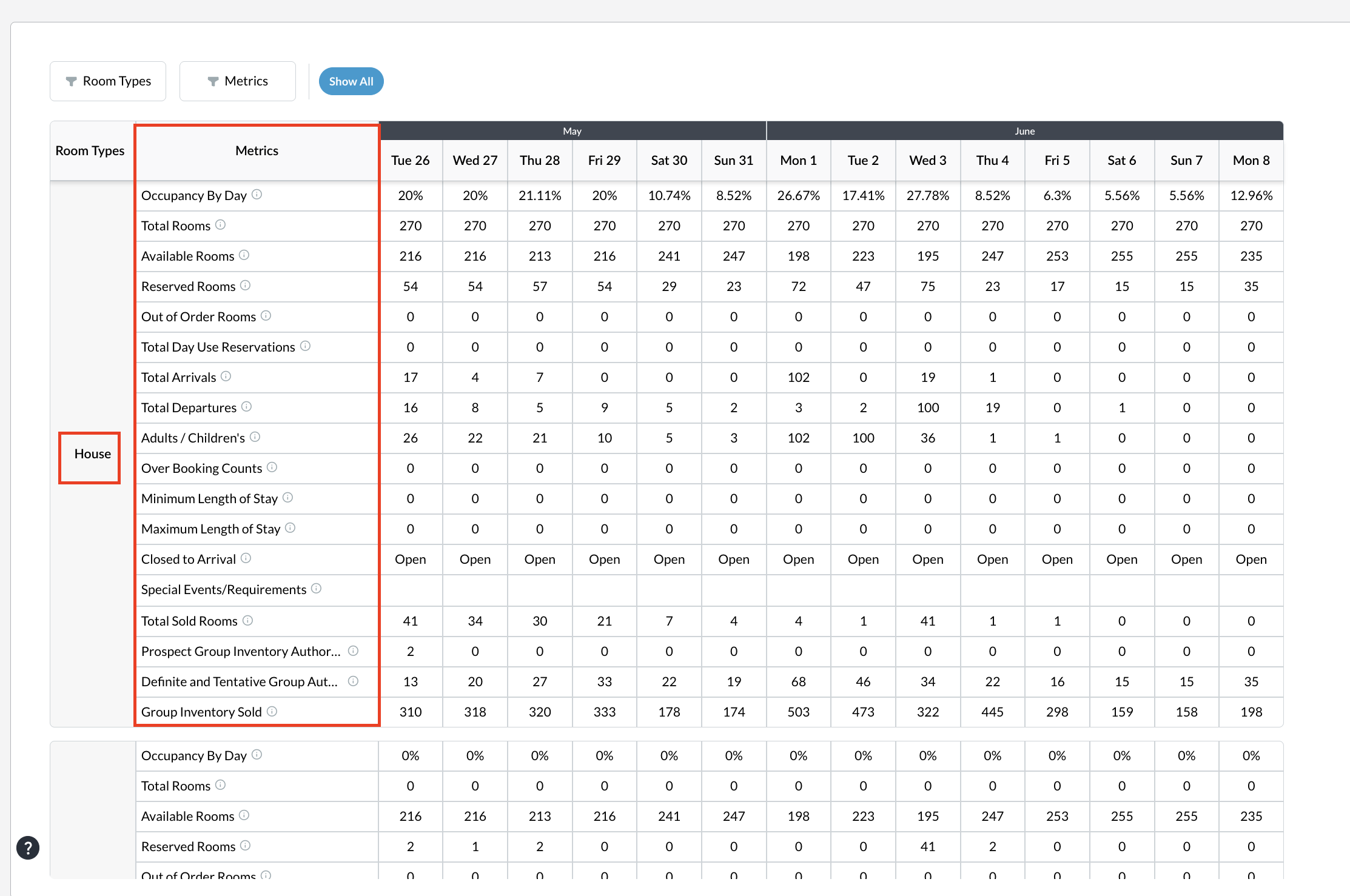
  • Metrics- Lists operational inventory metrics being tracked.

  • Date Columns- Each column represents a specific calendar day.

Screenshot 2026-05-26 at 5.46.24 PM.png


Headings

Description & Screenshots

Room Types

  • Displays hotel-level inventory and room-category-level inventory. For Eg., CSPG(Classical Rooms),KADN, KDZN,KNGN, etc.,).

Screenshot 2026-05-26 at 5.50.00 PM.png


Metrics

  • Lists operational inventory metrics being tracked.

  • Displays the overall room inventory status and availability details for hotel operations and reservation management.


Screenshot 2026-05-26 at 5.48.23 PM.png
  • Occupancy By Day

The percentage of total sellable rooms that are occupied by guests on the selected date range

  • Total Rooms

The physical count of all guest rooms existing in the hotel's property.

  • Available Rooms

The number of rooms left vacant and ready to be sold to guests after subtracting reserved and out-of-order rooms.

  • Reserved Rooms

The total number of rooms that have been successfully booked by individual guests for the selected date range

  • Out of Order Rooms

Rooms temporarily removed from sellable inventory due to maintenance, repairs, or deep cleaning.

  • Total Day Use Reservations

Rooms booked and occupied by guests for only a few hours during the day without an overnight stay.

  • Total Arrivals

The total number of guest reservations scheduled to check into the hotel on the selected date range

  • Total Departures

The total number of occupied rooms scheduled to check out and vacate the property for the selected date range

  • Adults / Children's

The demographic breakdown of the total number of physical guests staying at the property.

  • Over Booking Counts

The number of rooms sold past the hotel's maximum physical capacity, typically allowed to hedge against anticipated cancellations.

  • Minimum Length of Stay

A restriction policy requiring guests to book a baseline minimum number of nights to secure a reservation.

  • Maximum Length of Stay

A restriction policy limiting the maximum consecutive number of nights a guest can book for a single stay.

  • Closed to Arrival

A restriction setting showing "Open" if new check-ins are allowed, or "Closed" if guests cannot start their stay on that day.

  • Special Events/Requirements

A notes section used to flag local holidays, conferences, or high-demand events impacting that date.

  • Total Sold Rooms

The exact count of physical rooms that have been finalized and purchased for the night.

  • Prospect Group Inventory Author

The number of blocked rooms temporarily held on credit or waiting for a contract signature for an inquiring group.

  • Definite and Tentative Group Aut...:

The total room block allocation reserved for confirmed ("Definite") and highly likely ("Tentative") group bookings.

  • Group Inventory Sold:

The actual number of individual rooms within a blocked group allocation that have been picked up and booked by attendees.

GM Hold

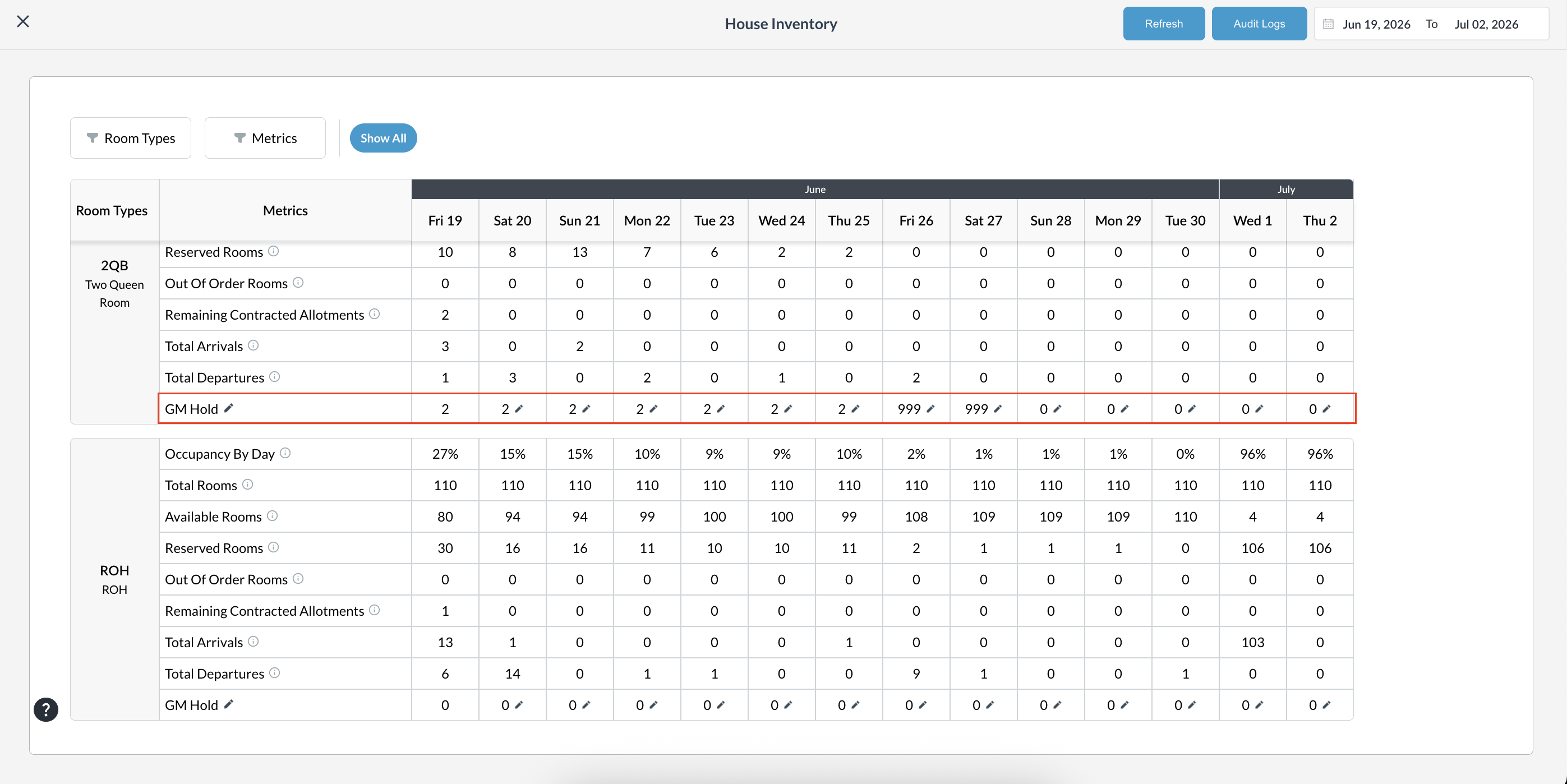
The GM Hold feature allows authorized hotel staff to reserve or "hold" a specific number of rooms under the General Manager's authority directly from the Front Desk. This feature provides a streamlined way to view and manage room holds for any room type, whether blocking rooms for a single night or across multiple days

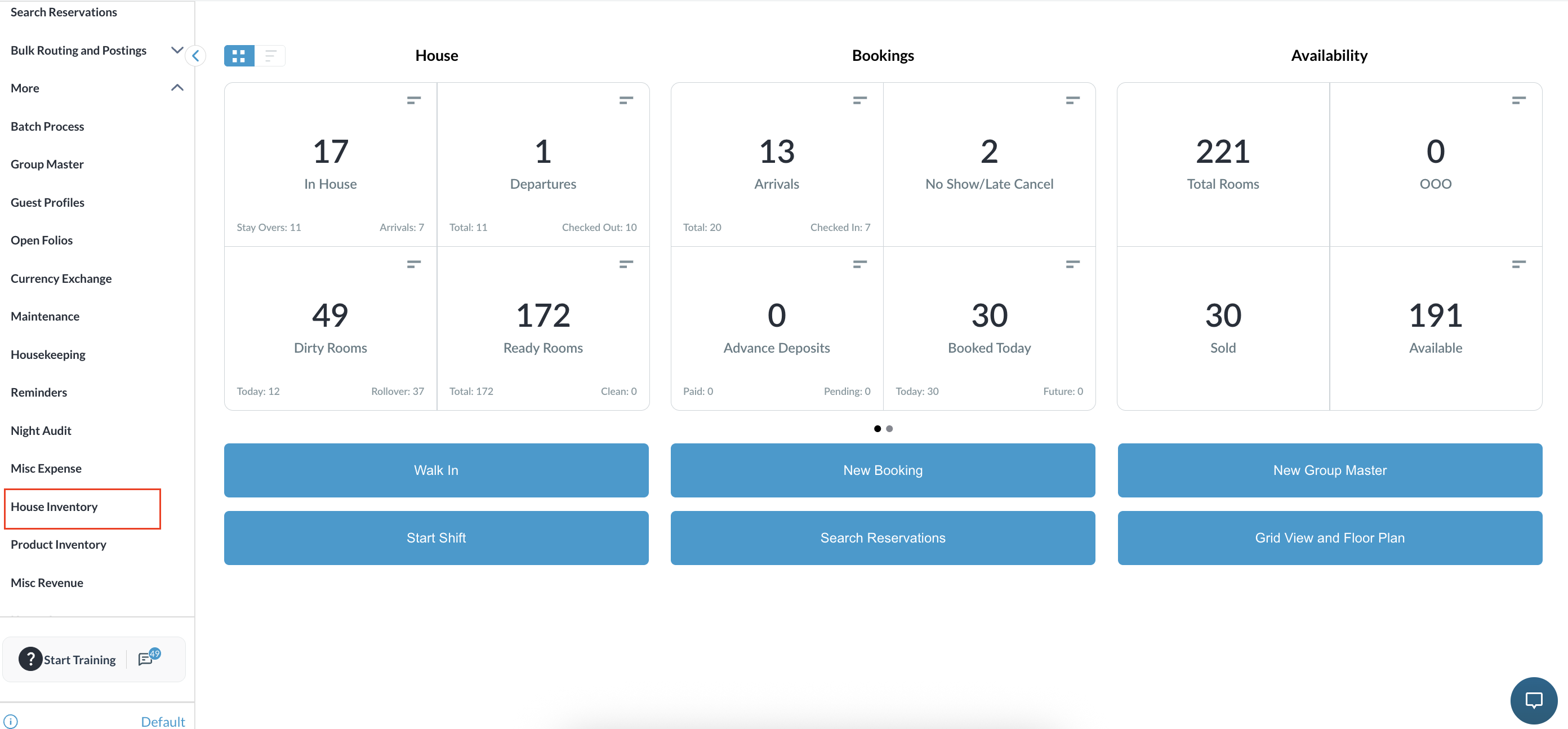
Navigate to the Frontdesk Dashboard
Click on More from the left side menu and select House Inventory

Screenshot 2026-06-19 at 20.53.19.png

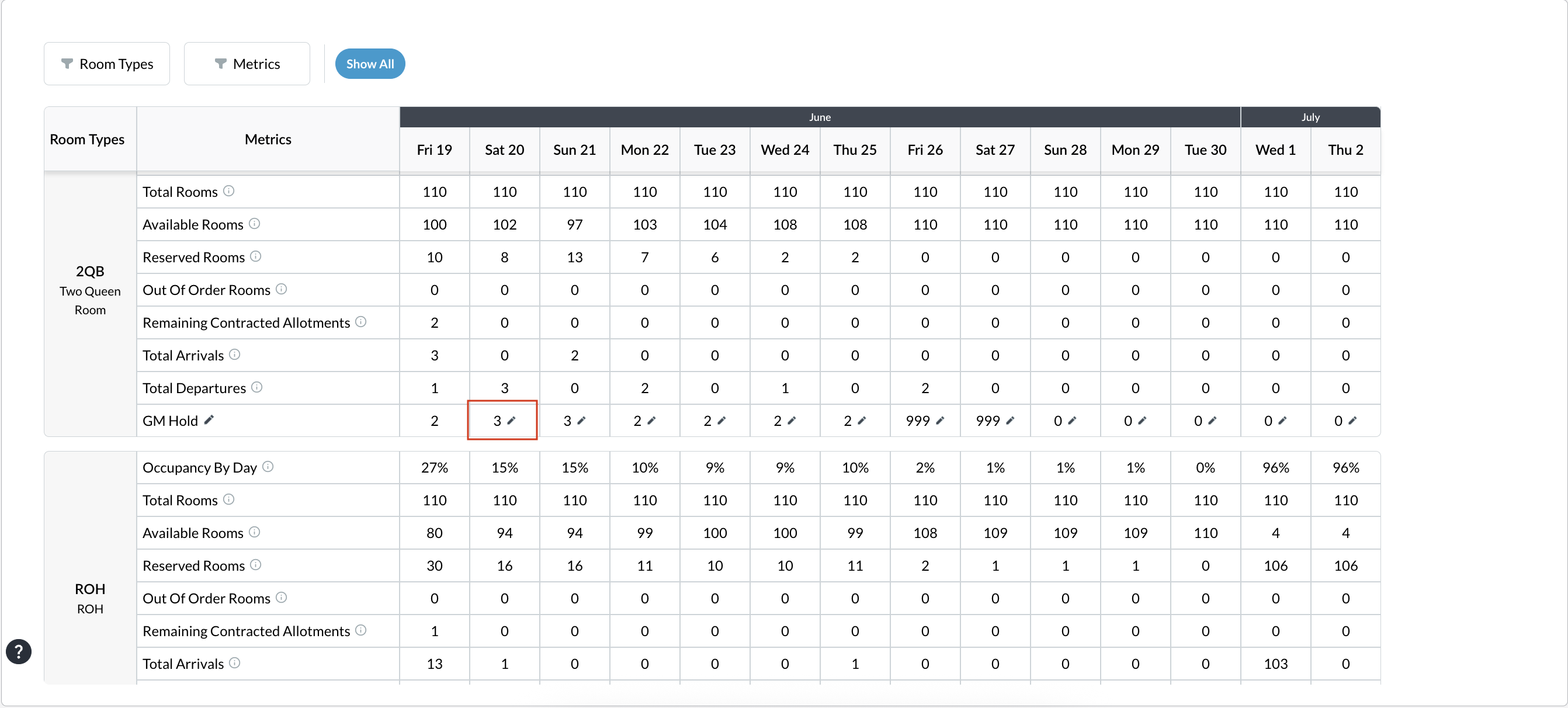
Locate the desired date in the House Inventory grid.

Dates can be selected up to 30 days from the Current Business Date (CBD).

Screenshot 2026-06-22 at 19.04.14.png


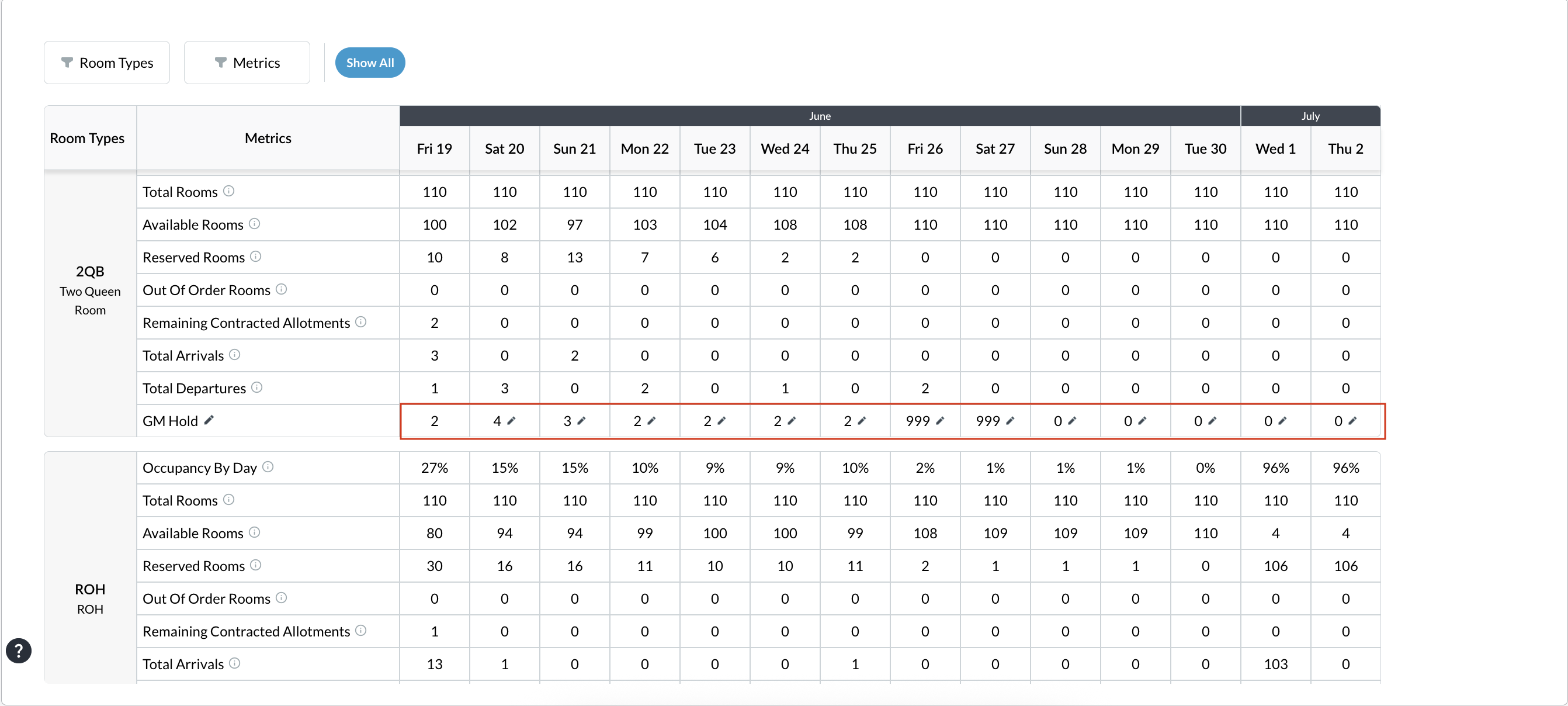
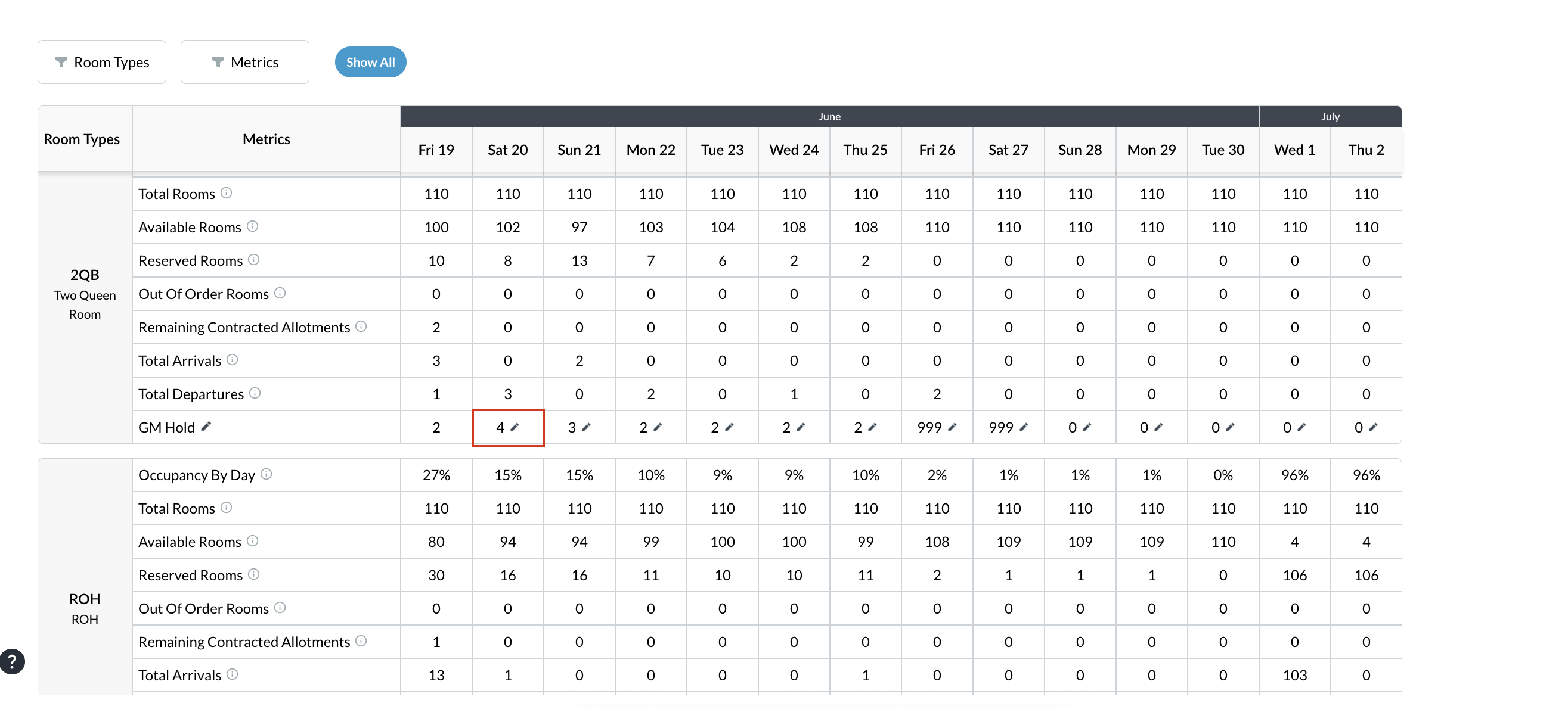
Scroll to the desired room type. The GM Hold row at the bottom displays the current hold count for each date.

Screenshot 2026-06-19 at 21.23.03.png

Apply a GM Hold for Multiple Dates (Bulk Action)
Locate the GM Hold row for the required room type.
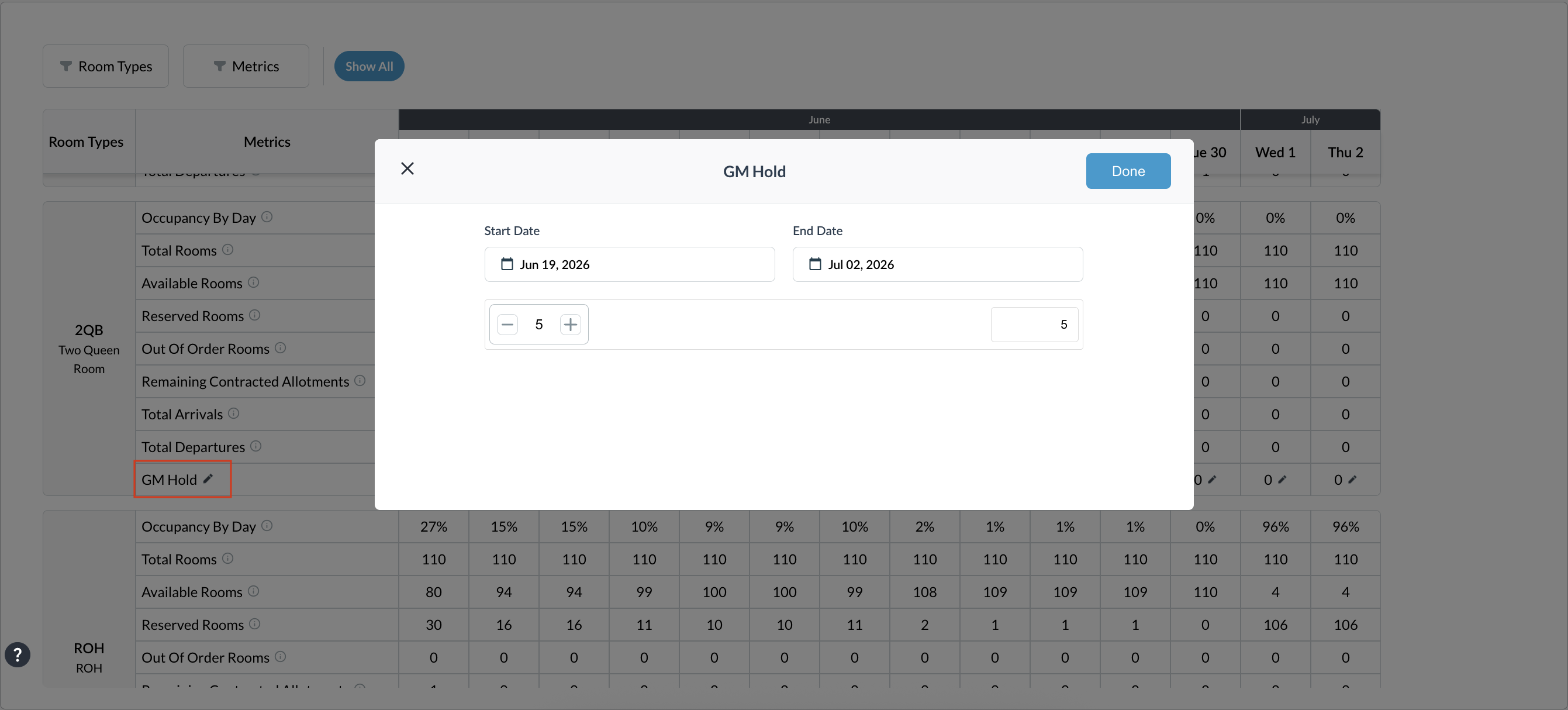
Click the Edit (Pencil) icon next to GM Hold.

Screenshot 2026-06-19 at 22.06.00.png

Select the Start Date and End Date.

Use the + and – controls to specify the number of rooms to hold.

Note: The system prevents users from holding more rooms than the available inventory.

Screenshot 2026-06-19 at 22.13.56.png

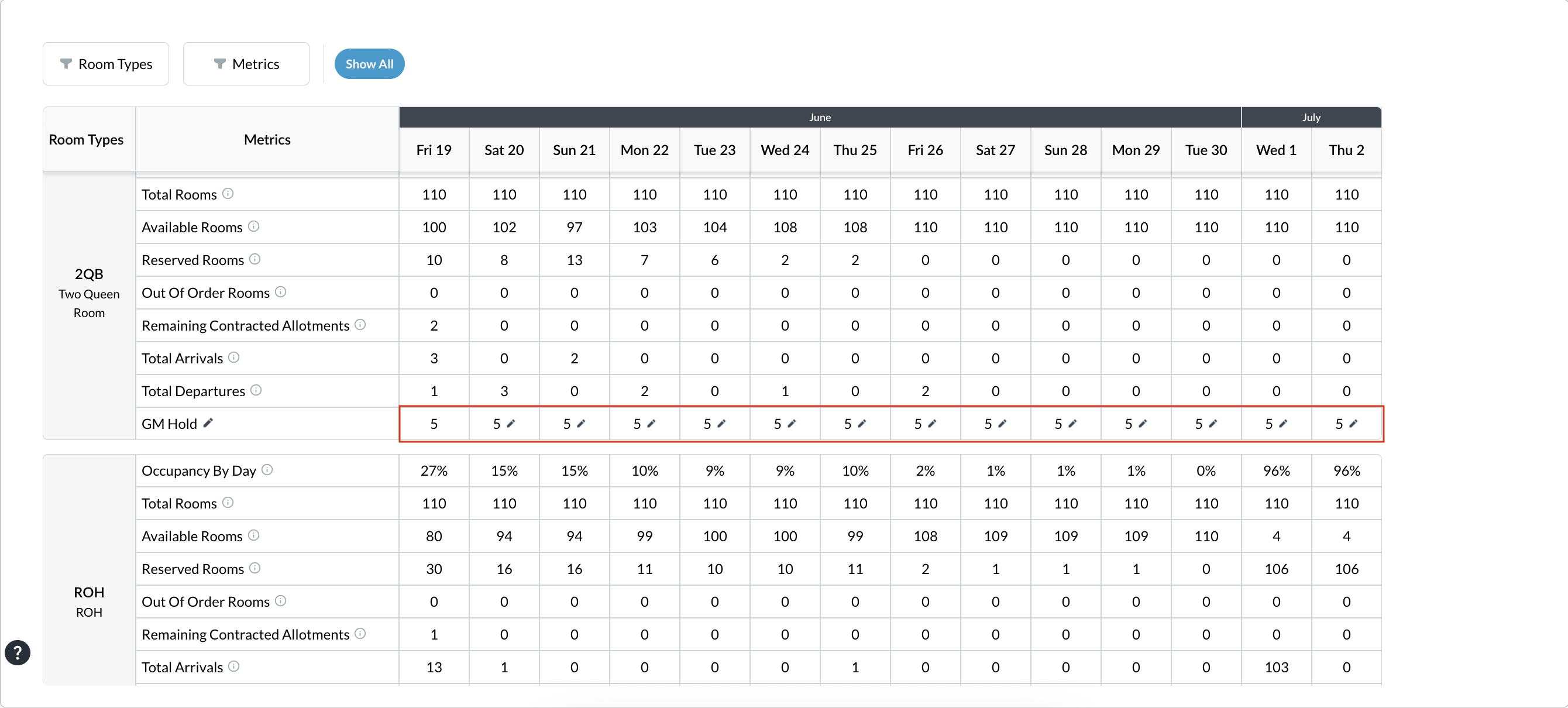
Click Done.

A success message confirms that the GM Hold has been applied.

Screenshot 2026-06-19 at 22.14.19.png

Apply a GM Hold for a Single Date

Locate the required room type and date in the inventory grid.
Click the Edit (pencil) icon specifically on that date's cell.


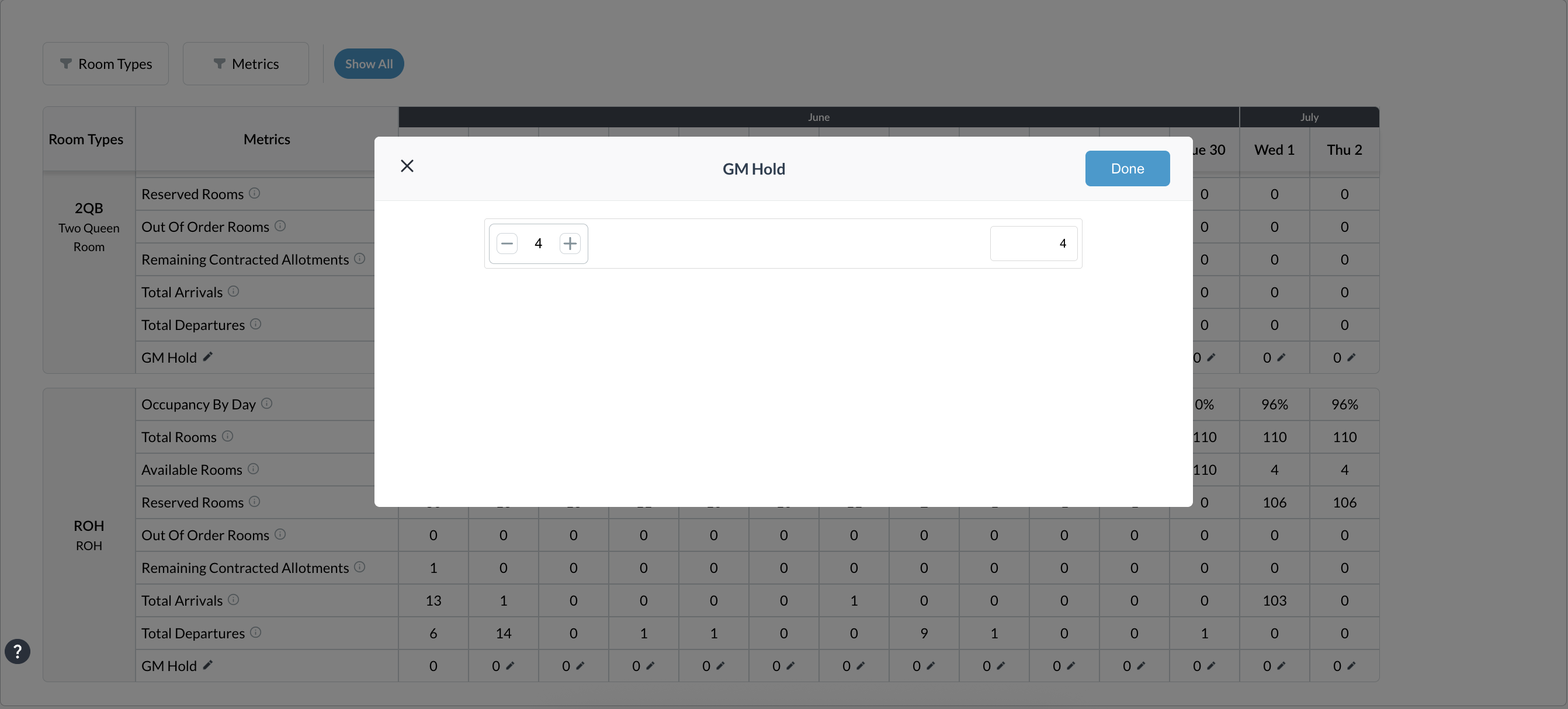
A smaller popup will appear. Use the + and -buttons to adjust the hold count for that single night.

Click Done to save.


A success message confirms that the GM Hold has been applied.

Screenshot 2026-06-19 at 22.03.37.png
Screenshot 2026-06-19 at 22.05.38.png
Screenshot 2026-06-20 at 00.00.53.png


⚠️ Important Restrictions to Note

  • Current Day Edits: You can only edit holds for the current day if the current time is before your hotel's configured daily cutoff time. Once the cutoff passes, the edit icon will disappear.

  • Zero Availability: If a room type is entirely sold out and has no existing GM Holds, the edit icon will be hidden, preventing you from overbooking the hotel.

Managing Inventory Restrictions (Open & Close Inventory)

Navigate to the Frontdesk Dashboard

Click on More from the left side menu and select House Inventory


Screenshot 2026-06-22 at 18.36.31.png

Locate the desired date in the House Inventory grid.

Dates can be selected up to 30 days from the Current Business Date (CBD).

Screenshot 2026-06-22 at 18.39.25.png

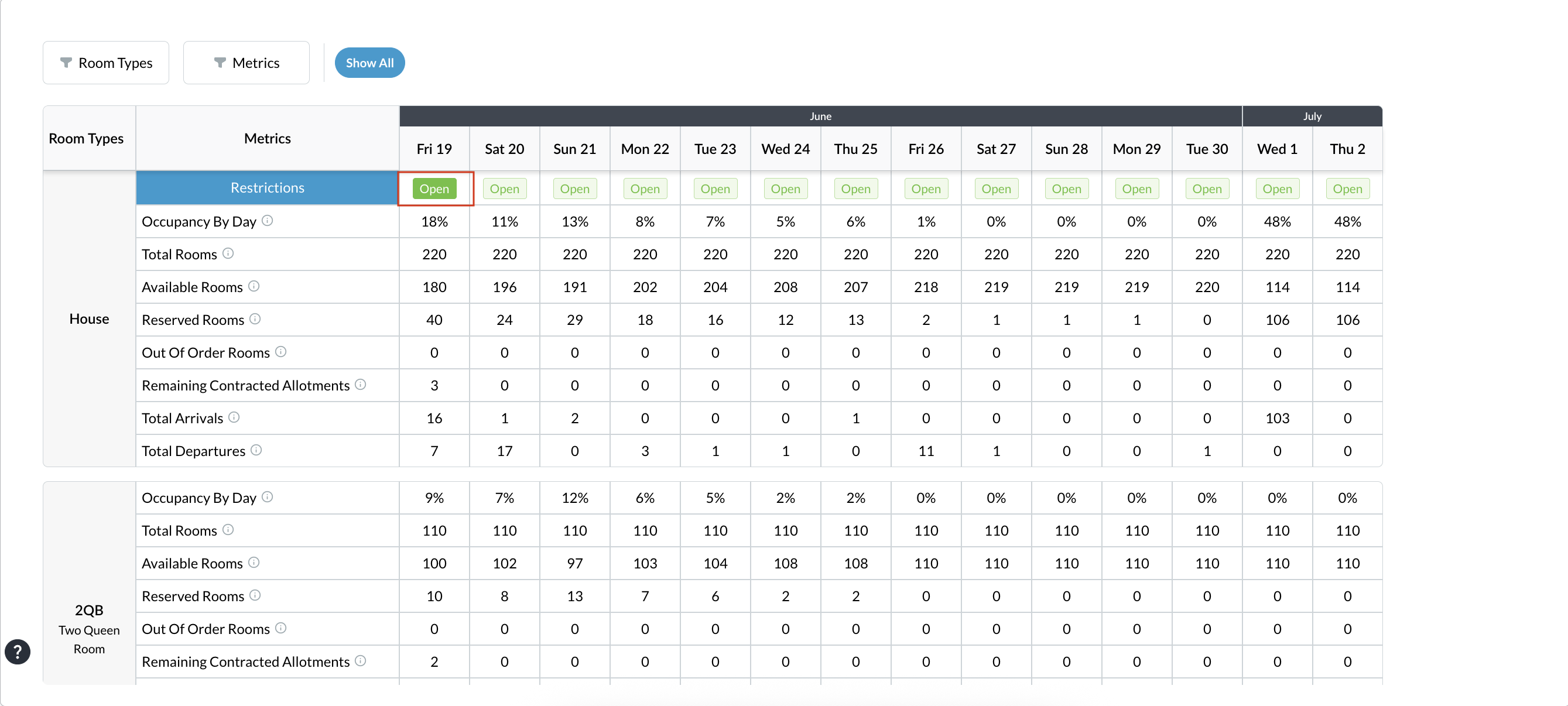
Adjust the inventory status as needed:

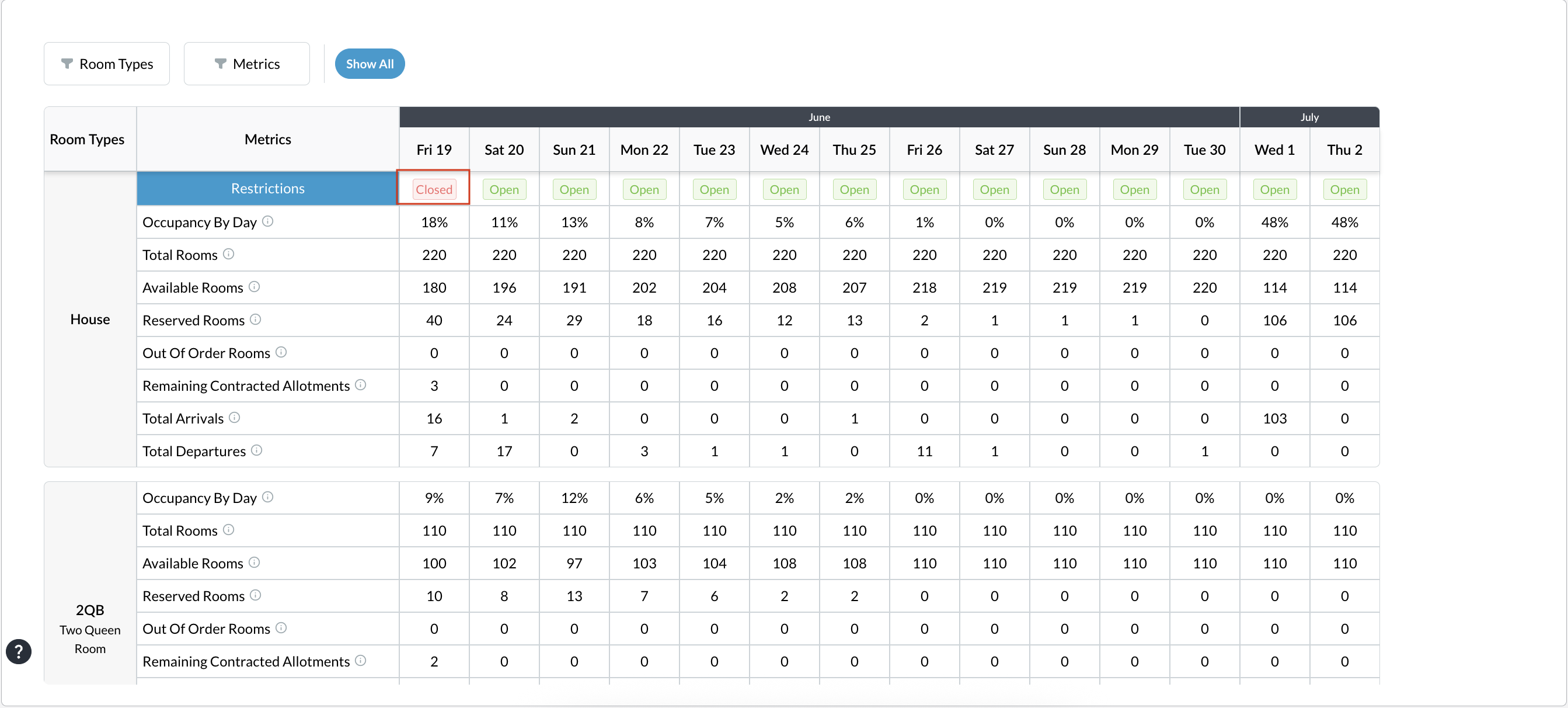
  • To stop sales: If the inventory is currently Open, click on Open to apply a Close action. This restricts the rooms and stops further sales.

  • To resume sales: If the inventory is currently Closed, click on Closed to apply an Open action. This reverses the restriction and makes rooms available for sale again.

    The system will immediately update to reflect the new restriction status across the property.

Screenshot 2026-06-19 at 22.14.50.png
Screenshot 2026-06-19 at 22.15.18.png

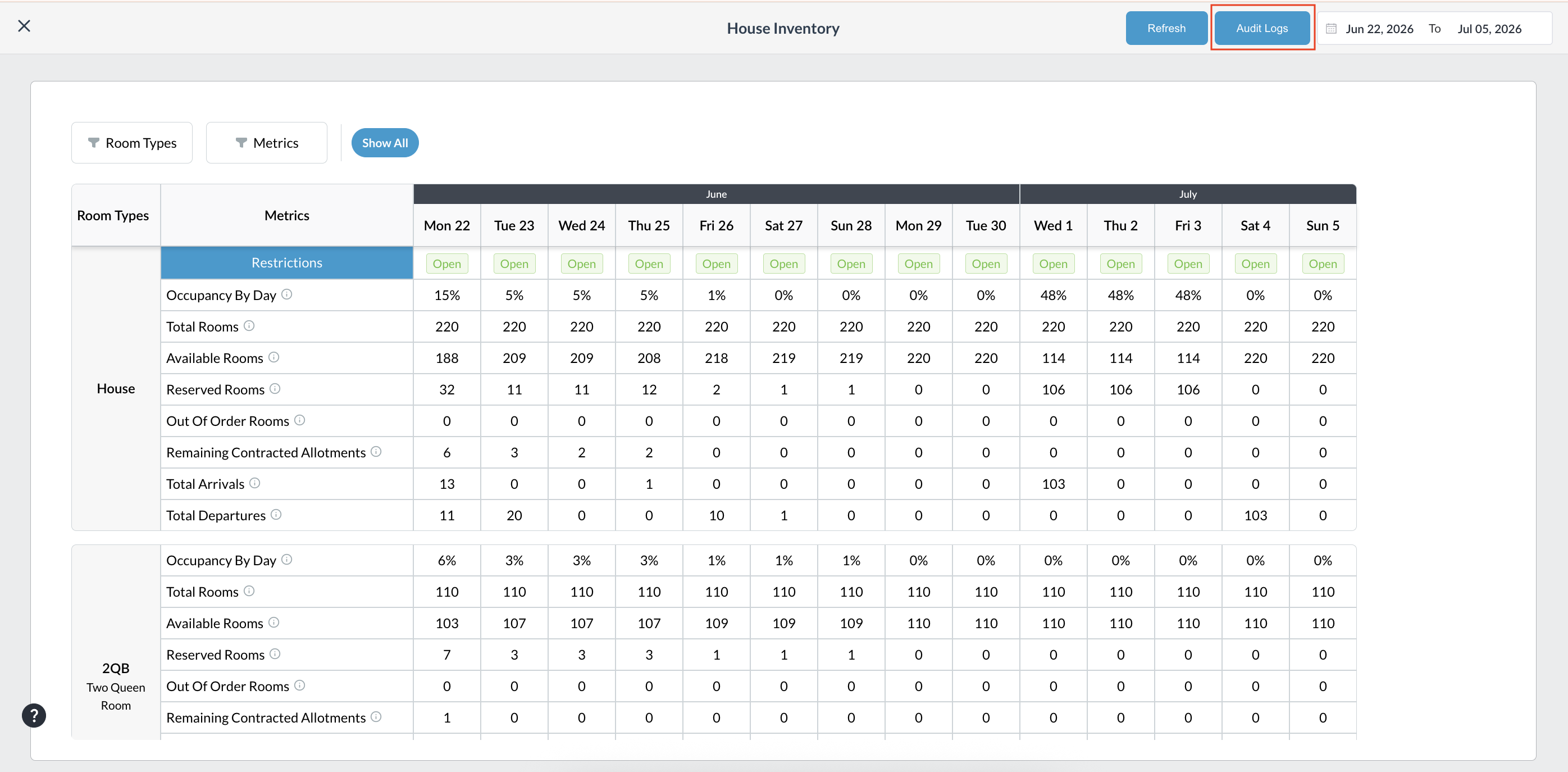
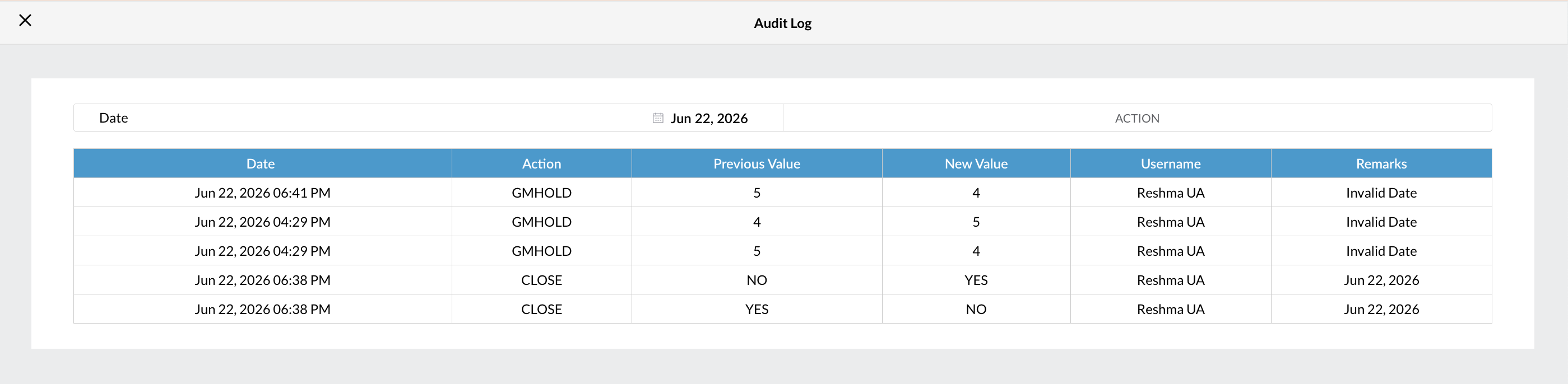
Click on Audit Log to view a record of the applied changes.

Screenshot 2026-06-22 at 18.39.41.png
Screenshot 2026-06-22 at 18.42.33.png