
Revision Date:
A Travel Agent represents a travel agency or intermediary that books reservations on behalf of guests. Travel Agent records are centrally maintained in the system and can be associated with reservations to identify the booking source.Travel Agent records are created and maintained by the property's admin team in the system configuration. If a front desk user cannot find a travel agent during a search, they should contact their property administrator to have the record added to the system.
Use Cases
-
Track Reservation Sources – Identify which travel agency made a reservation and monitor agency business.
-
Support Commission Management – Link reservations to the correct travel agent for commission calculation and reporting.
-
Simplify Reservation Lookup – Search and sort reservations by travel agent to find agency bookings quickly.
Travel Agent Search by Name and Code
The travel agent search feature enables users to find and attach travel agents by Travel Agent Name or Travel Agent Code (IATA Number) during reservation creation and management. An IATA (International Air Transport Association) number uniquely identifies a travel agency and tracks bookings made through it.
Attach a Travel Agent During Reservation Creation
|
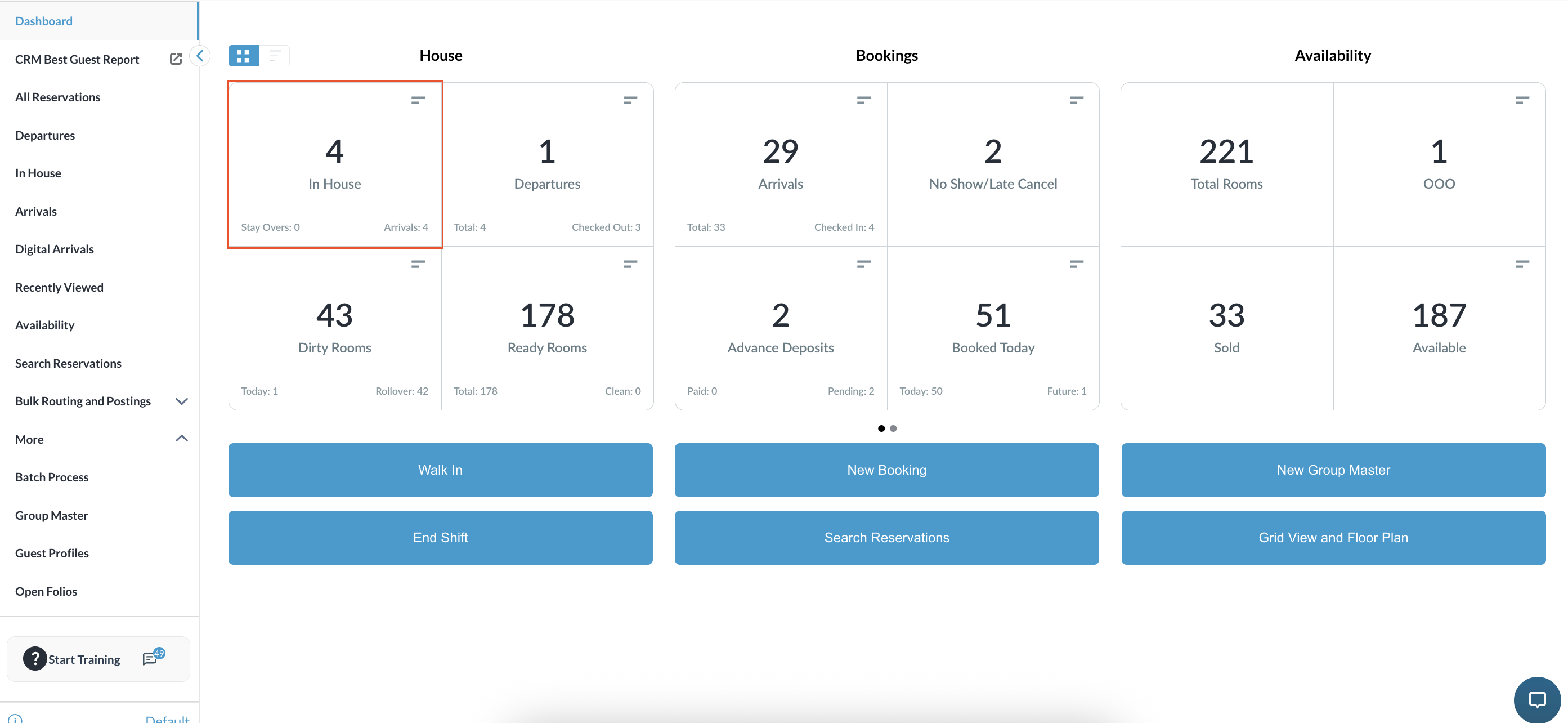
Navigate to the Frontdesk Dashboard
|
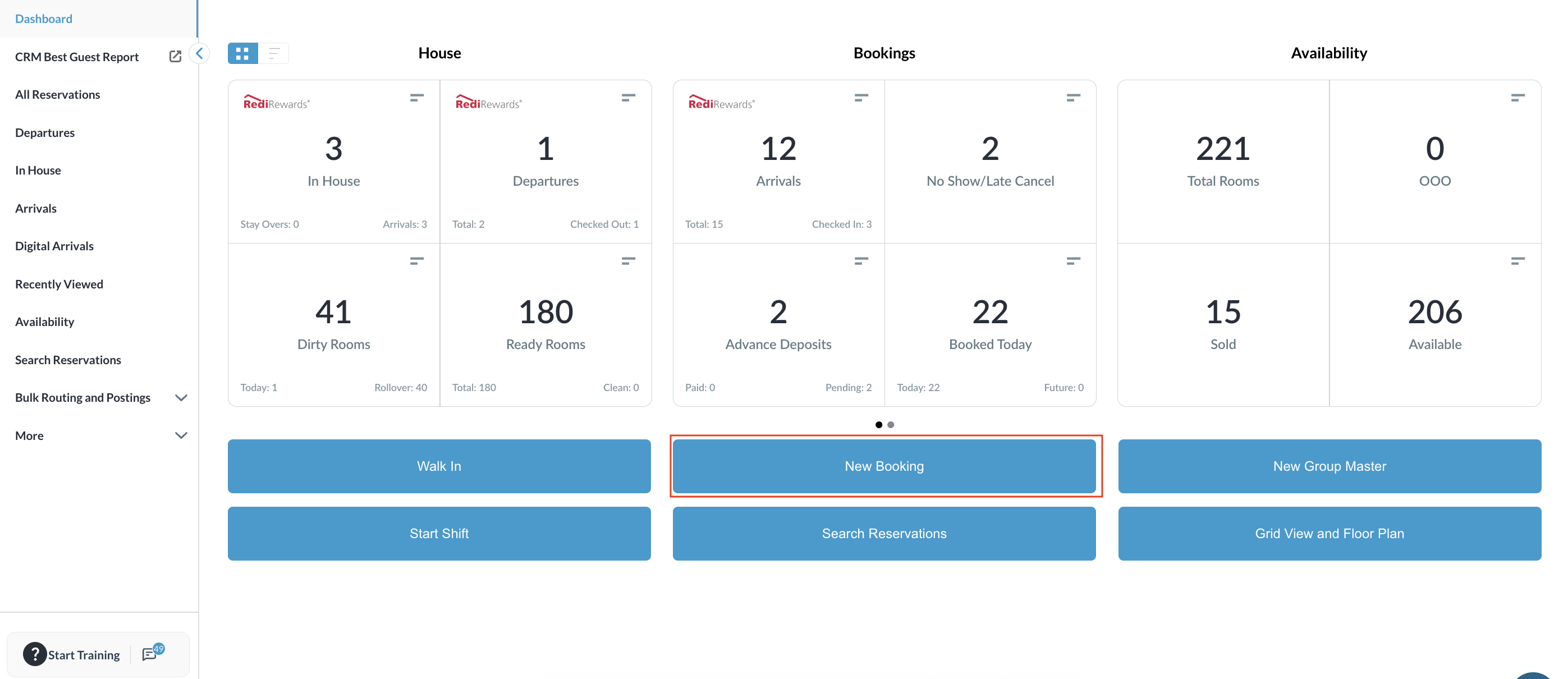
|
|
On the Stay Information screen (Step 1 of the New Booking flow), enter all required stay details.
|
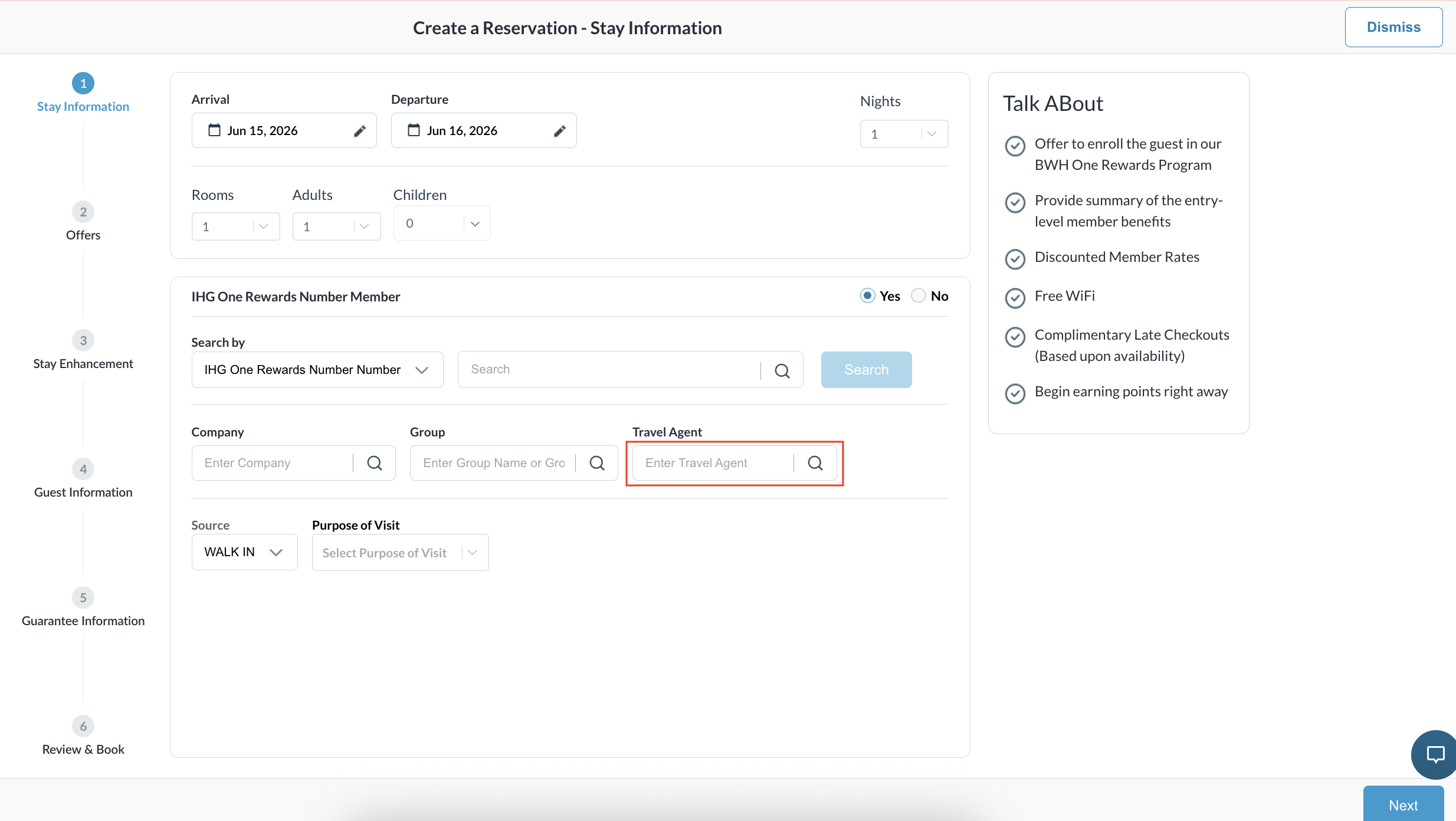
|
|
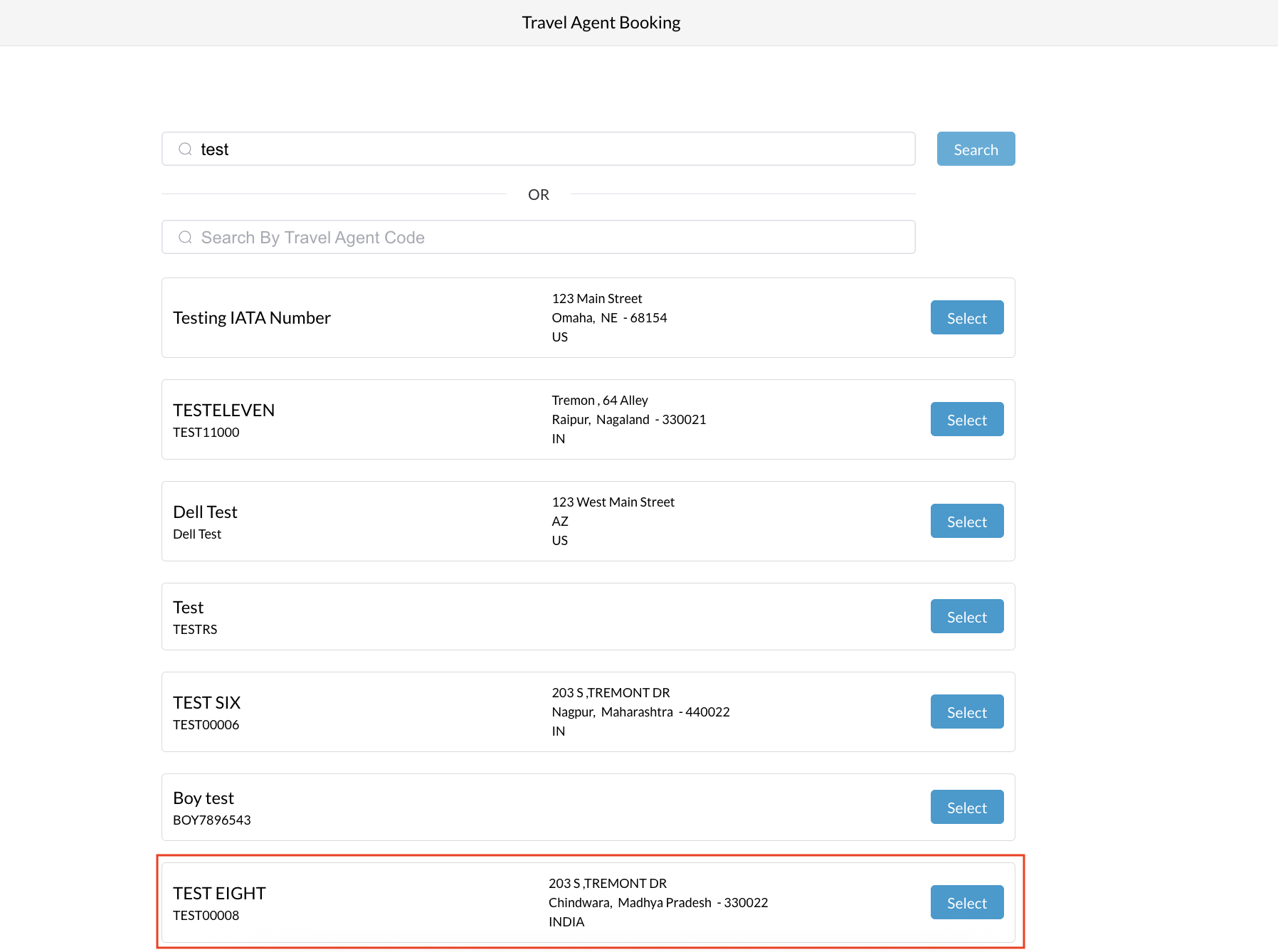
The Travel Agent window will appear. search for the desired agency via Name or Code.
|
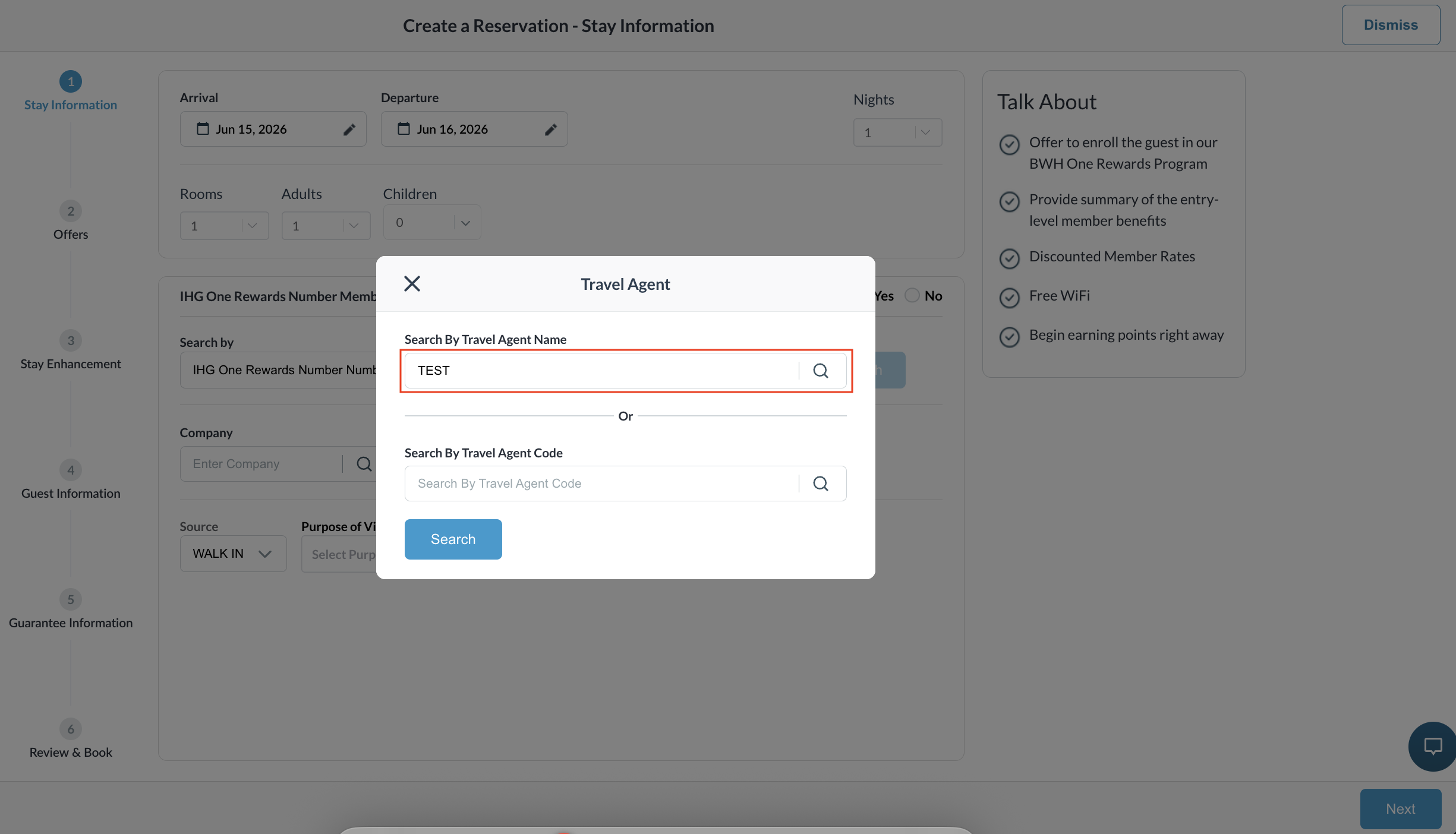
|
|
Select the correct Travel agent from the populated results.
|
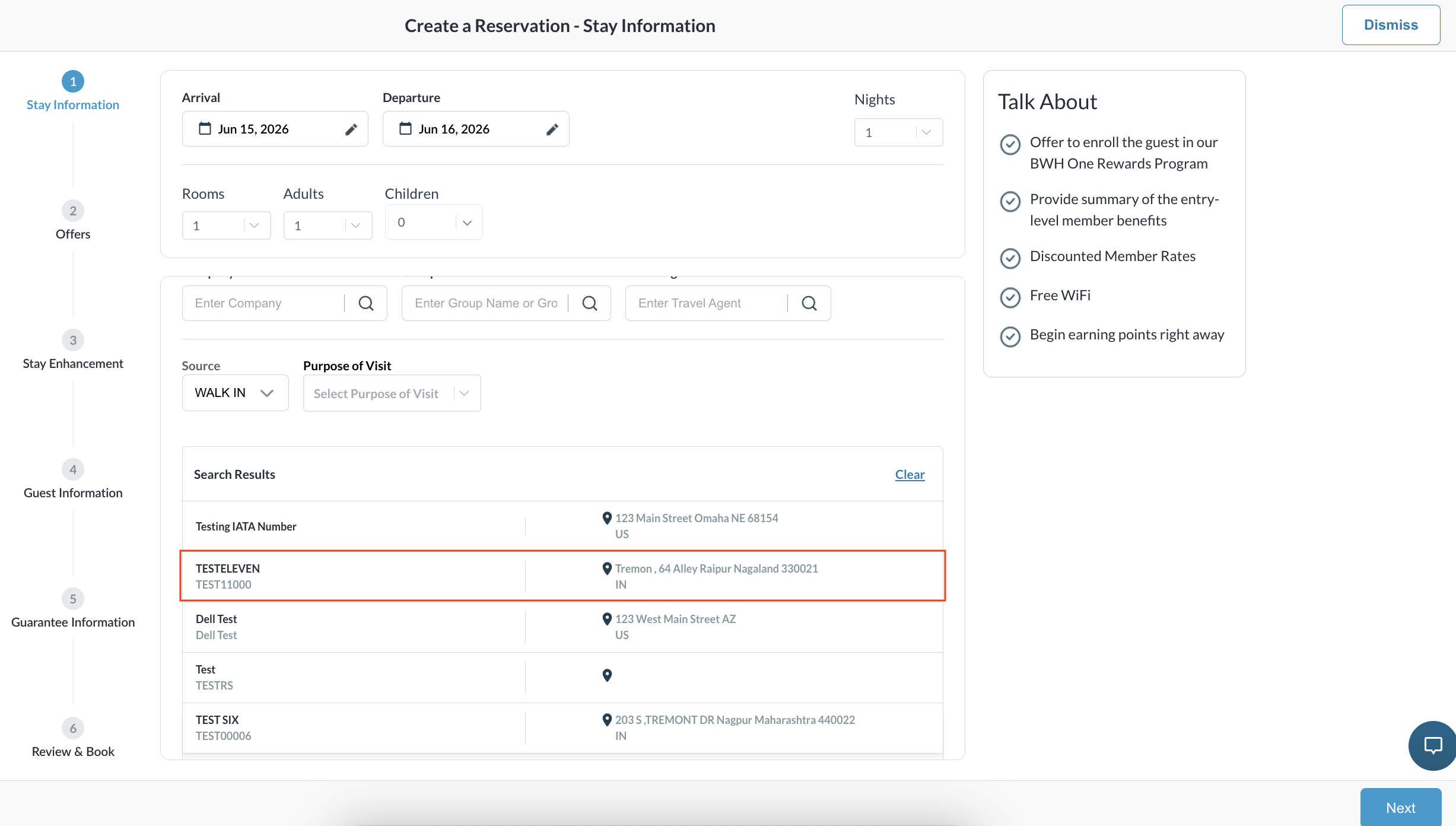
|
Remove a Travel Agent During Reservation Creation
|
To remove an incorrectly attached travel agent during the booking flow, click the Remove link displayed next to the Travel Agent name on the Stay Information screen.
|
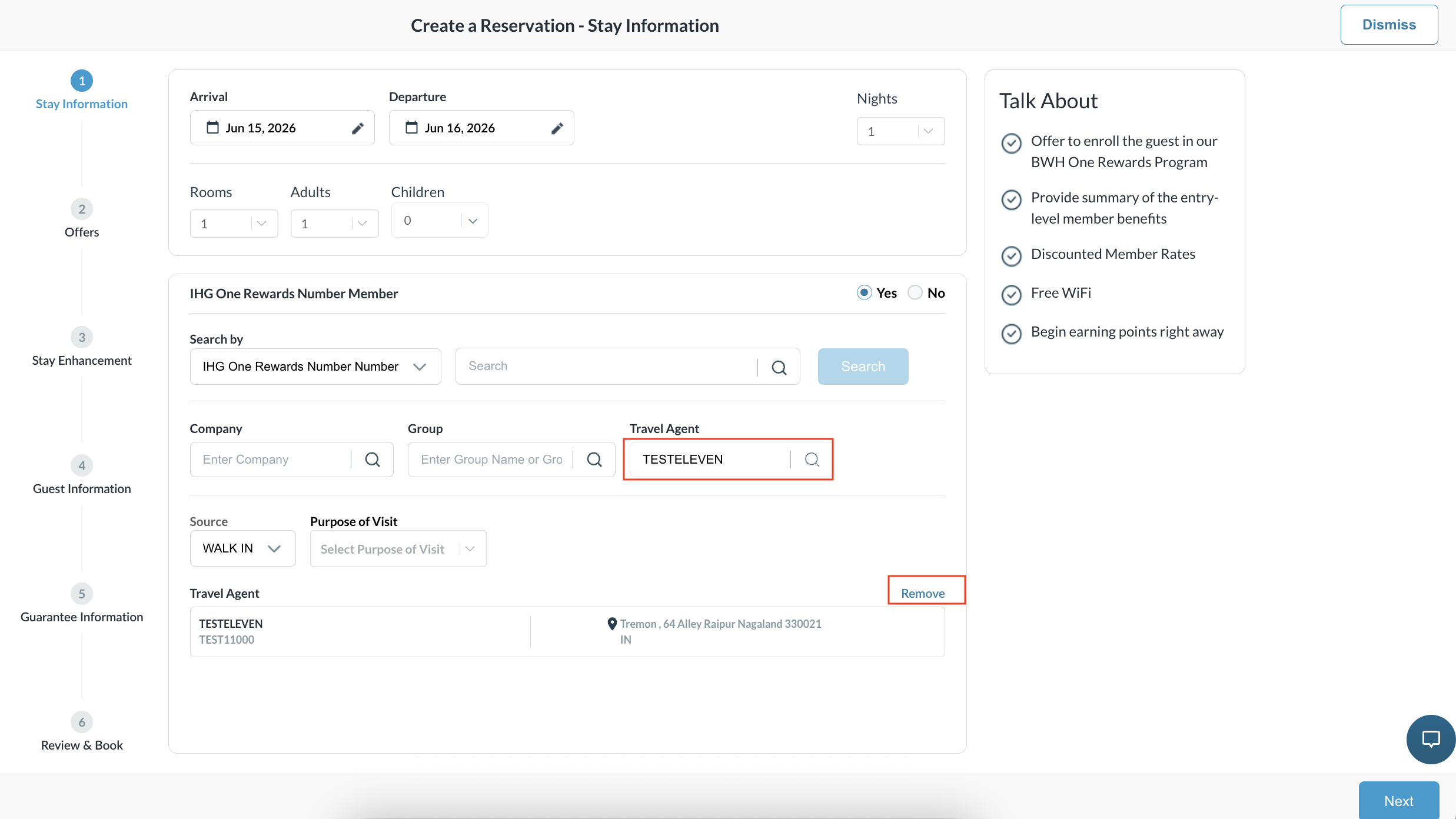
|
|
A confirmation popup will appear.
|
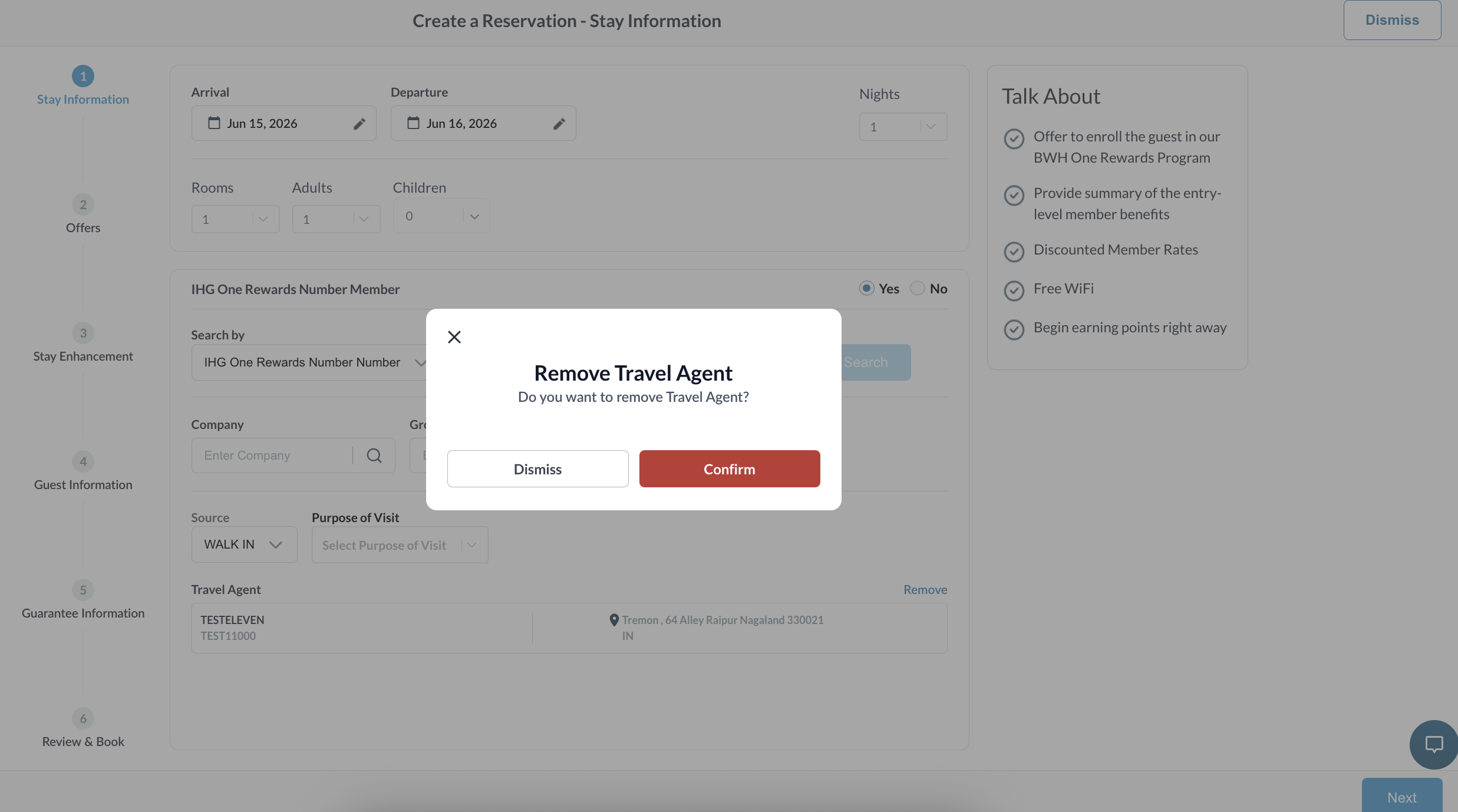
|
Attach a Travel Agent to an Existing Reservation
Applicable Reservation Statuses: Booked, In-House, Departed, No-Show and Cancelled
|
Navigate to the Dashboard > In House
|
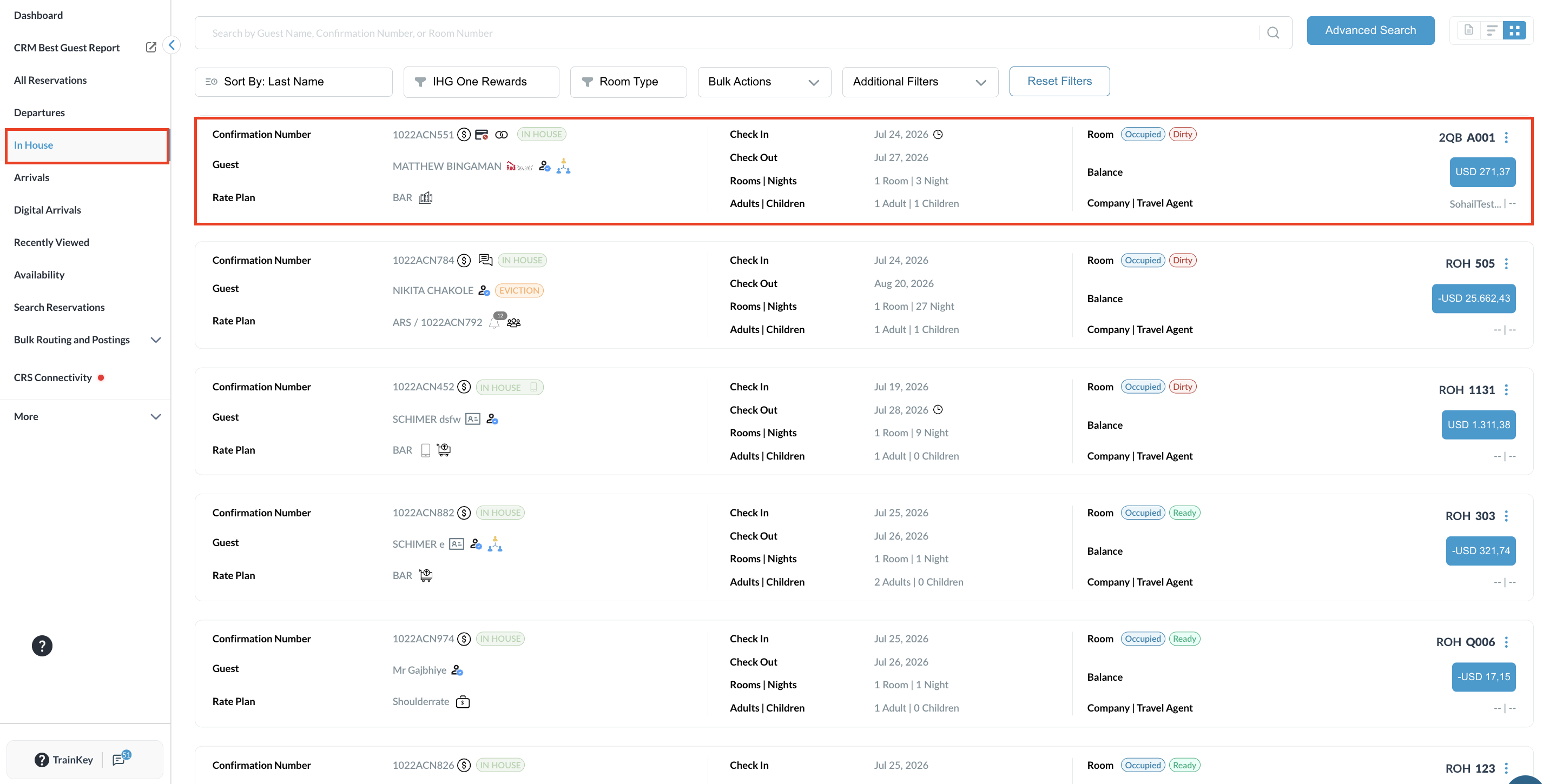
|
|
Open any applicable reservation and navigate to the Guest Tab. |
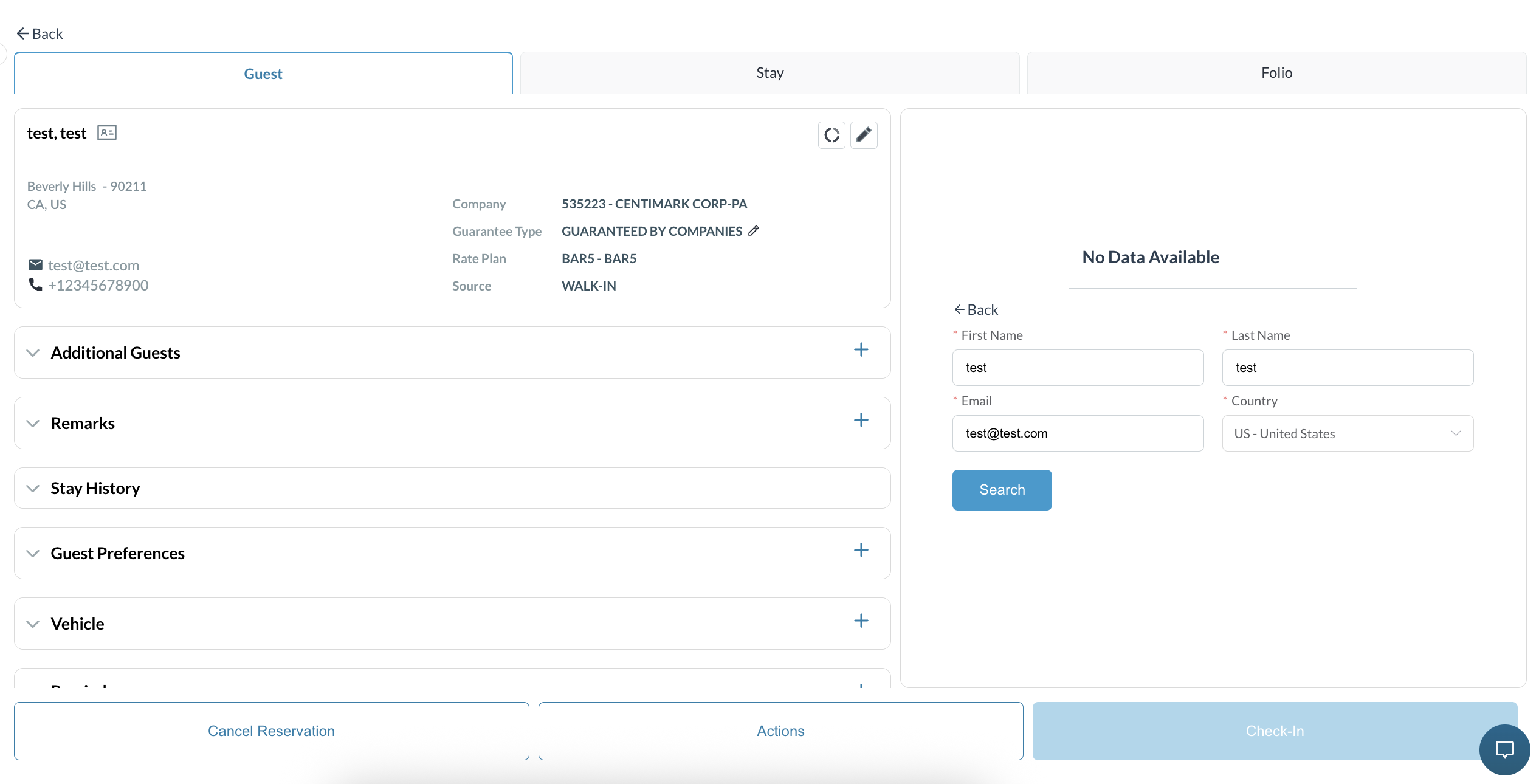
|
|
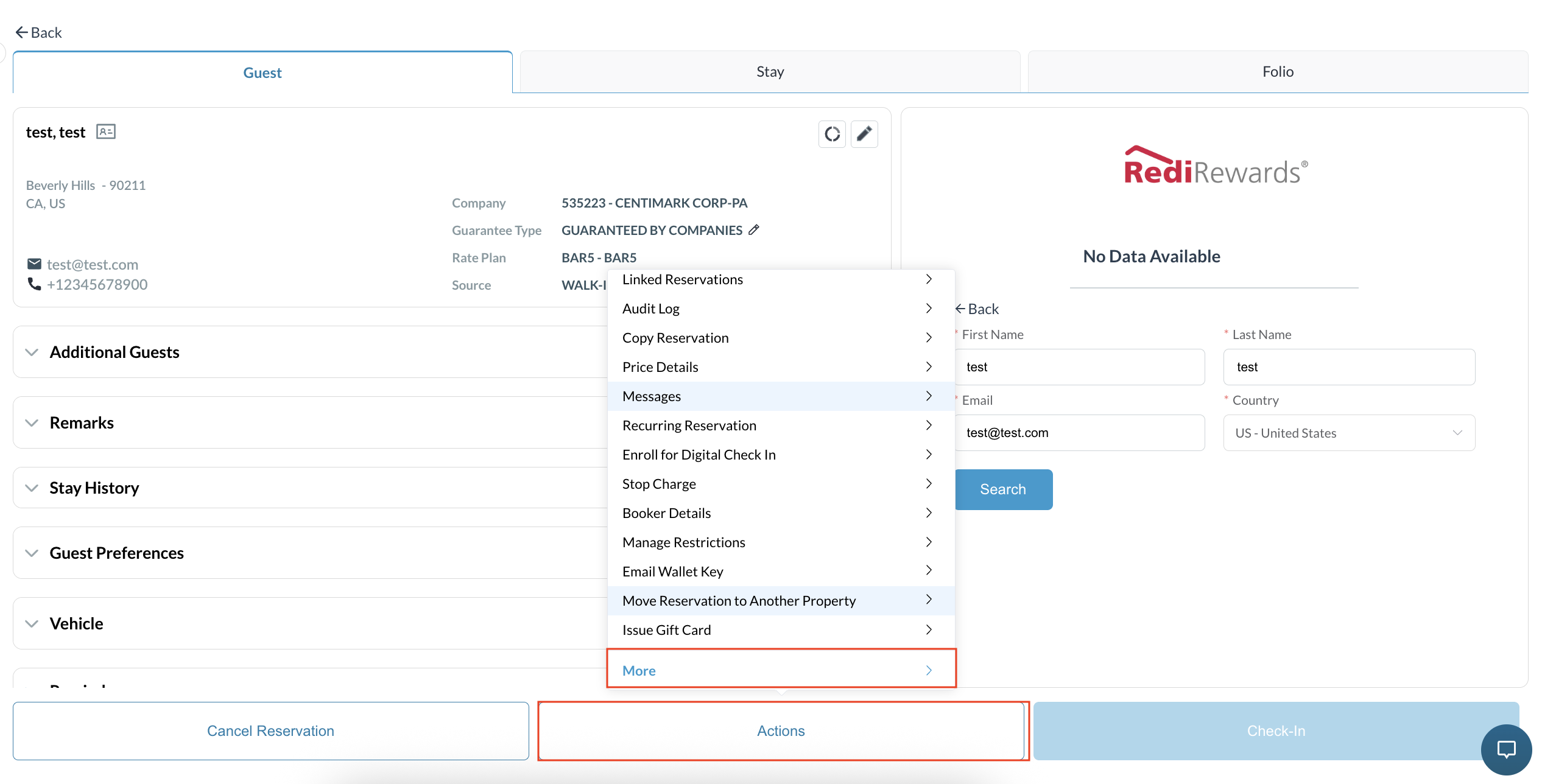
Click on Actions, then select More. |
|
|
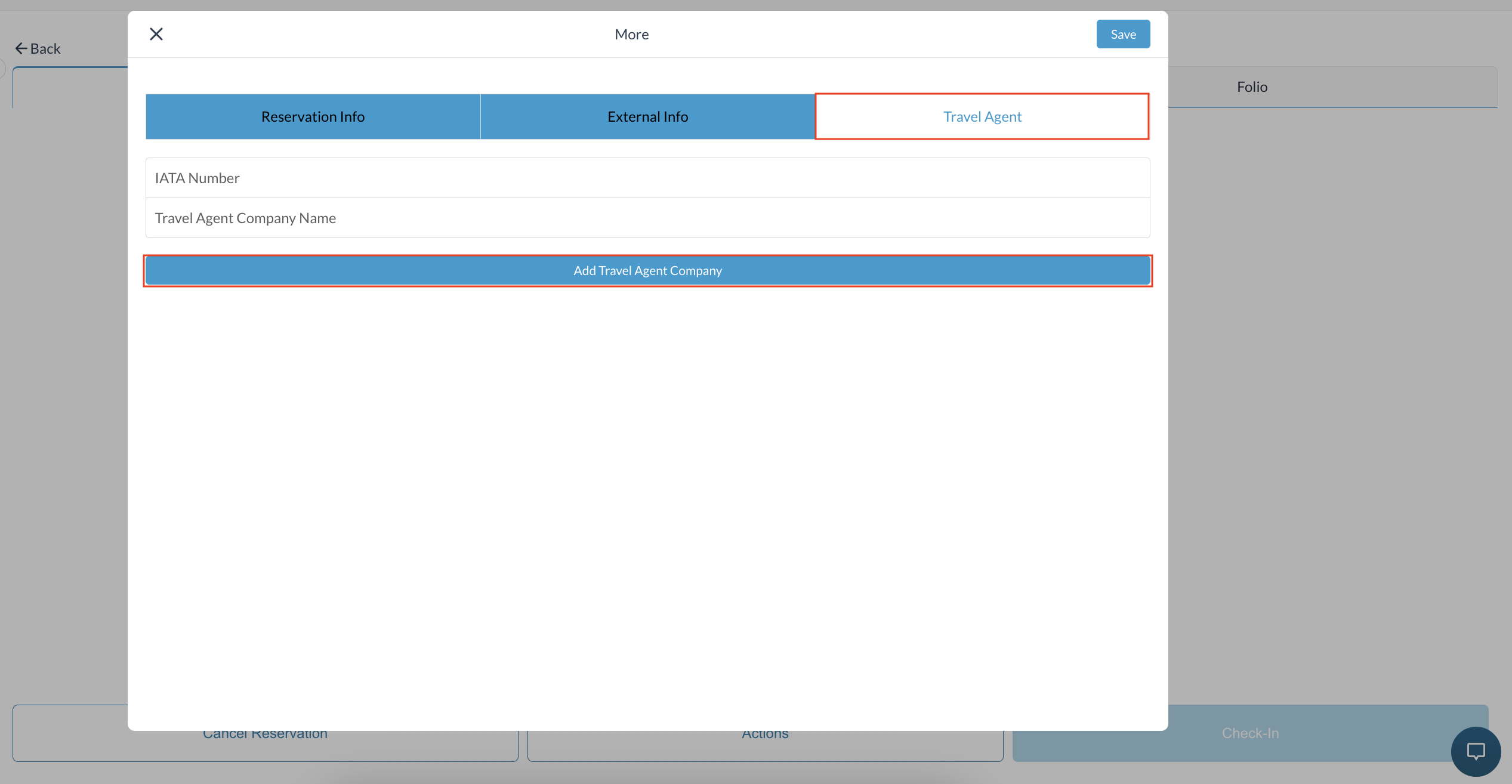
Select Travel Agent and click Add Travel Agent Company |
|
|
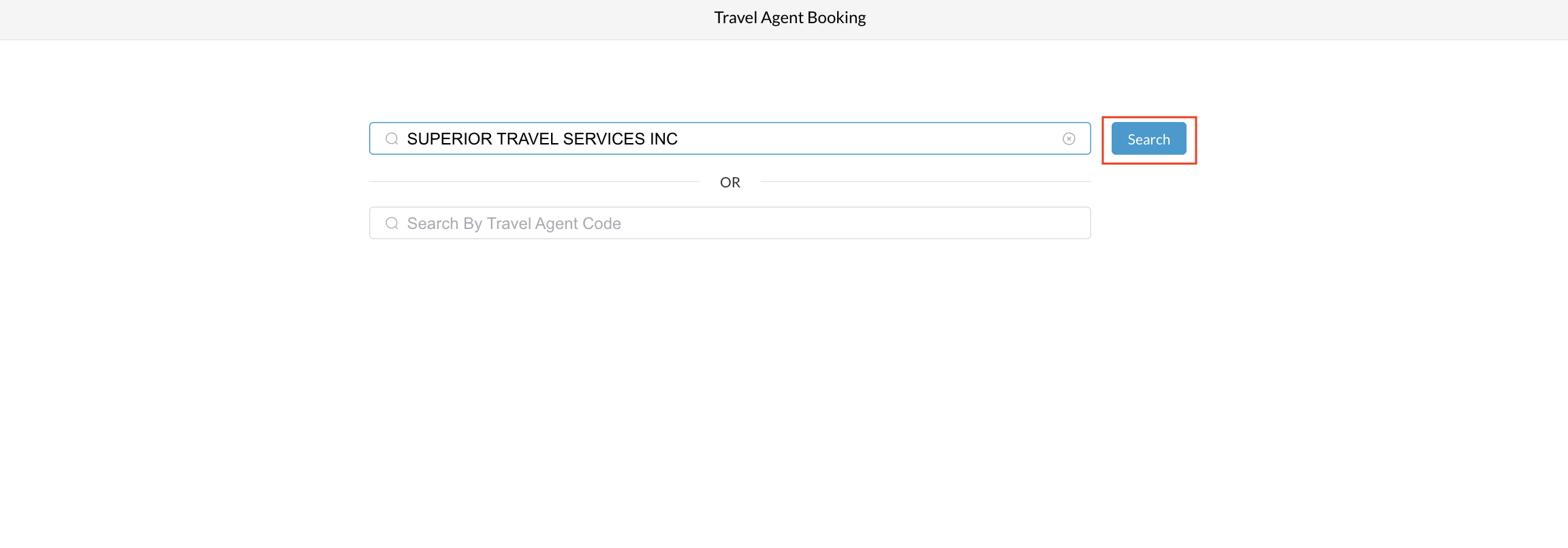
In the Travel Agent search window, enter either: IATA Number, or Travel Agent Name
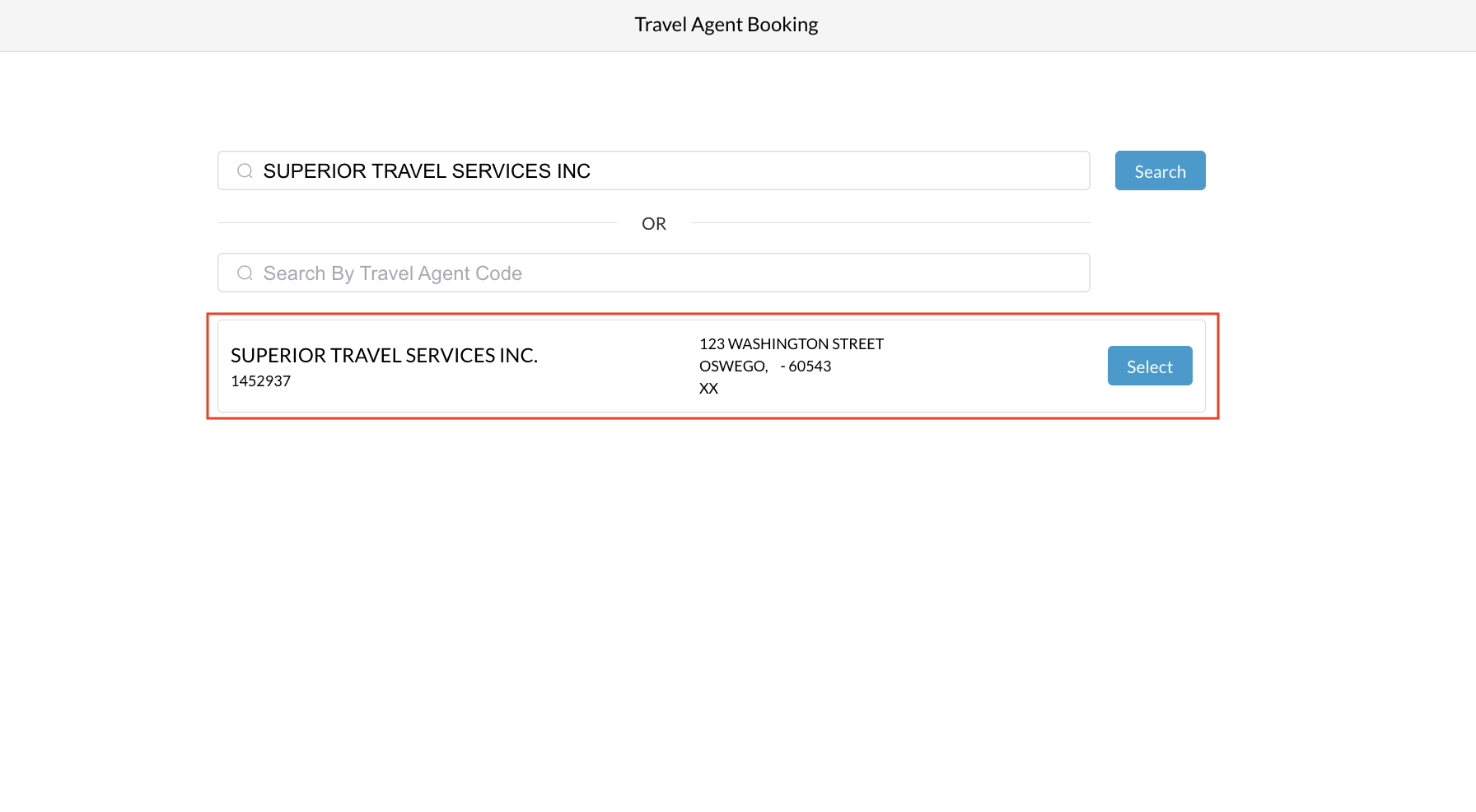
Click Search to retrieve matching travel agent records. Review the search results and select the appropriate travel agent by verifying the:
|
|
|
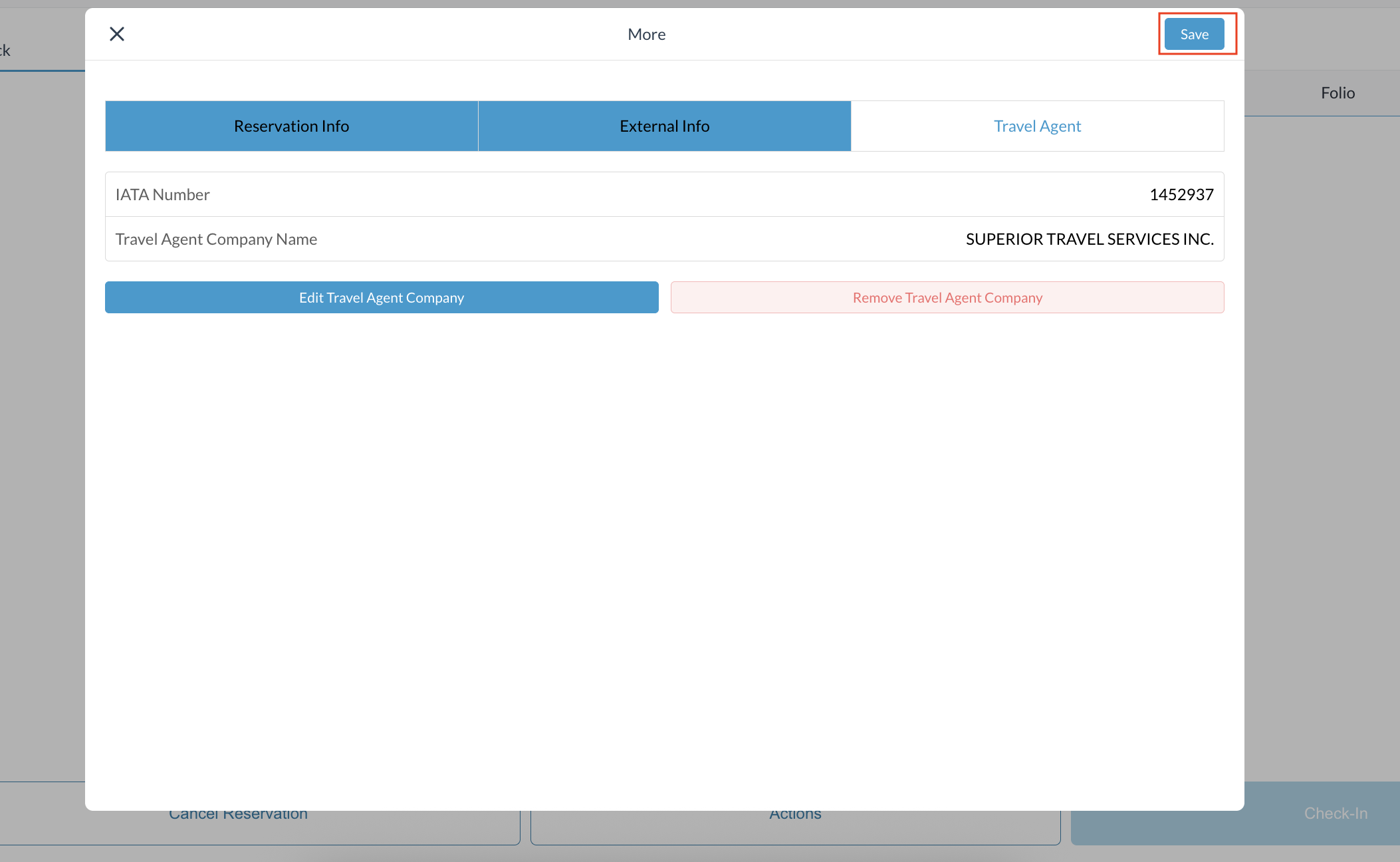
Click Save to link the selected travel agent company to the reservation. ⚠️ Note: If the reservation already has a travel agent attached, the Add Travel Agent Company option will not be available. Instead, you will see:
|
|
Edit or Remove a Travel Agent on an Existing Reservation
|
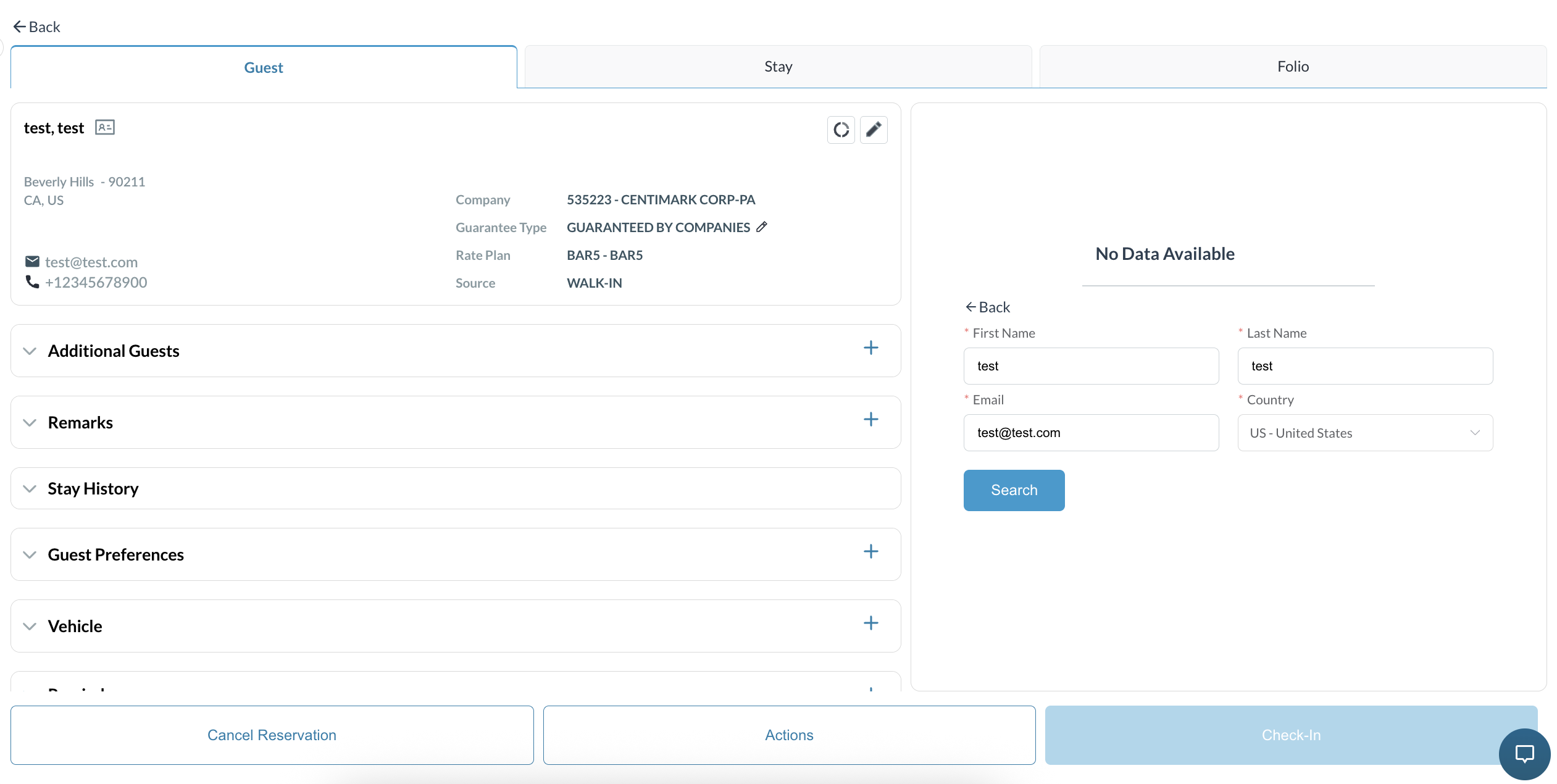
Open any applicable reservation and navigate to the Guest Tab. |
|
|
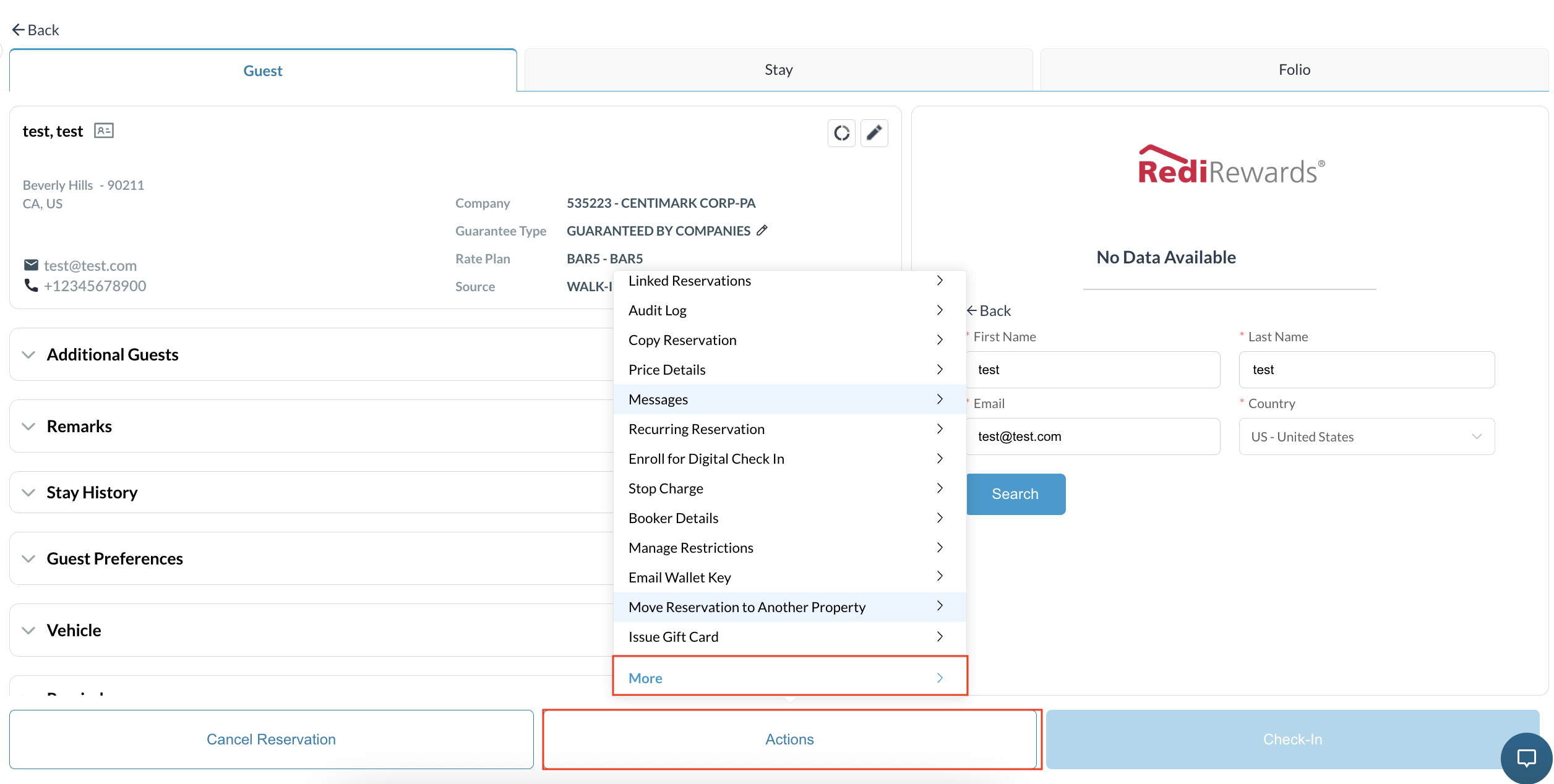
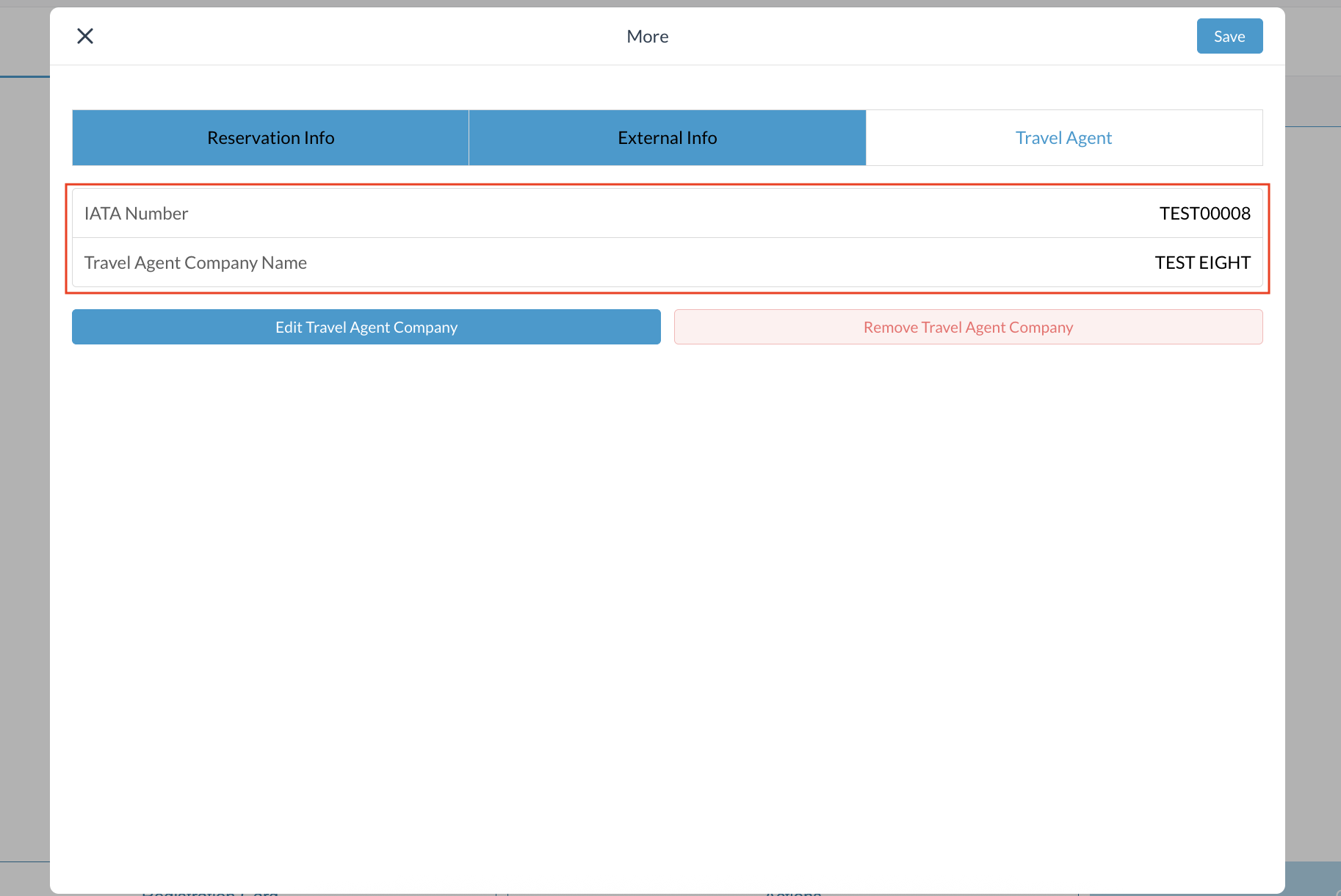
Click on Actions, then select More. |
|
|
|
|
|
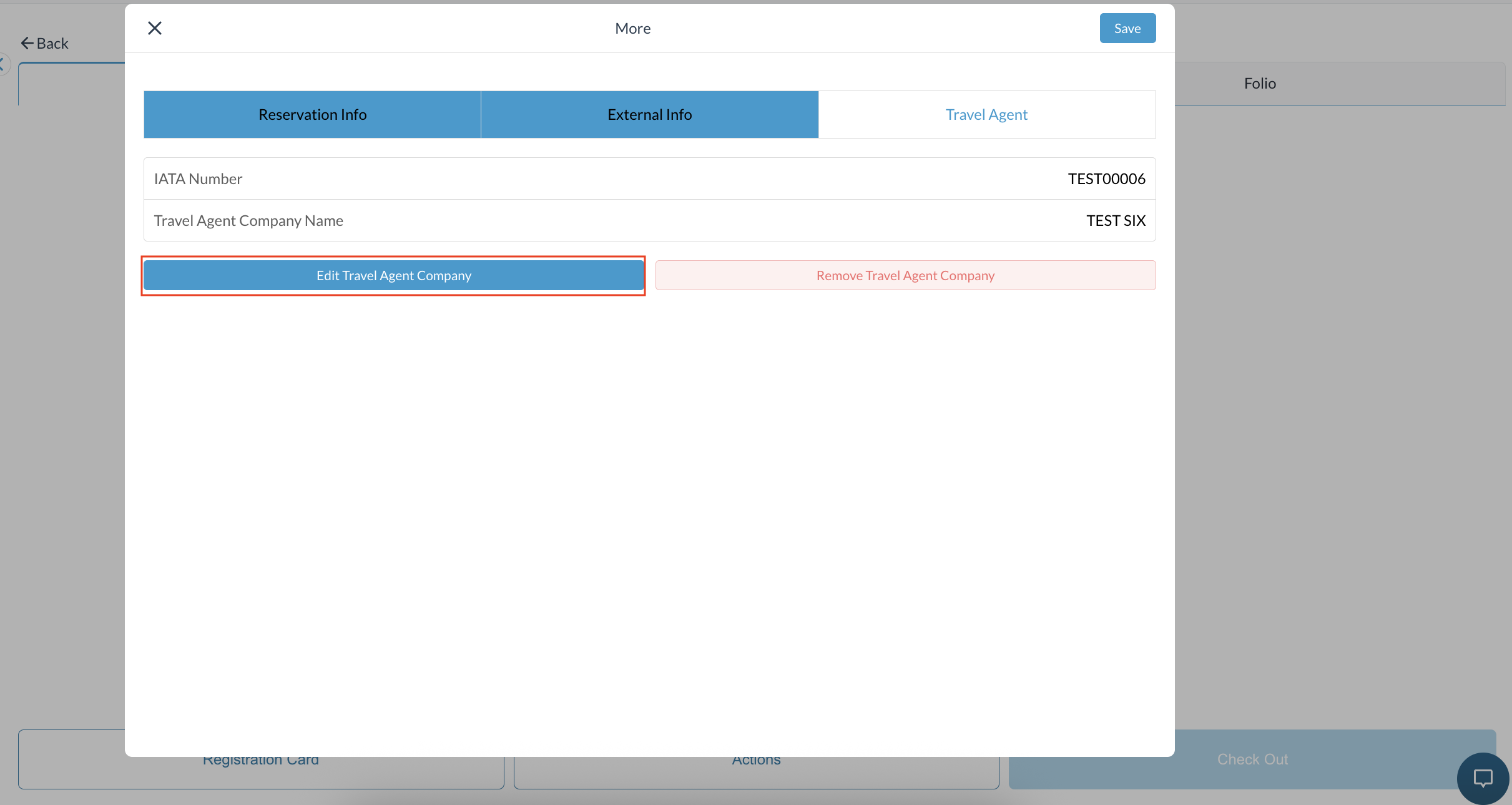
When you click Remove Travel Agent Company, existing travel agent associations are instantly removed from the reservation. |
|
|
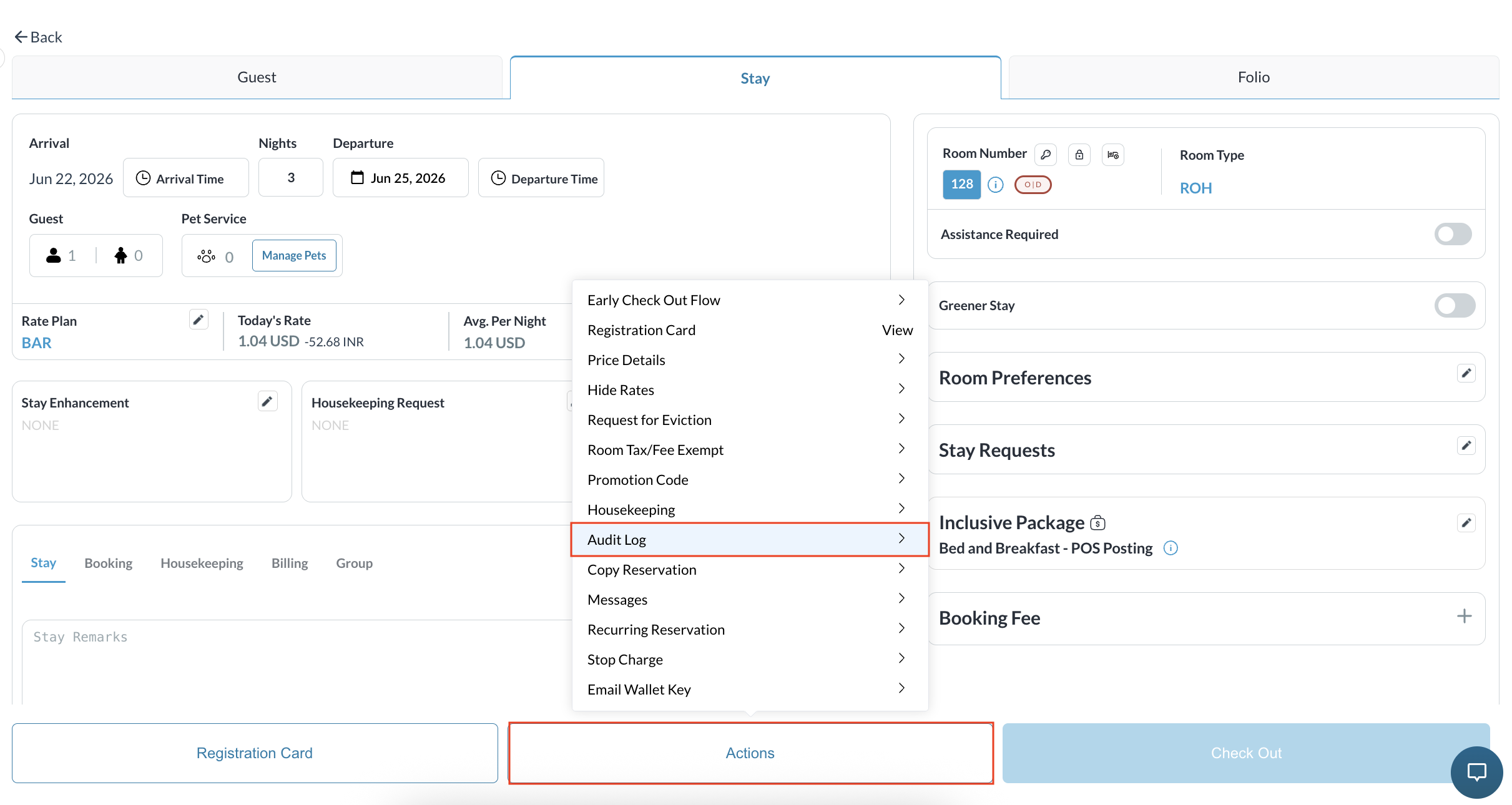
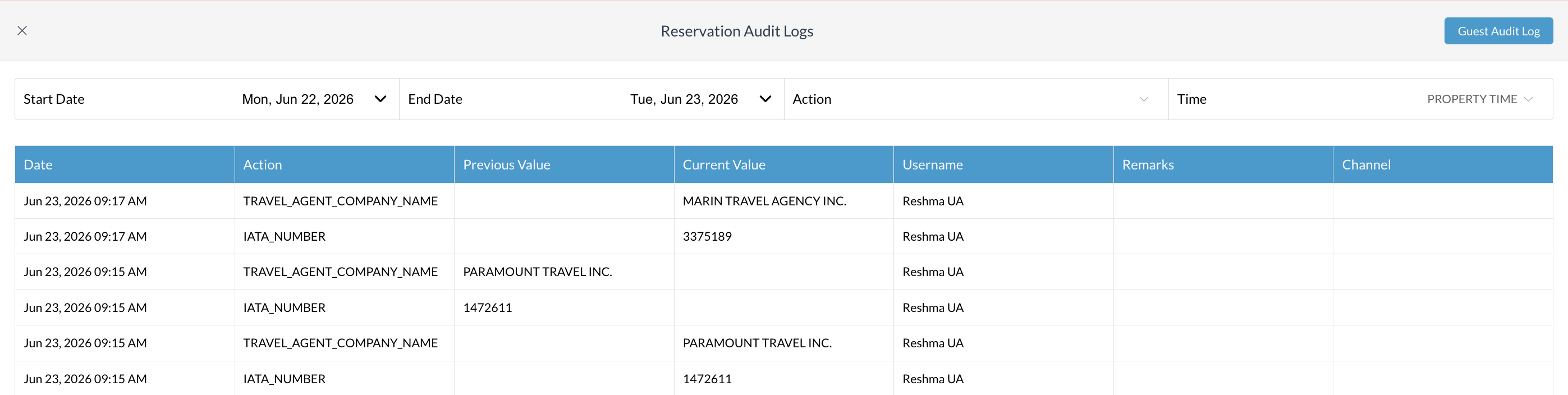
Verify the Audit Log:
|
|
Attach a Travel Agent to an Existing Group Reservation
|
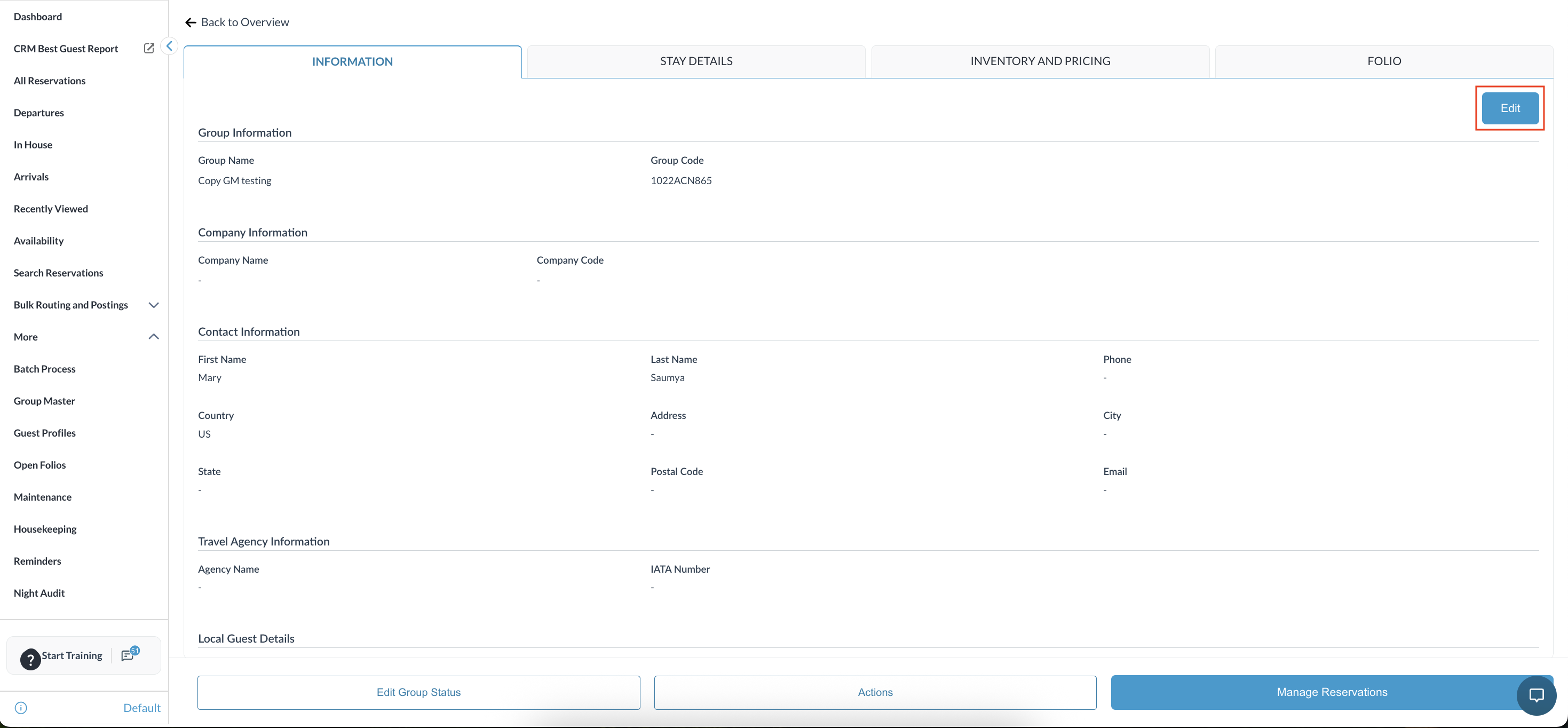
Navigate to Frontdesk Dashboard and open the Group Master from the left side menu. Select the required reservation Go to the Information tab and click the Edit button. |
|
|
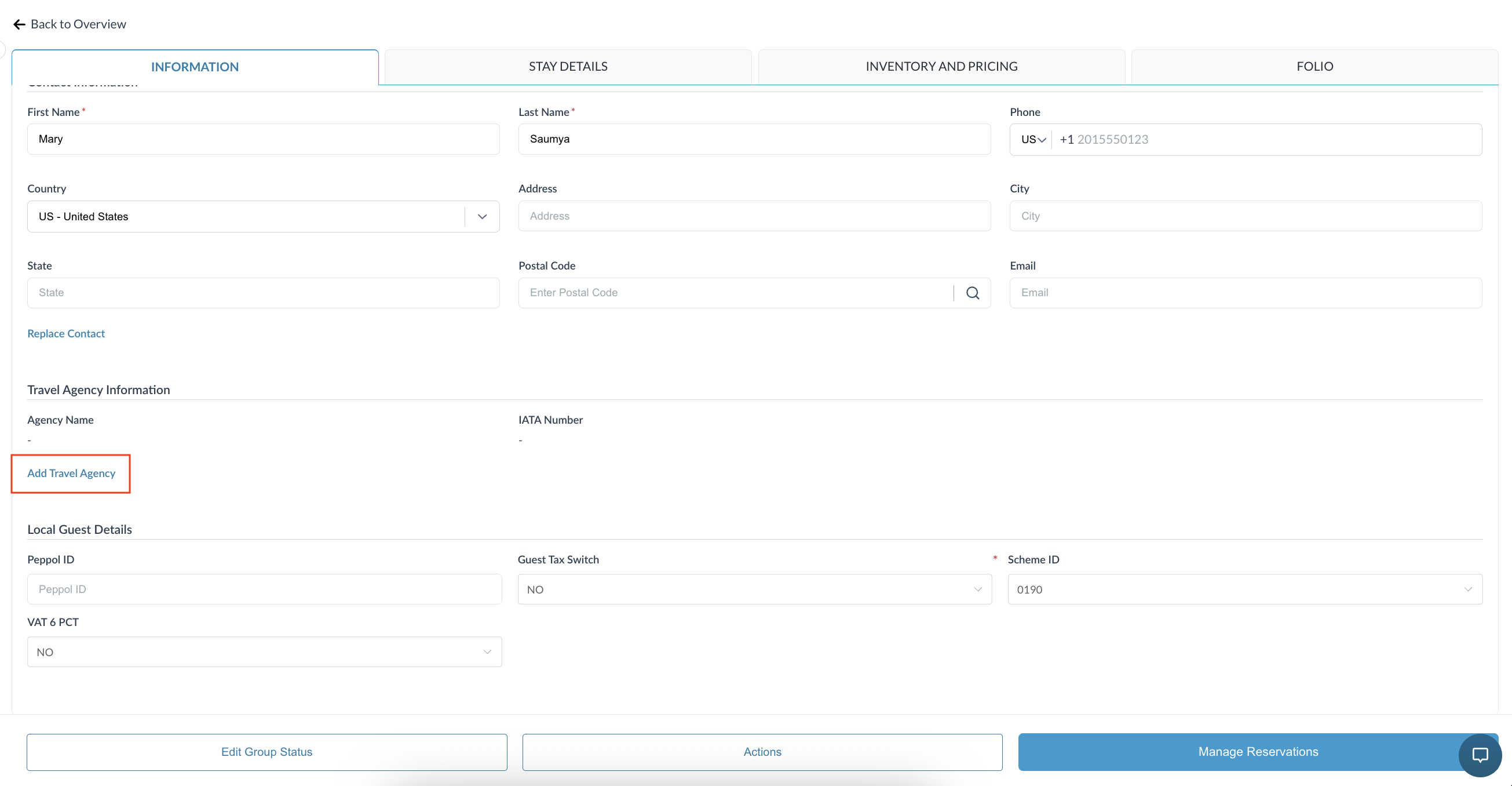
Click on Add Travel Agency |
|
|
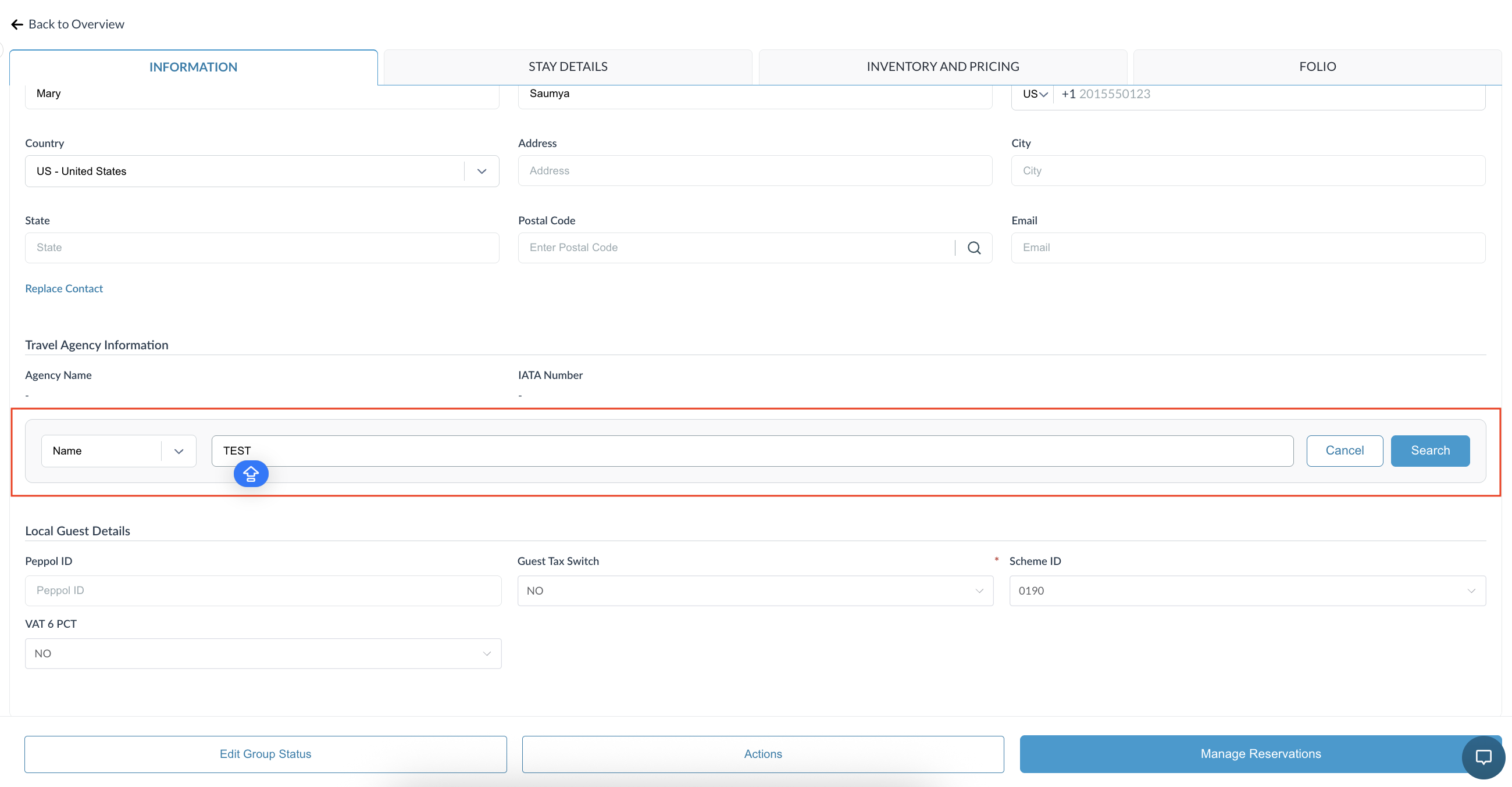
Search for the Travel agency either by Name or Code. Note: Partial search is supported (e.g., entering "Exp" returns matching results such as "Expedia"). A minimum of 1 character is required to perform the search. Click Search to retrieve matching records. |
|
|
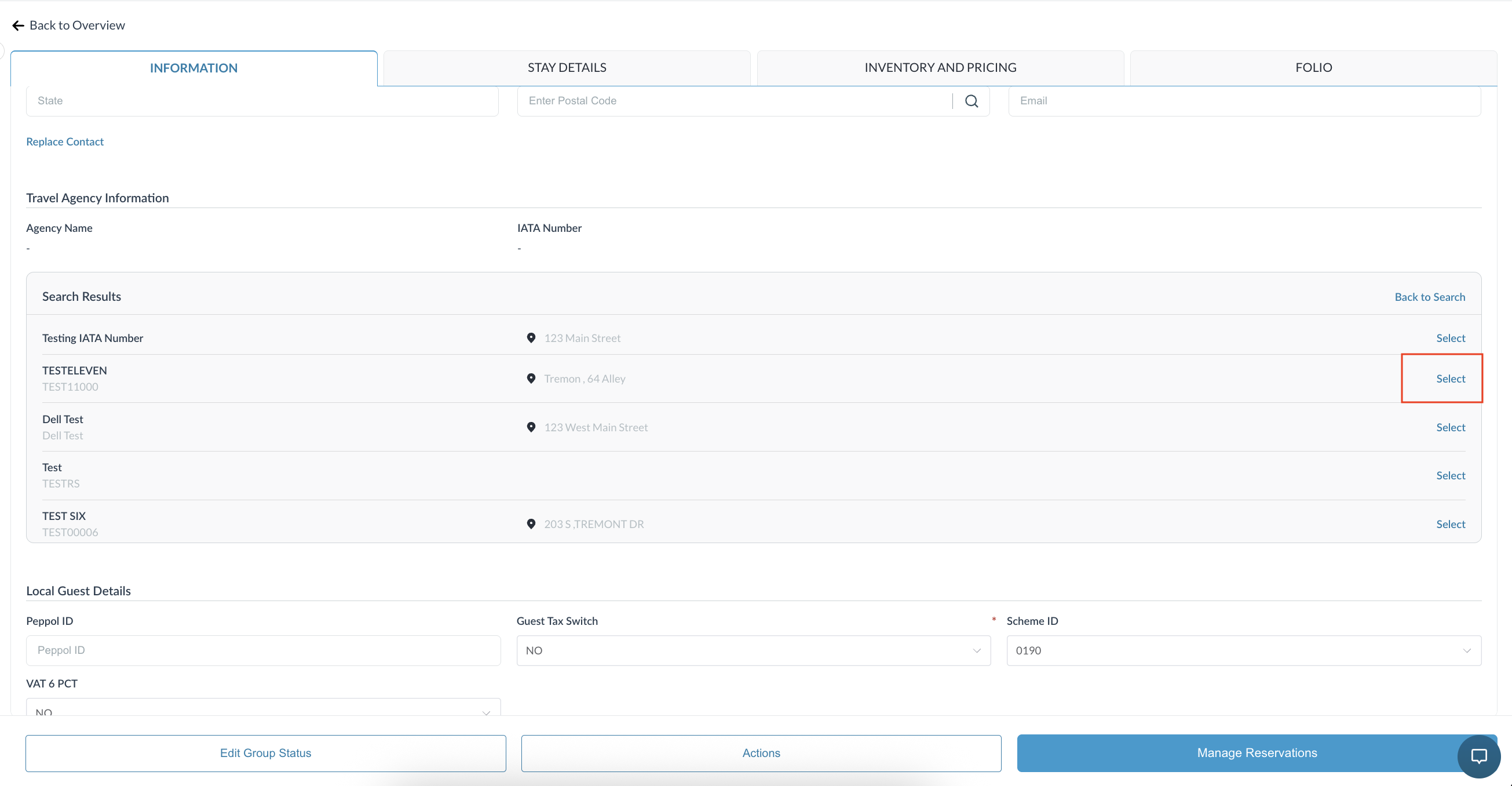
Review the search results and select the appropriate travel agent by verifying the Name and IATA Number. |
|
|
Choose your preferred save option once selected:
|
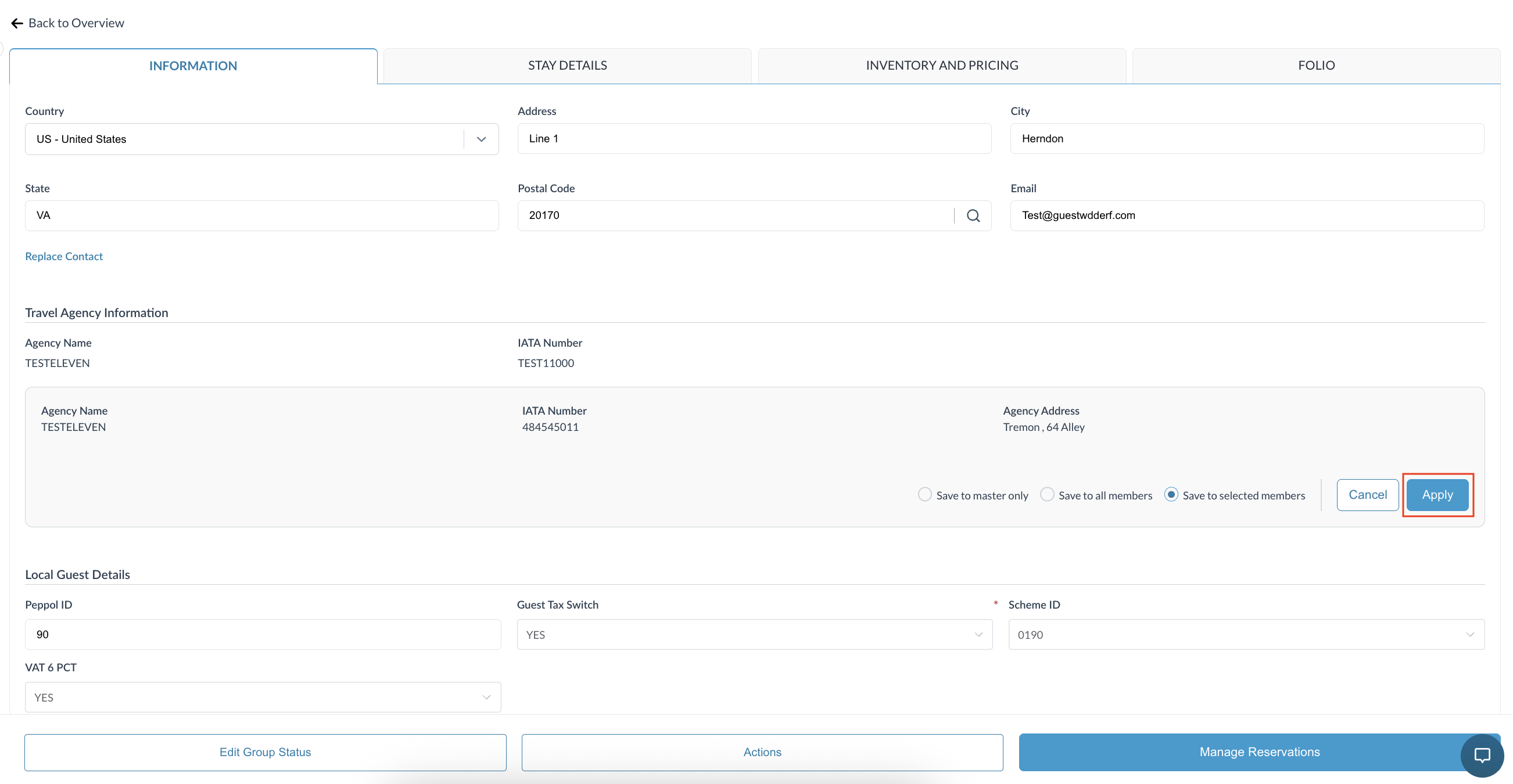
|
|
If you chose Save to selected Members, search for the specific reservations (you can search by Arrival Date, Departure Date, First Name, Last Name, Room Number, Tier, Company Name, Rate Plan, Source, etc.)
|
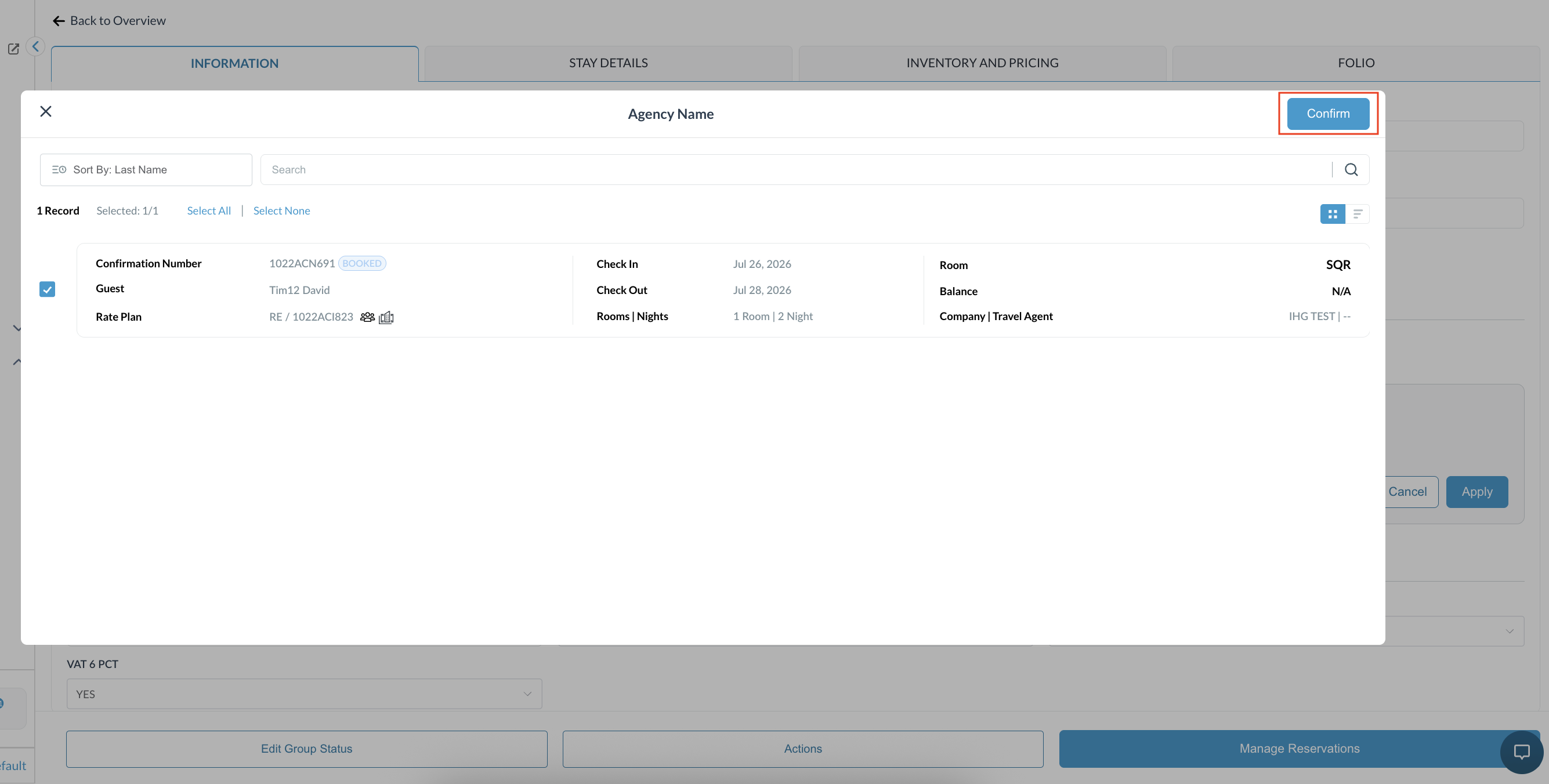
|
|
Check the reservation details to verify the travel agency was successfully added. |
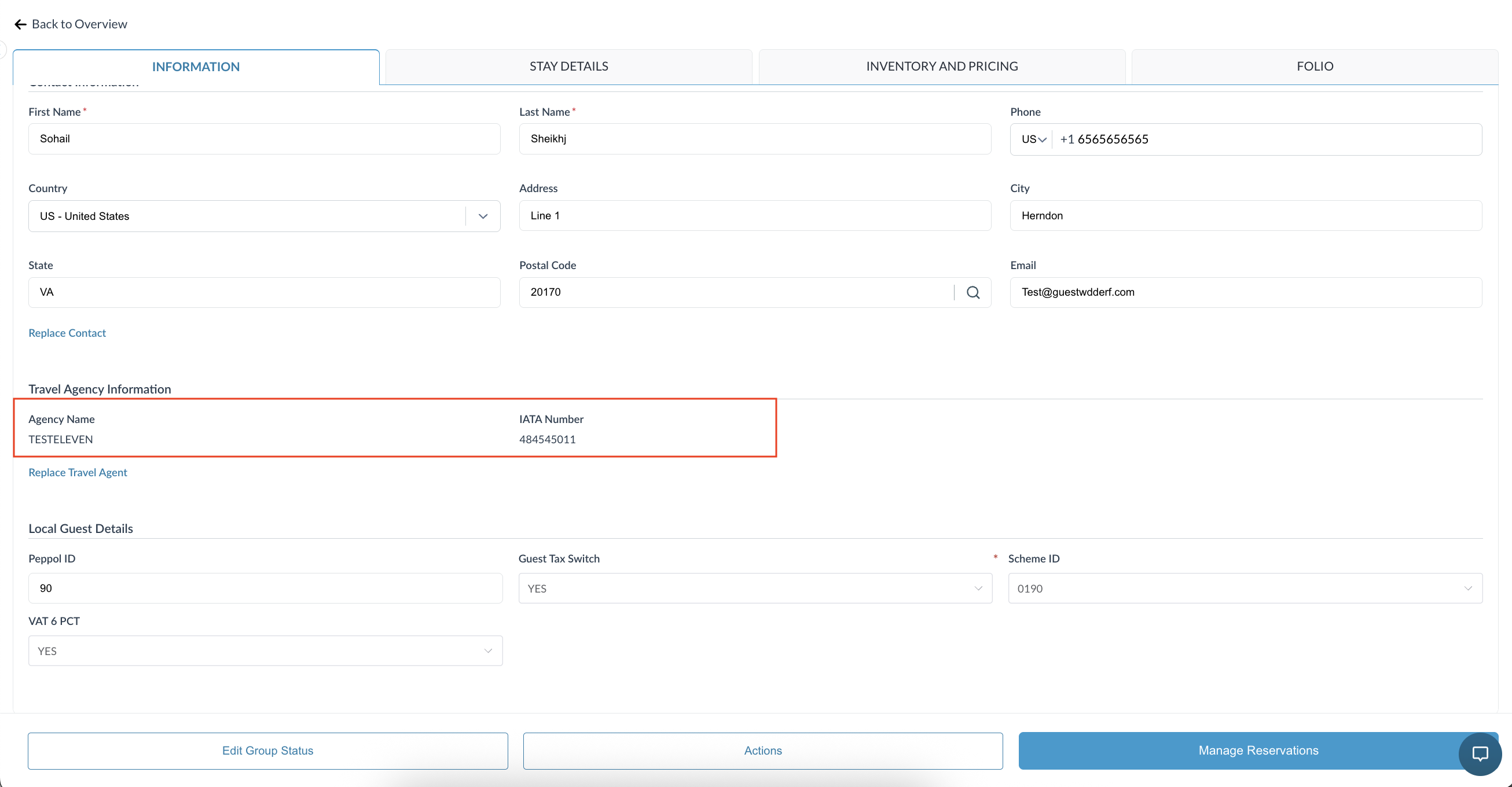
|
|
If you want to Replace a Travel Agent, click on Replace Travel Agent.
|
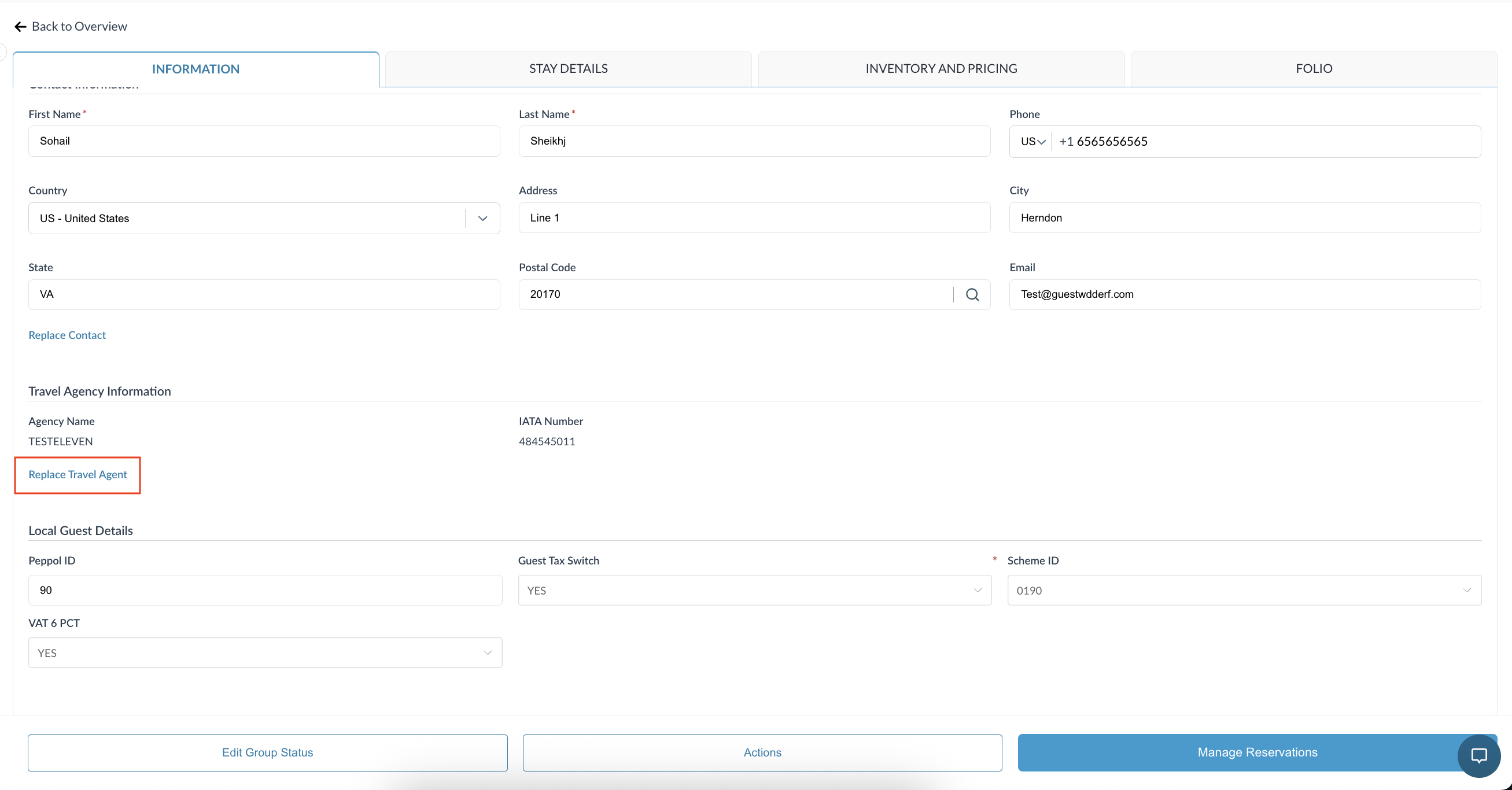
|
💡 Note: The process to Edit or Remove a Travel Agent on an existing group reservation follows the exact same workflow as an individual reservation. Please refer to the Edit or Remove a Travel Agent on an Existing Reservation section for detailed steps.
Travel Agent Name Sort Option
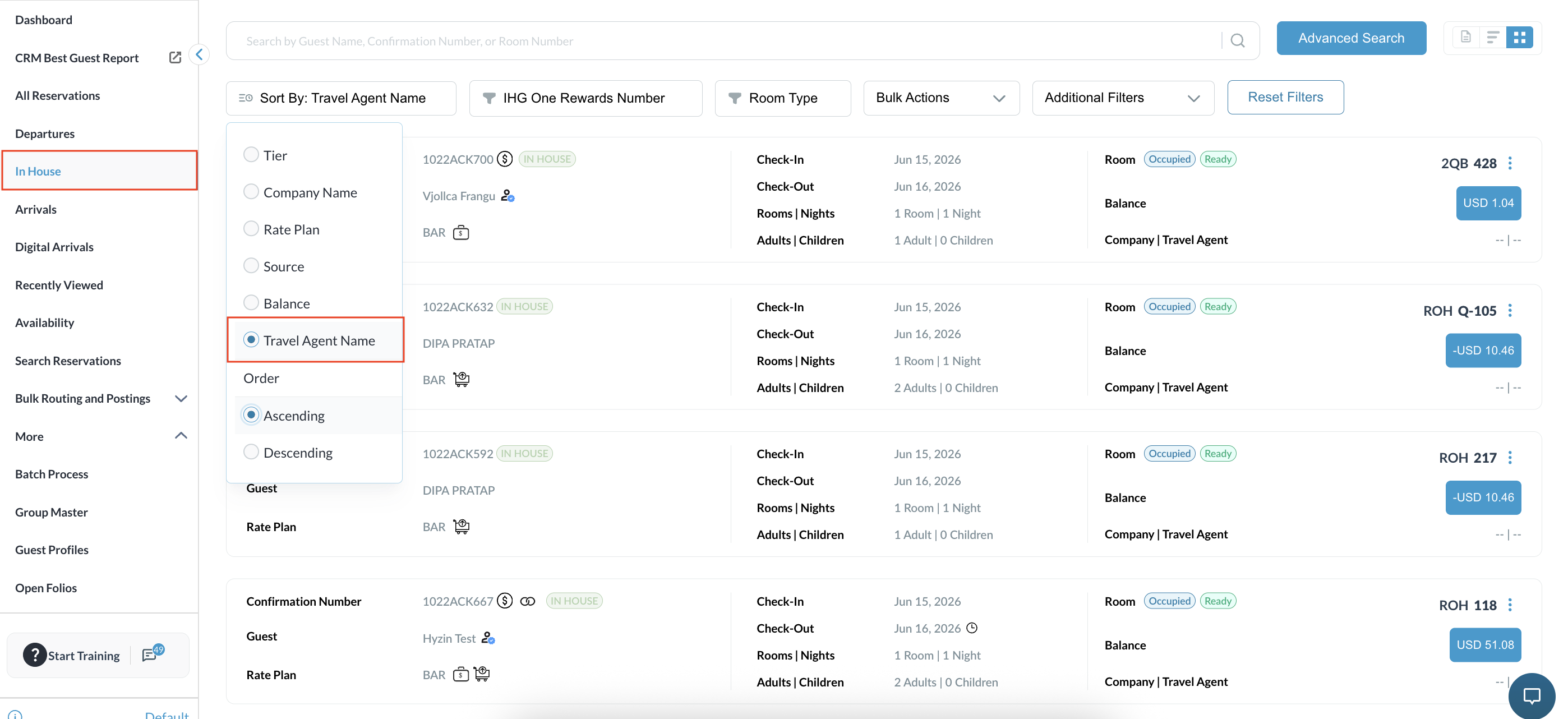
The Travel Agent Name sort option allows users to organize reservation listings based on the travel agent associated with each reservation. Users can sort reservations in either Ascending (A–Z) or Descending (Z–A) order from the Sort By dropdown.
Reservations without an associated travel agent are displayed after reservations that contain travel agent information, making it easier to review and manage agency-related bookings.
Applicable Screens
This functionality is available on the following Front Desk screens in both Grid and List views:
-
Arrivals
-
Departures
-
In-House
-
Search Reservation
-
No-Show
|
|
|
|