How to Search for a Reservation .ng

Revision Date:

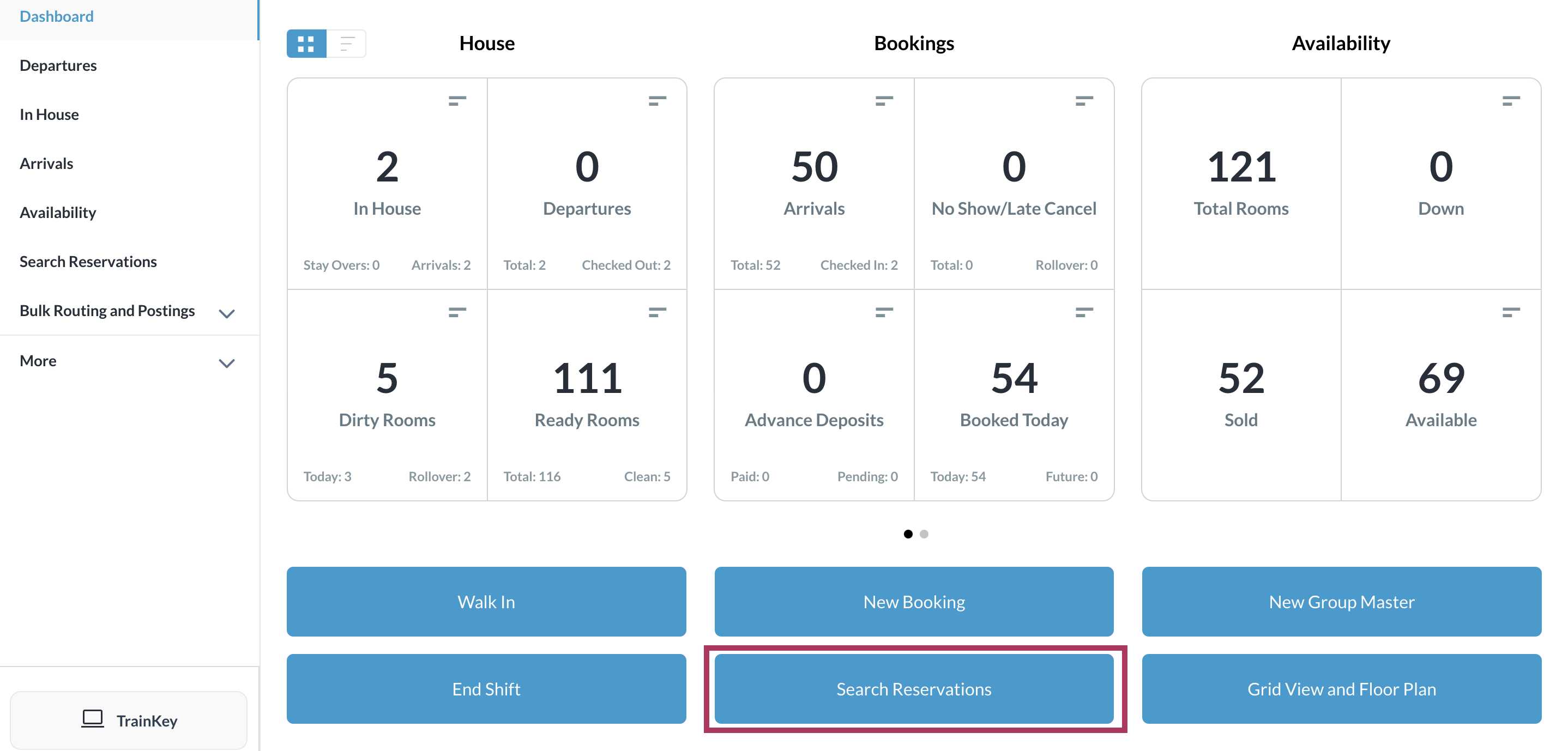
Navigate to Front Desk > Dashboard > Select Search Reservations


Screenshot 2024-03-23 at 5.04.55 PM.png


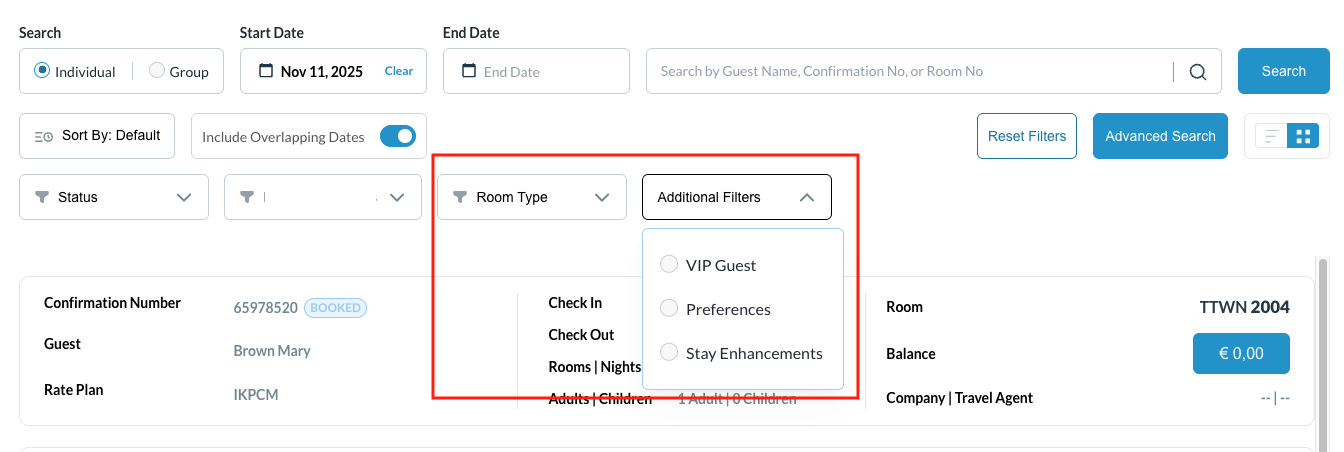
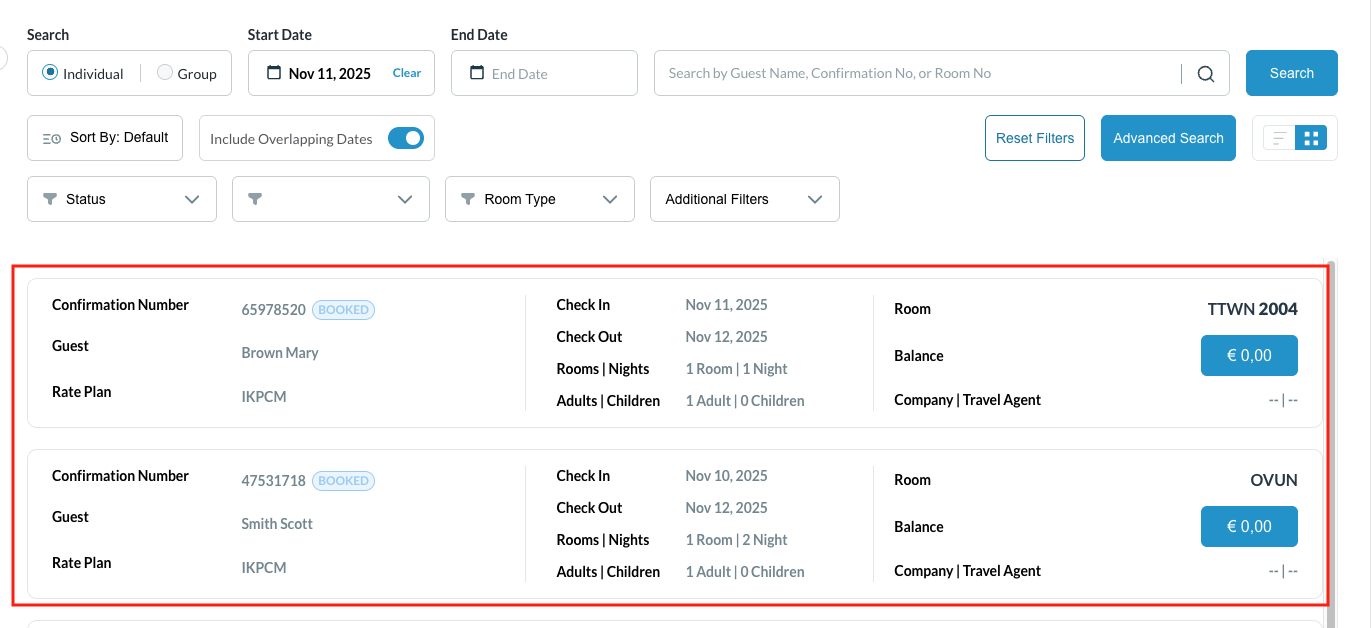
Search Options (Highlighted Red Box)

  • Search Type Selection :
    Radio buttons that let you choose whether you are searching for an Individual guest reservation or a Group booking.

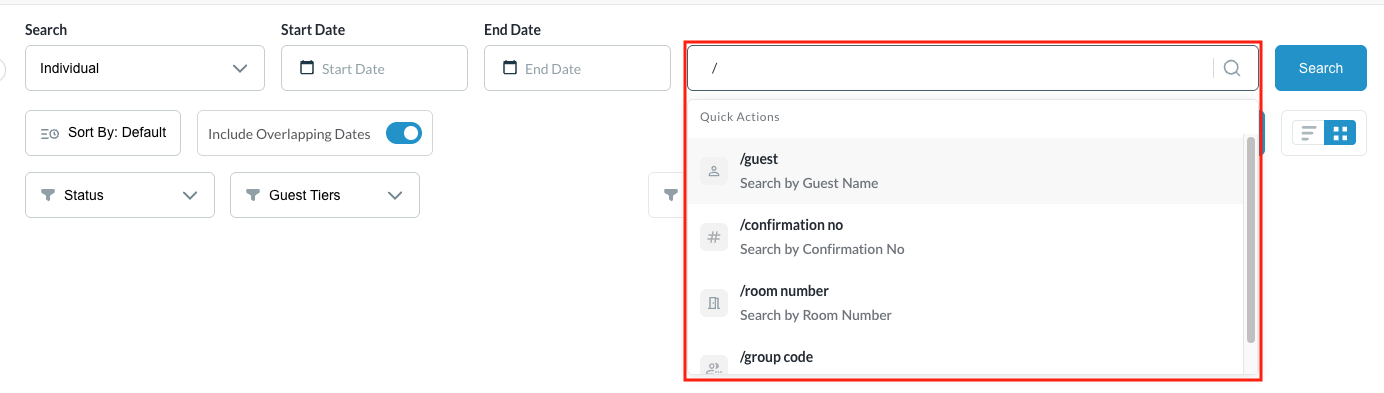
Narrow search results in the universal search bar by entering the " / " symbol before entering search options to render exact results.

Once the “ / “ symbol is entered, a dropdown will appear with below options to choose. Select the option to drill down exact search results:

  • Guest name

  • Confirmation number

  • Room number

  • Group code

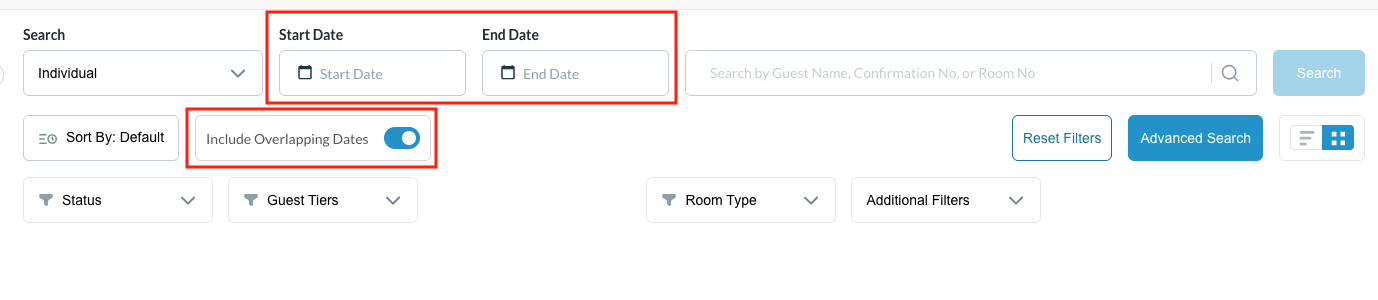
Date Parameters

  • Start Date / End Date: Calendar drop-downs used to narrow down the search based on a specific date range (such as arrival or departure dates).

  • Include Overlapping Dates: A toggle switch (currently turned ON/Blue) that expands the results to include any reservations that partially overlap with your selected date range.


Screenshot 2025-11-11 at 10.35.28 AM.png


5c388748-04aa-4df4-b7f3-93addbf9e811.png


Screenshot 2026-07-08 at 7.24.54 AM.png


Sorting and Filter Drop-downs

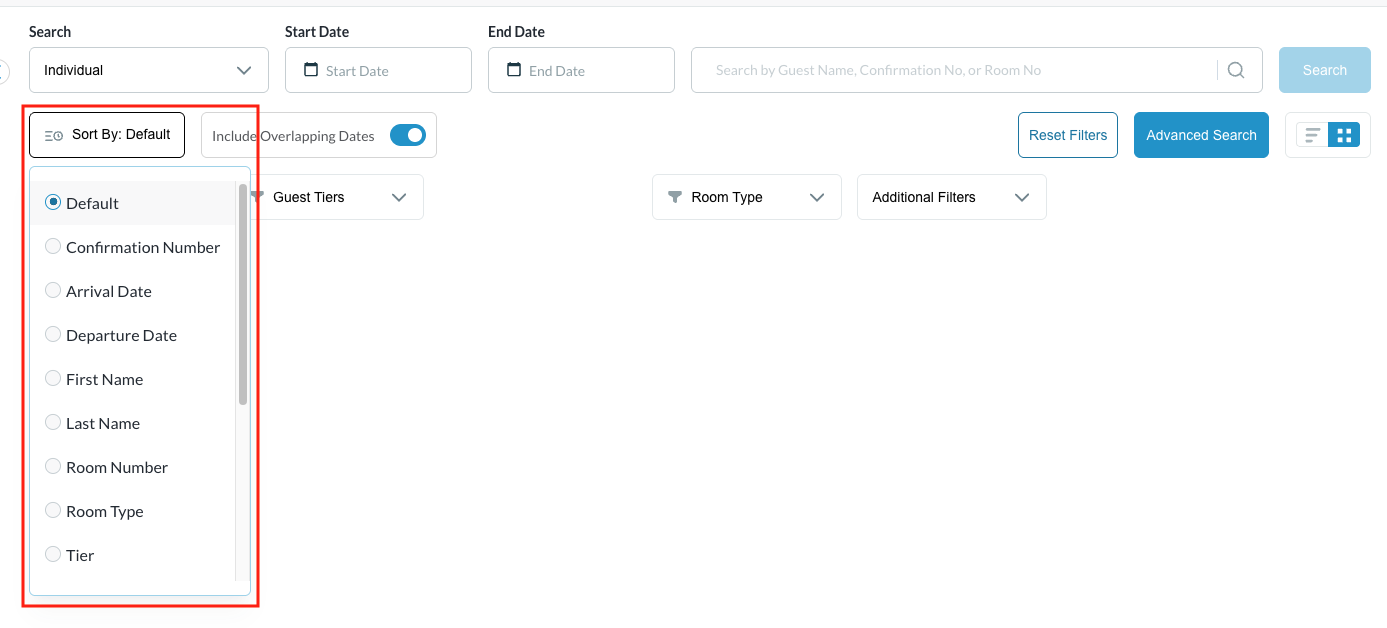
  • Sort By: Set to "Default," which allows you to change how the search results are ordered on the screen.

    • Sort by Name, Date, Confirmation Number

    • Order by Ascending or Descending

  • Status: Filters reservations by their current state (e.g., In-House, Checked Out, Reserved, Canceled).

  • Blank Filter (Second from bottom-left): An unlabelled filter icon field for selecting additional parameters.

  • Room Type: Filters results by specific physical room categories (e.g., King, Double Queen, Suite).

  • Additional Filters: A drop-down menu to layer in extra search criteria.

Screenshot 2026-07-08 at 7.26.38 AM.png


Screenshot 2025-11-11 at 10.45.37 AM.png


  • Reset Filters: Immediately clears all inputs and returns the screen to its default state. 

Screenshot 2025-11-11 at 10.56.37 AM.png


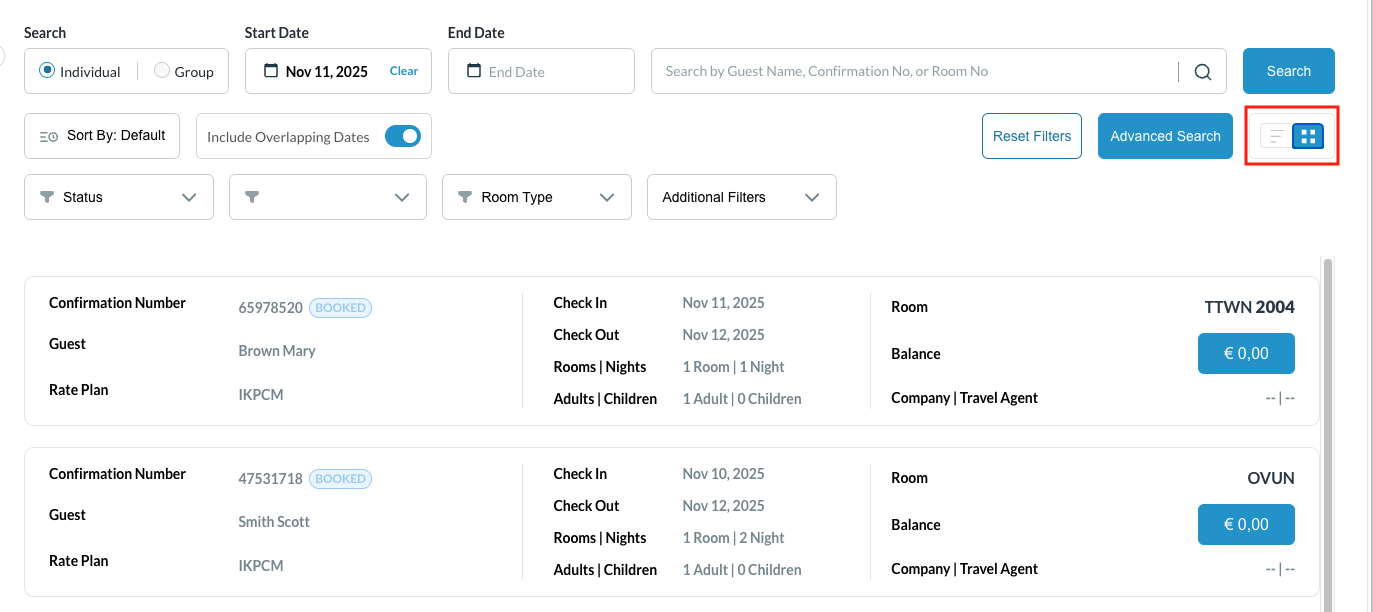
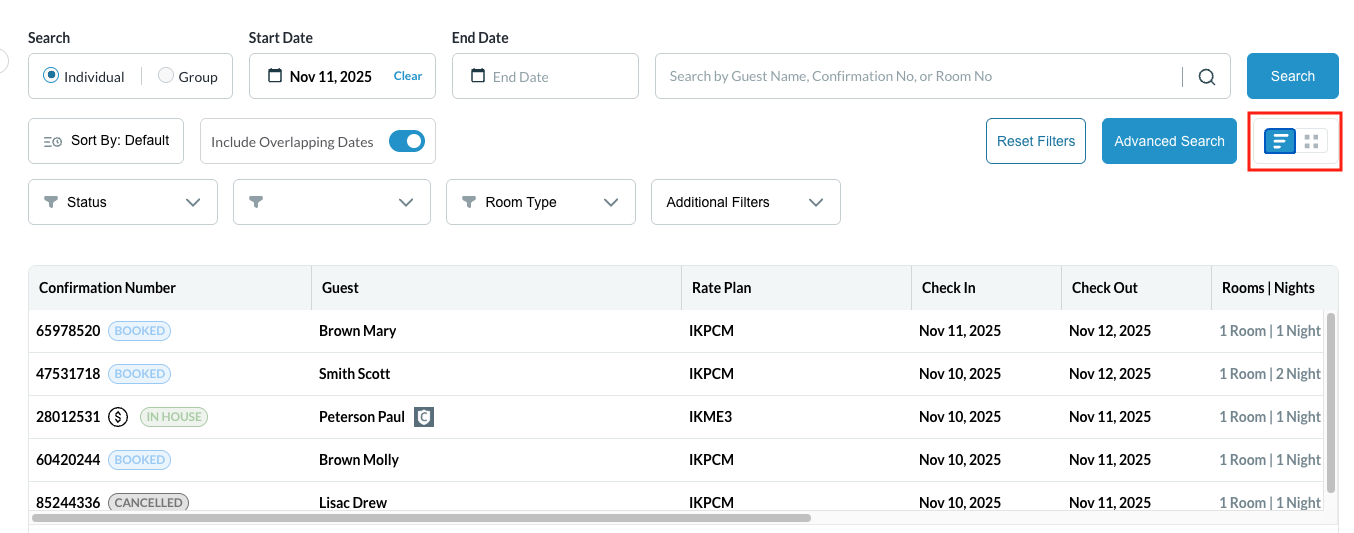
  • Grid/List View Toggle (Far Right): Changes how the resulting information is formatted on the page (currently set to Grid view).

User can change the view of the listing screen.

This toggle allows the user to switch between Tile View and List View

Screenshot 2025-11-11 at 11.01.04 AM.png


See examples of each on the right.


Screenshot 2025-11-11 at 10.57.22 AM.png
Tile View
Screenshot 2025-11-11 at 10.57.53 AM.png
List View
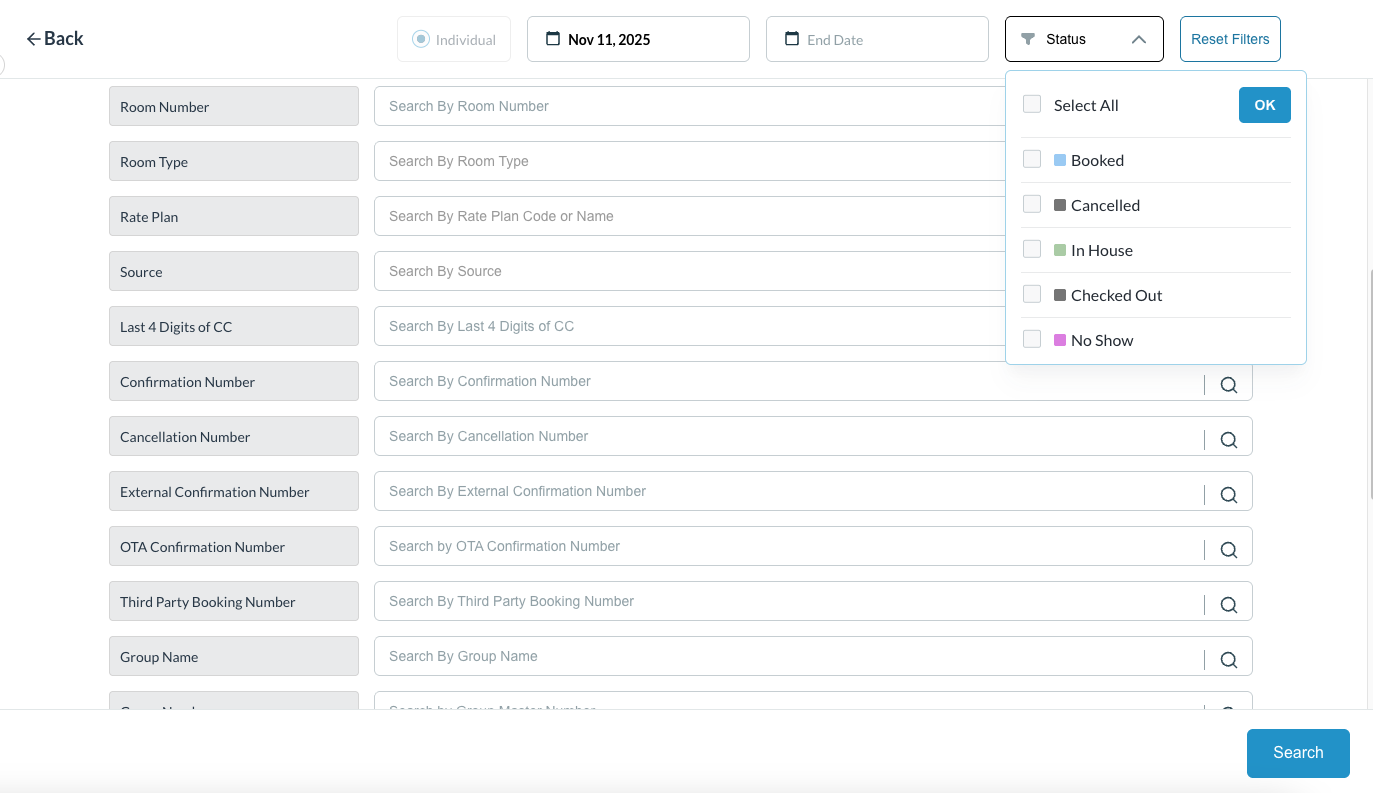
  • Advanced Search Page : Opens a deeper set of parameters for more complex queries.

Enter search text in the applicable field to activate the Search link.

Apply a filter to include any of the criteria shown there.

Screenshot 2025-11-11 at 11.16.41 AM.png


  • Search: The final button to execute the query after inputting your data.

Results are listed below the search box, as shown at right.

Select the applicable reservation to open it and view its details.

Screenshot 2025-11-11 at 10.54.33 AM.png