Target Roles: Front Desk Agents, Front Office Supervisors, Concierge, Housekeeping Supervisors, Night Auditors, General Managers
Last Updated:
Executive Overview
The Reminders module in HotelKey PMS centralizes time-sensitive guest service requests, wake-up calls, interdepartmental work orders, and group coordination tasks across the property. Segmented across Reservations, Group Master, and Other tabs, the Reminders dashboard provides front desk and operational staff with a unified dispatch board to track pending duties, assign ownership to specific team members, enforce accountability with due-by timestamps, and record detailed audit remarks upon completion or resolution.
Operational Guide: Managing & Resolving Reminders
System Navigation Path
Home > Left Navigation Bar > Reminders
Step / Workflow
Action
Platform Guidance & Operational Details
Access Module
In the left navigation menu, scroll to Operations and select Reminders.
Renders the primary Reminders dashboard default-filtered to active tasks.
Navigate Tabs
Select the target tab based on scope: Reservations, Group Master, or Other.
Group Master: Group block logistics (e.g., shuttle coordination, bus arrival, etc.).
Other: General shift logs, packages, and property maintenance incidents.
Apply Search & Filters
Use the search box and filter dropdowns (Start Date, End Date, Department, Status, Filter By).
Refines the list by date range, handling department, read status (Read / Unread), or resolution status (Pending, Completed, Closed Without Action).
Create New Reminder
On the Other tab, click the blue Add Reminder button in the top-right corner.
Note: Reservation & Group reminders are created from the record.
Launches the Reminder modal to create a non-reservation departmental reminder.
Configure Details
Set the Date, Time, Department, Title, optional Templates, Assignee, and Description.
(Optional) Click Setup Recurring Reminders (+) for recurring operational duties. Click Save to dispatch.
Mark as Read
Click the three-dots (Actions) menu on any reminder row and select Mark as Read.
Updates read tracking and displays a green confirmation notification (Reminder read successfully).
Complete with Action
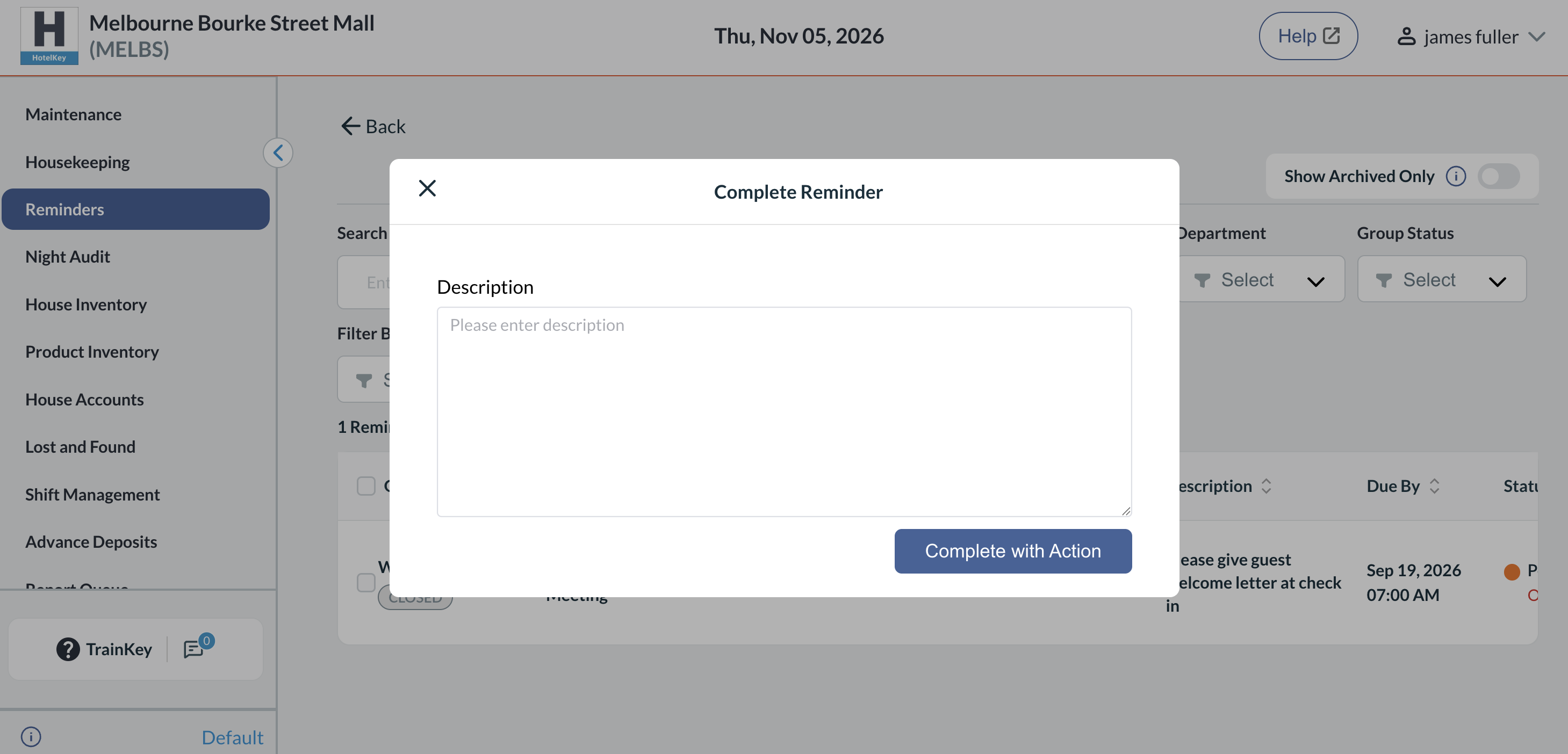
In the Actions menu, select Complete. Enter operational notes into the Description field and click Complete with Action.
Resolves the task, logs action notes into the historical record, and updates status to Completed.
Close Without Action
In the Actions menu, select Close Without Action. Enter an explanatory note in the Description field and click Close Without Action.
Closes the task when an item is canceled or resolved externally, preserving the resolution reason in audit logs.
Archive Records
Select Archive from the Actions menu, or toggle the Show Archived Only switch in the top header.
Moves resolved reminders into archive storage or toggles view between active and archived logs.
📷 VISUAL CALLOUT:
Reminders Dashboard Header & Tabbed Workflows
Overview capturing the three primary tabs (Reservations, Group Master, Other), the search bar and date picker range, the Department multi-select filter, and the Show Archived Only toggle switch.
Reminders Dashboard Overview
Detailed Configuration & Tab Breakdown
1. Reservations Tab
Dedicated to individual guest stays and room-level service requests:
Search Bar: Real-time query field accepting Guest Name, Confirmation Number, or Room Number.
Reservation Status Filter: Isolates tasks by booking state (e.g., In House, Arrivals, Departed).
Grid Data Columns:
Confirmation Number & Status: Linked booking ID accompanied by the live reservation status tag (e.g., IN HOUSE).
Department: Assigned service team (e.g., Housekeeping & Laundry, Wake Up Call, Front Office).
Assignee: Designated staff member responsible for execution.
Title & Description: Summary title and detailed guest instruction (e.g., "Delivery 2 Sets of Extra Towels - Guest called FD and requested 2 sets of extra towels").
Due By & Statuses: Exact operational deadline timestamp with color-coded status badges:
Pending (Orange circle): Active task awaiting action.
Due Today / Overdue (Red tag): Highlights immediate operational priorities.
Completed (Green circle): Task finished and signed off.
Closed Without Action (Grey circle): Task closed without fulfillment.
📷 VISUAL CALLOUT:
Complete Reminder Resolution Modal
Pop-up window showing the resolution Description input field where staff records completion notes (e.g., "Towels delivered") before clicking Complete with Action.
Complete Reminder Resolution Modal
2. Group Master Tab
Dedicated to group block logistics, corporate accounts, and event coordination:
Search Bar: Searches by Group Name or Group Code (e.g., MBA, Delta Airlines December Block).
Group Status Filter: Restricts view by group block stage (Prospect, Tentative, Definite, Cancelled, Closed).
Grid Data Columns: Itemizes Group Code, Group Name with contracted status badge, Department, Assignee, Title, Description (e.g., "05 Nov Crew Shuttle Pickup at 1:30pm"), and Due By date/time.
3. Other Tab (Property & Shift Incident Log)
Houses hotel-wide communications, shift handovers, and department-specific tasks not linked to a single reservation:
Department Filter Multi-Select: Supports filtering across operational divisions:
Housekeeping & Laundry
Engineering & Maintenance
Food and Beverage
Concierge
Reservations
Recreation & Spa
Shift Incident Log
Wake Up Call
Back of House
Front Office
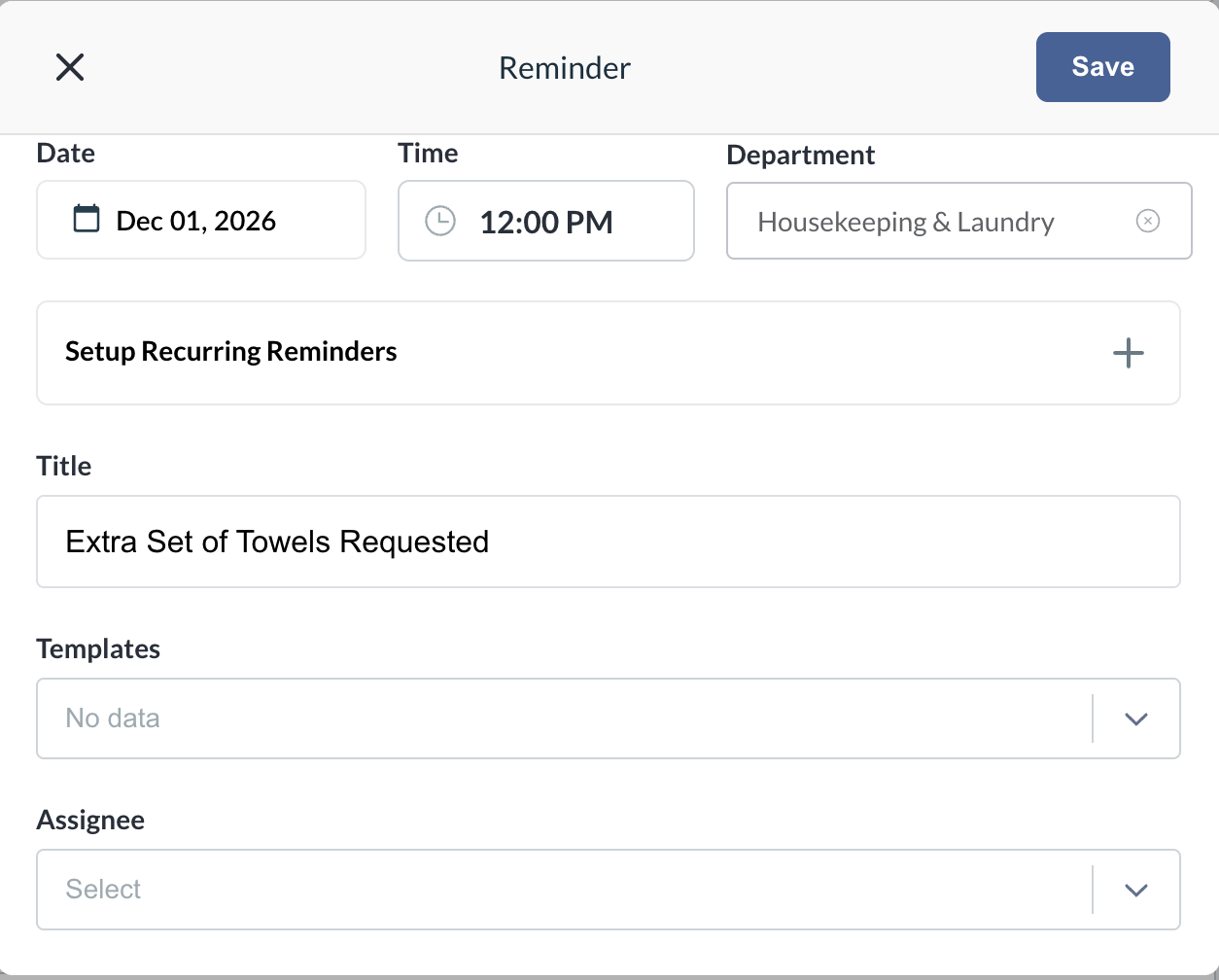
Add Reminder Creation Modal Parameters:
Date & Time: Target execution date and time picker (e.g., Dec 01, 2026 - 12:00 PM).
Department: Categorizes the reminder to the responsible team.
Title: Concise summary label (e.g., "Room 702 Complaint" or "FedEx Delivery at Front Desk").
Templates: Dropdown menu providing standardized quick-text templates for recurring incident types.
Assignee: Drops down active property staff to assign individual ownership.
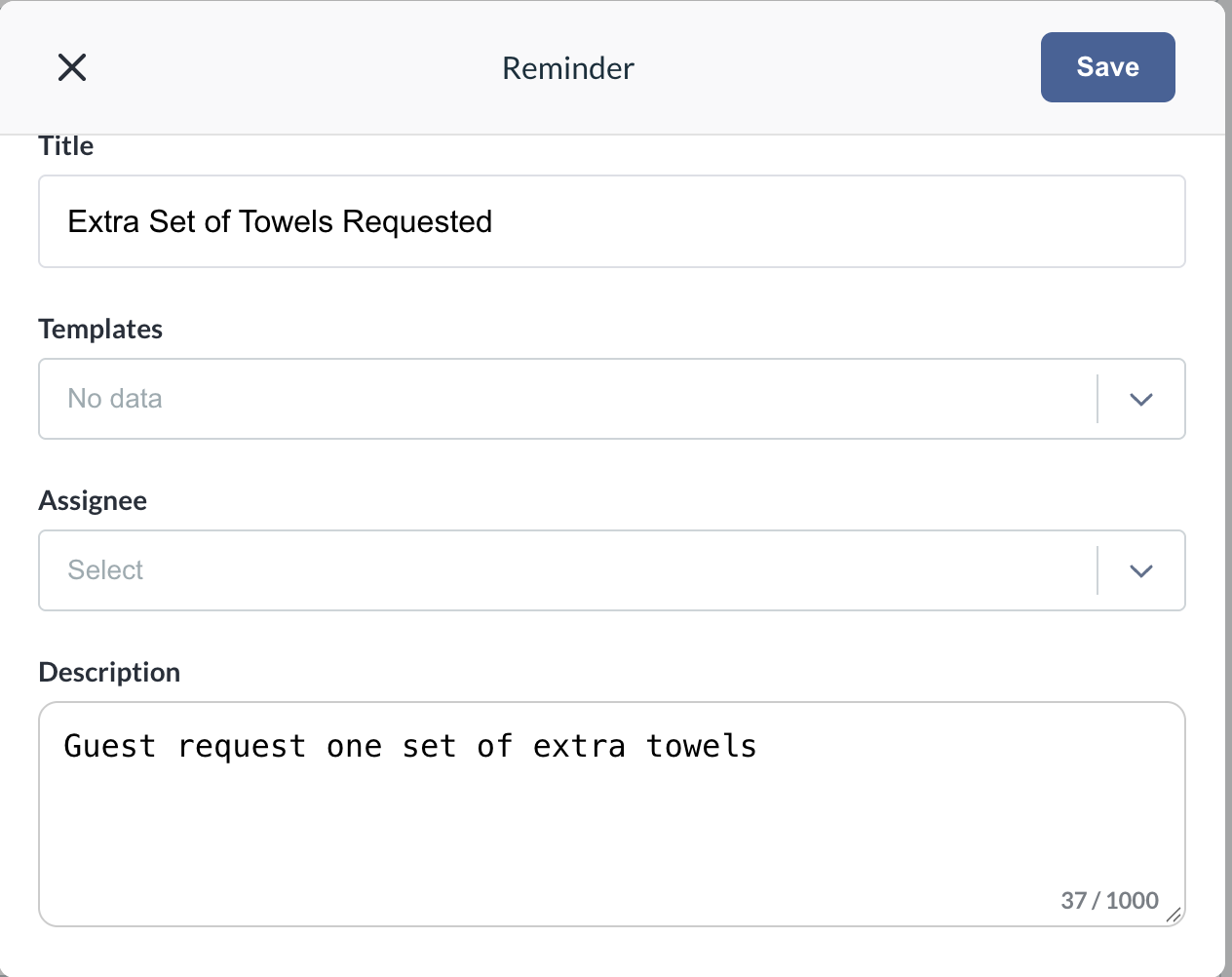
Description: Freeform narrative box (up to 1,000 characters) detailing guest observations, package locations, or maintenance requirements.
📷 VISUAL CALLOUT:
Add Reminder Modal Interface
Creation screen illustrating the Date/Time selectors, Department assignment dropdown, Title text entry, Assignee picker, and the 1,000-character Description field.
Creation Screen with Date, Time and Department Selectors
1,000-character Description field
Row Action Menu Options
Clicking the three vertical dots (Actions) on any reminder row provides direct status workflows:
Mark as Read: Flags unread reminders as reviewed by on-duty staff.
Complete: Launches the Complete Reminder modal requiring staff to enter an audit note detailing the resolution before marking the task finished.
Close Without Action: Launches the Close Reminder dialog requiring staff to document why no action was taken (e.g., guest declined service, duplicate request).
Archive: Removes inactive or settled reminders from daily operating views while maintaining historical audit records.
Related Documentation & Reports
Reminders Report: To audit historical reminder completion rates, track departmental response times, and review property-wide shift logs, refer to the Reminders Report Documentation.