Target Roles: Front Desk Agents, Reservations Specialists, Guest Services Coordinators, Front Office Managers, VIP & Loyalty Concierges
Last Updated:
Executive Overview
In HotelKey PMS, the Guest Preferences workspace within PMS Guest Profiles allows front desk, reservations, and guest services teams to document, organize, and maintain standing guest preferences across repeat stays. Preferences are grouped into standardized operational categories—such as Room, Housekeeping, Dietary, Stay, and Other Preferences—ensuring that room location requests, amenity needs, and allergy alerts automatically surface during reservation creation and manual room assignment workflows.
ℹ️ Release Note — Guest Preferences Search Bar (Available in Version 6.0.6+):
Currently, the Select Preferences modal does not include a search bar, requiring users to scroll manually through the categorized preference list to locate and add items.
Starting in HotelKey Version 6.0.6: A real-time Search input bar is introduced at the top of the Guest Preferences selection modal—allowing users to type partial or full keywords (for example, typing qu to immediately filter to QUIET LOCATION) and locate preferences faster.
Home > More > Guest Profiles > Select Guest Profile > Guest Preferences tab > Add Preference
Step
Action
Platform Guidance & Operational Details
Open Guest Profile
Navigate to Home > More > Guest Profiles, search for and select the target guest profile (e.g., Longo Bill).
Launches the Guest Details workspace defaulting to the Dashboard tab.
Navigate to Guest Preferences
In the left-hand navigation rail of Guest Details, click Guest Preferences.
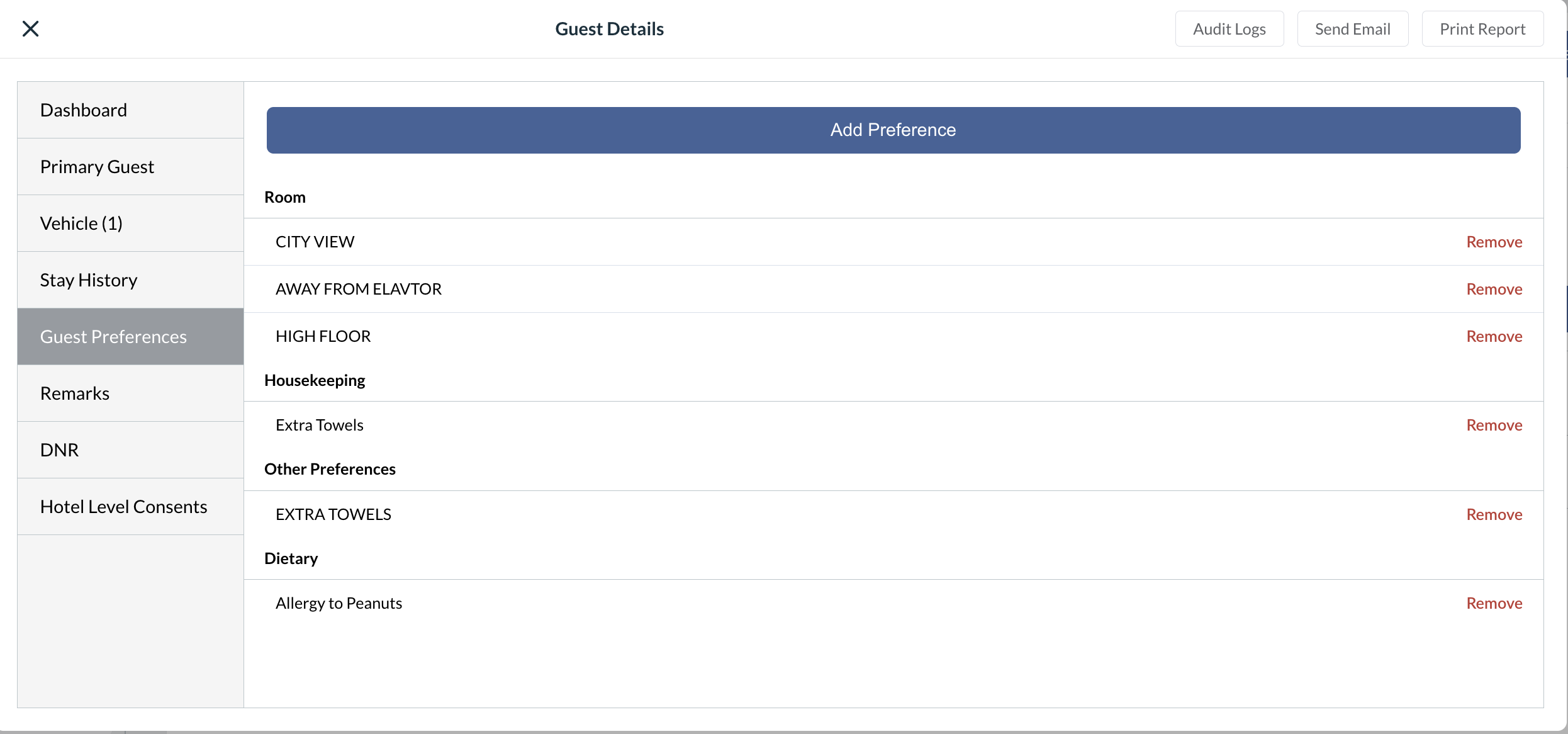
Displays all currently saved preferences grouped under their respective category headers (Room, Housekeeping, Other Preferences, Dietary).
Open Add Preference Modal
Click the full-width blue Add Preference button at the top of the Guest Preferences pane.
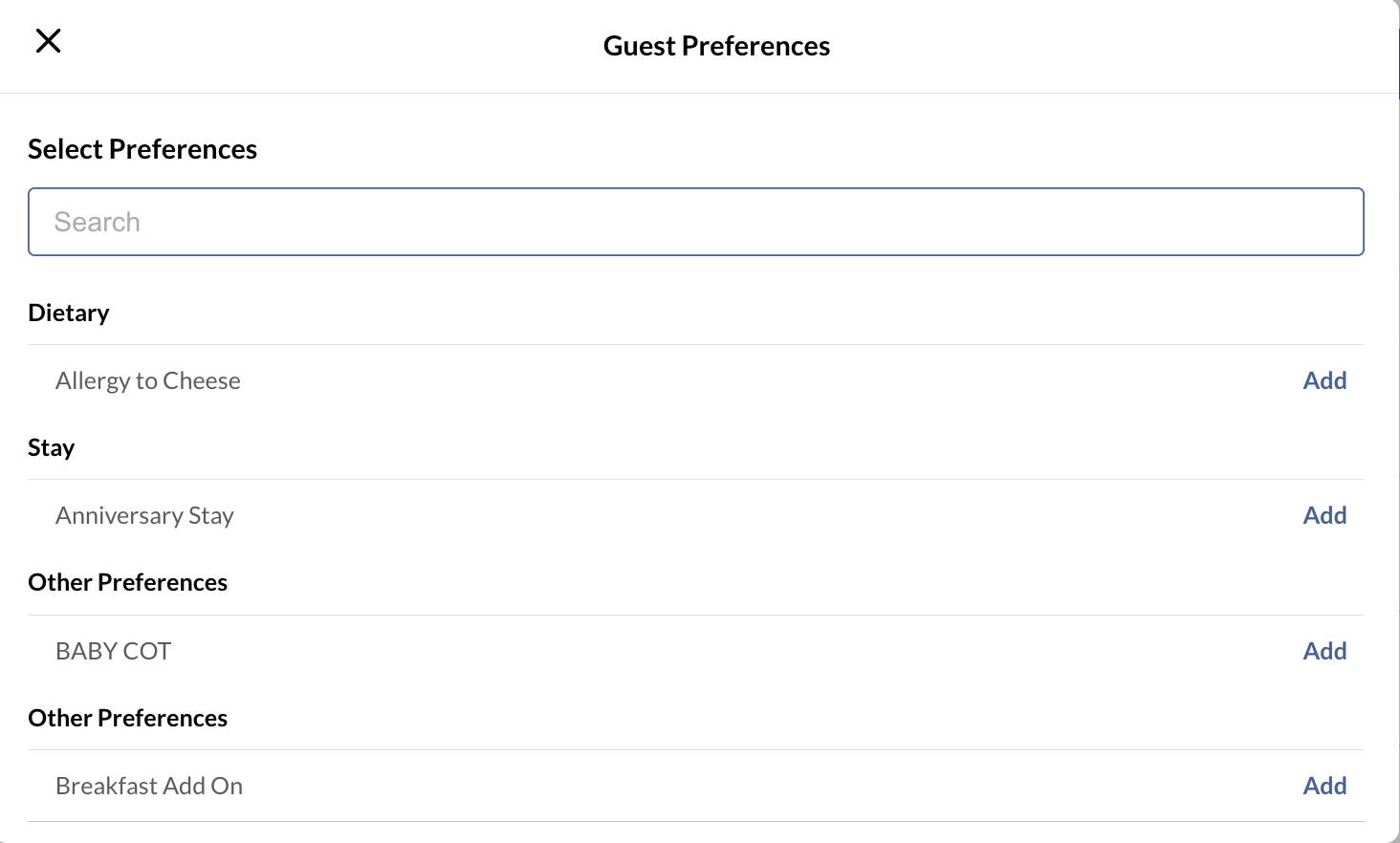
Opens the Guest Preferences selection modal (Select Preferences) listing available property-configured preferences by category.
Locate Desired Preference
Current Release: Scroll through the categorized list (Dietary, Stay, Housekeeping, Room, Other Preferences) to find the desired preference.
Version 6.0.6+: Type a keyword into the Search input bar at the top of the modal (e.g., qu) to filter matching preferences instantly.
Isolates the target preference row (e.g., QUIET LOCATION under Room).
Add Preference to Profile
Click the Add link on the right side of the target preference row.
Displays a green confirmation banner in the upper-right corner (Success: Preference Added Successfully) and removes the added item from the available selection list.
Close Modal & Verify
Click the ✕ icon in the upper-left corner of the Guest Preferences modal to return to the profile view.
Confirms the newly added preference (QUIET LOCATION) now displays under its assigned category (Room).
Remove a Preference (If Needed)
Locate the outdated or unneeded preference on the Guest Preferences tab and click the red Remove link on the right side of its row.
Immediately detaches the preference from the guest profile and displays a green confirmation banner (Success: Removed Successfully).
(Left) The Guest Preferences tab inside Guest Details showing categorized preferences (Room, Housekeeping, Other Preferences, Dietary), red Remove links, and the blue Add Preference button; (Right) The Guest Preferences selection modal showing the Version 6.0.6+ Search bar filtering to QUIET LOCATION alongside the Add action link.
Guest Preferences Tab
Guest Preferences Selection
Detailed Screen & Preference Category Breakdown
1. Guest Preferences Sub-Tab Layout
Add Preference Button (Blue): Full-width primary action button anchored at the top of the panel that opens the preference selection modal.
Categorized Preference Groups: Automatically organizes active preferences into distinct operational sections so staff can scan critical guest requirements at a glance:
Room: Physical room locations and attributes (e.g., CITY VIEW, QUIET LOCATION, AWAY FROM ELAVATOR, HIGH FLOOR).
Housekeeping: Recurring housekeeping service or linen items (e.g., Extra Towels).
Dietary: Food sensitivities and allergy alerts (e.g., Allergy to Peanuts, Allergy to Cheese).
Stay: Special occasion markers and stay classifications (e.g., Anniversary Stay).
Other Preferences: Supplemental stay enhancements and add-on requests (e.g., EXTRA TOWELS, Breakfast Add On).
Remove Action Link (Red): Positioned on the far right of every active preference row, enabling single-click removal without needing an additional save step.
2. Select Preferences Modal Controls
Search Field (Version 6.0.6+): Real-time keyword filter positioned directly beneath the Select Preferences header. Once an item is added, the list updates dynamically (displaying No Results Found if no other items match the active search string).
Category Sections & Add Links: Displays all unassigned preferences grouped by category with a clickable Add link on the right side of each row.
📷 VISUAL CALLOUT:
Adding & Removing Guest Preferences Walkthrough
Adding & Removing Guest Preferences Walkthrough
Downstream Operational Impact
Automatic Reservation Inheritance: Preferences saved on a PMS Guest Profile automatically carry over when creating new reservations for that guest, ensuring front desk and reservations agents do not have to re-enter recurring requests.
Manual Room Assignment Matching: Room-level attributes stored on the guest profile (such as QUIET LOCATION, HIGH FLOOR, or CITY VIEW) automatically pre-populate the Room Attributes filter inside the Manual Room Assignment console, highlighting matching rooms during pre-arrival assignment and check-in.