Target Roles: Front Desk Agents, Reservations Specialists, Guest Services Coordinators, Front Office Managers, Night Auditors
Last Updated:
Executive Overview
In HotelKey PMS, the All Reservations module serves as a centralized operational command center that consolidates daily front desk queues into a single unified workspace. Accessible directly from the top of the left-hand navigation menu, All Reservations eliminates the need to bounce between separate dashboard screens by organizing reservations into five live operational sub-tabs: All, Arrivals, In House, Departures, and No Show/Late Cancel. Each sub-tab dynamically adapts its date selectors, specialized filters (such as Digital Check-In/Out, Early Check-In, Late Check-Out, and Bulk Actions), layout views (List View vs. Card View), and row-level three-dot Actions menus (⋮) to match the active stage of the guest lifecycle.
Configuration & Workflow Guide: Navigating the All Reservations Console
System Navigation Path
Home > All Reservations (Top Left Navigation Menu)
Step
Action
Platform Guidance & Operational Details
Access All Reservations
From the PMS Dashboard, click All Reservations directly beneath Dashboard in the upper-left navigation bar.
Loads the unified All Reservations workspace defaulting to the All sub-tab and the current property business date.
Select Operational Sub-Tab
Click the desired lifecycle sub-tab across the top navigation bar: All, Arrivals, In House, Departures, or No Show/Late Cancel.
Dynamically adjusts the available date pickers, status filters, digital check-in/out KPIs, and bulk action tools for that queue.
Configure Date Range & Quick Search
On the All tab, select Start Date and End Date calendar bounds (or use the single Date picker on specific operational sub-tabs).
Type a Guest Name, Room Number (e.g., 150), or Confirmation # into the live search box.
Filters matching records in real time. (Click Advanced Search to the right of the search bar for deep multi-attribute queries).
Apply Sorting & Dropdown Filters
Adjust Sort By (First Name, Last Name, Confirmation Number, Departure Date, Room Number, Room Type, Rate Plan, Source), filter by Rewards, Room Type, or Additional Filters, and click Reset Filters to clear selections.
Narrows large reservation lists down to exact loyalty tiers, room categories, or VIP/group segments.
Switch Layout Views (All Tab)
On the All sub-tab, use the upper-right view icons to toggle between List View (tabular rows) and Card View (detailed reservation summary tiles).
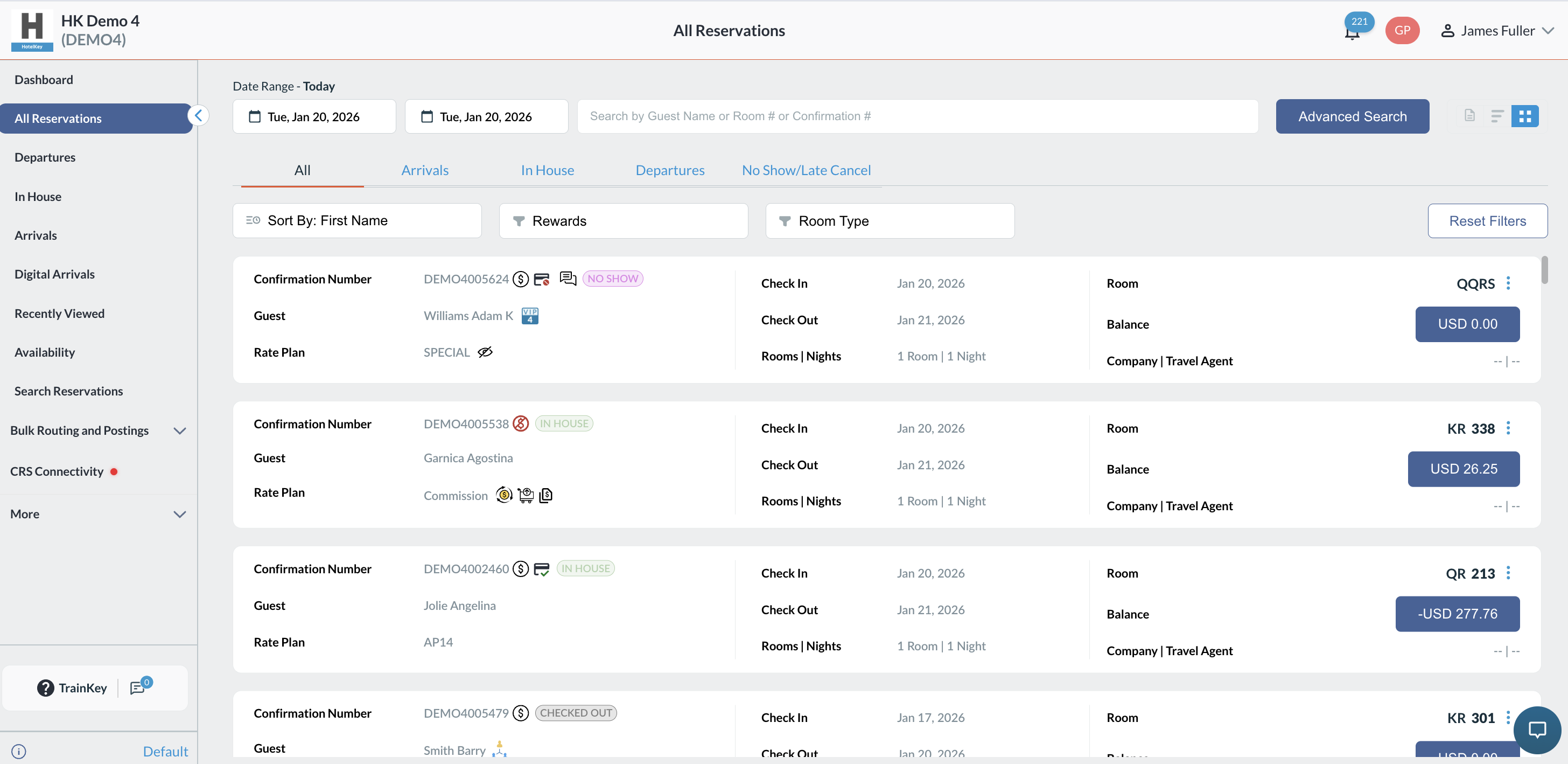
Card View surfaces balance badges (USD 0.00), check-in/out dates, room numbers, and company/agent links at a glance.
Execute Bulk or Row-Level Actions
Use the Bulk Actions dropdown (Bulk Routing Setup, Fast Posting) on Arrivals, In House, Departures, or No Show/Late Cancel tabs.
Click the three-dot icon (⋮) on any reservation row to open contextual Actions.
Enables single-click check-ins, room assignments, folio printing, audit logs, and status reversals without leaving the grid.
📷 VISUAL CALLOUT:
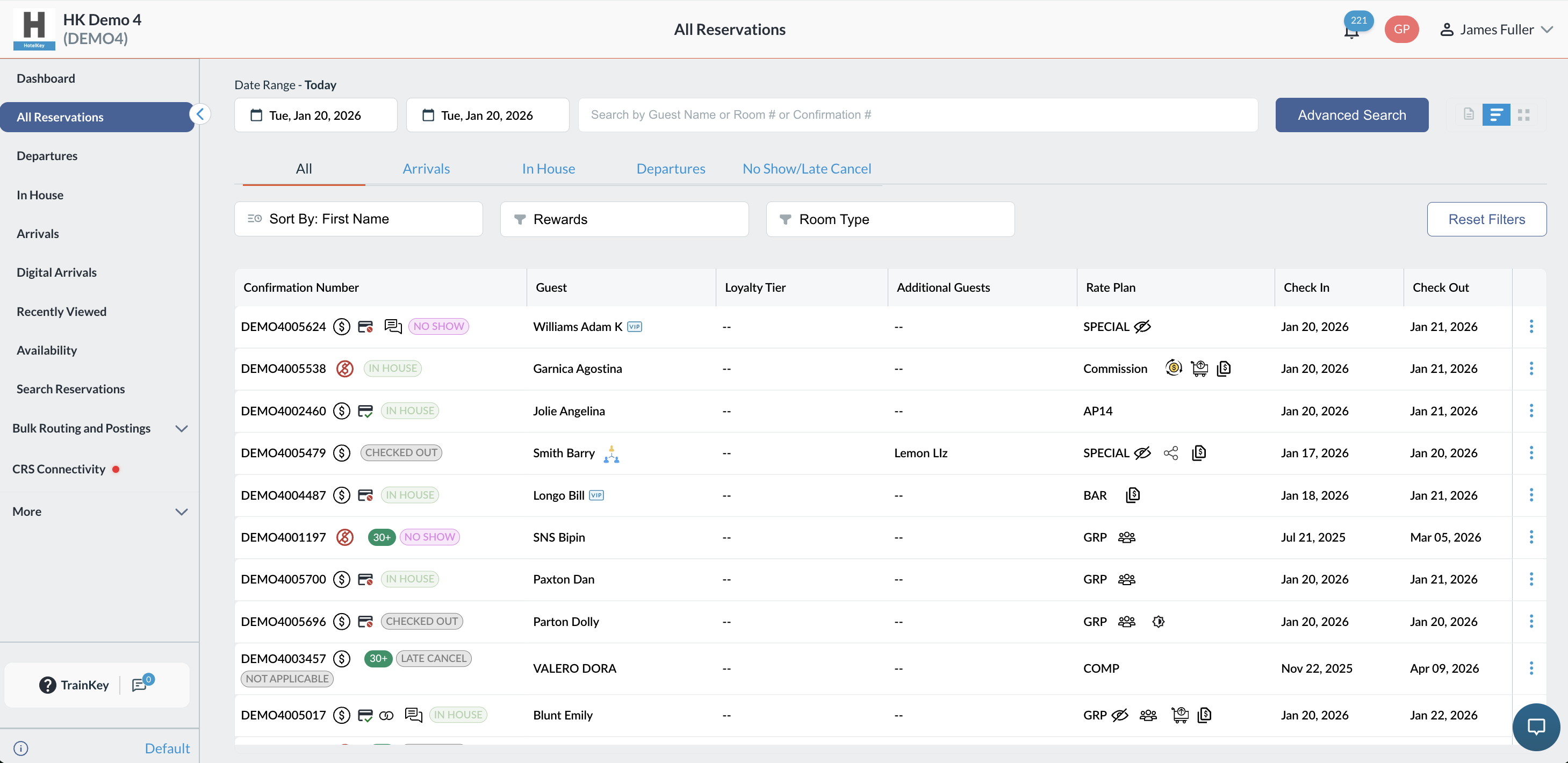
All Reservations Unified Workspace & View Toggles
(Left) The All Reservations screen on the All sub-tab displaying the Date Range selectors, live search bar, horizontal filter controls, and List View table; (Right) The All Reservations screen toggled to Grid View displaying individual reservation tiles with balance pills and stay metadata.
All Reservations Screen: All sub-tab
All Reservations Grid View
Detailed Breakdown of the 5 Operational Sub-Tabs
Each sub-tab inside All Reservations tailors its toolbar, filters, and action menus to the specific operational requirements of that queue:
1. All Sub-Tab (Multi-Date Consolidated View)
Date Controls: Paired Start Date and End Date calendar selectors allowing multi-day date range queries across all reservation statuses (RESERVED, IN-HOUSE, CHECKED OUT, NO SHOW, LATE CANCEL).
Filter & Sort Toolbar:Sort By dropdown, Rewards tier multi-select (Blue, GOLD, PLATINUM, Diamond, DIAMOND SELECT), Room Type multi-select, and Reset Filters.
Layout Toggles: Exclusive upper-right toggle switching between List View and Card View.
Row Actions (⋮): Contextual menu adapting to each row's status (Copy Reservation, Audit Log, Print Registration Card, Print All Folios, plus Check In or Manual Room Assignment on eligible arrivals).
2. Arrivals Sub-Tab (Expected Check-Ins & Digital Arrivals)
Date & Queue Controls: Single Date selector (defaulting to current business date) paired with an Early Check In toggle switch.
Specialized Filters:Sort By, Rewards, Room Type, Bulk Actions (Bulk Routing Setup, Fast Posting), Digital filter (All, Digital Check-In, Digital Check-In with Key), and Additional Filters (VIP Guest, Preferences, Company Code, Individual, Group Block, Stay Enhancements, Arrivals, Day Use).
Digital Check-In KPI Bar: Live counters tracking All, Pending Actions, Scheduled ID, Pending Room, Approve Key, and Failed ID.
Row Actions (⋮):Check In, Manual Room Assignment(v6.0.6+), Copy Reservation, Cancel Reservation, Review Booking, Print Registration Card, No Show, Waive No Show/Late Cancel, and Print All Folios.
3. In House Sub-Tab (Occupied Rooms & Stay-Over Management)
Date & Queue Controls: Single Date selector isolating currently checked-in guests.
Specialized Filters:Sort By, Rewards, Room Type, Bulk Actions (Bulk Routing Setup, Fast Posting), Additional Filters, and a dedicated Status filter isolating Pending Departure records.
Row Actions (⋮):Copy Reservation, Undo Checkin, Audit Log, and Print All Folios.
4. Departures Sub-Tab (Scheduled Check-Outs & Digital Departures)
Date & Queue Controls: Single Date selector paired with a Late Check Out toggle switch and Express Check Out action button.
Specialized Filters:Sort By, Rewards, Room Type, Bulk Actions (Bulk Routing Setup, Fast Posting), Digital filter (All, Digital Check-Out), and Additional Filters.
Digital Check-Out KPI Bar: Live counters tracking All, Pending Actions, Departed, and Completed digital check-outs.
Row Actions (⋮):Copy Reservation, Audit Log, Undo Checkout(visible on CHECKED OUT rows only), and Print All Folios.
5. No Show / Late Cancel Sub-Tab (Exception & Reinstatement Queue)
Date & Queue Controls: Single Date selector displaying all reservations in NO SHOW or LATE CANCEL status.
Specialized Filters:Sort By, Rewards, Room Type, Bulk Actions, and Additional Filters (VIP Guest, Preferences, Company Code, Individual, Group Block, Stay Enhancements, Arrivals, Day Use).
Row Actions (⋮):Copy Reservation, Audit Log, Reinstate (restores the reservation back to active RESERVED status), and Print All Folios.
📷 VISUAL CALLOUT:
All Reservations Modal Walkthrough
All Reservations Modal Walkthrough
Table Columns & Horizontal Scroll Details
Across all five sub-tabs, the reservation grid presents standardized operational columns (scroll horizontally to inspect room and folio metrics):
Core Identity Columns:Confirmation Number (with VIP/group/channel badges), Status Badge (RESERVED, IN-HOUSE, CHECKED OUT, NO SHOW, LATE CANCEL), Guest name, Loyalty Tier, and Additional Guests.
Stay & Rate Columns:Rate Plan (with restriction/package icons), Check In date, Check Out date, and Room / Nights count (1 R | 1 N).
Room & Financial Columns (Scroll Right):Adults / Children count, Room Number (with occupancy/housekeeping badge, e.g., 150), Room Type code (DQ, KR, KS), Balance (USD 0.00), Company / Travel Agent, and the three-dot Actions (⋮) column.