
📆 Revision Date:
Products can be added to the cart by scanning or item lookup and selection. Products can be scanned using the external scanner device or the iPad’s inbuilt scanning feature.
|
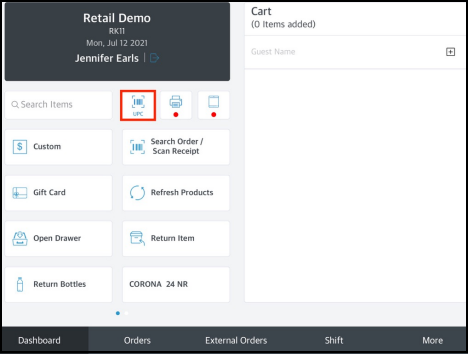
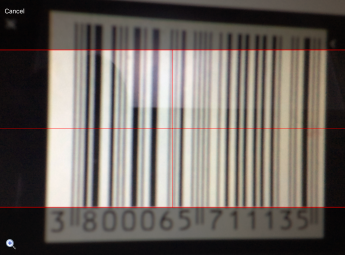
To add a product to the cart by scanning: Use the external scanner device to scan the item bar code; the item is added to the cart. If the external scanner device is unavailable, the iPad’s inbuilt scanner is also supported. To use it, select the UPC icon on the Dashboard of the POS application. Position the iPad to capture the bar code within the grid that appears on the camera viewfinder, as shown. The bar code is scanned and the system redirects to the Dashboard screen; the item is added to the cart. Adjust quantity settings as needed. |
|
|
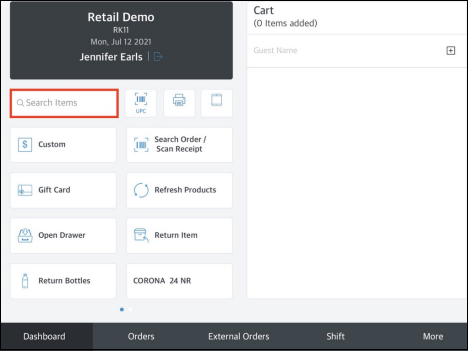
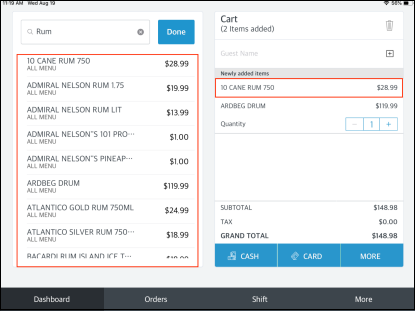
To add a product to the cart by item lookup: Enter the first few characters of the product name, SKU or UPC code in the Search Items box on the Dashboard to search for items to add to the cart. |
|
|
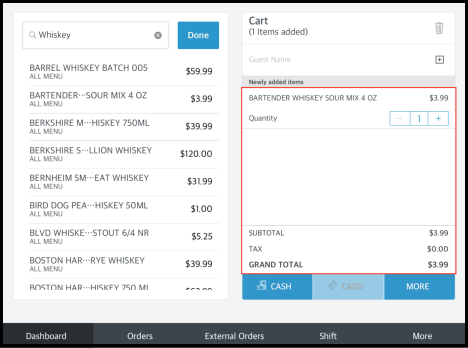
A list of matching products loads in the sidebar. Select the applicable item from the list to add it to the cart. Adjust quantity settings as needed. |
|
The iPad device and brand name are the property of Apple, Inc.