
📆 Revision Date:
|
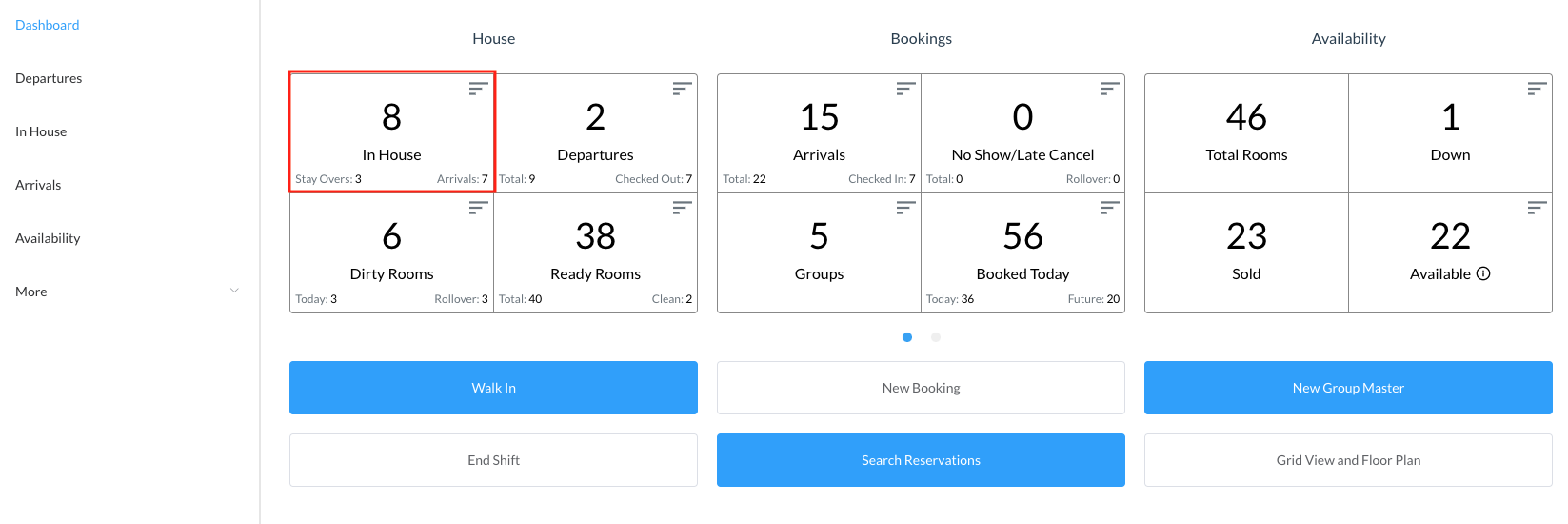
Select In House Tile on the Dashboard page. |
|
|
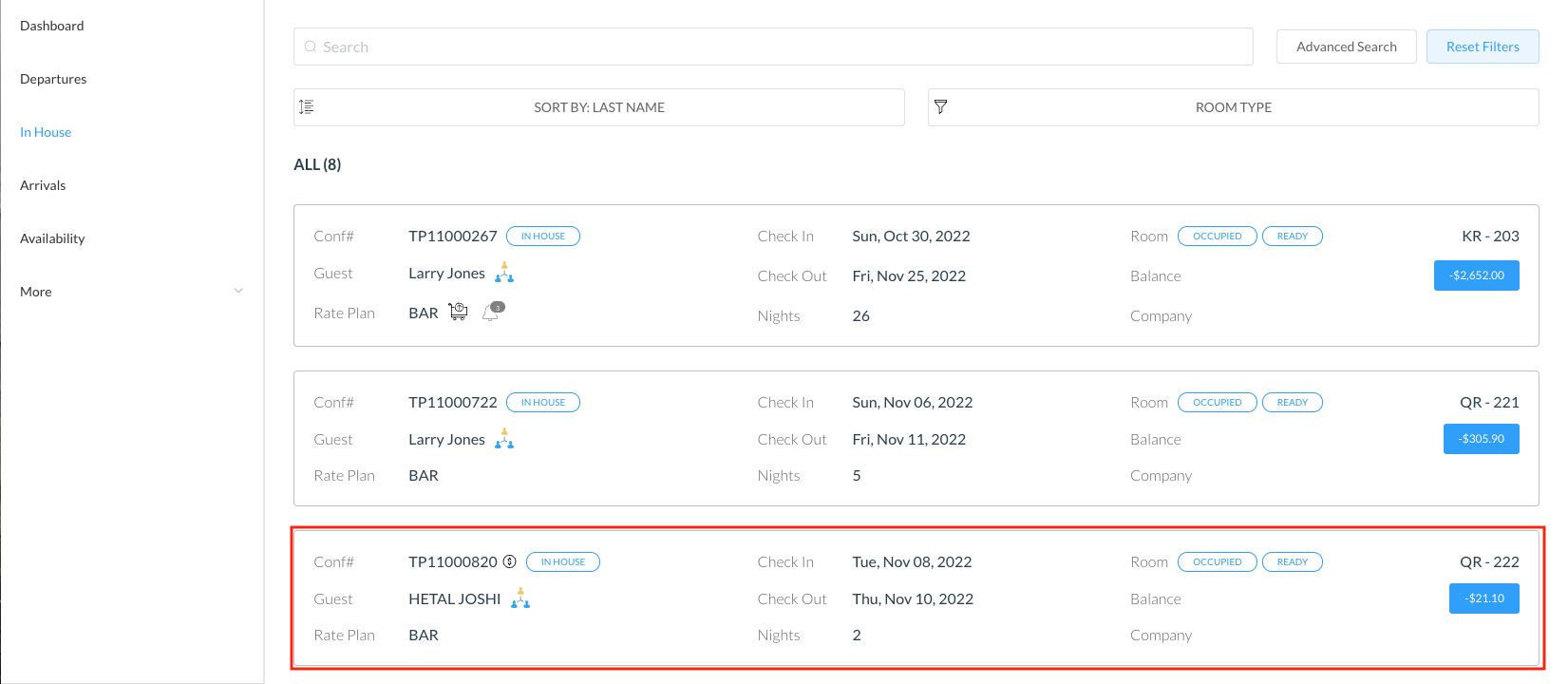
Select the applicable reservation. |
|
|
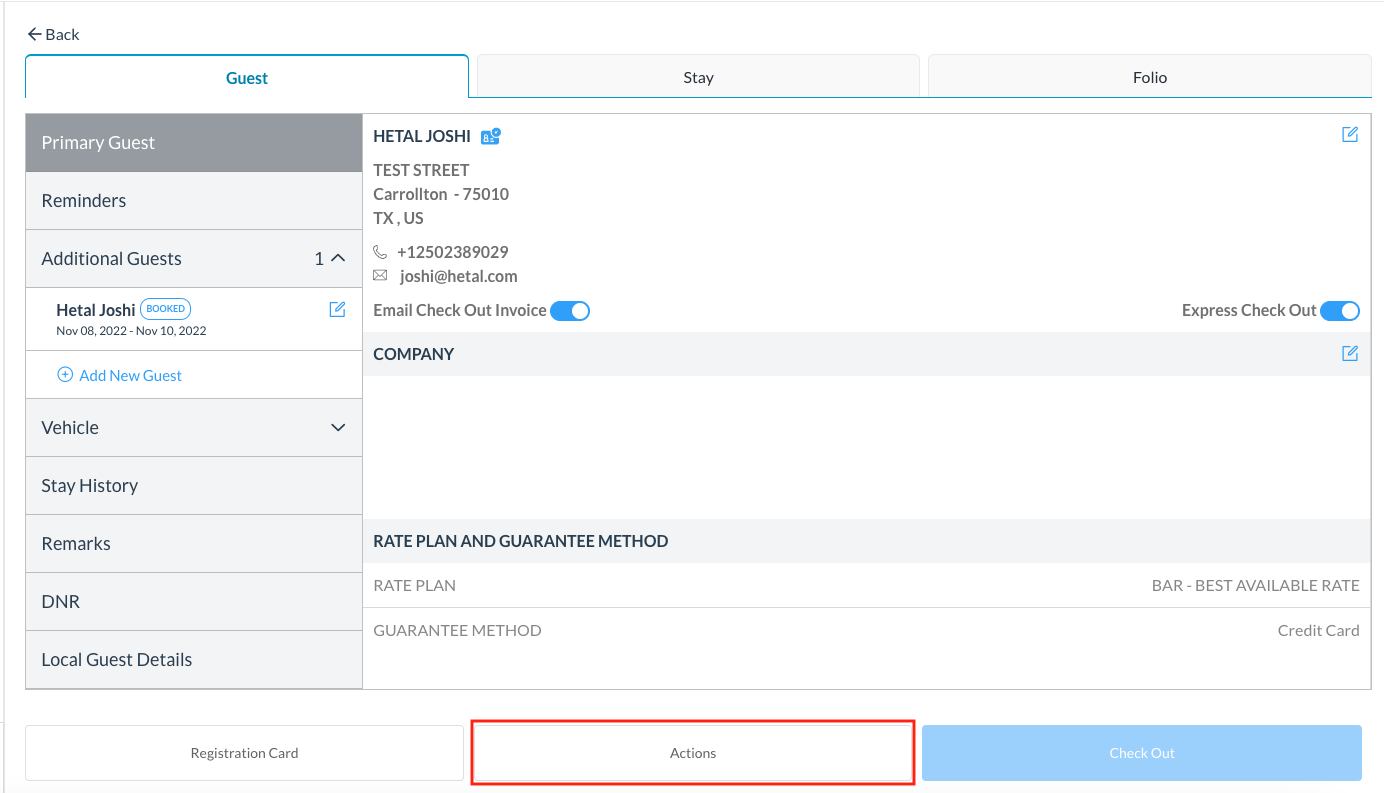
The reservation details page loads. Select Actions. |
|
|
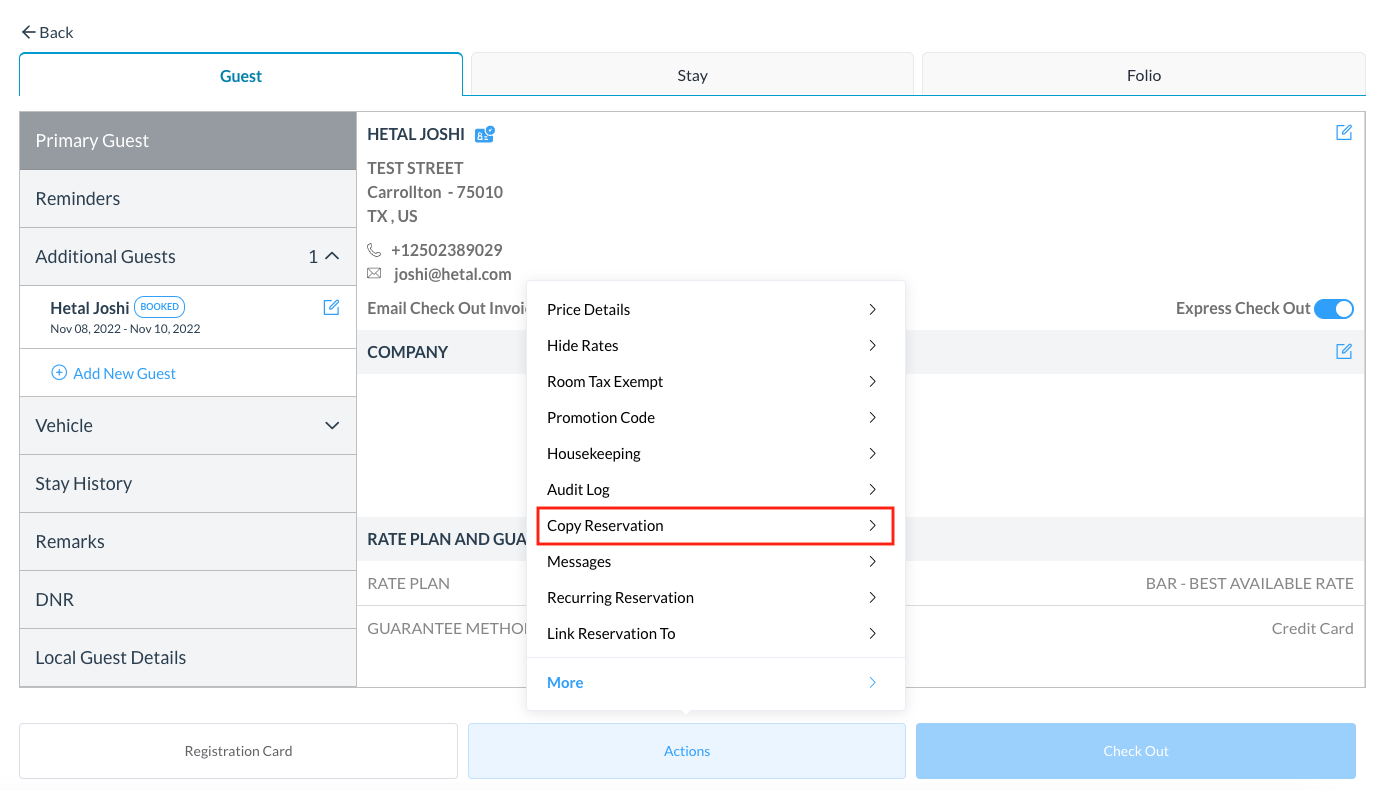
In the popup list of actions, select Copy Reservation. |
|
|
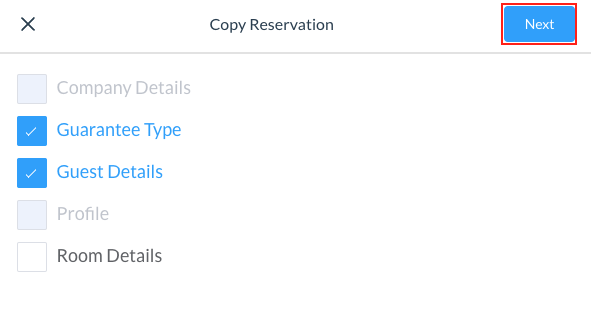
A Copy Reservation popup activates. Select applicable checkboxes to toggle details to be copied, on or off and click on Next In the example Guarantee Type and Guest Details are on (blue) and will be copied, Company Details, Profile and Room Details are off (gray) and won’t be copied.
|
|
|
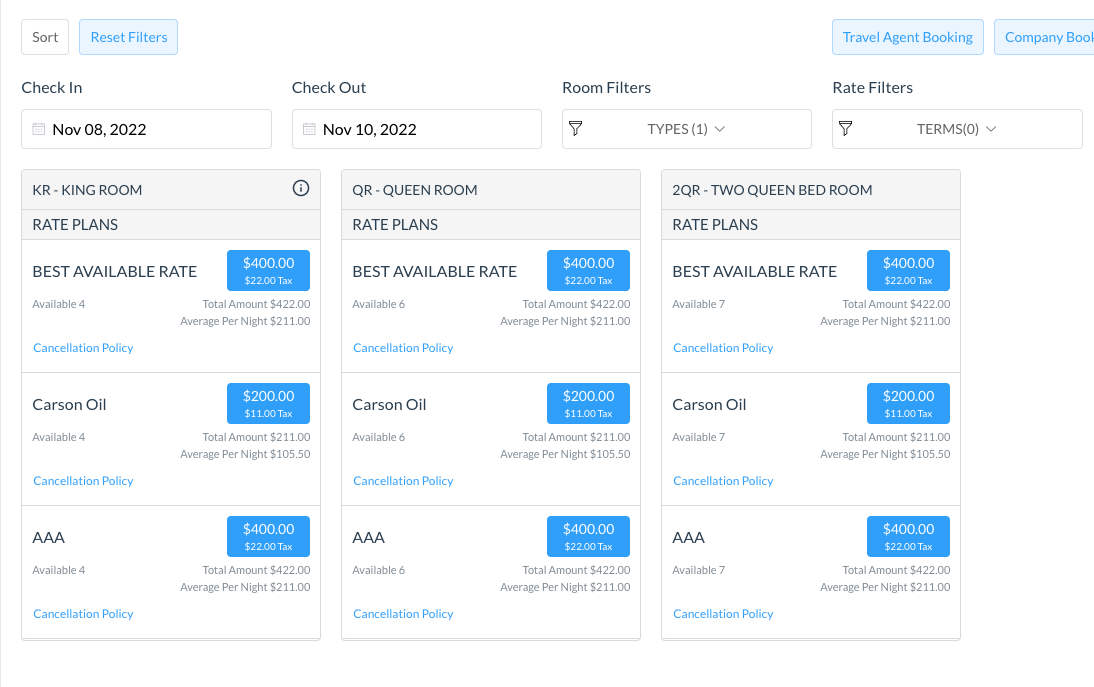
Select the applicable check in and check out dates in the copied reservation, and select the room type and a rate code (blue rate button). In the example 3 rate codes and room types are available for selection, your property may have additional options listed. |
|
|
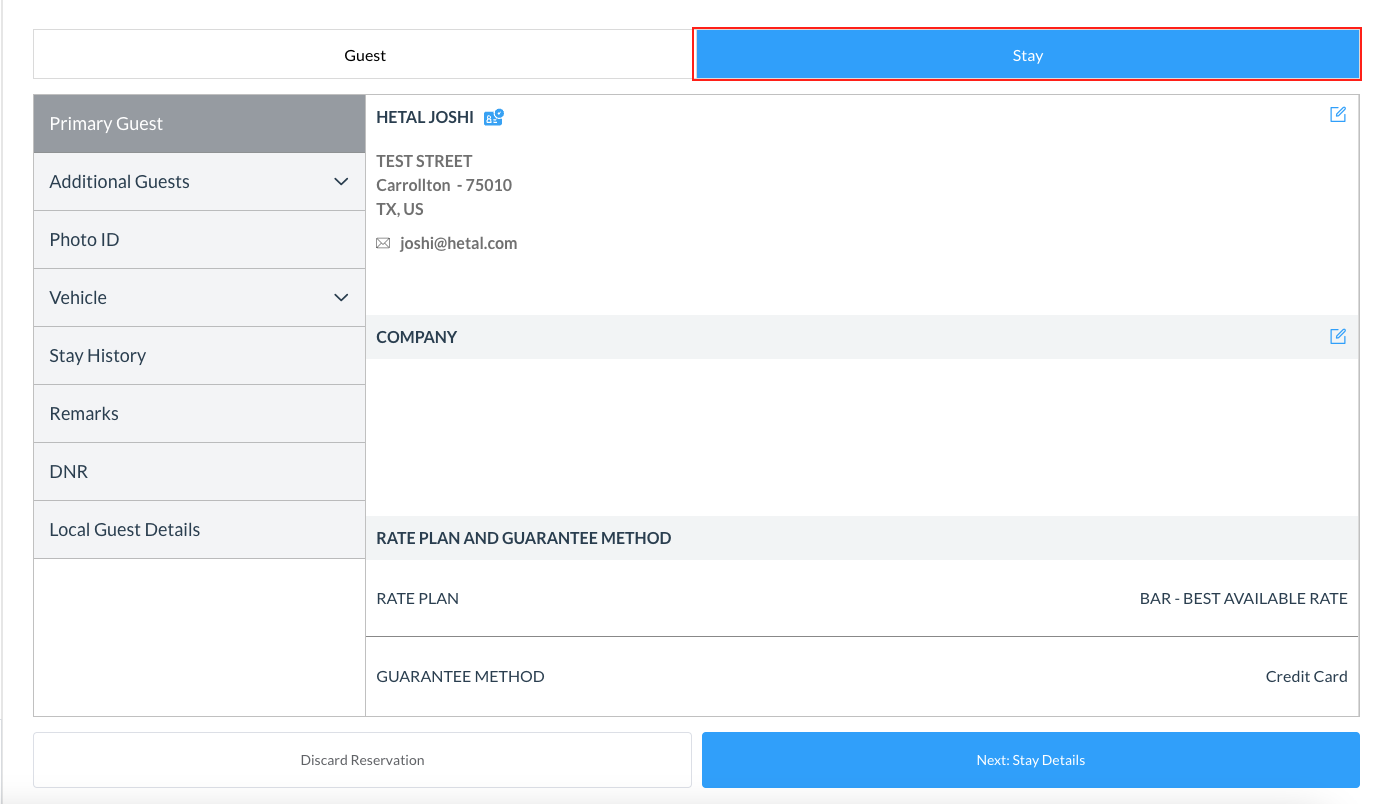
The reservation details page loads. Select the Stay tab.
|
|
|
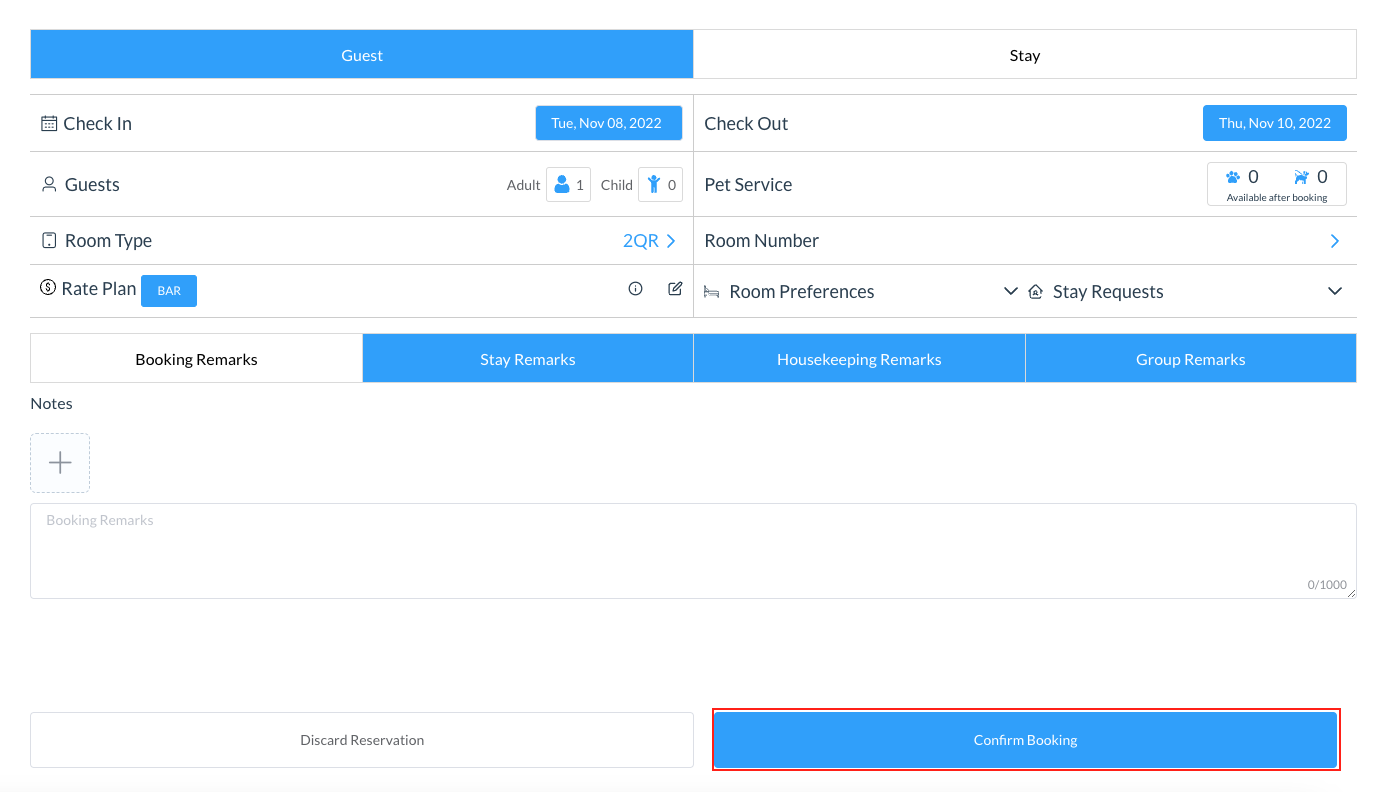
Details of the stay are shown. Select Confirm Booking. |
|
|
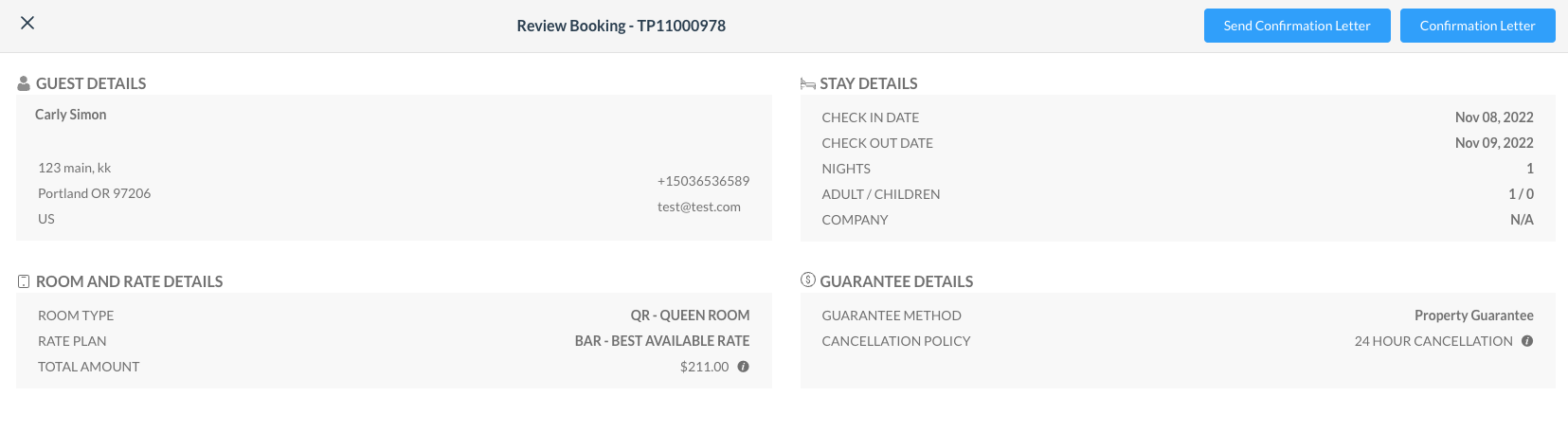
Review Booking page loads and the option to send confirmation letter to the guest |
|
|
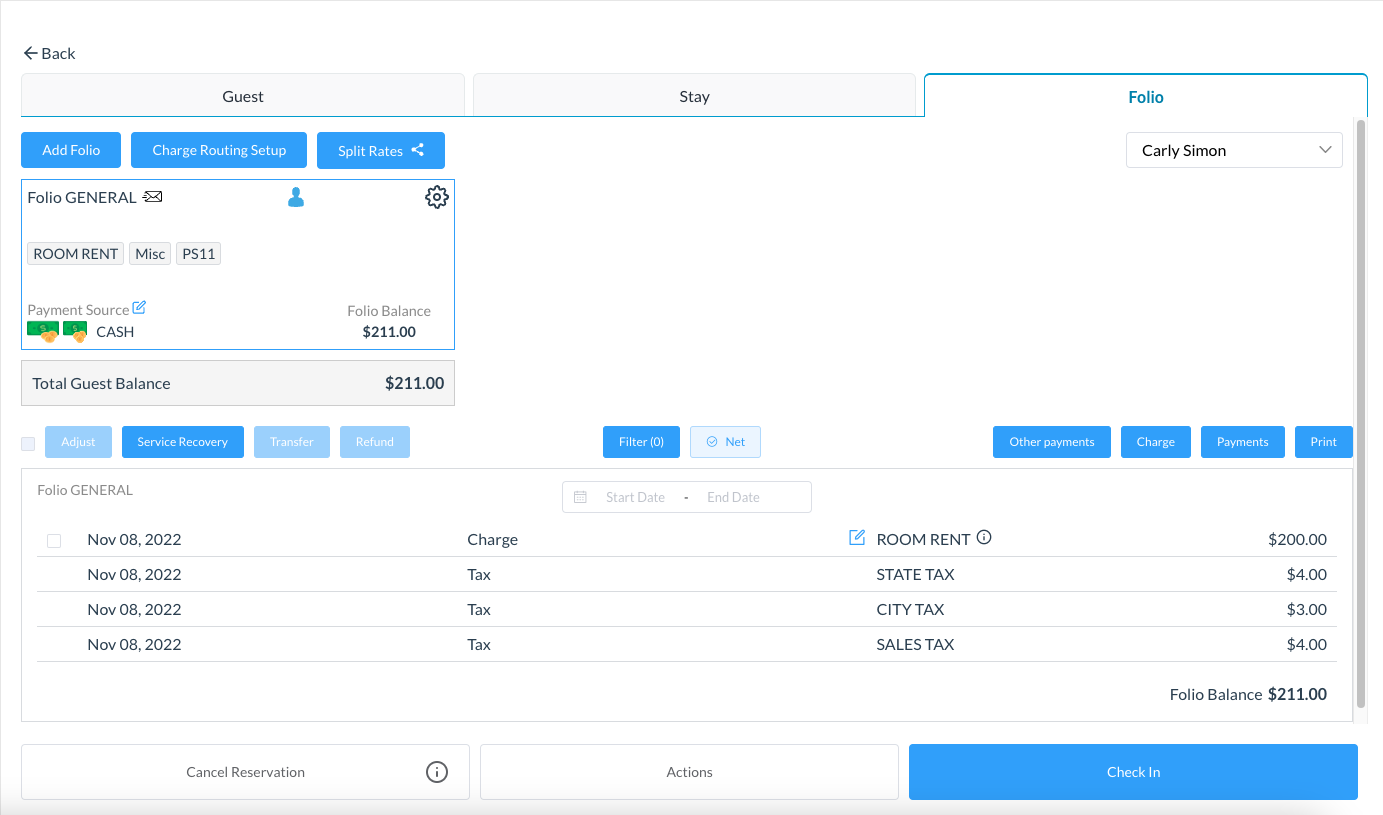
The new reservation is created. |
|