
📆 Revision Date:
To setup charge routing, route charges outside of the current reservation to another reservation, a house account or a group master - follow the steps below.
|
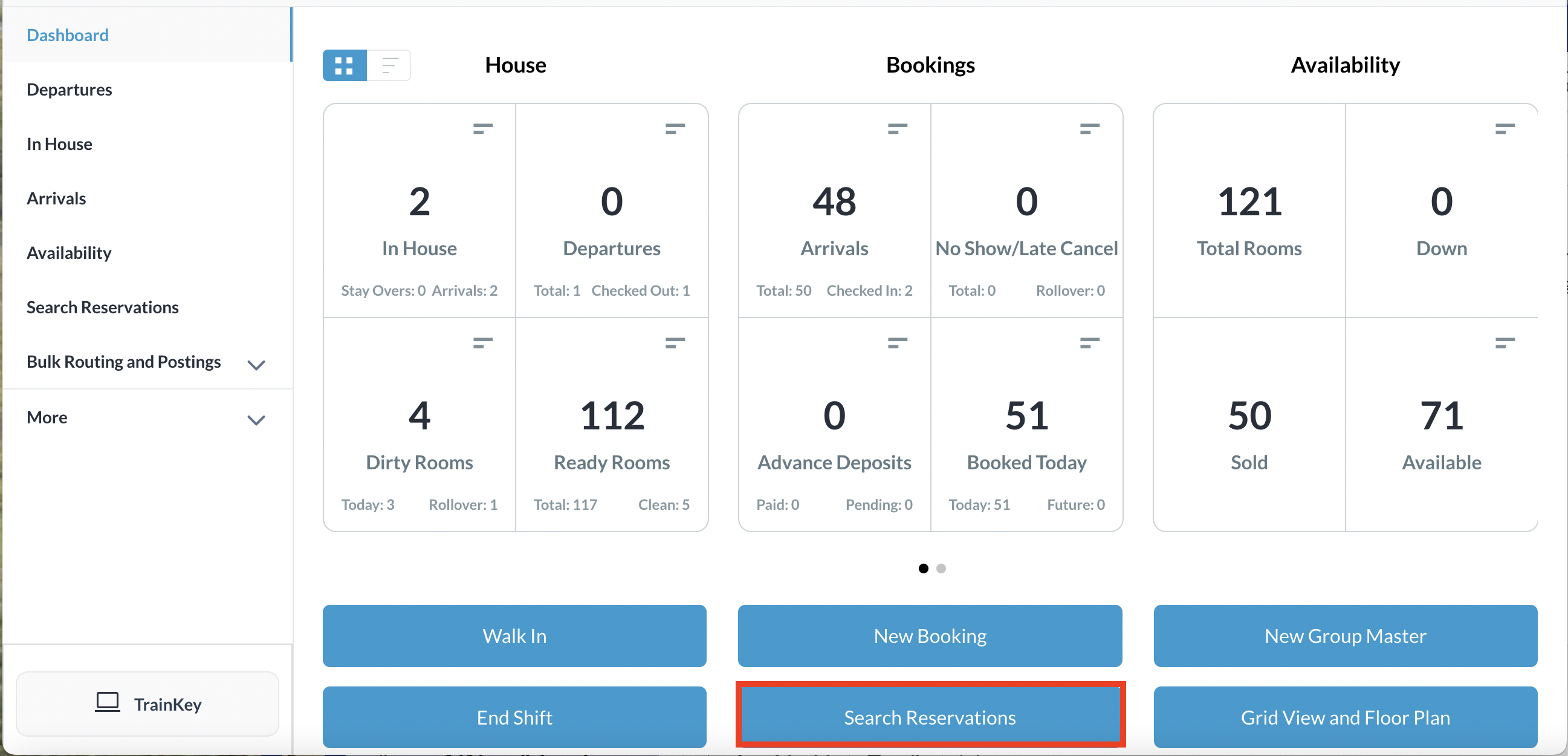
Select Search Reservations on the Dashboard |
|
|
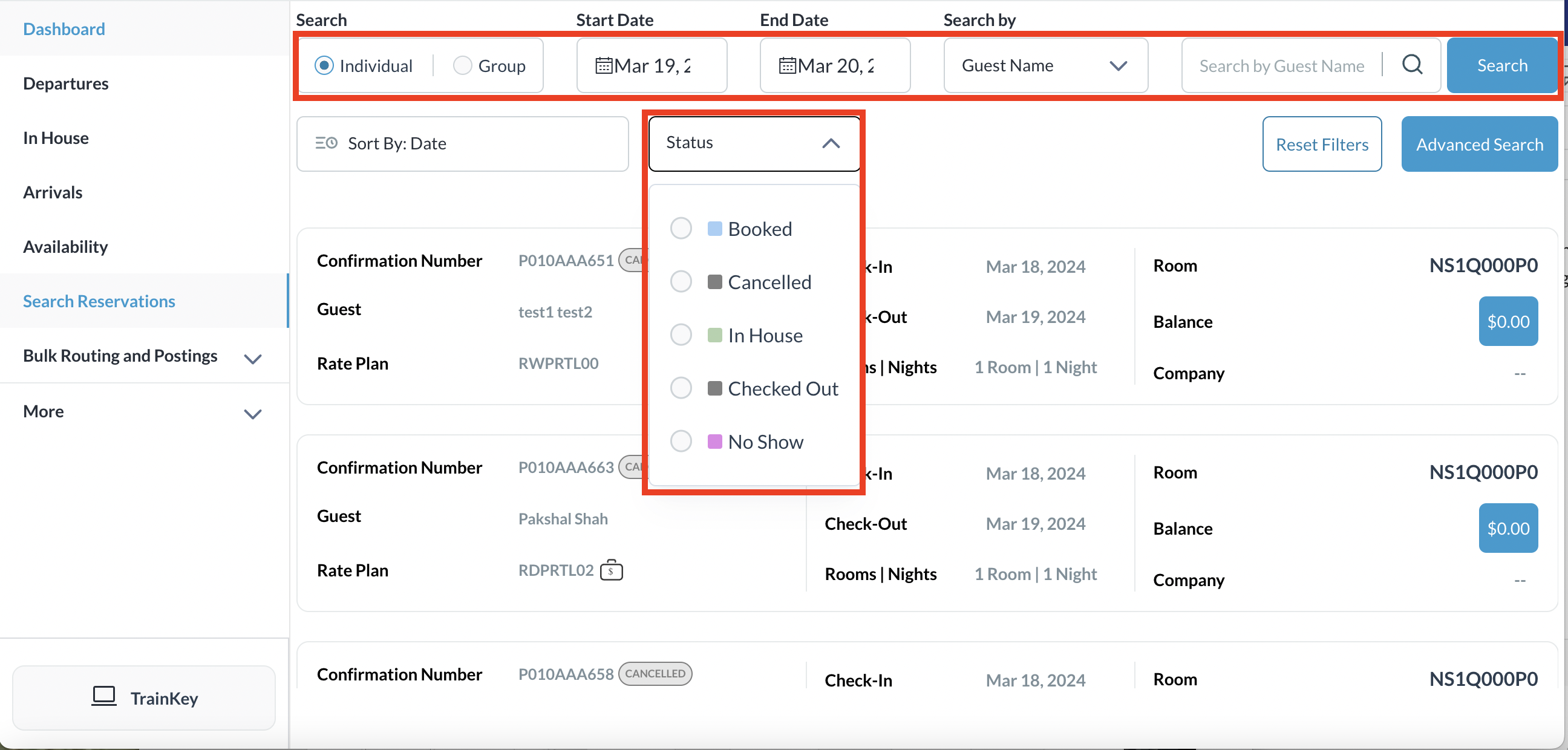
Find the applicable reservation by performing a search by Date, Guest Name, Confirmation or Room Number and then select Search. Select the Status button to further filter the results Once you have located the reservation, click on the reservation |
|
|
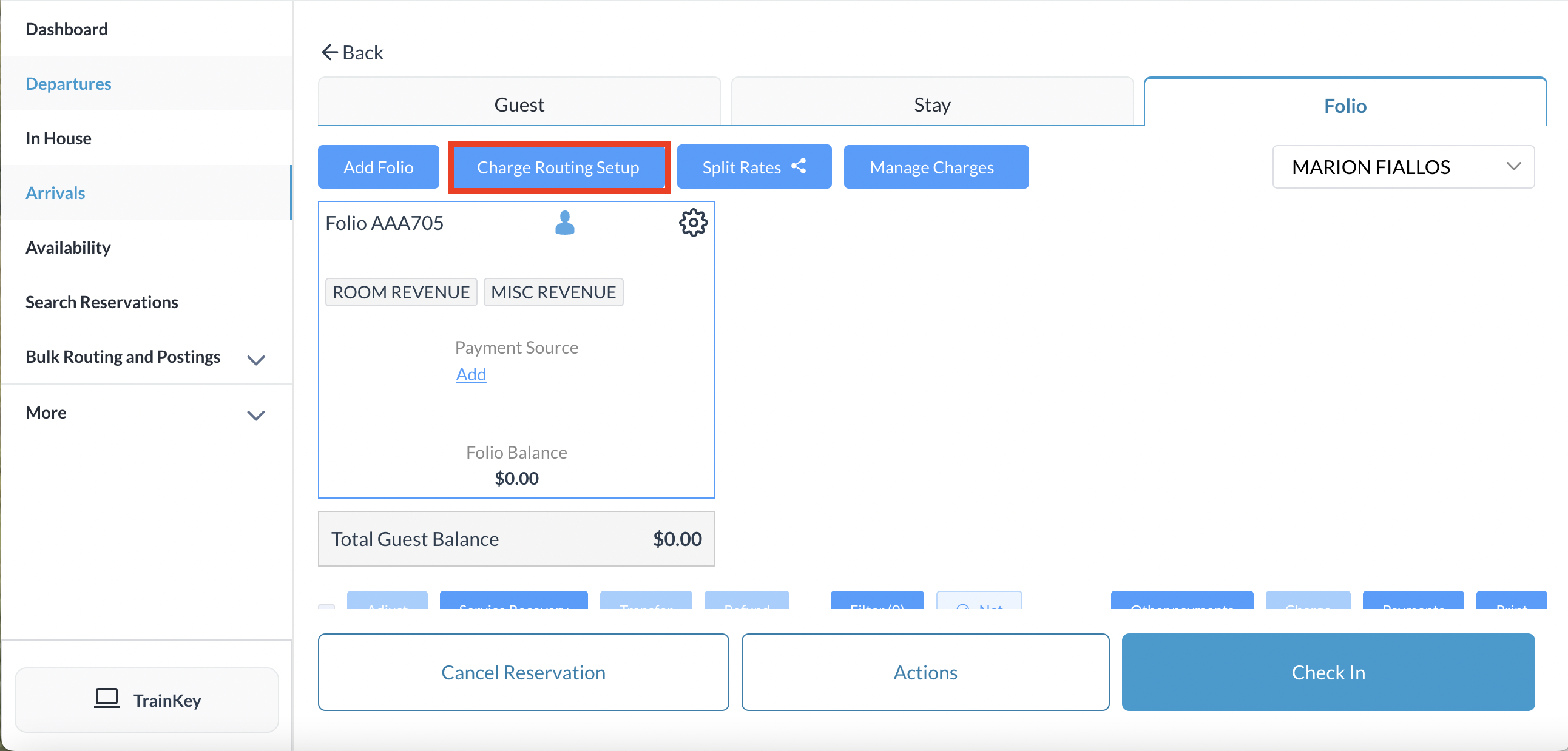
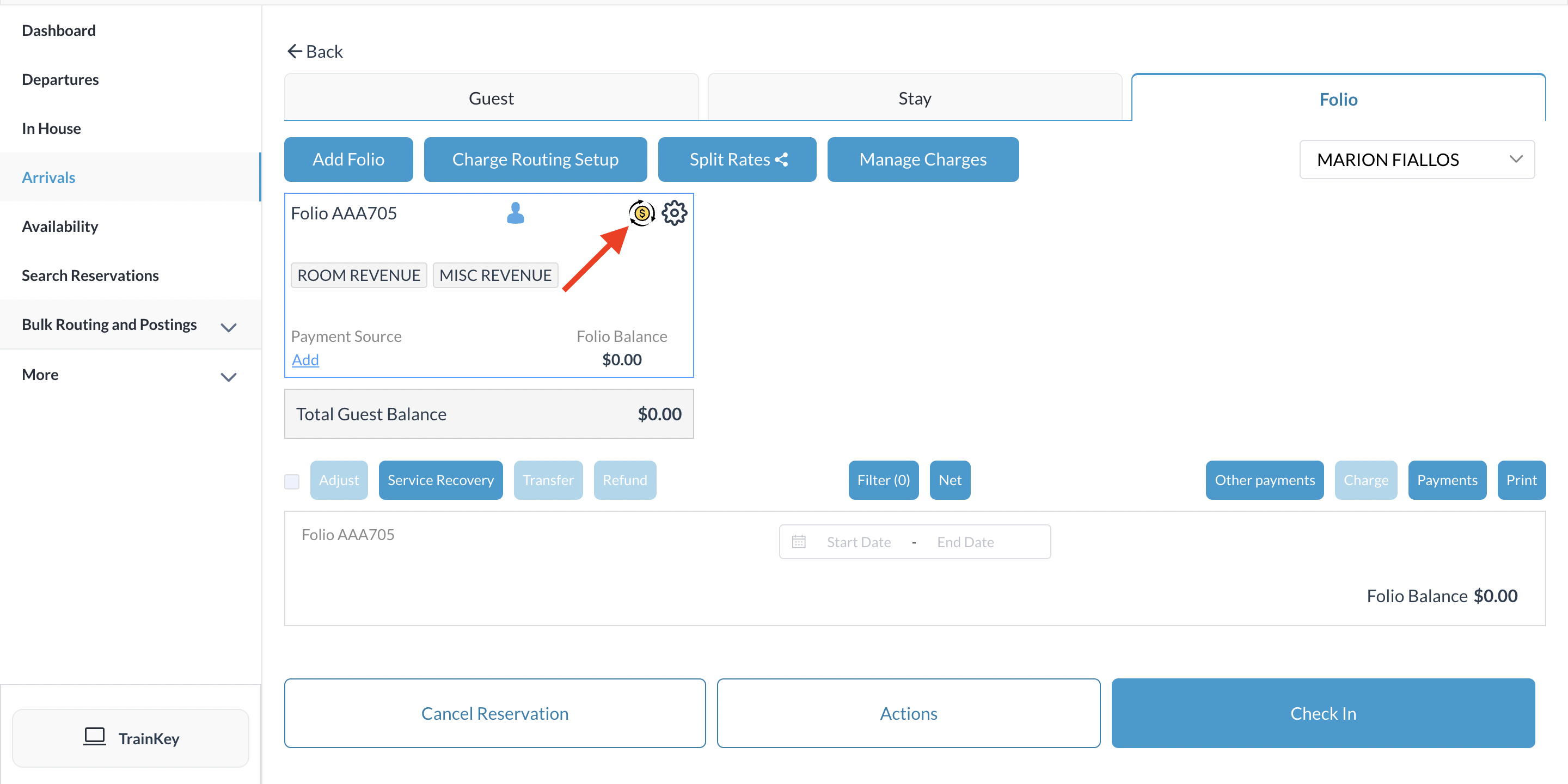
The reservation details page loads, open to the Guest tab by default. Select the Folio tab
|
|
|
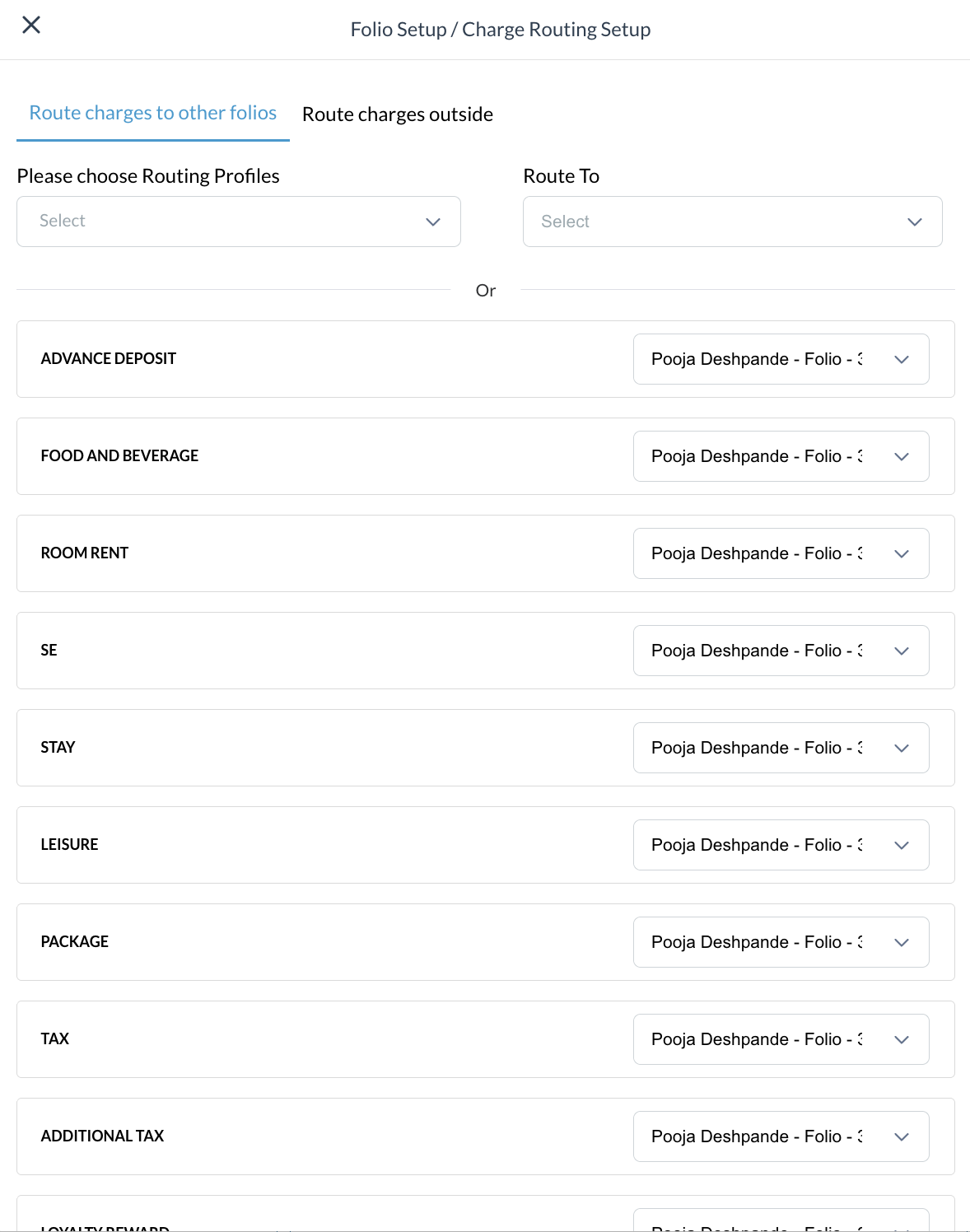
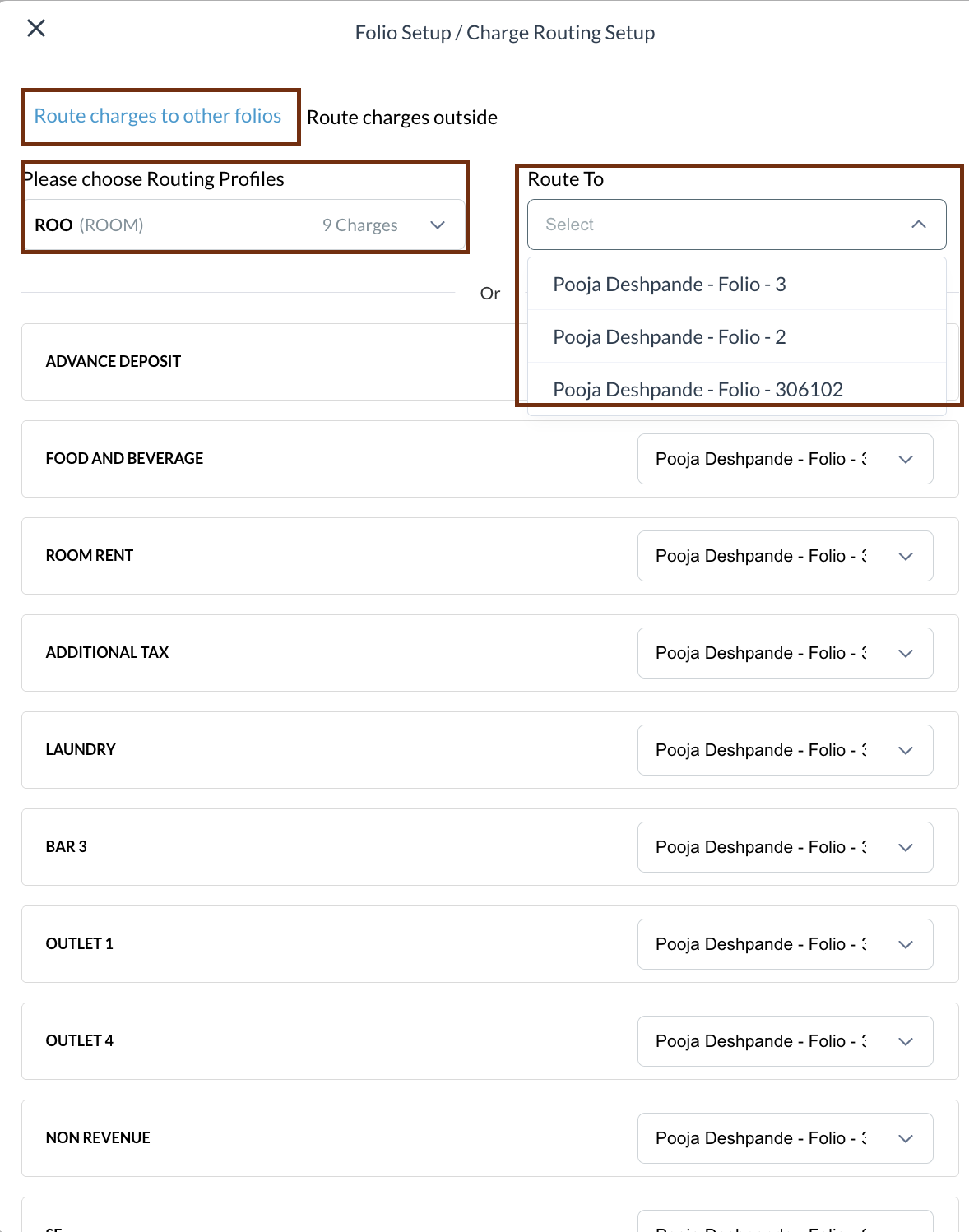
The Folio Setup / Charge Routing Setup screen will open, displaying all charge type categories linked to the reservation.
Note - Routing Profiles is a permission based feature. The profiles can be property specific - created and defined at the property level. Not all users will have access to utilize the feature. |
|
Internal Routing
Use internal routing to route charges between folios within the same reservation. Option 1: Select the Routing Profile that includes the charge categories that need to be routed to the desired folio. In the example, we have selected the routing profile, ROOM (which includes 9 charge categories) to be routed to Folio 2. Note - Routing Profiles is a permission based feature, the profiles can be property specific and created at the property level. Upon completion a notification screen will appear “Success.Routing Profiles Applied Successfully”
|
|
External Routing
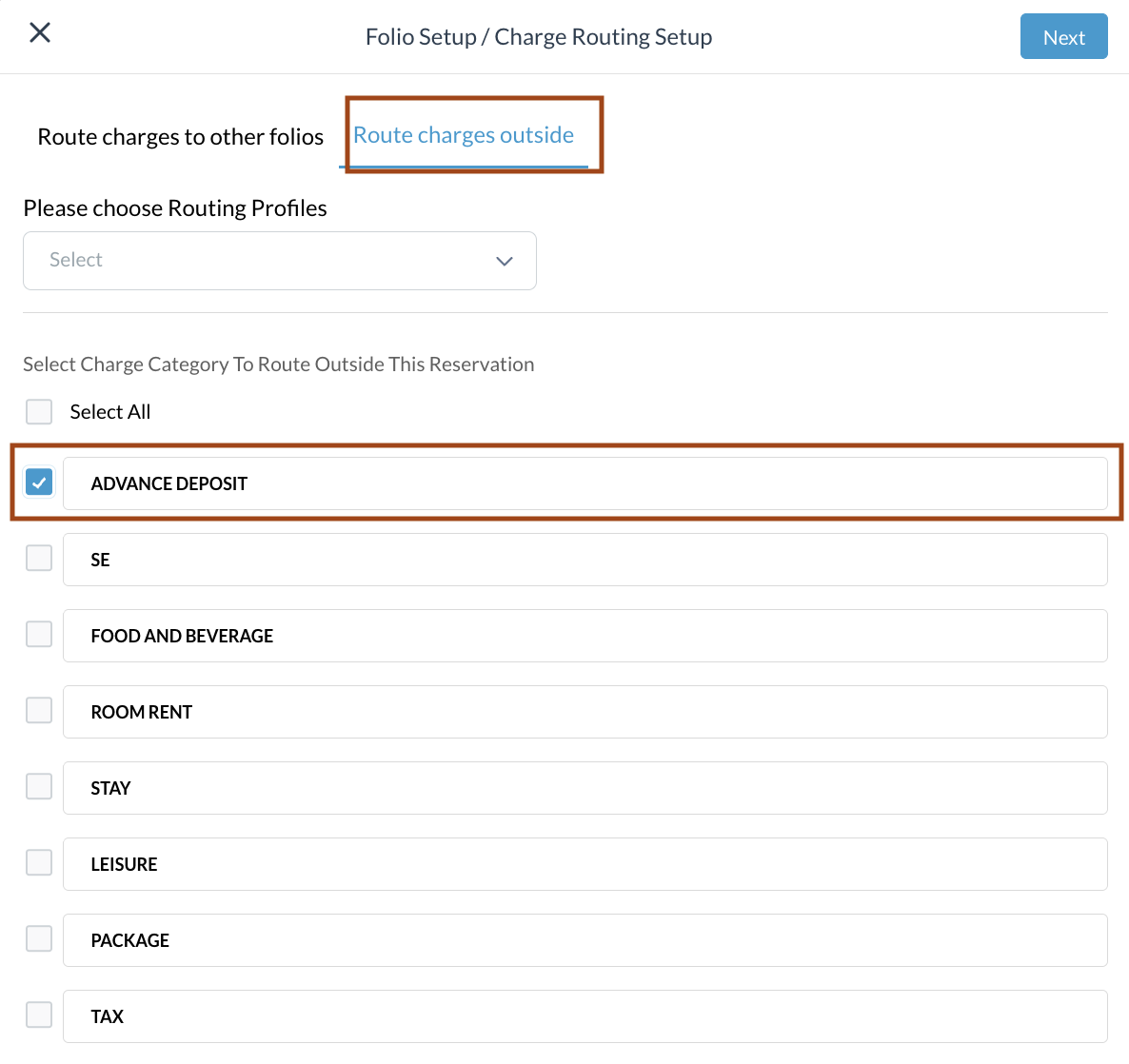
Use external routing to route charges to another reservation outside of the current one.
Here, Advanced Deposit charges category is selected.
|
|
|
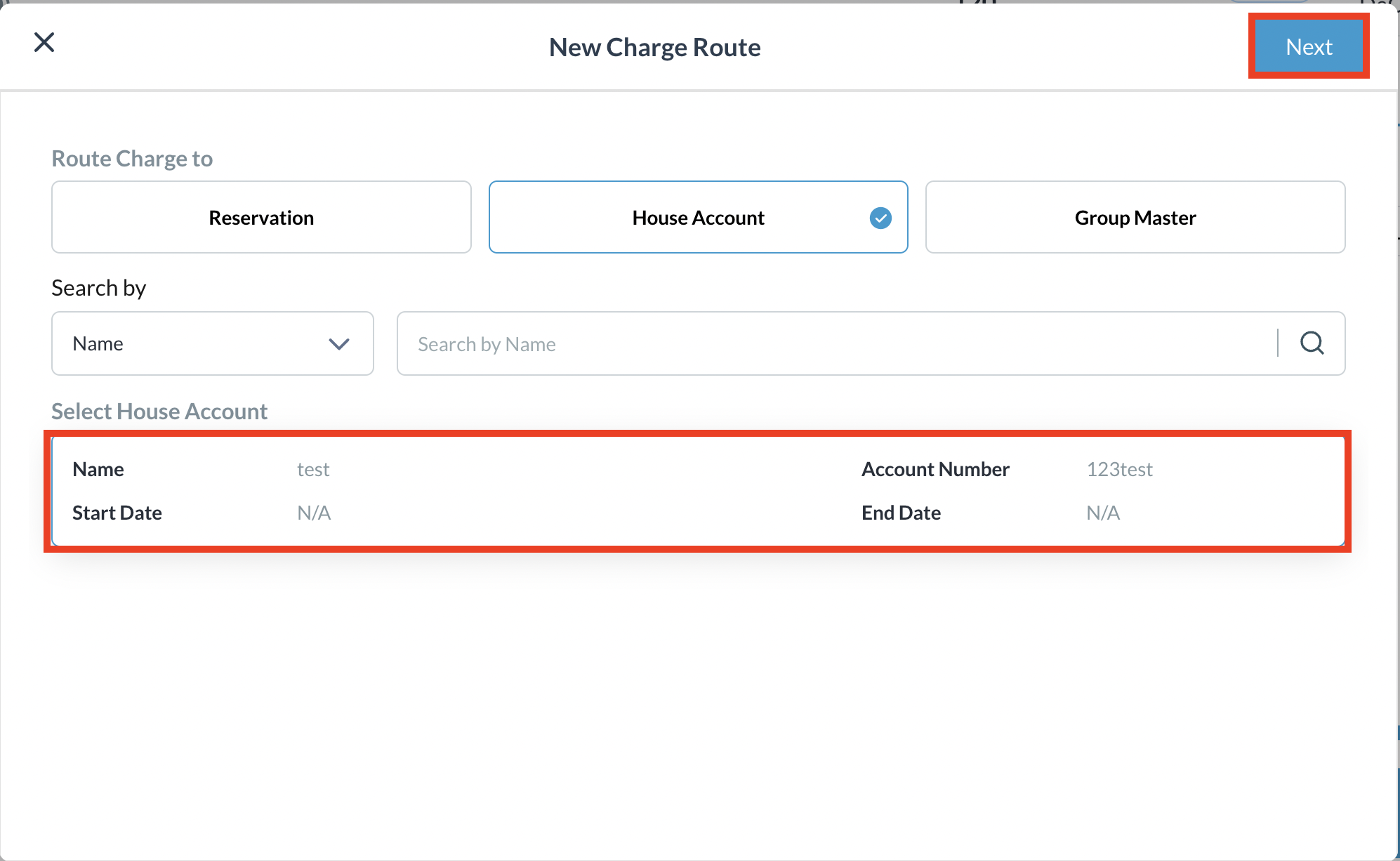
New Charge Route screen populates Choose where you would like to route the selected charges - another Reservation, a House Account or a Group Master then select Next. In this example, we have chosen to route the charges to a House Account, and a selection of open house accounts populates. Select the appropriate House Account to route the charges to and Click on Next |
|
|
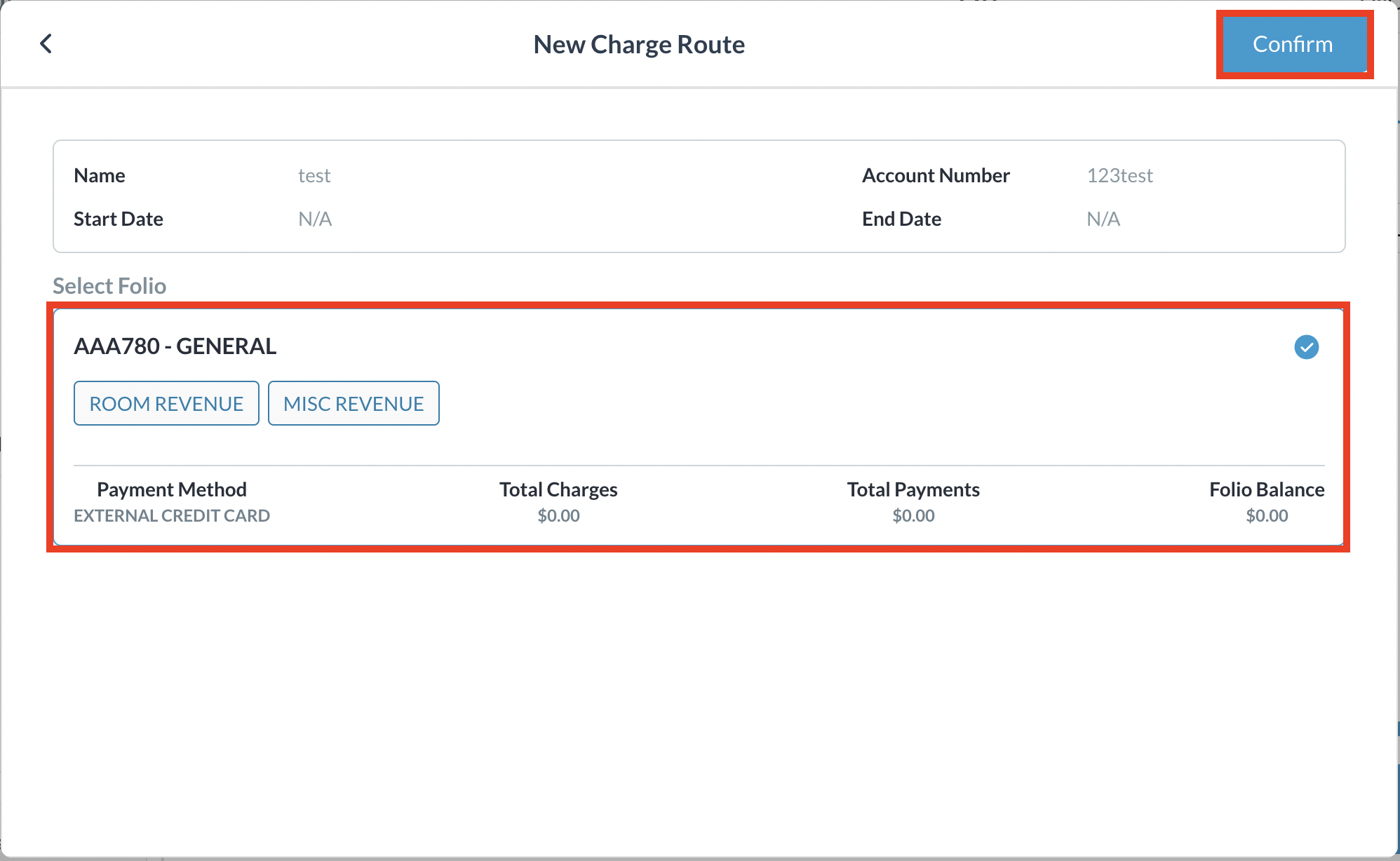
Select the appropriate Folio and click on Confirm |
|
|
Once the action is completed, you will see the yellow Hover over the symbol and a dropdown of charge details will be revealed |
|
