
📆 Revision Date:
Follow the below steps to issue a refund to a payment. Notice, the example provided is for cash but the same steps are true for credit card as well.
|
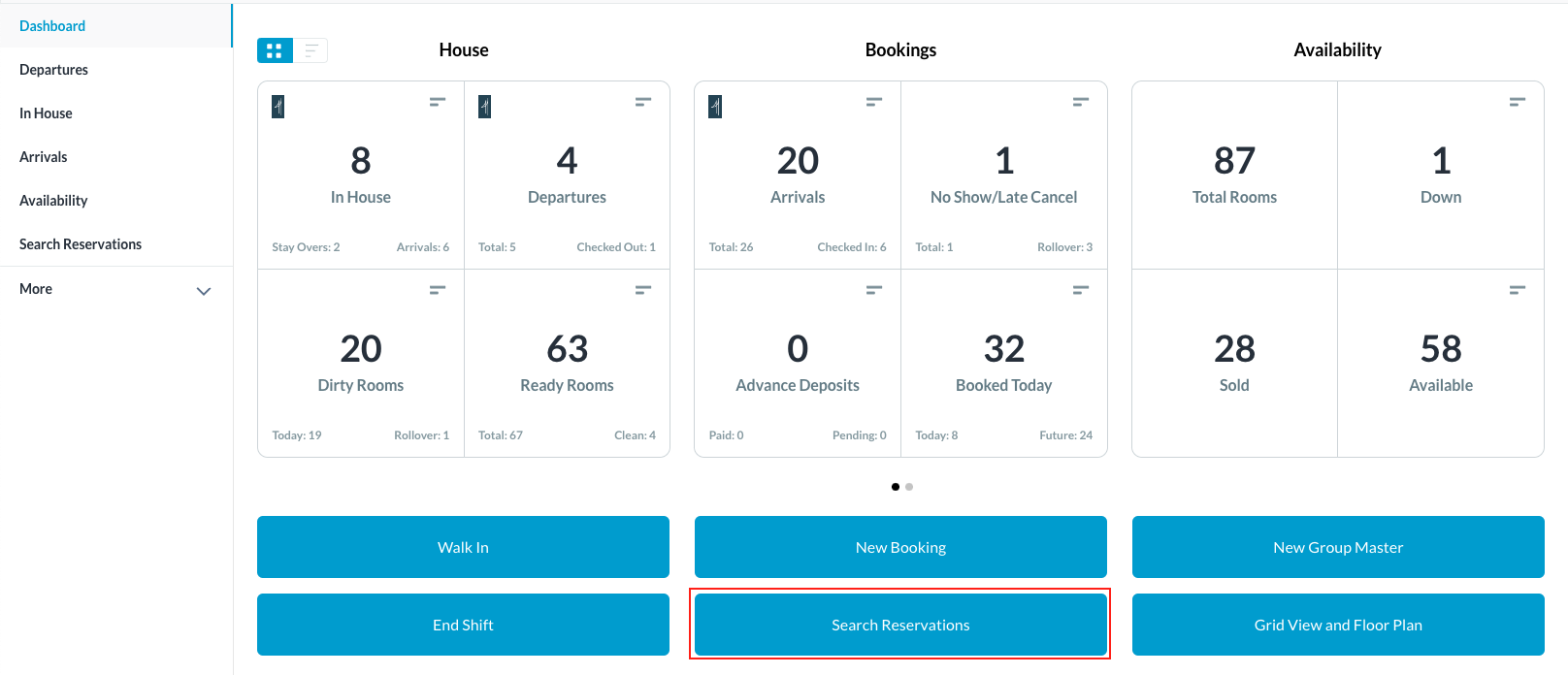
Select Search Reservations on the Dashboard page. |
|
|
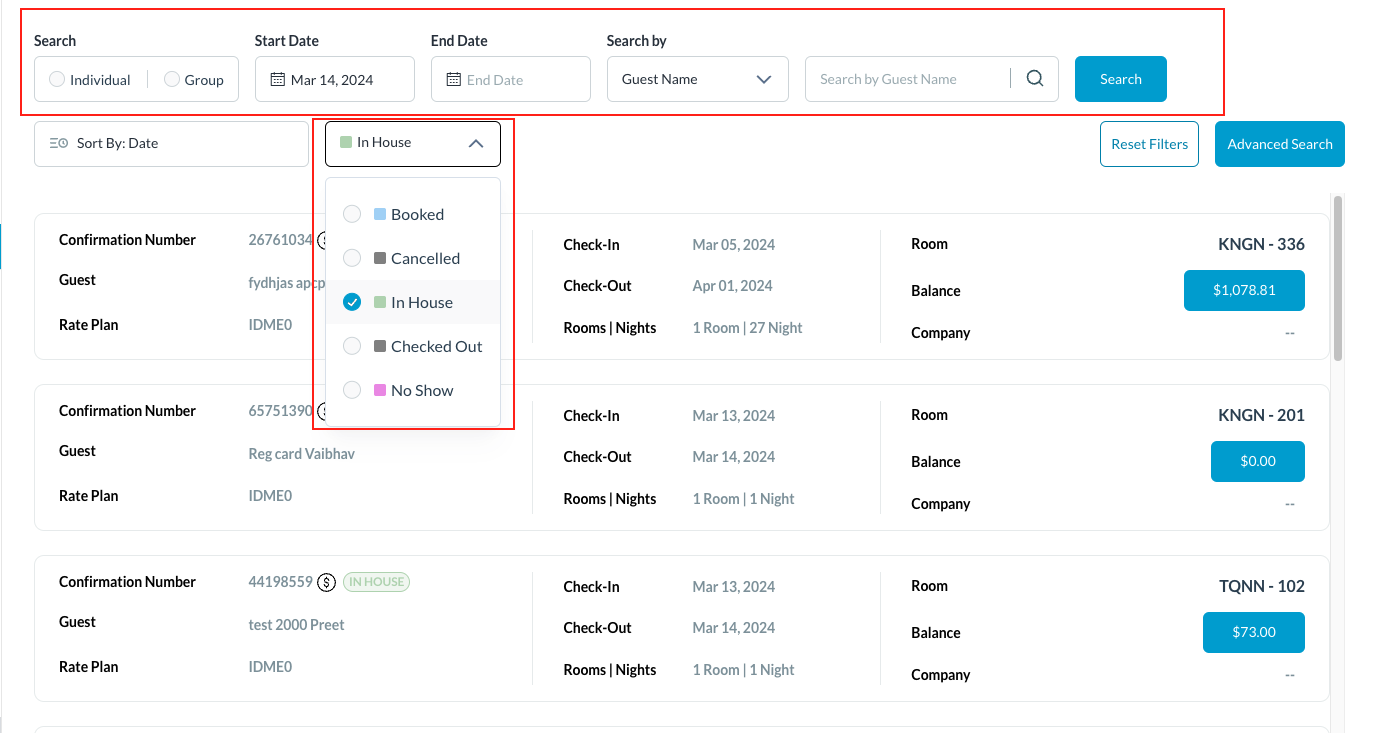
Find the applicable reservation by performing a search. Search by Date, Guest Name, Confirmation or Room Number and then select Search. Note - You can filter the results further by selecting the Status button and one of the options listed Once you have located the reservation, click on it |
|
|
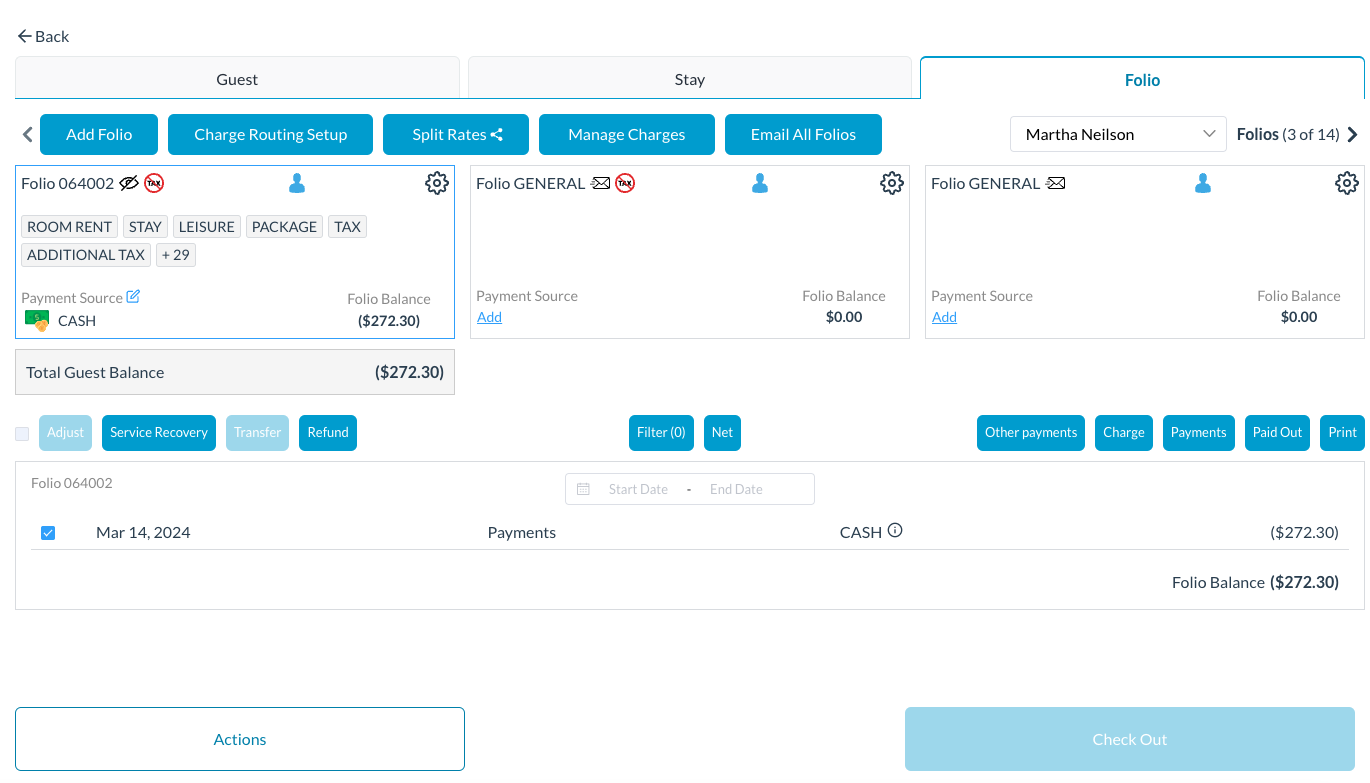
The reservation details page loads to the Guest tab by default. Select the Folio tab
|
|
|
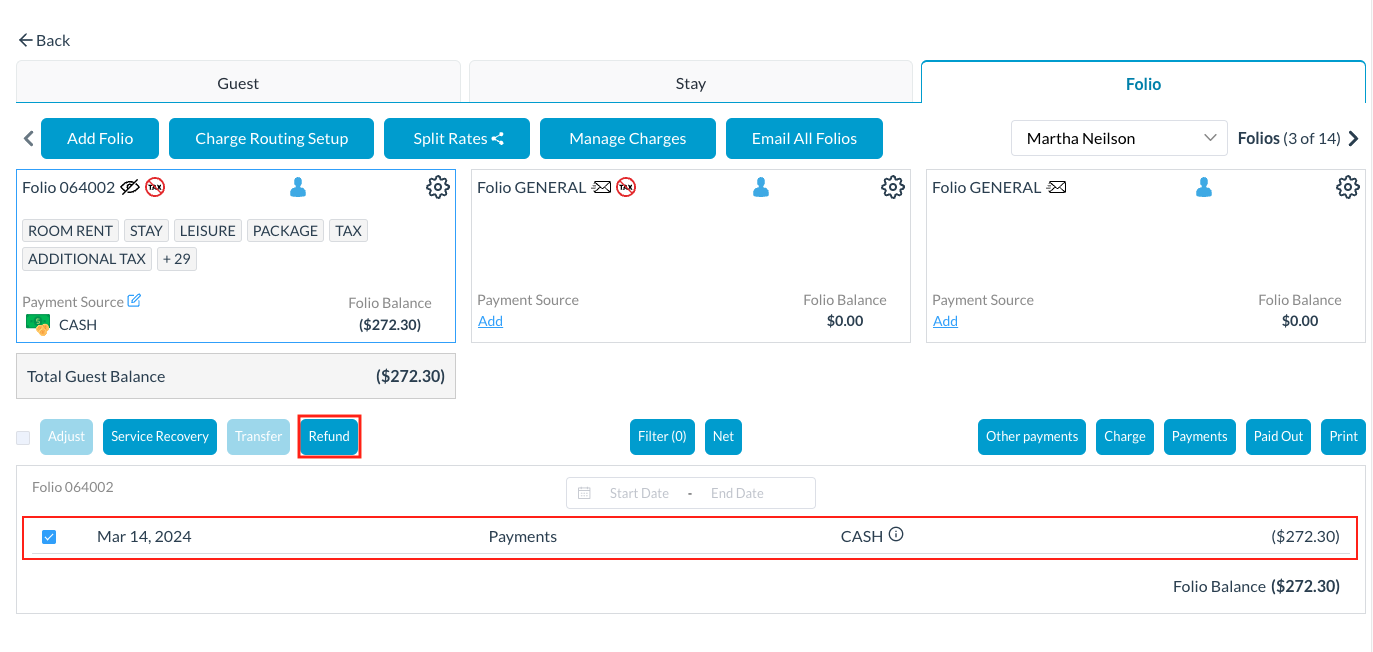
Locate the payment that needs to be refunded and check the box for the row. Click on Refund
|
|
|
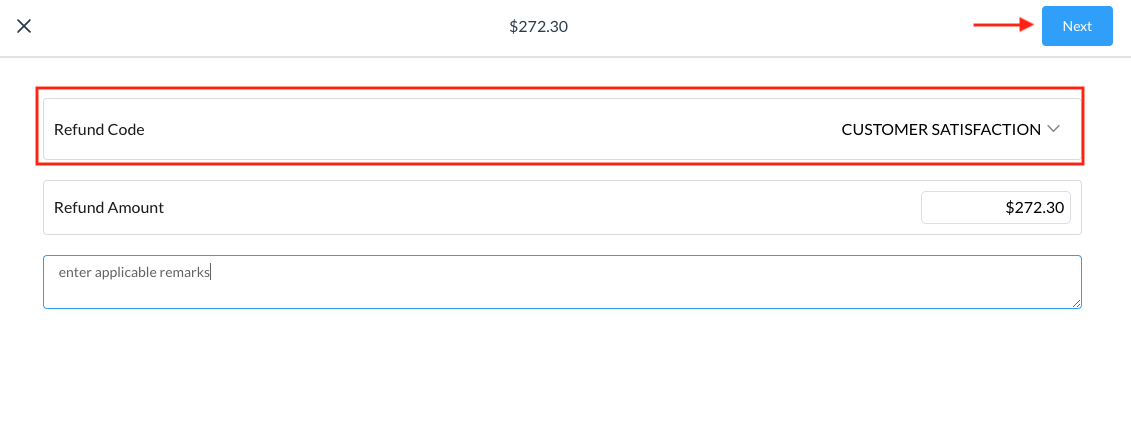
The refund screen activates. Select a Refund Code from the dropdown and verify the amount Enter Remarks Click on Next to proceed
|
|
|
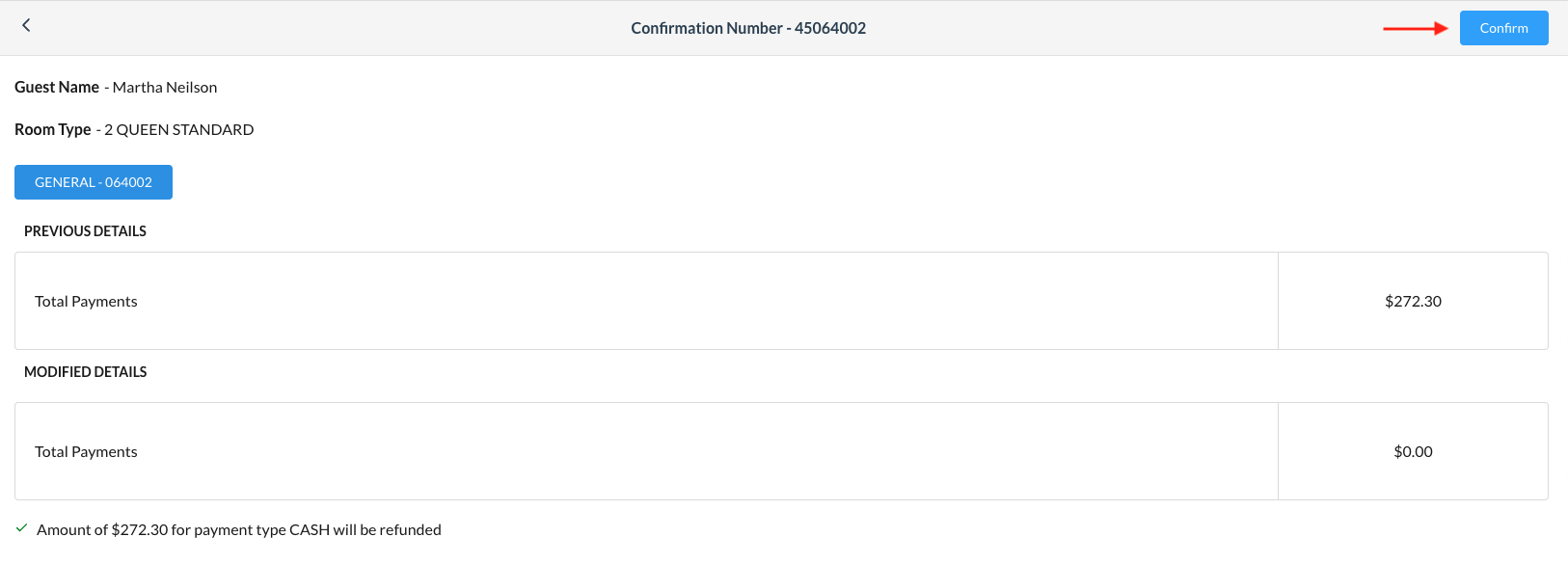
A confirmation page displaying PREVIOUS DETAILS and MODIFIED DETAILS loads. Select Confirm at the upper right to proceed. |
|
|
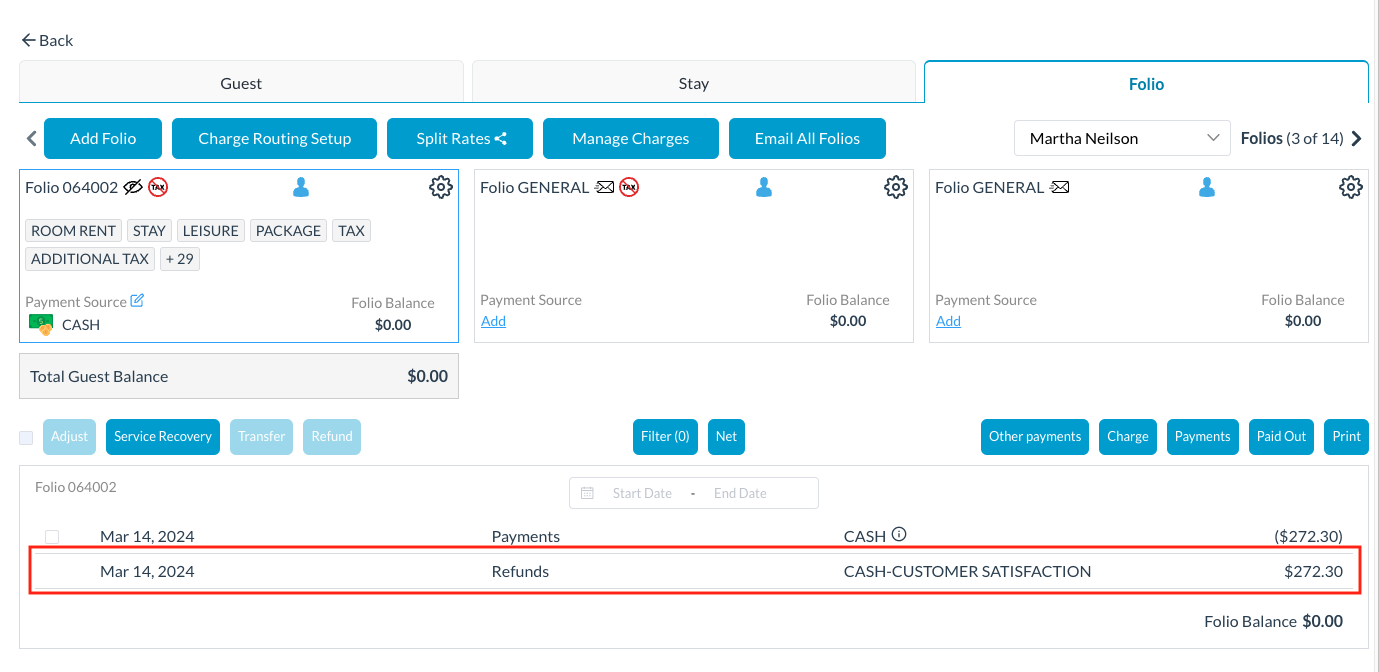
The payment is refunded on the Folio tab of the reservation. |
|