
📆 Revision Date:
The User Activity Report provides total transparency into the complete lifecycle of an event by tracking every update or amendment made within the system. This report serves as a high-fidelity audit trail, capturing the exact date and time of every modification alongside the specific action taken—such as manual rate overrides or status changes
Report Date Range: This report can render the data for up to 365 days in the past.
Event User Activity Report
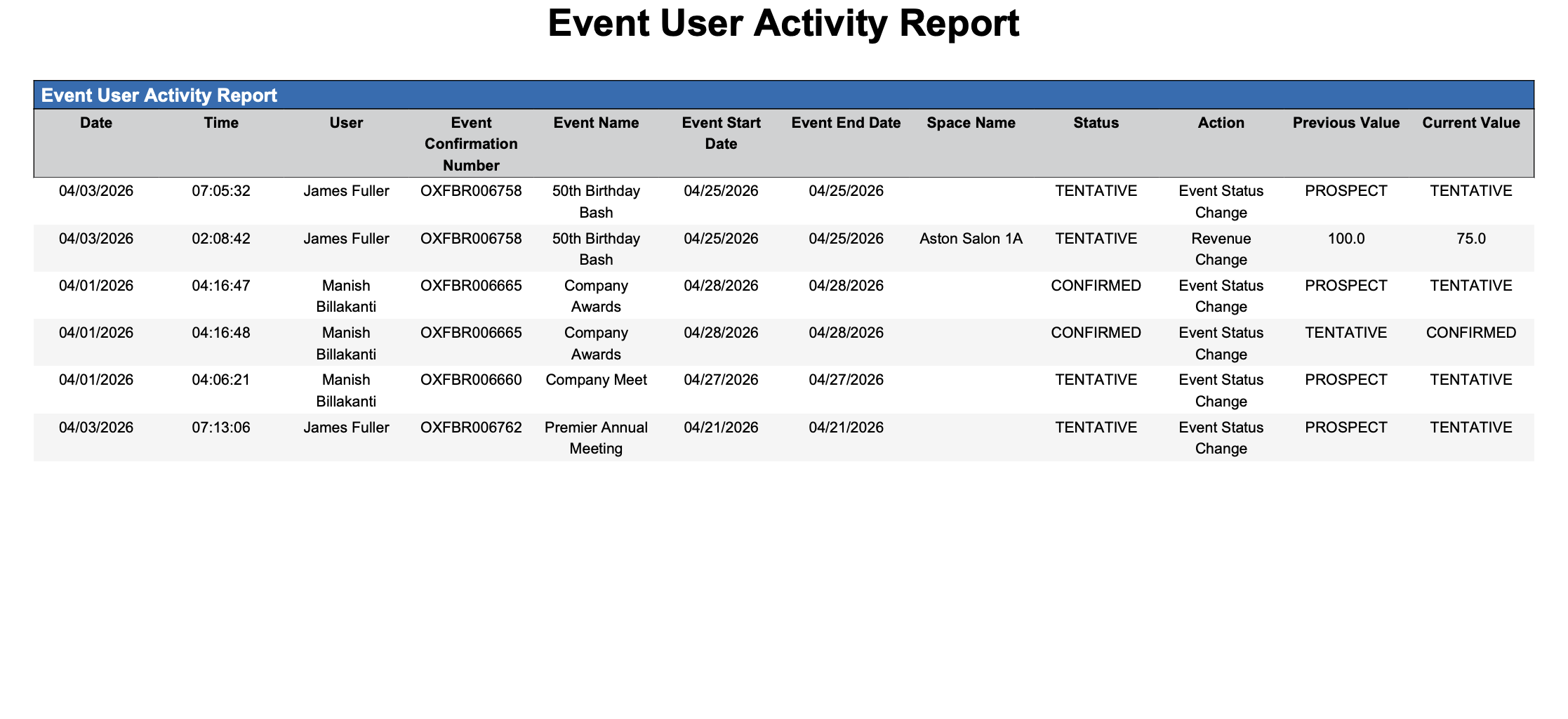
Event User Activity Report – Dynamic View Overview
The Event User Activity Report (Dynamic View) includes 12 columns of data. Users can customize the view by repositioning or hiding columns using the Configure (⚙️) icon located on the report page.
Below is a list of all available column names along with their descriptions.
|
Column Name |
Column Description |
Amount Includes Taxes and Fees |
Amount Calculation or Source of Data |
|
Action |
Displays the change made (e.g., Event Status Change, Revenue Change, etc.) |
|
Not Applicable
|
|
Current Value |
The value after the modification was made and saved. |
|
Not Applicable
|
|
Date |
Displays the exact date the modification occurred. |
|
Date Stamp
|
|
Event Confirmation Number |
A unique code that identifies the event confirmation. |
|
Not Applicable
|
|
Event End Date |
The last scheduled day of the event. |
|
The value is sourced from the When Do You Want to Schedule this Event date picker entered on the Basic Data > Event Information screen.
|
|
Event Name |
The designated name of the event. |
|
The value is sourced from the Name field entered on the Basic Data > Event Information Screen.
|
|
Event Start Date |
The first day of the event. |
|
The value is sourced from the When Do You Want to Schedule this Event date picker entered on the Basic Data > Event Information screen.
|
|
Previous Value |
The value before the modification was made. |
|
Not Applicable
|
|
Space Name |
The designated space (meeting room) for the sub-event. |
|
The value is sourced from the Space field entered on the Sub Event screen.
|
|
Status |
The current status of the event (e.g., Canceled, Prospect, Tentative, Confirmed, Ended). |
|
Not Applicable
|
|
Time |
Displays the exact time the modification occurred. |
|
Time Stamp
|
|
User |
The name or user id who made the modification. |
|
Not Applicable
|
Miscellaneous Report Information
Available Features:
-
Export
Allows you to download and save the report in different file formats (e.g., Excel, PDF) for offline use or sharing. -
Filter
Enables you to narrow down the data by applying criteria you define, so you can focus on specific information. -
Highlight (Conditional Formatting)
Automatically highlights certain values based on rules you set, making key data easier to spot at a glance.
Available Configuration:
-
User Preferences
Customize your personal report view by rearranging, showing, or hiding columns according to your needs. -
Property Preferences
Configure the default report layout for all users at the property level by repositioning or disabling columns to streamline the view.
Baseline Configuration:
-
Property Preferences Settings
The following columns will be disabled for the initial deployment:
Not Applicable