
📆 Revision Date:
The Sales Manager Production Report provides a detailed summary of sales performance by individual sales managers over a defined period. It tracks key metrics such as confirmed bookings, revenue generated, and overall sales activity.
This report is designed to help sales leaders, revenue managers, and executives evaluate the effectiveness of their sales team, identify top performers, and uncover areas for improvement. It also supports performance reviews, incentive programs, and forecasting efforts.
Report Date Range: This report can render the data for up to 365 days in the past or future.
Sales Manager Production Report
Sales Manager Production Report – Dynamic View Overview
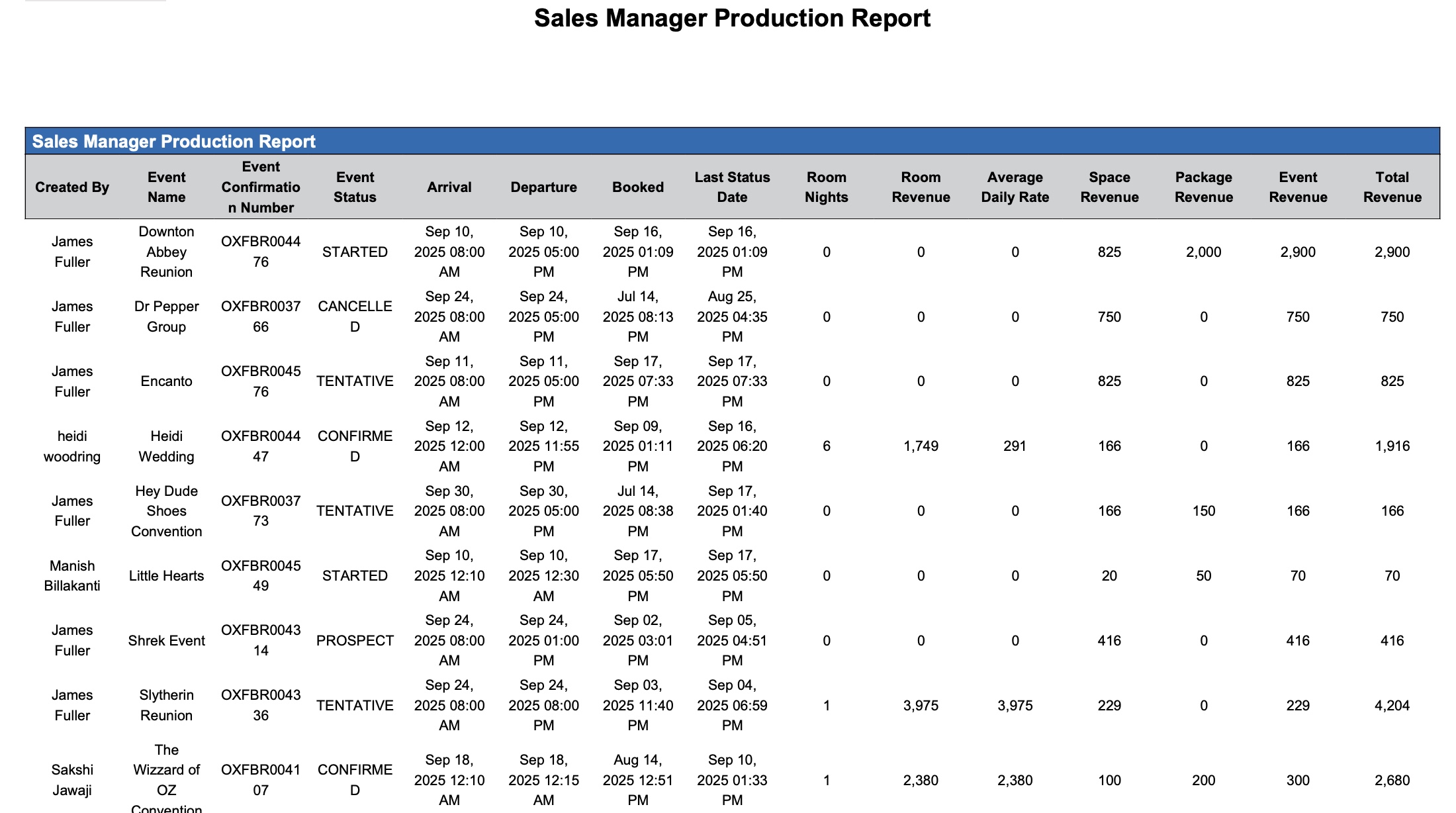
The Sales Manager Production Report (Dynamic View) includes 17 columns of data. Users can customize the view by repositioning or hiding columns using the Configure (⚙️) icon located on the report page.
Below is a list of all available column names along with their descriptions.
|
Column Name |
Column Description |
Amount Includes Taxes and Fees |
Amount Calculation or Source of Data |
|
Arrival |
The first day of the event or group. |
|
The value is sourced from the When Do You Want to Schedule this Event date picker entered on the Basic Data > Event Information screen.
|
|
Average Daily Rate |
The average revenue earned per picked-up room night within that specific group booking. |
|
Average Daily Rate = Total Room Revenue from Picked-Up Rooms / Total Picked Up Room Nights
|
|
Booked |
Indicates the date the event or group record was initially created in EventKey. |
|
Not Applicable
|
|
Company Name |
The name of the company associated with the event. |
|
The value is sourced from the Company Profile selected on the Contact Info Screen.
|
|
Created By |
The team member responsible for initially creating the event in the system. |
|
Not Applicable
|
|
Departure |
Indicates the date on which the event or group is expected to depart. |
|
The value is sourced from the When Do You Want to Schedule this Event date picker entered on the Basic Data > Event Information screen.
|
|
Event Confirmation Number |
A unique code that identifies the event confirmation. |
|
Not Applicable
|
|
Event Name |
The designated name of the event. |
|
The value is sourced from the Name field entered on the Basic Data > Event Information Screen.
|
|
Event Revenue |
Revenue for the event. |
|
Event revenue = sum of space revenue + package revenue
|
|
Event Status |
The current status of the event (e.g., Canceled, Prospect, Tentative, Confirmed, Ended). |
|
Not Applicable
|
|
Last Status Date |
Displays the date when the event or group record's status was most recently updated in EventKey. |
|
Not Applicable
|
|
Package Revenue |
Package revenue for the event. |
|
The value is sourced from the Price field entered on the Configure Package Screen.
|
|
Room Nights |
Total number of room nights picked up from the group’s reserved block. |
|
Room Nights = Sum of Pick Up
|
|
Room Revenue |
Represents the total revenue generated from room nights picked up from the group block. |
|
Room Revenue = Sum of Revenue from Pick Up Room Nights
|
|
Space Revenue |
Space revenue (meeting room only) for the event. |
|
The value is sourced from the Price field entered on the Sub Event Screen.
|
|
Total Revenue |
Total revenue for the event. |
|
Total revenue = sum of space revenue + package revenue + room revenue
|
|
Travel Agent |
Name of the travel agent affiliated with the event. |
|
The value is sourced from the Travel Agent Profile selected on the Contact Info Screen.
|
Miscellaneous Report Information
Available Features:
-
Export
Allows you to download and save the report in different file formats (e.g., Excel, PDF) for offline use or sharing. -
Filter
Enables you to narrow down the data by applying criteria you define, so you can focus on specific information. -
Group By
Provides the option to organize data based on Date. -
Highlight (Conditional Formatting)
Automatically highlights certain values based on rules you set, making key data easier to spot at a glance.
Available Configuration:
-
User Preferences
Customize your personal report view by rearranging, showing, or hiding columns according to your needs. -
Property Preferences
Configure the default report layout for all users at the property level by repositioning or disabling columns to streamline the view.
Baseline Configuration:
-
Property Preferences Settings
The following columns will be disabled for the initial deployment:
Not Applicable