
📆 Revision Date:
This Notification will show for low stock items.
|
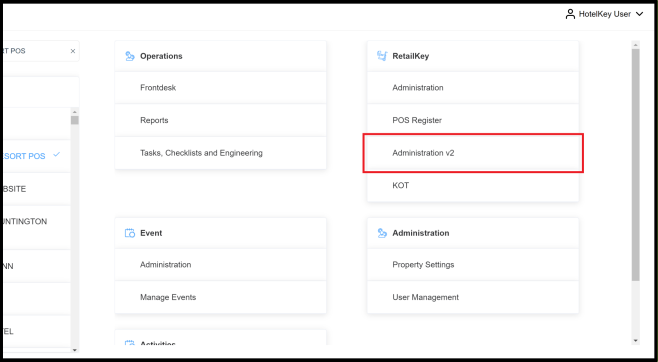
On the home page of the HotelKey administration web application, in the RetailKey module, select Administration v2 link |
|
|
Select Stock Management from the side menu panel Then select Notifications |

|
|
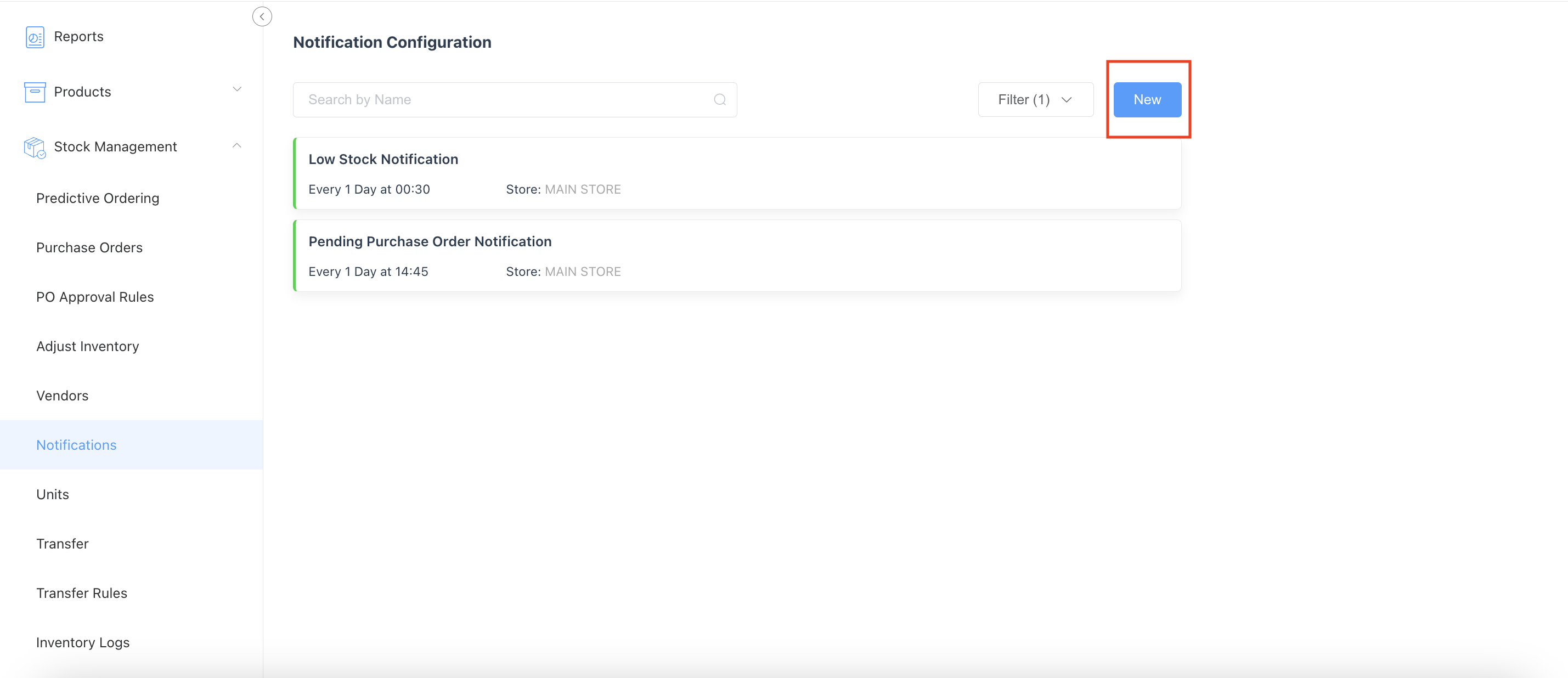
Notifications page loads. Select New to create a new notification |
|
|
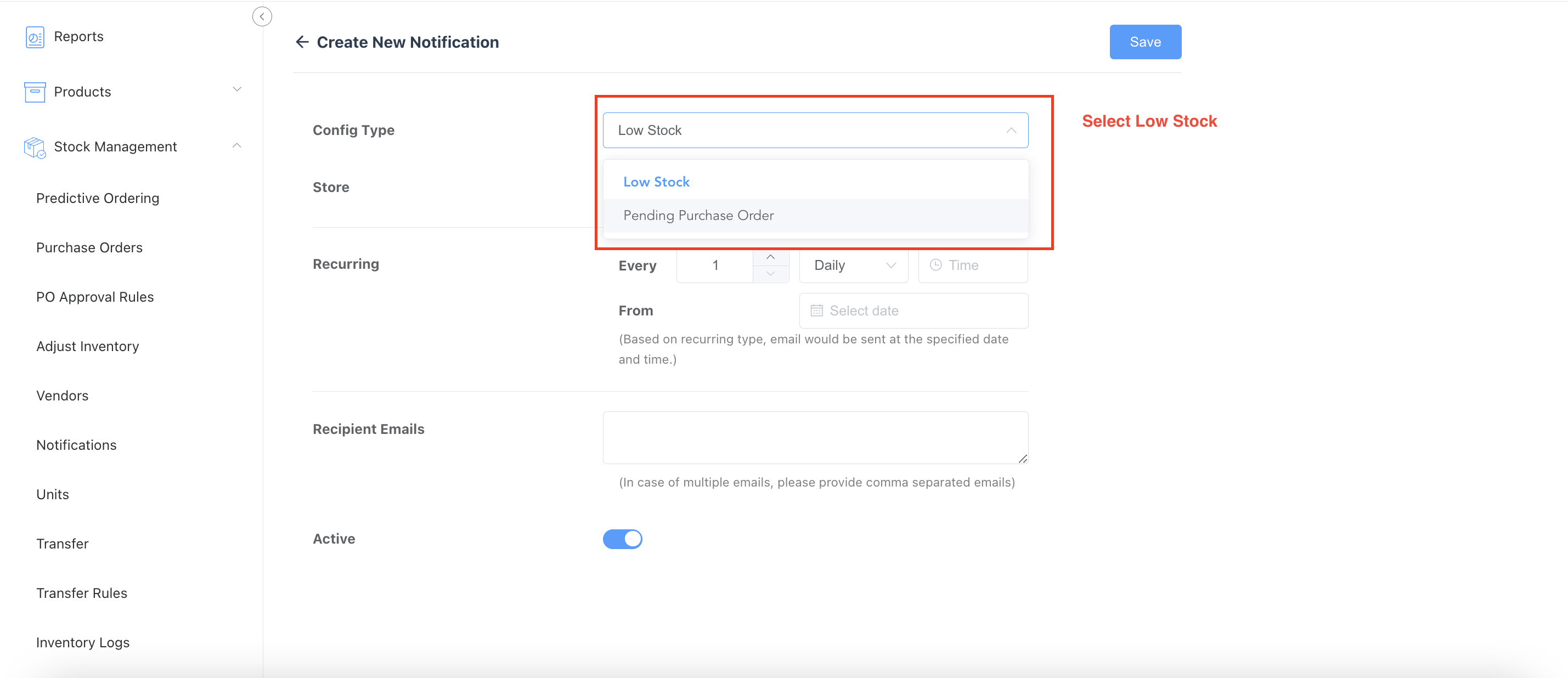
Select the Notification Config Type as Low Stock |
|
|
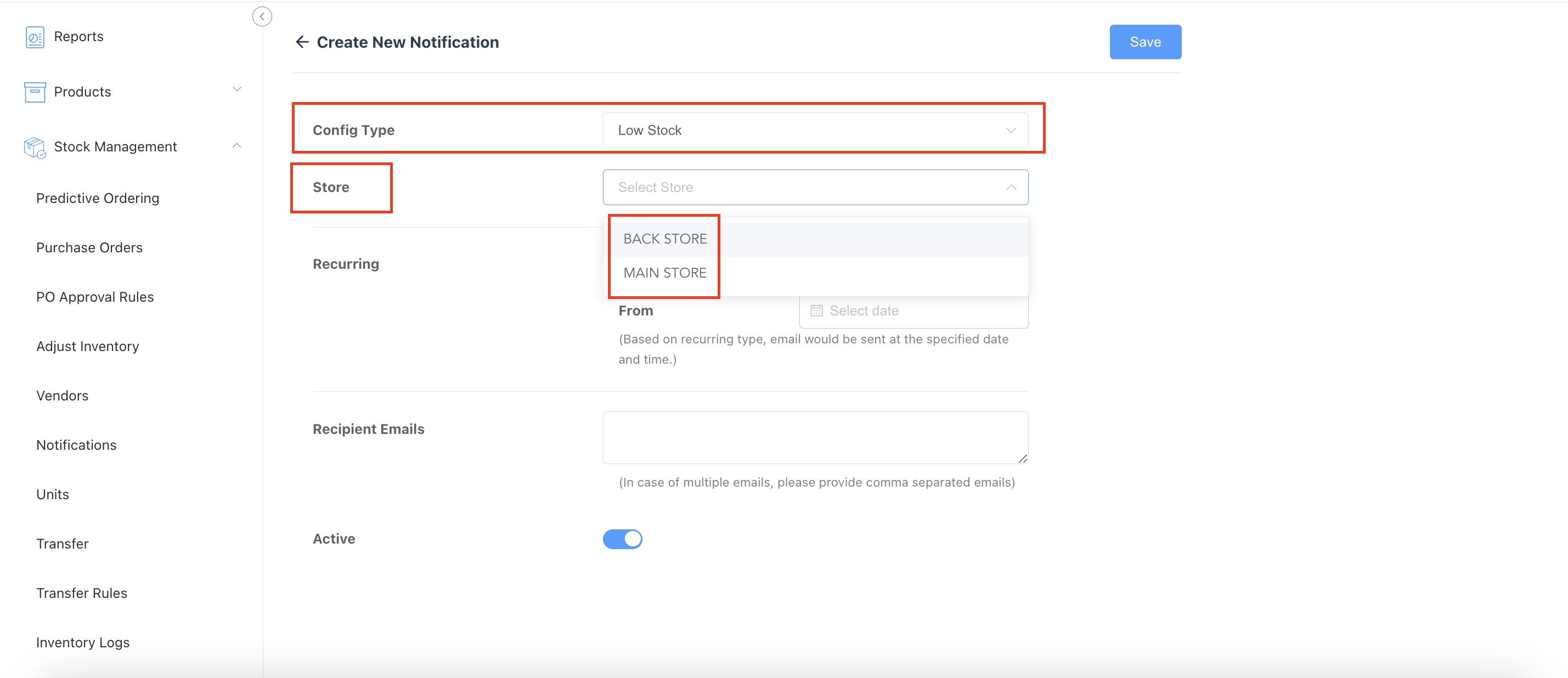
Select Store as Main store/Back Store which Low Stock Notification need to be set up. |
|
|
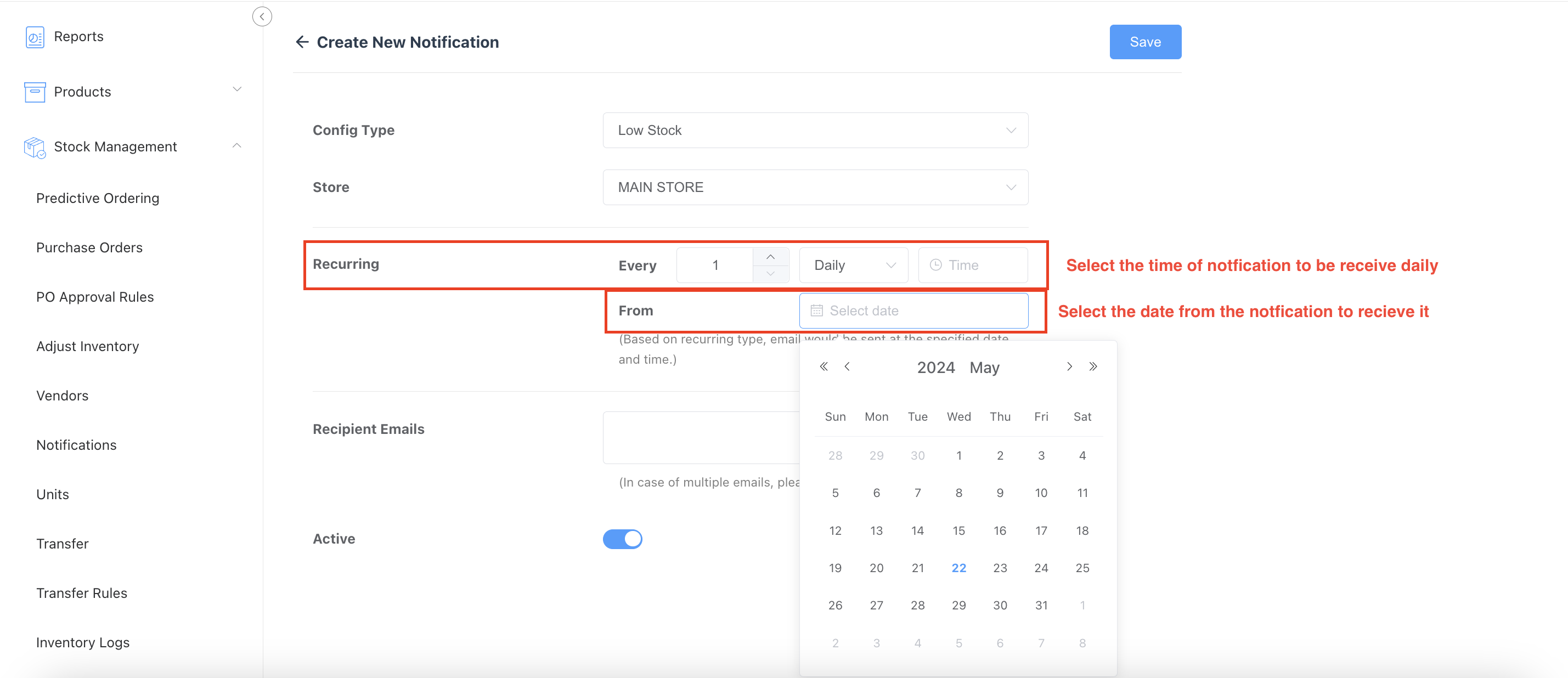
Select Recurring of Notification,
|
|
|
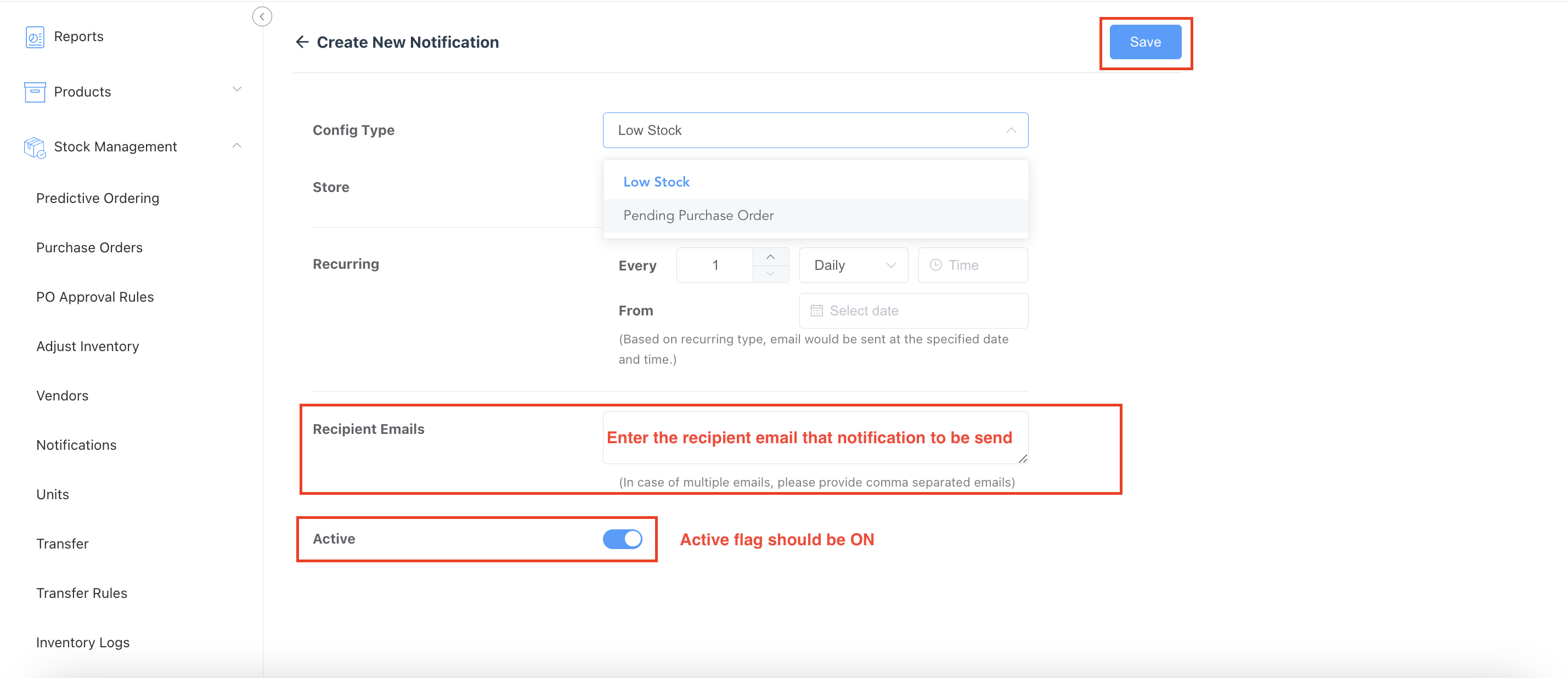
Select The Recipient Emails - where the notification needs to be sent. Set Active toggle to ON. Click on SAVE. |
|
|
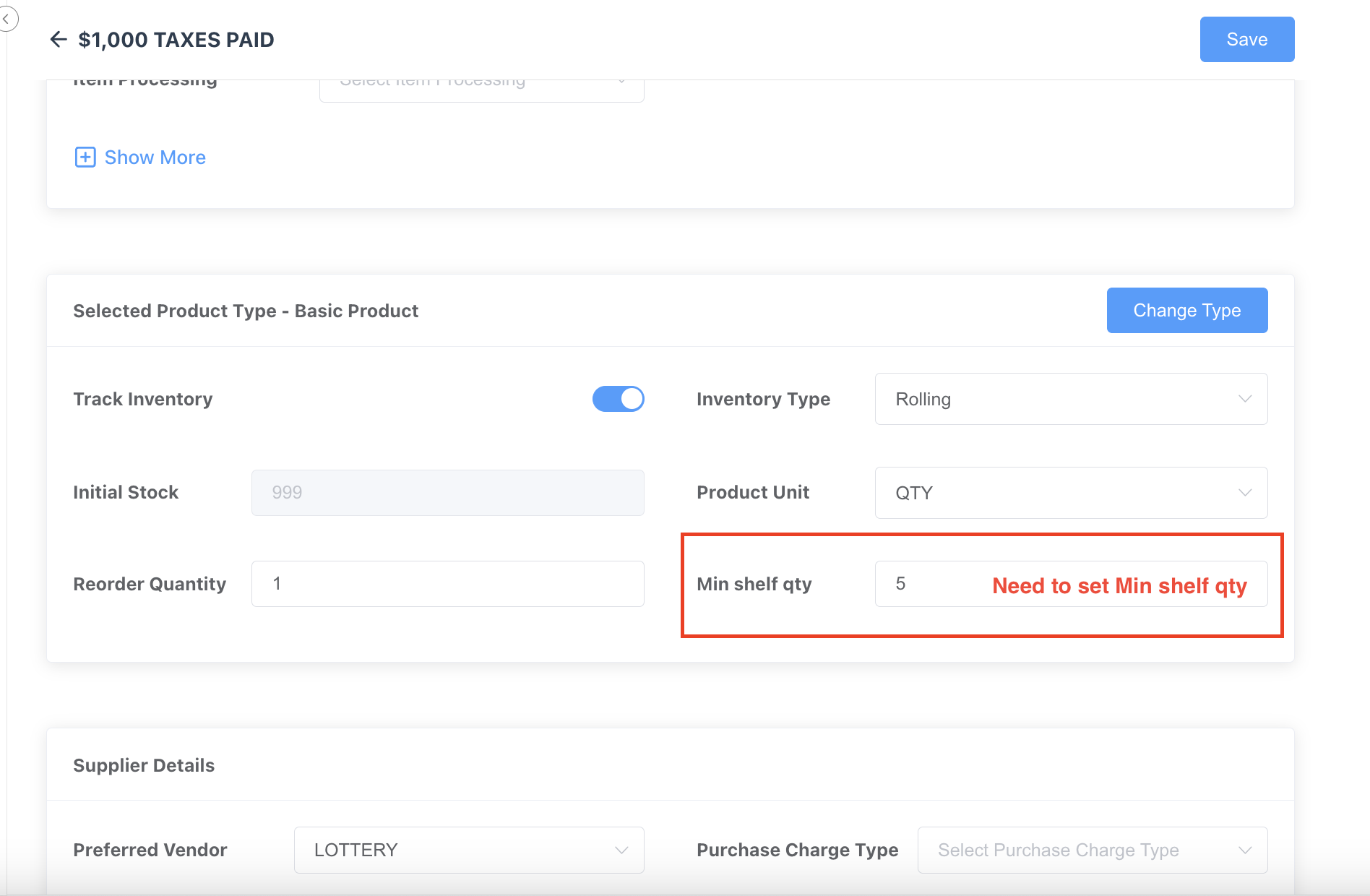
Once the Notification is set, select the item that needs to be part of the notification and set its Min Shelf qty to receive notification once it has reached the min shelf qty. |
|