
📆 Revision Date:
|
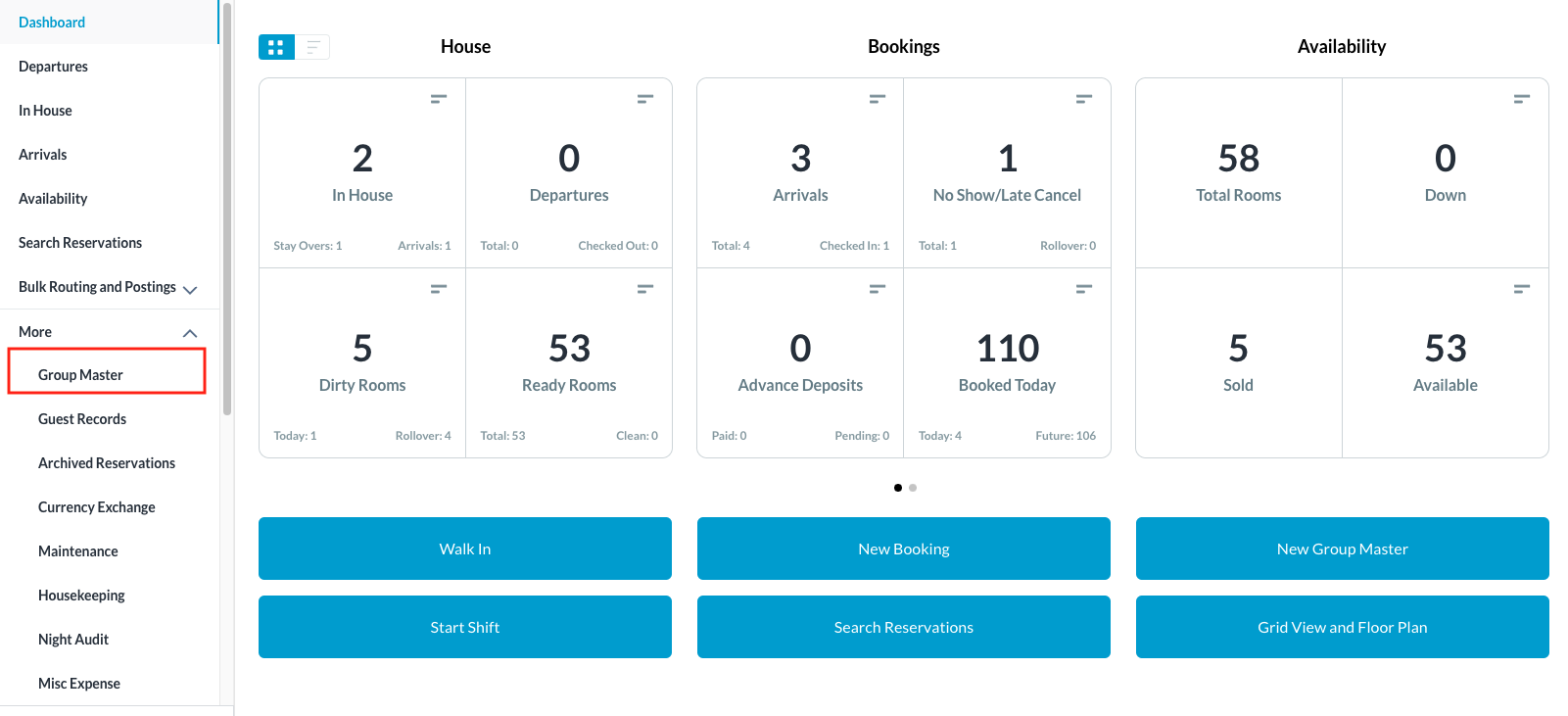
From the Dashboard, select More to expand the menu options and select Group Master |
|
|
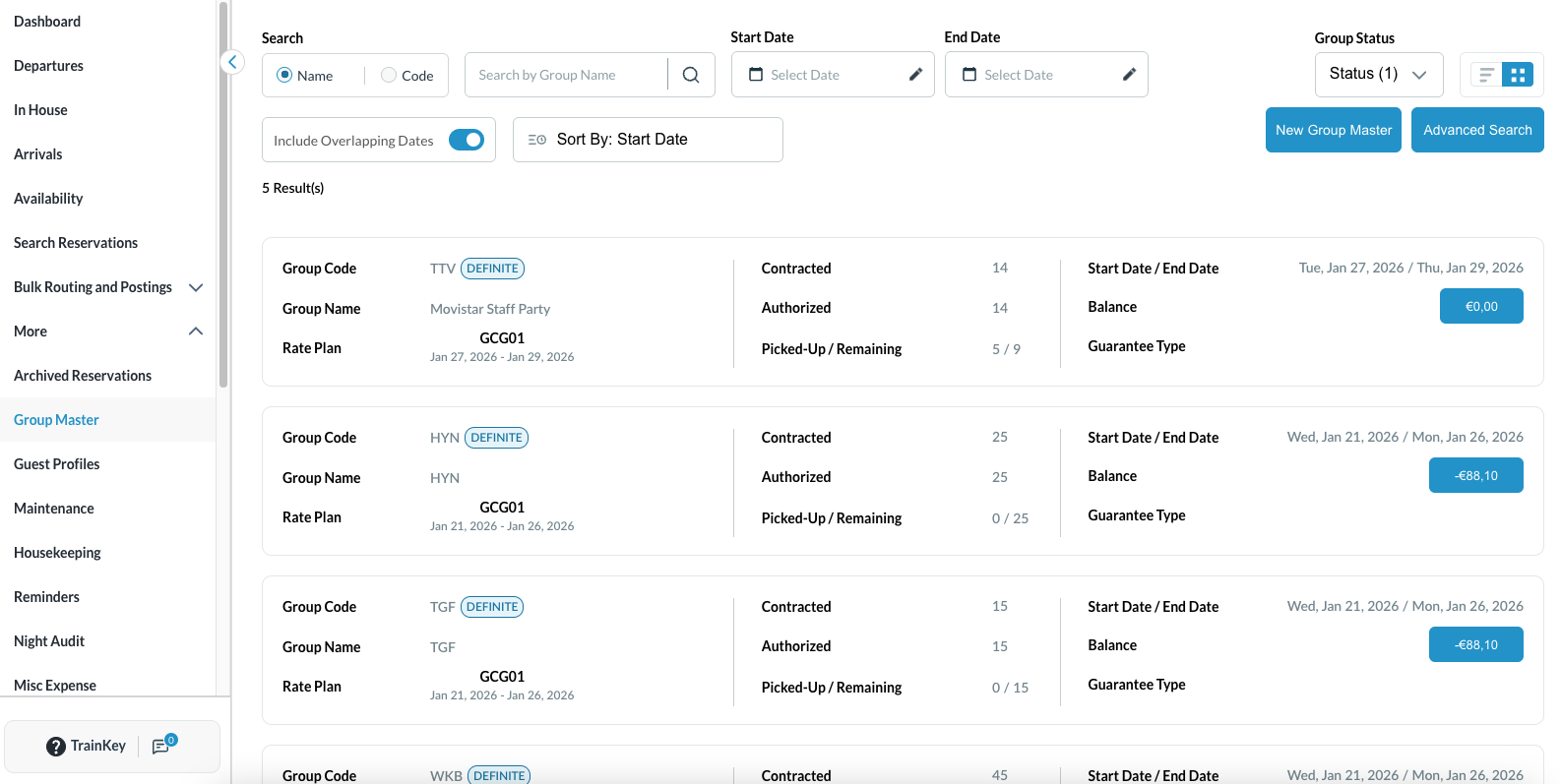
Search for the Group Master by Name, or Code, and/or Date. Select Status to refine the search. Select the Group Master from those listed. |
|
|
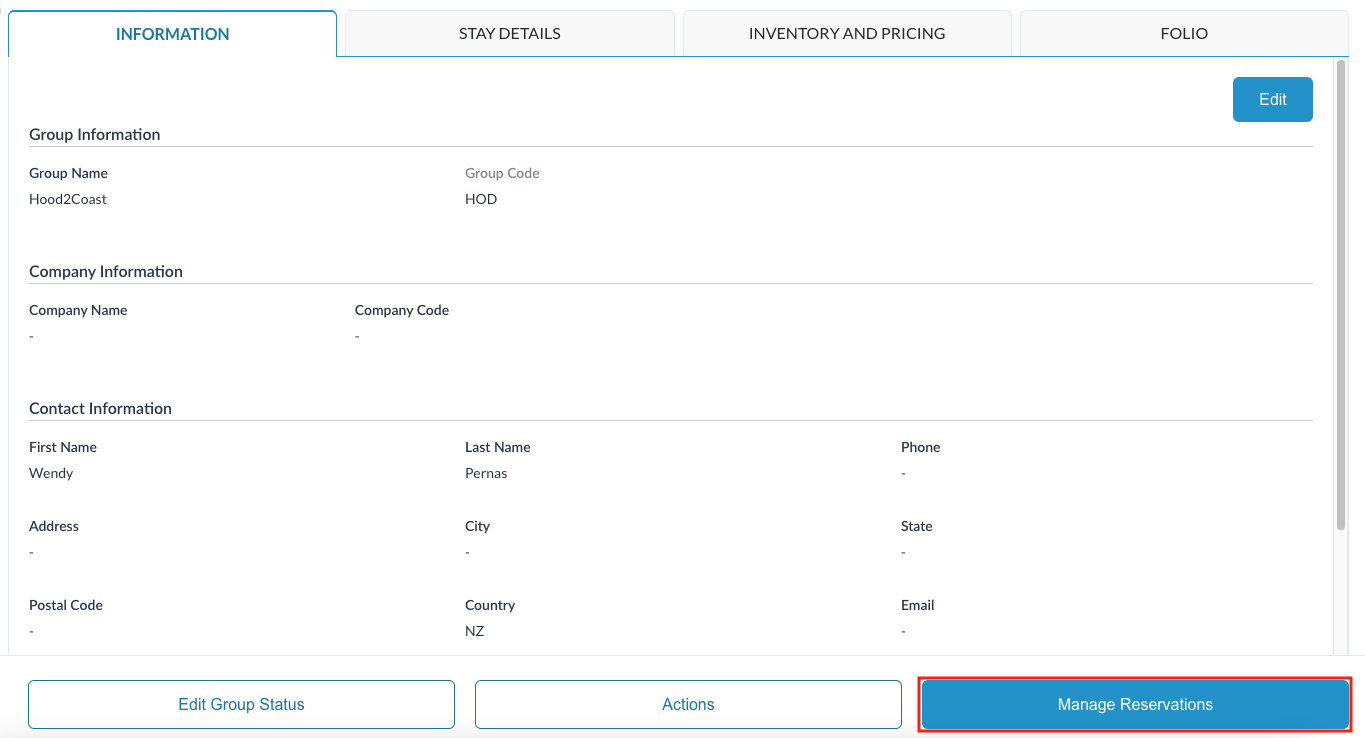
Once selected, click on the Manage Reservations tab. |
|
|
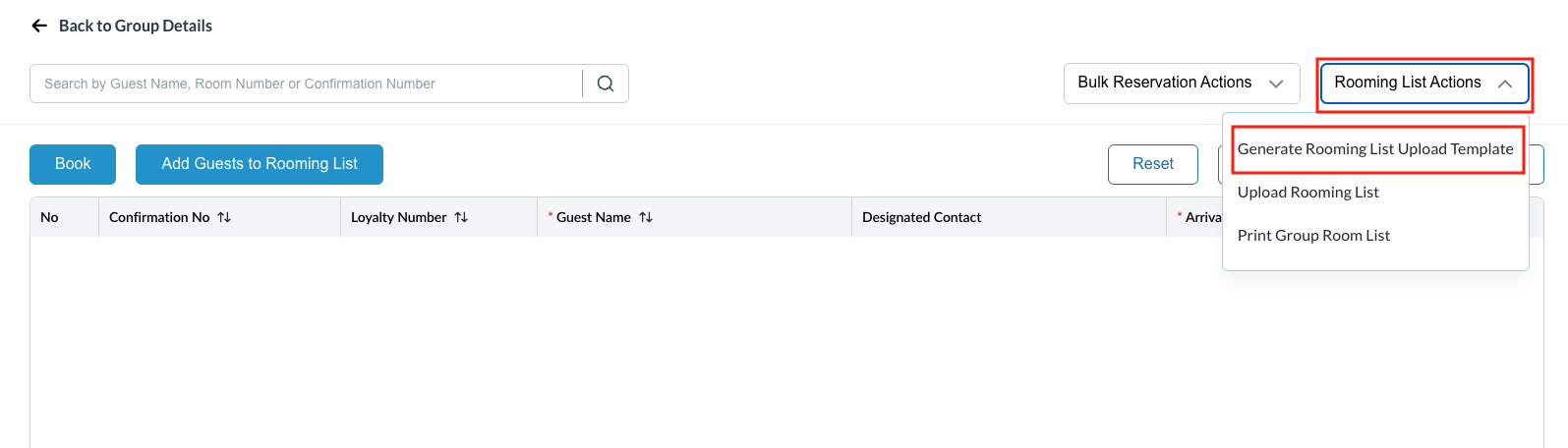
The Add Rooming List screen populates. Click on the Rooming List Actions button and from the dropdown, select Generate Rooming List Upload Template. This will generate a template to use for adding guest details to the group.
|
|
|
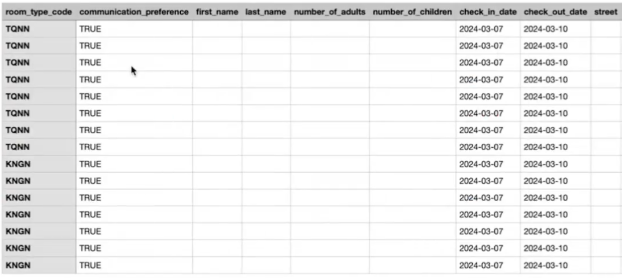
Once downloaded, open the file and input guest details into the form. This file can also be provided to the group contact to complete. |
|
|
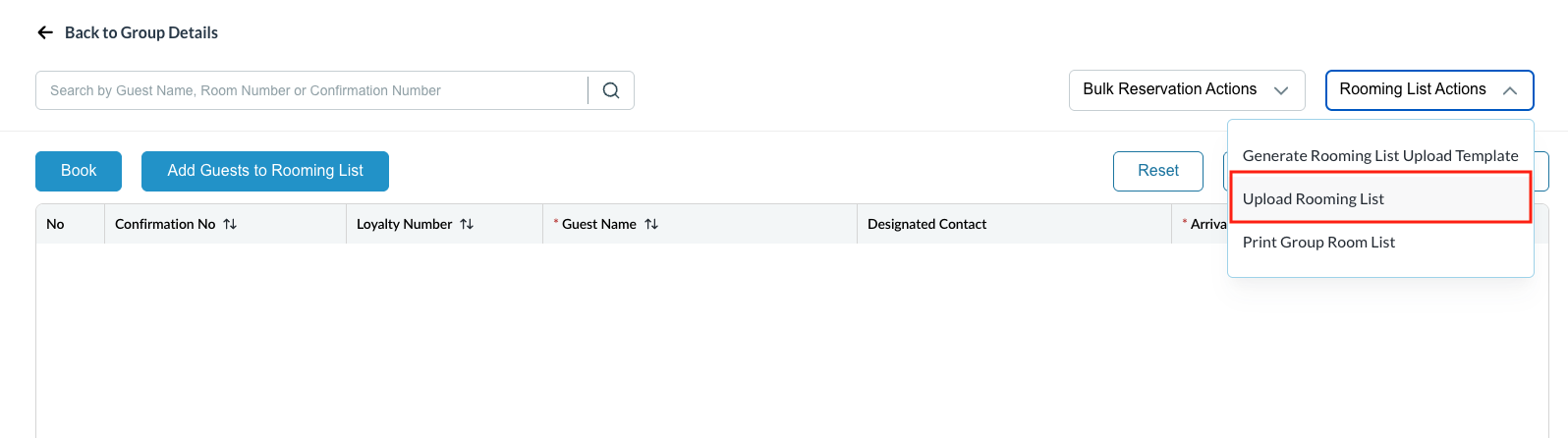
Once the form is completed, open the group master again and select Manage Reservations. Click on Rooming List Actions and select Upload Rooming List and choose your saved file to be downloaded into the system.
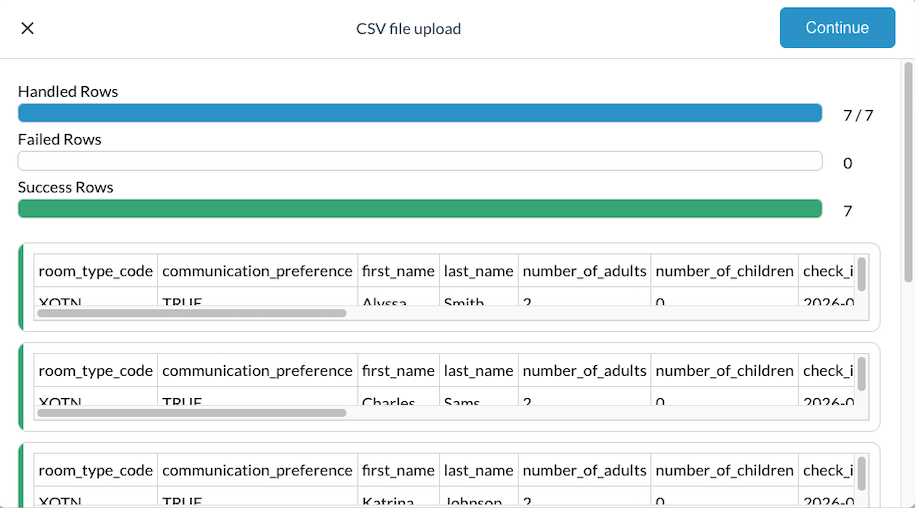
Once done, click Continue on the .csv file upload to populate the data into the group. |
|
|
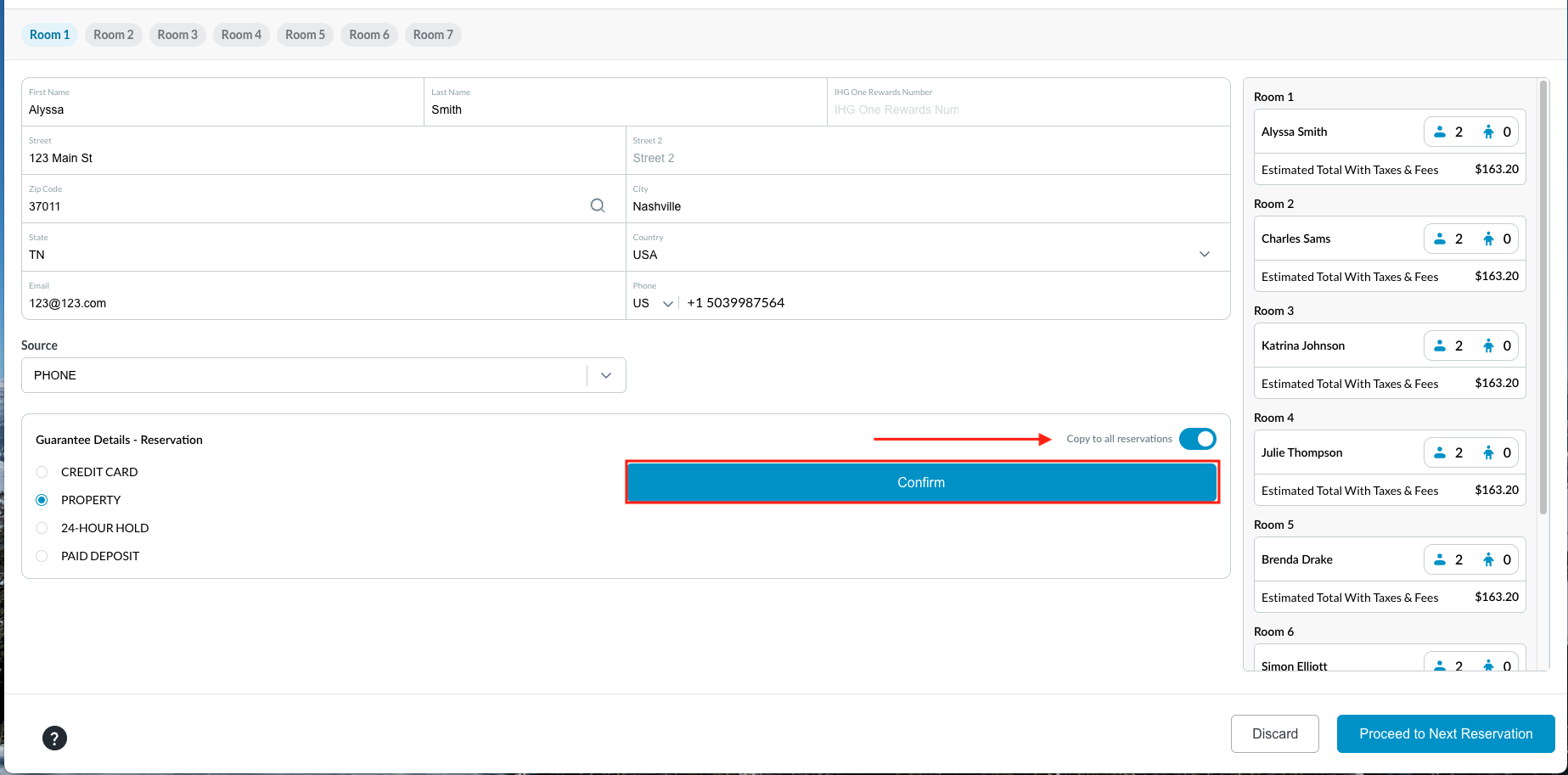
Upload rooming list screen loads. Select the guarantee details for the reservations.
|
|
|
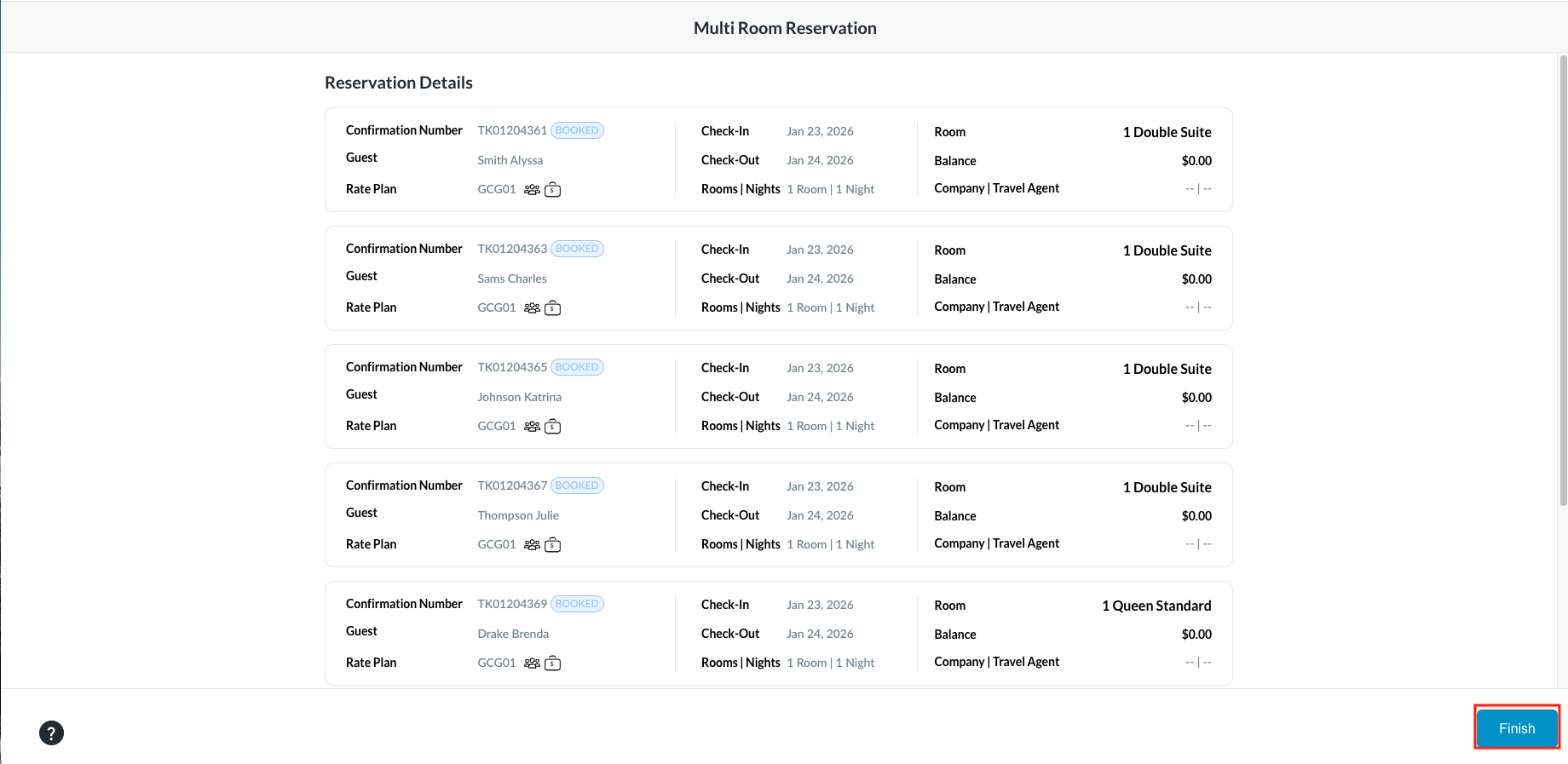
Multi Room Reservation screen loads. Review the reservation details and select Finish to complete the upload. |
|
|
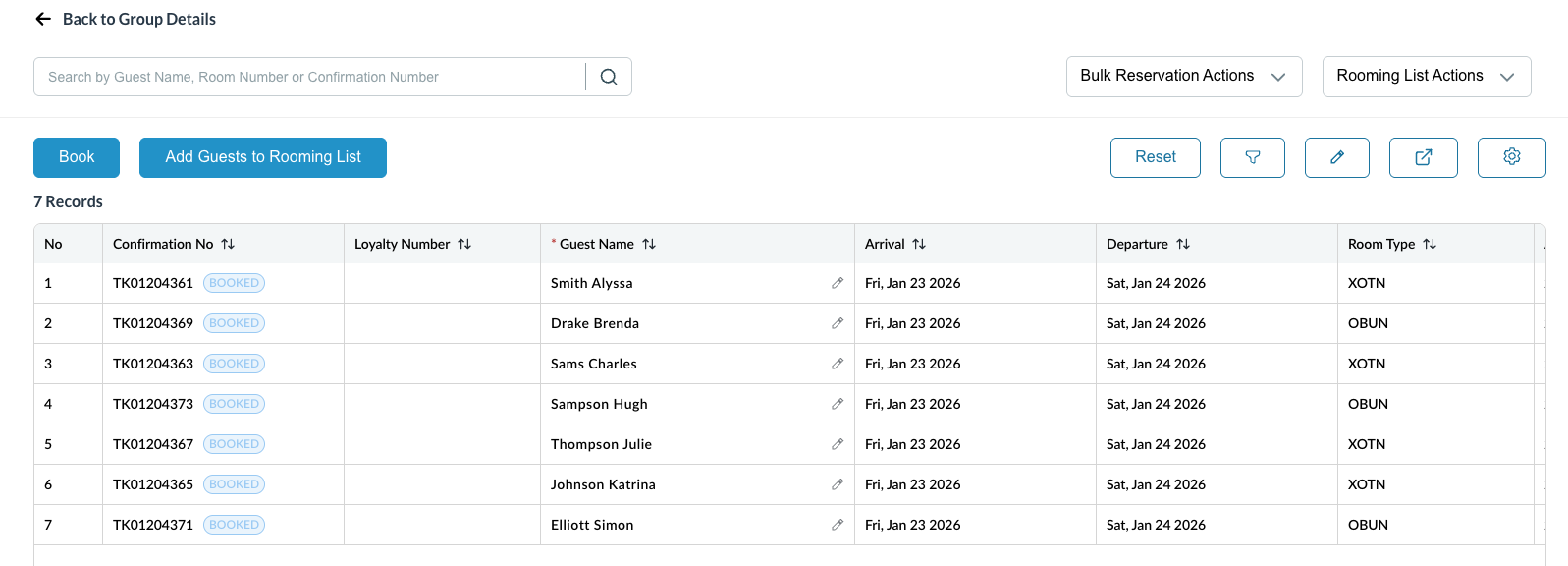
The data will populate in the fields and the rooming list will be visible. |
|