
Revision date
A wash schedule is used to release unused or blocked room inventory from a group reservation back into general availability. This ensures that rooms not required by the group can be sold to other guests, maximizing occupancy and revenue. It also provides transparency by recording when and how many rooms were released, with full audit tracking.
A "Wash Schedule" dictates when and how many rooms should be released from a specific group block.
Wash Methods: You can release inventory in two ways (mutually exclusive per rule):
-
By Percentage: Drops a preset percentage (25%, 50%, 75%, or 100%) of the remaining available rooms. (Decimals are always rounded down to the nearest whole room).
-
By Value: Drops a specific, hardcoded number of rooms (e.g., releasing exactly 5 rooms).
|
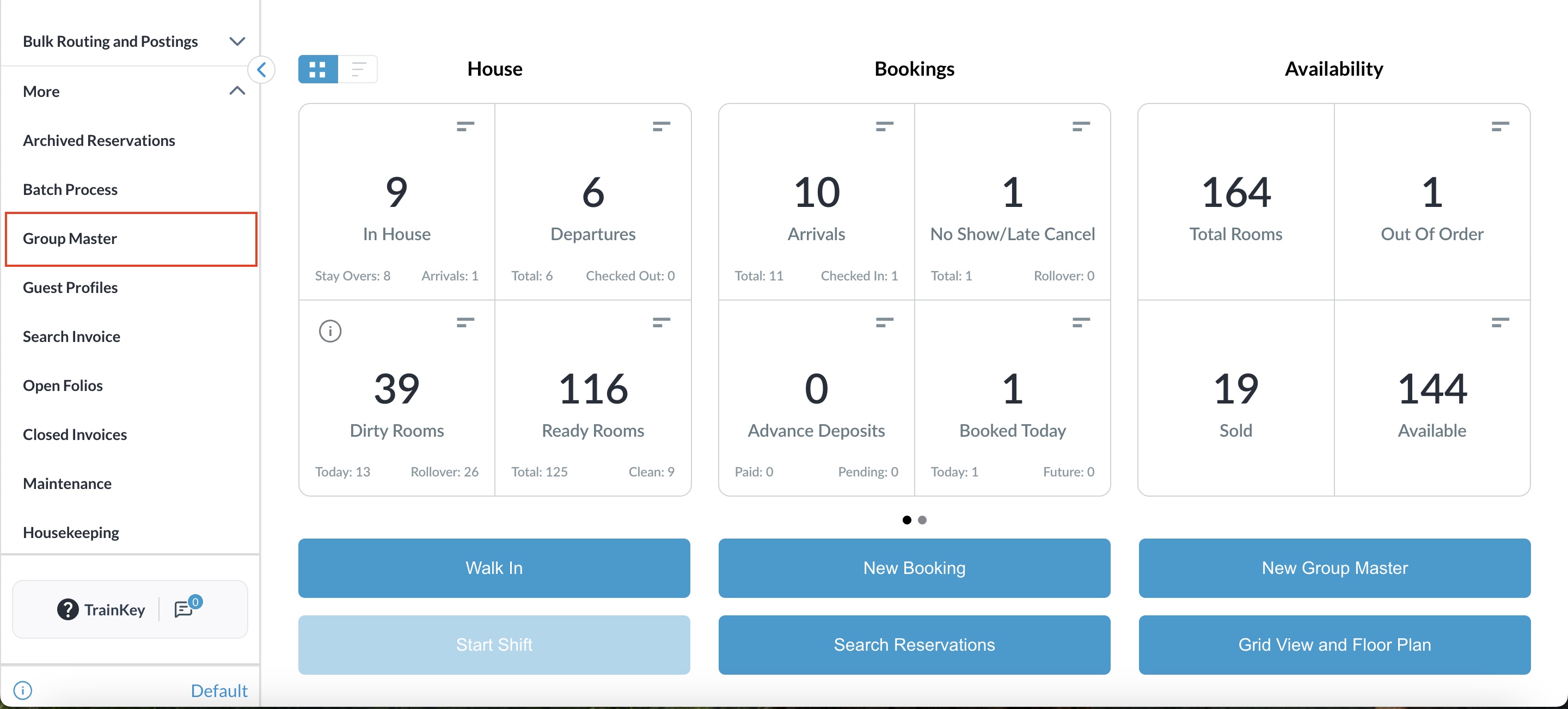
Navigate to the Group Master reservation from the left side menu of the Dashboard.
|
|
|
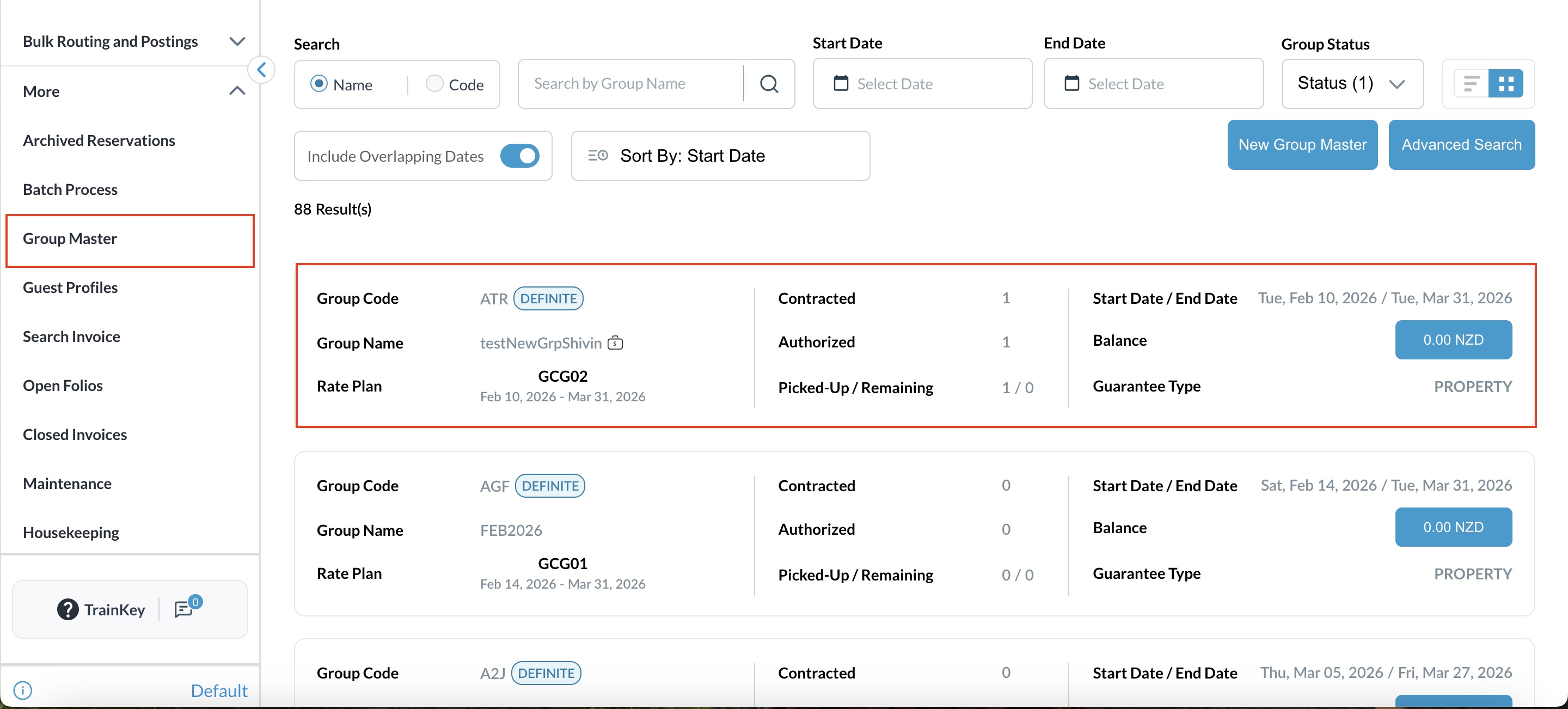
List of all groups will be displayed. Click on the reservation you want to make the changes. |
|
|
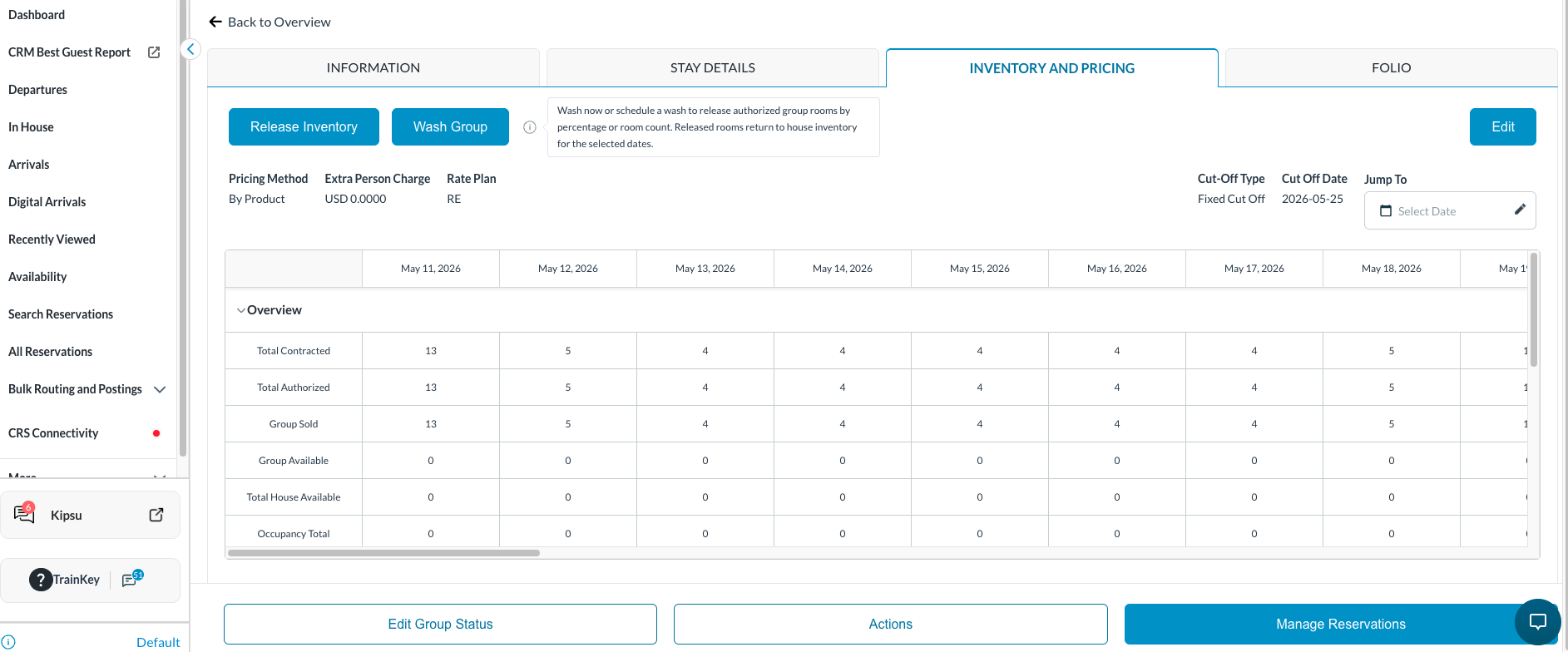
Navigate to Inventory & Pricing
|
|
|
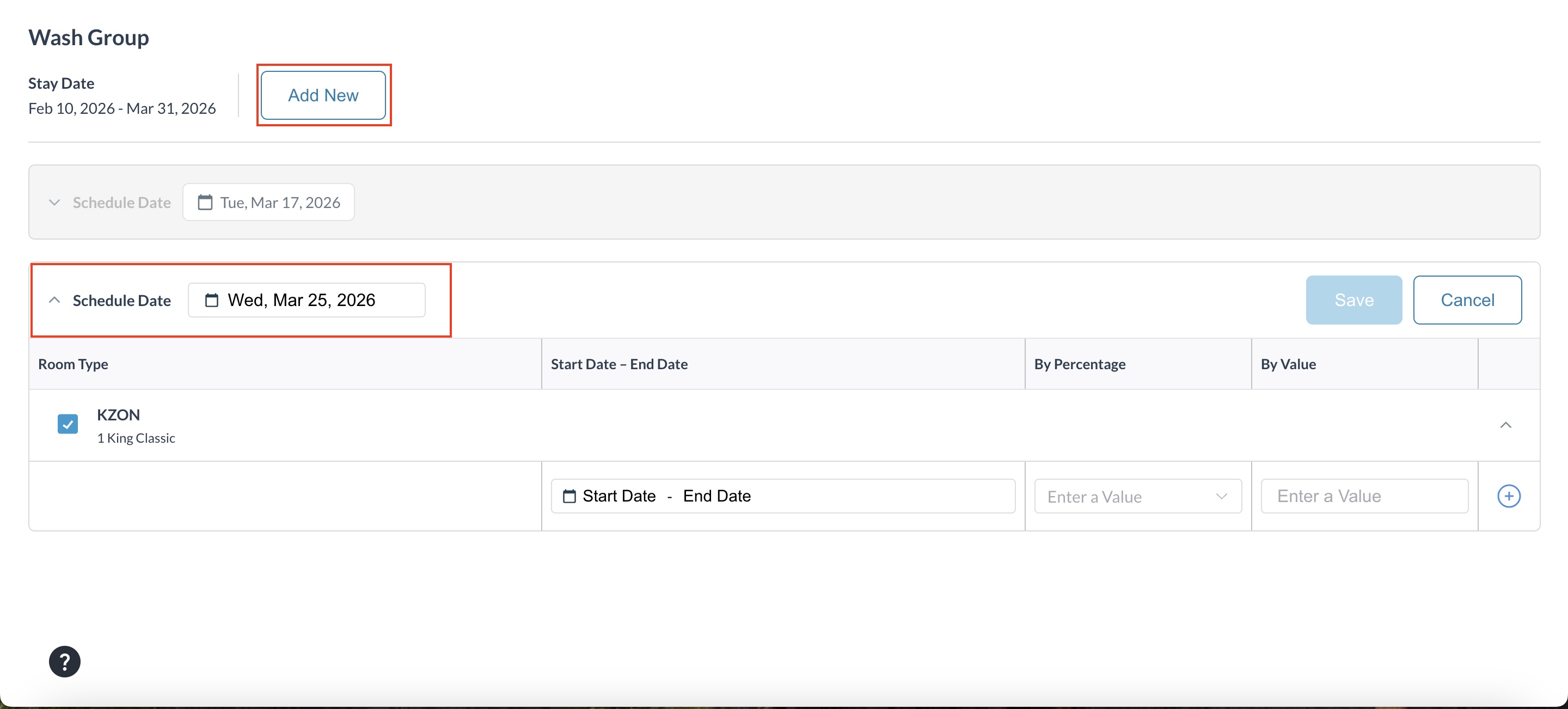
Wash Group screen opens. All existing wash schedules will be displayed as tiles, sorted by wash date in ascending order.
|
|
Add a New Wash
User can add a Wash Group for the Current Business Day and for Later Dates. |
|
Click Save or Cancel to discard. On saving, a message confirms: “Wash scheduled successfully.” |
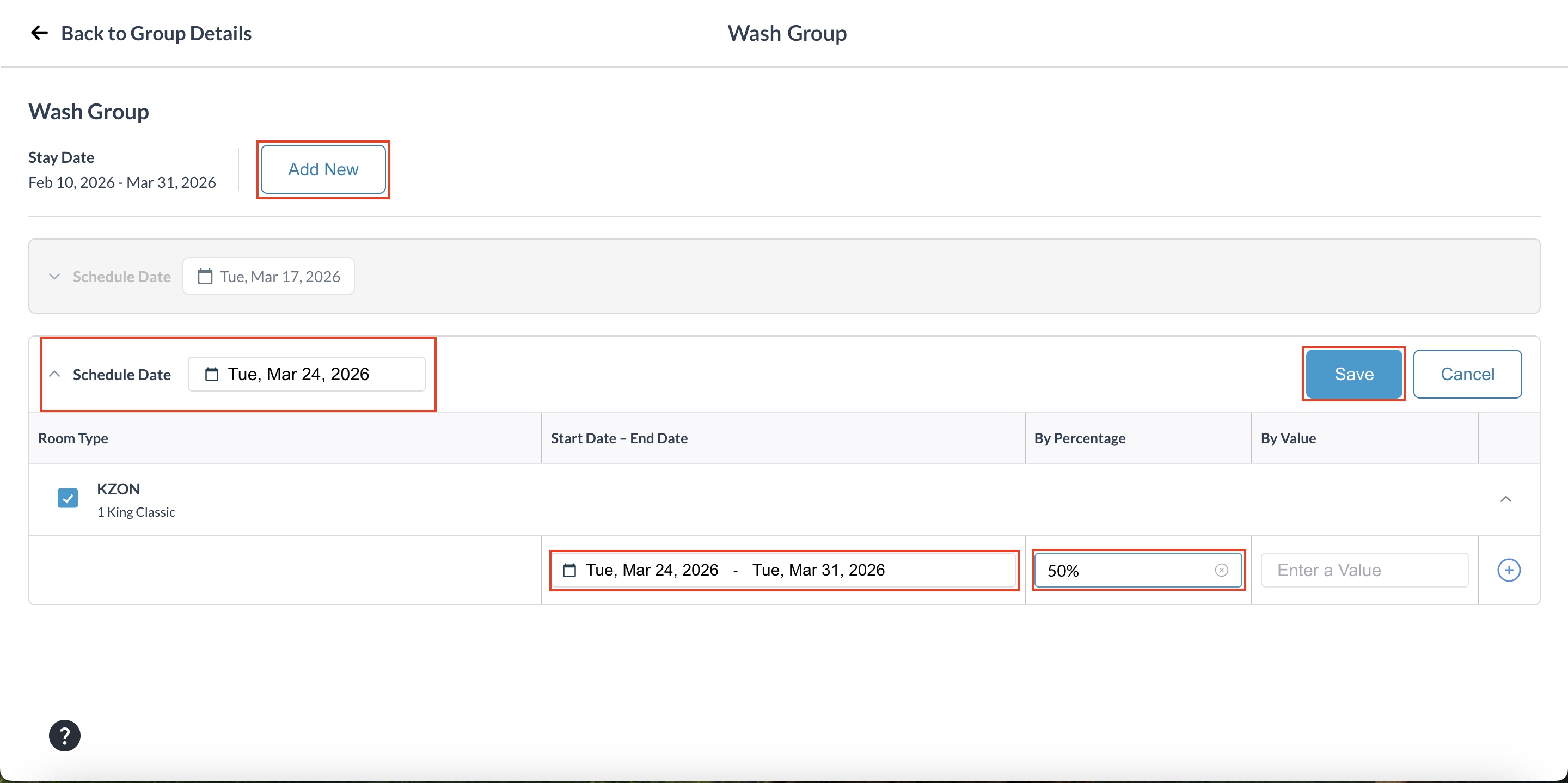
|
If Schedule Date is CBD, then Save button turns into Wash Now button Button is enabled when a room type is checked, start date and end date are entered, and either percentage or value are entered It performs the same function as Save button explained above.
|
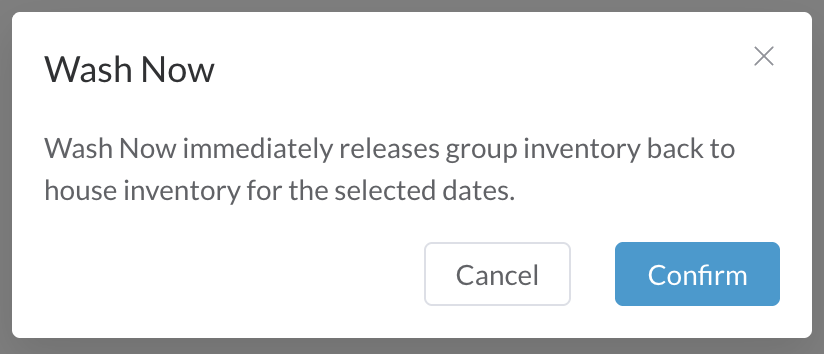
|
Edit an Existing Wash
Only wash schedules with a Wash Date greater than Current Business Date (CBD) can be edited.
Restrictions for Past Wash Dates
|
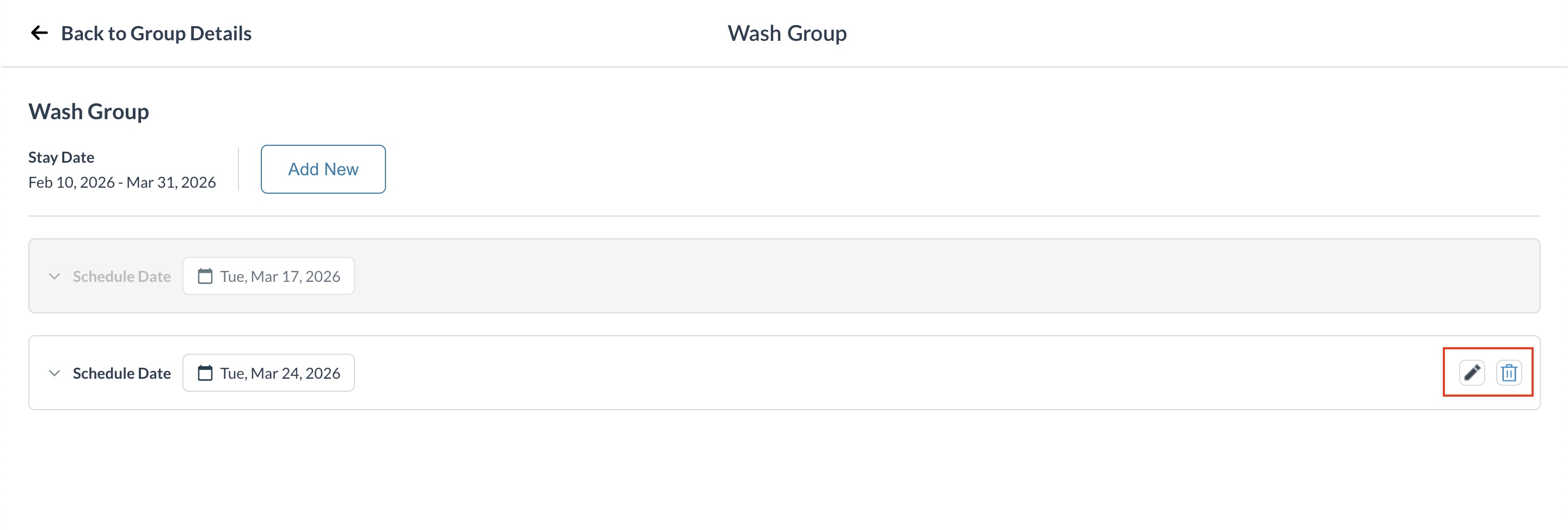
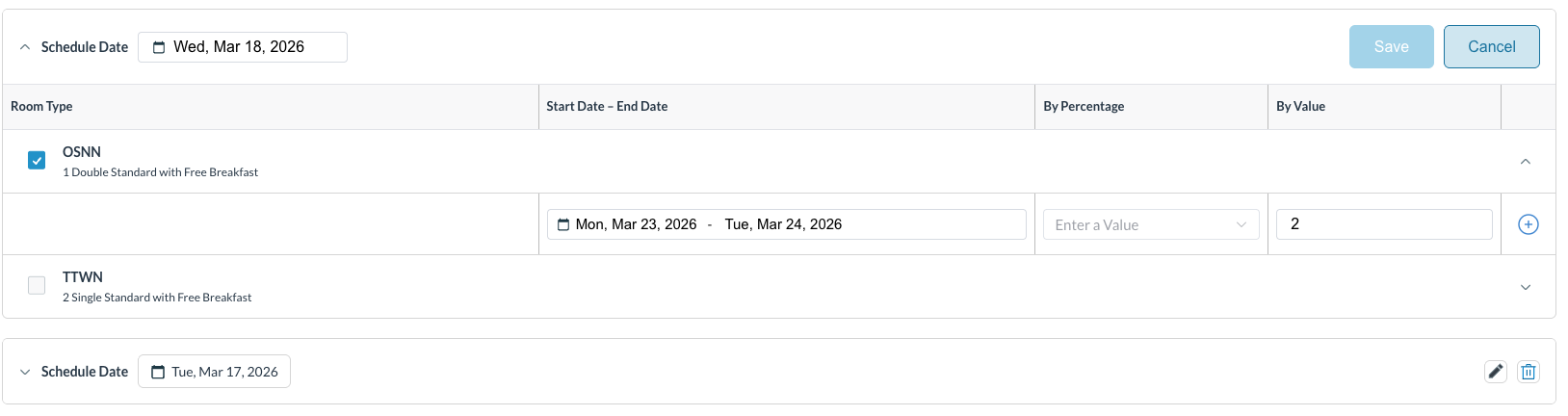
|
Audit Log
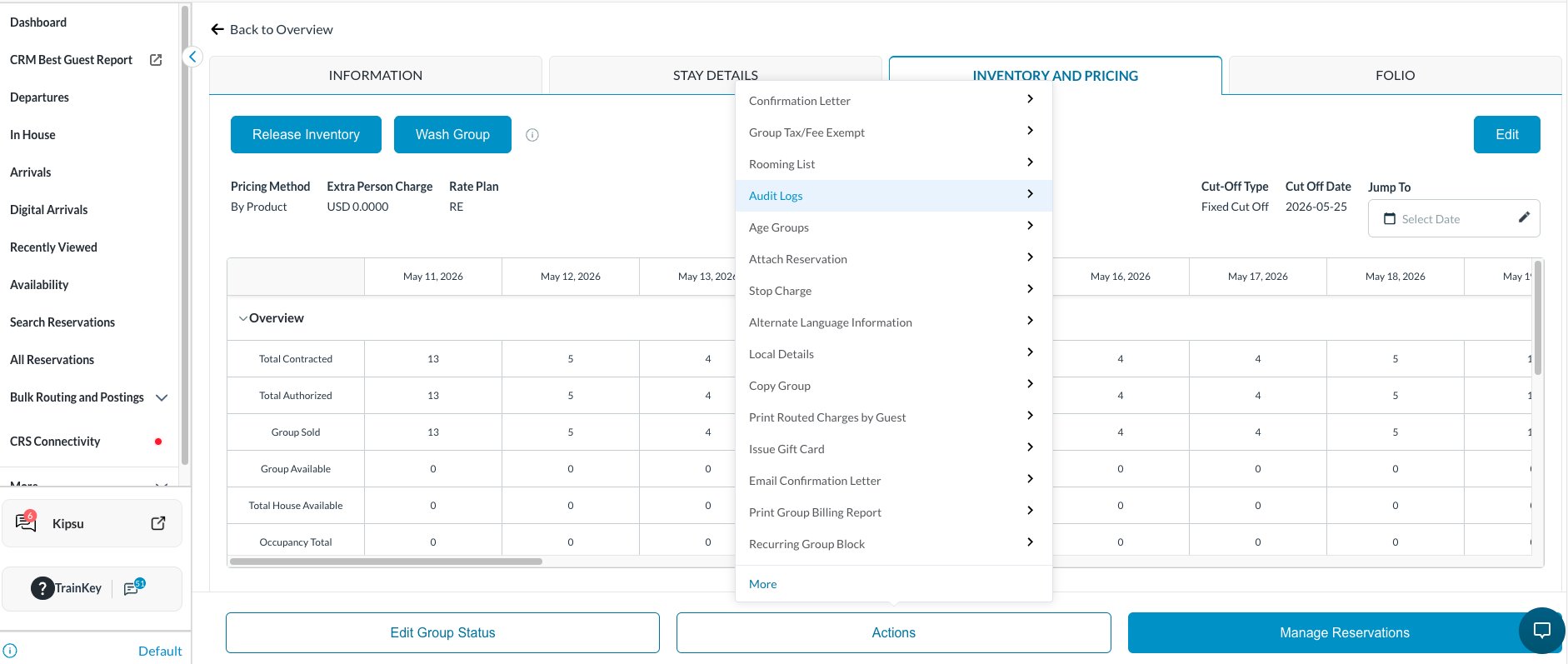
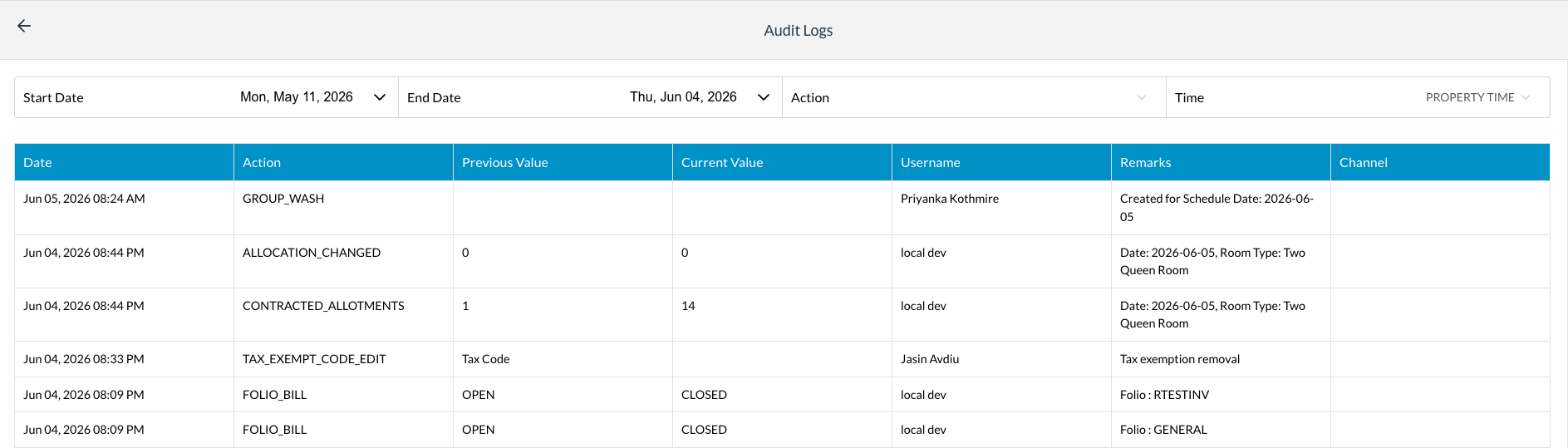
Navigate to Actions and click on Audit Log All wash actions (create, edit, delete) are recorded in the Group Audit Log. Log entries include: Wash Date, Room Types, release values, user details, and timestamp. Multiple wash actions are aggregated in reports |
|