
📆 Revision Date:
The purpose of this functionality is to enable Rooming List upload experience by enabling scalable, background-based batch processing for reservation creation while providing greater transparency and control to users.
This feature ensures that large rooming lists can be uploaded, validated, and processed efficiently without blocking user workflows, aligns the behaviour with the legacy flow, and prevents duplicate or conflicting uploads during active processing. By introducing progress tracking and a dedicated history view, users gain clear visibility into upload outcomes, including successful and failed reservations, while allowing them to safely exit and return to the Group Master without interrupting the process.
Applicable to:
-
Groups
-
Rooming List Upload Process
-
Reservation Batch Creation
-
Rooming List Upload History
|
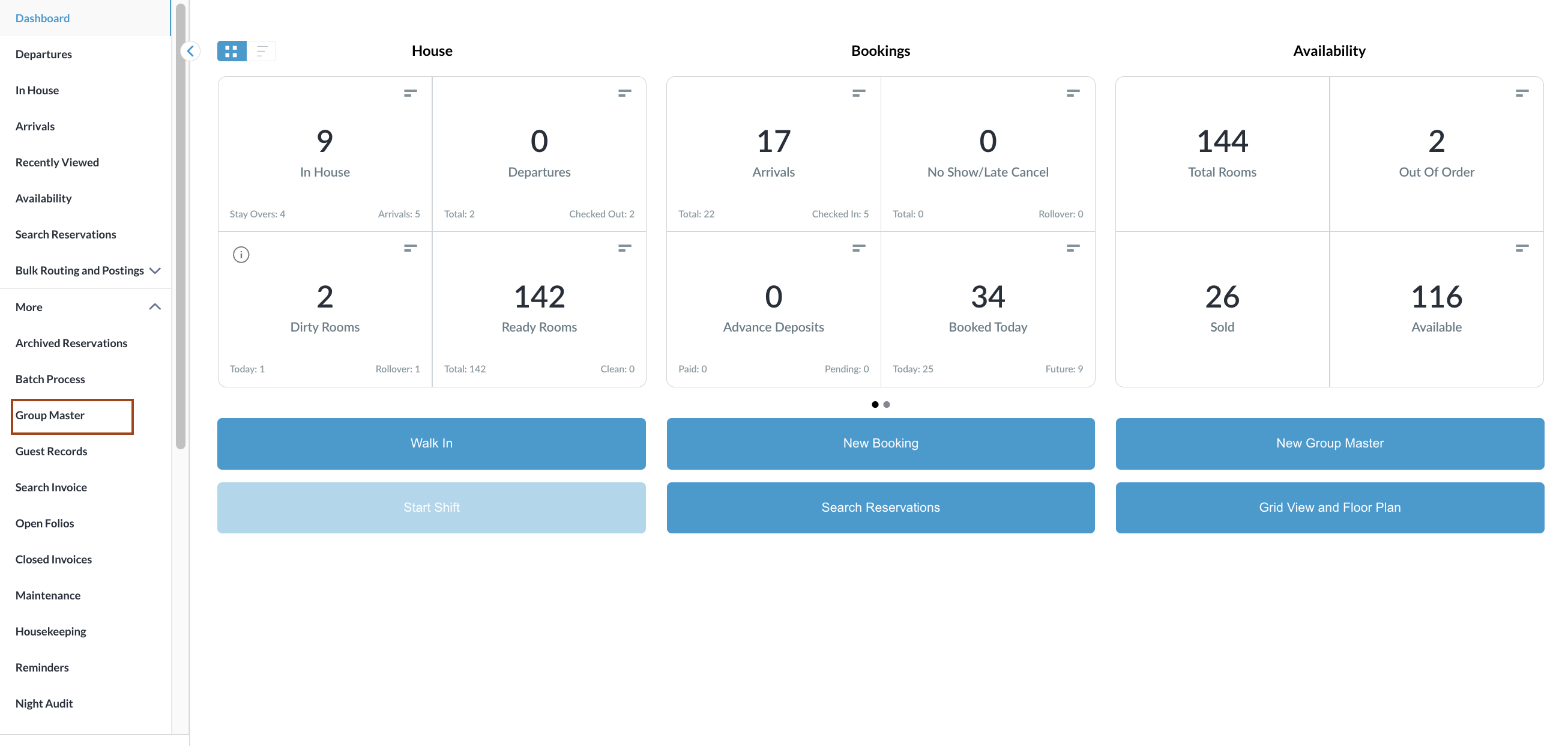
Navigate to Groups Master from Dashboard, left side menu. |
|
|
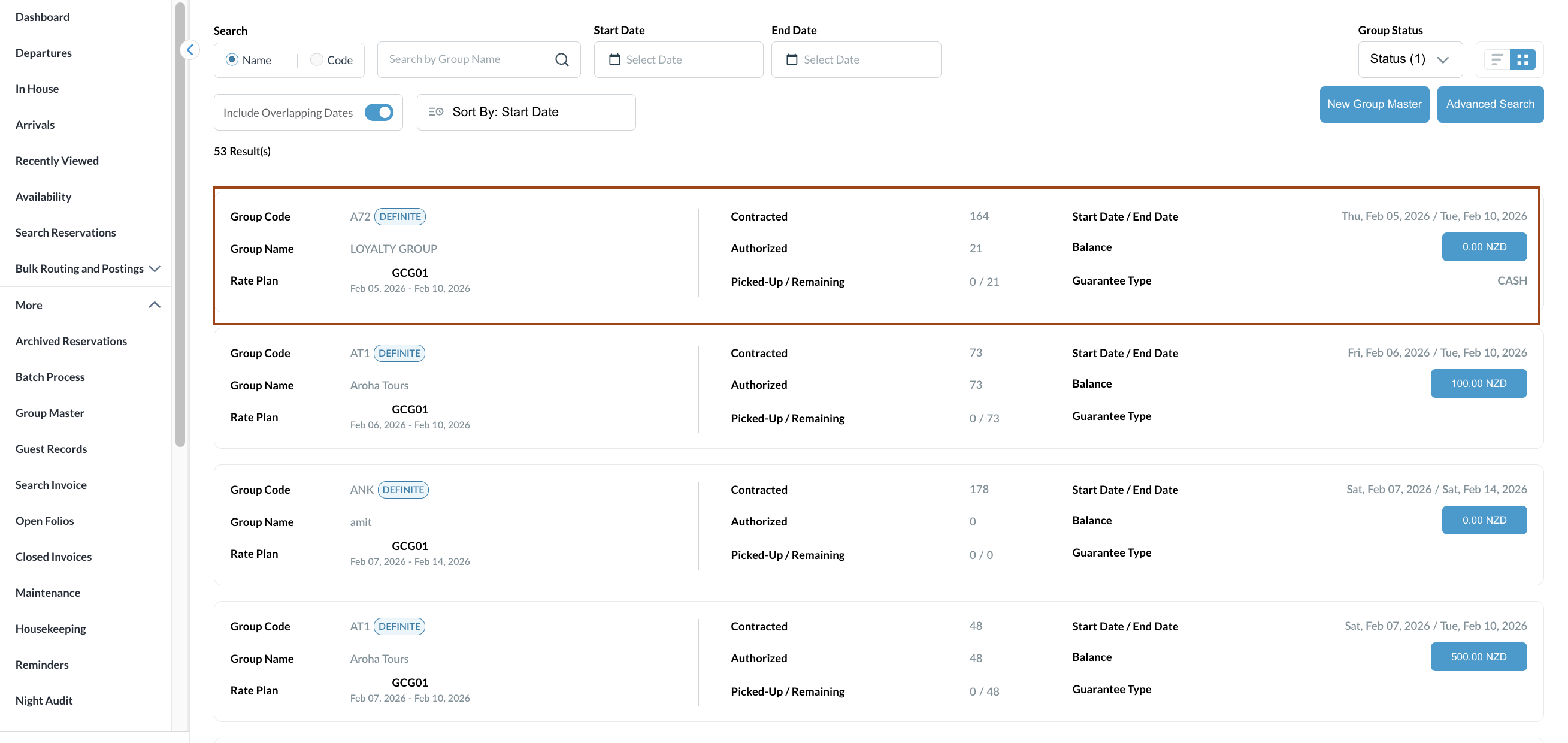
Search and open the required Group Master.
|
|
|
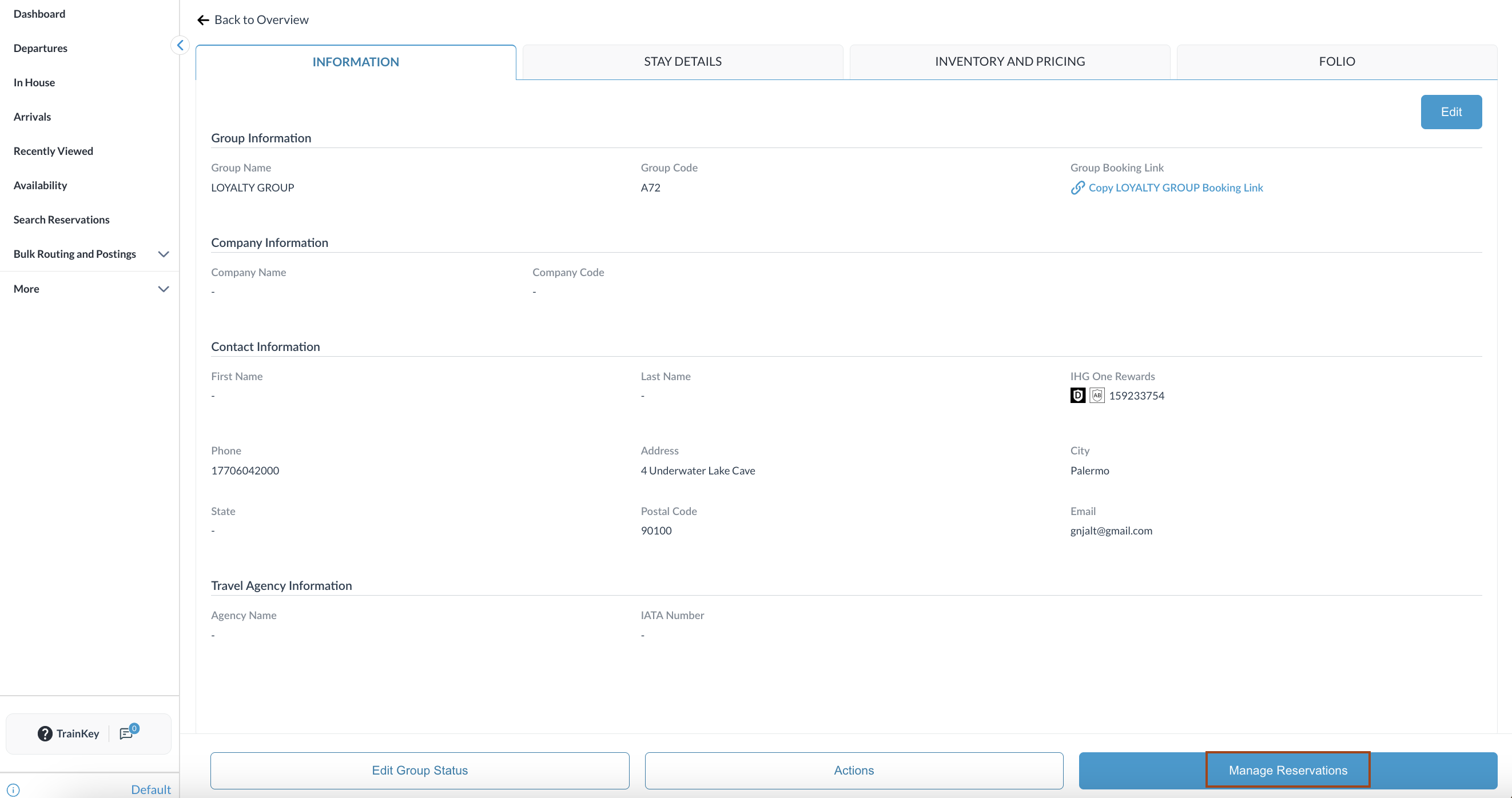
Open the Group Reservation
|
|
|
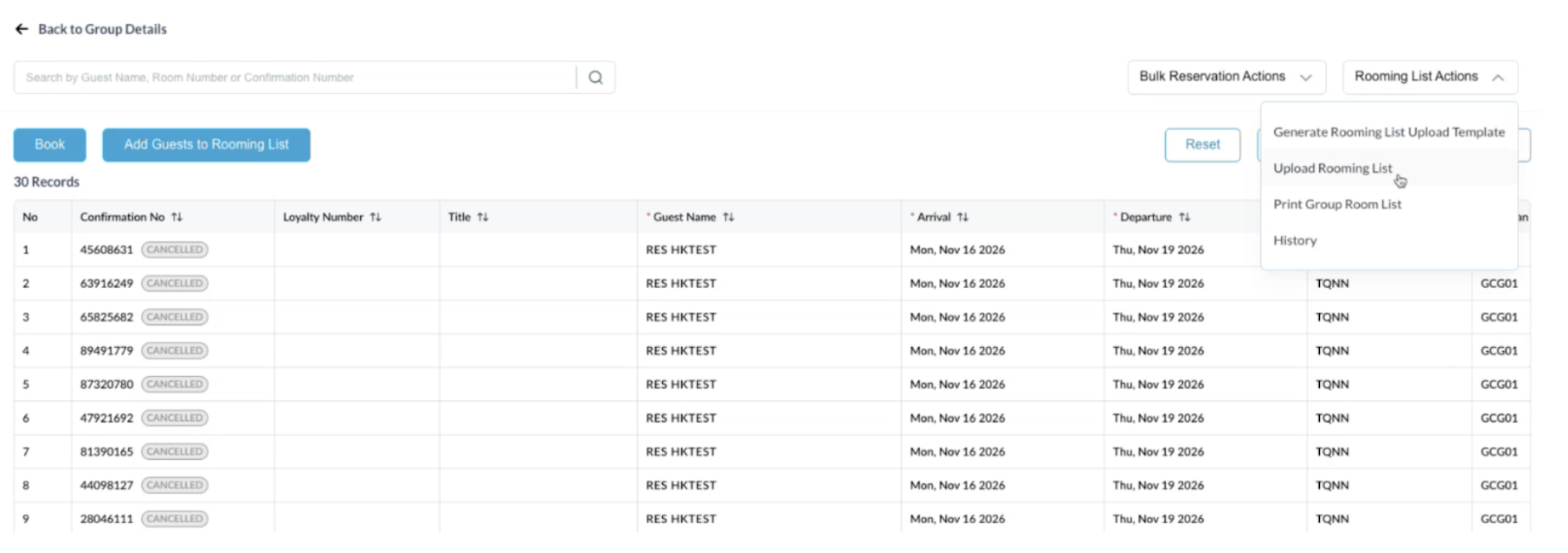
Navigate to the Reservation List
Click Continue. |
|
|
Rooming List details are automatically populated Review the populated reservation details. Make any required edits or corrections.
|
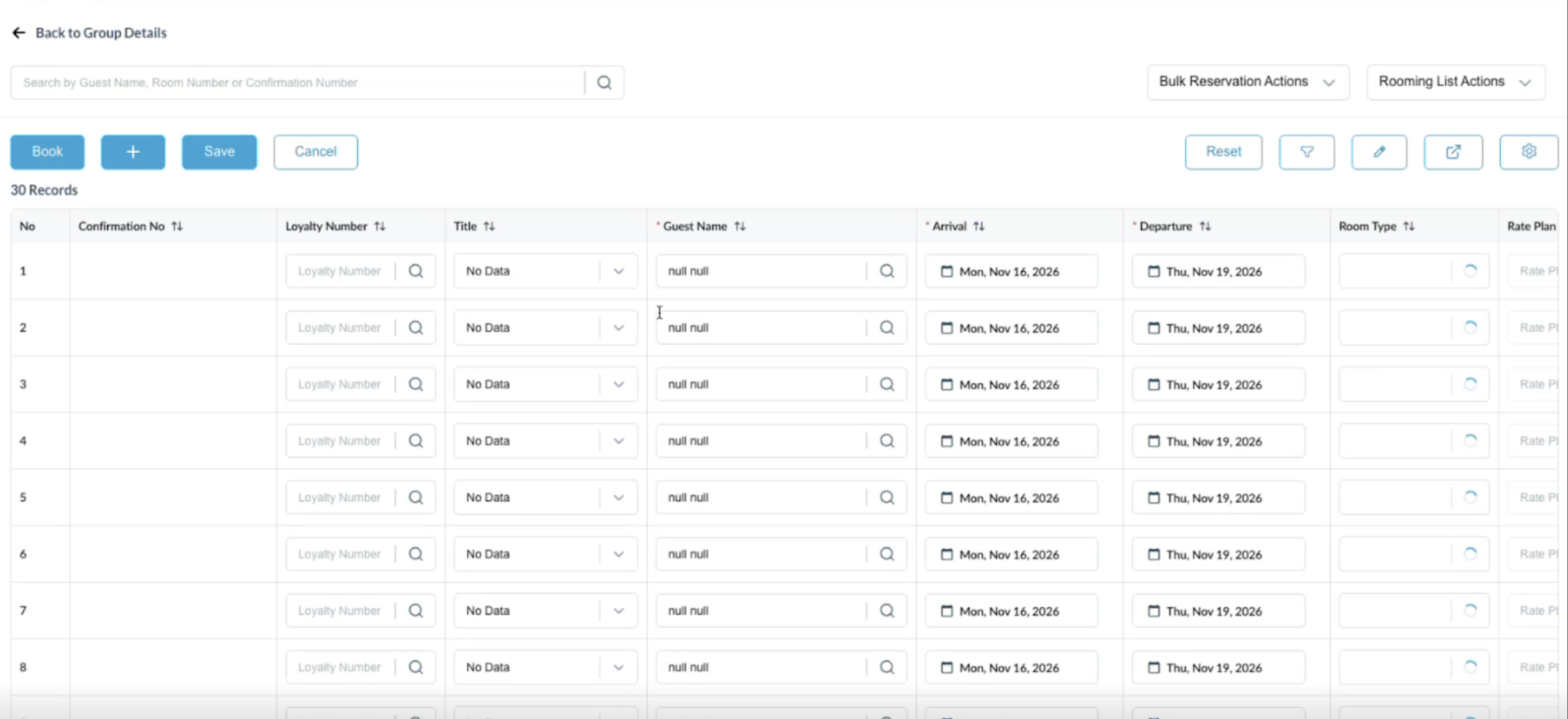
|
|
Batch Processing Popup appears. Batch Process has two steps-
|
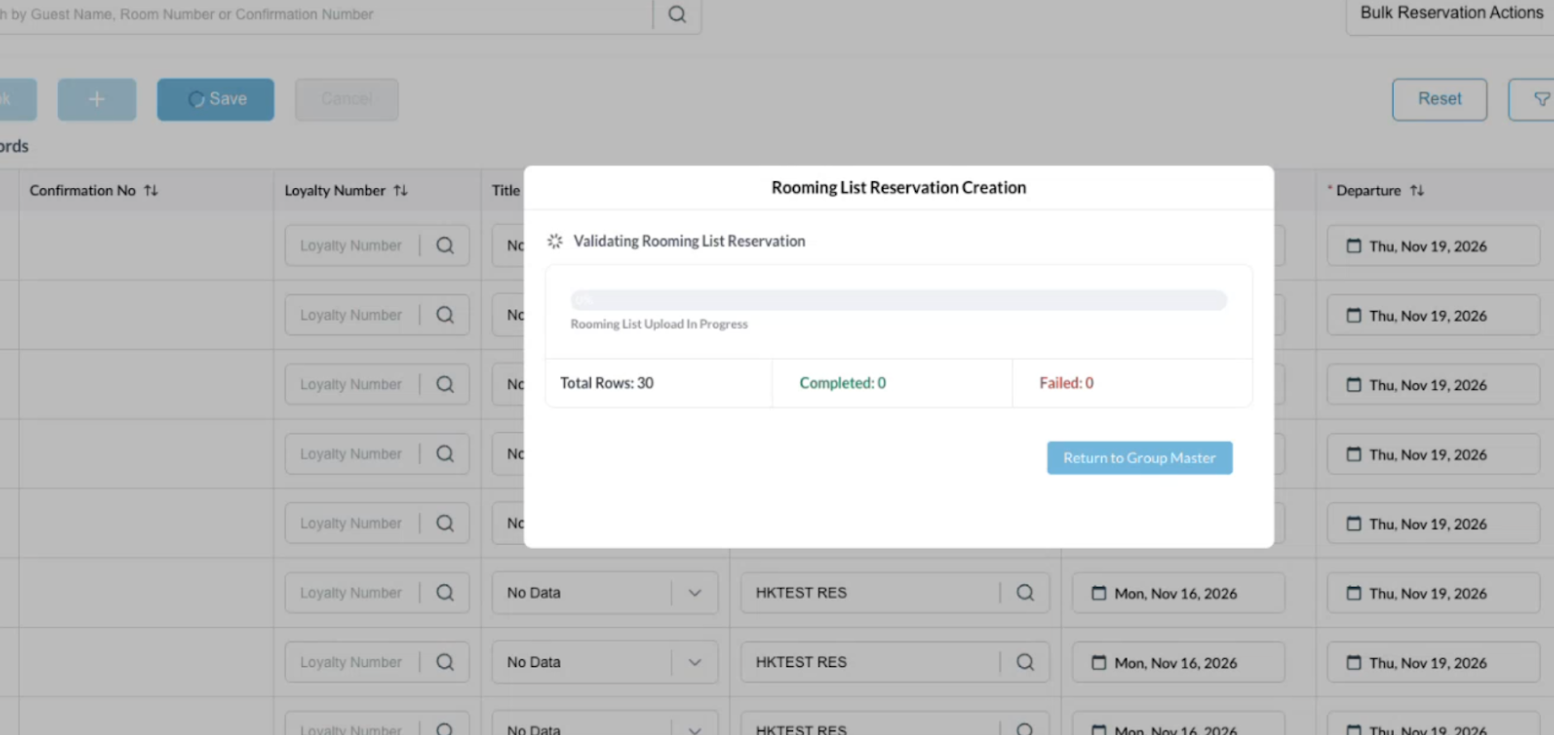
|
Return to Group Master button becomes enabled. |
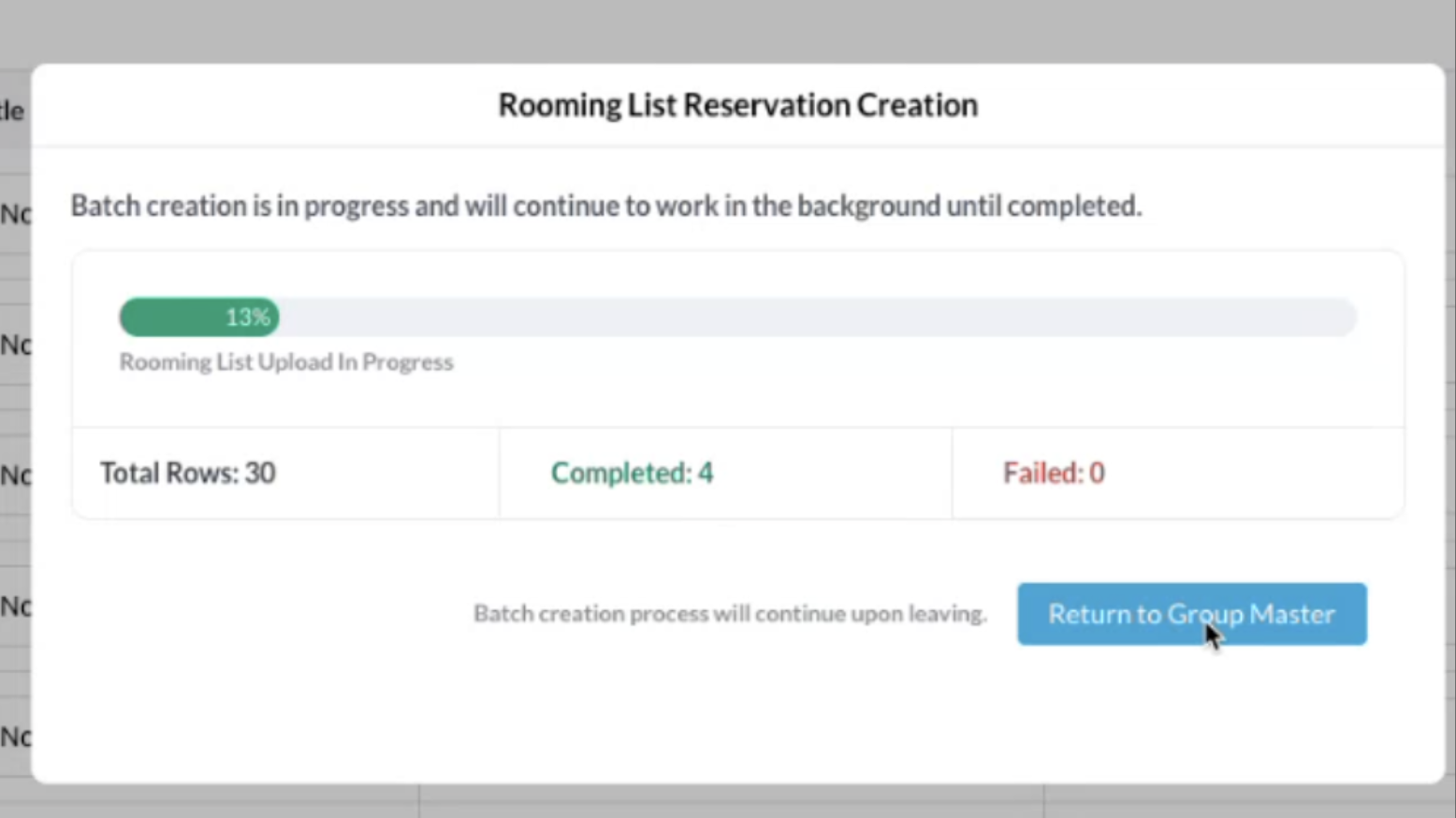
|
|
Once the reservation creation is confirmed as completed, select Continue and can navigate back to the group rooming list screen. |
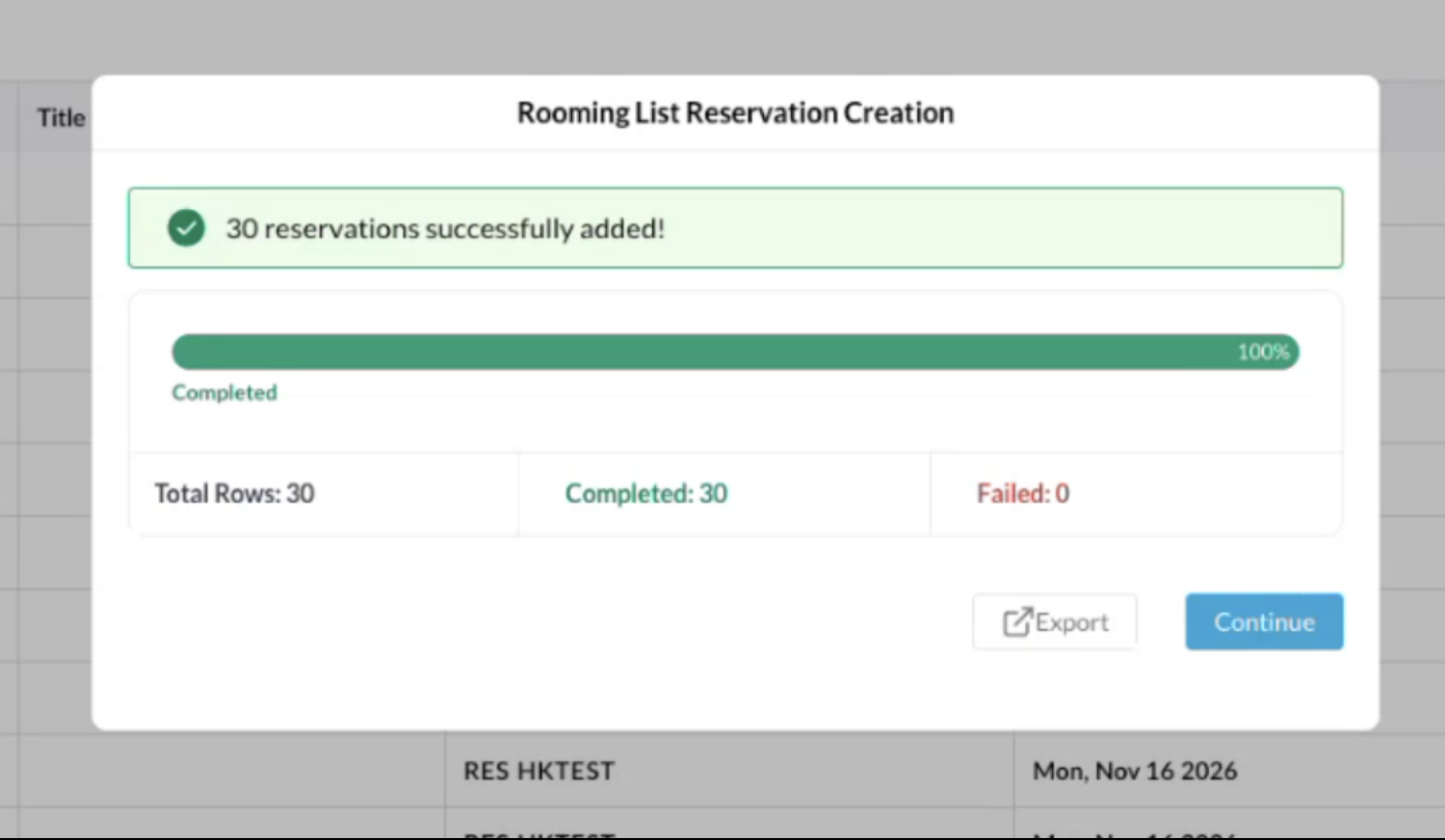
|
|
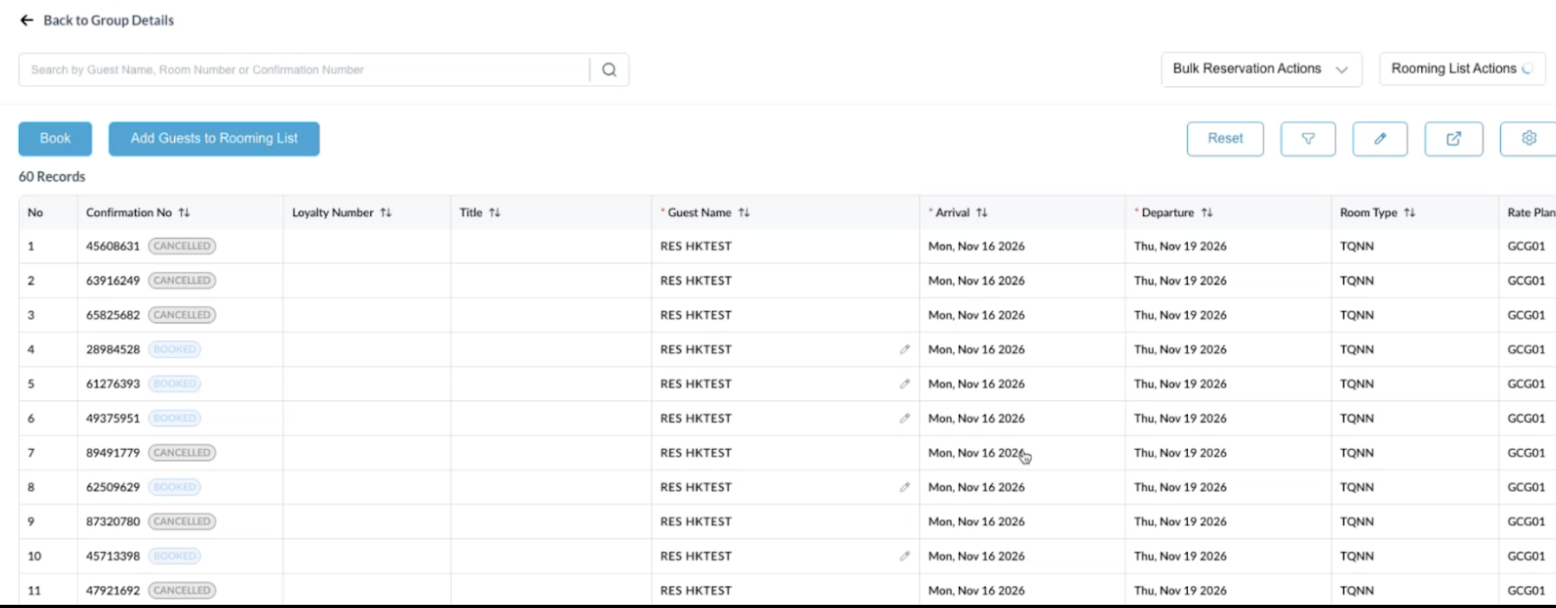
Return to Group Master. System redirects you to:
Batch process continues in background. |
|
|
If you would like to return to the Rooming List while batch is still running -
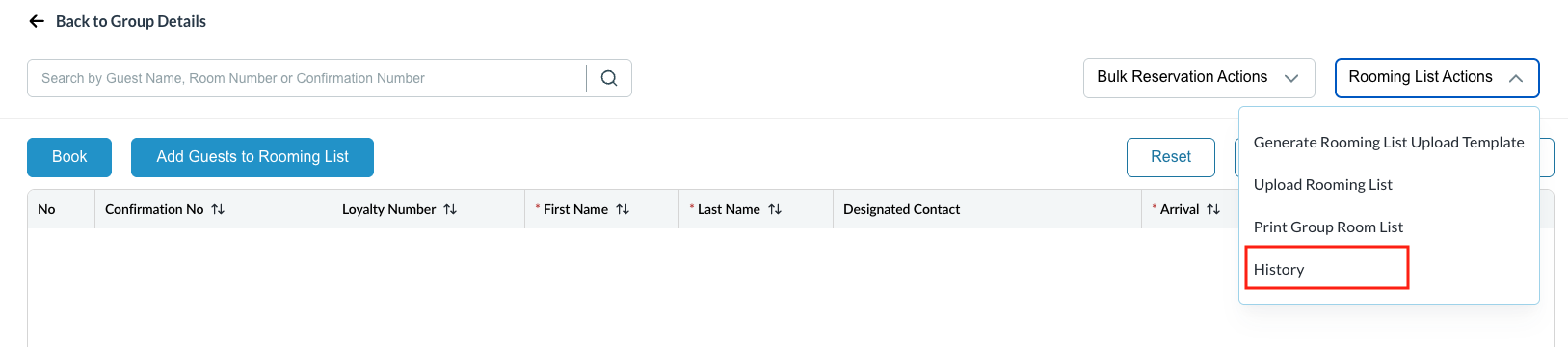
The system will display previous upload details including:
You will be able to review batch results through the History section. |
|