
📆 Revision Date:
This article covers the steps to create a reservation for a group of guests, such as a travel tour or leisure group. Steps to create a group with the Pricing Method By Product (default method) or By Occupancy are explained. Also covered is Attaching a Local Company
Please note that your system's setup may vary depending on your property’s configuration, so you may see additional or different screens that those shown here. Configurations can vary by enterprise and some features may not be utilized by the business unit.
|
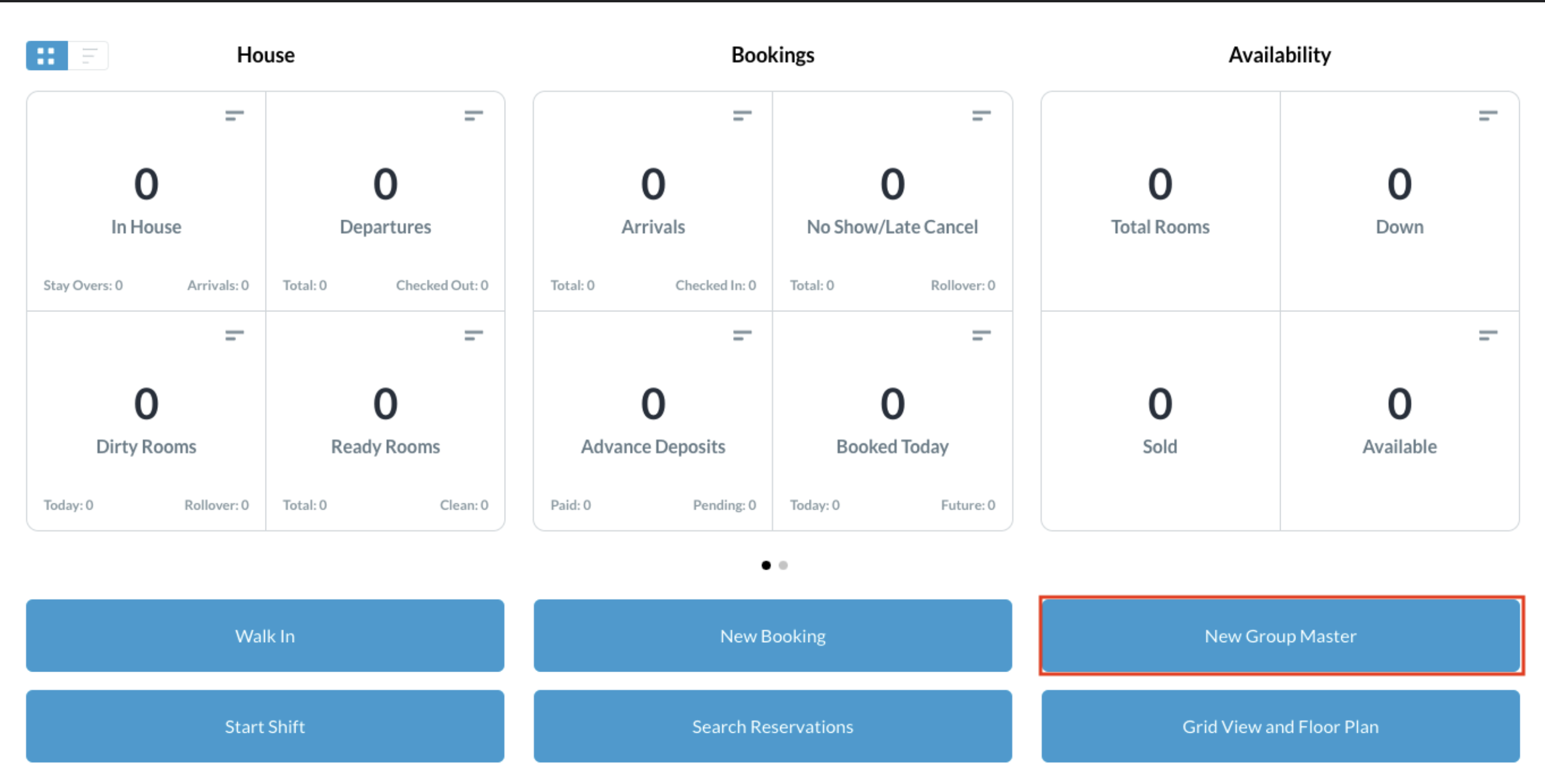
Select Group Master on the Dashboard. |
|
|
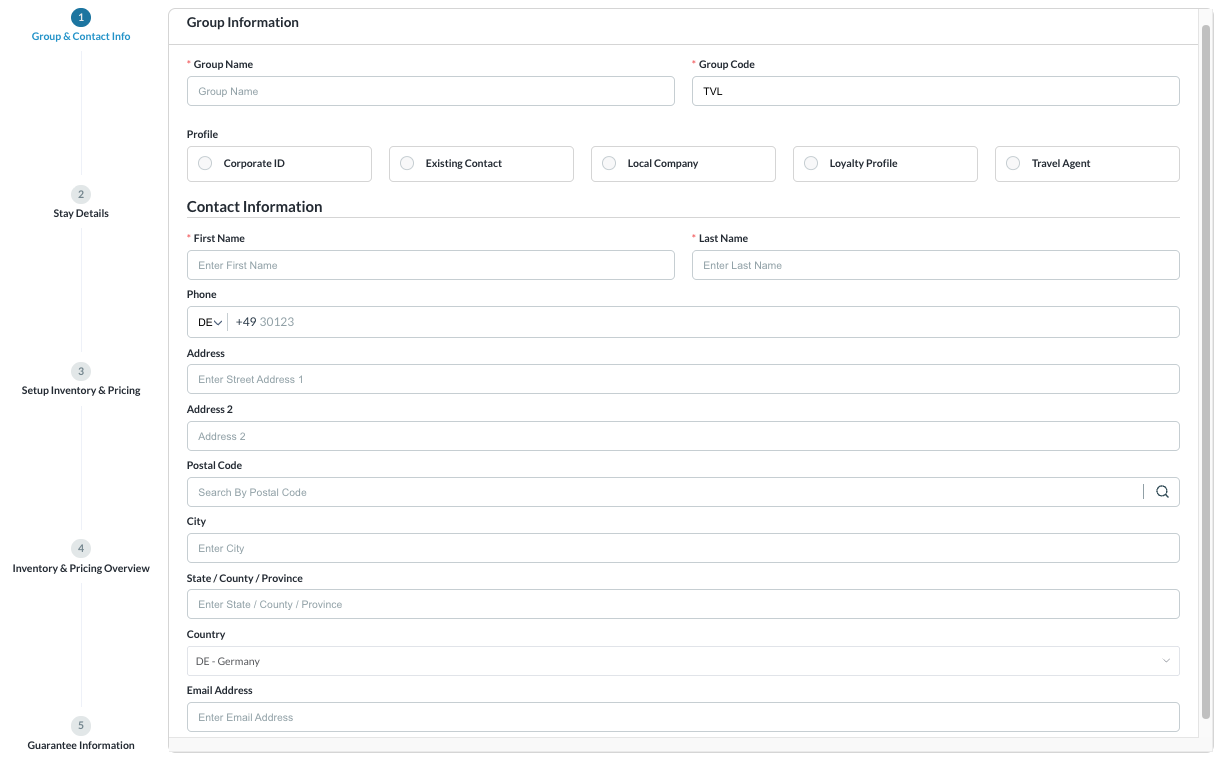
The Create Group panel loads.
|
|
|
Begin by entering
|

|
|
Select to copy the profile from a Corporate ID, Existing Contact, Local Company, Loyalty Profile or Travel Agent Or enter Contact Information separately.
|

|
|
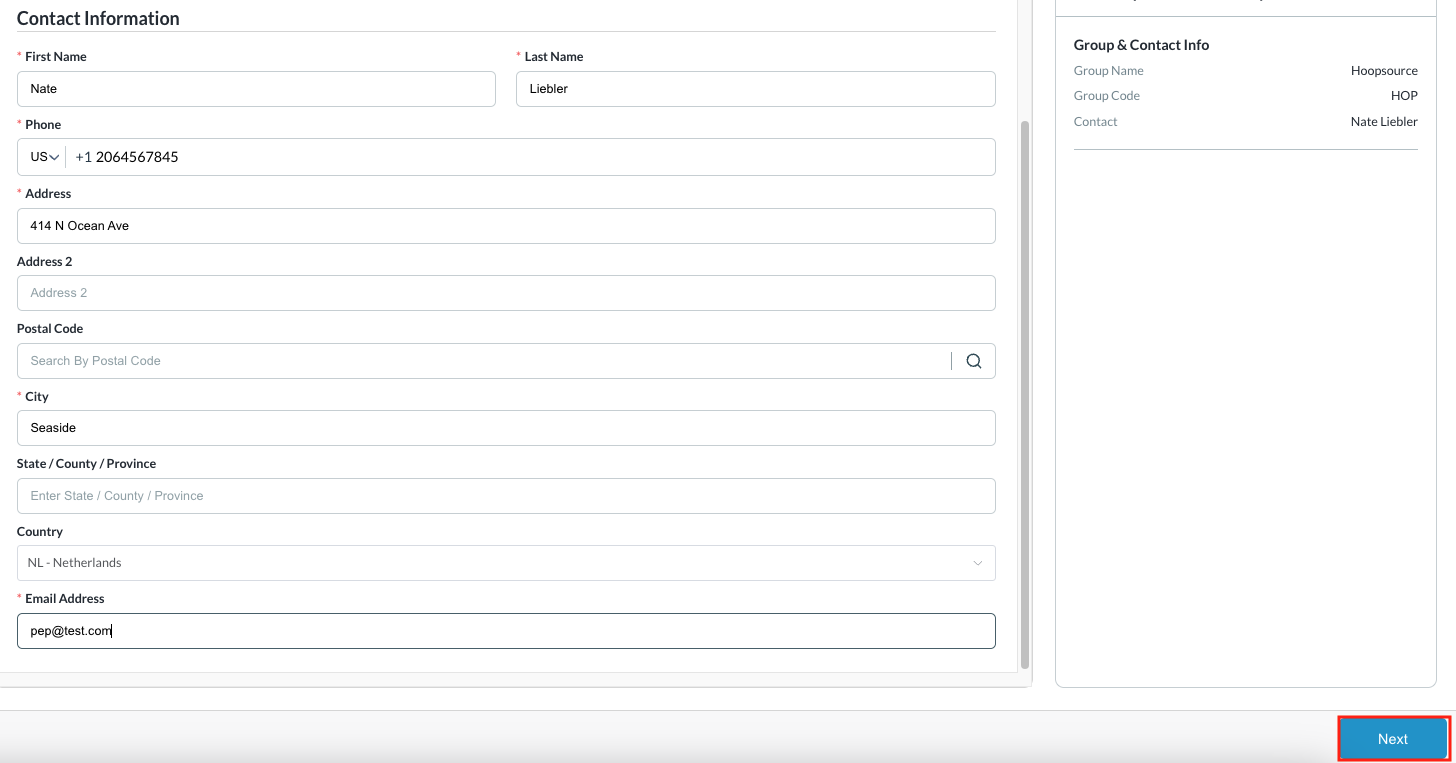
Enter the Contact Information for the group and Select Next |
|
|
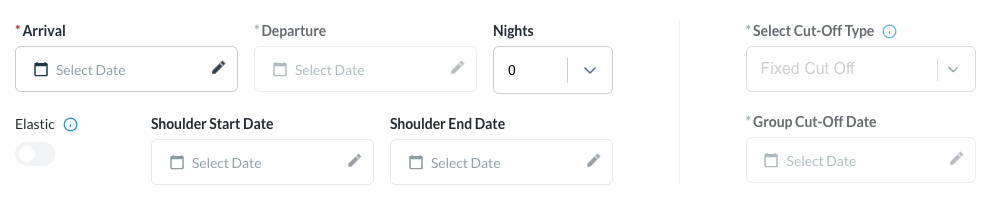
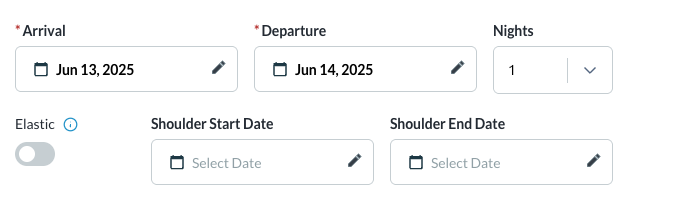
Group Stay Details loads Enter the applicable Arrival Date and Departure Date for the group block. Elastic - if toggled ON, the group is allowed to book above contracted and authorized rooms as long as there is house availability. Note - This feature is not utilized by every enterprise. Shoulder Start and End Dates - refers to selected dates preceding the check-in date and following the check-out date. These dates extend the booking window for guests who may arrive early or depart later than the scheduled group dates. |
|
|
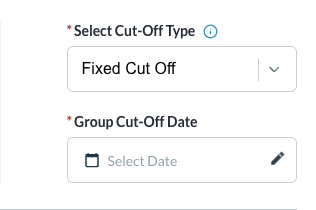
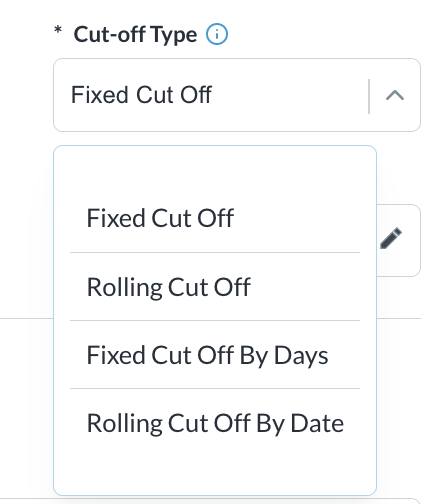
Select Cut off Type - this defines how unsold rooms in the group block will be released, select the applicable type.
|
|
|
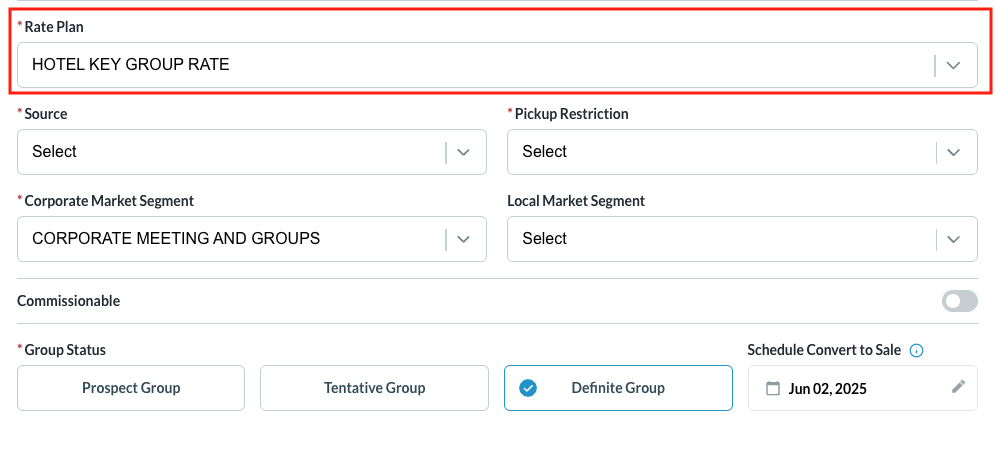
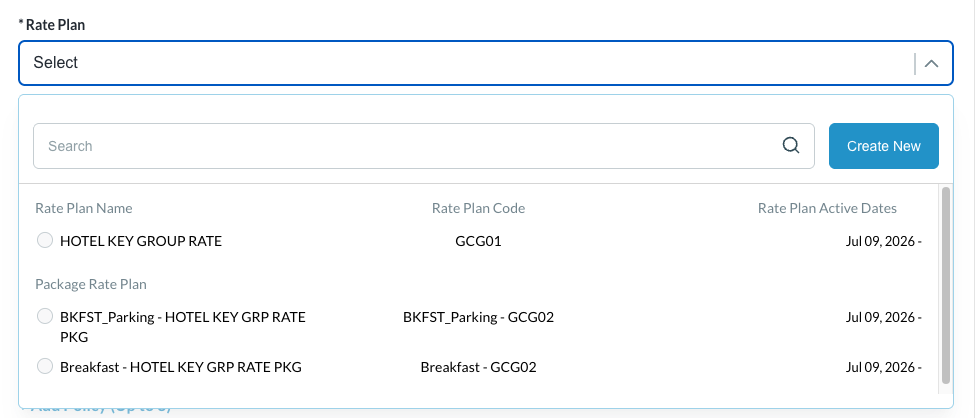
Select the Rate Plan from the dropdown for the applicable group Rate Plan Name.
The Rate Plan selection screen displays all available rate plans — both Standard and Package rate plans on a single screen
Select the desired rate plan |
|
|
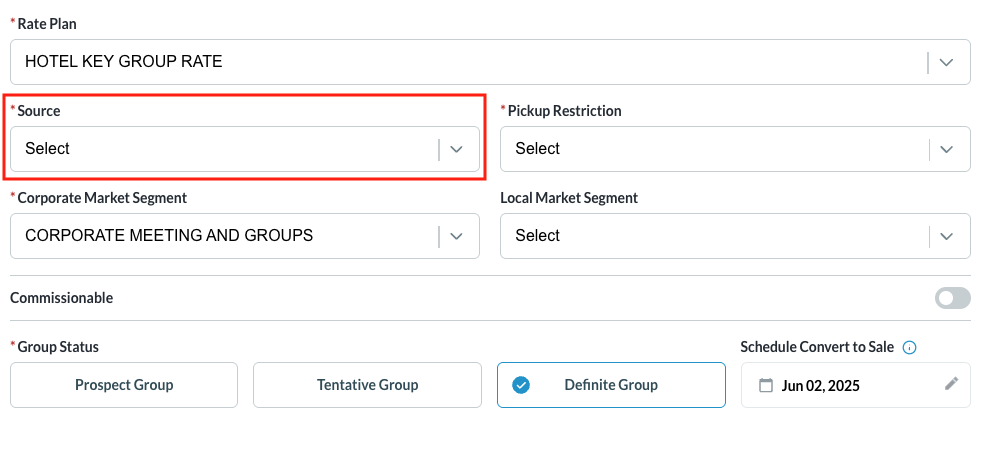
Select Source: From the drop down, choose the source of the group
|
|
|
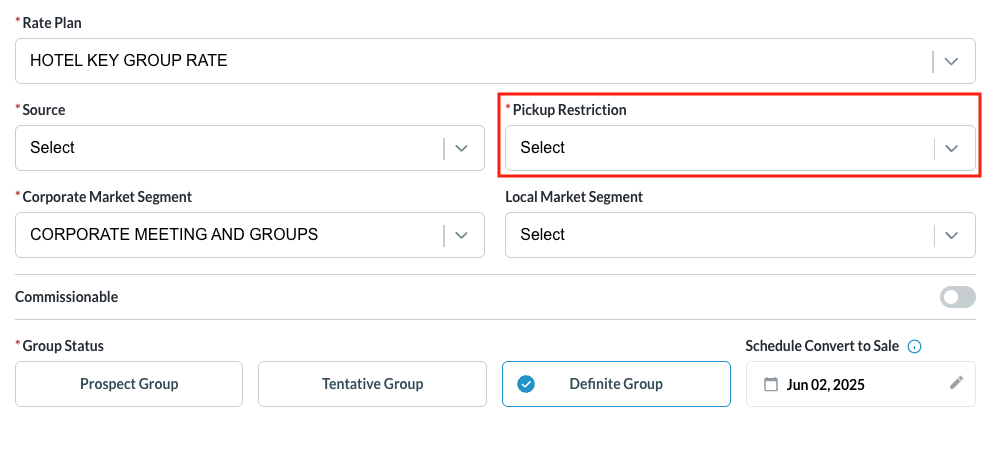
Select Pickup Restriction:
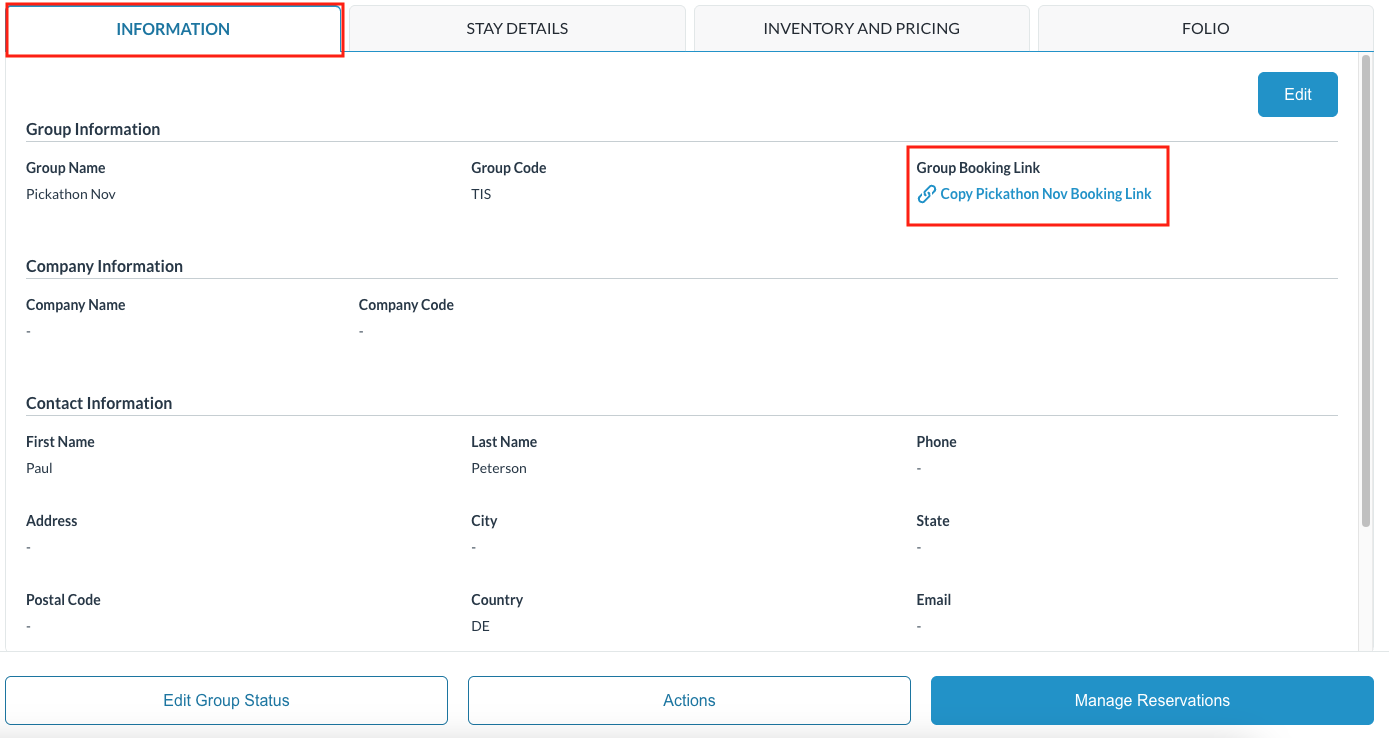
Note - When selecting ‘Open to All Channels’ as the pickup restriction - a booking link is created that can be shared as a method to book via the direct link. The link can be found on the Group Master Information Tab Please also note that your system's setup may vary depending on your property's configuration, so your business unit may not utilize booking links |
|
|
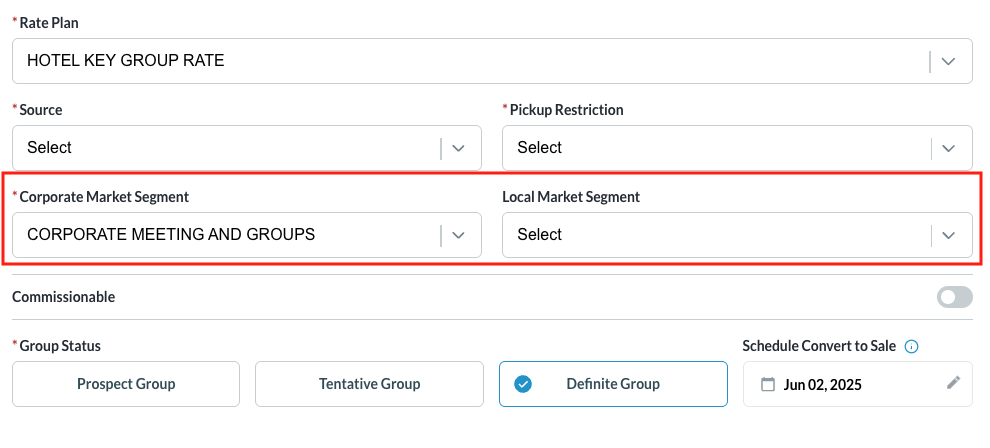
Market Segments:
Note - when the local market segment is selected, the group’s production will show in Local Market Segment Reports |
|
|
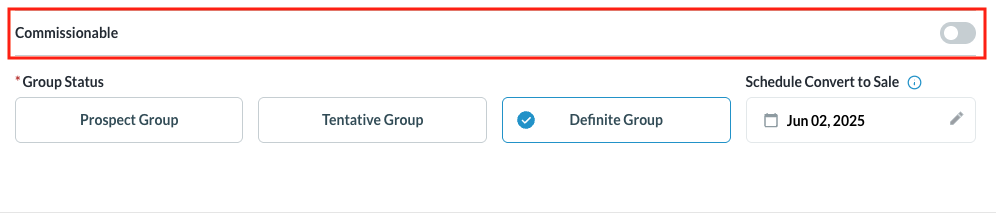
Commissionable: Toggle the flag to ON for groups that earn a commission |
|
|
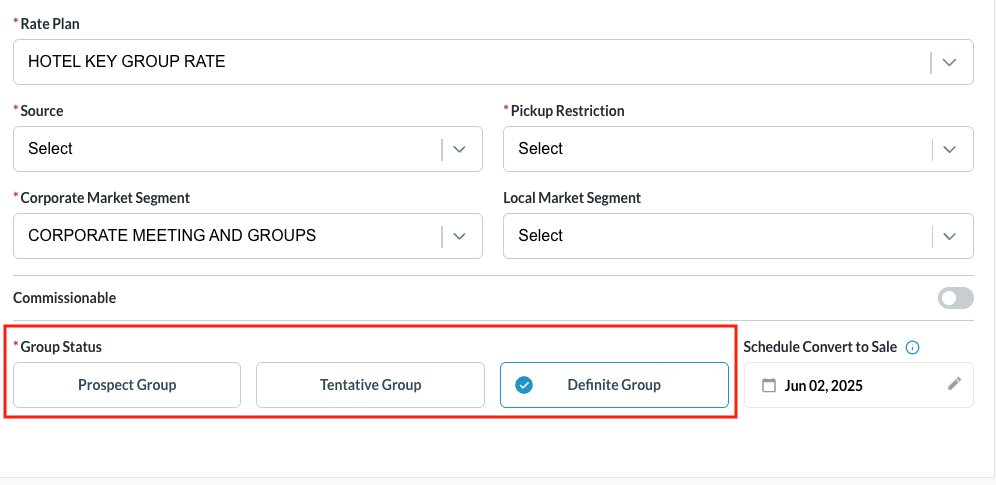
Select the Group Status:
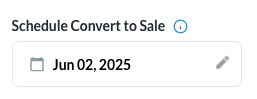
Schedule Convert to Sale - when the group status for Tentative is selected, this field becomes editable and serves as a reminder when to convert a Tentative group to definite or canceled. Click on NEXT to proceed |
|
|
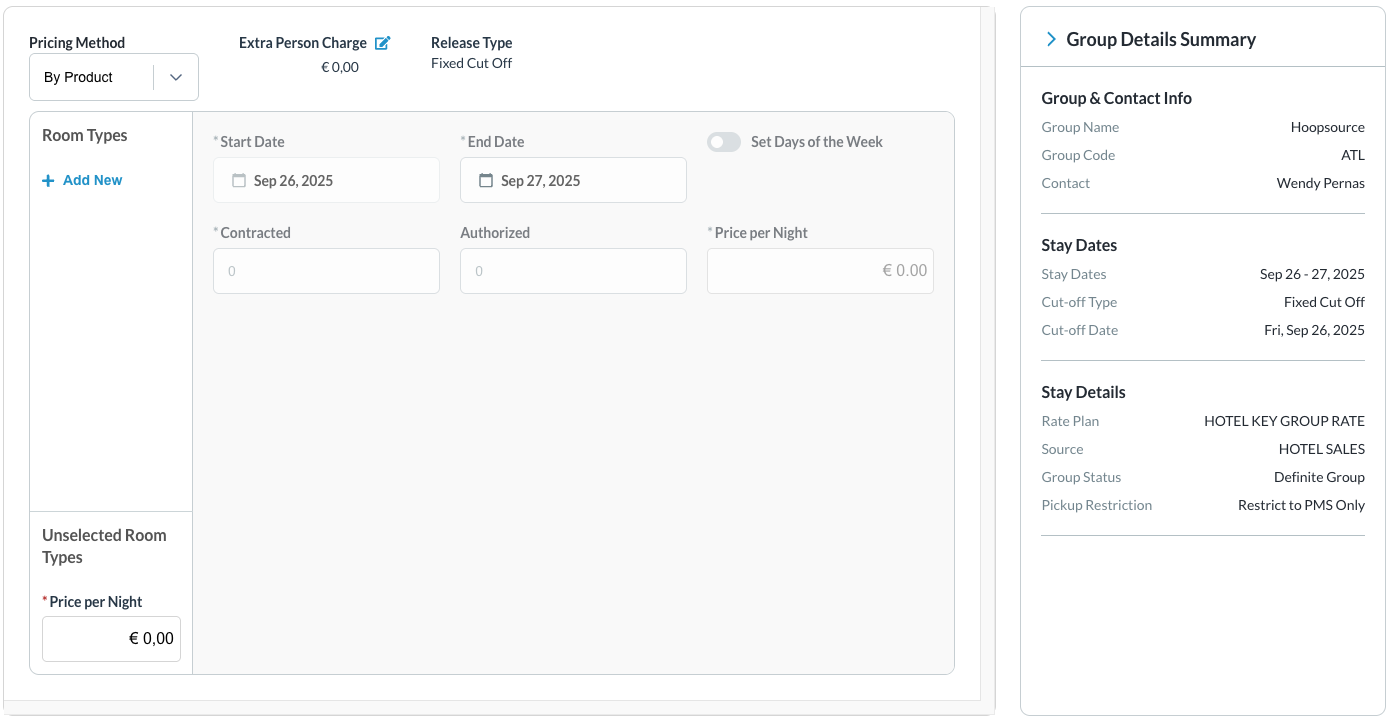
The Inventory & Pricing screen loads Select the Pricing Method to be used for creating the group. In most cases, by default, the By Product pricing method is selected
|
|
|
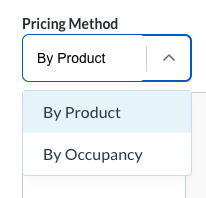
Pricing Method By Product - allows hotels to set group rates based on specific room types, without factoring in the number guests in the room. An extra person charge can be added to the base price.
By Occupancy - allows hotels to set rates based on the numbers and type of guests in the room, such as adults and children, for each date range and room type.
|
|
|
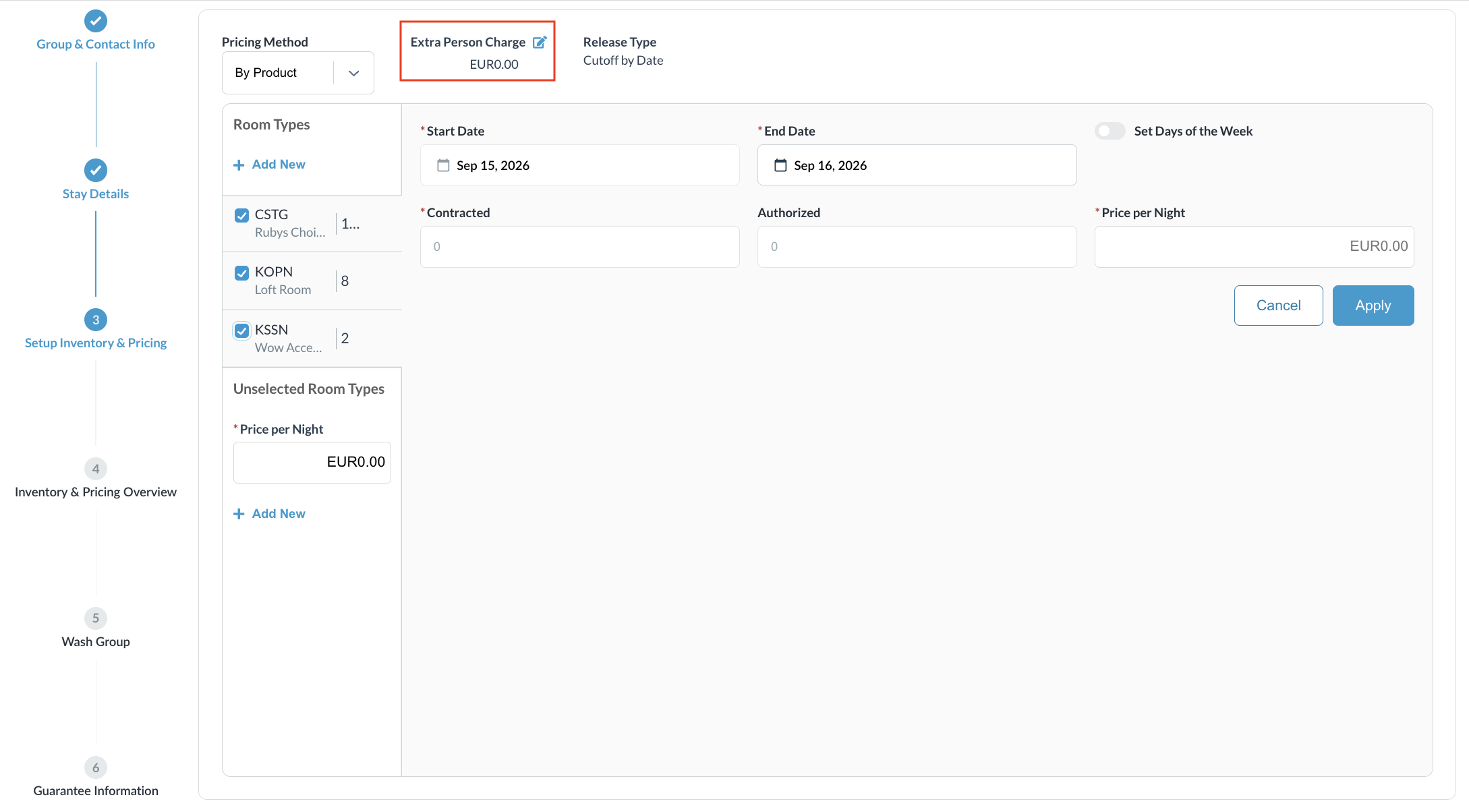
Pricing Method as By Product (default) Add the Extra Person Charge |
|
|
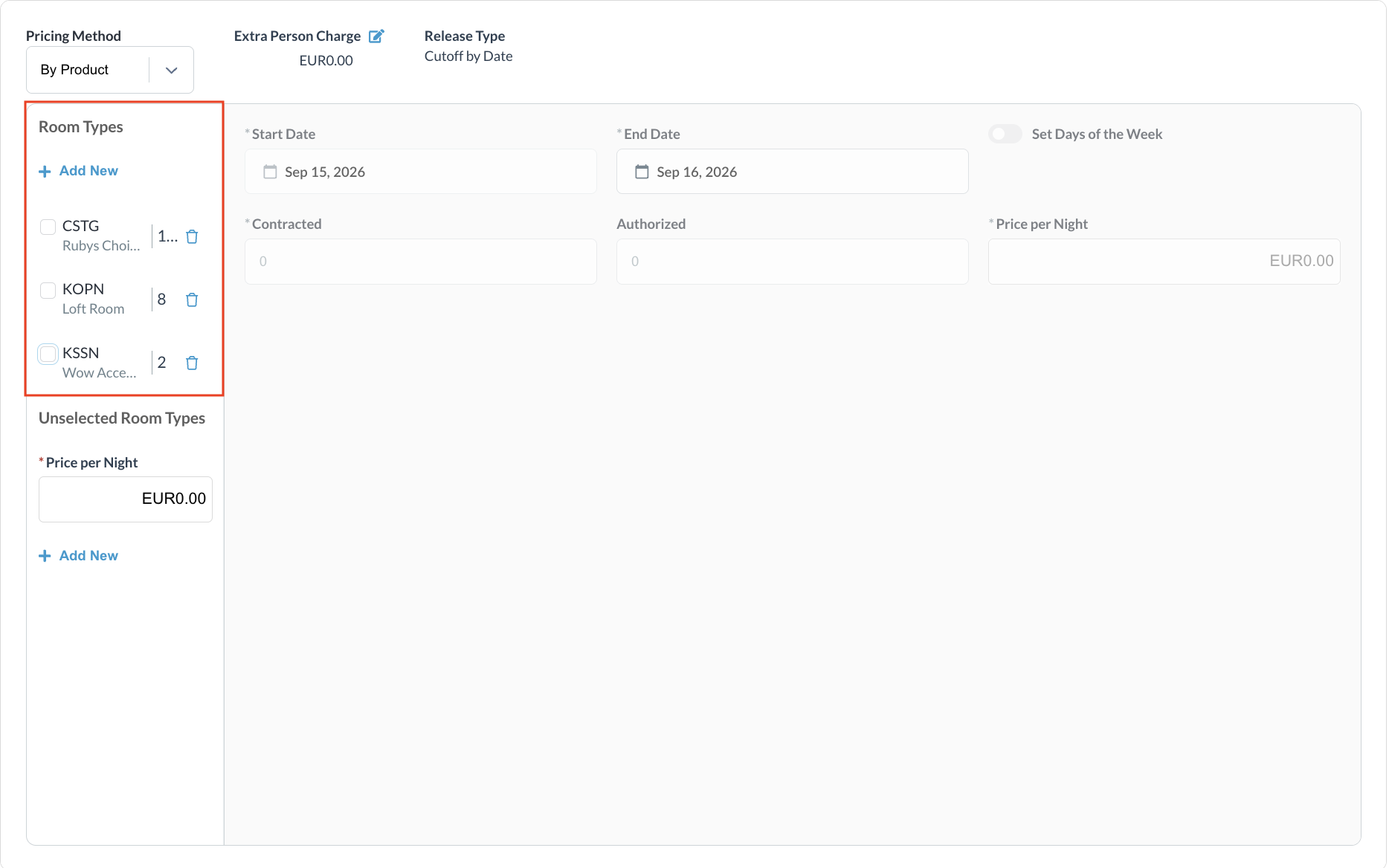
Select Room Types |
|
|
Select Allotments
Note - you can select all room types and setup the allotments and pricing for them as the same or setup for each room type individually |
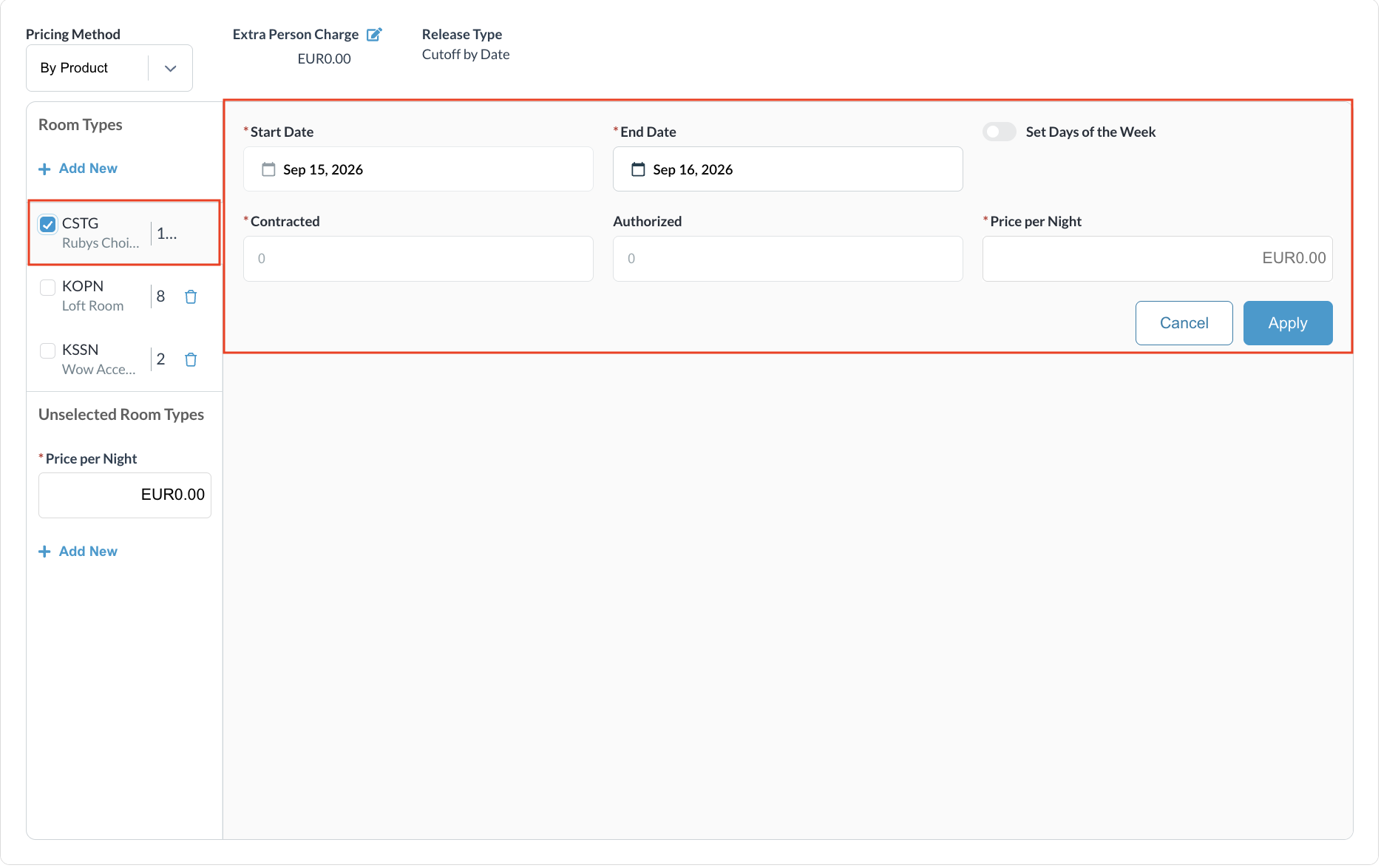
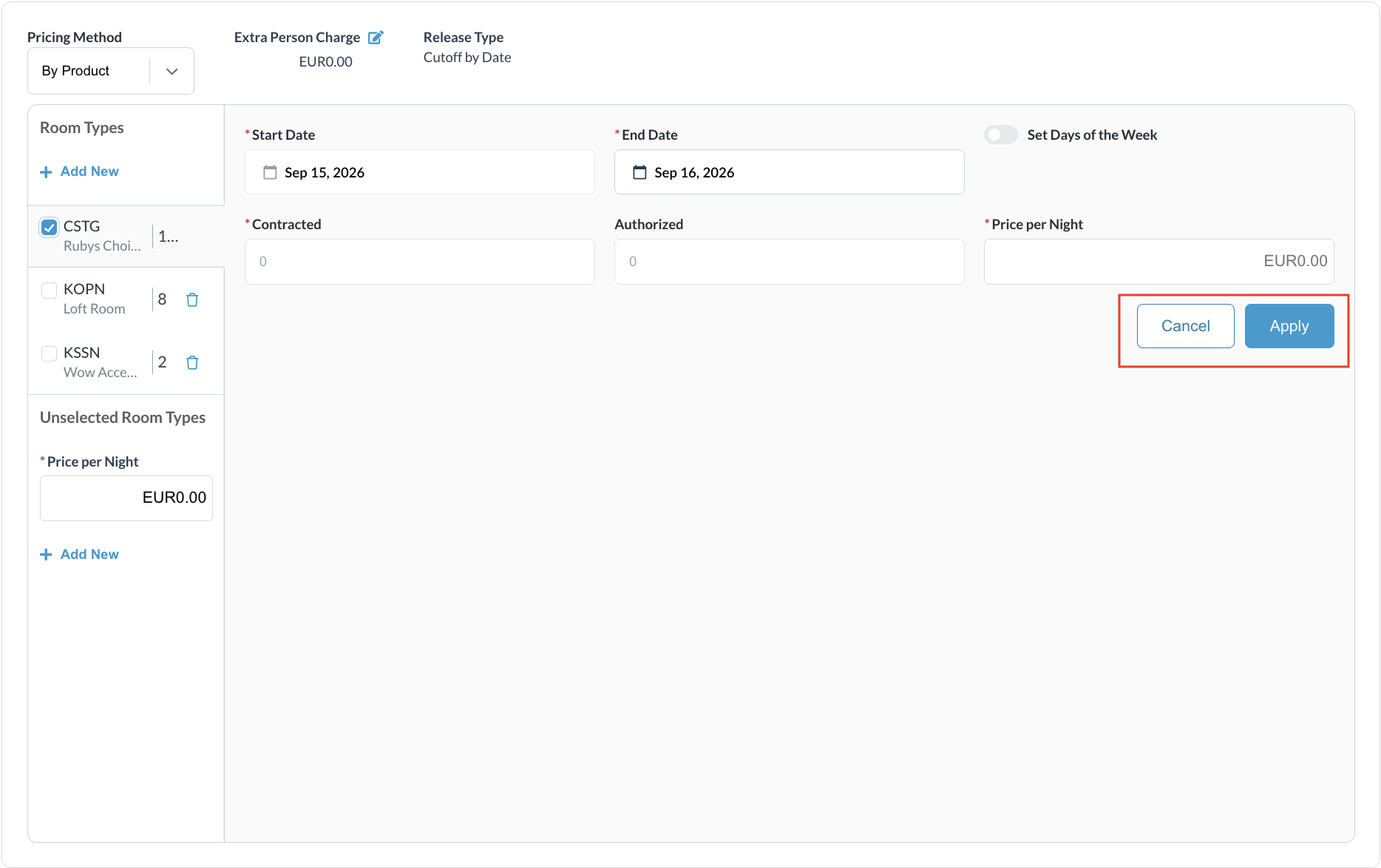
|
|
Unselected Room Types: Enter a room rate for all unselected room types. The general "Price per Night" field applies a default flat rate to any remaining room types not specifically picked.
Room types already selected in the main Room Types section are hidden to prevent duplicates. dropdown to prevent duplicates. Set a specific Start/End Date and custom pricing for these individually added room types. This rate will override any general pricing applied to unselected room types and apply solely to these specific room types.
|
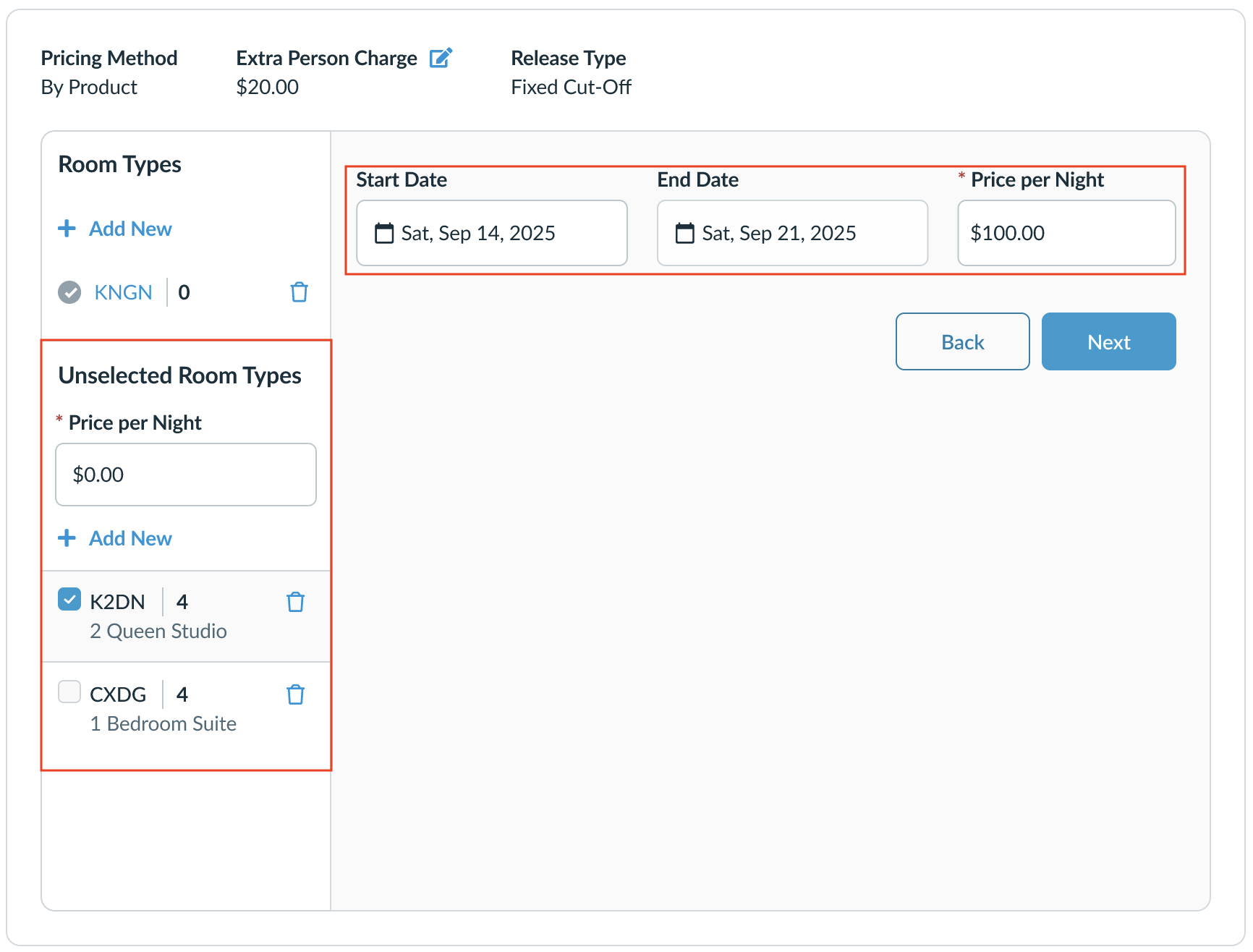
This selection supports both By Product and By Occupancy pricing. |
|
Pricing Method as By Occupancy Steps are similar to Product steps:
|
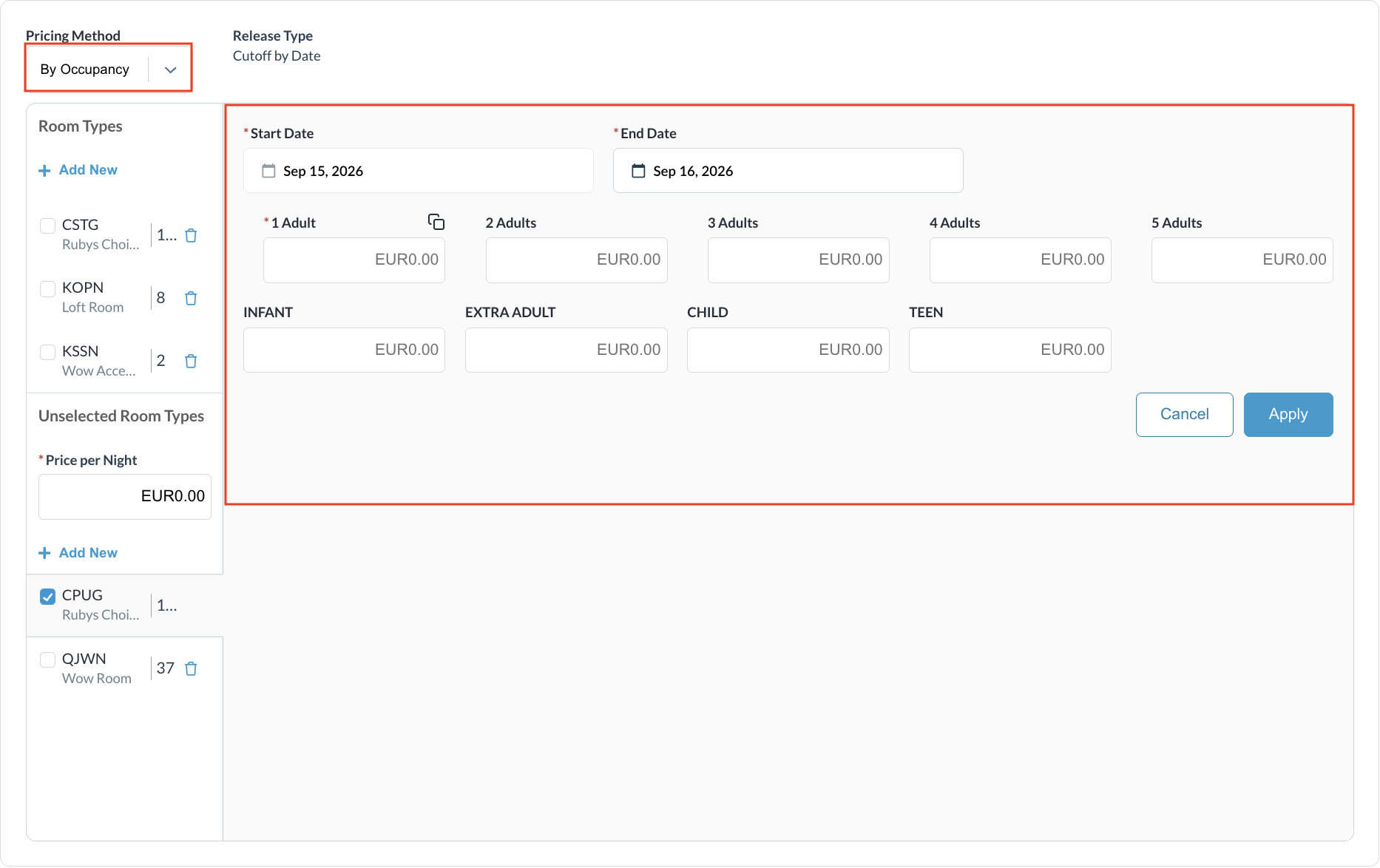
Note on Adult and Child pricing:
The property can change the default range by opening a support ticket |
|
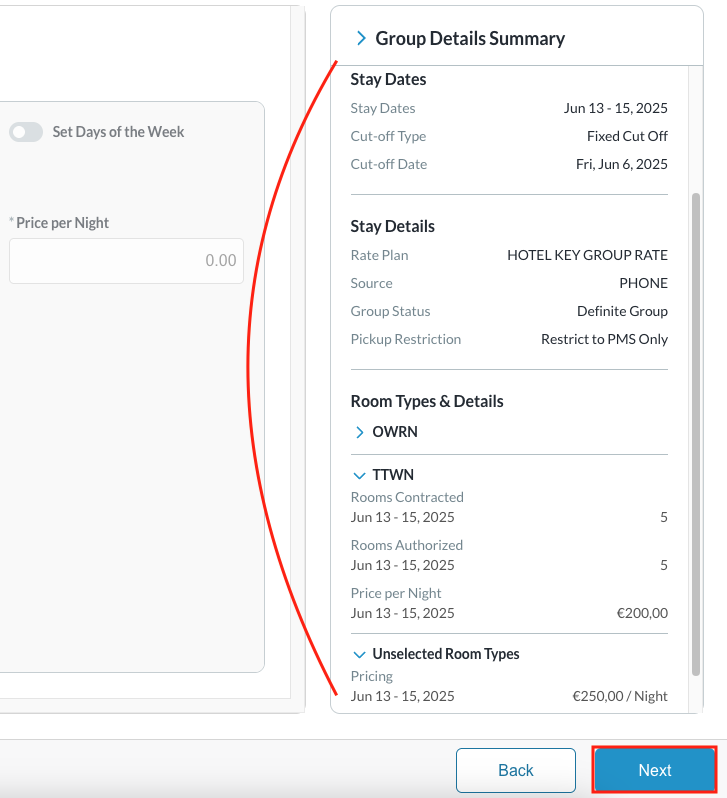
Group Details Summary Notice - while creating the group block, the details entered will show on the right side of the each screen.
Select Next to continue |
|
|
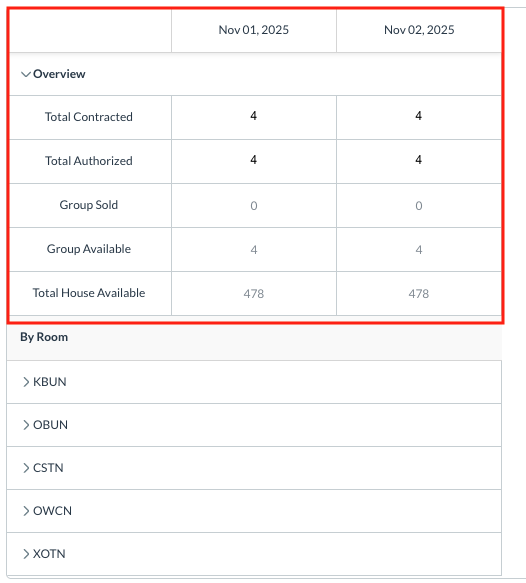
Review Allotments First box includes an overview of the block for the dates inventory is allocated:
|
|
|
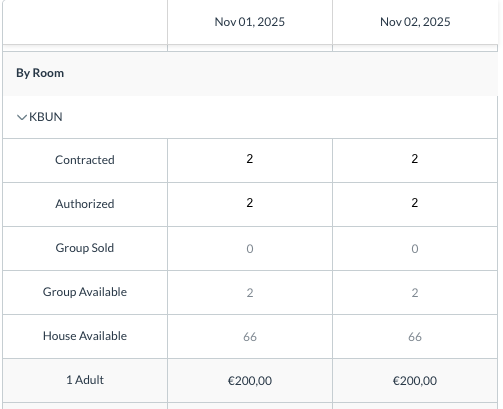
Notice - Selected room types are listed first. Open each room type to view:
|
|
|
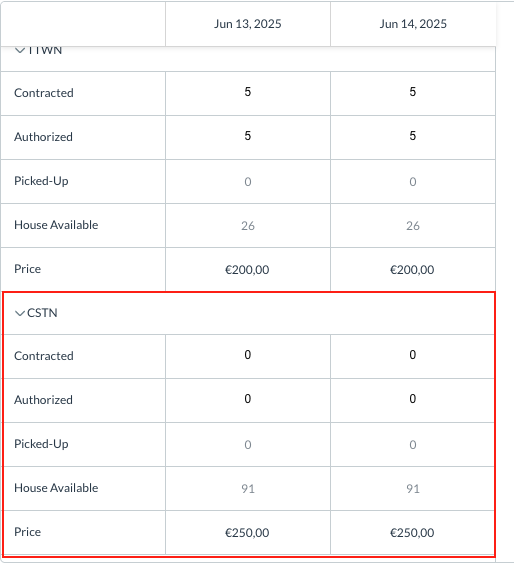
Unselected Room Types for the group block can be viewed after those that have been selected. Unselected Room Types will display the specific pricing breakdowns for any individually selected unselected room types
Click on NEXT to proceed |
|
|
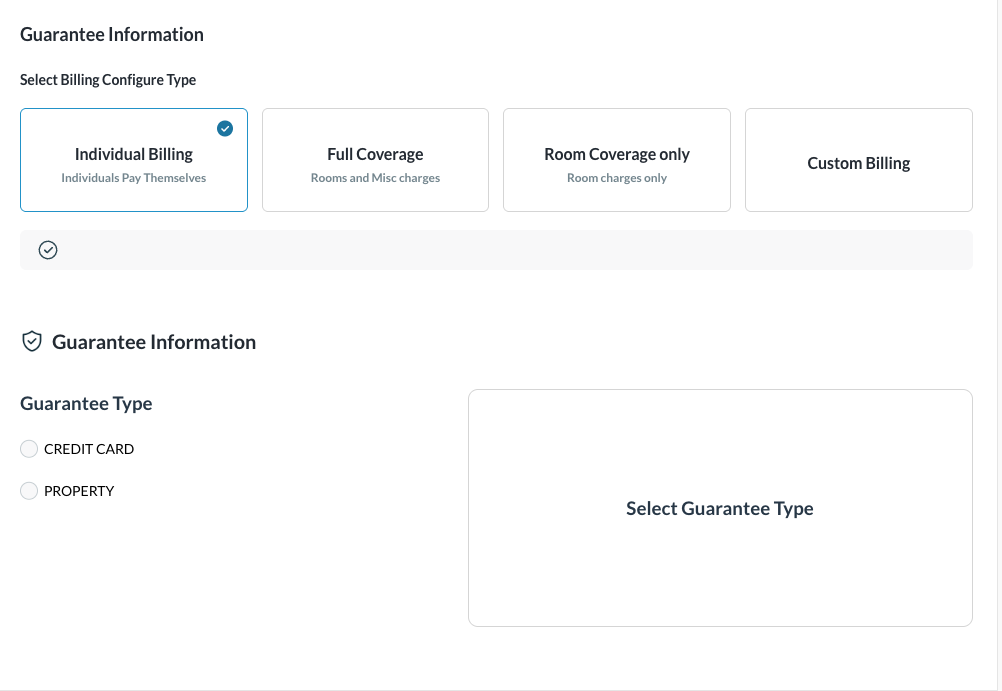
The Guarantee Information panel loads. Select the preferred Billing Configuration Type
|
|
|
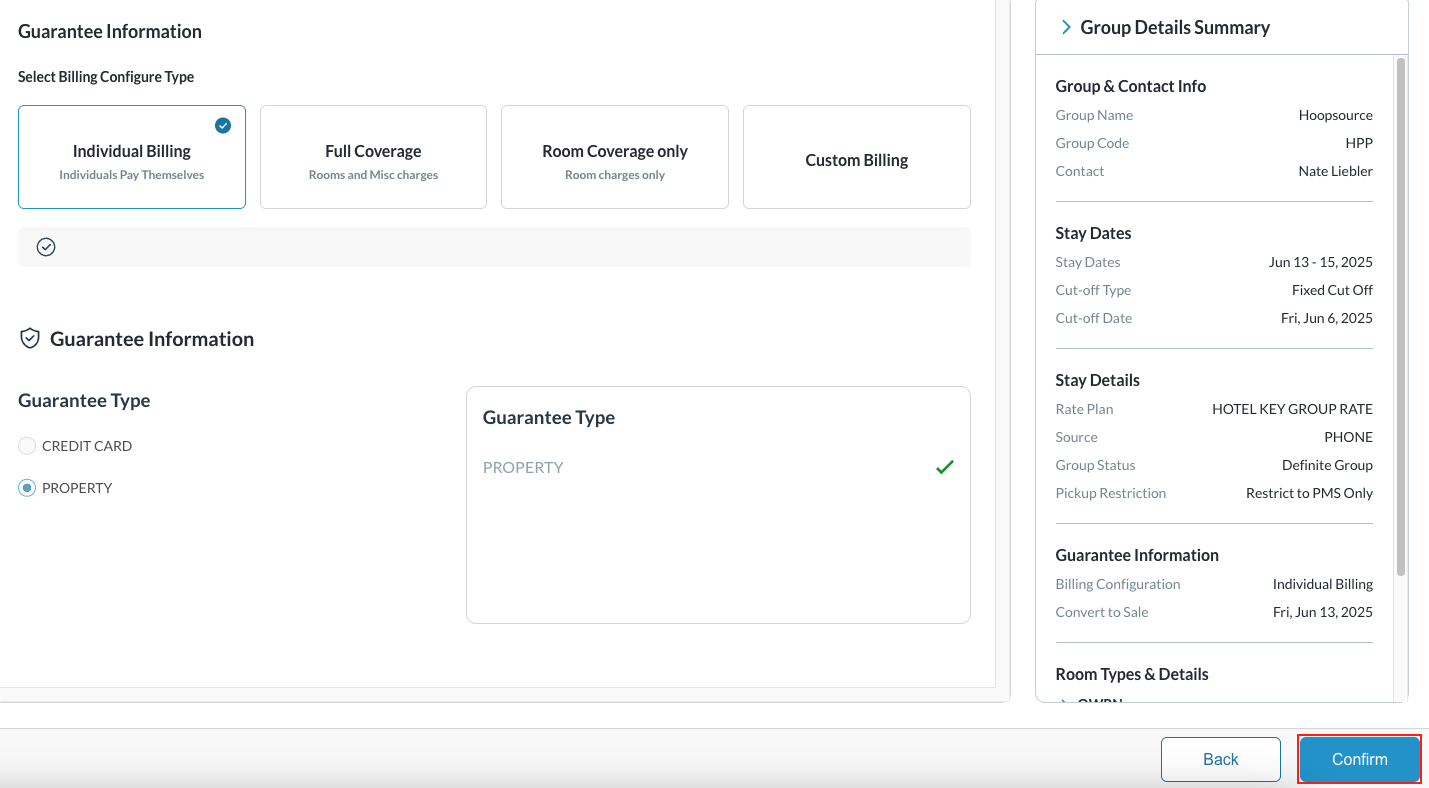
Select the Guarantee Type from the given options and click on Confirm Click on the final Confirm to create the Group Master |
|
Attaching a Local Company (create a Company Group Master)
|
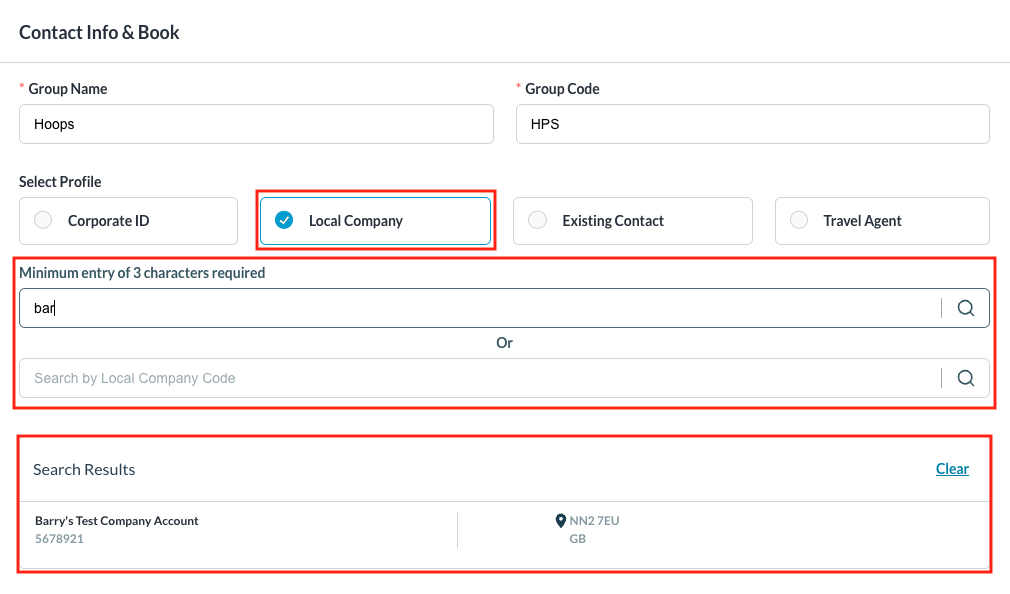
Enter Contact Info & Book screen - Enter details for Group Name and Group Code Then select to copy the profile from an existing Corporate ID or a Local Company Select the company from the returned results by clicking on the company name and complete any fields in the address that are not populated
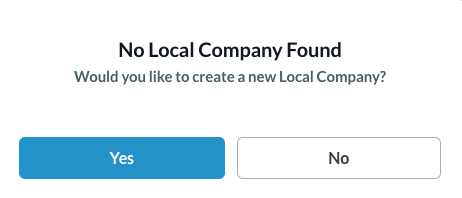
Should the local company not exist, you will have the option to create one from this screen
Proceed with completing the steps for group creation |
|