
📆 Revision Date:
Cancel a Group Master
|
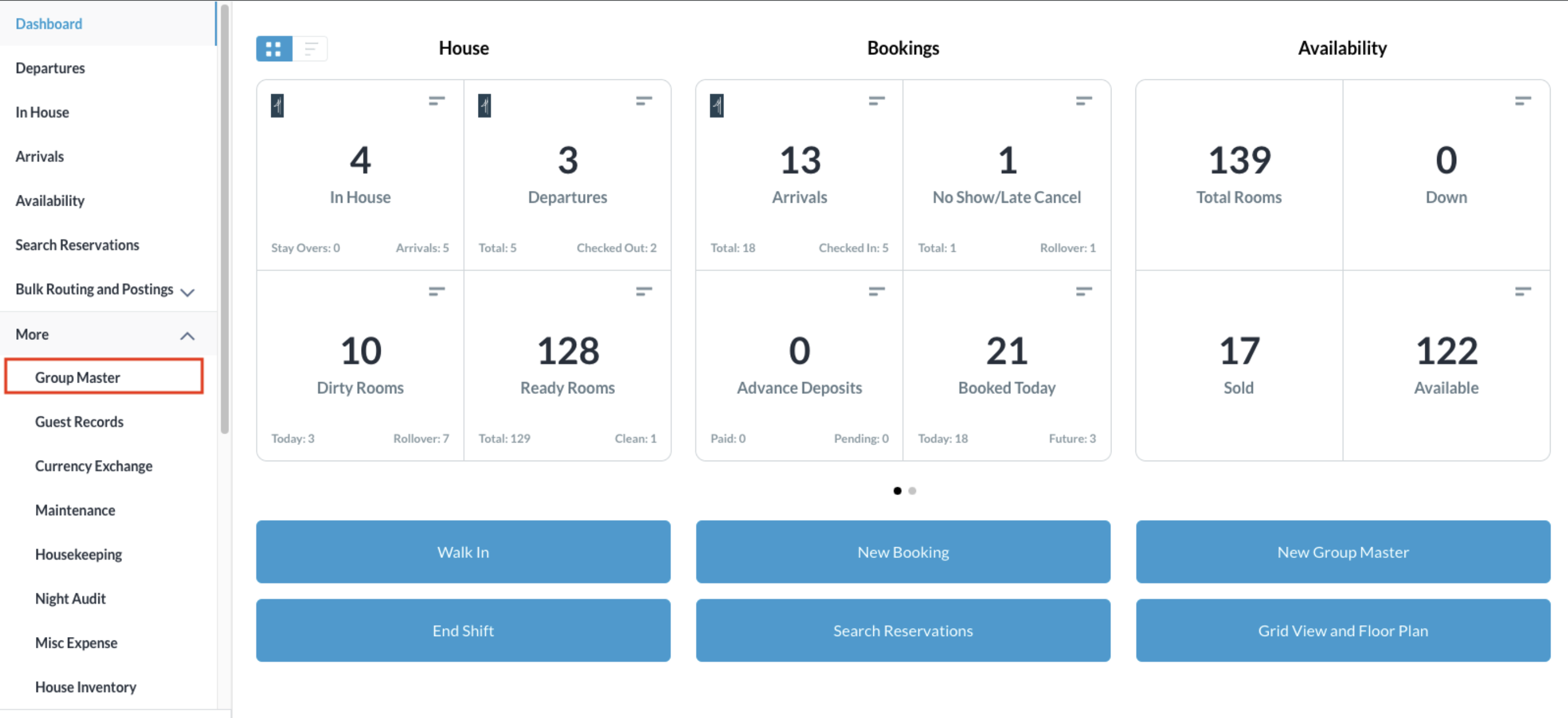
From the Dashboard, select More to expand the menu Select Group Master |
|
|
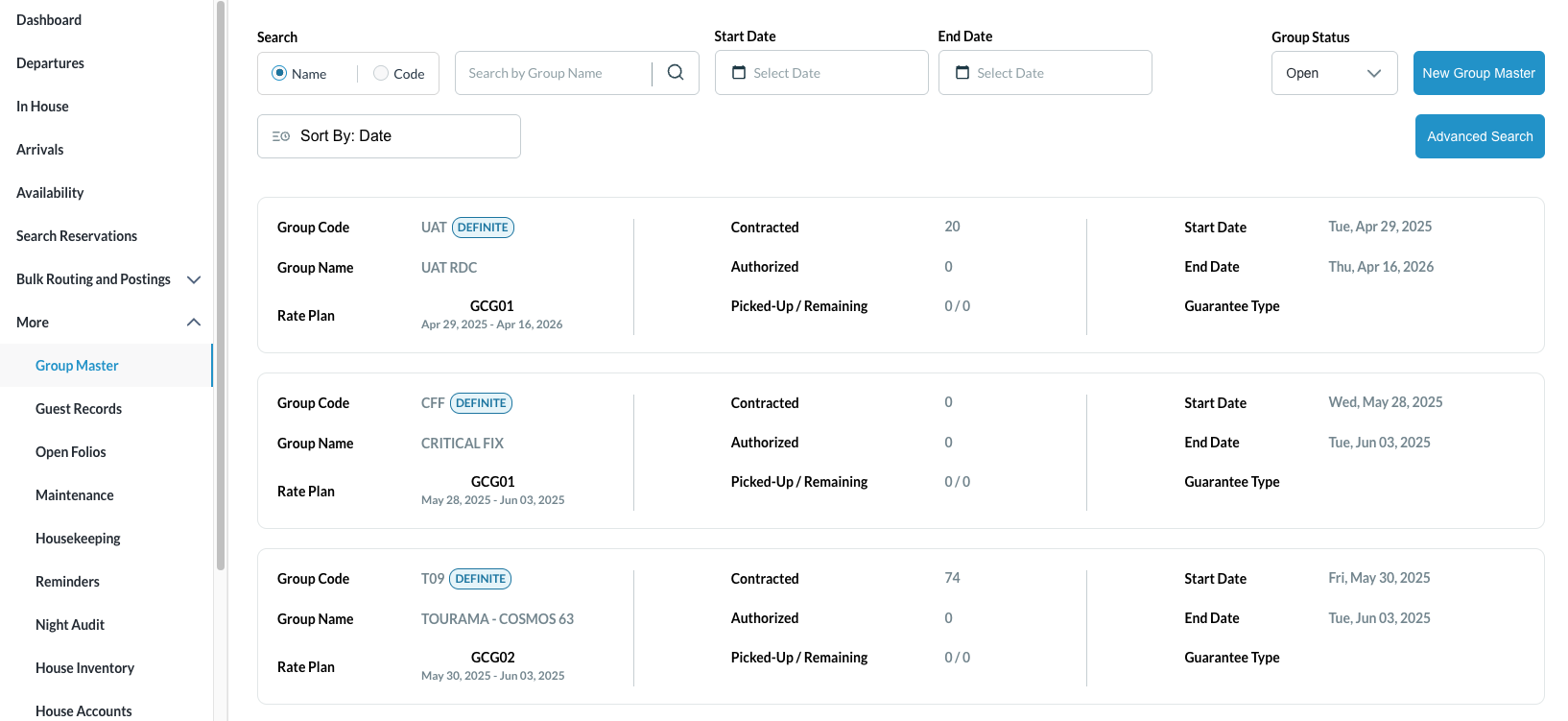
Search for the Group Master by Name, Code, Date or its Status and click on it to open |
|
|
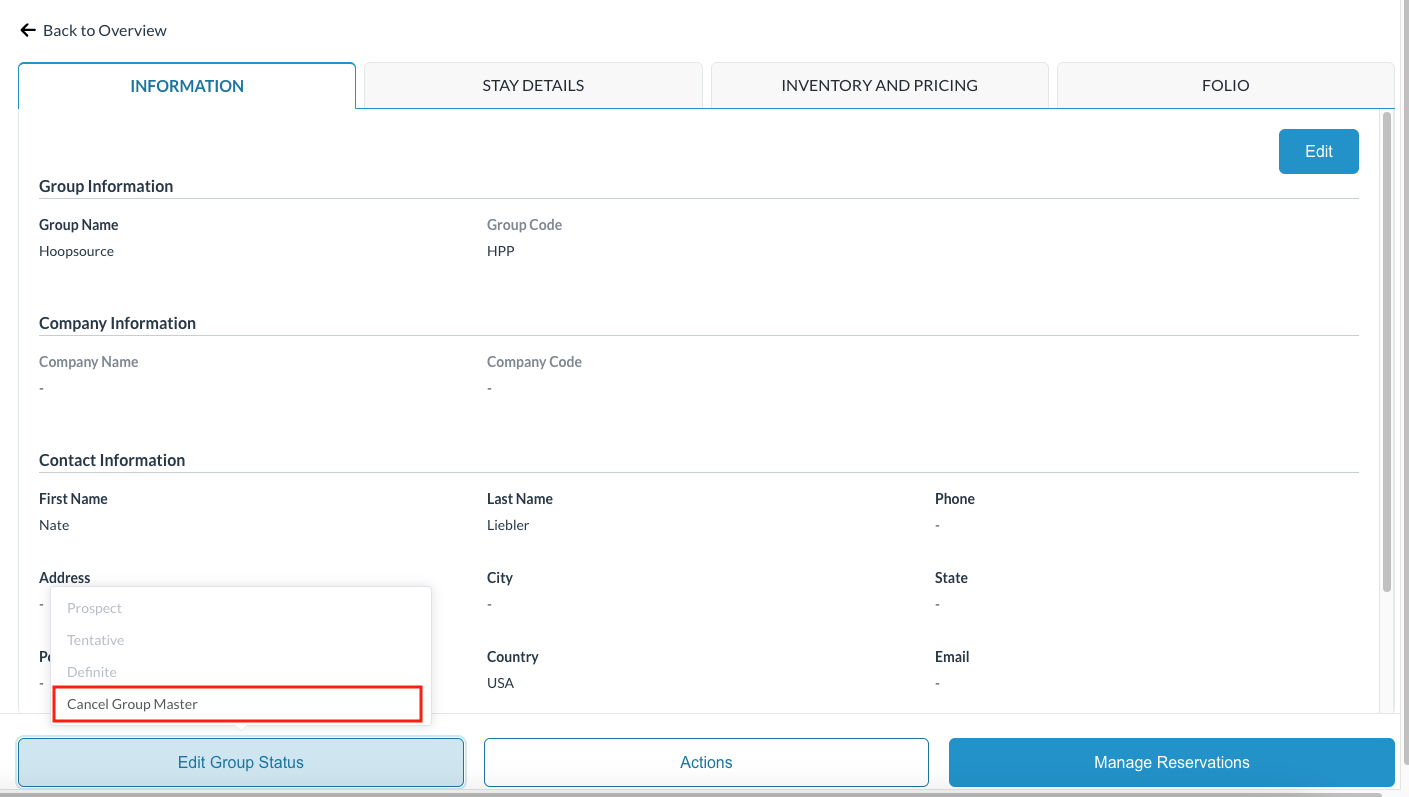
Once selected, click on Edit Group Status Then select Cancel Group Master |
|
|
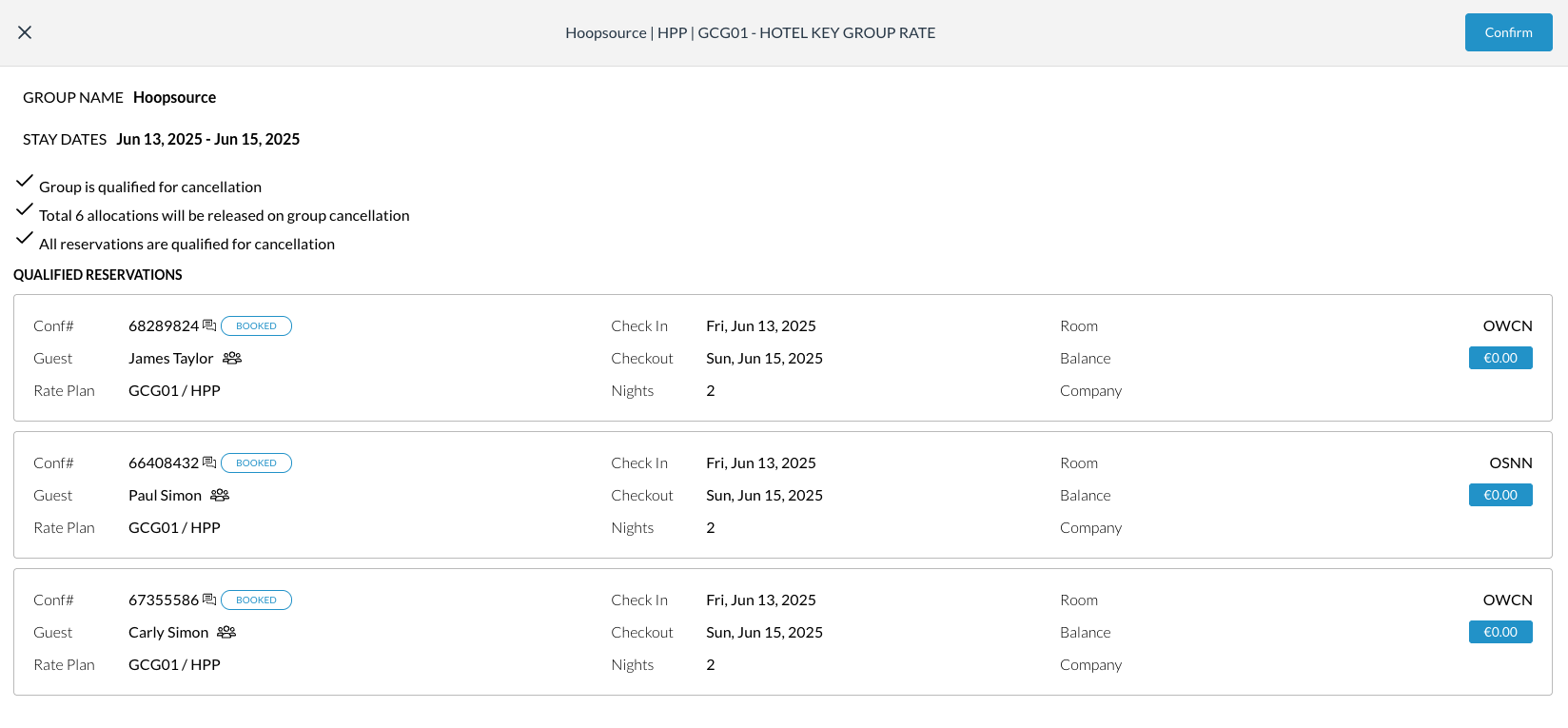
The Group Cancellation screen loads where the following items are noted - group name, stay dates, if the group is qualified for cancellation and how many allocated rooms will be returned to general inventory. Click on Confirm |
|
|
If there are reservations attached, the cancel reservation screen will be displayed. Click on Confirm to approve the cancellation of the member reservations as well. |
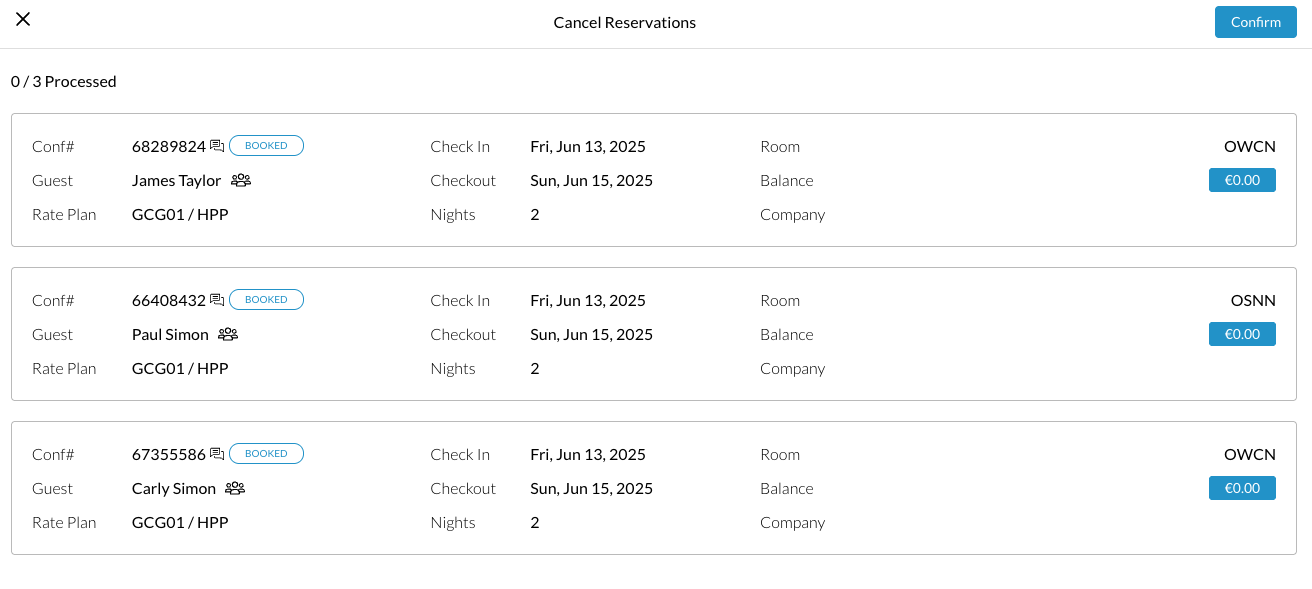
|
|
The group is now cancelled and indicates so at the top of the Group Master |
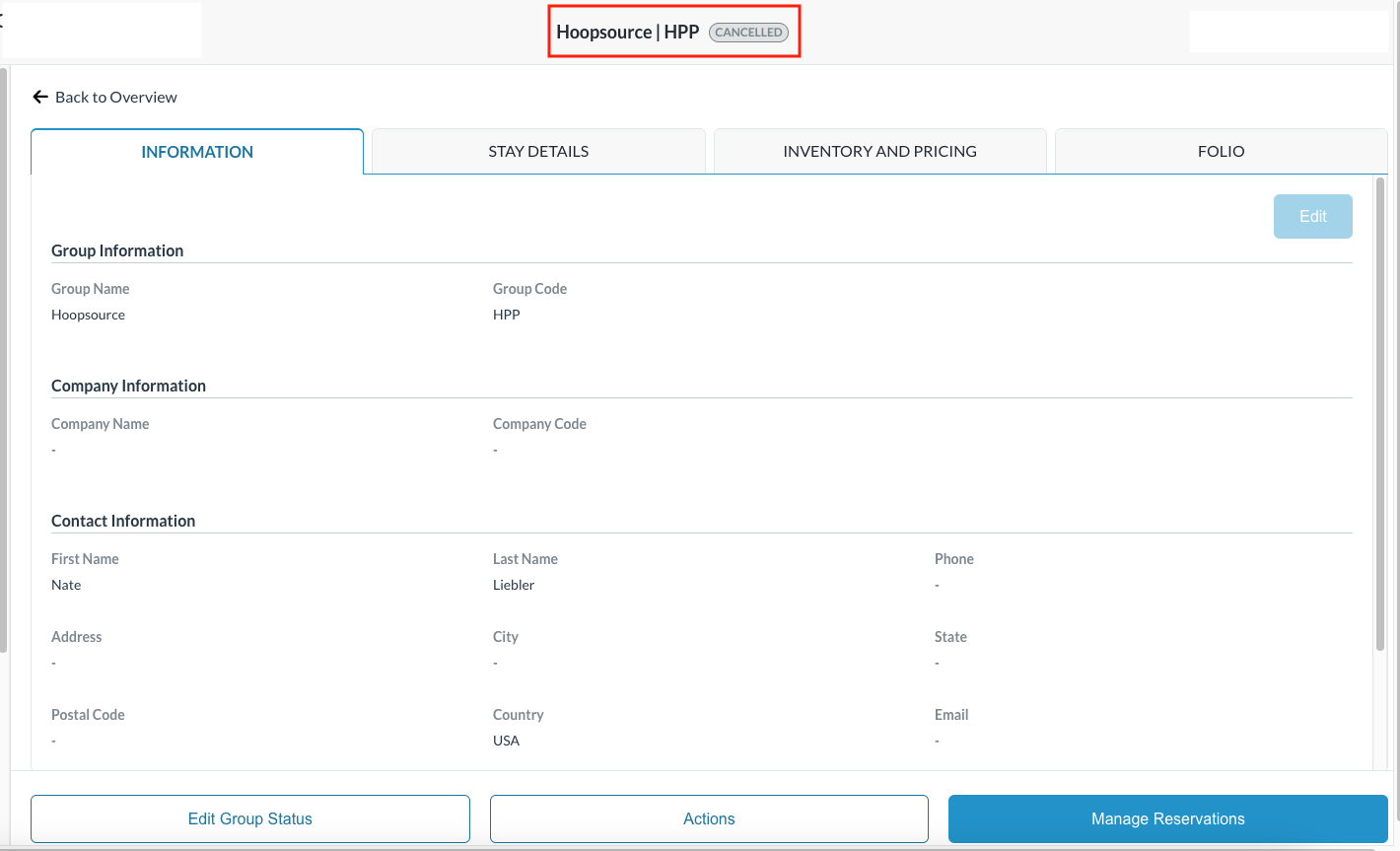
|
Close Group Master
This option will be shown when the group’s departure date is before the current business date, triggering a confirmation popup with Confirm and Cancel actions.
On confirmation to Close the group, the group status updates to Closed, a success message is shown, and the action is logged in the audit trail.
|
Click on Edit Group Status Then select Close Group Master
|
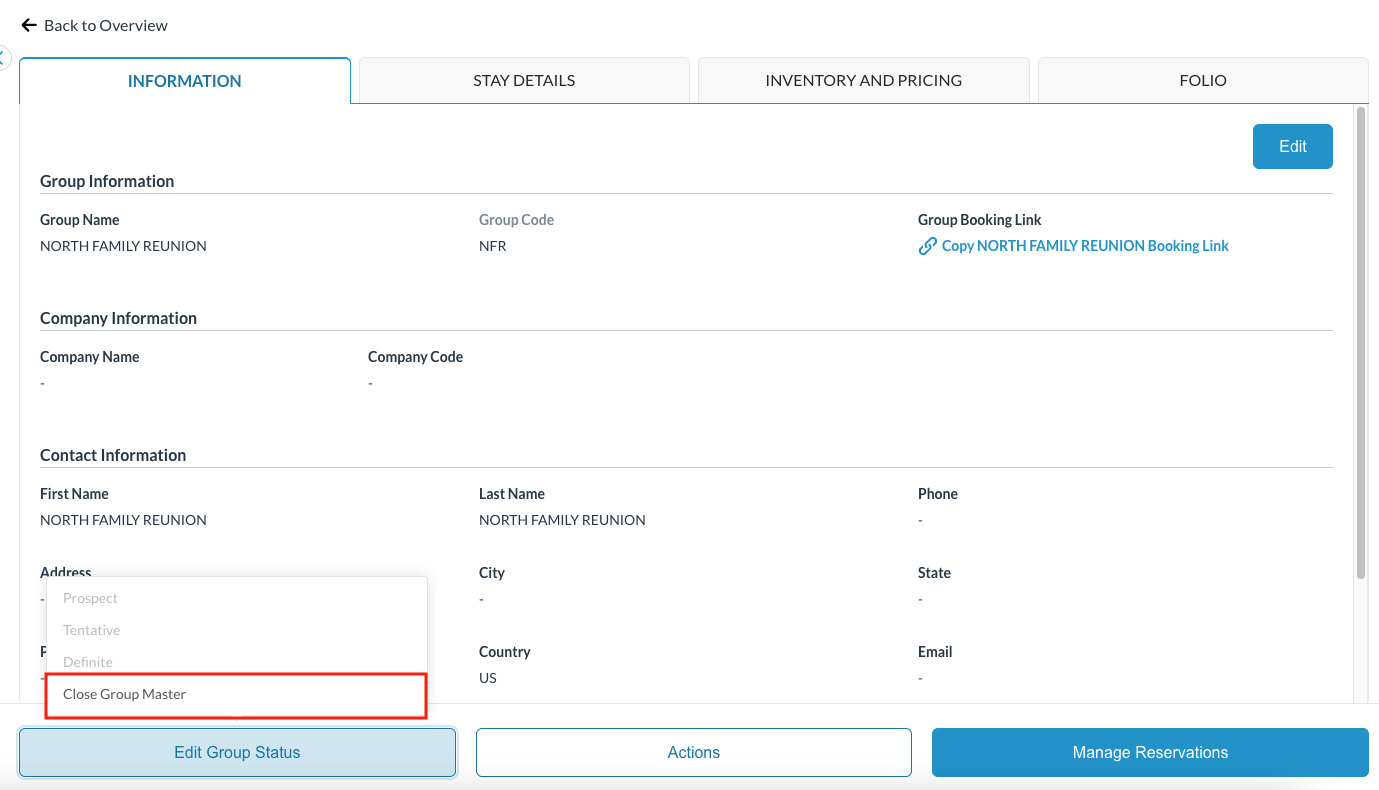
|
|
Select Confirm to close the group master |
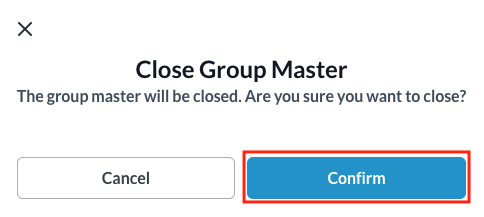
|
|
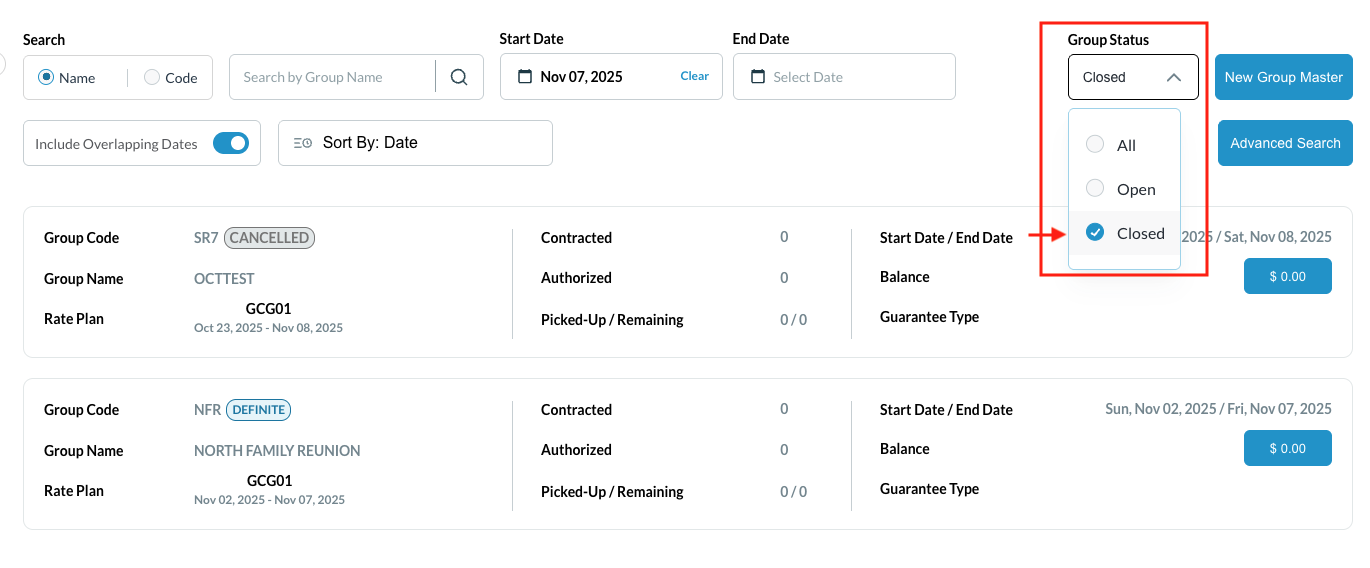
From the Group Master listing screen, now select the Group Status and choose Closed to see the closed group masters |
|
Stop Charges & Payments on Closed Group
When the associated configurations are enabled, all cashiering and billing capabilities on the group's folio are restricted to prevent unauthorized modifications, enforcing that the Group Master is locked down immediately upon reaching a finalized status (Check out or No Show).
|
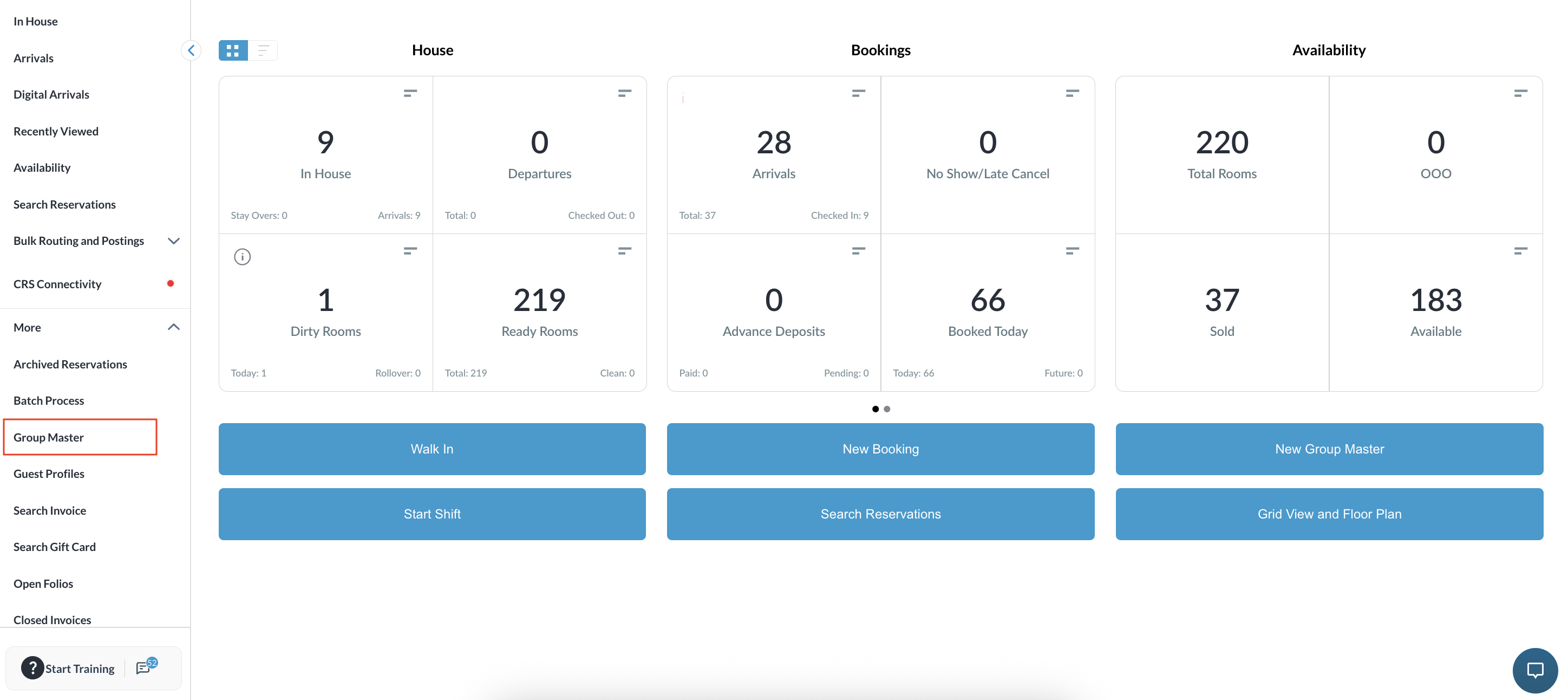
Navigate to the Group Master from Dashboard |
|
|
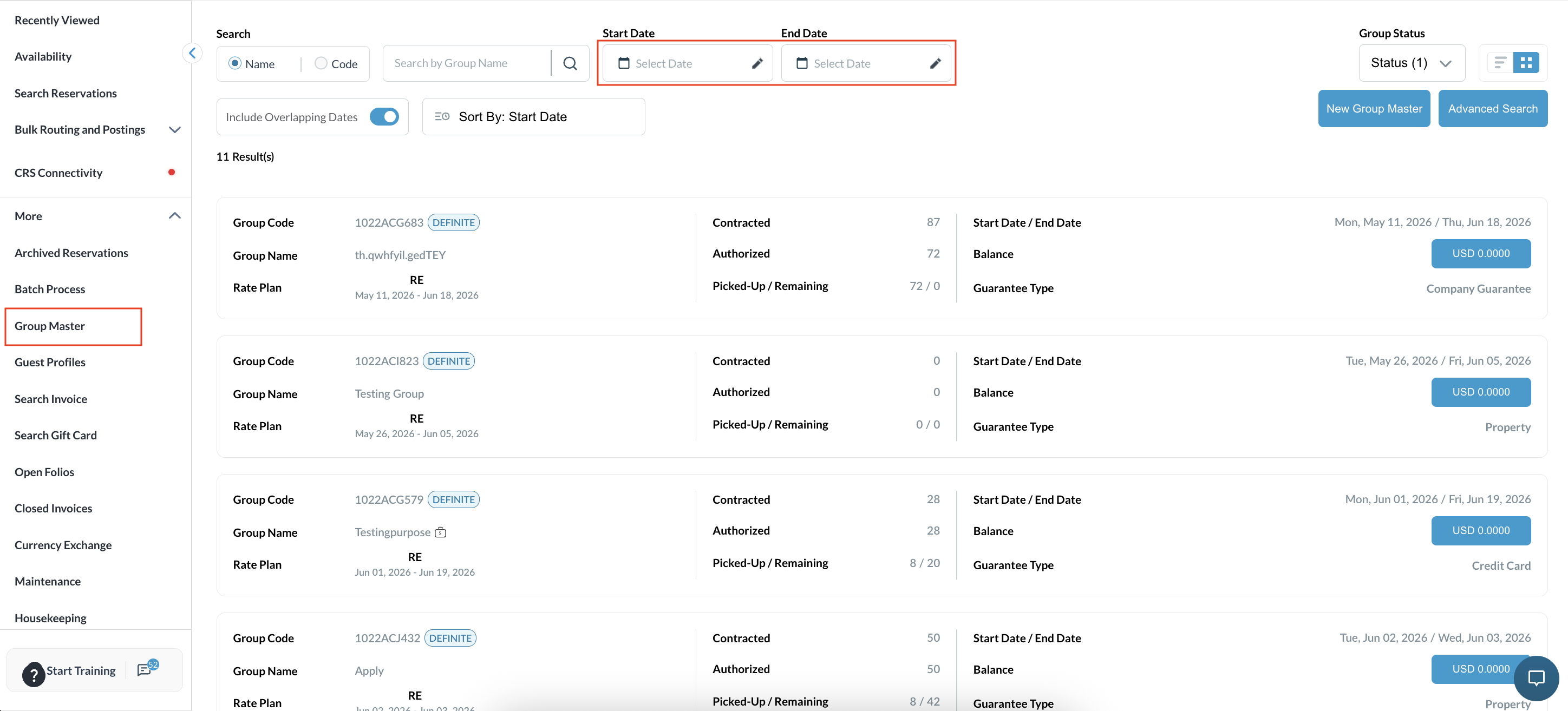
Select the target Start Date and End Date range. |
|
|
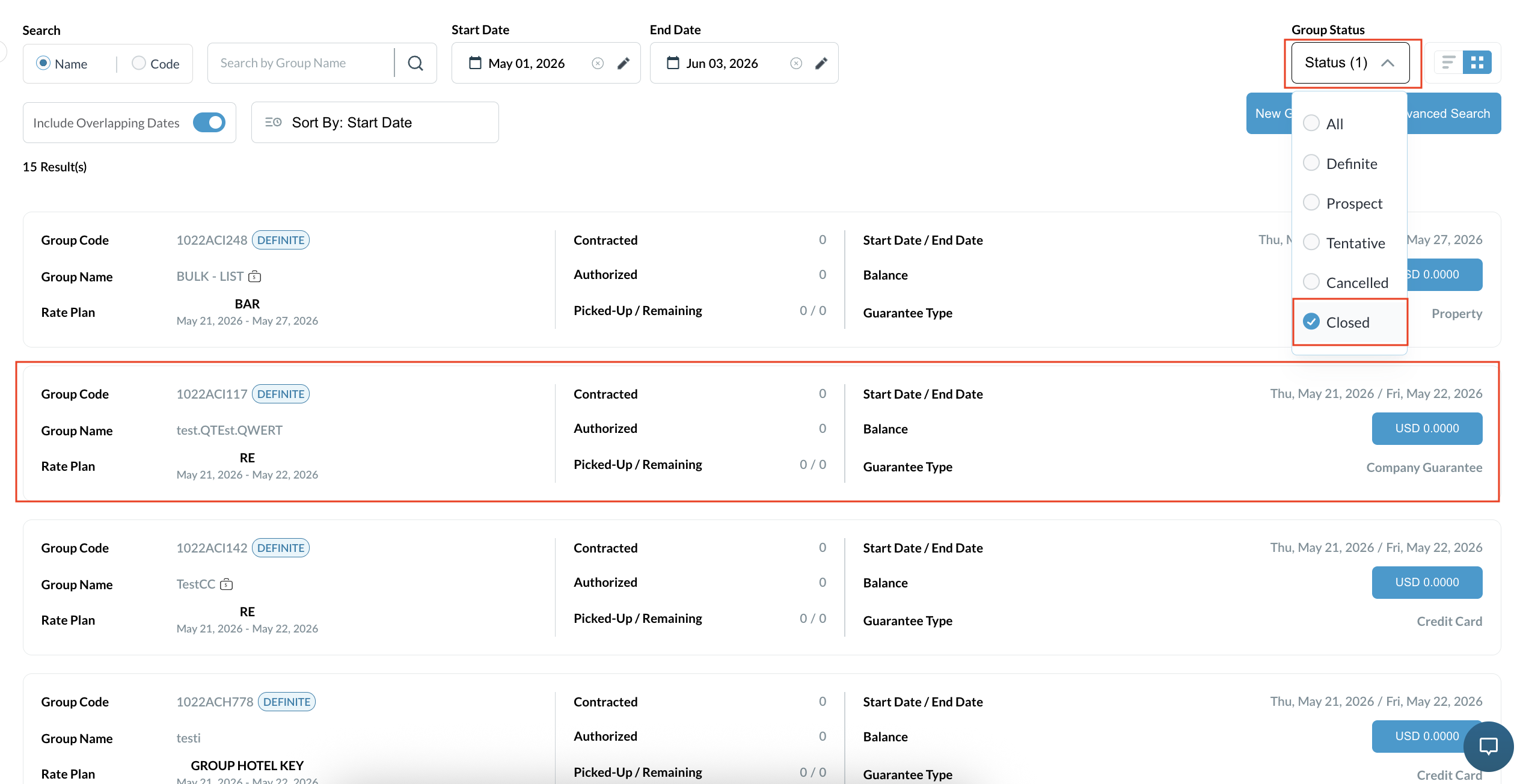
Set the status filter to search for closed groups (Status = Select and open the target closed Group Master reservation from the search results. |
|
|
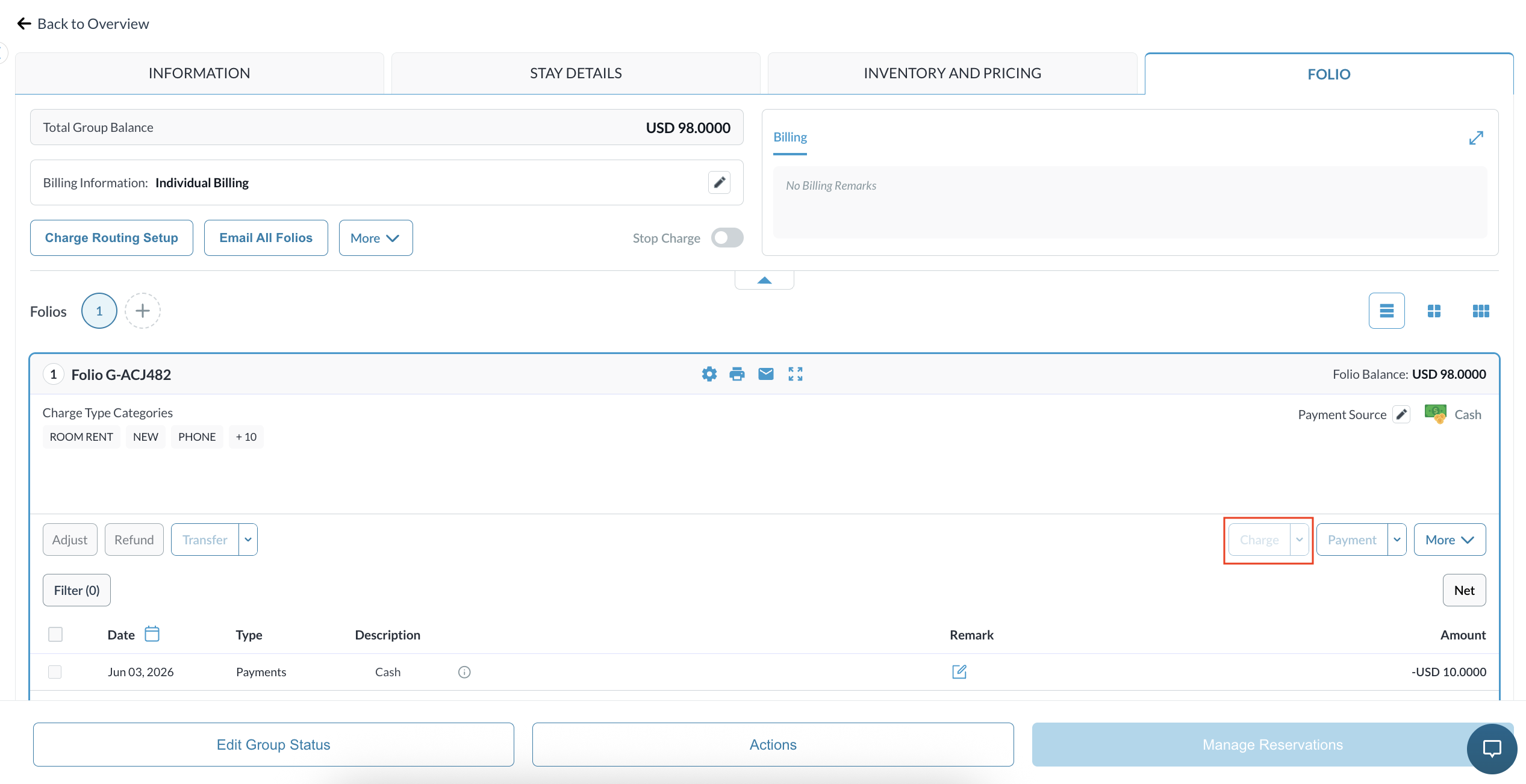
Click on the Folio tab and verify that the Charge button is disabled/greyed out.
Confirm that add-on packages cannot be applied to the folio. |
|
|
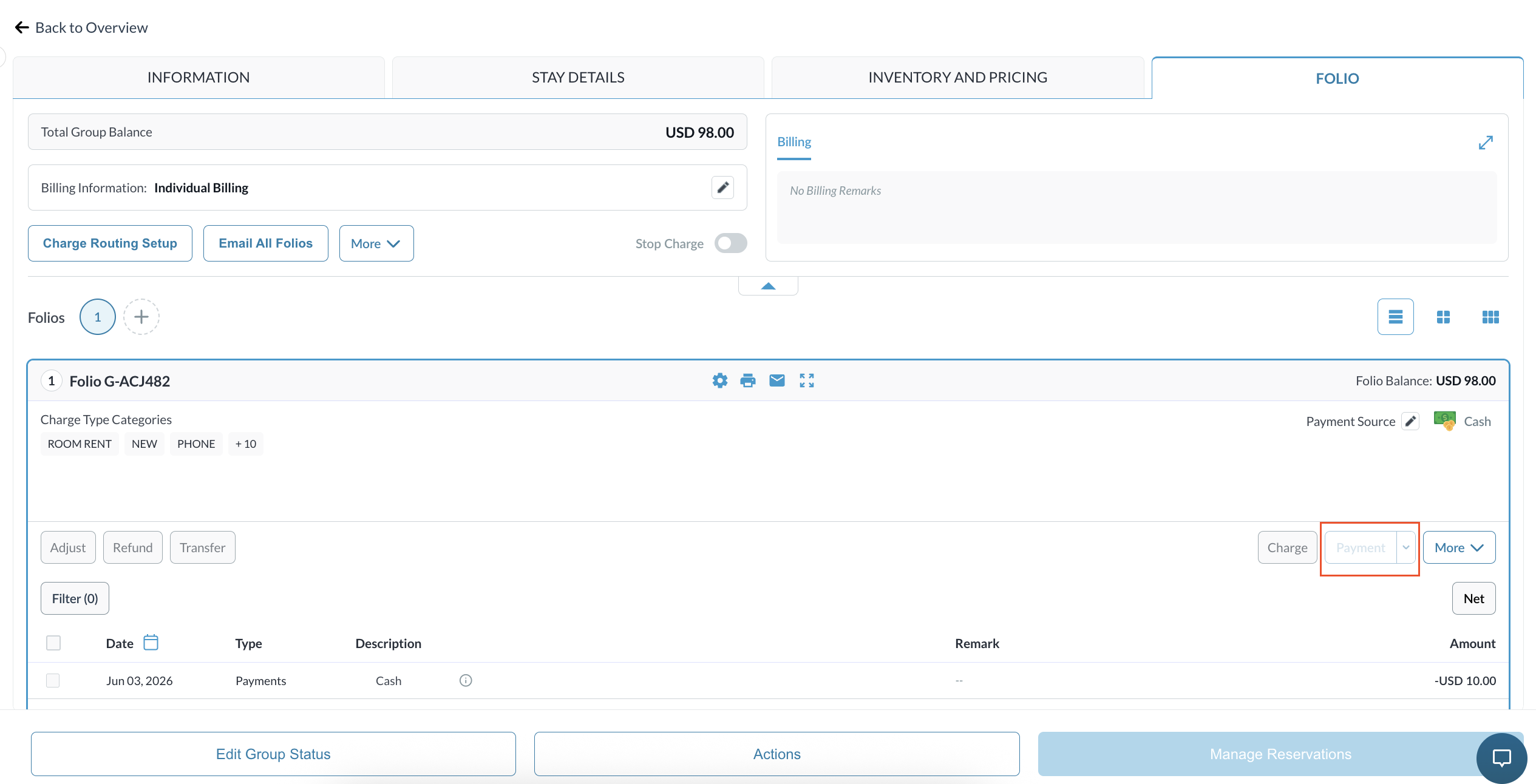
Verify that the Payment button is disabled/greyed out. |
|
|
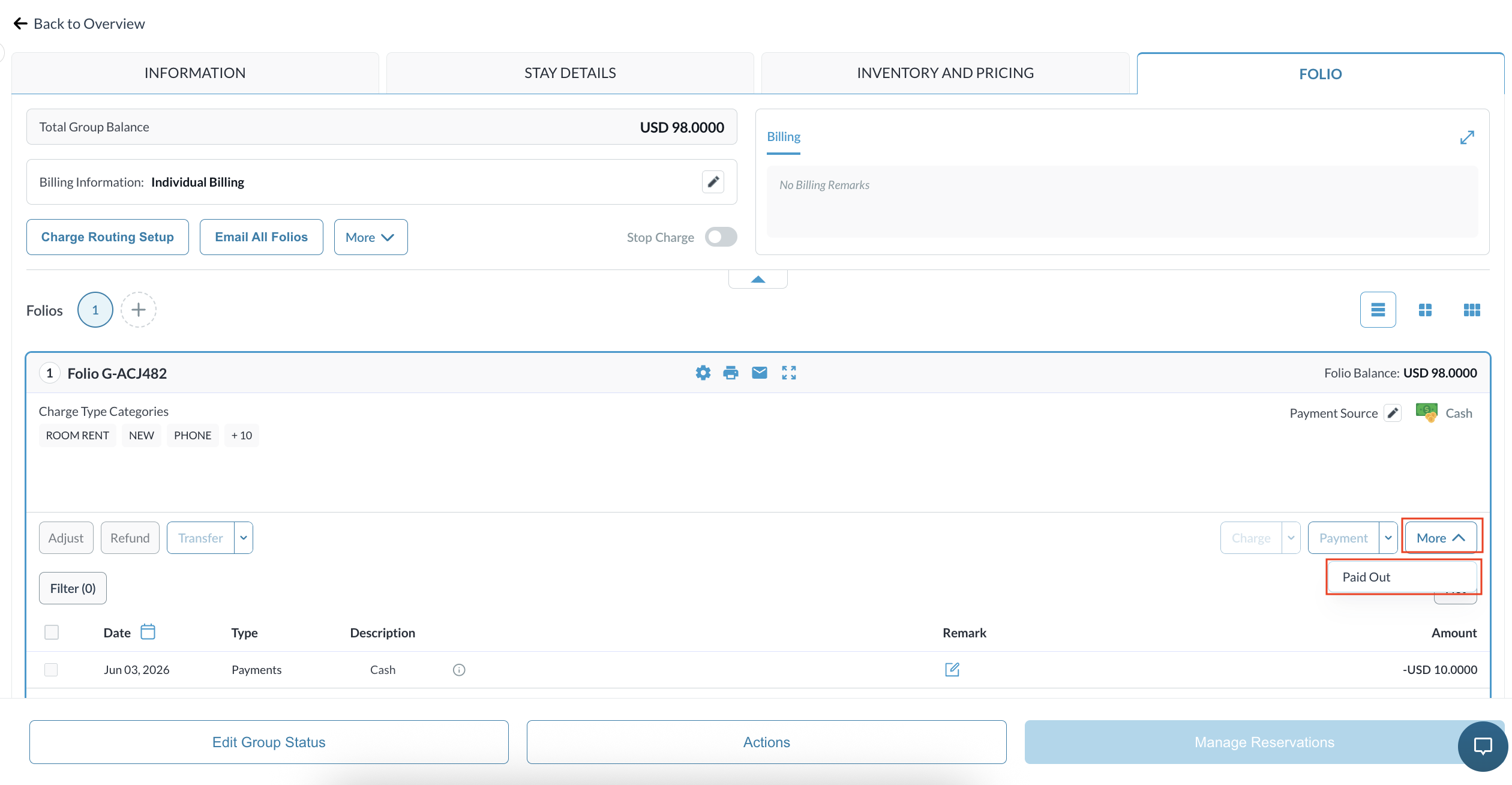
Click the More button and confirm that the Web Payment Links option is hidden from the menu. |
|