
Revision Date:
The group copy functionality allows users to duplicate an existing Group Master directly from the Actions menu. Rather than manually re-entering recurring data, users can selectively carry over a robust set of attributes into a new group block.
|
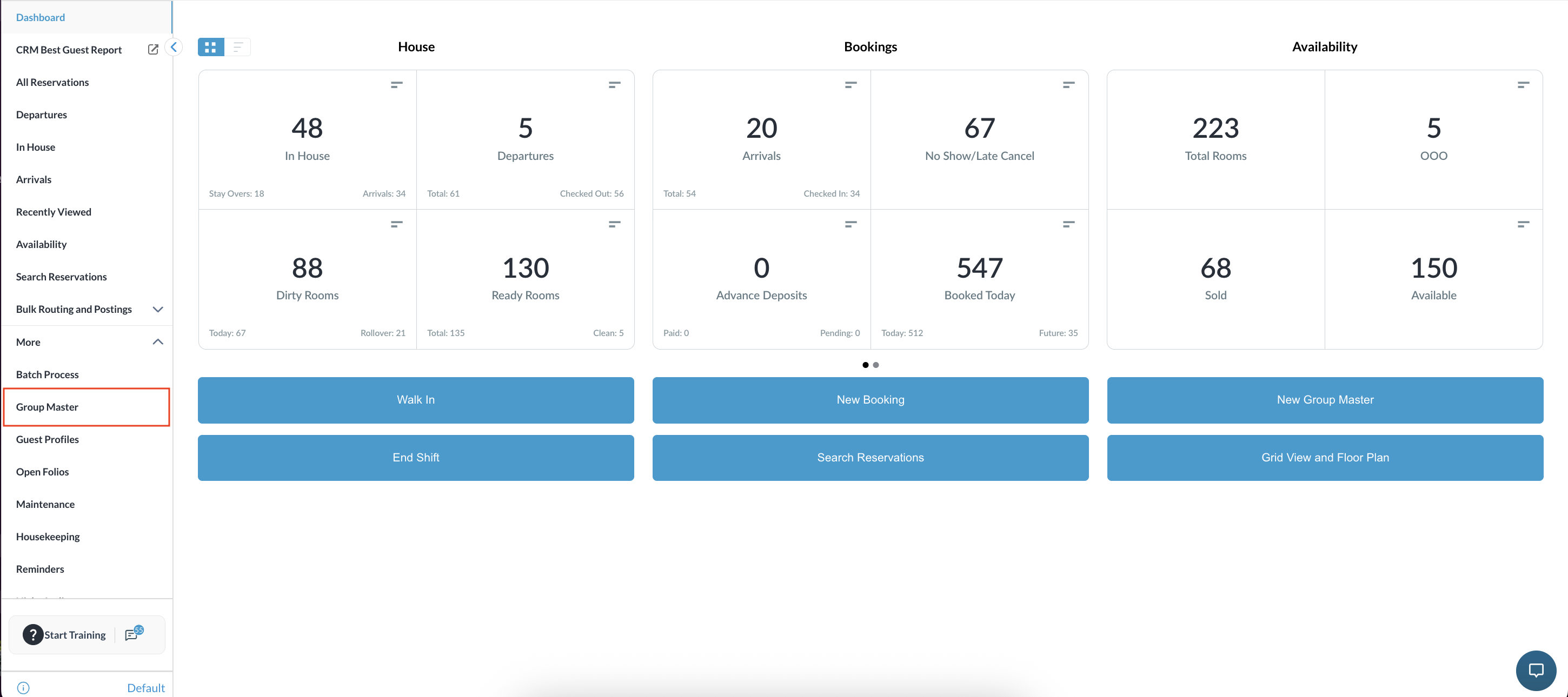
Navigate to the Frontdesk Dashboard > More and select Group Master |
|
|
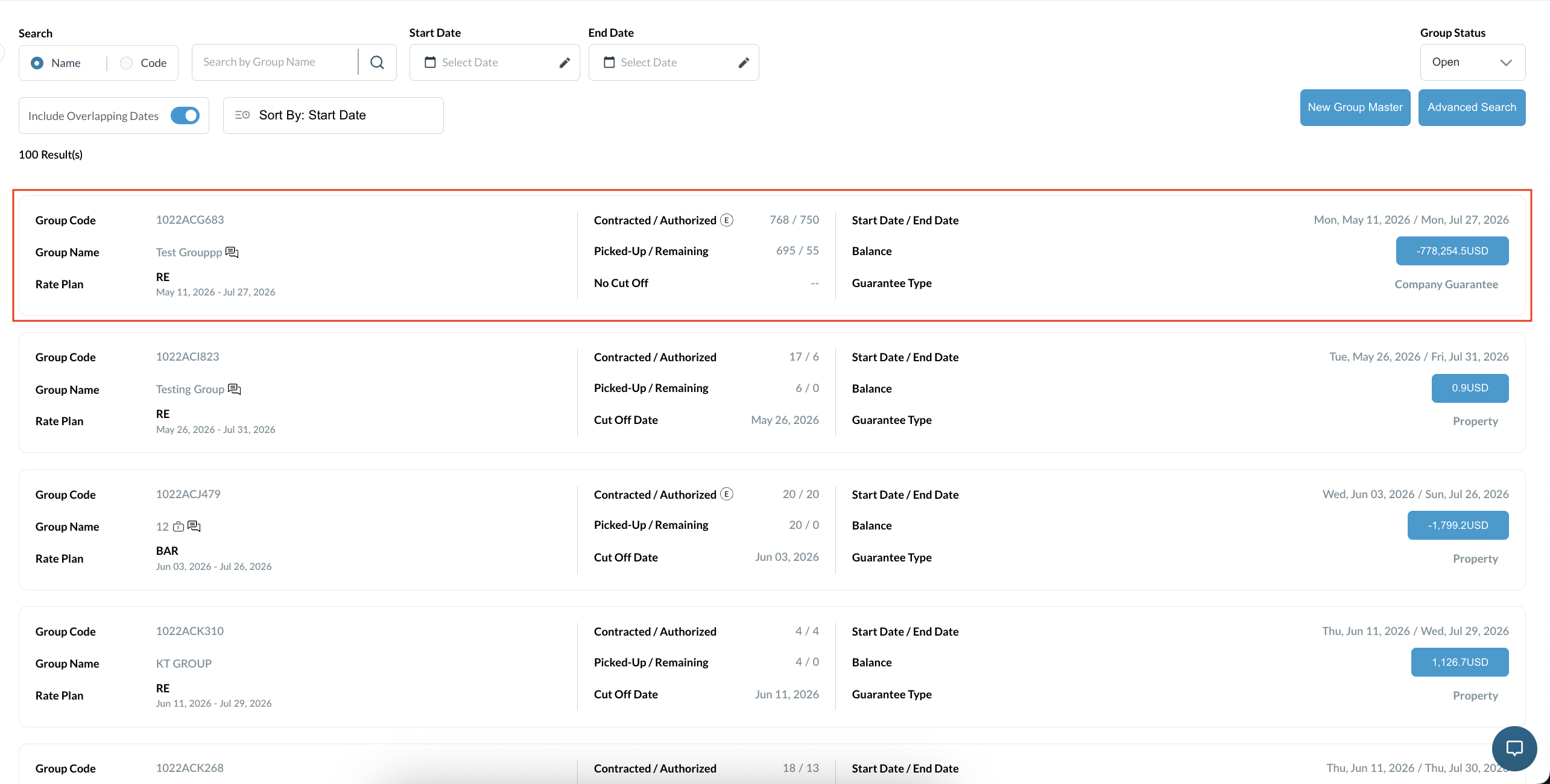
Locate and open the desired group block by using the search function or selecting it directly from the list. |
|
|
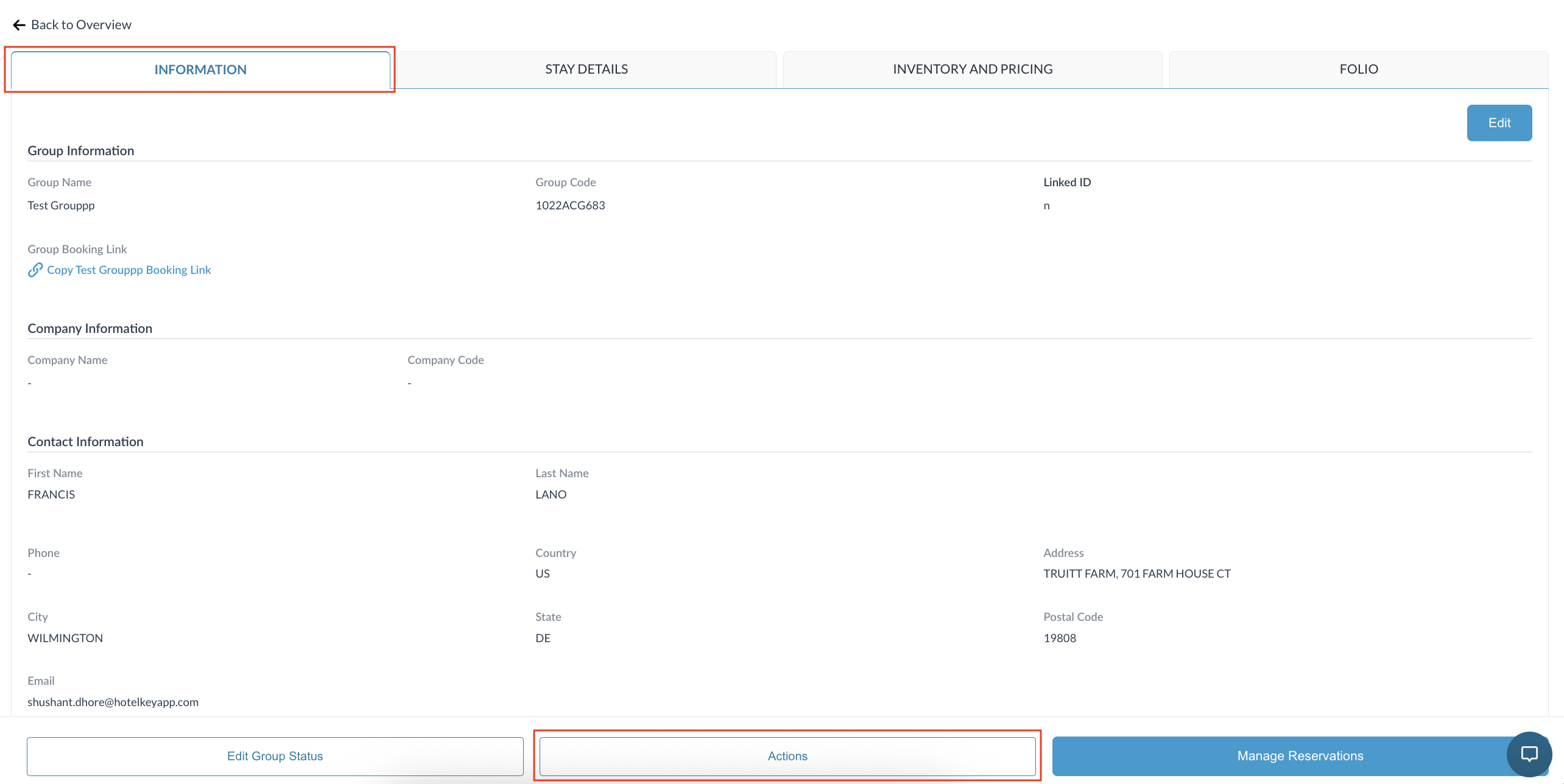
Within the selected Group Master, ensure you are on the Information tab. Click Actions |
|
|
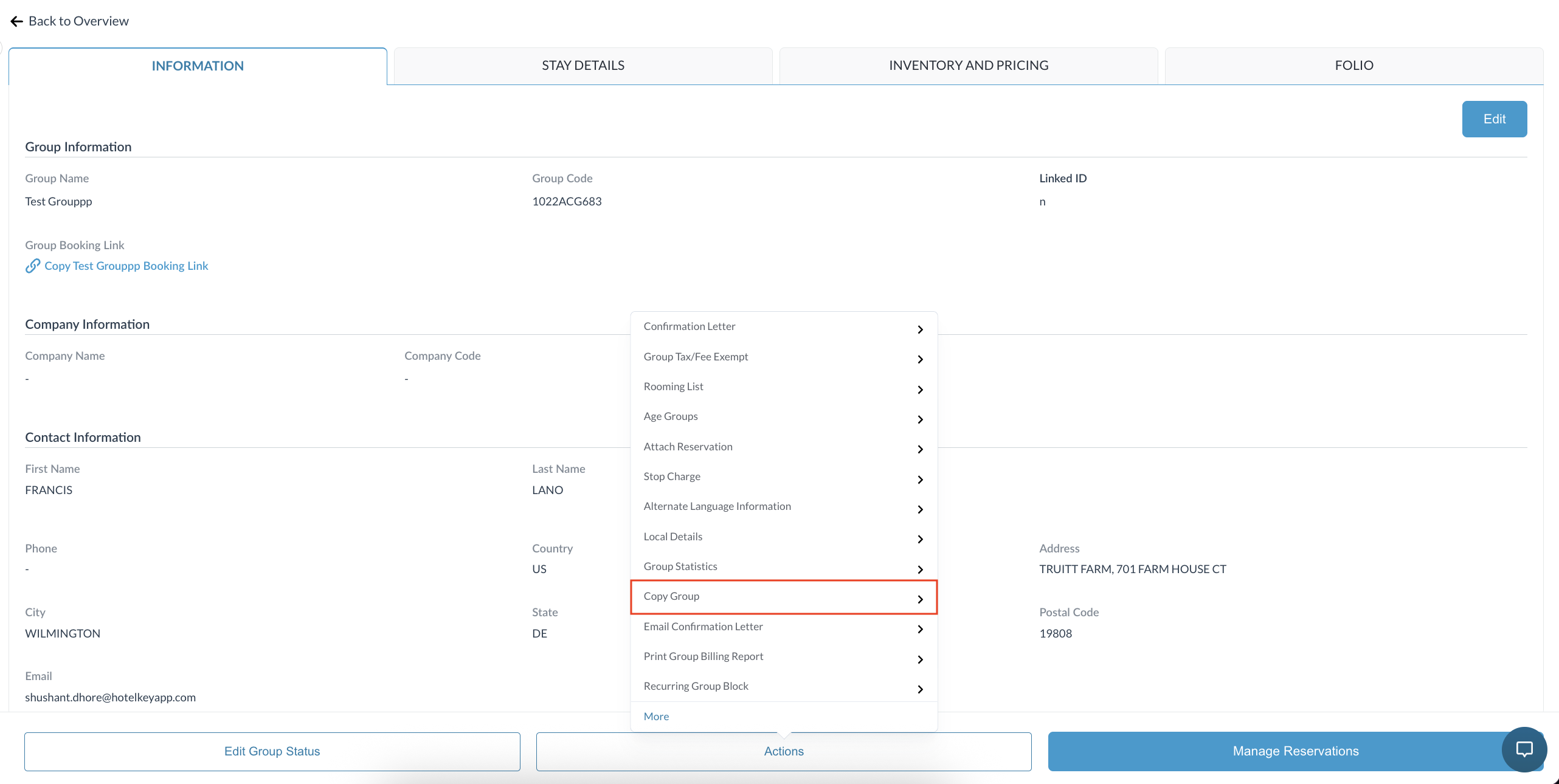
Select Copy Group from the dropdown menu |
|
|
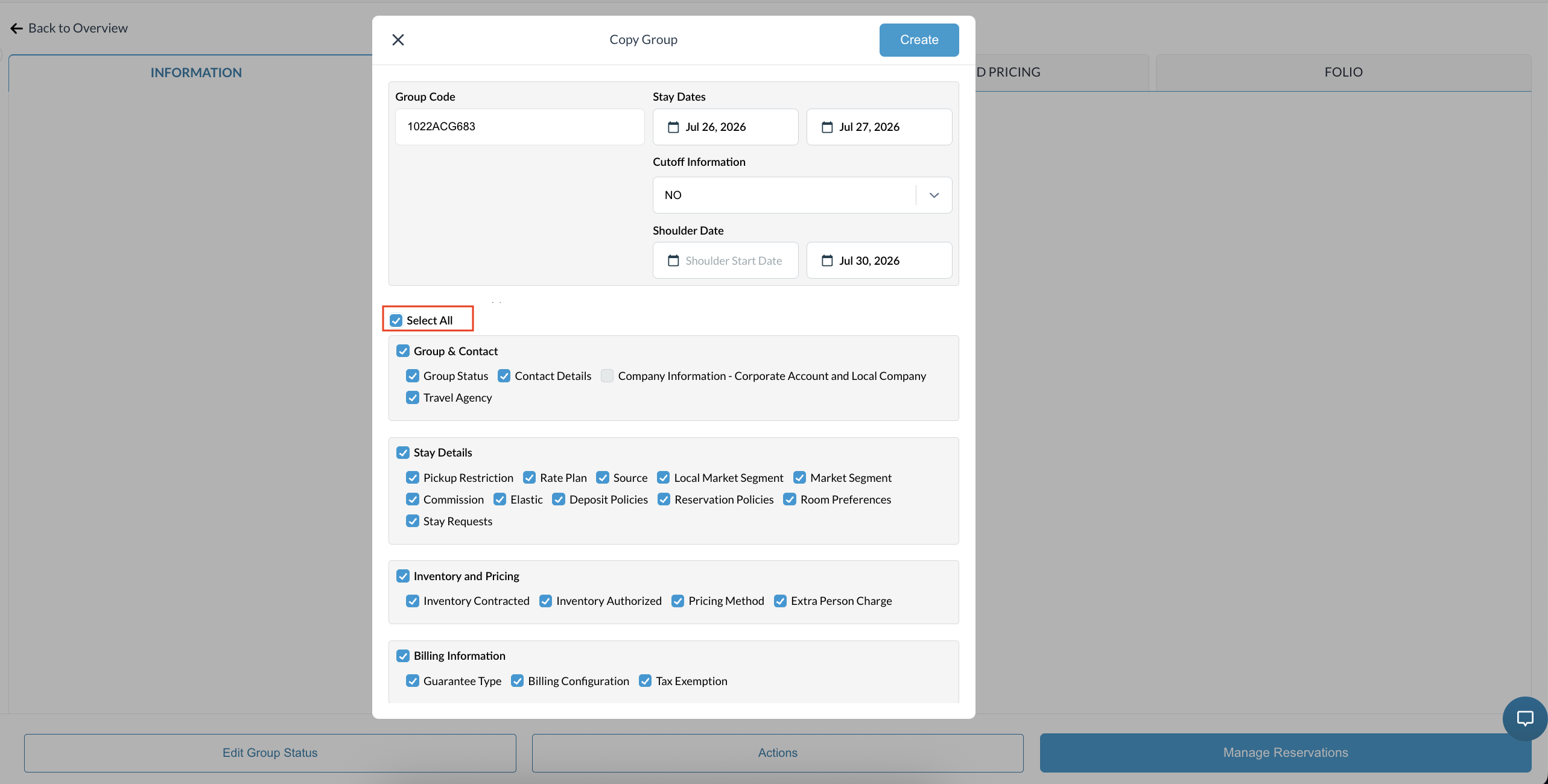
The Copy Group modal will appear, displaying checkboxes for all the group attributes enabled for duplication by your property's configuration. In this modal, you can also modify or edit the unique details for the new block, such as the Group Code, Stay Dates, Cutoff Information, and Shoulder Dates. Select the specific details you wish to carry over to the new group block. |
|
|
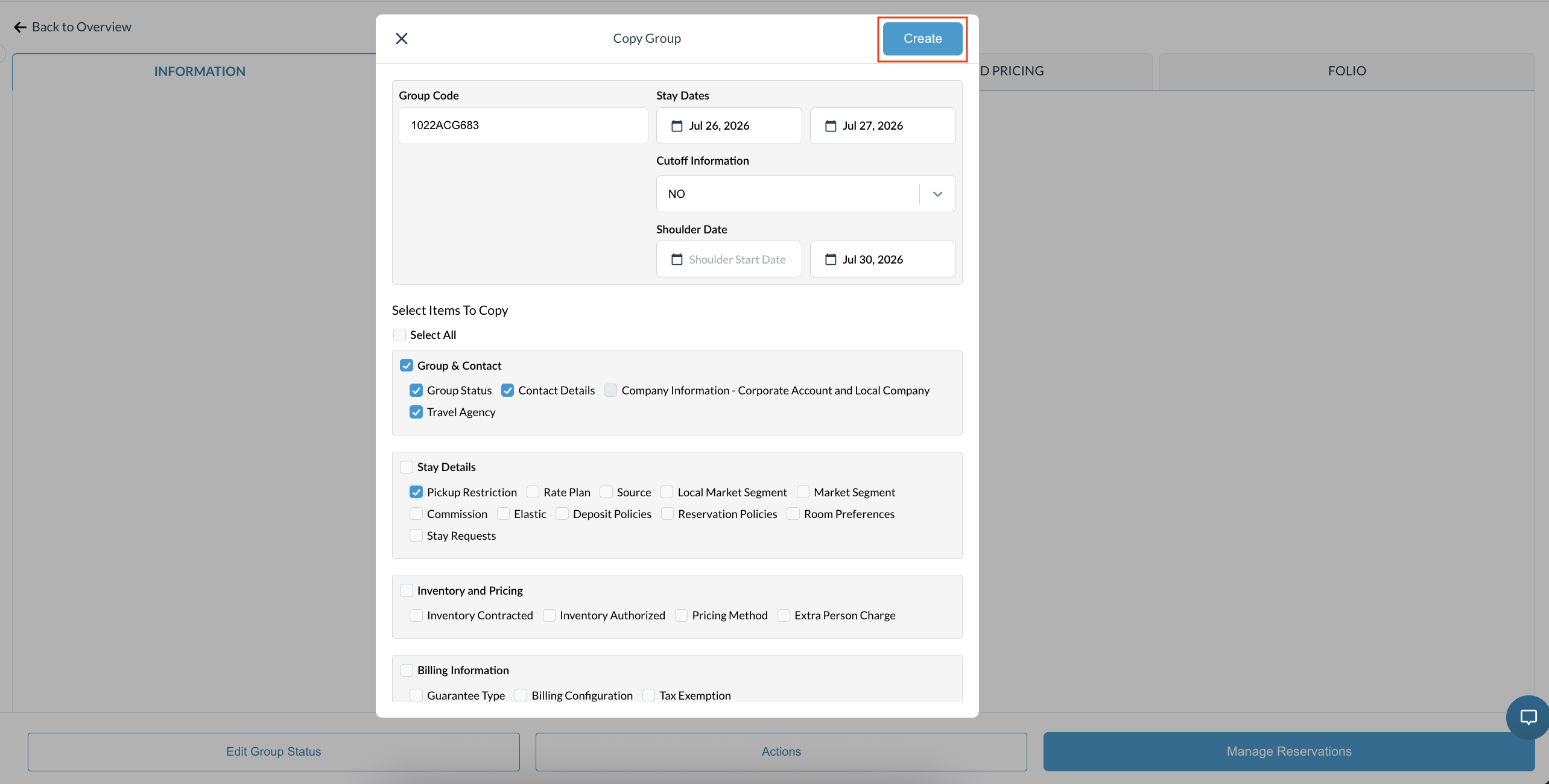
You can use the Select All checkbox to copy an entire section , or manually check individual items (e.g., Group & Contact, Pickup Restriction). Click Create to confirm your selections. |
|
|
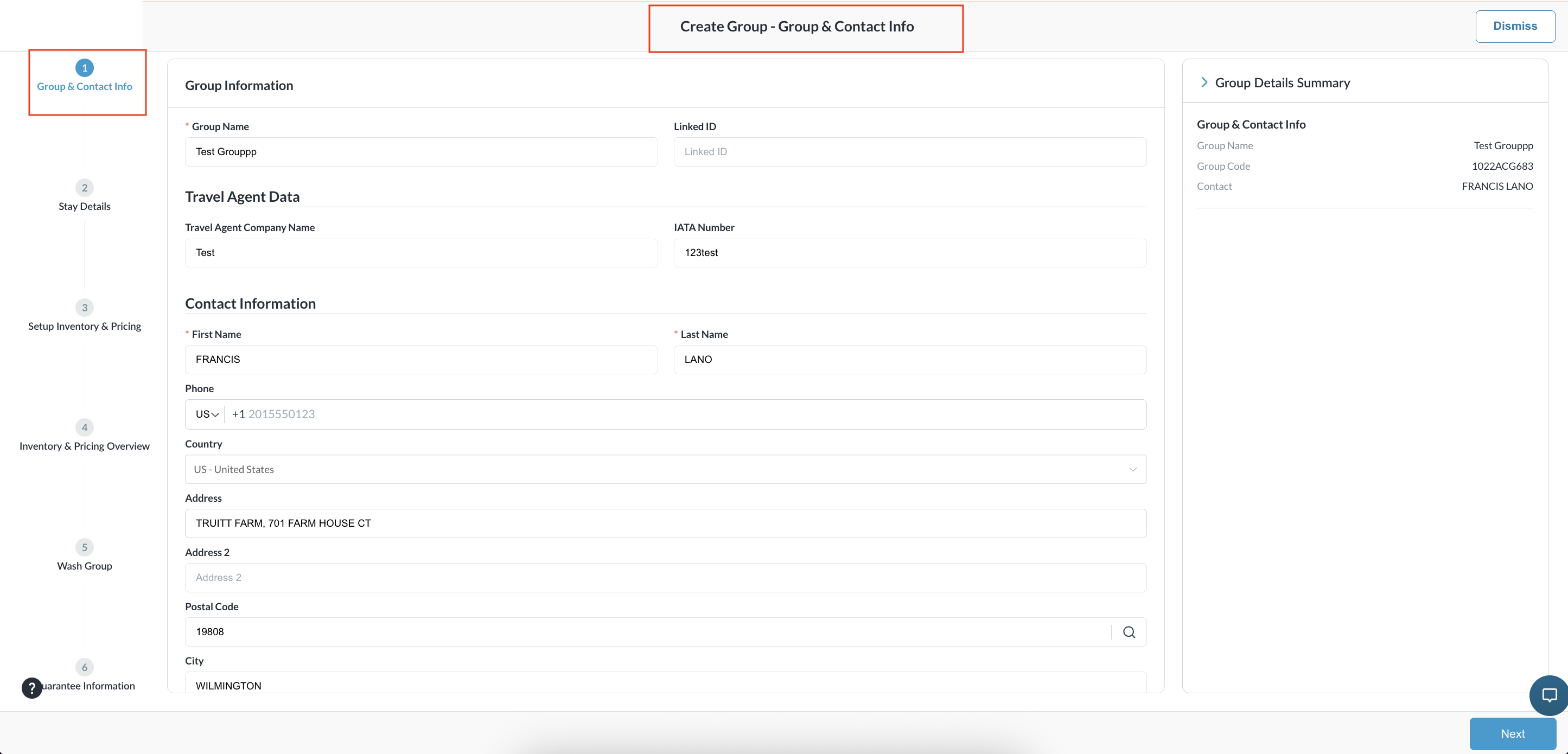
The system will redirect you to the standard New Group creation flow. Review the form to ensure your selected details have been successfully pre-filled, and proceed with completing any remaining required fields. Once saved, the new Group Master will be generated. Review the newly created block to verify that all selected information has been accurately copied. |
|