
Lock Error Report Overview
Parent Hub: 🧹 Rooms & Facilities
Category: 🛠️ Facilities Maintenance
Target Roles: Chief Engineers, Maintenance Supervisors, Facilities Technicians, IT/Systems Administrators, Executive Housekeepers, Front Office Managers, General Managers
Key Value: Monitor door lock hardware and digital interface health, diagnose physical lock defects and connectivity drops, track affected in-house guests, enforce standardized maintenance troubleshooting protocols, and ensure secure guest room access across property facilities.
Executive Summary
The Lock Error Report is an essential facilities maintenance, hardware diagnostic, and guest safety oversight document within the 🛠️ Facilities Maintenance category of the 🧹 Rooms & Facilities hub. Designed to provide complete operational, engineering, and technical visibility over door lock hardware, wireless access point gateways, and keycard encoder interfaces, it itemizes all active door lock malfunctions and system configuration gaps detected across the property.
-
By organizing door lock issues into 3 defined report sections: Broken Locks, Locks Are Not Configured, and No Lock Activity, this report enables maintenance technicians, facilities leads, and engineering teams to isolate physical hardware damage (
Broken Locks), resolve unconfigured system mappings (Locks Are Not Configured), and troubleshoot wireless network drops (No Lock Activity). It correlates physical door hardware identifiers (Lock Name) with system diagnostics (Error Message), failure instances (No of Instance), affected guest volume (No of Guest Affected), and actionable engineering work order steps (Proposed Resolution).
Key Capabilities
-
Three-Section Facilities Diagnostic Structure: Separates physical lock repairs (
Broken Locks) from software setup requirements (Locks Are Not Configured) and wireless signal disconnections (No Lock Activity). -
Guest Impact Risk Assessment: Quantifies the exact count of registered guests impacted by lock defects (
No of Guest Affected) to prioritize immediate facilities dispatch and room key re-issuance. -
Failure Frequency Tracking: Measures cumulative error triggers (
No of Instance) to help engineering leads distinguish intermittent signal interference from permanent hardware failure. -
Standardized Maintenance Work Orders: Generates prescribed, actionable engineering solutions (
Proposed Resolution, e.g., "Inspect and replace the broken lock", "Configure the lock in the system", "Activate the lock and verify connectivity"). -
Facilities & Front Office Synchronization: Aligns physical door maintenance with front desk room assignments to prevent checked-in guests from being assigned to rooms with defective or unconfigured door locks.
Report Views & Functional Breakdown
The Lock Error Report presents hardware and network diagnostic data across 3 defined sections:
┌────────────────────────────────────────────────────────────────────────┐
│                        LOCK ERROR REPORT                               │
├────────────────────────────────────────────────────────────────────────┤
│                       3 Defined Report Sections                        │
├──────────────────────────┬──────────────────────────┬──────────────────┤
│ 1. Broken Locks Section  │ 2. Locks Are Not         │ 3. No Lock       │
│    (Hardware Failures)   │    Configured Section    │    Activity Sec. │
└──────────────────────────┴──────────────────────────┴──────────────────┘
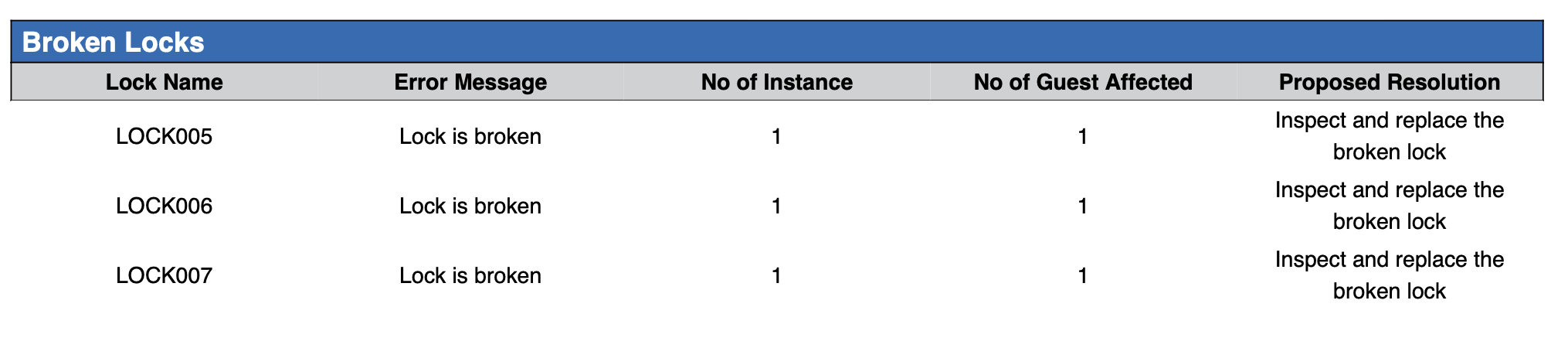
1. Broken Locks Section
Monitors physical hardware defects, mechanical deadbolt jams, low battery warnings, or damaged RFID reader boards.
-
Primary Use: Dispatching maintenance technicians for physical lock inspections, battery replacements, or hardware unit swaps.
-
Key Metrics: Lock Name, Error Message, No of Instance, No of Guest Affected, Proposed Resolution.
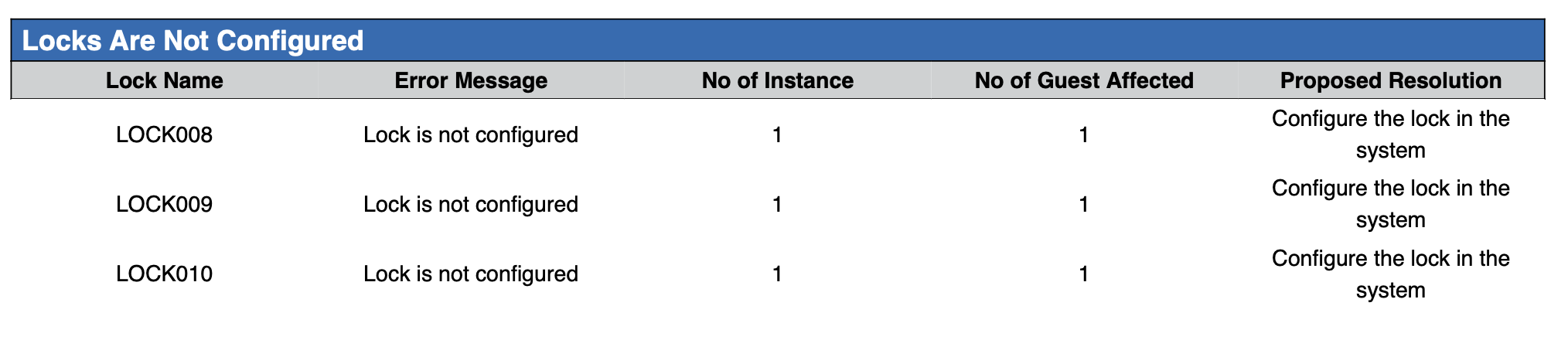
2. Locks Are Not Configured Section
Tracks installed door locks that lack proper system configuration, room mapping, or keycard encoder pairing in the PMS database.
-
Primary Use: Guiding facilities administrators and IT leads to complete system door mapping before releasing rooms for guest assignment.
-
Key Metrics: Lock Name, Error Message, No of Instance, No of Guest Affected, Proposed Resolution.
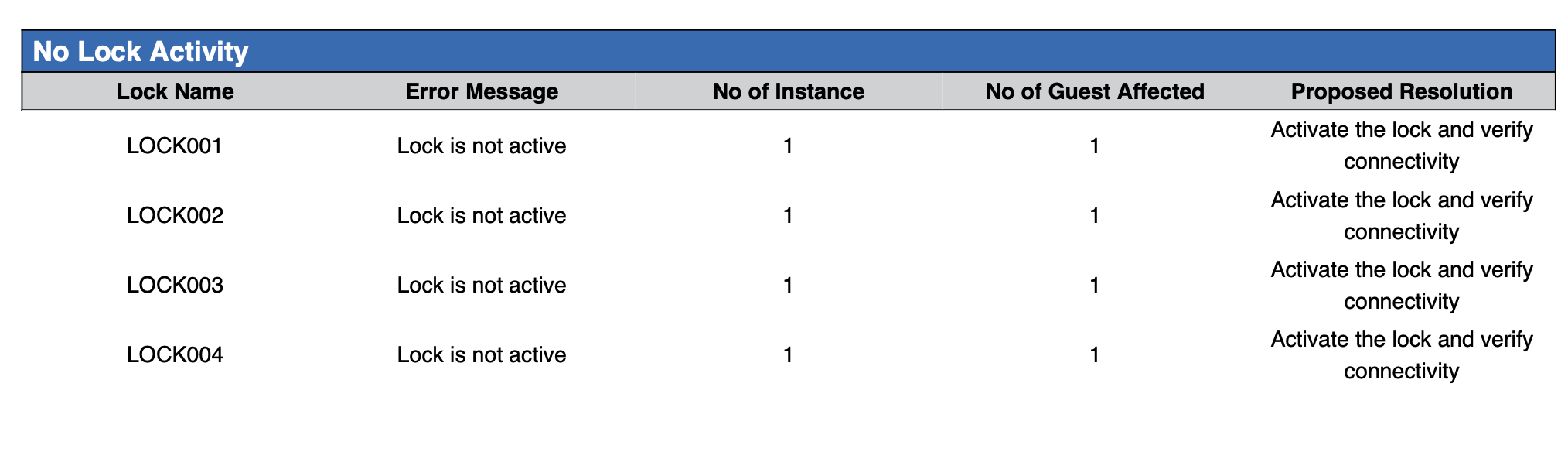
3. No Lock Activity Section
Itemizes door locks experiencing wireless network signal loss, offline Zigbee/Wi-Fi gateways, or absent communication logs over expected timeframes.
-
Primary Use: Troubleshooting wireless access point gateways, re-establishing lock network pairing, and restoring keycard connectivity.
-
Key Metrics: Lock Name, Error Message, No of Instance, No of Guest Affected, Proposed Resolution.
Data Dictionary (Dynamic View Columns)
Customize your default view using the Configure (⚙️) icon on the report page. Below is the full data dictionary representing all 5 columns available in this report:
💡 Operational Note: All columns in this report serve as facilities diagnostic indicators.
No of Instancetracks cumulative error events logged by the system, whileNo of Guest Affectedindicates active in-house reservations assigned to rooms with reported lock errors.
|
Column Name |
Section Applicability |
Description |
Data Source / System Mapping |
Includes Taxes & Fees? |
|
Lock Name |
All 3 Sections |
Unique physical door lock or room location identifier (e.g., |
Facilities Lock Interface > Lock ID |
N/A |
|
Error Message |
All 3 Sections |
Standardized system diagnostic description (e.g., |
Lock Interface > Error Flag |
N/A |
|
No of Instance |
All 3 Sections |
Cumulative numerical count of error alerts logged for the lock. |
Lock Interface > Event Count |
N/A |
|
No of Guest Affected |
All 3 Sections |
Count of active registered guests assigned to the room/lock. |
PMS Reservations > Occupant Count |
N/A |
|
Proposed Resolution |
All 3 Sections |
Prescribed maintenance action required (e.g., "Inspect and replace the broken lock", "Configure the lock in the system", "Activate the lock and verify connectivity"). |
Facilities Maintenance Rules > Resolution |
N/A |
Customization & Platform Features
User & Property Preferences
-
Personal Preference: Tailor your individual view by hiding or dragging columns. Your preferences save automatically for future sessions.
-
Property Defaults: System Admins can configure standard default layouts across all property users to streamline operational reporting. To maximize audit efficiency, group the columns into the below logical blocks:
-
Section 1: Broken Locks
-
Compact Order:
Lock Name|No of Guest Affected|No of Instance|Error Message|Proposed Resolution
-
-
Section 2: Locks Are Not Configured
-
Compact Order:
Lock Name|No of Guest Affected|No of Instance|Error Message|Proposed Resolution
-
-
Section 3: No Lock Activity
-
Compact Order:
Lock Name|No of Guest Affected|No of Instance|Error Message|Proposed Resolution
-
-
Report Toolbar & Quick Actions
Use the top-right toolbar icons on the report page to manage and export your data view:
|
Icon |
Action / Feature |
Description |

|
Knowledge Article |
Opens the knowledge base article to learn how to interpret this report. |

|
Saved Views |
Saves your column filtering, sorting, and highlight preferences so you can easily reload your custom view later without reconfiguring the report. |

|
Filter |
Opens filter controls to isolate specific data within a column based on your selected criteria. |

|
Highlight |
Highlights column values in a designated color based on selected conditions. |

|
Export |
Exports and downloads the report in various formats (Excel, PDF, CSV) for offline analysis or printing. |

|
Configure |
Opens column selection controls to toggle visibility, reorder columns, or hide rows with all zeros. |

|
Additional Configuration |
Provides advanced report configuration and display formatting options to customize data presentation. |
Advanced Controls
-
Exporting & Work Order Dispatch: Download in Excel or PDF format to generate daily facilities work orders for maintenance technicians and IT leads.
-
Filtering: Filter data by
No of Guest Affected > 0to prioritize rooms with active in-house guests requiring immediate physical or key assistance. -
Highlighting (Conditional Formatting): Apply custom rules to automatically highlight physical hardware failures (
Broken Locks), high error instance counts (No of Instance > 1), or unconfigured active rooms.
🔗 Related Reports & Next Steps
Within 🧹 Rooms & Facilities & 🛠️ Facilities Maintenance:
-
Room Detail – Master room-by-room physical status, housekeeping, and maintenance audit matrix.
-
Stay Request Details – Task dispatch report tracking guest housekeeping and maintenance amenity requests.
-
All Rooms – Comprehensive maintenance log tracking rooms removed from service for repair.
Cross-Pillar Deep Dives:
-
🛎️ Front Desk & Guest Services: Cross-reference lock error rooms with Arrivals List to prevent assigning unconfigured or broken rooms to arriving guests.