
Revision Date:
The Add Folio feature allows users to create additional billing ledgers within the Advanced Folio View—an enhanced interface providing multiple layout options (Full Detail, Side-by-Side, and Compact Summary views) for managing charges, payments, and routing. Creating an additional folio is primarily used to separate specific charges, such as keeping room rent on one ledger and incidentals on another.
Applicable To
-
Individual Reservation
-
Group Master
-
House Account
|
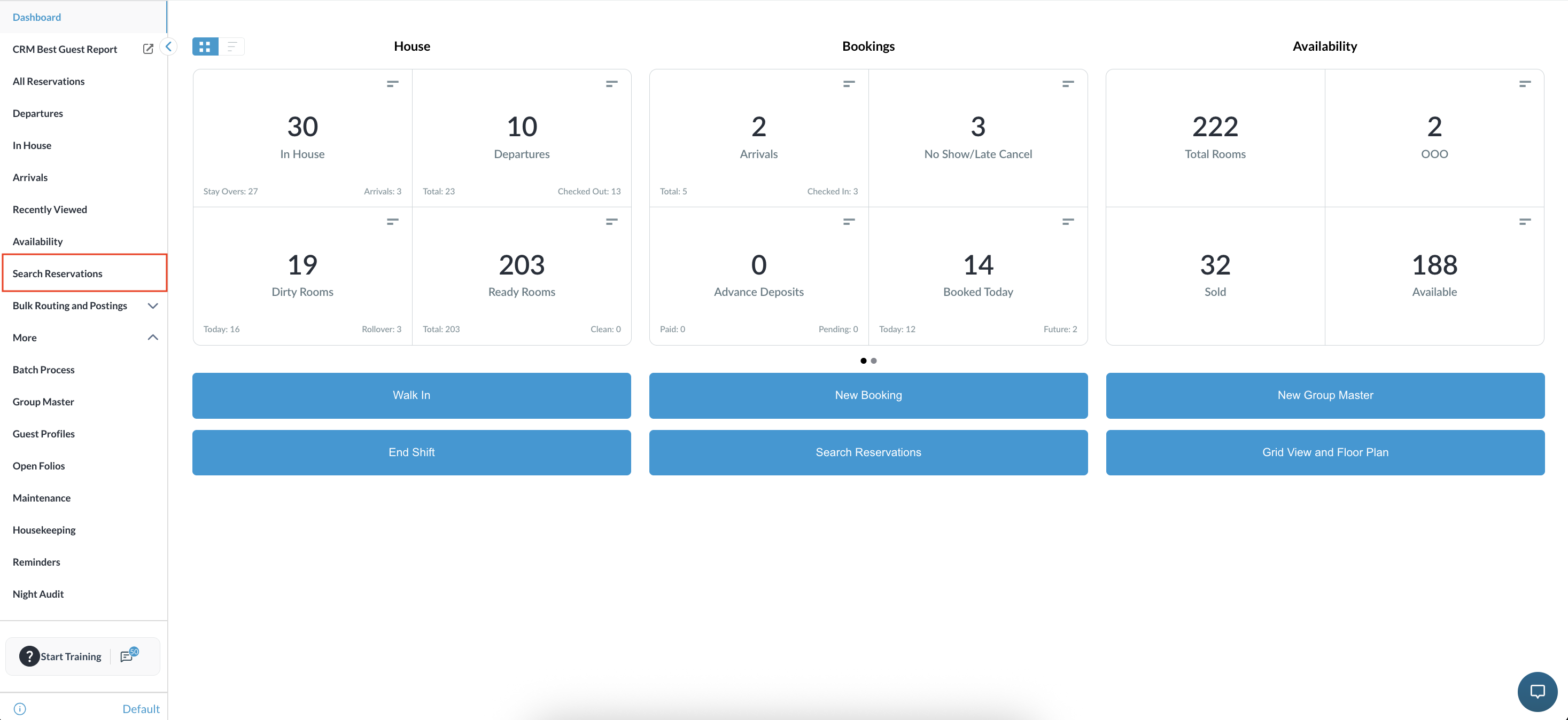
Navigate to the Frontdesk Dashboard and click on All Reservations |
|
|
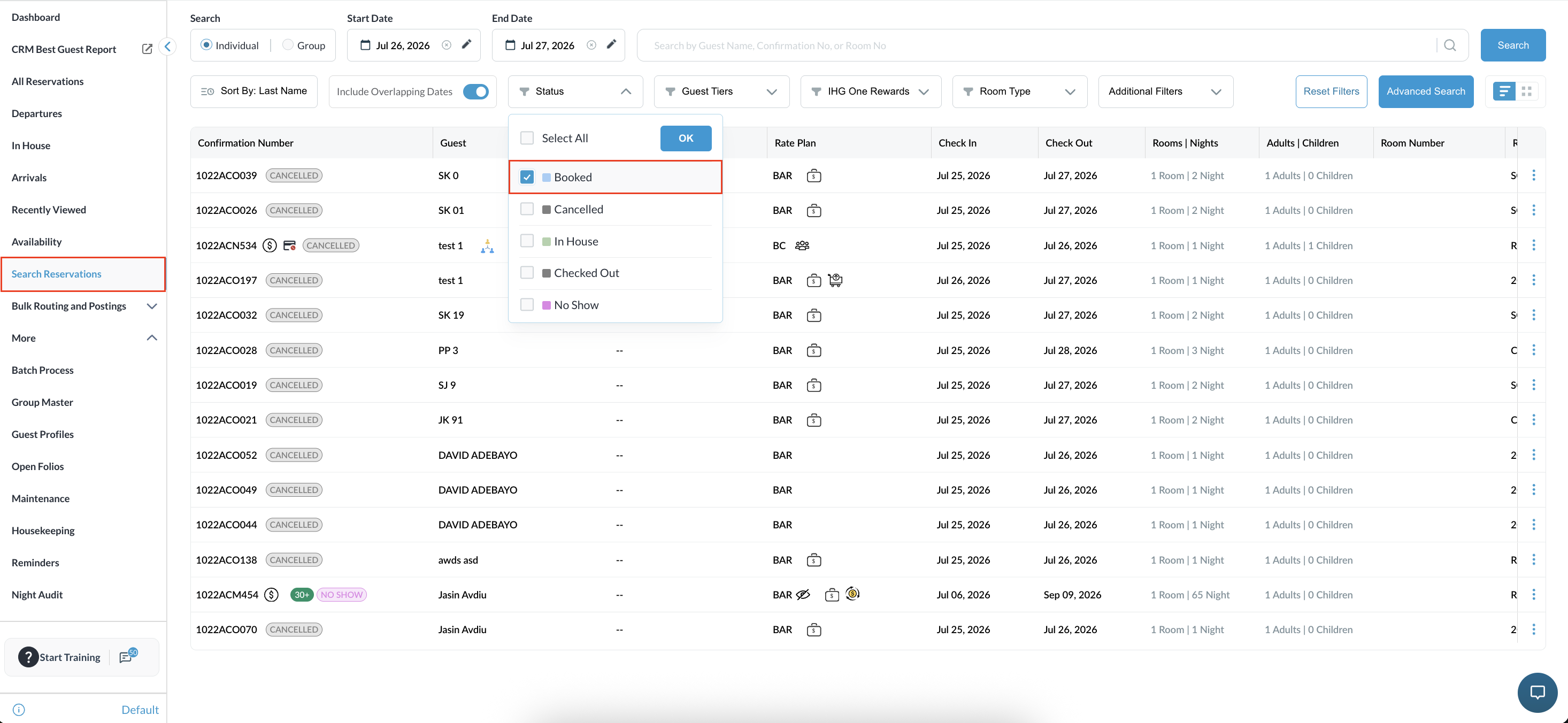
Find the reservation by searching by Date, Guest Name, Confirmation, or Room Number, and then click Search. You can select the Status button to further filter your results. Select the reservation once you have located it. |
|
|
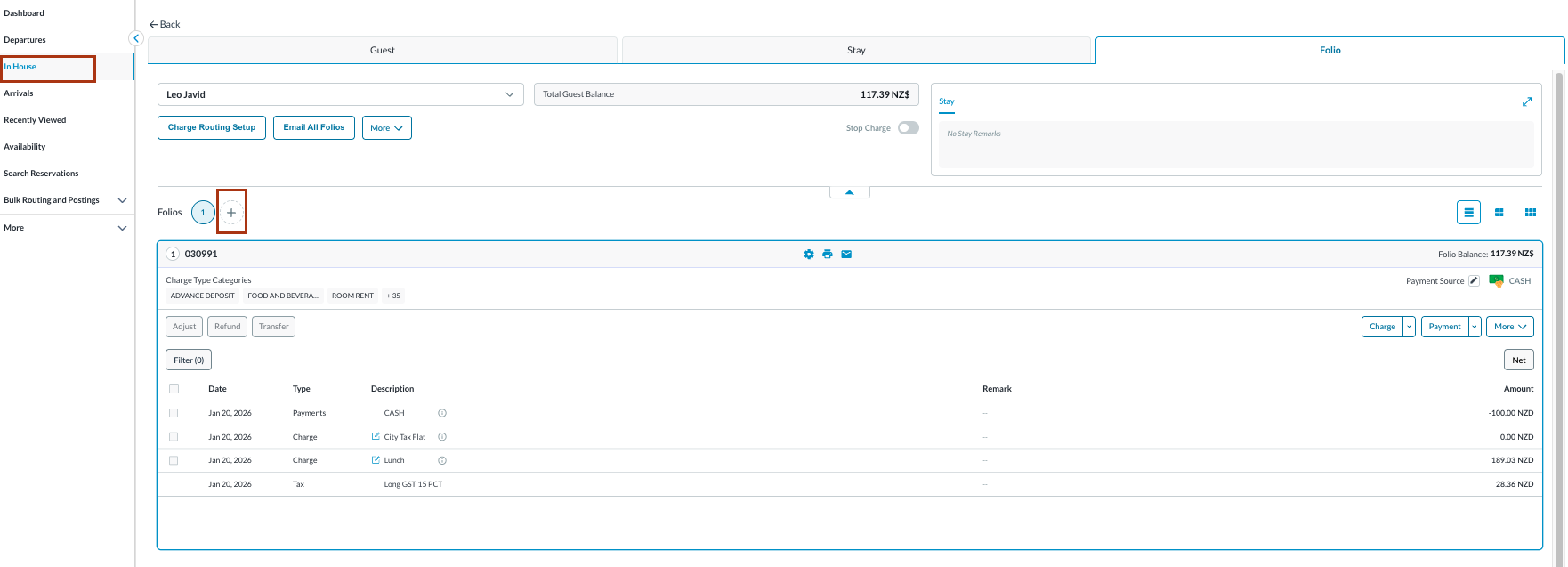
The Reservation Details page opens, displaying the Guest tab by default. Navigate to and select the Folio tab to continue.
Note: the folio screen automatically adjusts to the most efficient layout. If a reservation contains multiple folios, the screen defaults to Side-by-Side View. The there is a single folio, the screen will open in Full Detail View. |
|
|
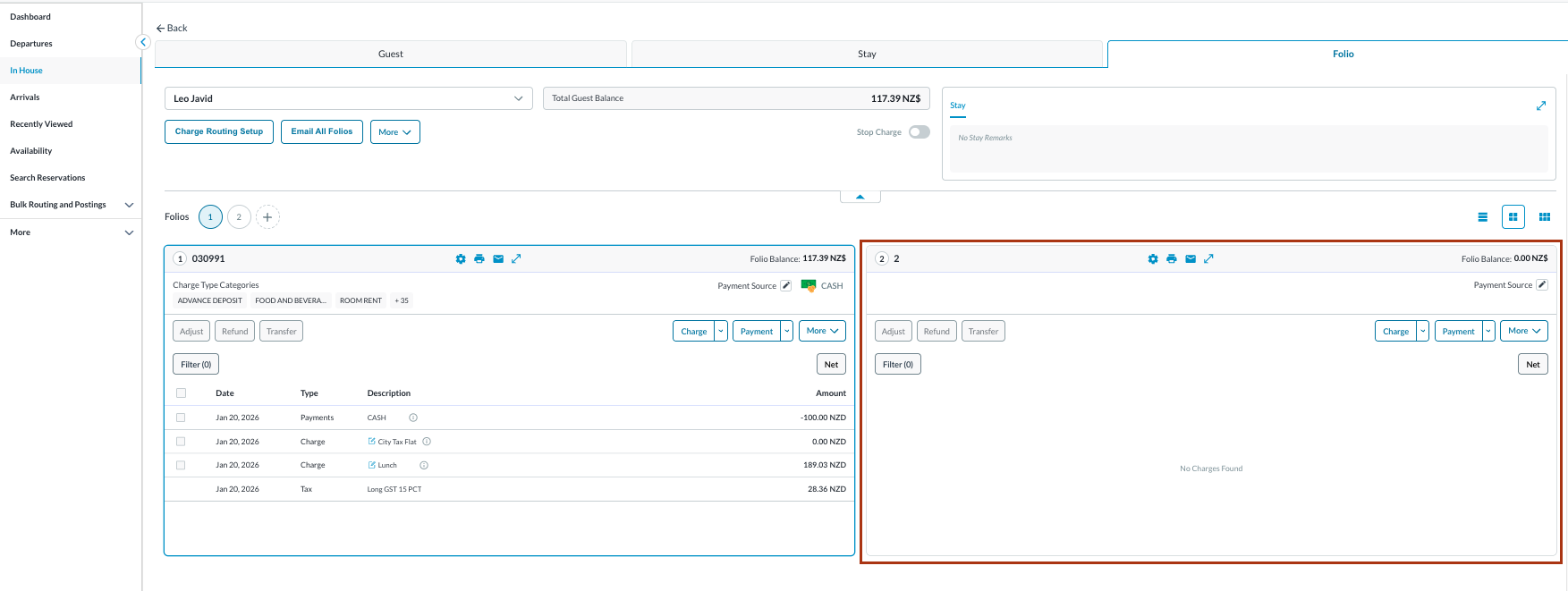
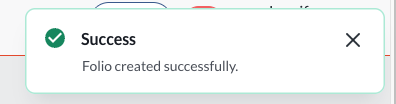
A new folio will be created and added to the reservation. A pop up will confirm the ‘Folio created successfully’.
You can now add charges, payments, or make adjustments to the folio as required. All folios associated with the reservation will be listed and accessible under the Folio tab. |
|