
📆 Revision Date:
This article explains how to handle the “Payment Adjustment Not Allowed” error, which may occur when a bank, credit card, or payment gateway does not support reducing (adjusting down) an existing authorization. In such cases, the recommended approach is to complete the authorization and refund the excess amount.
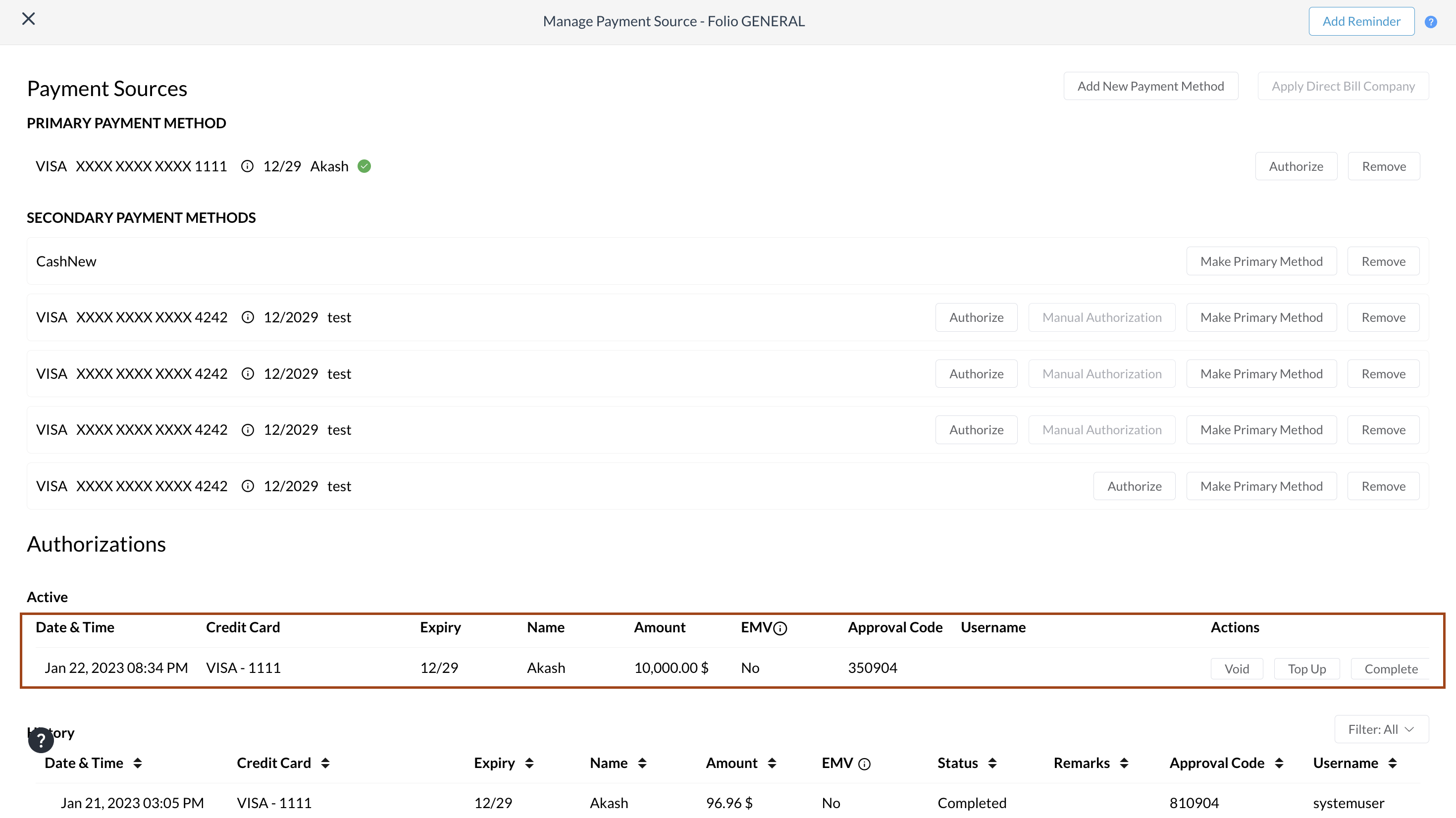
You are in In House Reservations and you have authorized a credit card with the desired amount and the amount now reflects in payment source & authorization history.
|
The updated authorization is displayed on the Payment Source screen. |
|
|
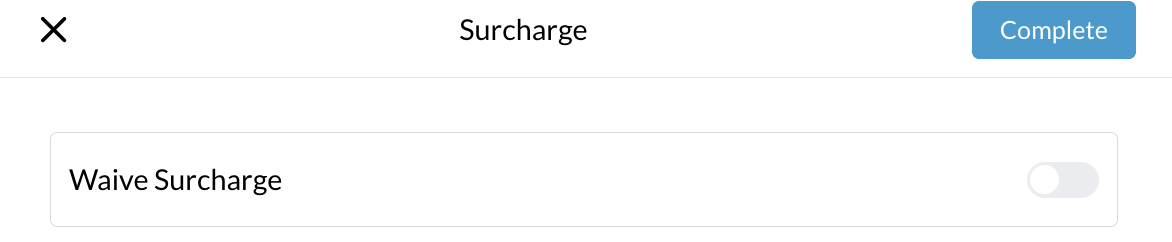
In the Authorization screen displaying all active authorizations with options to View, Void, Top Up, or Complete. Locate the applicable authorization and select Complete. Confirm the action by selecting Complete again. A Success message displays once the authorization is completed. |

|
|
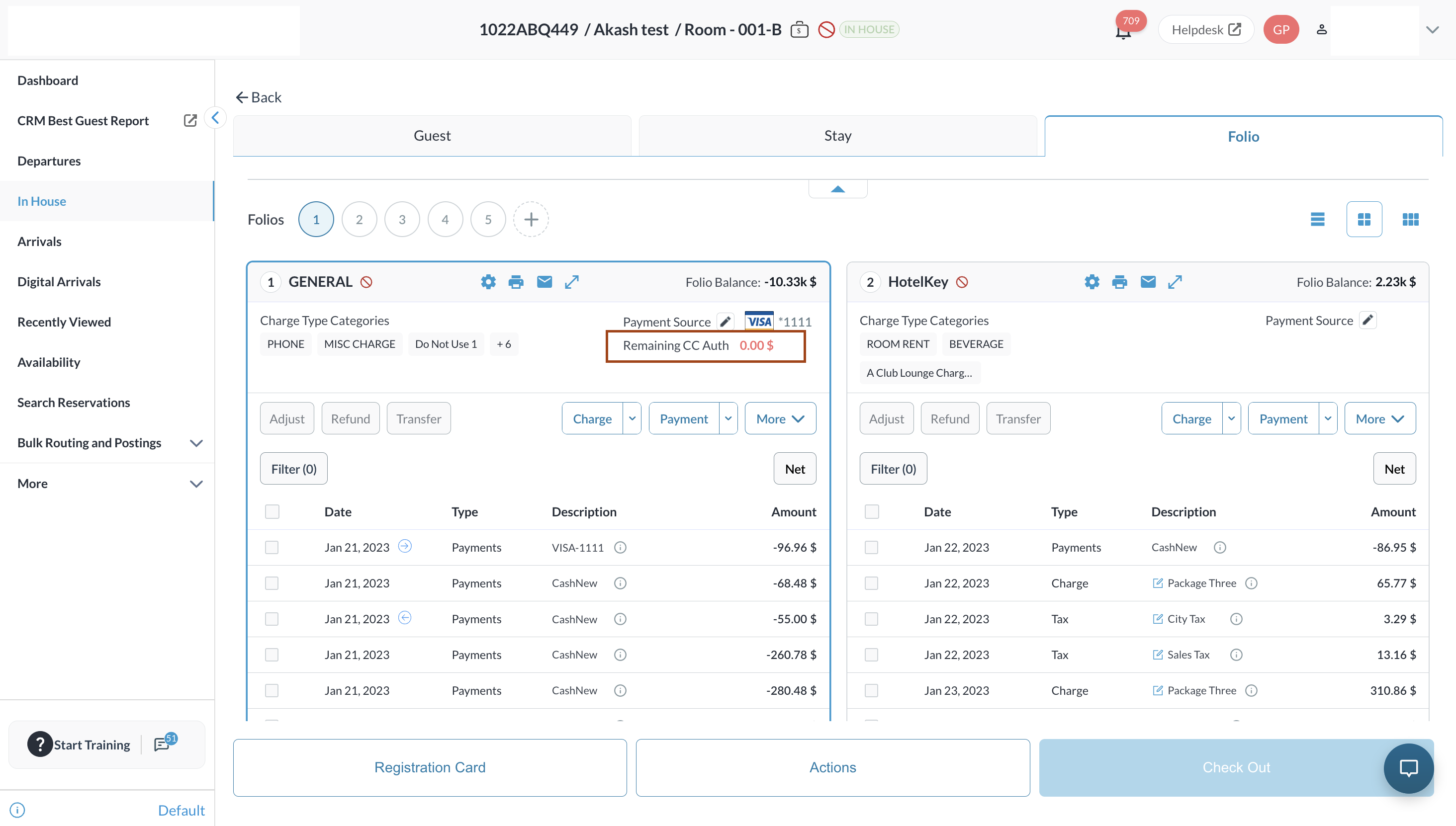
The completed authorization now appears as a settled payment on the Folio tab and is recorded in Authorization History. With the authorization completed, the folio reflects zero remaining authorization and may show a negative balance if there is an overpayment. |
|
|
In this example, we will complete the authorization to finish the transaction, and then refund the outstanding balance. To do this, click the Complete button next to the authorization |
|
|
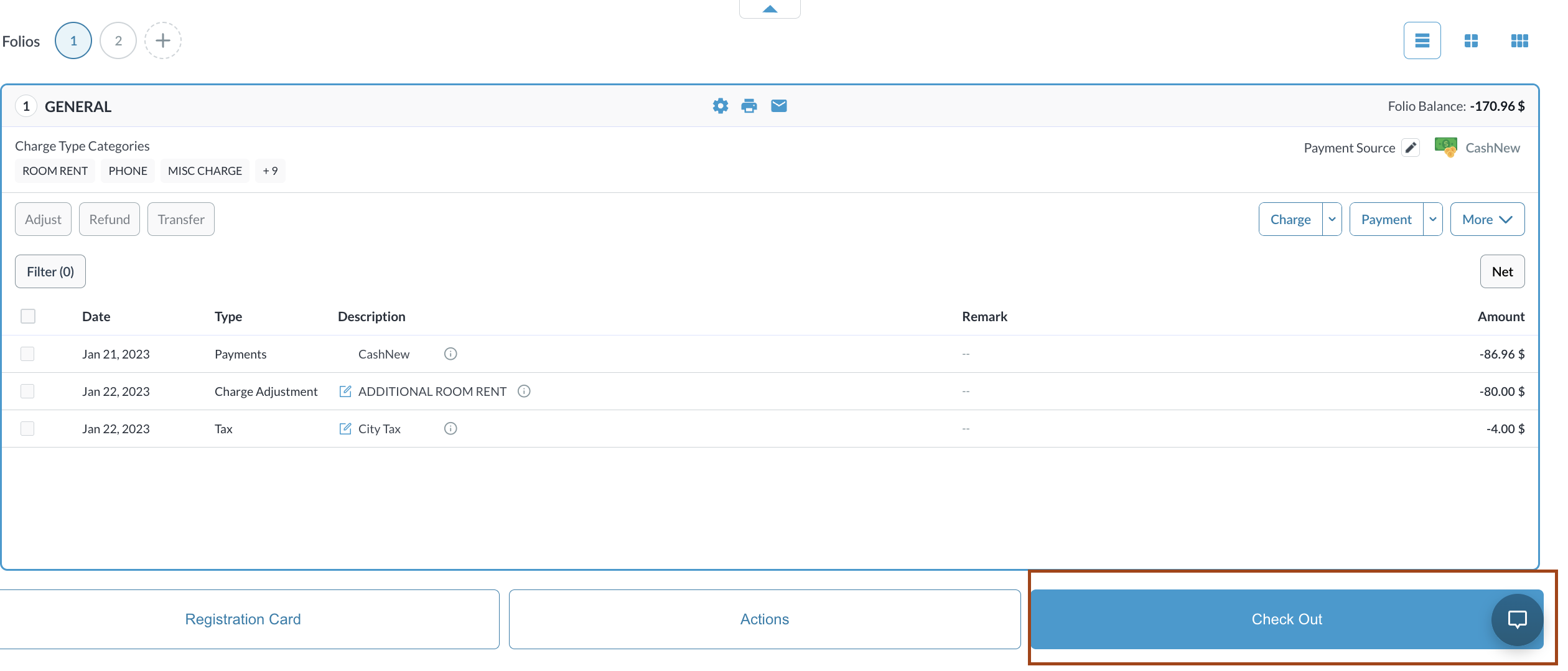
Return to the Folio tab and select Checkout.
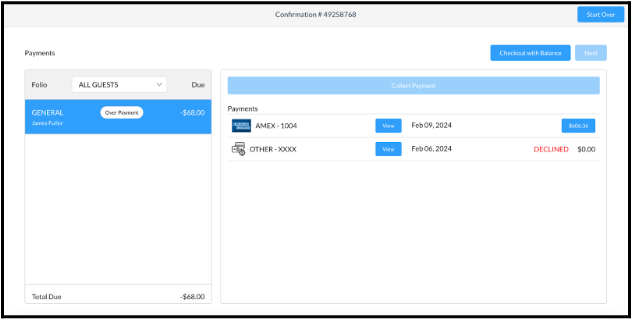
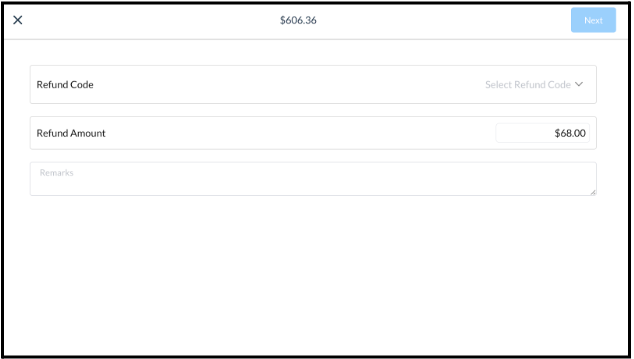
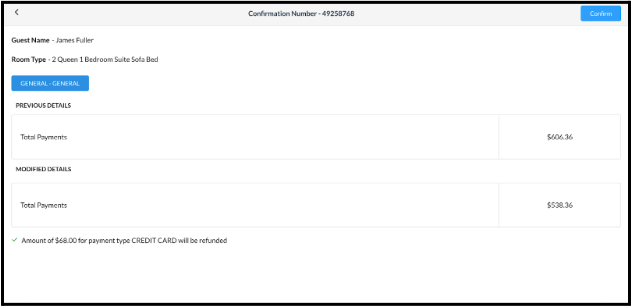
The system indicates an overpayment and prompts for a refund of the negative balance. Select the button showing the full refundable amount. Choose the appropriate Refund Code, enter Remarks, and select Next. Review the details on the confirmation screen and select Confirm to process the refund. Once all folios are balanced, select Next. Review the final checkout summary and select Confirm Check Out to complete the process. In this screen, users can view active authorizations, void, top up, and complete authorizations. |
|
|
There is now remaining authorization and a negative payment balance |

|
|
Return to the folio and click on Checkout. A new screen will appear showing that there has been an overpayment and to refund the negative balance Click the button that shows the full payment amount (in this example, it’s $606.36). |
|
|
Option will come up to refund the remaining balance and to enter the refund code Enter the relevant Refund Code and remarks, and click Next |
|
|
Confirmation page loads, click Confirm to complete the refund |
|
|
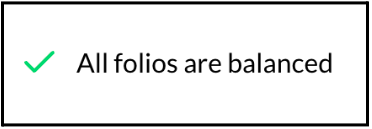
Now that folios are balanced, click the Next button. Screen will confirm all charges and payments and show that all folios are balanced
Select Confirm Check Out button to complete the process |
|