
📆 Revision Date:
This article explains how to issue a refund for a posted payment. The steps below apply to both cash and credit card payments.
|
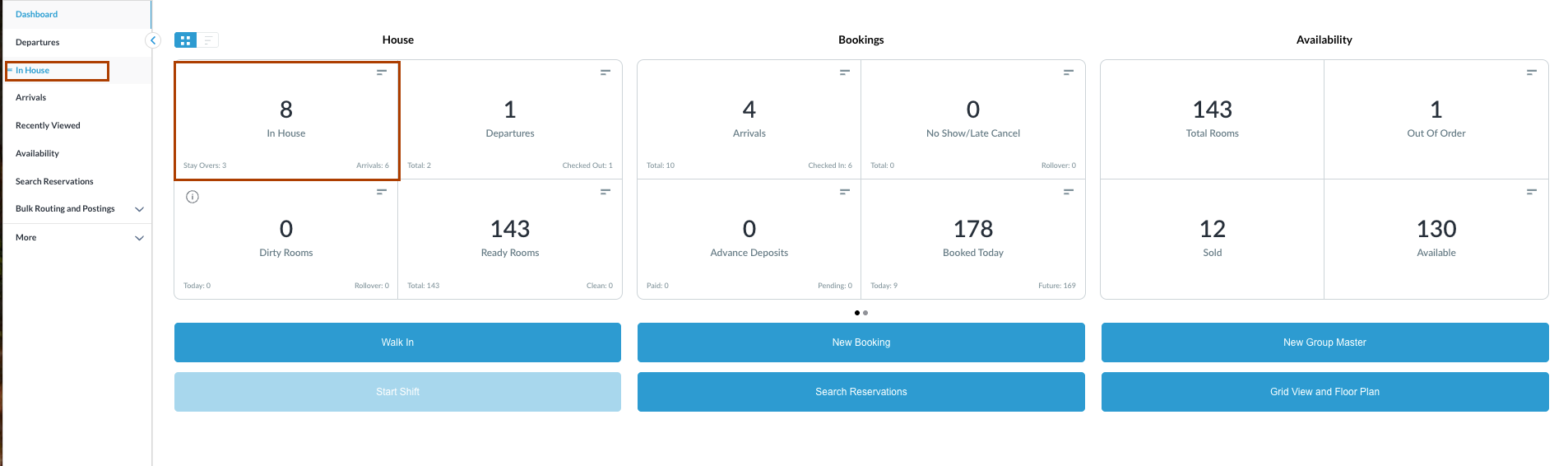
Navigate to In House reservations from Front Desk Dashboard You can also search for in-house reservations using the options in the left-side menu. |
|
|
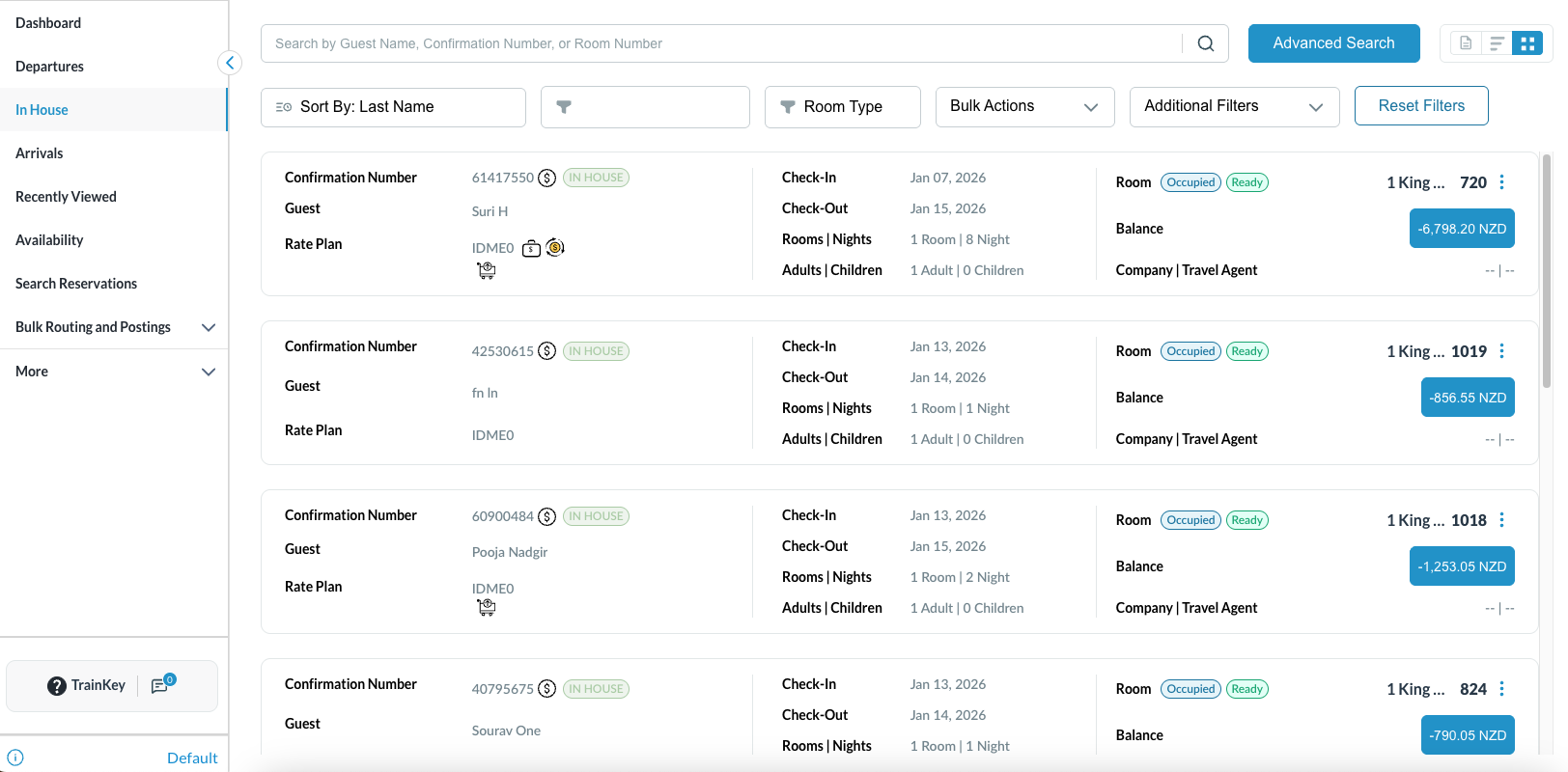
The In House listings page will load. Select the reservation where the payments need to be refunded. |
|
|
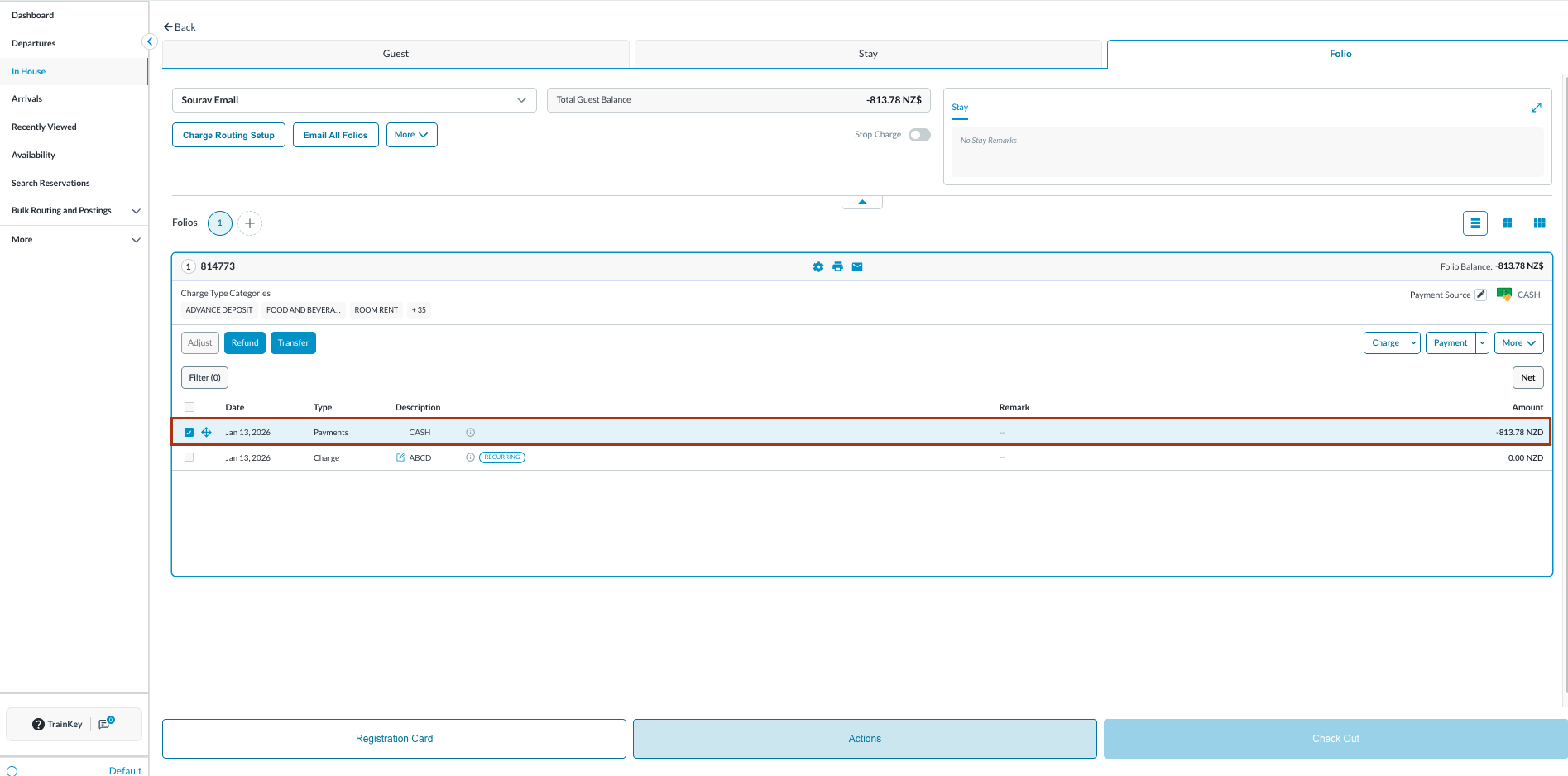
The reservation details page loads to the Guest tab by default.
Note: the folio screen automatically adjusts to the most efficient layout. If a reservation contains multiple folios, the screen defaults to Side-by-Side View. If there is a single folio, the screen will open in Full Detail View. |
|
|
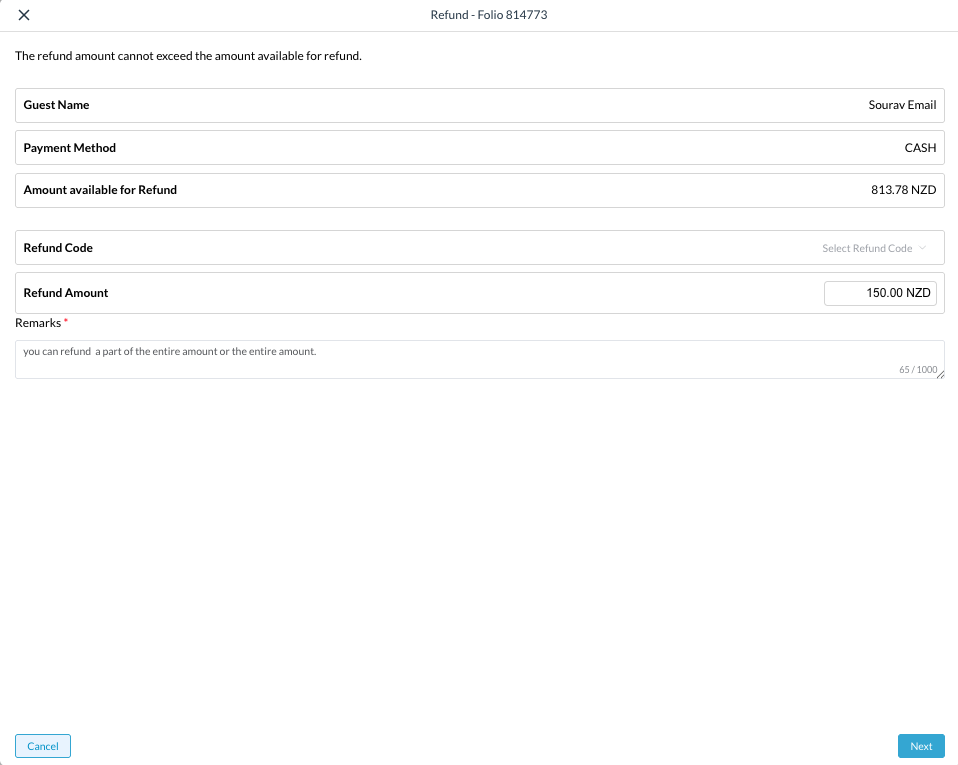
The Refund screen opens.
You can refund part or the entire amount, the refund amount just cannot exceed the amount available for refund. Select Next to continue. |
|
|
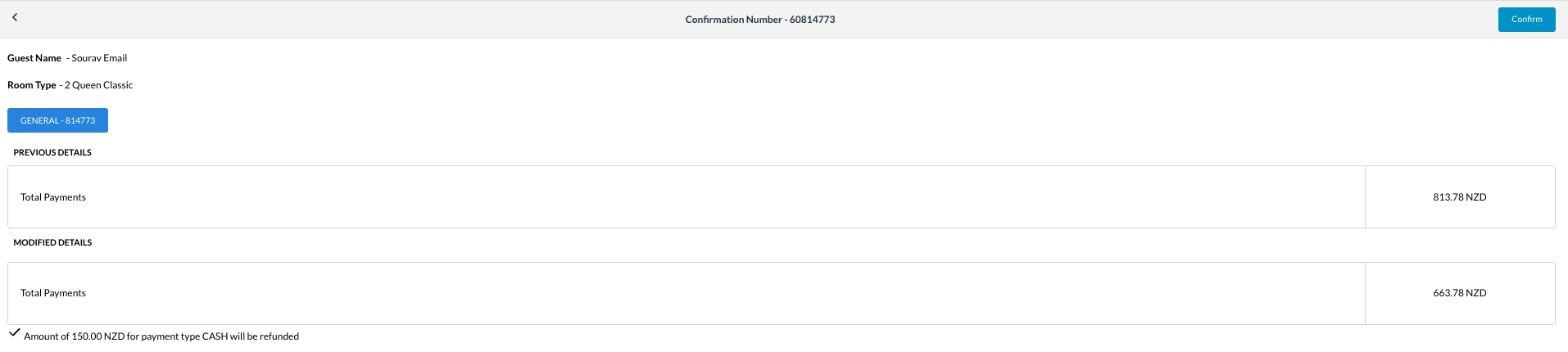
Review the Previous Details and Modified Details on the confirmation screen.
The message pops up : “Success. Refund has been made.” |
|
|
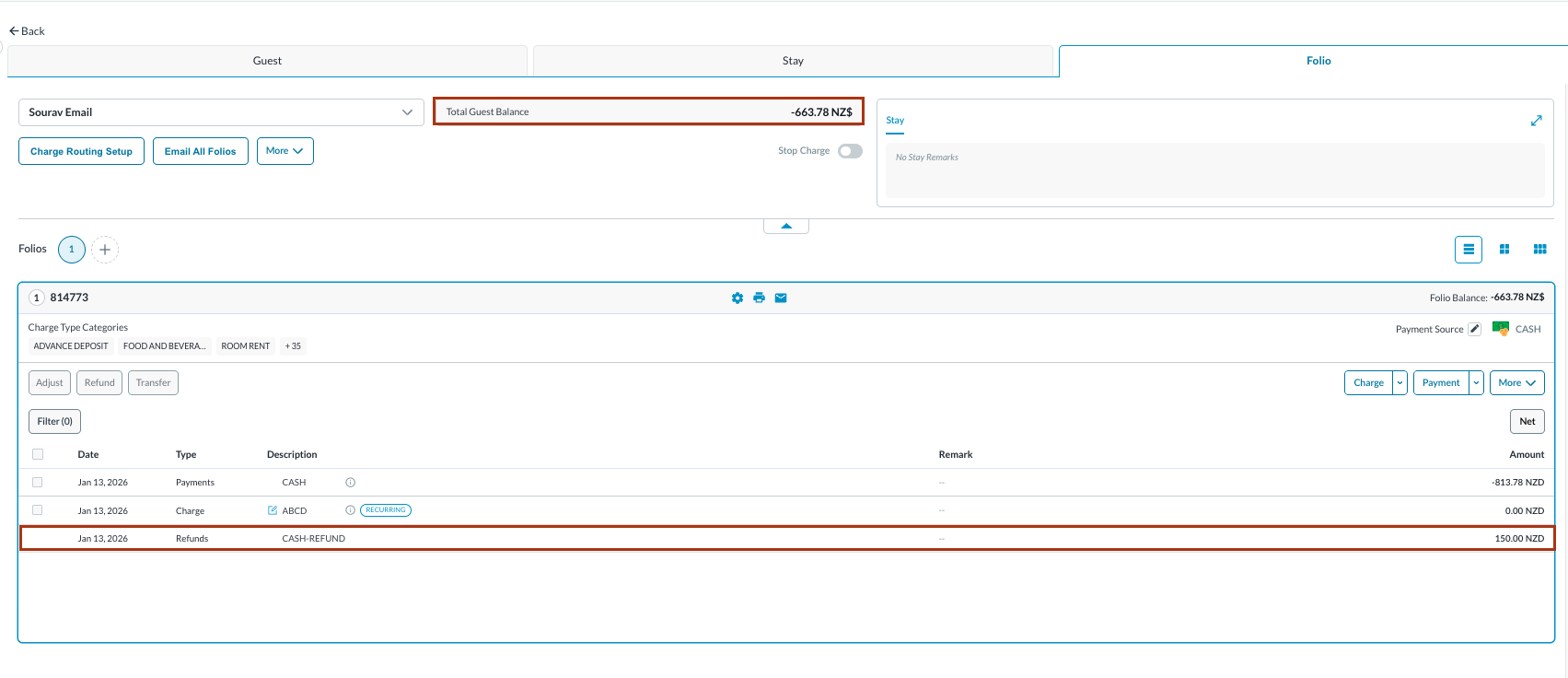
The payment is refunded on the Folio tab of the reservation. Change in Folio balance can be seen. |
|